> ## Documentation Index
> Fetch the complete documentation index at: https://www.krea.ai/docs/llms.txt
> Use this file to discover all available pages before exploring further.
# 图像生成
> 在 Krea 中通过一段文本提示词生成图像,集模型选择器、宽高比控制、风格参考和生成后编辑于一体。
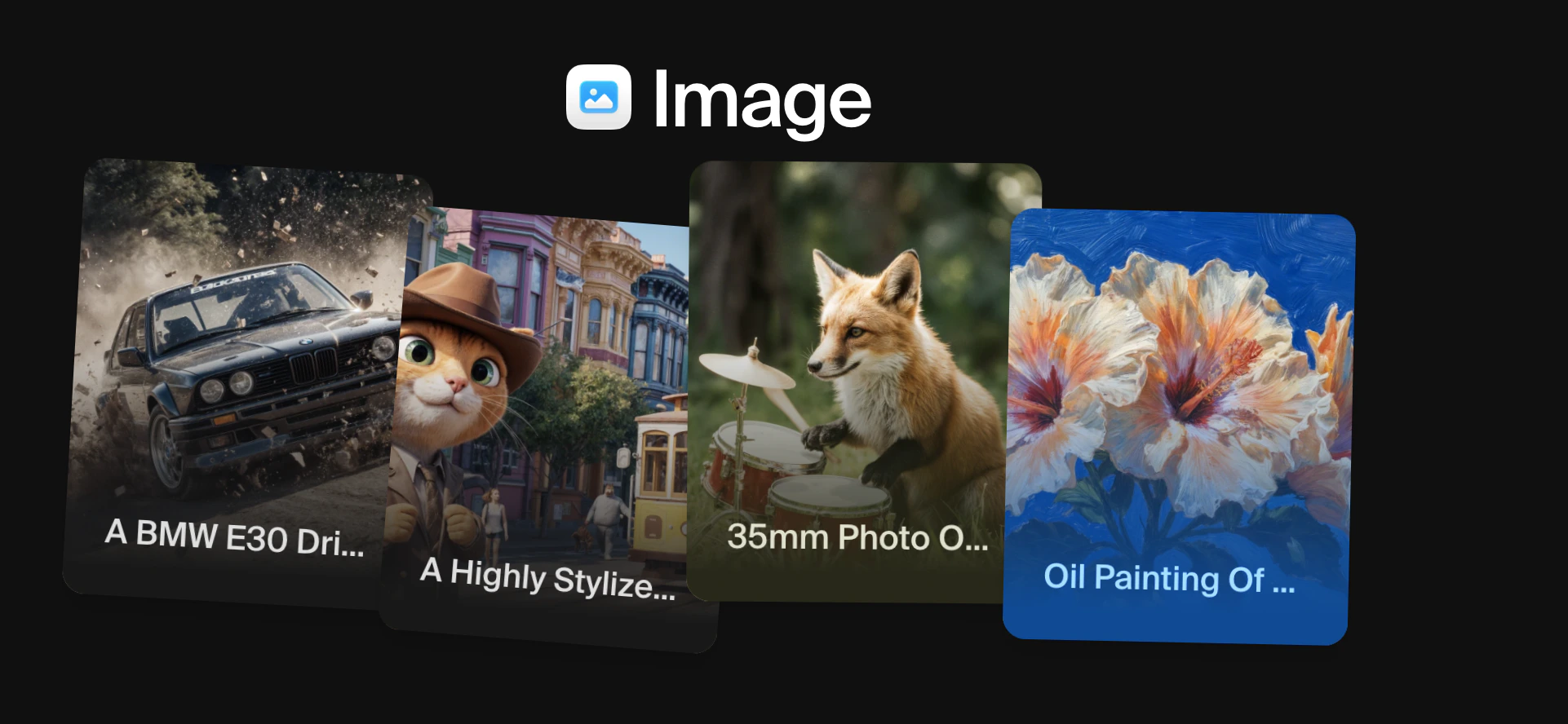 **Krea Image** 是平台的核心创作工具。通过一段文本提示词,你可以生成从照片级真实的照片到风格化插画、概念艺术和图形设计资产的一切。工具让你在同一个界面中访问多个 AI 模型,每一个都有不同的强项。
## 工作方式
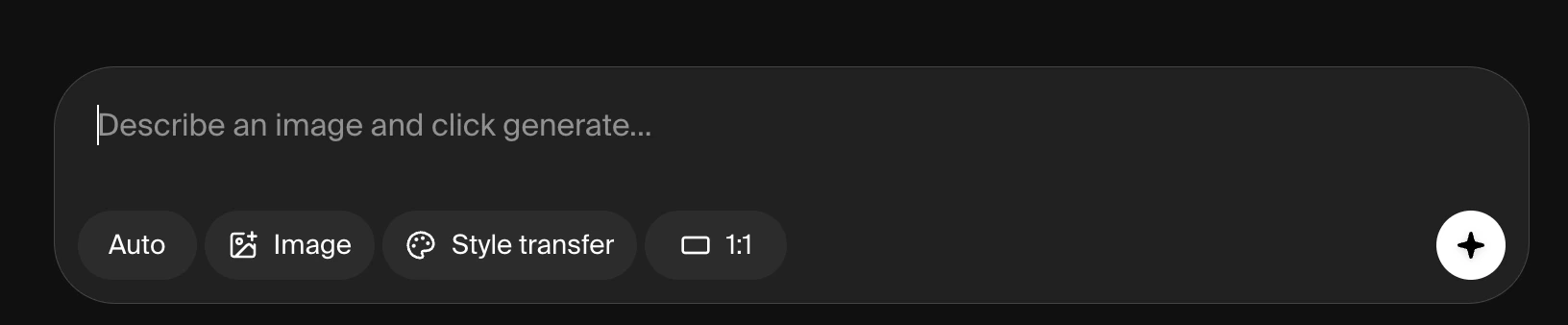
从左侧导航栏的图像图标打开图像模式。你会在屏幕底部看到一个提示词框,在左下角看到一个模型选择器。
**Krea Image** 是平台的核心创作工具。通过一段文本提示词,你可以生成从照片级真实的照片到风格化插画、概念艺术和图形设计资产的一切。工具让你在同一个界面中访问多个 AI 模型,每一个都有不同的强项。
## 工作方式
从左侧导航栏的图像图标打开图像模式。你会在屏幕底部看到一个提示词框,在左下角看到一个模型选择器。
 ### 1. 选择模型
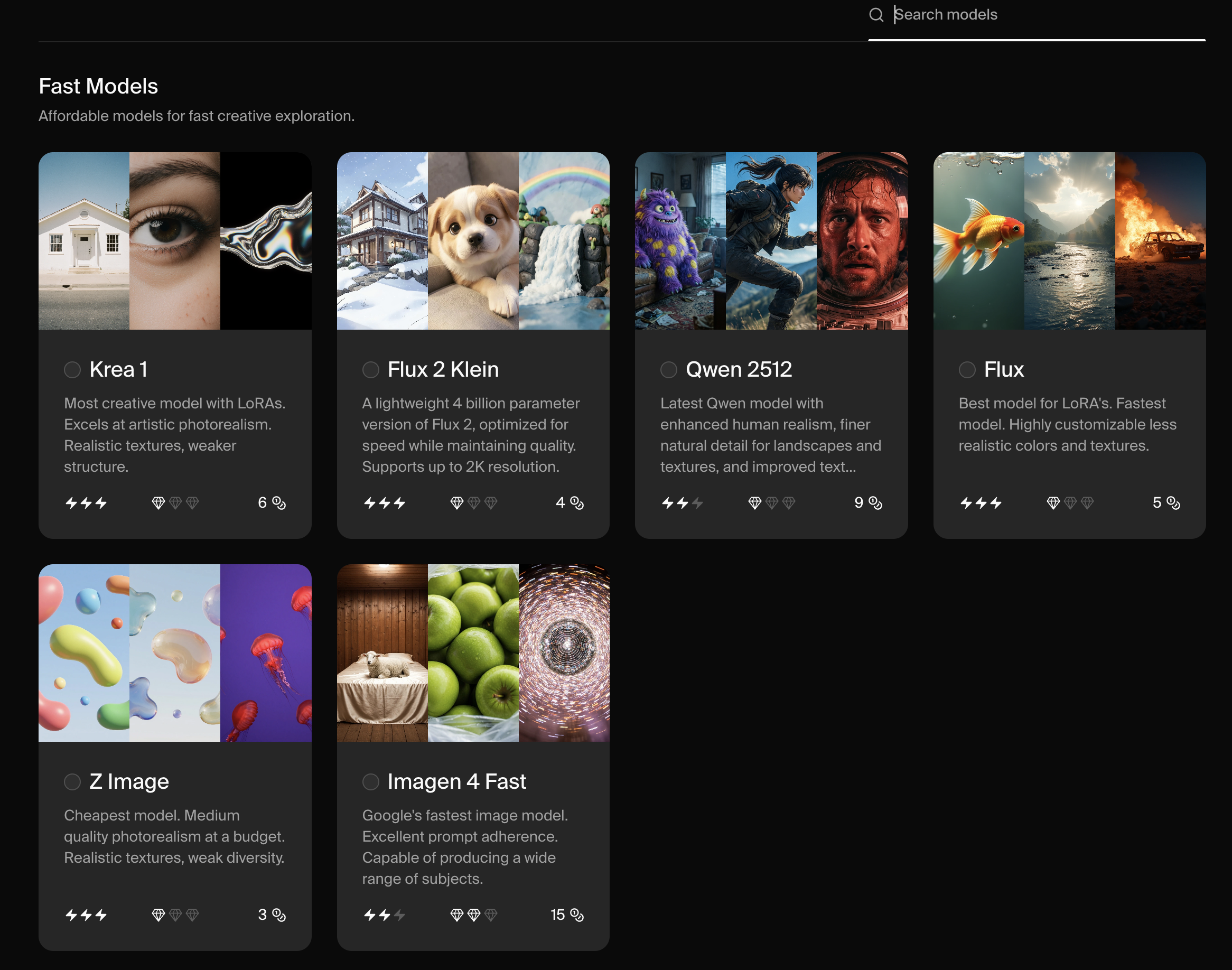
点击左下角的模型名打开模型选择器。选择器列出所有可用的图像模型,并附上每个模型的简要描述、速度、质量层级和计算成本。
### 1. 选择模型
点击左下角的模型名打开模型选择器。选择器列出所有可用的图像模型,并附上每个模型的简要描述、速度、质量层级和计算成本。
 默认选项是 **Auto**,它会自动为你的提示词选择最合适的模型。如果你更愿意自己挑选,一个不错的起点是 **Krea 1**,Krea 自家的前沿模型,针对风格化、摄影感的图像做了优化,能避免通用的 AI 观感。
完整的可用模型列表见 [Model Overview](/user-guide/features/model-overview)。
**每次生成的图像数量:** Krea 1、Flux 和 Flux.1 Krea 每个提示词生成 4 张图像。其他所有模型生成 2 张。
**每次生成的计算单元:** 每个付费套餐都包含默认的计算单元预算。不同模型的成本差异很大——Krea 1 一次生成使用 8 个单元,而 ChatGPT Image 使用 183 个。尽可能使用低成本模型进行迭代,如需可购买加量单元。
**速度:** 生成时间从约 6 秒(Krea 1)到 45 秒或更多(Nano Banana)不等。
**分辨率:** 大多数模型上限为 1024px 方形。Krea 1、Seedream 4、Wan 2.5、Flux.1 Krea 和 Flux 1.1 Pro Ultra 支持更高分辨率输出,某些情况下可达 4K。
以下是完整对比:
| | **每次**
默认选项是 **Auto**,它会自动为你的提示词选择最合适的模型。如果你更愿意自己挑选,一个不错的起点是 **Krea 1**,Krea 自家的前沿模型,针对风格化、摄影感的图像做了优化,能避免通用的 AI 观感。
完整的可用模型列表见 [Model Overview](/user-guide/features/model-overview)。
**每次生成的图像数量:** Krea 1、Flux 和 Flux.1 Krea 每个提示词生成 4 张图像。其他所有模型生成 2 张。
**每次生成的计算单元:** 每个付费套餐都包含默认的计算单元预算。不同模型的成本差异很大——Krea 1 一次生成使用 8 个单元,而 ChatGPT Image 使用 183 个。尽可能使用低成本模型进行迭代,如需可购买加量单元。
**速度:** 生成时间从约 6 秒(Krea 1)到 45 秒或更多(Nano Banana)不等。
**分辨率:** 大多数模型上限为 1024px 方形。Krea 1、Seedream 4、Wan 2.5、Flux.1 Krea 和 Flux 1.1 Pro Ultra 支持更高分辨率输出,某些情况下可达 4K。
以下是完整对比:
| | **每次**
**生成的图像数量** | **每次**
**生成的计算单元** | **每次**
**生成的秒数** | **最大**
**分辨率** |
| :----------------- | :---------------------- | :---------------------- | :-------------------- | :------------------ |
| Krea 1 | 4 | 8 | 6 | **4096** |
| Krea 2 Turbo | 4 | 2 | 4 | **1K** |
| Flux | 4 | 5 | 4 | 1024 |
| Nano Banana | 2 | 114 | 45 | 1024 |
| ChatGPT Image | 2 | 183 | 60 | 1024 |
| Seedream 4 | 2 | 24 | 20 | **4096** |
| Wan 2.5 | 2 | 569 | 180 | **1536** |
| Qwen | 2 | 8 | 15 | 1024 |
| Imagen 4 | 2 | 114 | 60 | 1024 |
| Runway Gen-4 | 2 | 140 | 60 | 1024 |
| Ideogram 3.0 | 2 | 114 | 30 | 1024 |
| Flux.1 Krea | 4 | 16 | 8 | **4096** |
| Flux Kontext | 2 | 14 | 5 | 1024 |
| Flux Kontext Pro | 2 | 114 | 10 | 1024 |
| Flux 1.1 Pro | 2 | 114 | 10 | 1024 |
| Flux 1.1 Pro Ultra | 2 | 171 | 30 | **2048** |
| Imagen 4 Ultra | 2 | 171 | 60 | 1024 |
| Imagen 4 Fast | 2 | 57 | 20 | 1024 |
| Imagen 3 | 2 | 114 | 60 | 1024 |
| Seedream 3 | 2 | 84 | 5 | 1024 |
模型提供的其他设置也各不相同。例如,只有部分模型接受 Styles。这里是详细对比:
| | **宽高比** | **图像**
**风格** | **Style** | **图像提示** | **预设** | **绘制** | **Raw** | **角色参考** |
| :----------------- | :------ | :----------------- | :-------- | :------- | :----- | :----- | :------ | :------- |
| Krea 1 | ✅ | ✅ | ✅ | ✅ | | | ✅ | |
| Krea 2 Turbo | ✅ | ✅ | ✅ | | | | | |
| Flux | ✅ | | ✅ | ✅ | | | | |
| Nano Banana | | ✔️\* | | ✅ | | ✅ | | ✔️\* |
| ChatGPT Image | ✅ | ✔️\* | ✅ | ✅ | ✅ | ✅ | | ✔️\* |
| Seedream 4 | ✅ | ✔️\* | | ✅ | | | | ✔️\* |
| Wan 2.5 | ✅ | | ✅ | | | | ✅ | |
| Qwen | ✅ | | ✅ | | | | ✅ | |
| Imagen 4 | ✅ | | | | | | | |
| Runway Gen-4 | | | | | | | | ✅ |
| Ideogram 3.0 | ✅ | | | ✅ | | | | ✅ |
| Flux.1 Krea | ✅ | ✅ | ✅ | ✅ | | | ✅ | |
| Flux Kontext | ✅ | | | ✅ | | | | |
| Flux Kontext Pro | ✅ | | | ✅ | | | | |
| Flux 1.1 Pro | ✅ | | | | | | | |
| Flux 1.1 Pro Ultra | ✅ | | | | | | | |
| Imagen 4 Ultra | ✅ | | | | | | | |
| Imagen 4 Fast | ✅ | | | | | | | |
| Imagen 3 | ✅ | | | | | | | |
| Seedream 3 | ✅ | | | | | | | |
\*注:Seedream 4、Nano Banana 和 ChatGPT Image 是具备提示词智能理解能力的推理模型。虽然它们没有把 'character reference' 或 'style reference' 作为显式设置提供,但你 *可以* 上传角色或艺术风格的图像,只需在提示词中写` "Create an illustration of a skyscraper in the style of the attached image."`
### 2. 撰写提示词
在文本框中描述你想要的图像。你可以简洁也可以详细。对于大多数模型,在描述中包含主体、场景、光照和情绪能得到更精确的结果。
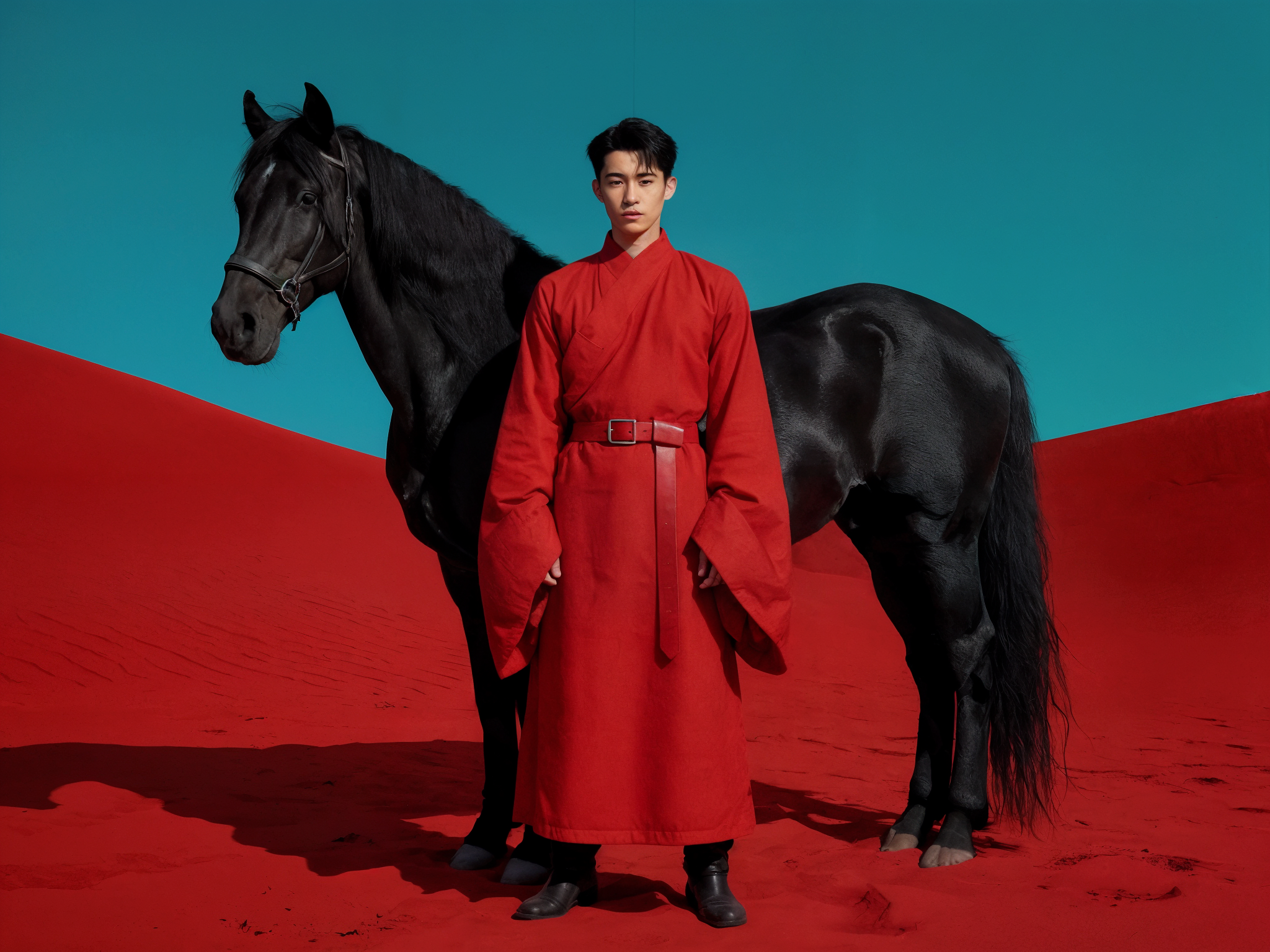
*A young East Asian man in a long red traditional robe with wide sleeves and a red belt, standing in front of a black horse in a surreal red desert landscape under a flat teal sky. Cinematic lighting, bold and minimal.*
 ### 3. 调整设置
大多数模型在提示词框下方提供额外的设置。这些让你控制宽高比、应用风格、上传参考图像等。并非每个设置都对每个模型可用。所有设置的完整列表在下方说明。
### 3. 调整设置
大多数模型在提示词框下方提供额外的设置。这些让你控制宽高比、应用风格、上传参考图像等。并非每个设置都对每个模型可用。所有设置的完整列表在下方说明。
 ### 4. 生成
点击 **Generate**。根据模型,生成需要 4 到 180 秒。大多数生成会为每个提示词返回两到四张图像。
***
## 模型选择器
点击左下角的模型名会打开模型选择器面板。每一项显示:
* 模型名称和优势的简要描述
* 速度指示器(闪电图标数量)
* 质量指示器(钻石图标数量)
* 每次生成的大致计算成本
### 4. 生成
点击 **Generate**。根据模型,生成需要 4 到 180 秒。大多数生成会为每个提示词返回两到四张图像。
***
## 模型选择器
点击左下角的模型名会打开模型选择器面板。每一项显示:
* 模型名称和优势的简要描述
* 速度指示器(闪电图标数量)
* 质量指示器(钻石图标数量)
* 每次生成的大致计算成本
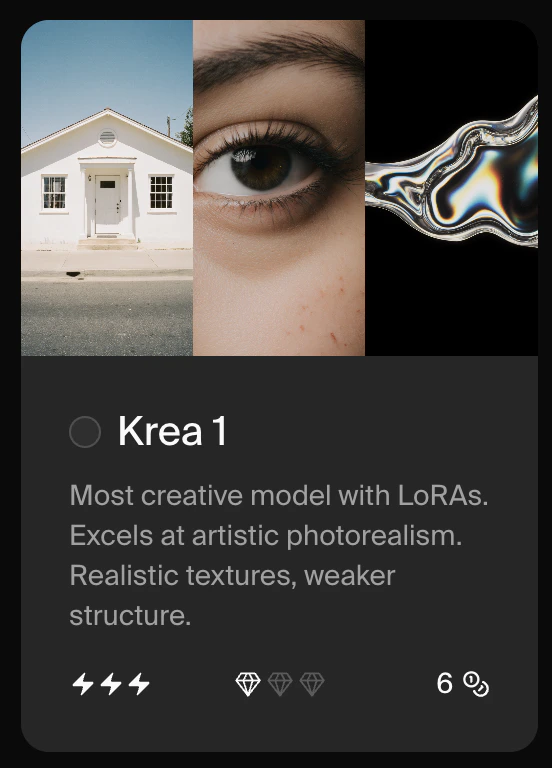 列表按最新和最流行的模型排在前面。要查看完整可用模型范围,请参阅 [Model Overview](/user-guide/features/model-overview)。
### Auto 模式
列表顶部的 **Auto** 选项会根据你的提示词和套餐自动选择最合适的模型。如果你不确定使用哪个模型,这是一个不错的默认选项。
### 可用模型
选择器中显示的模型分为两组。
**Krea 模型** 由 Krea 开发和维护:
| 模型 | 说明 |
| ------------ | ------------------------------------------- |
| Krea 1 | 具备 LoRA 支持的最具创意的模型。每个提示词生成 4 张图像,最高 4096px。 |
| Krea 2 Turbo | 最快的 Krea 2 模型。适合快速迭代表现力插画和风格驱动的概念。 |
| Krea 2 | Krea 下一代基础图像模型,提供 Medium 和 Large 变体。 |
**第三方模型** 由外部 AI 实验室提供,可从同一界面直接访问:
| 模型 | 提供方 | 说明 |
| --------------- | --------- | ------------------------------ |
| Nano Banana Pro | Google | 最智能的模型。复杂提示词遵循与推理最强。 |
| Nano Banana 2 | Google | 最智能的模型,成本比 Nano Banana Pro 更低。 |
| Nano Banana | Google | 多用途智能模型。 |
| Seedream 5 Lite | ByteDance | 具备推理和网页搜索能力的中等质量模型。 |
| Recraft V4 | Recraft | 细致、精准的图像生成。 |
要查看每个模型的完整信息,包括计算成本、生成速度、分辨率上限和支持的设置,请查看 [Model Overview](/user-guide/features/model-overview)。
***
## 设置
选择模型后,可用设置会出现在提示词框下方。设置因模型而异。
### 宽高比
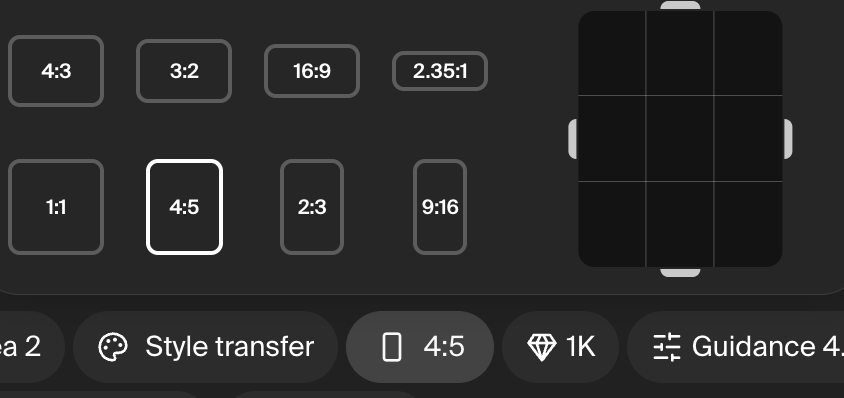
控制输出图像的尺寸。大多数模型提供预设比例(方形、纵向、横向),部分支持自定义比例。使用 **9:16** 生成社交媒体故事或 TikTok 等竖屏内容。
列表按最新和最流行的模型排在前面。要查看完整可用模型范围,请参阅 [Model Overview](/user-guide/features/model-overview)。
### Auto 模式
列表顶部的 **Auto** 选项会根据你的提示词和套餐自动选择最合适的模型。如果你不确定使用哪个模型,这是一个不错的默认选项。
### 可用模型
选择器中显示的模型分为两组。
**Krea 模型** 由 Krea 开发和维护:
| 模型 | 说明 |
| ------------ | ------------------------------------------- |
| Krea 1 | 具备 LoRA 支持的最具创意的模型。每个提示词生成 4 张图像,最高 4096px。 |
| Krea 2 Turbo | 最快的 Krea 2 模型。适合快速迭代表现力插画和风格驱动的概念。 |
| Krea 2 | Krea 下一代基础图像模型,提供 Medium 和 Large 变体。 |
**第三方模型** 由外部 AI 实验室提供,可从同一界面直接访问:
| 模型 | 提供方 | 说明 |
| --------------- | --------- | ------------------------------ |
| Nano Banana Pro | Google | 最智能的模型。复杂提示词遵循与推理最强。 |
| Nano Banana 2 | Google | 最智能的模型,成本比 Nano Banana Pro 更低。 |
| Nano Banana | Google | 多用途智能模型。 |
| Seedream 5 Lite | ByteDance | 具备推理和网页搜索能力的中等质量模型。 |
| Recraft V4 | Recraft | 细致、精准的图像生成。 |
要查看每个模型的完整信息,包括计算成本、生成速度、分辨率上限和支持的设置,请查看 [Model Overview](/user-guide/features/model-overview)。
***
## 设置
选择模型后,可用设置会出现在提示词框下方。设置因模型而异。
### 宽高比
控制输出图像的尺寸。大多数模型提供预设比例(方形、纵向、横向),部分支持自定义比例。使用 **9:16** 生成社交媒体故事或 TikTok 等竖屏内容。
 ### 风格迁移
**仅适用于:Krea 1。** 对于其他模型,请使用 Image prompt 设置,并在文本提示词中给出类似指令。
将上传图像的视觉外观迁移到你的生成中。你可以上传自己的图像、从 Krea 提供的初始选项中选择,或引用之前生成的图像。适合在多个输出中保持一致的美学风格。
### 风格迁移
**仅适用于:Krea 1。** 对于其他模型,请使用 Image prompt 设置,并在文本提示词中给出类似指令。
将上传图像的视觉外观迁移到你的生成中。你可以上传自己的图像、从 Krea 提供的初始选项中选择,或引用之前生成的图像。适合在多个输出中保持一致的美学风格。
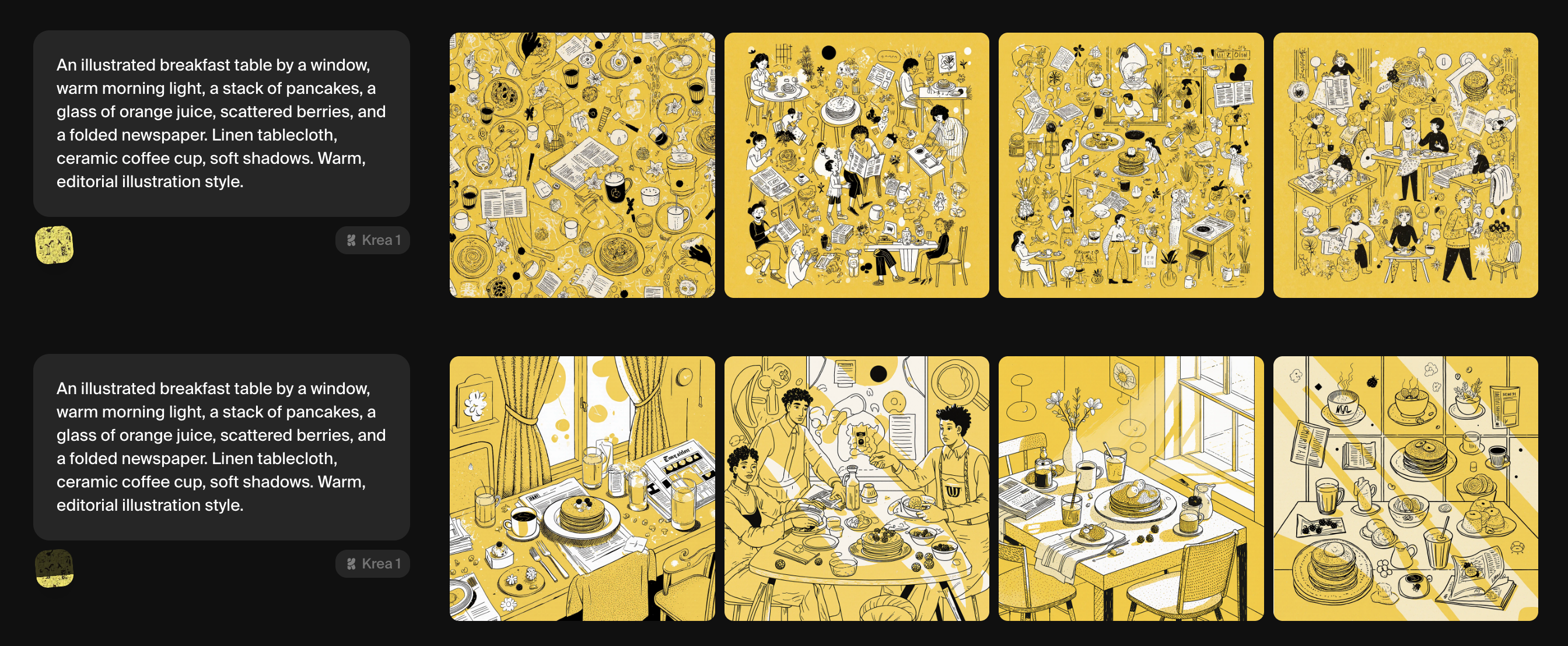
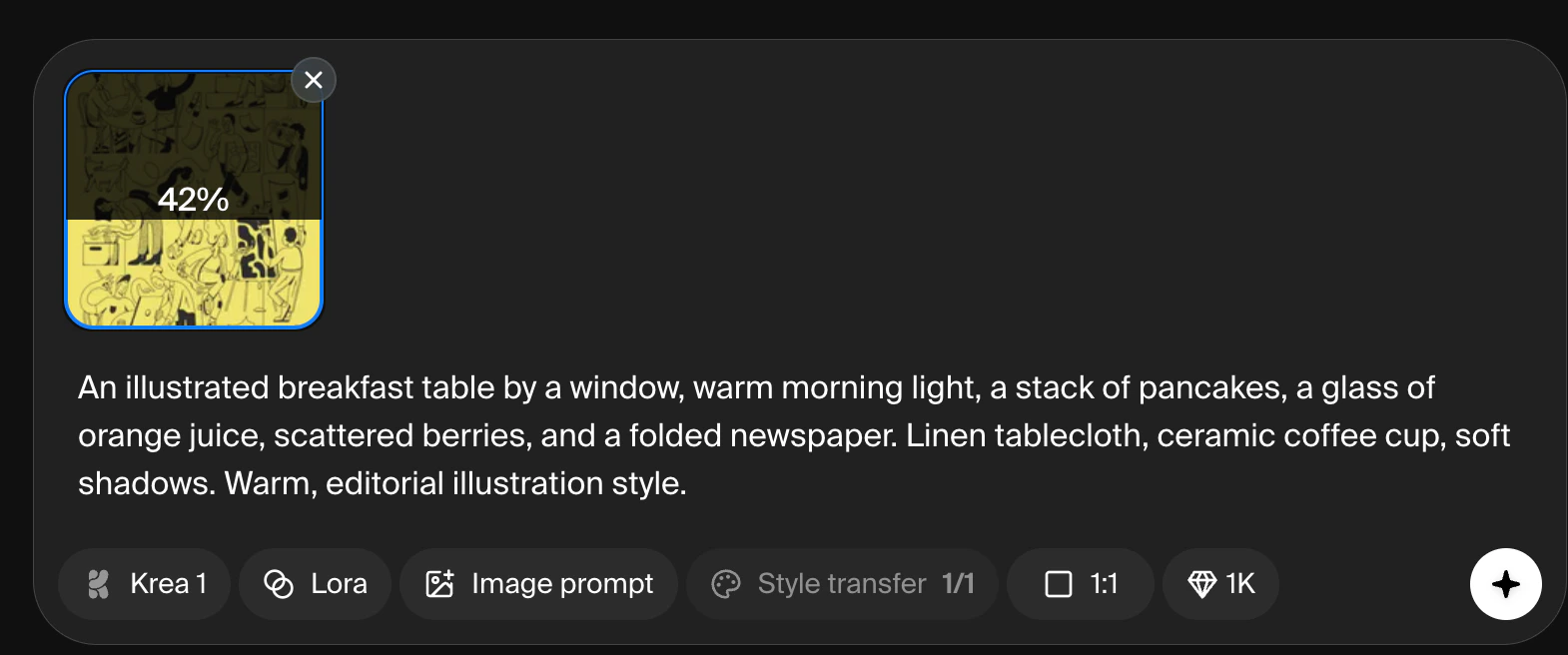 在图像上向上或向下拖动可以调节风格迁移对输出的影响强度。下面的示例显示了全强度影响和弱化设置之间的差异。
 ### 图像提示
上传一张或多张图像来影响你的生成。在大多数模型中,上传图像的构图、颜色和风格等元素会与你的文本提示词融合。在 Nano Banana 等推理模型中,你可以在提示词中直接引用上传的图像(例如,'*Create an editorial photo of the woman in the attached image, wearing the red dress in the other image'*)。
### 图像提示
上传一张或多张图像来影响你的生成。在大多数模型中,上传图像的构图、颜色和风格等元素会与你的文本提示词融合。在 Nano Banana 等推理模型中,你可以在提示词中直接引用上传的图像(例如,'*Create an editorial photo of the woman in the attached image, wearing the red dress in the other image'*)。
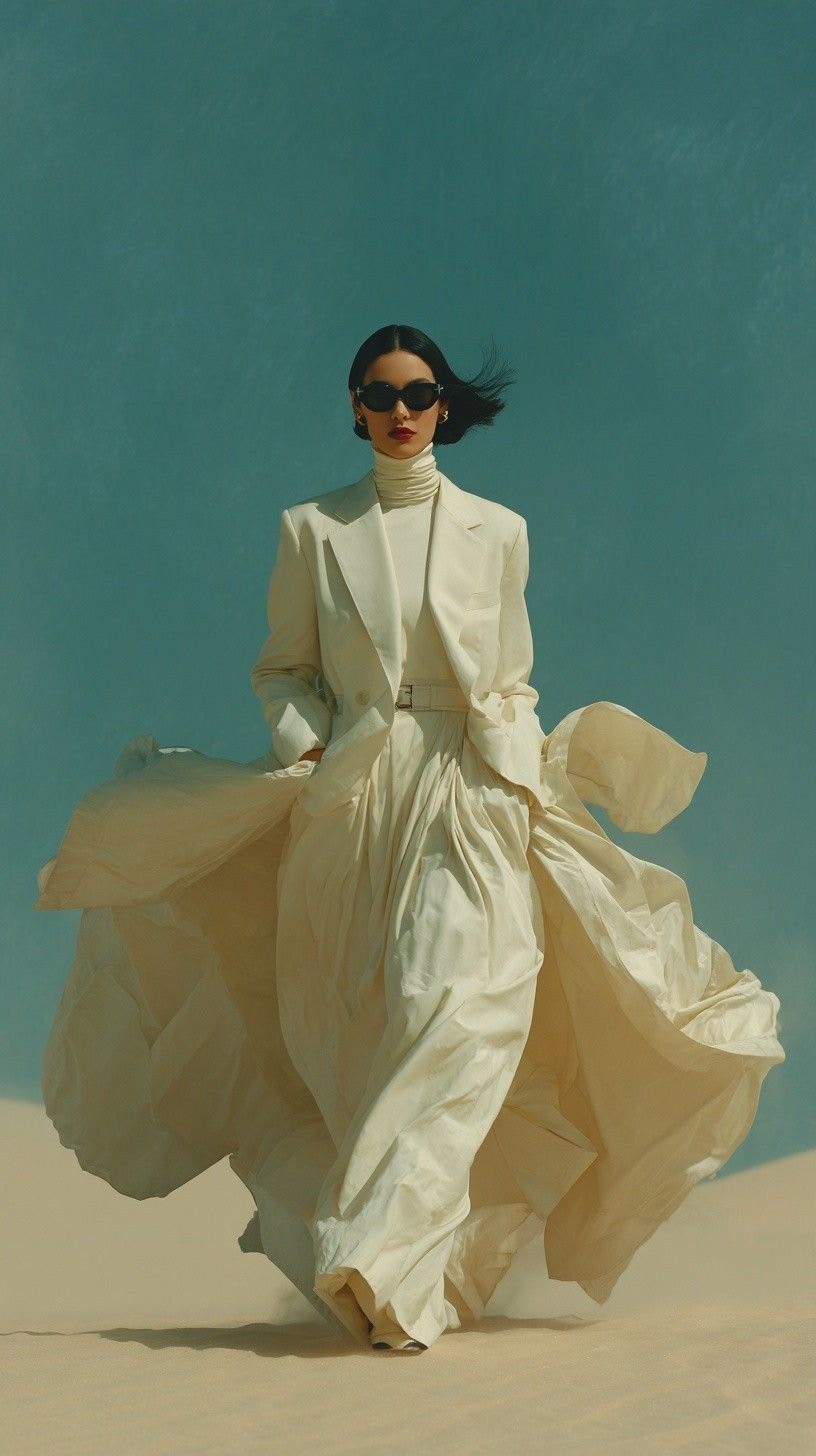
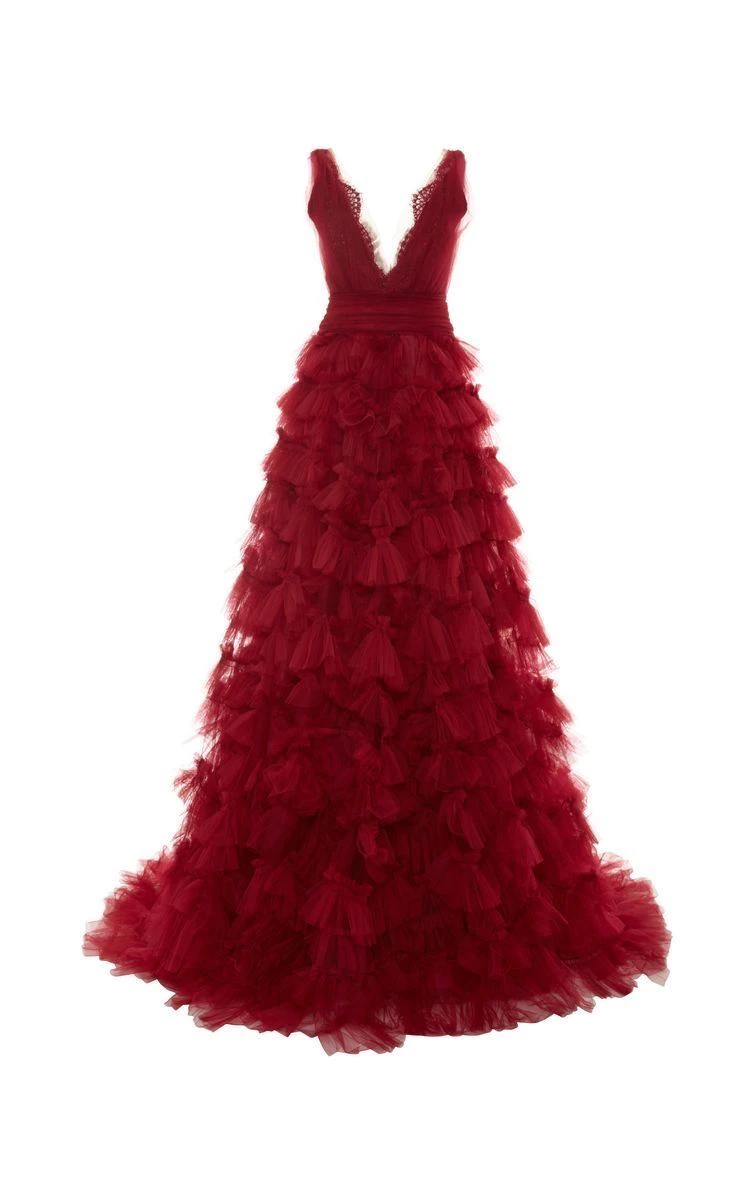
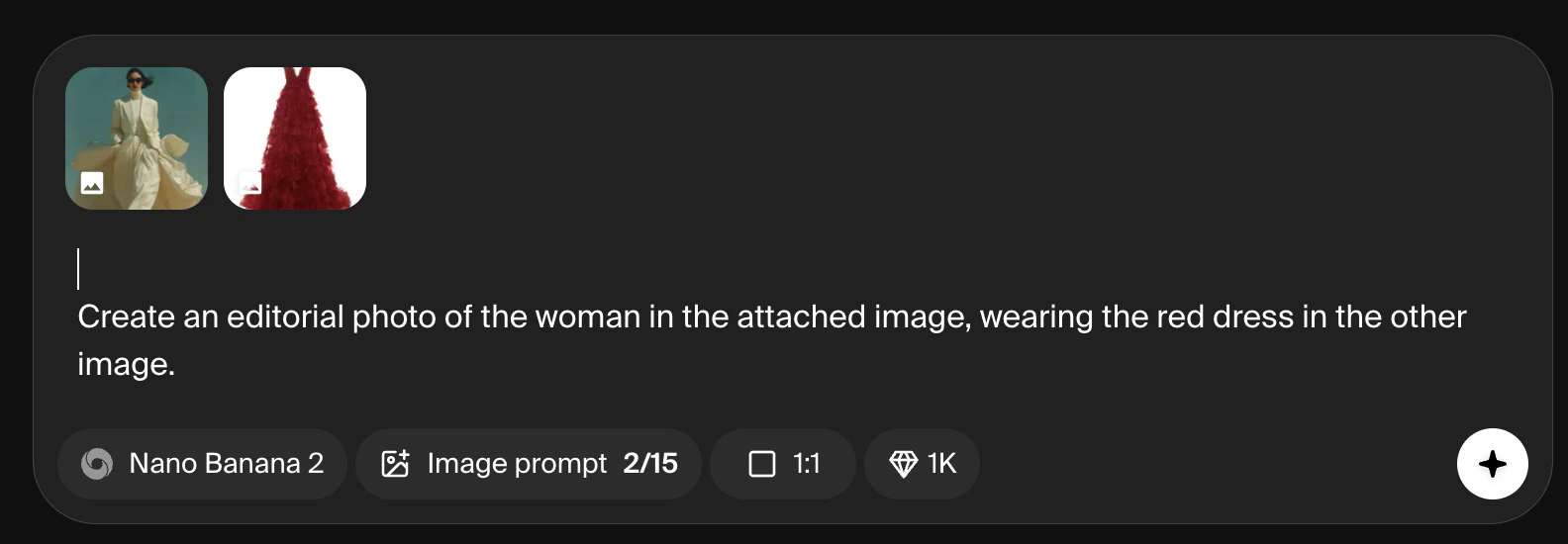
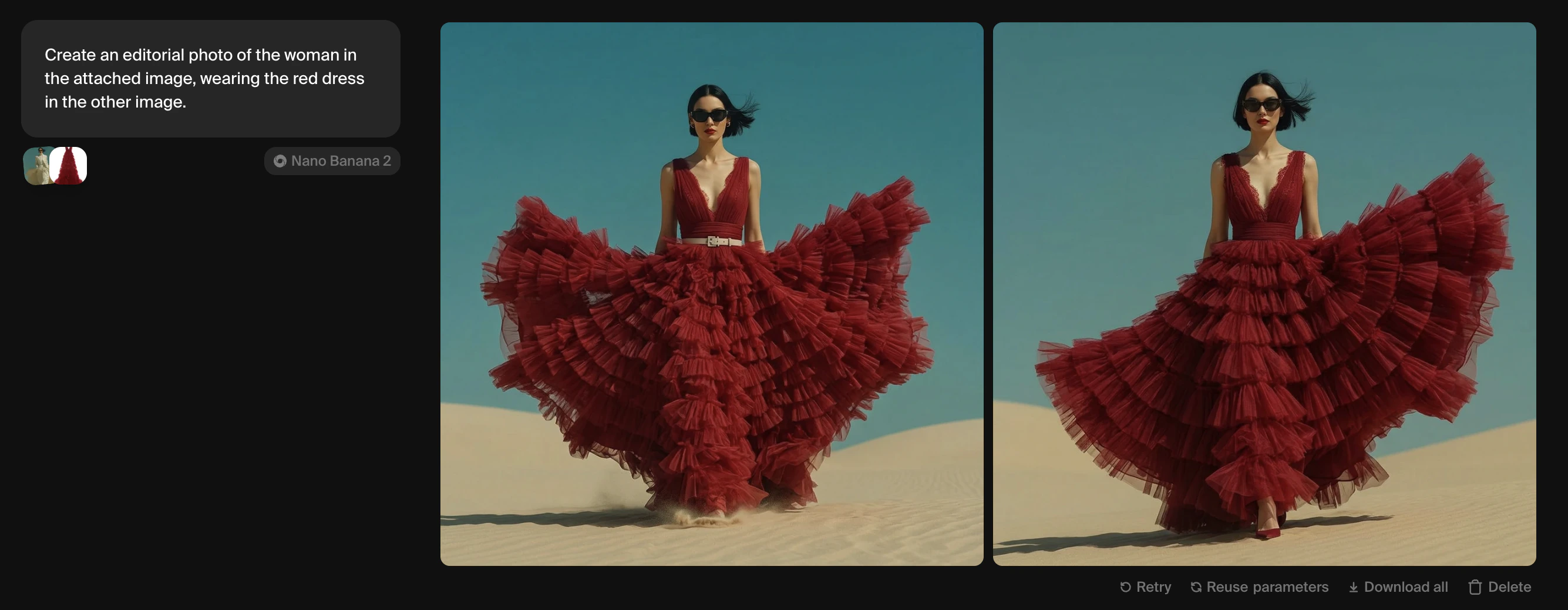 你可以上传的图像数量因模型而异,从 Krea 1 的 2 张到 Nano Banana 的多达 15 张。
## 生成之后
每个提示词都会产生一行结果。将鼠标悬停在任意行上以显示更多控件。
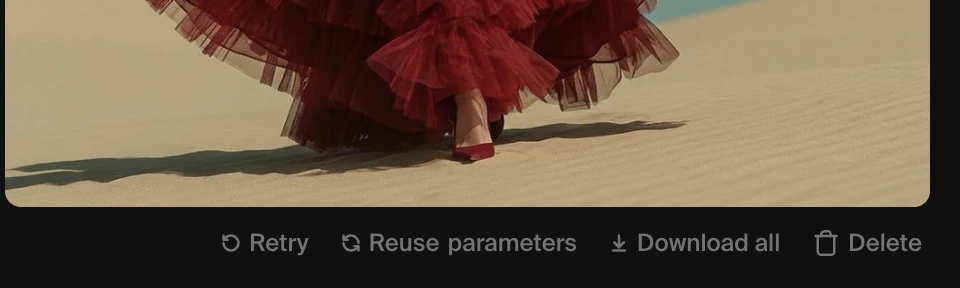
图像下方:
* **Retry** 立即使用相同的提示词和模型再次生成。
* **Reuse parameters** 将提示词、模型和设置载回提示词框以便编辑。
* **Share parameters** 生成一个链接,其他人可以用它精确复现你的生成。
* **Download all** 将整组图像作为 .zip 文件下载。
* **Publish** 为你的图像创建一个可分享的公开页面。
* **Delete** 将图像从会话视图中移除。你的资产不会被删除。
你可以上传的图像数量因模型而异,从 Krea 1 的 2 张到 Nano Banana 的多达 15 张。
## 生成之后
每个提示词都会产生一行结果。将鼠标悬停在任意行上以显示更多控件。
图像下方:
* **Retry** 立即使用相同的提示词和模型再次生成。
* **Reuse parameters** 将提示词、模型和设置载回提示词框以便编辑。
* **Share parameters** 生成一个链接,其他人可以用它精确复现你的生成。
* **Download all** 将整组图像作为 .zip 文件下载。
* **Publish** 为你的图像创建一个可分享的公开页面。
* **Delete** 将图像从会话视图中移除。你的资产不会被删除。
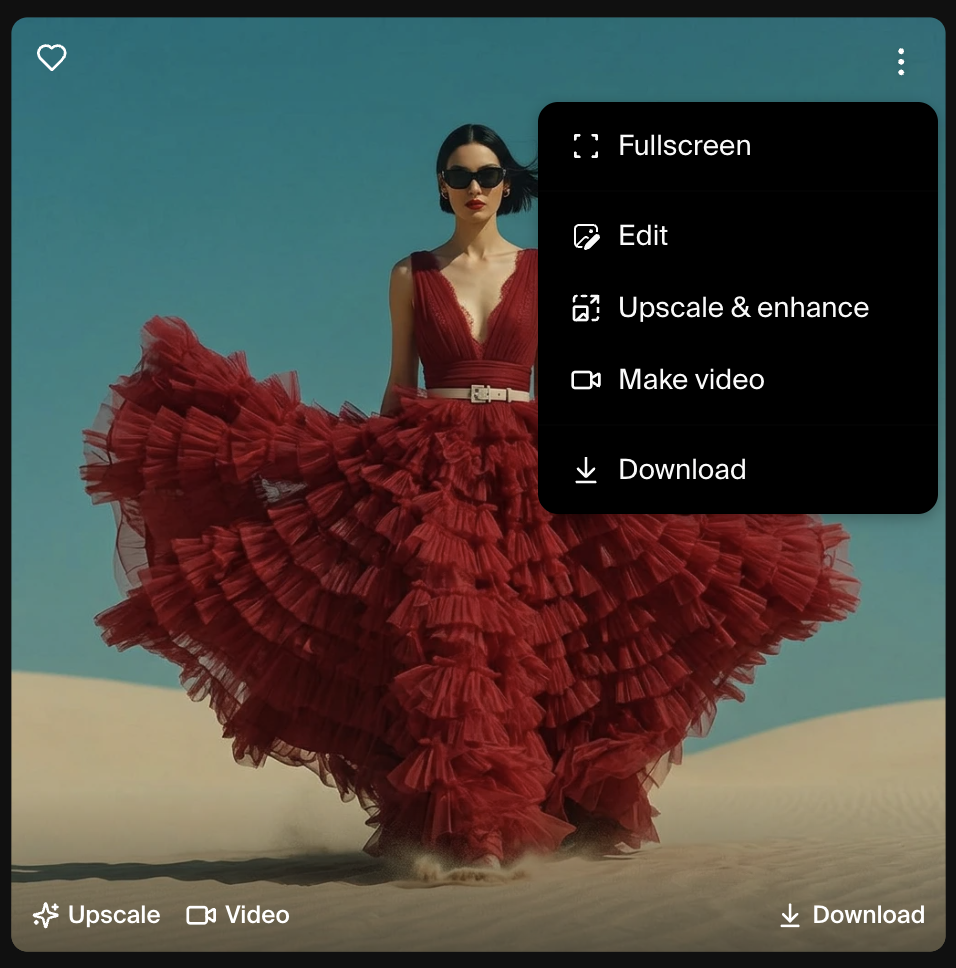
 悬停时浮在每张图像上方的控件:
* **Fullscreen** 全屏显示生成的图像
* **Edit** 将图像发送到 [Edit](/user-guide/features/edit) 工具
* **Upscale & enhance** 将图像发送到 [Enhance](/user-guide/features/enhancer) 工具
* **Video** 将图像作为起始帧发送到 [Video](/user-guide/features/video) 工具。
* **Download** 图标将图像保存到你的设备。
* **Heart** 图标将图像标记为收藏,便于在 Assets 中查找。
悬停时浮在每张图像上方的控件:
* **Fullscreen** 全屏显示生成的图像
* **Edit** 将图像发送到 [Edit](/user-guide/features/edit) 工具
* **Upscale & enhance** 将图像发送到 [Enhance](/user-guide/features/enhancer) 工具
* **Video** 将图像作为起始帧发送到 [Video](/user-guide/features/video) 工具。
* **Download** 图标将图像保存到你的设备。
* **Heart** 图标将图像标记为收藏,便于在 Assets 中查找。
 ## 会话
每次生成都会加入当前会话。你可以在同一会话中继续调整提示词并生成新行,以对一个方向进行迭代。通过点击左侧面板的 + 图标开始新会话,可以让不同项目保持整洁。
要查找过往会话中的图像,请点击顶部导航栏的 Assets 图标,在单一网格中浏览所有生成的图像。
***
## 选择模型
常见用例的快速参考:
| 目标 | 推荐模型 |
| --------- | ----------------------------- |
| 照片级真实图像 | Krea 1 |
| 快速迭代 | Krea 1、Flux 2 Klein |
| 复杂提示词遵循 | Nano Banana Pro、Nano Banana 2 |
| 图像中的高保真文字 | Seedream 5 Lite |
| 图形设计和扁平插画 | Ideogram |
| 电影级角色构图 | Runway Gen-4 |
| 细致精准 | Recraft V4 |
要查看包括计算成本、生成速度和支持设置的完整模型对比,请参见 [Model Overview](/user-guide/features/model-overview)。
## 会话
每次生成都会加入当前会话。你可以在同一会话中继续调整提示词并生成新行,以对一个方向进行迭代。通过点击左侧面板的 + 图标开始新会话,可以让不同项目保持整洁。
要查找过往会话中的图像,请点击顶部导航栏的 Assets 图标,在单一网格中浏览所有生成的图像。
***
## 选择模型
常见用例的快速参考:
| 目标 | 推荐模型 |
| --------- | ----------------------------- |
| 照片级真实图像 | Krea 1 |
| 快速迭代 | Krea 1、Flux 2 Klein |
| 复杂提示词遵循 | Nano Banana Pro、Nano Banana 2 |
| 图像中的高保真文字 | Seedream 5 Lite |
| 图形设计和扁平插画 | Ideogram |
| 电影级角色构图 | Runway Gen-4 |
| 细致精准 | Recraft V4 |
要查看包括计算成本、生成速度和支持设置的完整模型对比,请参见 [Model Overview](/user-guide/features/model-overview)。