> ## Documentation Index
> Fetch the complete documentation index at: https://www.krea.ai/docs/llms.txt
> Use this file to discover all available pages before exploring further.
# Managing Your Organization
> Manage your Krea organization: create workspaces, control access, invite members, assign roles, and verify domains from the Organization dashboard.
**Private Beta**: Organizations are currently available to select enterprise customers. [Contact our sales team](mailto:sales@krea.ai) to learn more.
The **Organization dashboard** is where Owners and Admins manage everything that spans your company: workspaces, members, and verified domains. This guide walks through each section.
If you're new to the organization model, read [Organizations](/user-guide/help-and-support/organizations) first.
## Prerequisites
You must be an organization **Owner** or **Admin**
Organizations are available to select enterprise customers
## Open the Organization Dashboard
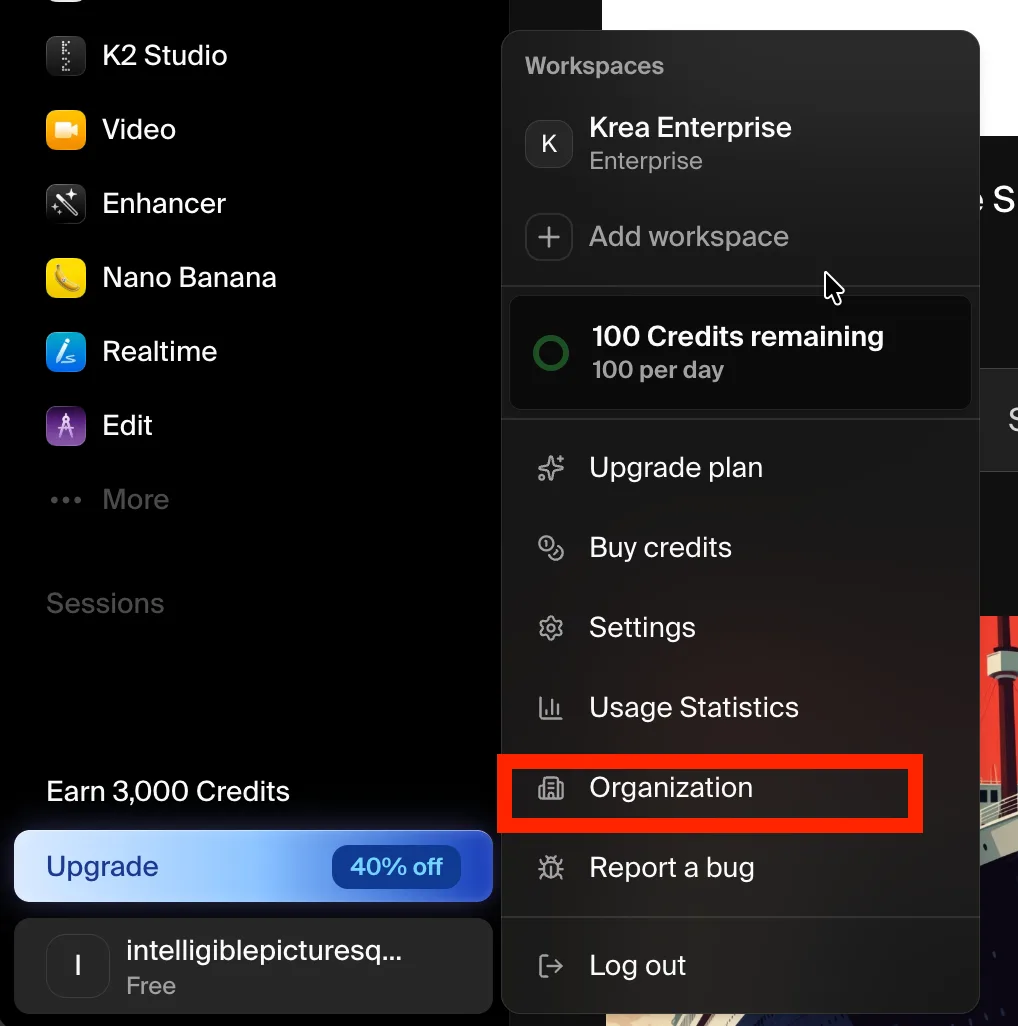
Owners and Admins can reach the Organization dashboard from the account menu at any time.
Click your account avatar in the bottom-left corner of the sidebar.
Choose **Organization** from the menu. This option only appears for organization Owners and Admins.
## Dashboard Overview
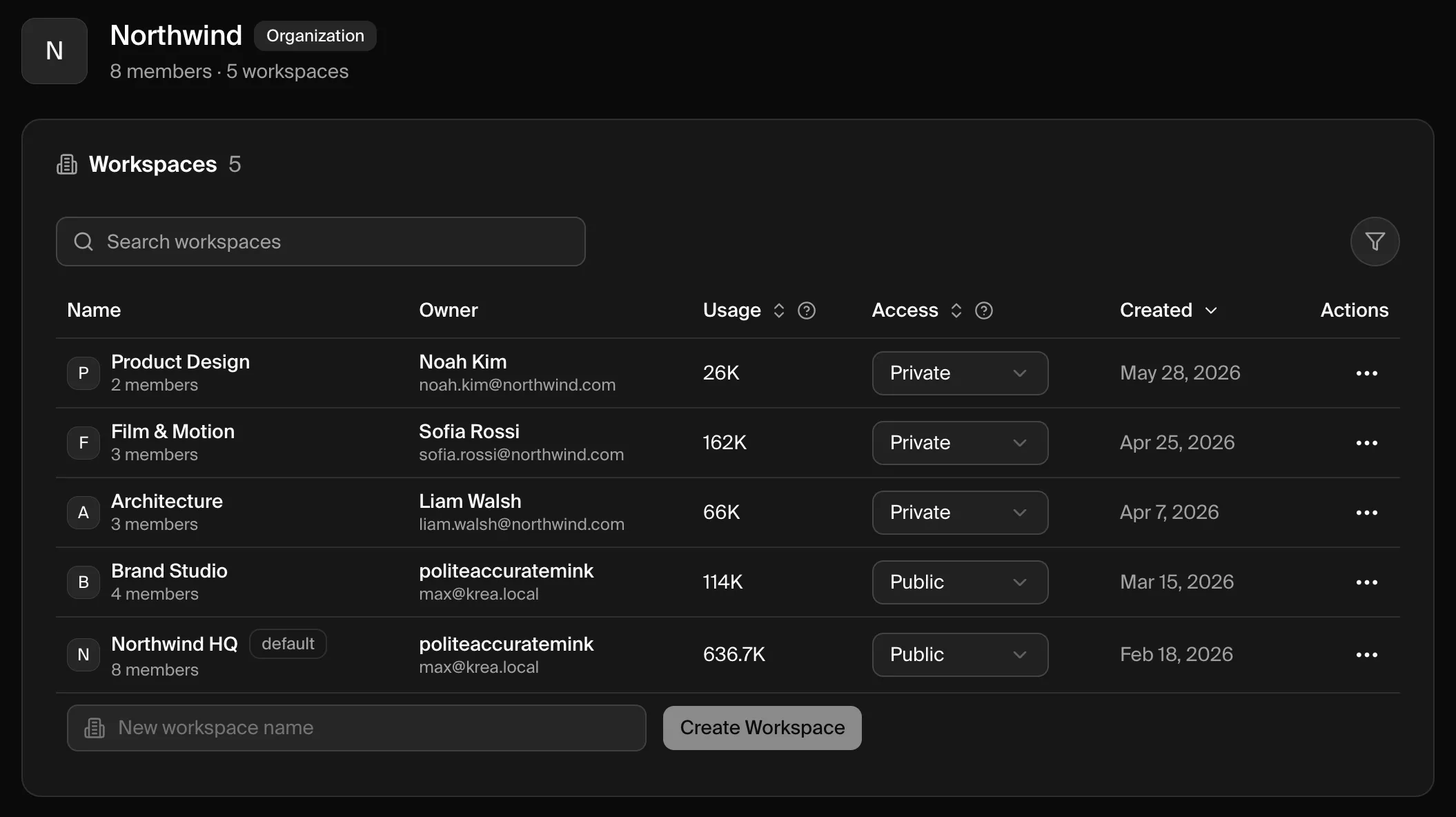
The dashboard summarizes your organization at the top — its name, total members, and total workspaces — followed by three sections: **Workspaces**, **Members**, and **Domains**.
## Workspaces
The **Workspaces** section lists every workspace in your organization.
| Column | What it shows |
| ----------- | ---------------------------------------------------------------------------------- |
| **Name** | The workspace name. Your organization's landing workspace is tagged **default**. |
| **Owner** | The workspace owner's name and email. |
| **Usage** | Compute consumed by the workspace. |
| **Access** | Whether organization members can join the workspace — **Public** or **Private**. |
| **Created** | When the workspace was created. |
| **Actions** | The **⋯** menu, where you can manage the workspace's members and review its usage. |
Use the search box to filter by name, and the column headers to sort.
### Create a Workspace
At the bottom of the Workspaces section, type a name into the **New workspace name** field.
Click **Create Workspace**. The new workspace is added to your organization and appears in the table.
New workspaces are **Private** by default. Change the **Access** dropdown to **Public** if you want organization members to be able to join it themselves.
### Control Workspace Access
The **Access** dropdown controls how organization members can get into a workspace.
| Access | Behavior |
| ----------- | ------------------------------------------------------------------------------------------------------------------------ |
| **Private** | Invite-only. Members can't see or join the workspace unless they're added to it. This is the default for new workspaces. |
| **Public** | Any organization member can discover and join the workspace from their join screen after signing in. |
Keep most project workspaces **Private**, and make a single shared **Public** workspace (often your default workspace) the place new team members land when they join.
### Manage Workspace Members
Open the **⋯** menu on a workspace and choose **Members** to manage who belongs to it.
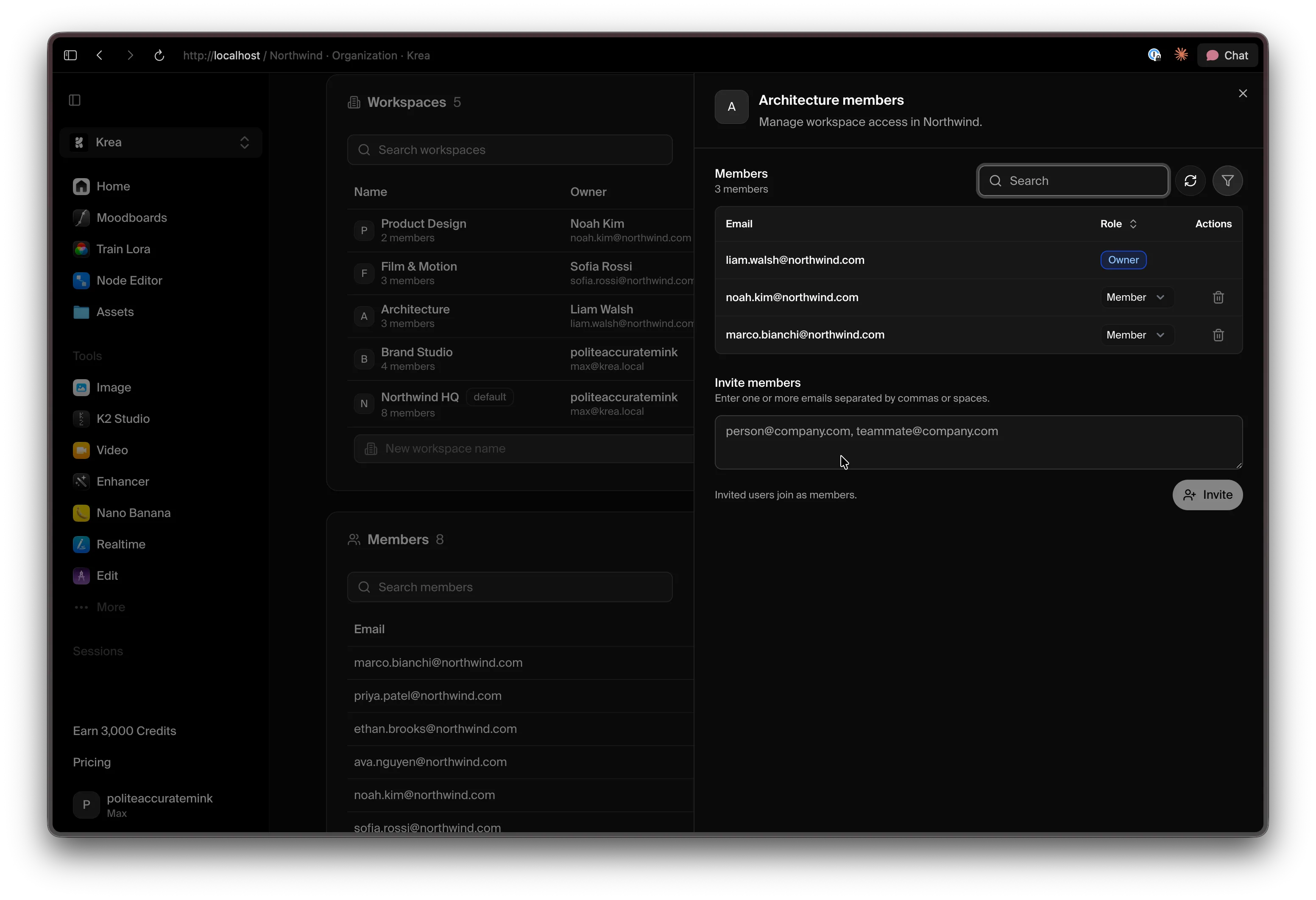
From this panel you can:
* **Review members** and their workspace role.
* **Change a role** using the role dropdown next to each member (Owner, Admin, or Member).
* **Remove a member** with the delete icon.
* **Invite people** — enter one or more email addresses (separated by commas or spaces) and click **Invite**. Invited users join as **Members**.
These roles apply to the **workspace**, not the organization. A person's organization-level role is shown in the [Members](#members) section. See [Roles](/user-guide/help-and-support/organizations#roles) for the difference.
## Members
The **Members** section is the directory of everyone in your organization. It shows each person's email, their organization role (**Owner**, **Admin**, or **Member**), and when they joined.
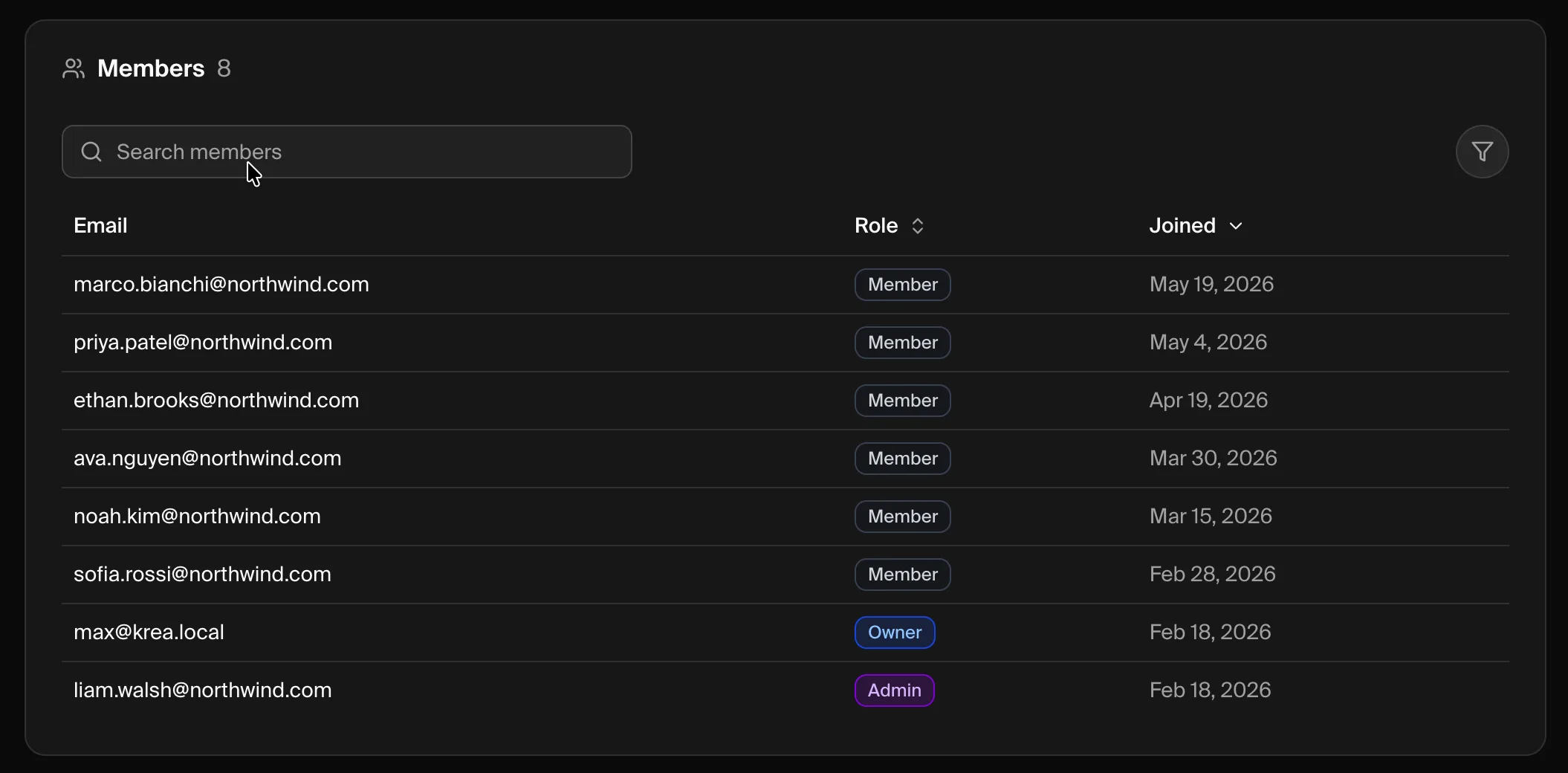
Search by email or role, and sort by role or join date. Most people join automatically through [Domain Capture](#domains) once your domain is verified.
To bring in a teammate before they sign in themselves, add them directly to a workspace from that workspace's [Members panel](#manage-workspace-members).
## Domains
The **Domains** section is where you verify the domains your organization owns and configure how people from those domains join and sign in.
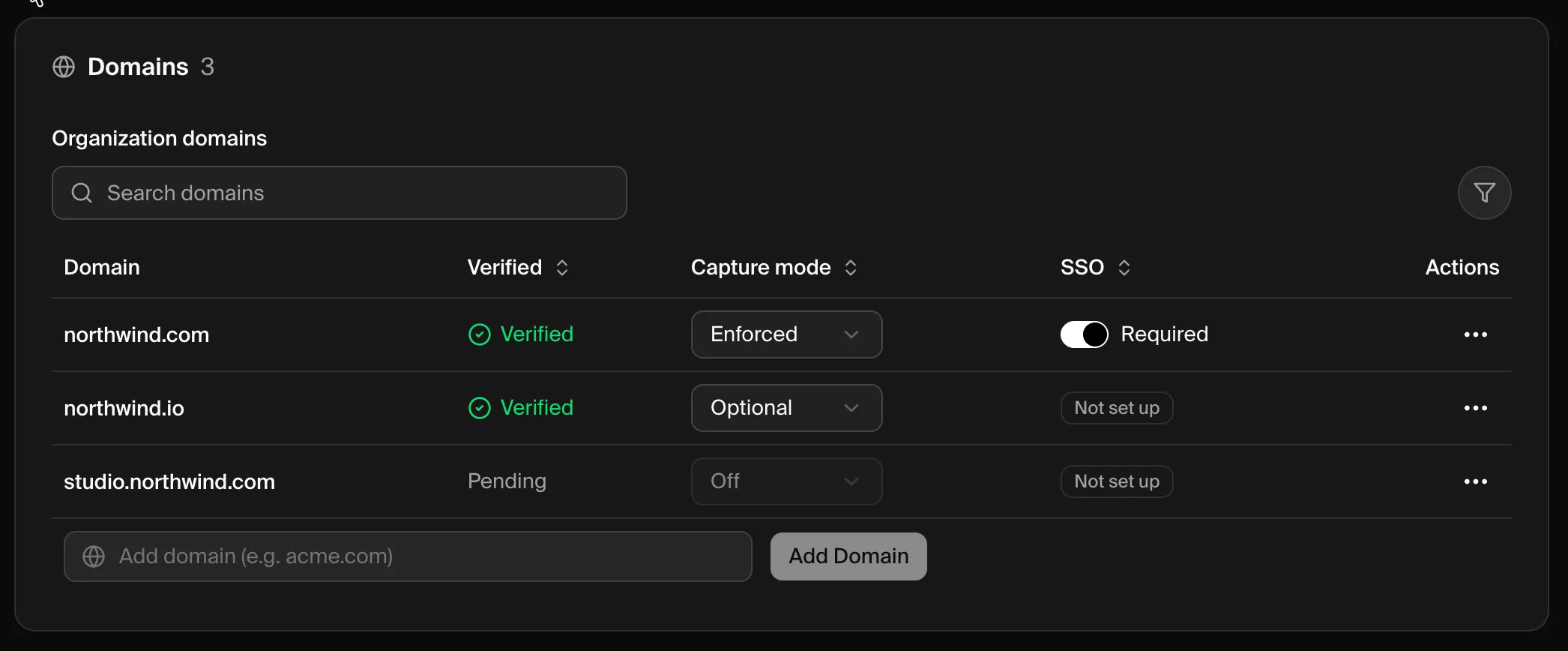
Each domain shows:
* **Verified** — whether the domain is **Verified** or still **Pending** a DNS check.
* **Capture mode** — what happens when someone with that email domain signs in: **Off**, **Optional** (they're invited to join), or **Enforced** (they're automatically enrolled).
* **SSO** — whether Single Sign-On is **Required**, **Available**, or **Not set up** for the domain.
### Add and Verify a Domain
Enter your company's email domain (for example, `acme.com`) in the **Add domain** field and click **Add Domain**.
Open the **⋯** menu on the new domain and choose **Verify domain**, then add the DNS TXT record Krea provides. Full instructions are in [Domain Verification & Capture](/user-guide/help-and-support/domain-verification).
Once verified, choose a **Capture mode** to control how matching users join your organization.
For details on each capture mode and setting up Single Sign-On, see:
Verify domain ownership and choose how matching users are enrolled.
Connect your identity provider so your team signs in with SSO.
## Troubleshooting
Organization membership doesn't grant access to every workspace. Either set the workspace's **Access** to **Public** so they can join it, or add them directly from the workspace's [Members panel](#manage-workspace-members).
Automatic enrollment depends on a **verified domain** with a **Capture mode** other than Off. Confirm the domain is **Verified** and review its capture mode in the [Domains](#domains) section.
DNS changes can take time to propagate. Double-check the TXT record matches exactly and try again — see the [Domain Verification troubleshooting](/user-guide/help-and-support/domain-verification#troubleshooting) steps.
The dashboard is only available to organization **Owners** and **Admins**. If your role is correct and you still can't open it, contact [support@krea.ai](mailto:support@krea.ai).
## Need Help?
Contact our enterprise support team at **[support@krea.ai](mailto:support@krea.ai)**
Questions about enterprise plans? Email **[sales@krea.ai](mailto:sales@krea.ai)**