













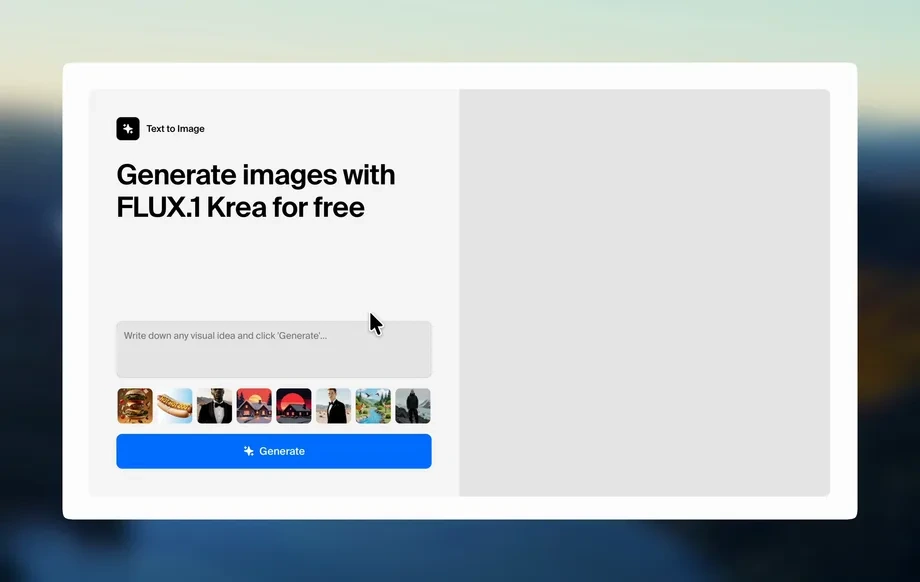
Step 1
Upload
Upload your photo or start from a blank canvas. Choose the area where the new object should appear to guide the AI edit.
Add any object to your photo with Vision Compiler (FINAL). Use AI image editing to insert items, match lighting, and create realistic composites—try it now.

How to use Vision Compiler (FINAL)
Use Vision Compiler (FINAL) to insert new objects into your photo with AI. Upload an image, describe what you want to add, and fine-tune placement so the final composite looks natural.
Step 1
Upload your photo or start from a blank canvas. Choose the area where the new object should appear to guide the AI edit.
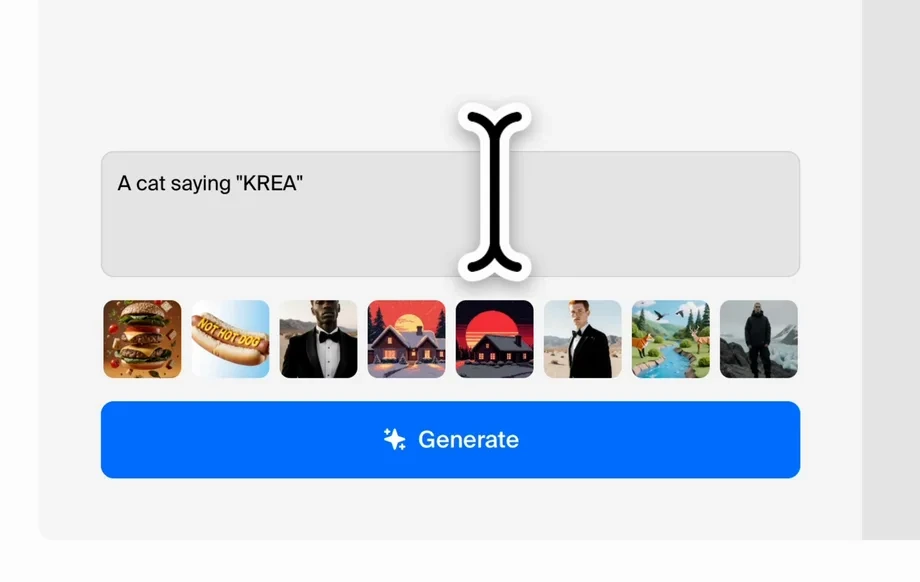
Step 2
Type a clear prompt describing the object to add. Specify size, style, and position so the AI generates the right item for your scene.
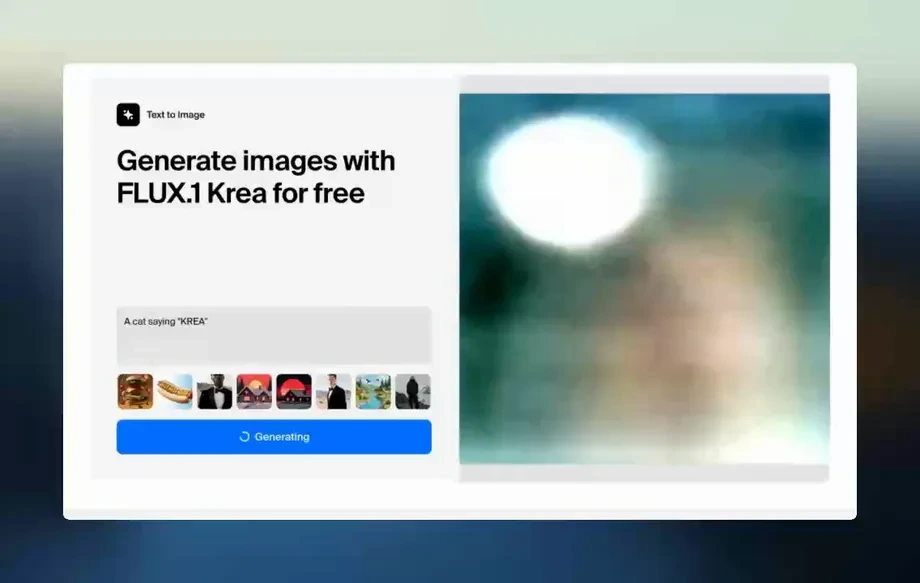
Step 3
Adjust placement, scale, and blending until it looks realistic. Regenerate variations, then export your edited image in a high-quality format.
Features
Vision Compiler (FINAL) is an AI photo editing tool that adds objects to existing images with natural blending. Generate items that match your scene, then refine placement for clean composites. Create product mockups, concept visuals, and quick photo fixes without complex software or manual masking.
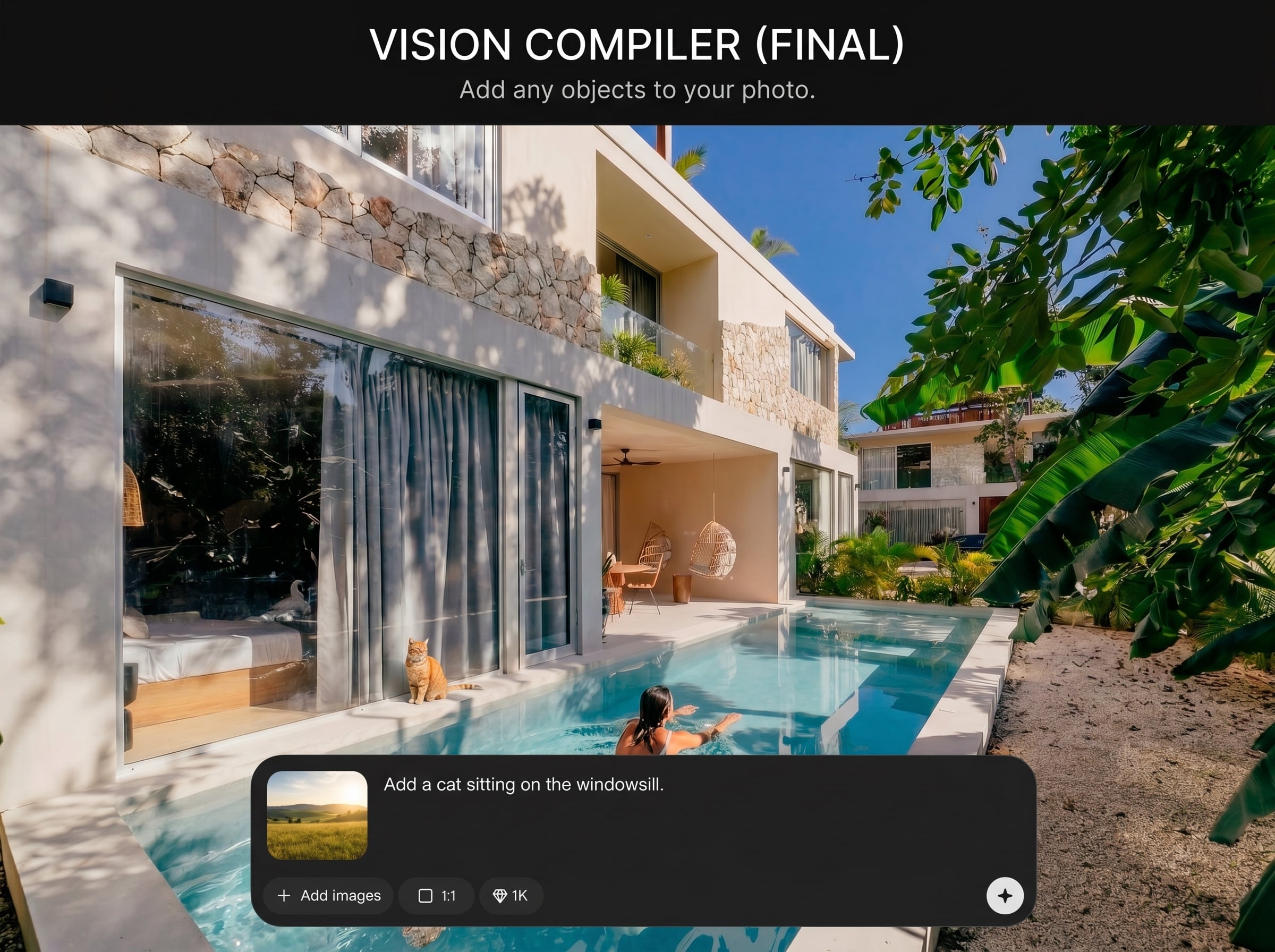
Describe the object you need and let AI generate it directly into your photo. Control style, context, and placement for consistent results across different scenes and subjects.
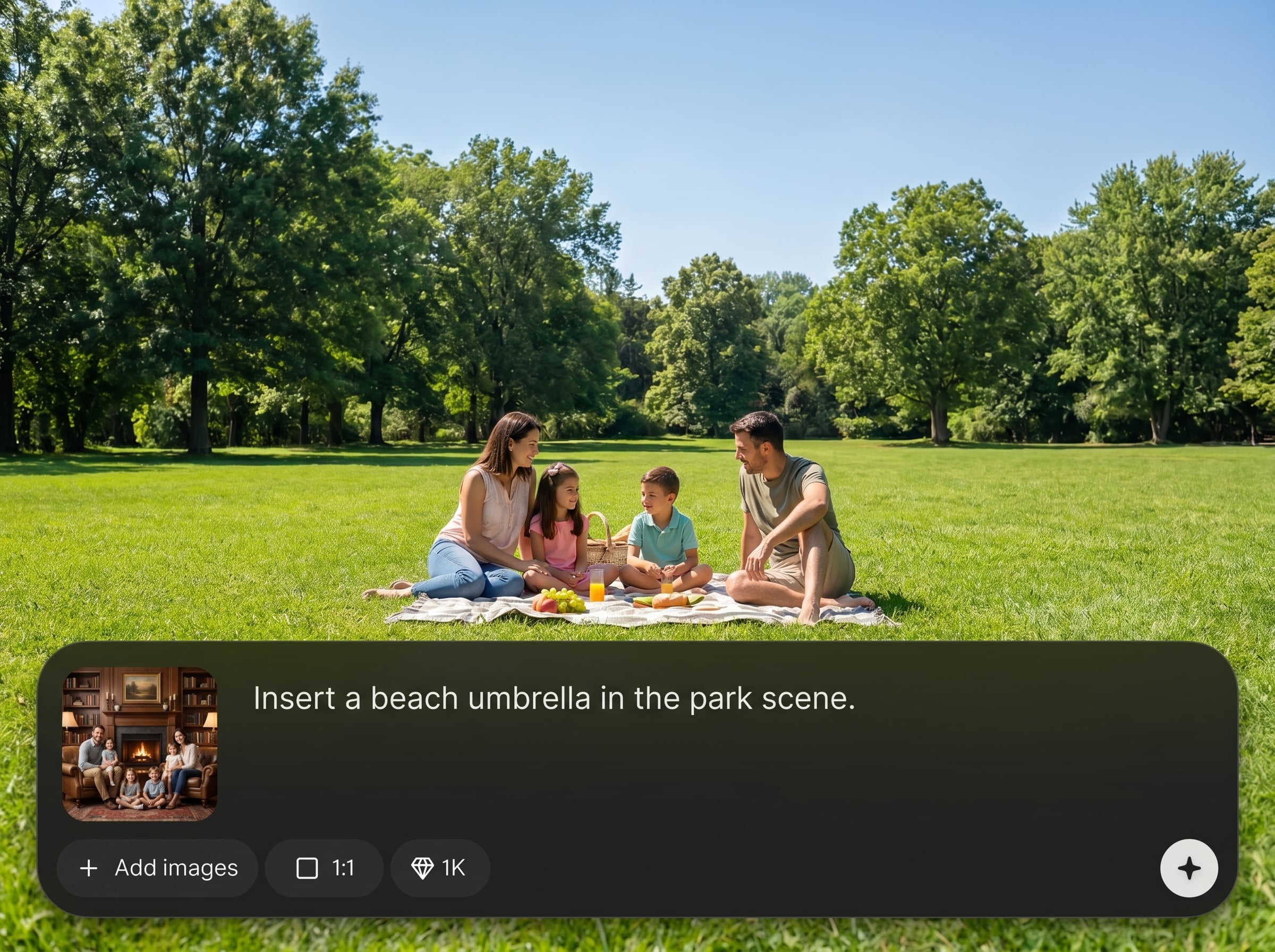
Iterate quickly with multiple AI generations and easy adjustments. Get options for composition, angle, and size so you can choose the best match for your image.
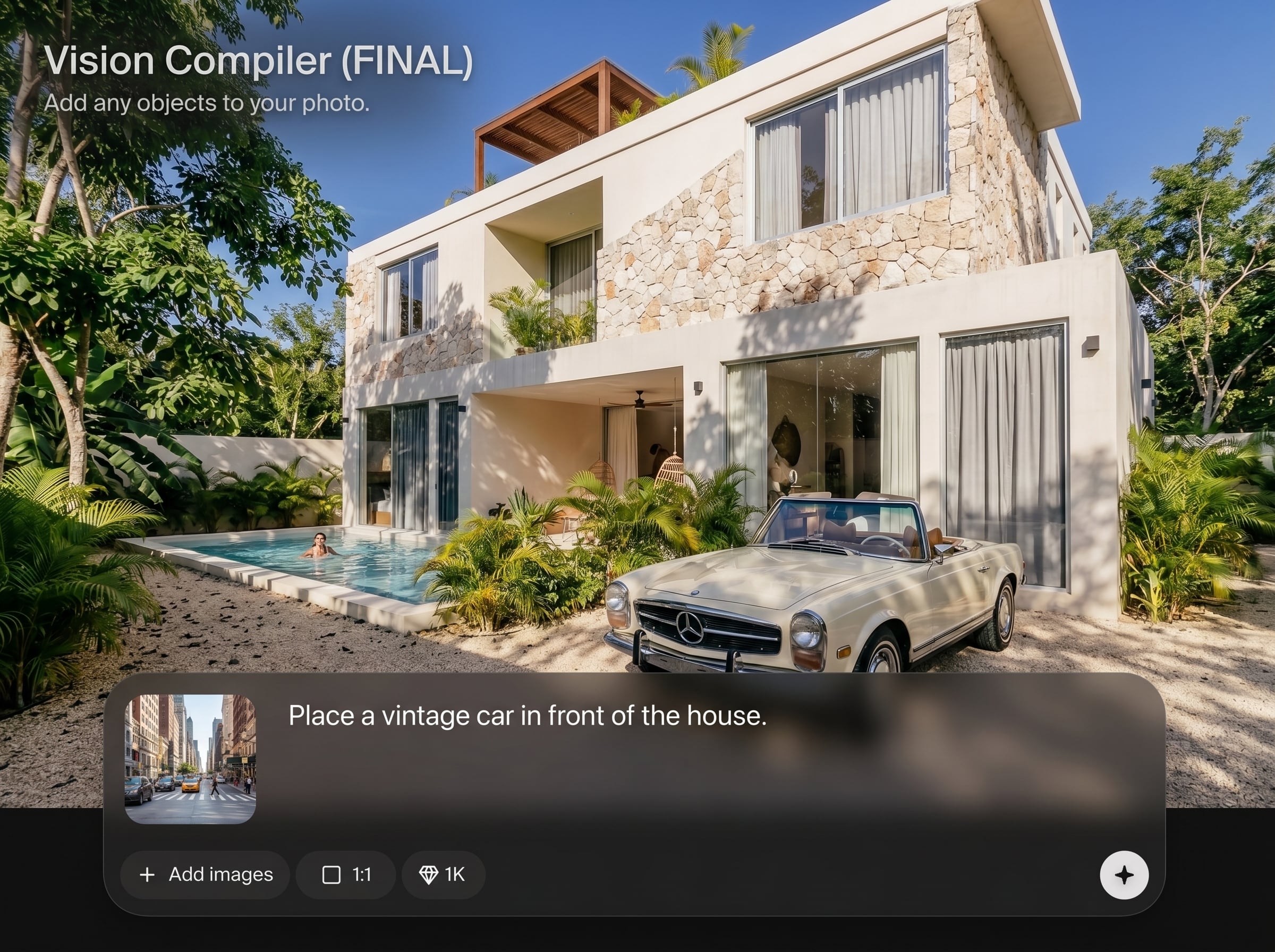
Create realistic composites with better visual harmony. The tool helps align new objects with the photo’s look, reducing obvious cut-and-paste artifacts in final edits.
About
Vision Compiler (FINAL) lets you add any objects to your photo using AI-powered compositing. Insert items, adjust size and placement, and blend them naturally with shadows and lighting for a realistic result. Perfect for quick edits, mockups, and visual storytelling—right in your browser with fast, high-quality outputs.
Vision Compiler (FINAL) streamlines AI photo compositing so you can add objects quickly without complex workflows. Get realistic-looking inserts, iterate with fast variations, and maintain visual consistency across images for mockups, ads, and concept work.
Getting started is simple: upload a photo, select where the object should go, and write a prompt. Generate options, refine placement and scale, then download your final image.
Use cases
Discover how different creators use this app in their workflow.
Add products, labels, or props into lifestyle photos for faster mockups. Generate variations for different scenes without reshoots or heavy post-production work.
Insert objects like accessories, signage, or seasonal elements into campaign imagery. Keep visuals consistent while producing multiple concepts for A/B testing quickly.
Place imagined objects into real environments to explore ideas. Great for planning, mood boards, and rapid visualization when you need believable edits fast.
Krea is one of the world's leading generative AI platforms. See what others say.
Real reviews on TrustpilotSo many AI tools out there but I always come back to Krea. It's really the one AI platform that 'just works'.
FYN
Krea's interfaces are still the best in the industry. Everything looks and feels so clean and easy to use! Imo the easiest to use gen AI website.

Lynn
Ultra fast generations. Extremely simple to use. All the latest AI models.

Daniel
KREA is the only AI subscription I have right now besides ChatGPT.

Sophia M.
Find quick answers about adding objects to photos with AI using Vision Compiler (FINAL).
Vision Compiler (FINAL) is an AI photo editor that lets you add objects to your photo. It generates the item and helps blend it into the scene for a more realistic composite.
Upload your image, select the target area, and write a prompt describing the object you want. Then refine placement and regenerate variations until the insertion looks natural.
Yes. The tool is designed to produce objects that fit the scene’s look and feel. You can improve matching by specifying lighting, material, and angle in your prompt.
Use specific prompts with object type, size, color, material, and position. Mention context like “on the table” or “behind the subject” to guide composition and realism.
It’s ideal for mockups and marketing images. Add products, props, and branded elements to existing photos, then generate multiple variations to support rapid campaign iteration.
Results depend on the source image and prompt clarity. Use a well-lit photo, define the object’s style, and refine scale and placement to reduce unnatural edges or mismatched perspective.
You can replace objects by selecting an area and generating a new item in that region. For best results, describe what should appear and keep the surrounding context consistent.
Export options depend on the editor settings, but common image formats are typically supported. Choose a high-quality export for sharper composites and cleaner details.
Yes, it’s an online AI image editing tool you can use in your browser. No complex setup is required—upload, prompt, refine, and export your updated photo.
Handling of uploaded images depends on the platform’s data settings. Review the app’s privacy and usage terms to understand storage, retention, and training preferences before uploading.
Upload an image, describe the object, and export a realistic composite in minutes—right from your browser.