











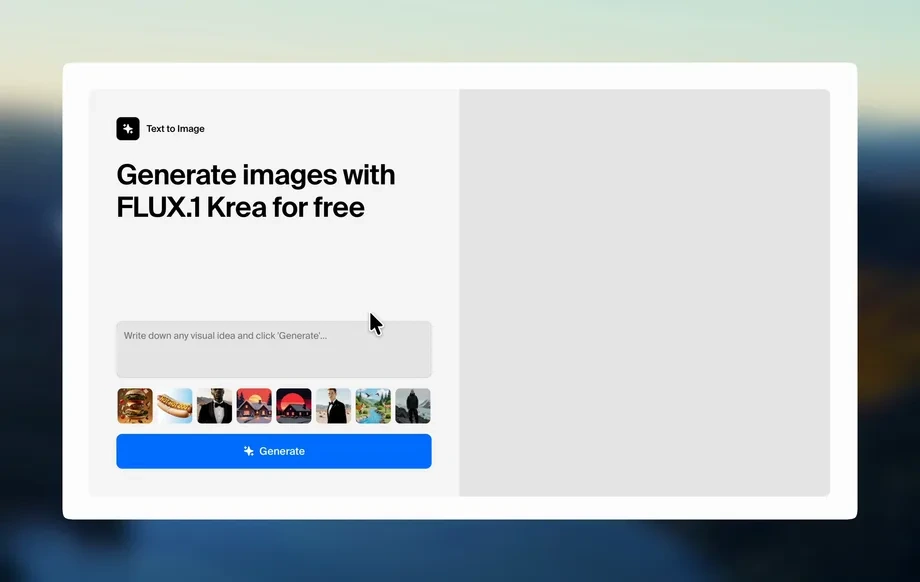
Step 1
Upload Plan + References
Add your floor plan, sketch, or diagram, then upload one or more reference images for style, materials, lighting, or mood to guide the AI visualization.
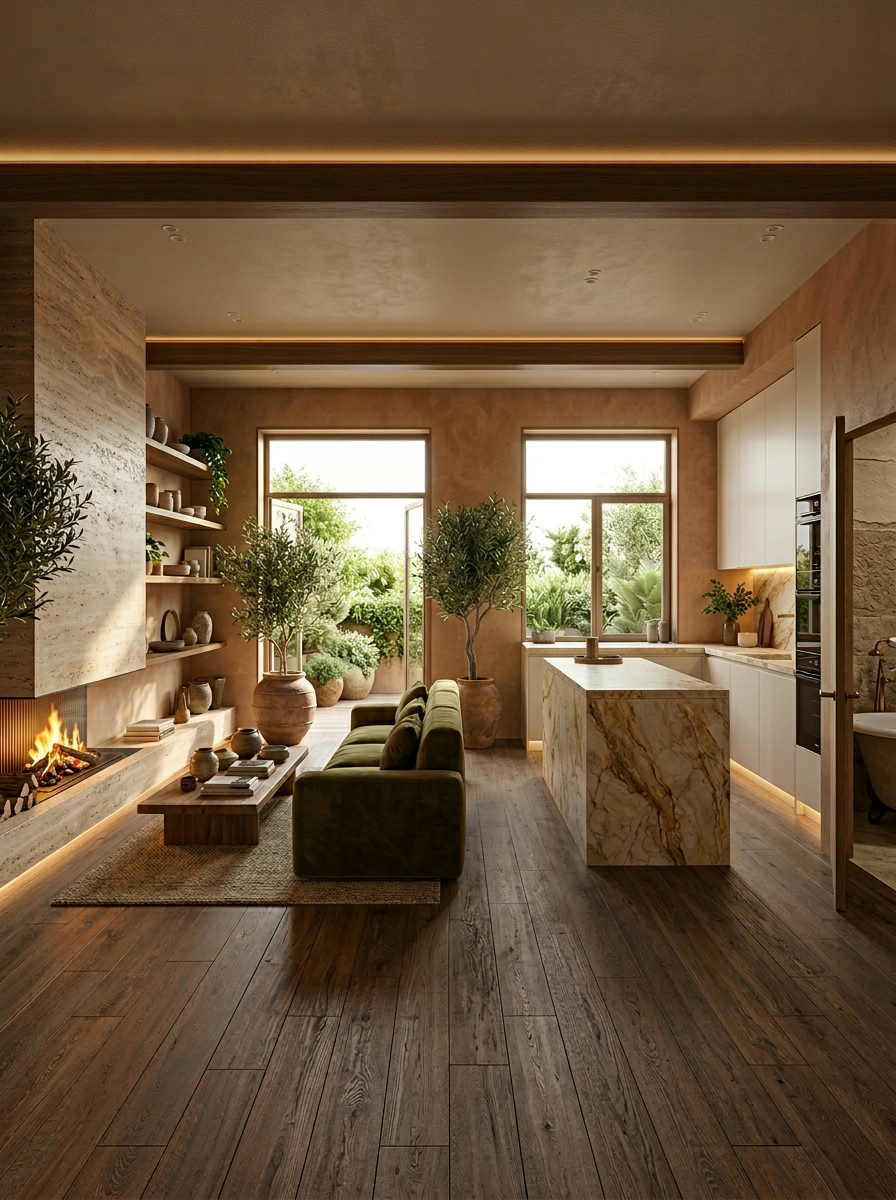
Turn plans and reference images into clear visualizations with AI. Generate layouts, variants, and concept visuals fast—try Plan+Ref= Visualization online.
How to use Plan+Ref= Visualization
Create clear concept visuals by combining a plan with reference images. Follow these steps to set inputs, generate variations, and export results for reviews, presentations, or iteration.
Step 1
Add your floor plan, sketch, or diagram, then upload one or more reference images for style, materials, lighting, or mood to guide the AI visualization.
Step 2
Choose a visual style, adjust prompts or constraints, and set how many variations you want. Fine-tune composition and clarity to match your plan intent.
Step 3
Run the AI generator to produce concept visuals. Compare outputs, refine inputs if needed, then download high-quality images for sharing, feedback, and next-step design decisions.
Features
Plan+Ref= Visualization combines structured plan inputs with reference imagery to generate consistent, presentation-ready concepts. Use AI to explore layout looks, materials, and styles while keeping intent aligned to your plan. Produce fast iterations for reviews, reduce back-and-forth, and clarify direction before detailed production work.
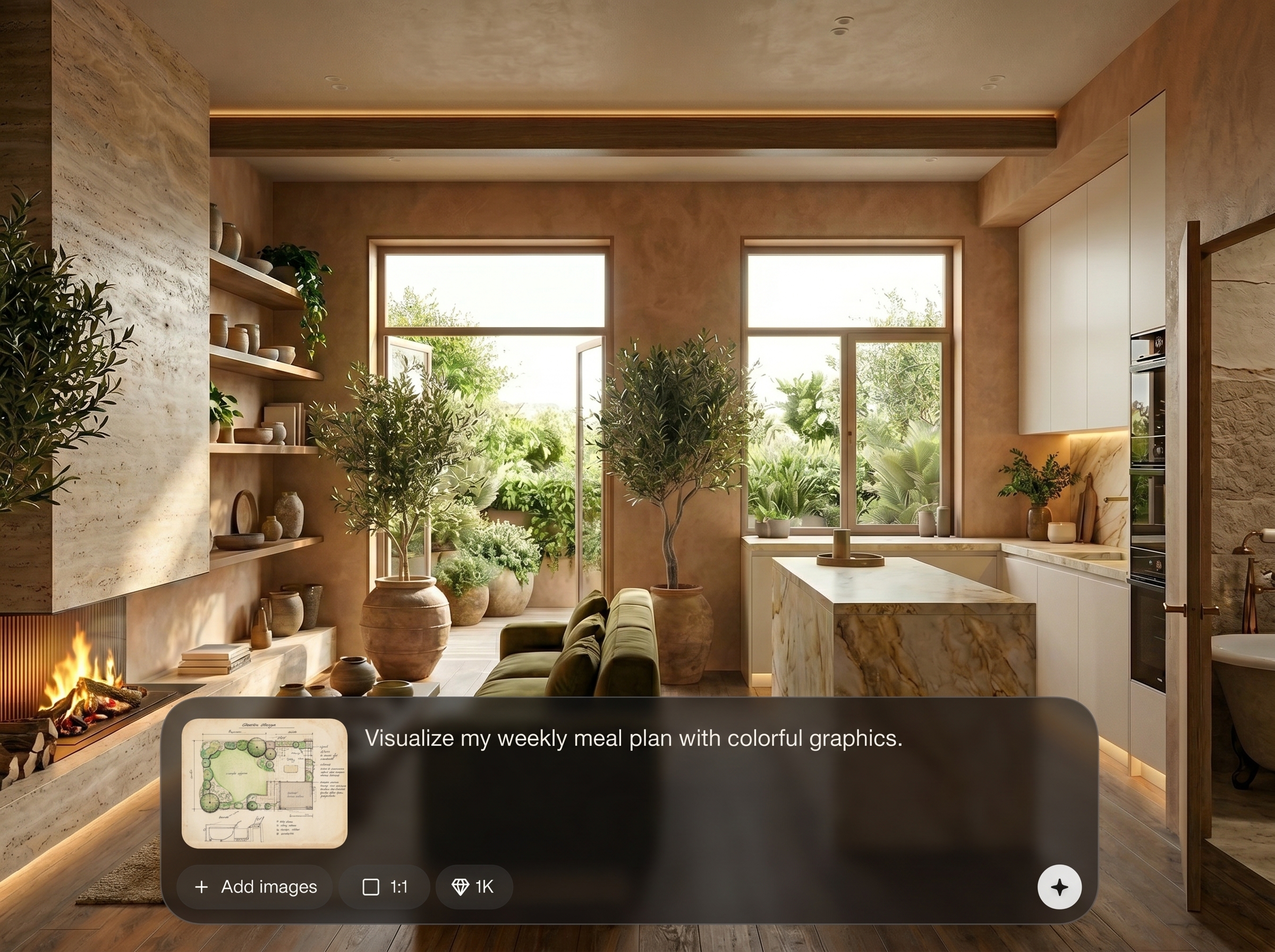
Transform plans into coherent concept visuals while preserving key layout cues. The AI uses your plan as structure and your references as the visual target for more reliable outputs.
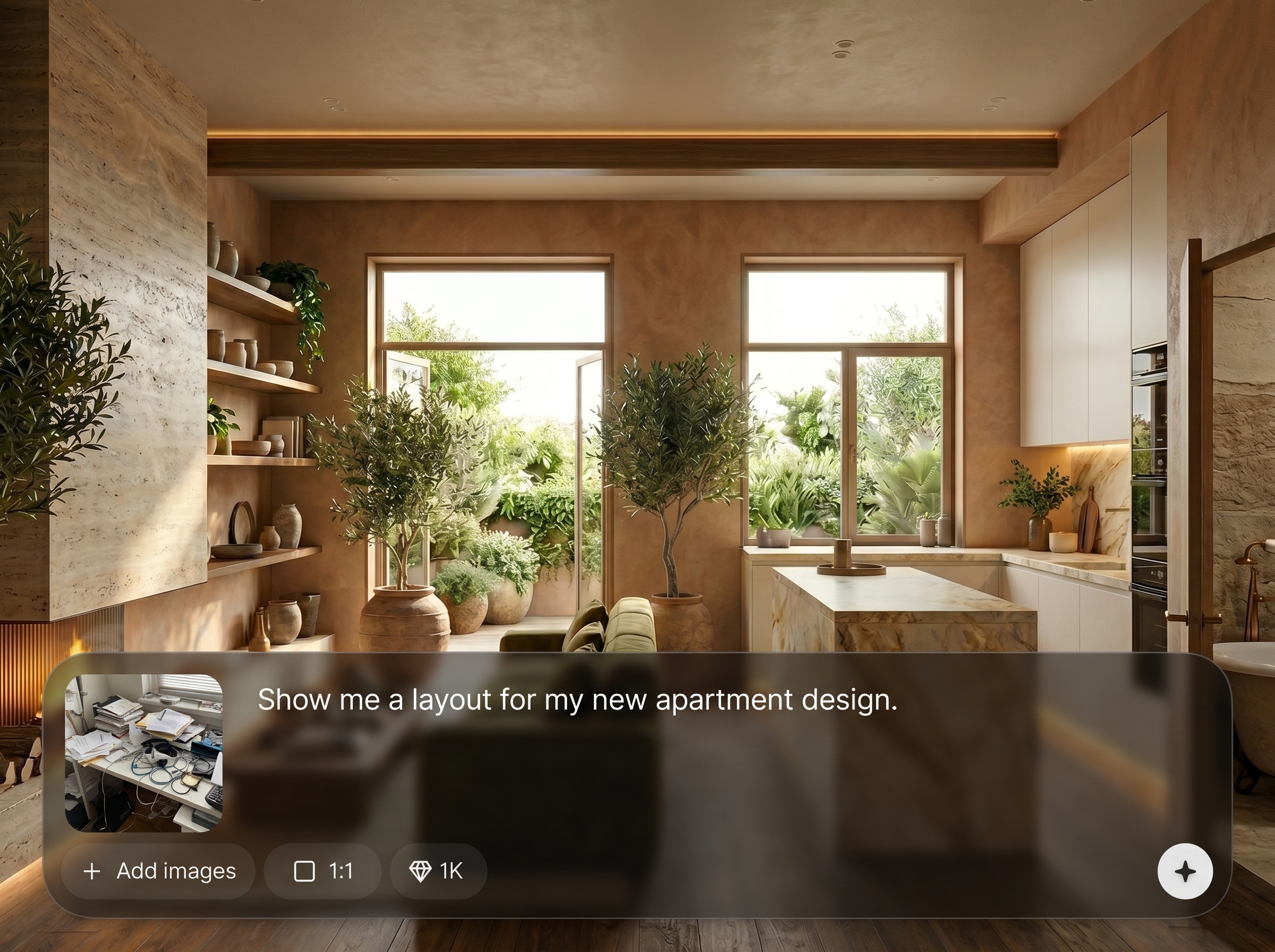
Guide results with reference images for materials, lighting, and mood. Generate variants that stay closer to your chosen aesthetic, reducing prompt guessing and manual image editing.
Create multiple options in minutes, compare variations, and refine inputs for better results. Export high-quality images for presentations, design reviews, and rapid stakeholder alignment.
About
Plan+Ref= Visualization turns a plan plus reference imagery into polished visual concepts using AI. Upload your plan, add a style or material reference, and generate multiple layout and look variations in minutes. Perfect for exploring options, aligning stakeholders, and moving from rough intent to clear visuals without heavy manual editing.
Plan+Ref= Visualization keeps your concept visuals grounded in a plan while matching the aesthetic of your references. Generate reliable variations quickly, reduce manual editing, and communicate intent clearly. Ideal for rapid iteration, alignment, and better decisions early in the design process.
Upload your plan image, add one or more reference images, and set a style or prompt. Generate variations, pick the strongest result, and export high-quality visuals for sharing and feedback.
Use cases
Discover how different creators use this app in their workflow.
Test multiple styles and material directions from the same plan. Quickly compare options and converge on a clear visual direction before committing to detailed work.
Generate easy-to-understand visualizations for meetings and proposals. Share clear variants to gather feedback faster and reduce misalignment on intent and style.
Produce polished concept imagery for decks, landing pages, and listings. Keep visuals consistent with a plan while adapting to different branding or aesthetic references.
Krea is one of the world's leading generative AI platforms. See what others say.
Real reviews on TrustpilotSo many AI tools out there but I always come back to Krea. It's really the one AI platform that 'just works'.

FYN
Krea's interfaces are still the best in the industry. Everything looks and feels so clean and easy to use! Imo the easiest to use gen AI website.

Lynn
Ultra fast generations. Extremely simple to use. All the latest AI models.

Daniel
KREA is the only AI subscription I have right now besides ChatGPT.

Sophia M.
Answers to common questions about AI plan visualization, references, and exporting results.
It’s an AI visualization tool that combines a plan with reference images to generate concept visuals. Use it to explore styles, materials, and layout looks quickly, without complex manual rendering.
You can upload floor plans, sketches, or simple diagrams as images. Cleaner, higher-contrast plans typically produce clearer structure in the generated visualization and improve consistency across variations.
References guide the visual target—materials, lighting, color palette, and overall mood. The AI blends your plan structure with reference styling to produce outputs that better match your intended look.
Yes. Generate several AI variations by changing style settings, prompts, or reference images. This helps you compare directions quickly and iterate toward the best option for your project.
Outputs are designed to be presentation-friendly concept visuals. You can download high-quality images, then refine by adjusting references or prompts to reach the clarity and style you need.
Upload a plan and reference images to generate fast, consistent AI visualizations for decisions and presentations.