












Step 1
Upload
Drag and drop a JPG or PNG. Image Rescue 4k analyzes blur, noise, and compression artifacts to prepare the best AI restoration pass.
Restore and upscale photos to crisp 4K with AI. Image Rescue 4k boosts clarity, reduces noise, and keeps edits minimal. Try it online now.
How to use Image Rescue 4k
Upload your image, choose a 4K enhancement level, and let AI rebuild detail while keeping the look natural. In a few clicks, you’ll get a cleaner, sharper photo ready for print or web.
Step 1
Drag and drop a JPG or PNG. Image Rescue 4k analyzes blur, noise, and compression artifacts to prepare the best AI restoration pass.
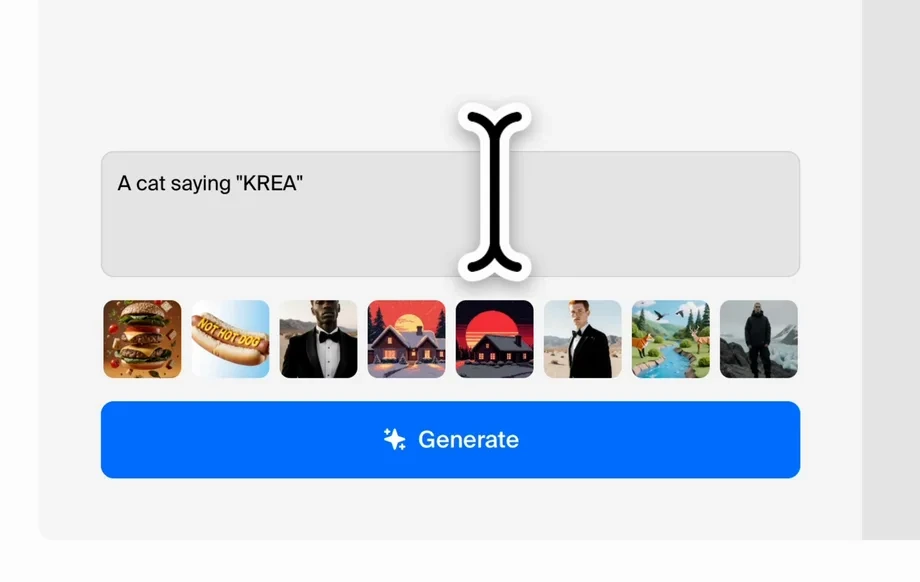
Step 2
Select 2x or 4x upscale and enable denoise or sharpen as needed. Preview changes to keep edits minimal while maximizing clarity.
Step 3
Export the enhanced image in high quality. Use the restored 4K file for printing, product pages, social posts, or archiving.
Features
Image Rescue 4k is an AI image upscaler built for natural-looking restoration. It increases resolution to 4K, reduces noise, and improves edge detail without overprocessing skin, textures, or backgrounds. Get clean results for photos, screenshots, and graphics with fast previews and dependable output quality.
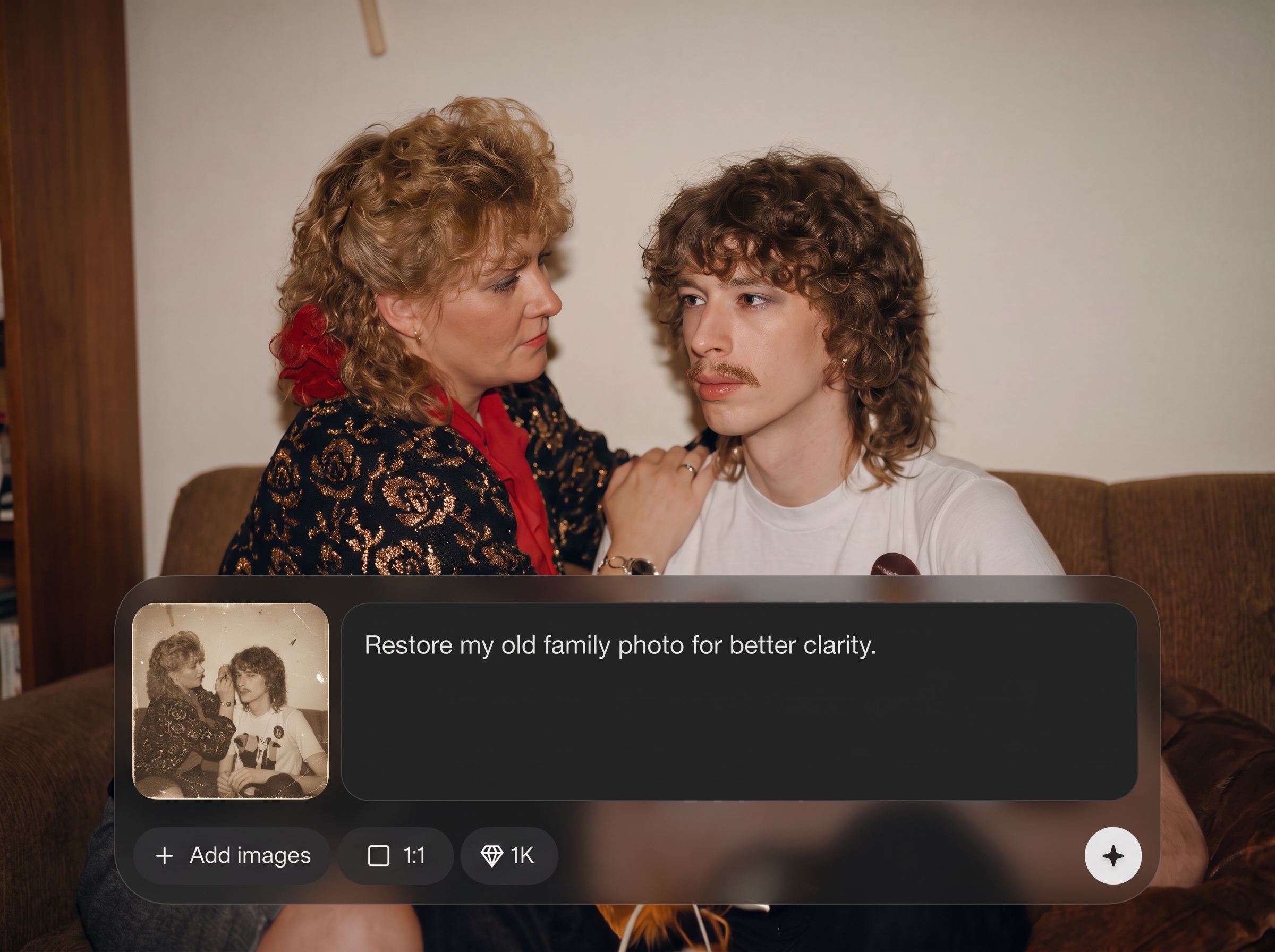
Upscale low-resolution images to crisp 4K while preserving original color and texture. AI reconstruction adds detail without the “plastic” look common in aggressive photo enhancement.
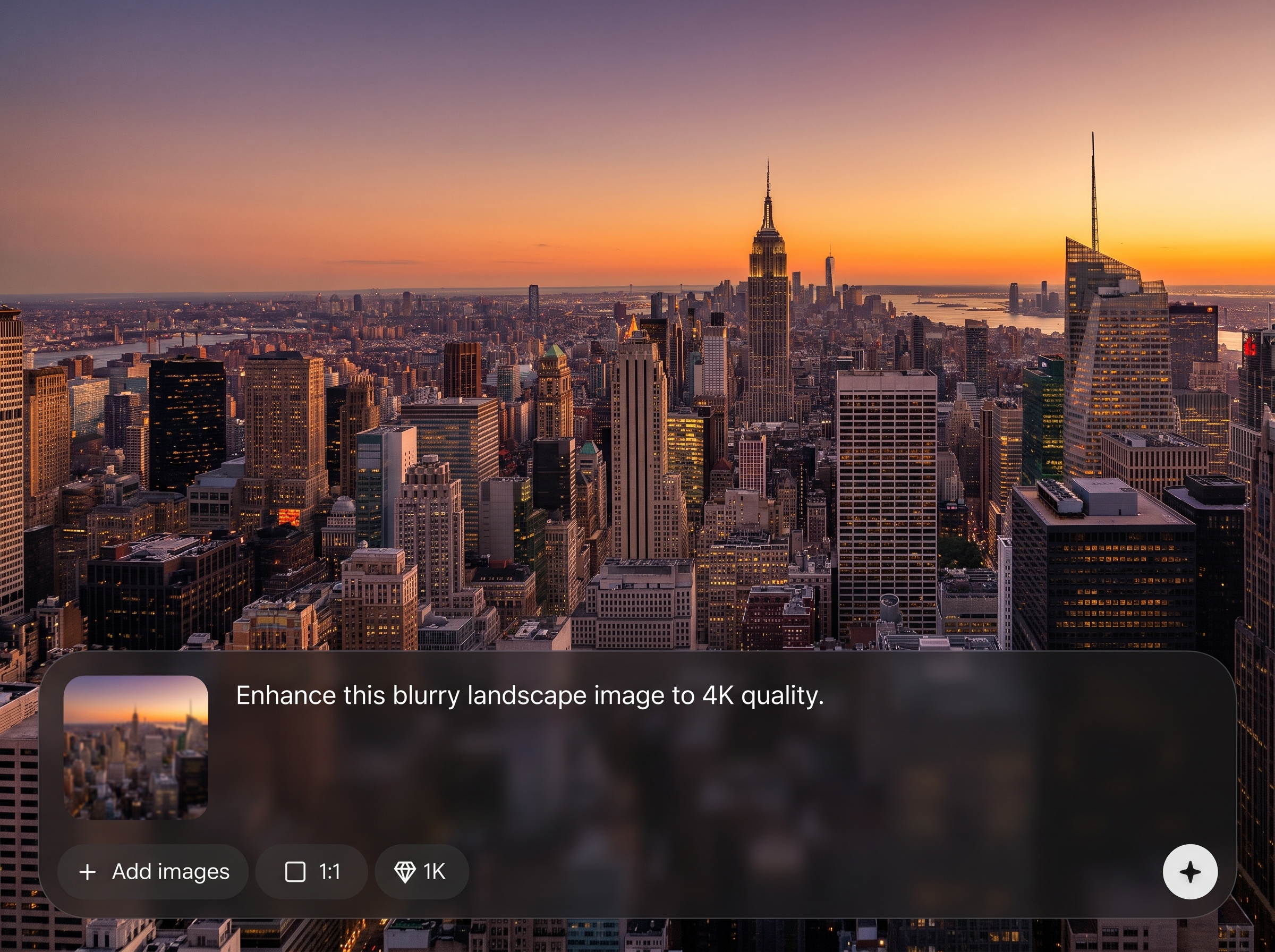
Remove grain, JPEG compression blocks, and banding with machine learning cleanup. Keep edges clean and readable while avoiding halos and oversharpening in flat areas.
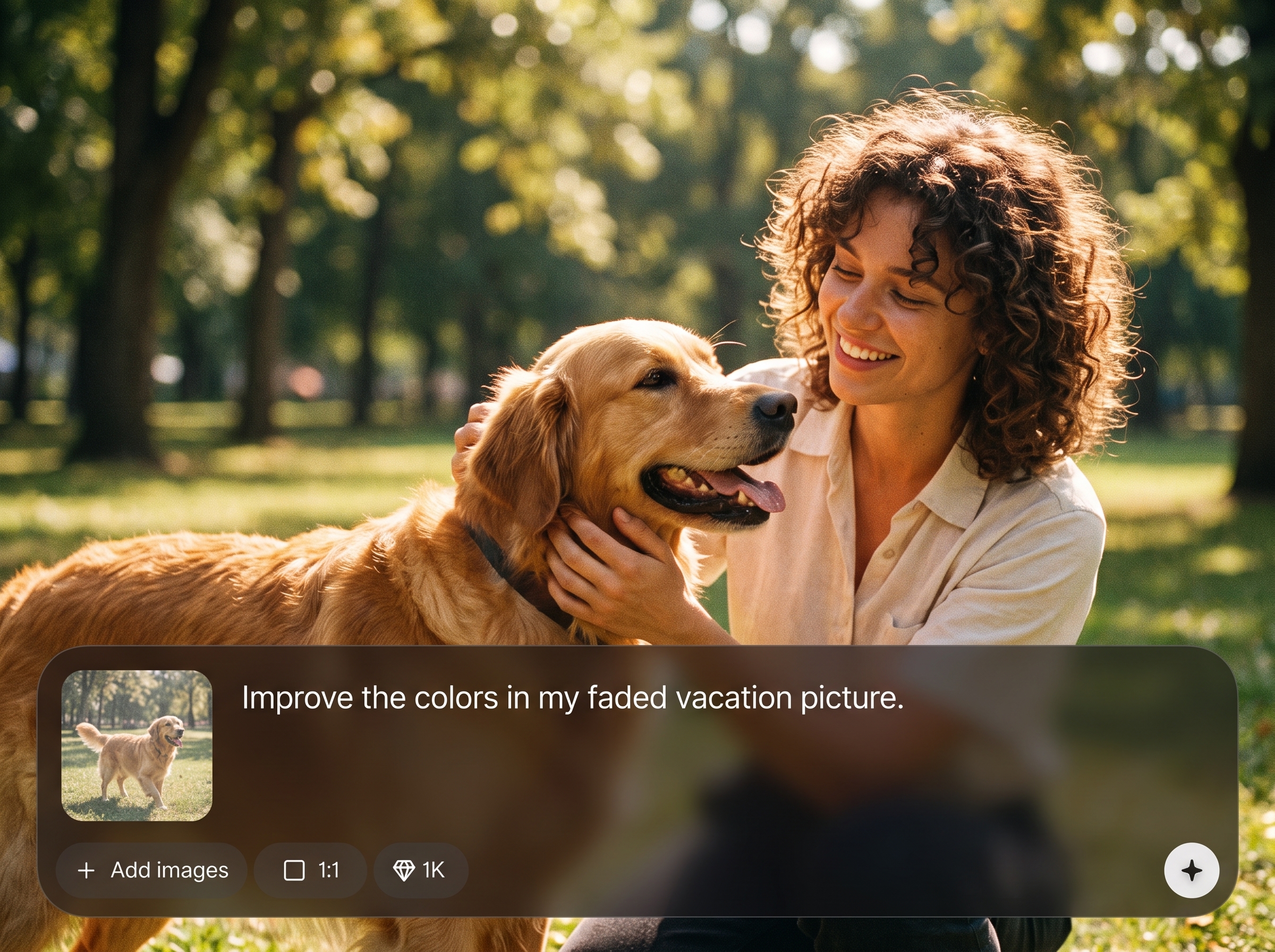
Fine-tune enhancement strength for subtle improvements. Maintain the original composition and style while boosting clarity, sharpness, and overall image quality for real-world use.
About
Image Rescue 4k restores images with minimal changes and maximum quality. Use AI upscaling to boost resolution to sharp 4K, reduce noise, and recover fine details while preserving natural textures. Perfect for fixing blurry, compressed, or low-res photos fast—no heavy editing, just clean, high-quality results you can download instantly.
Image Rescue 4k focuses on subtle, high-impact improvements: cleaner edges, reduced noise, and higher resolution without heavy stylization. The AI pipeline targets real artifacts like blur and compression, delivering dependable 4K-ready results for photos, product images, and screenshots.
Open Image Rescue 4k, upload a JPG or PNG, and choose 2x or 4x enhancement. Preview the result, adjust denoise or sharpening if needed, then download your restored image in high quality.
Use cases
Discover how different creators use this app in their workflow.
Repair old, blurry, or compressed photos with AI restoration that keeps facial features and textures natural while improving clarity for sharing or printing.
Upscale product photos to sharp 4K, reduce noise, and improve detail for cleaner thumbnails, zoom views, and listings that look professional.
Enhance low-res screenshots, UI captures, and icons. AI upscaling improves readability and edge definition while keeping flat colors and lines stable.
Krea is one of the world's leading generative AI platforms. See what others say.
Real reviews on TrustpilotSo many AI tools out there but I always come back to Krea. It's really the one AI platform that 'just works'.
FYN
Krea's interfaces are still the best in the industry. Everything looks and feels so clean and easy to use! Imo the easiest to use gen AI website.

Lynn
Ultra fast generations. Extremely simple to use. All the latest AI models.
Daniel
KREA is the only AI subscription I have right now besides ChatGPT.

Sophia M.
Answers to common questions about AI upscaling, 4K restoration, and output quality.
Image Rescue 4k uses AI upscaling and restoration to increase resolution up to 4K, reduce noise, and recover details. It’s designed for minimal changes so images stay realistic and consistent.
Yes. Upload a low-res image and choose 2x or 4x upscale. The model reconstructs missing detail and improves sharpness, producing a higher-resolution file suitable for web and many print uses.
The tool prioritizes natural preservation. It enhances edges and reduces artifacts without heavy stylization, helping keep skin, fabric, and background textures close to the original while improving clarity.
Common formats like JPG and PNG are supported. For best results, start with the highest-quality original available, since extreme compression can limit how much detail AI can reliably recover.
Denoise removes grain and compression artifacts; sharpen improves edge clarity. Use small adjustments and rely on previews to avoid halos or overprocessing, especially on portraits and smooth gradients.
It works well for improving resolution and cleaning noise on older scans or phone photos. For tears or missing areas, combine upscaling with separate retouching, then re-run for final crispness.
Upscaled 4K files can improve print readiness by increasing pixel count and clarity. Always check final dimensions and DPI requirements for your paper size, and preview fine details before exporting.
Yes, it can enhance UI captures and screenshots by improving edge definition and reducing blur. Results depend on the source, but 2x/4x upscaling often makes small text more readable.
Processing time depends on image size and selected upscale factor. Most images complete quickly with a preview-first workflow, so you can iterate settings and download the best result without waiting long.
Start with the least compressed image, choose the smallest upscale that meets your need, and apply denoise/sharpen lightly. Use preview comparisons to keep changes subtle while maximizing perceived detail.
Upload a photo and get a cleaner, sharper 4K upscale in minutes with AI restoration.