












Step 1
Upload
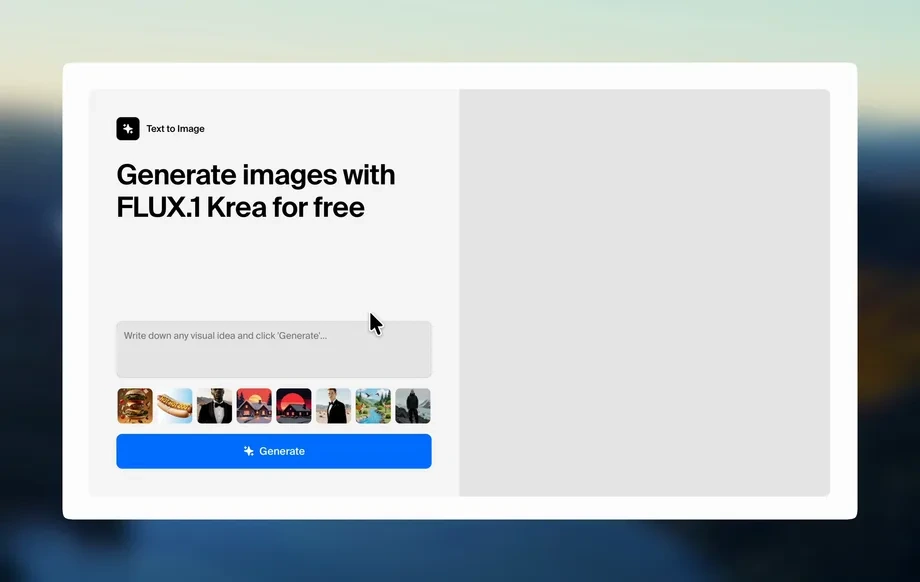
Import your static non-human Creo image. The tool reads dimensions and prepares a 16:9 resize canvas while keeping the original quality and composition in view.
Resize non-human static Creo images to 16:9 fast. AI keeps framing clean, prevents distortion, and exports ready-to-use widescreen files. Try now.

How to use Resize Static Non Human Creo to 16x9
Convert Creo static non-human images to a 16:9 aspect ratio with an AI resize workflow. Upload your file, choose output settings, and download a widescreen result with clean framing.
Step 1
Import your static non-human Creo image. The tool reads dimensions and prepares a 16:9 resize canvas while keeping the original quality and composition in view.
Step 2
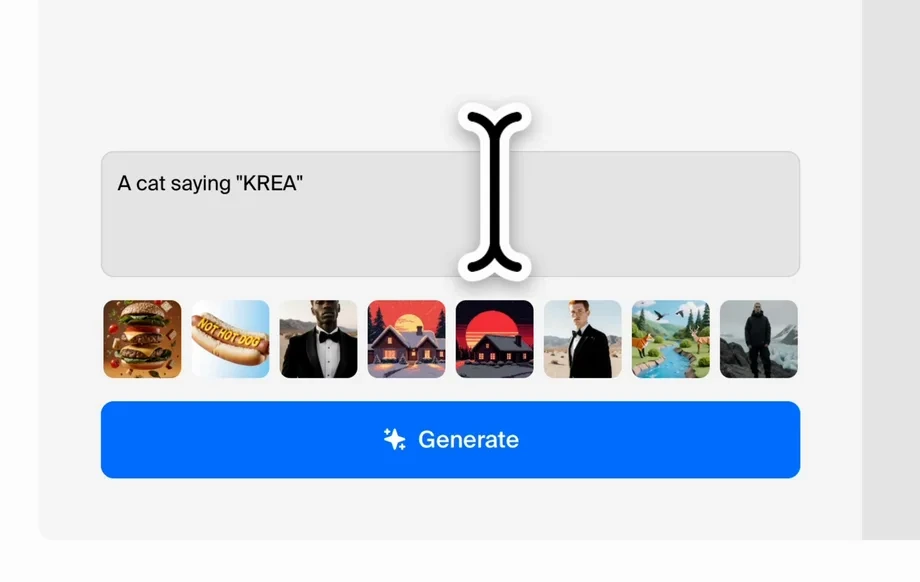
Select 16:9 output size and choose fit options like crop or padding. AI helps maintain proportions and reduces distortion around key shapes and edges.
Step 3
Preview the widescreen result, then download in your preferred format. Use the final 16:9 image for banners, thumbnails, presentations, or web layouts.
Features
Resize Static Non Human Creo to 16x9 is an AI image resizing tool that converts static visuals into widescreen outputs without messy stretching. Choose crop or padding to control composition, keep key subjects centered, and export consistent 16:9 assets. It’s optimized for fast, repeatable results across multiple images and formats.
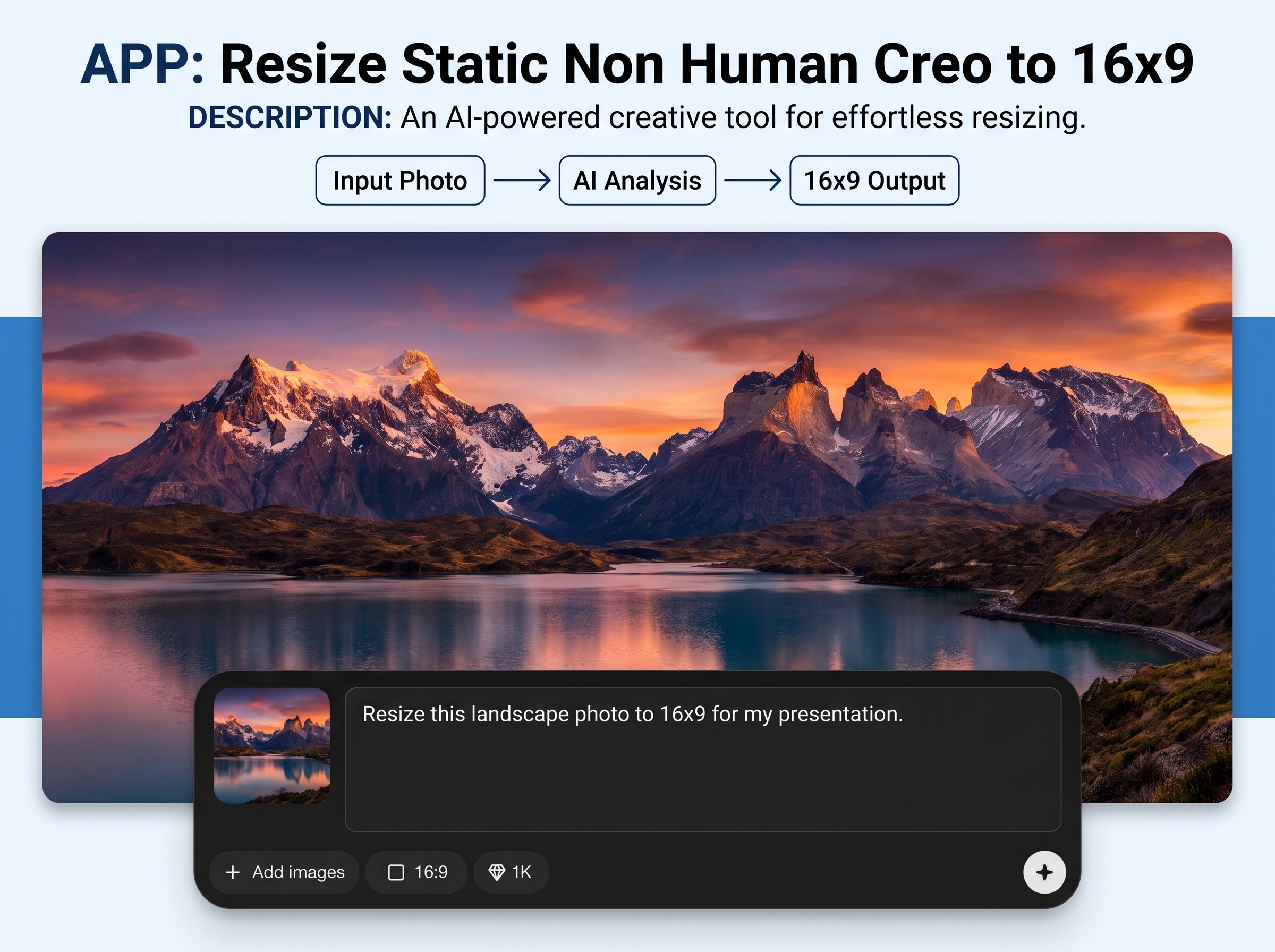
Convert any static Creo image to a precise 16:9 aspect ratio. AI helps preserve proportions and keeps important non-human subjects framed, minimizing awkward crops and warped edges.
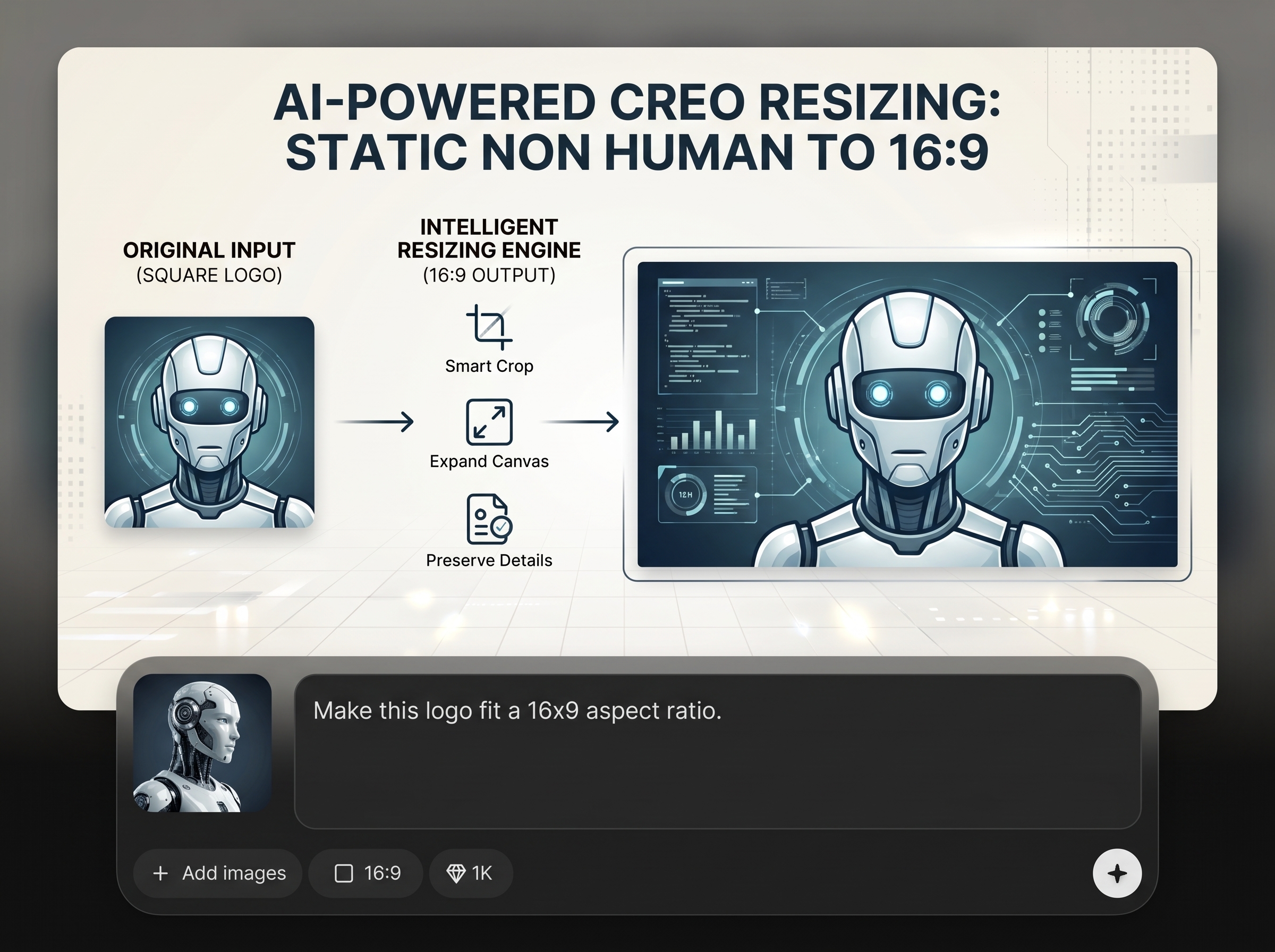
Get widescreen results quickly with a clear before/after preview. Adjust crop or padding choices and confirm composition before exporting, reducing rework and repeated uploads.
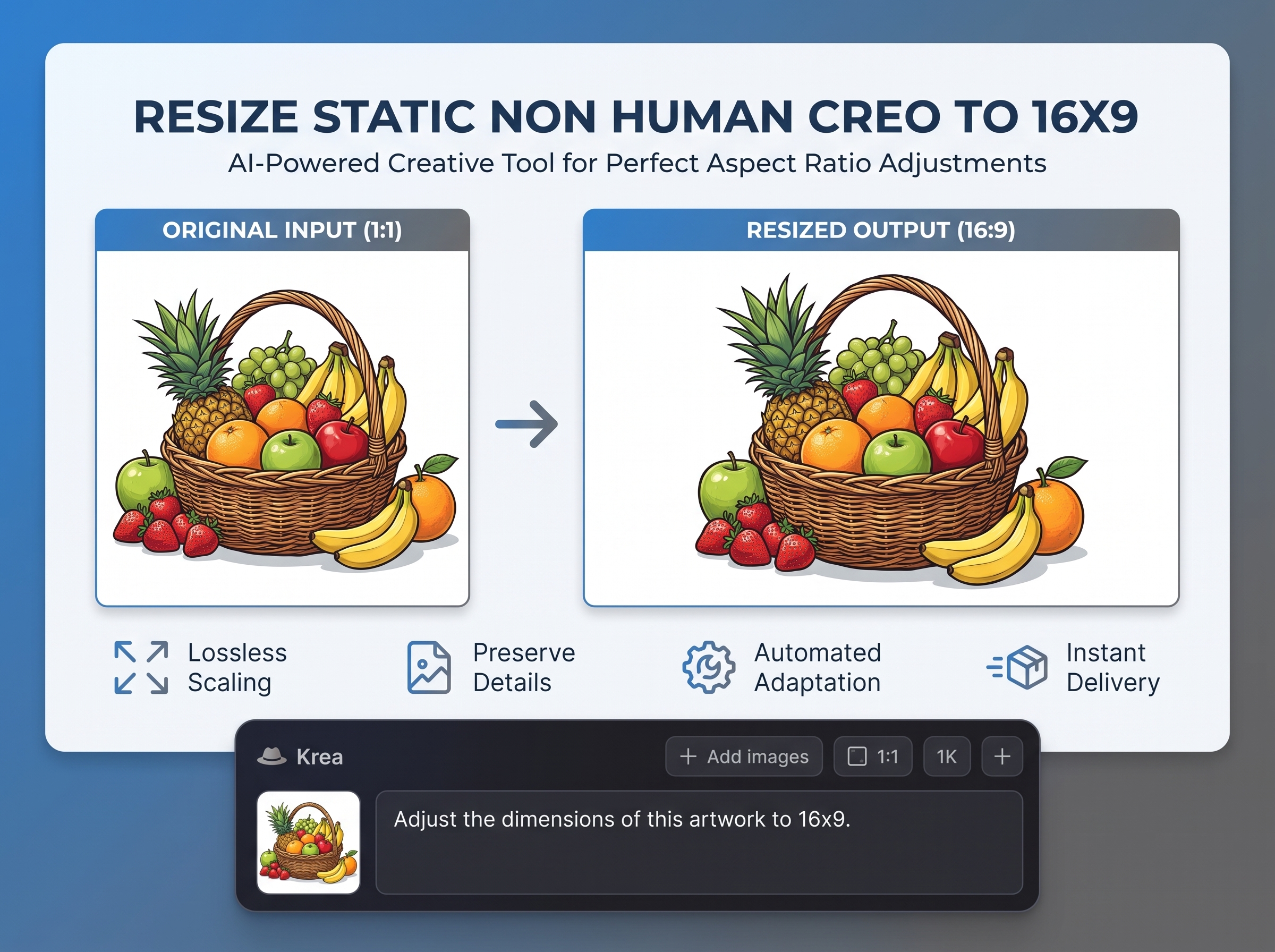
Export 16:9 images for thumbnails, slides, and web banners. Keep consistent sizing across projects and simplify formatting with tool-focused settings designed for repeatable output.
About
Resize Static Non Human Creo to 16x9 turns static, non-human Creo visuals into clean 16:9 widescreen images. Use AI-assisted resizing to preserve proportions, reduce stretching, and keep key subjects centered. Export consistent, ready-to-share files for video thumbnails, slides, and web banners in minutes.
Get dependable 16:9 outputs without trial-and-error. AI-assisted resizing helps preserve proportions, while crop and padding controls keep composition intentional. Use a streamlined workflow to produce consistent widescreen assets for web, slides, and video-ready layouts quickly.
Upload a static non-human Creo image, pick a 16:9 output size, and choose crop or padding. Preview the framing, then export your resized widescreen image in seconds.
Use cases
Discover how different creators use this app in their workflow.
Resize static non-human Creo images to 16:9 for YouTube-style thumbnails and cover frames, with cleaner composition and fewer distortions.
Generate widescreen 16:9 assets for landing pages and headers. Keep subjects centered while matching common responsive banner dimensions.
Convert images to 16:9 for decks and reports. Maintain consistent slide-ready sizing so visuals align cleanly across layouts.
Krea is one of the world's leading generative AI platforms. See what others say.
Real reviews on TrustpilotSo many AI tools out there but I always come back to Krea. It's really the one AI platform that 'just works'.
FYN
Krea's interfaces are still the best in the industry. Everything looks and feels so clean and easy to use! Imo the easiest to use gen AI website.

Lynn
Ultra fast generations. Extremely simple to use. All the latest AI models.

Daniel
KREA is the only AI subscription I have right now besides ChatGPT.

Sophia M.
Common questions about resizing Creo images to a 16:9 aspect ratio with AI.
It resizes static non-human Creo images into a 16:9 widescreen format. You can choose cropping or padding to fit the frame, while AI helps preserve proportions and cleaner composition.
Distortion can happen with basic scaling, but this tool offers fit controls and AI-assisted framing to reduce stretching. Use crop or padding options to keep shapes and edges looking natural.
Yes. Crop fills the 16:9 frame by trimming edges, while padding preserves the full image with borders. Pick the option that best protects your subject and composition.
You can export common widescreen dimensions (like 1920×1080) and other 16:9 sizes depending on your needs. The key is maintaining the 16:9 aspect ratio consistently across outputs.
Yes. It’s designed for static non-human Creo imagery and stylized shapes. The resizing workflow focuses on preserving proportions and avoiding awkward framing around distinctive silhouettes.
Yes. The resizing experience uses AI methods to support cleaner fitting decisions and composition. It complements standard resize controls with smarter guidance to minimize common widescreen artifacts.
Yes, you can process multiple images with the same 16:9 settings for consistent results. This helps standardize assets for banners, thumbnails, and slide decks without manual reformatting each time.
Export options depend on available output settings, but common image formats are typically supported. Use the preview to confirm quality and framing before downloading your final 16:9 file.
Use the preview and fit controls to adjust how the image fills the widescreen canvas. Cropping can be tuned to protect the subject, while padding keeps the original framing intact.
Convert static non-human visuals to clean widescreen assets with AI-assisted resizing, preview, and export.