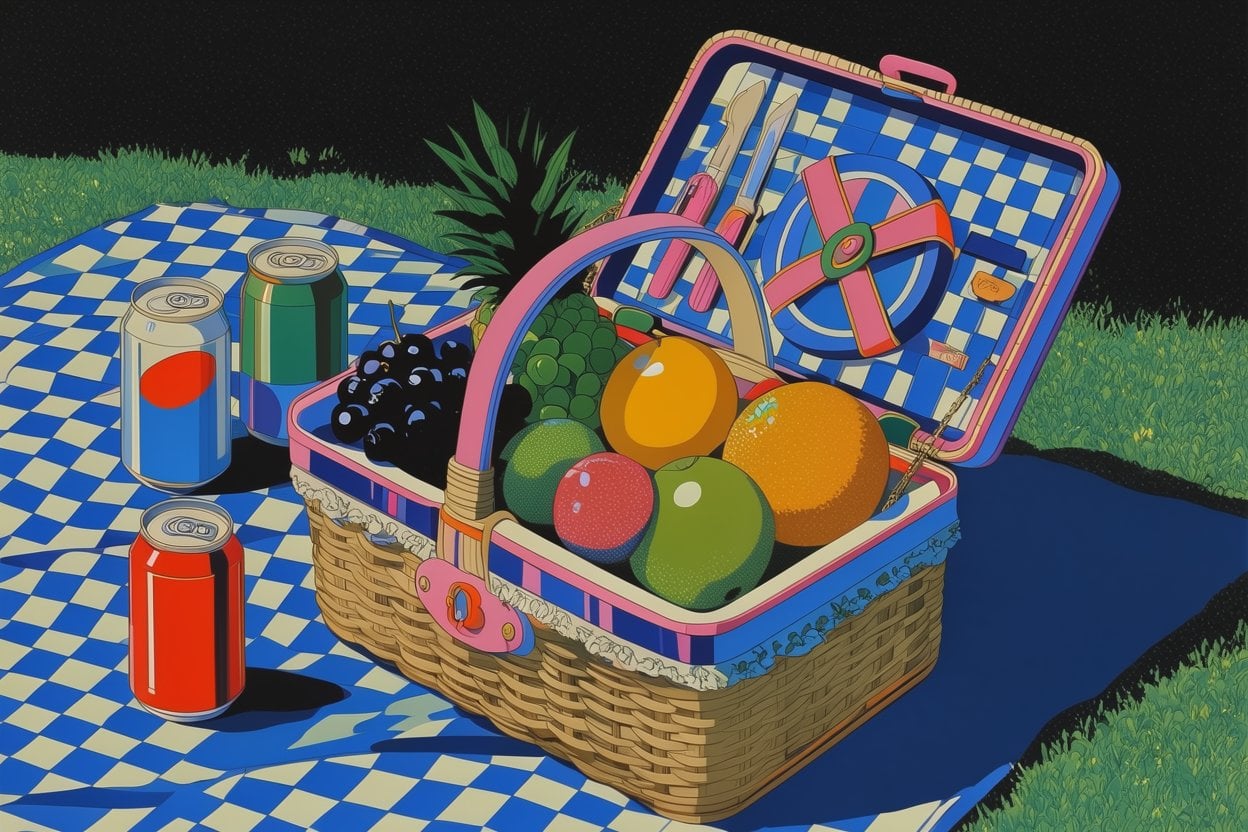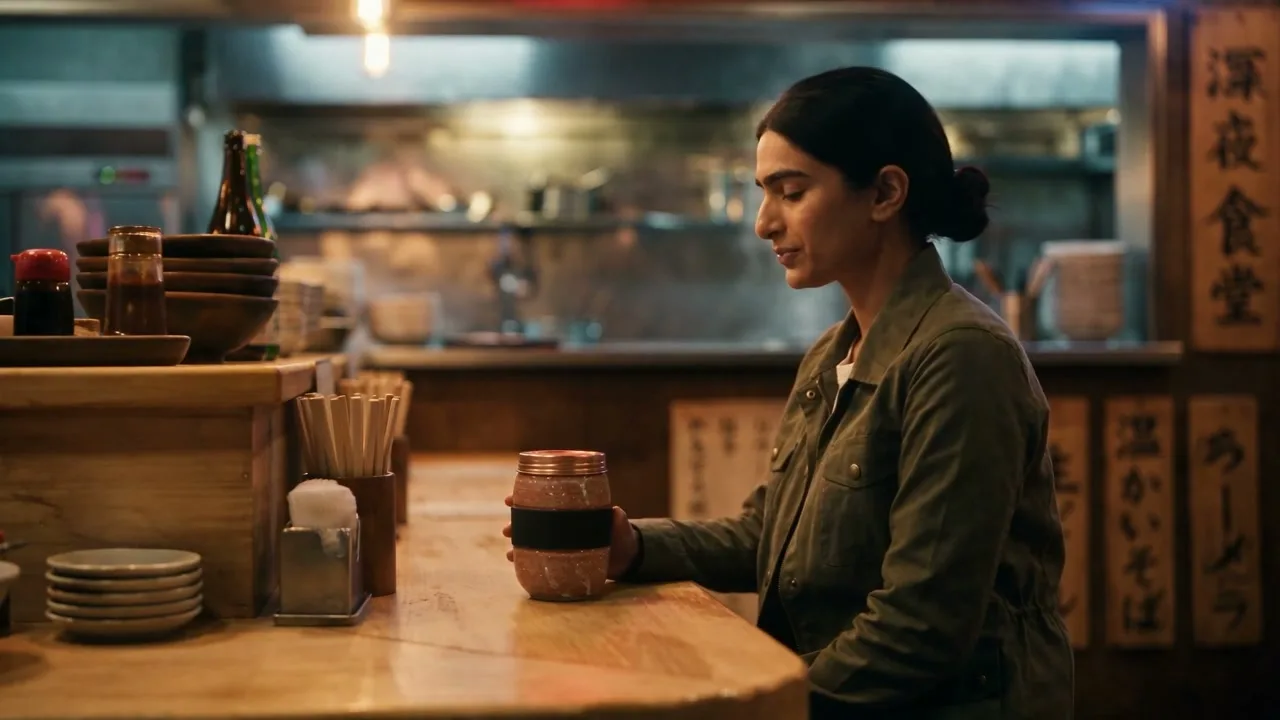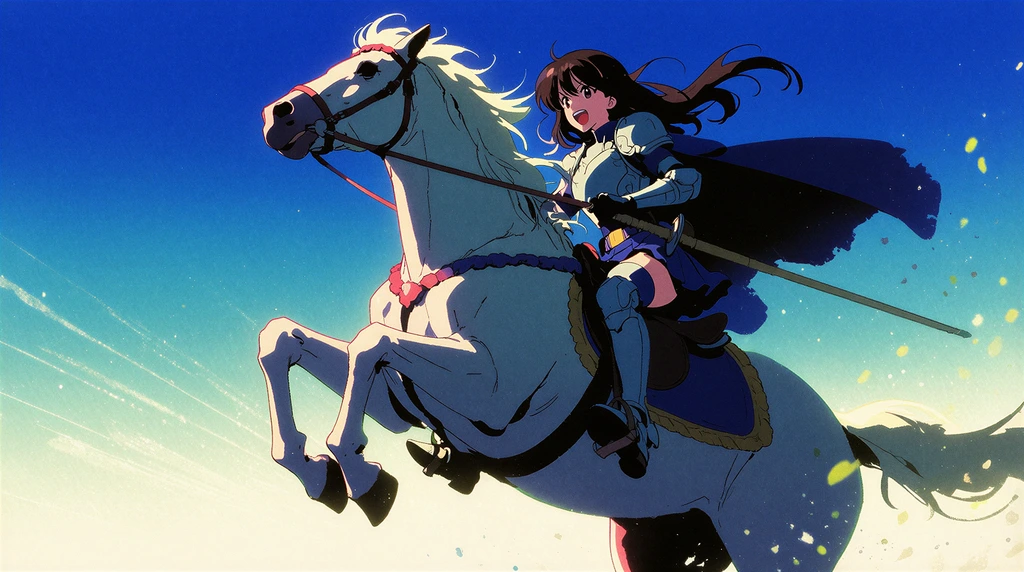
Krea 2 is built around style control: not just what should appear in an image, but how it should feel. Style references and moodboards already let you guide Krea 2 with visual examples. LoRA training takes that one step further.
Starting today, we’re rolling out Krea 2 LoRA training in beta — our most powerful fine-tuning system to date. Train Krea 2 on your own specific style, object, or character with precision, then use it directly in the Image tool.
Krea 2 LoRAs are available for Max and Business subscribers while we test in beta.
LoRAs aren’t new to Krea — we’ve supported them on Flux, Qwen, and Wan for a while. What’s new is the quality. Krea 2 LoRAs hold style, character, and material identity at a level we haven’t seen from any of the earlier backbones.
Make your style reusable
Train a LoRA on your own images and generate from it in the Image tool.
Open the trainerHow it works
Three steps from a folder of images to a reusable Krea 2 LoRA.
1. Open the trainer
Head to /train, click Train new LoRA, and hit Next step.
2. Add images, pick the model, set steps
Drop in a set of images (at least three) that share the style, character, or object you want to capture.
On the right sidebar, choose Krea 2 Medium or Krea 2 Large — Large trains stronger, Medium trains faster. Adjust Steps if you want the LoRA to learn more aggressively; the default is tuned to work for most datasets.
Krea auto-captions your dataset before training. Captions tell the trainer what to learn and what to ignore, so a one-off background or prop doesn’t accidentally become part of the LoRA. You can edit captions before kicking off the run.
3. Use it in the Image tool
When training finishes, your LoRA appears in your Train library with preview images. Open it from there, or hit the LoRA button while generating in the Image tool with Krea 2 selected.
You can dial strength up or down, and combine multiple LoRAs — stack a character with a style, or layer two visual languages on top of each other.
When to reach for a LoRA
Style references are great when you want to guide a single generation. A LoRA is better when you want a visual direction to become reusable — a painterly look applied across subjects, a character placed into new scenes, a product or brand language you can keep generating from without rebuilding the direction every time.
Krea 2 LoRAs are especially useful when the thing you care about isn’t easily described in a prompt: a texture, a recurring face, a brand object, a sketch style, a lighting habit, a strange material.
Made with a Krea 2 LoRA
beccu.studio
@beccu.studio
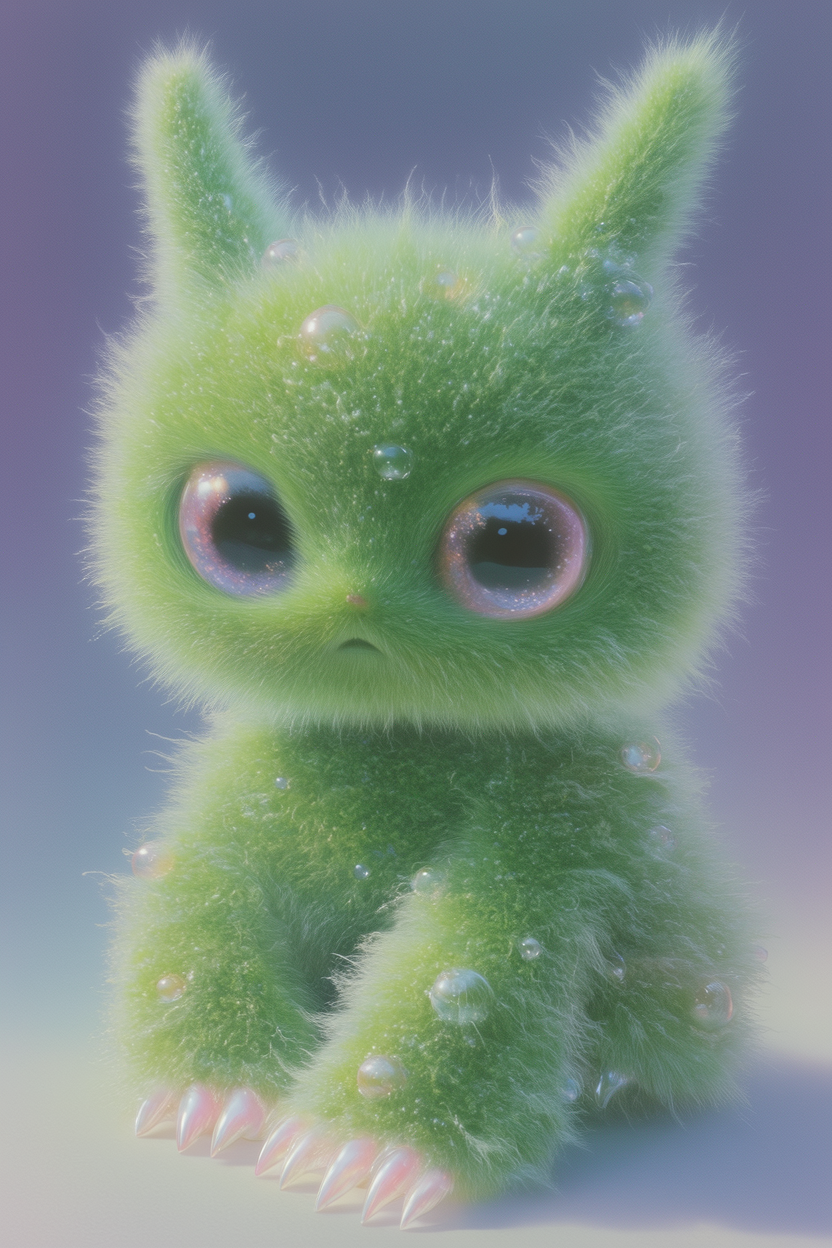
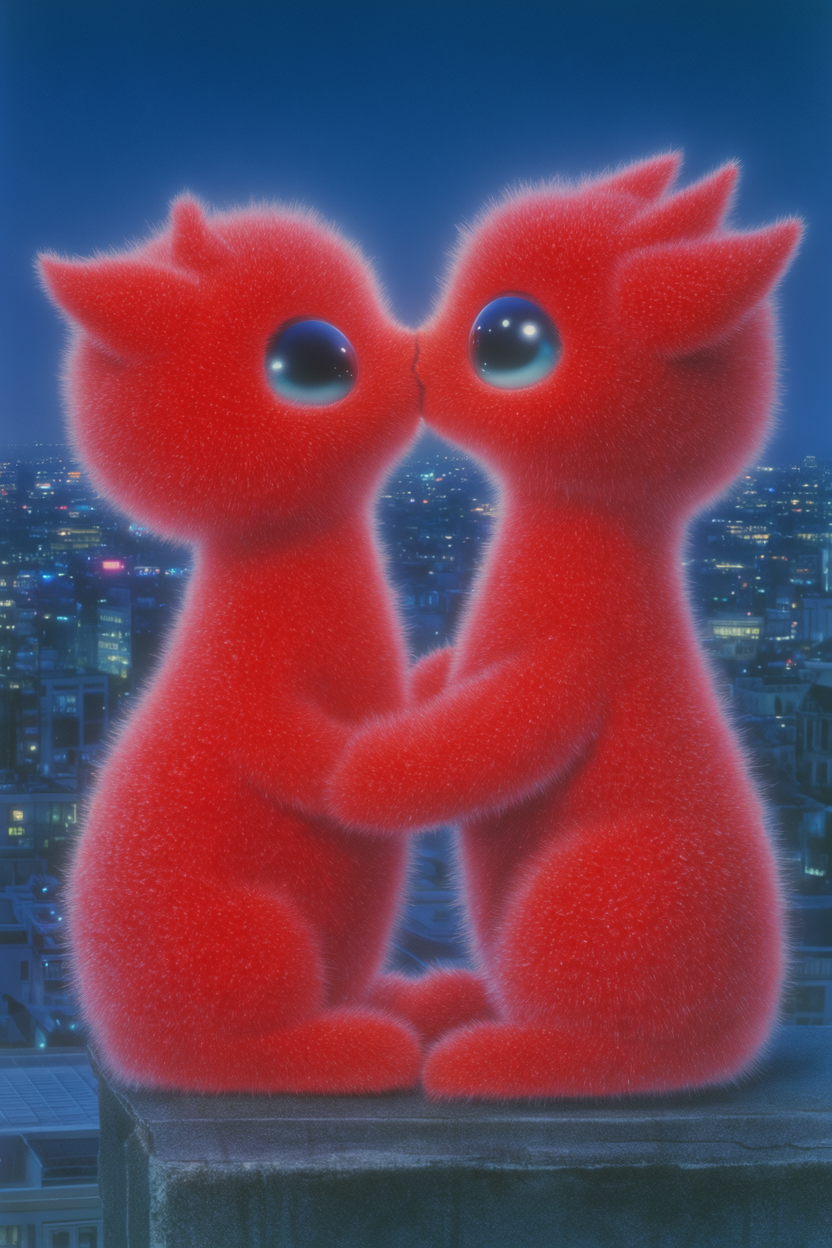
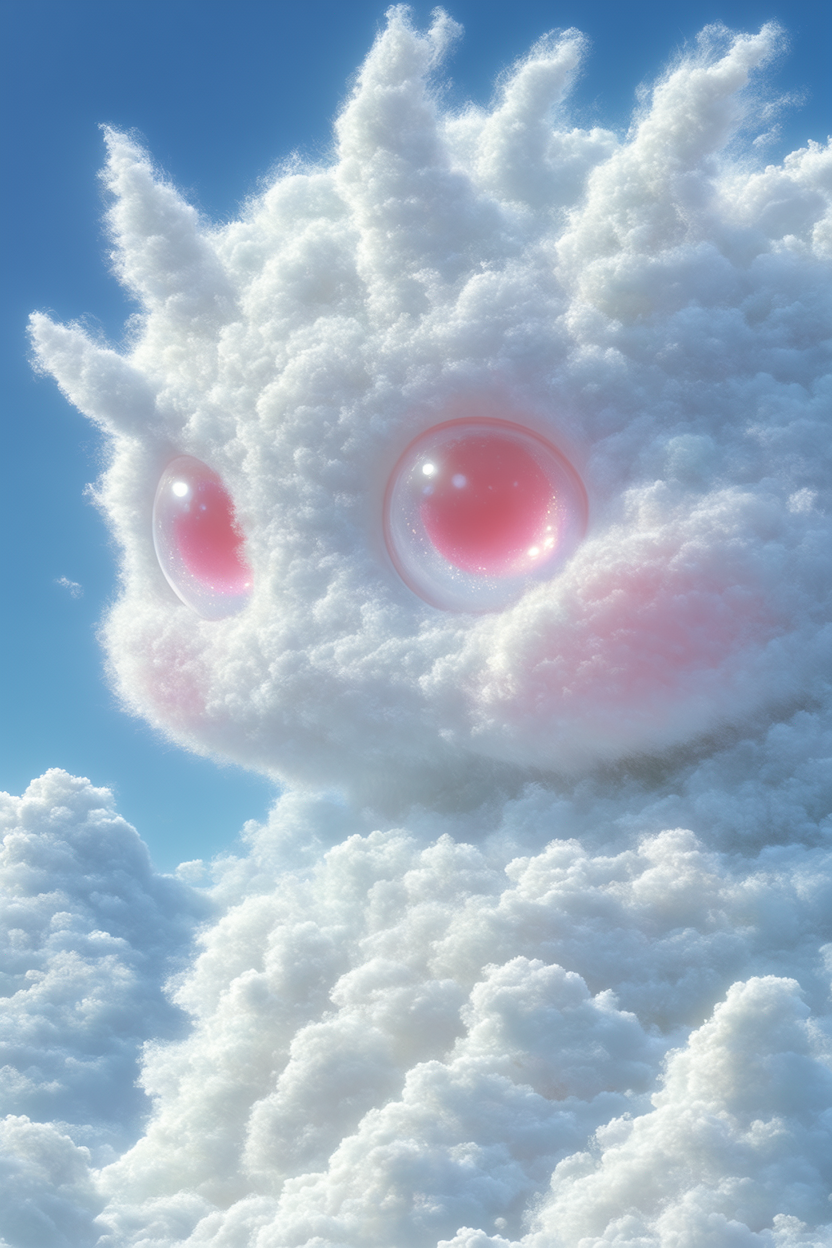
“A custom creature LoRA trained on Krea 2 — same identity across wildly different scenes and moods.”



A few tips
Use a focused dataset. For a style, keep images visually consistent but varied enough that the model learns the style instead of memorizing one composition. For a character, include different angles, expressions, lighting, and backgrounds.
Captions matter. If an image has a detail you don’t want the LoRA to learn, call it out in the caption. Auto-captions are a good start; a quick manual pass usually makes the LoRA noticeably better.
Start with the defaults. Krea shows the estimated compute before you submit, and the default Steps count works for most datasets. Bump it up only when you want the LoRA to learn more strongly.
Keep your first LoRA narrow. One clean character, one style, or one product identity beats trying to teach everything at once.
Private by default
Trained LoRAs are private when created. Keep them to yourself, share with collaborators, or make them discoverable later. If you make a style public, other Krea users can generate with it — but your original training images stay private.
Train a Krea 2 LoRA
Upload a set of images and turn a style or character into a reusable Krea 2 model.
Start training