

krea.ai/nodes
The basics
Every node has three key elements:
Nodes connect through compatible handles, color-coded by data type (image, text, video, etc.). Drag from any handle to see a list of connectable nodes. You can connect up to 10 outgoing connections from a single node.
Build node workflows in Krea
Chain models and tools on an infinite canvas.
The canvas
The nodes canvas is your workspace for building workflows. You can navigate the canvas using the following controls:
There are two navigation modes you can switch between in the left sidebar: Pan and Select. Clicking and dragging in Pan mode will move the canvas, while Select mode will select nodes.
- To select nodes in Pan mode: hold Cmd/Ctrl and click & drag
- To pan the canvas in Select mode: hold Spacebar and click & drag
Organizing
- Use section nodes to group related operations visually
- Create node groups by selecting multiple nodes and pressing the Group button. Once you have a group, you can drag nodes in or out to add or remove them
- Add sticky notes to document your workflow logic
All available nodes
Last Updated: April 13, 2026This section provides a comprehensive reference of all nodes available in the Krea Nodes workflow editor. Models rotate quarterly—always verify current availability in the Nodes interface at krea.ai/nodes.
Generate Image
AI models for generating images from text prompts and image references.Generate Video
AI models for generating videos from text prompts and images.Edit Image
Models for editing and modifying existing images.Enhance Image
Models for upscaling and enhancing image quality.Enhance Video
Models for upscaling and enhancing video quality.Generate 3D
AI models for generating 3D objects.Motion Transfer
Transfer motion from one video to another.Lipsync
Synchronize lip movements with audio.Audio
Nodes for audio generation and synthesis.Utility
Utility nodes that help you process images, videos, text, and more. Most utility nodes require a Pro subscription.Text Utility
Image Utility
Video Utility
Note: Models are ordered by popularity and release date. Bolded entries represent the most actively used models. Availability and features may change as Krea adds new models quarterly. API Access: All models available via API at docs.krea.ai/api-reference
Utility nodes
Utility nodes provide general-purpose functionality for manipulating data, organizing workflows, and preparing content for AI models. They form the “supporting infrastructure” of your pipeline, handling common tasks without running AI inference themselves.What utility nodes are for:
- Do not run AI models — they don’t perform AI inference or external API calls directly
- Provide essential support functions, including:
- State manipulation (transform, update, clean variables)
- Workflow composition (organize, group, reroute connections)
- Data formatting (text, images, video preprocessing)
- Math and logic operations
- Graph management (navigation, display)
Categories of utility nodes
Krea utility nodes are organized into three main categories:1. Text utility nodes
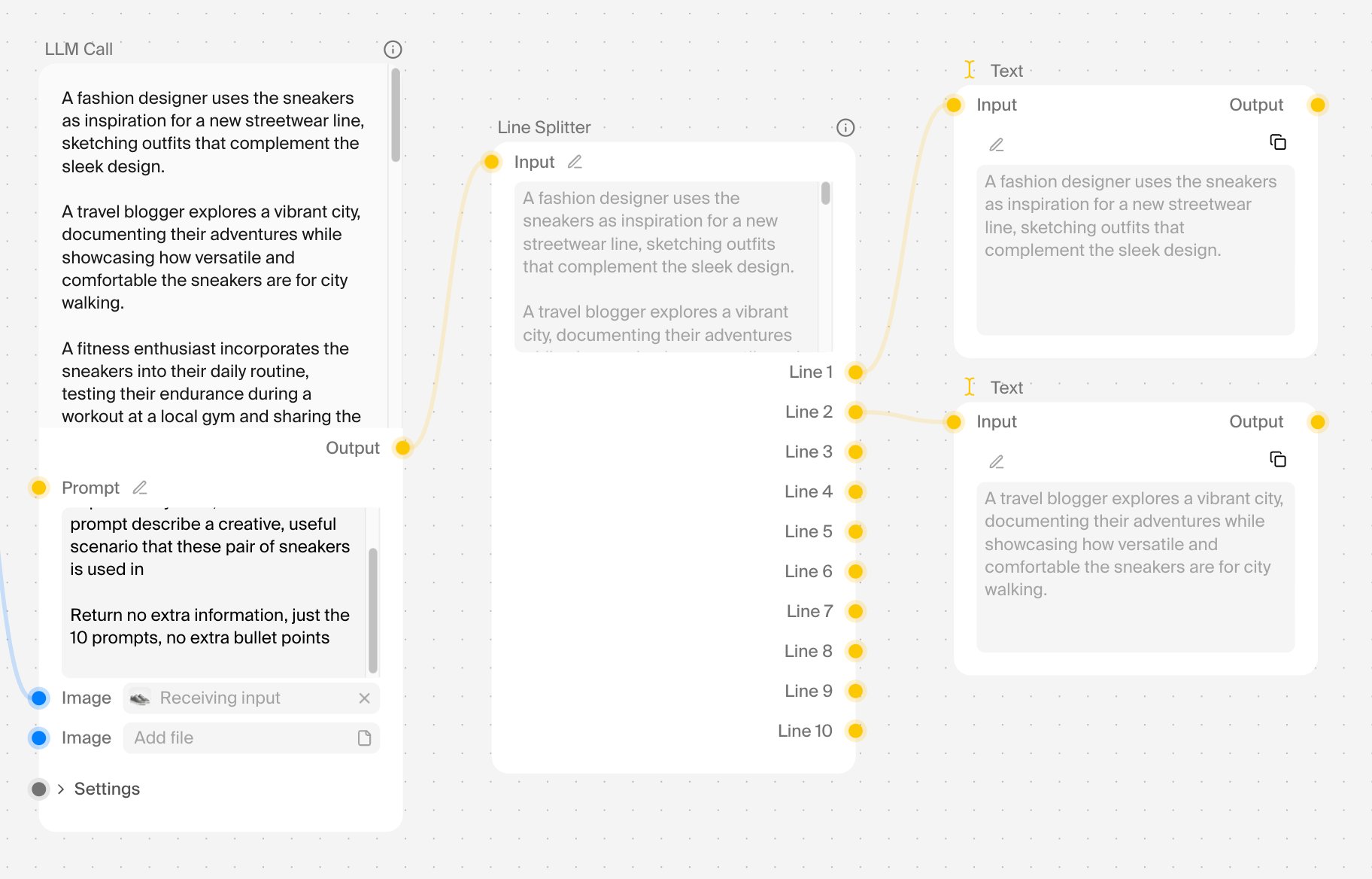
For manipulating text inputs and outputs:
Common use cases:
- Split prompts into batches for sequential processing
- Combine metadata fields into a single formatted string
- Add captions or watermarks to generated images
2. Image utility nodes
For post-processing and preparing image inputs: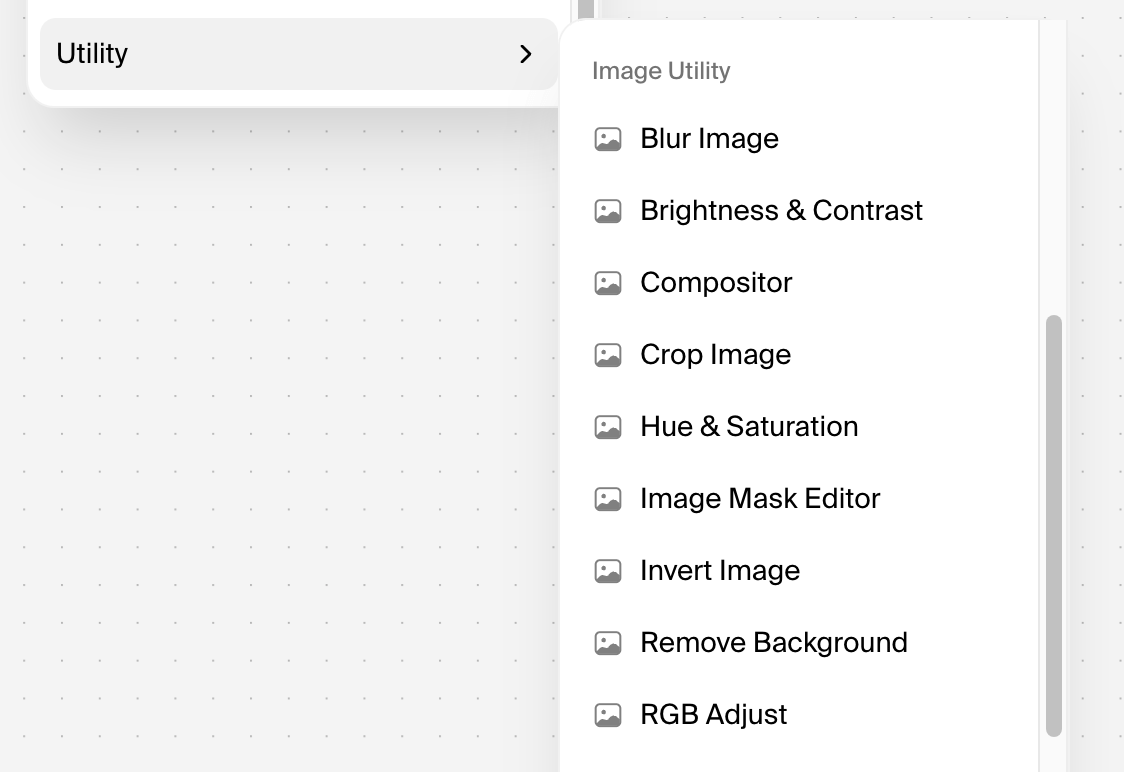
Common use cases:
- Color correction between generation and upscaling
- Background removal for product compositing
- Adjusting hues/saturation for brand consistency
- Creating watermarked overlays with compositor node
3. Video utility nodes
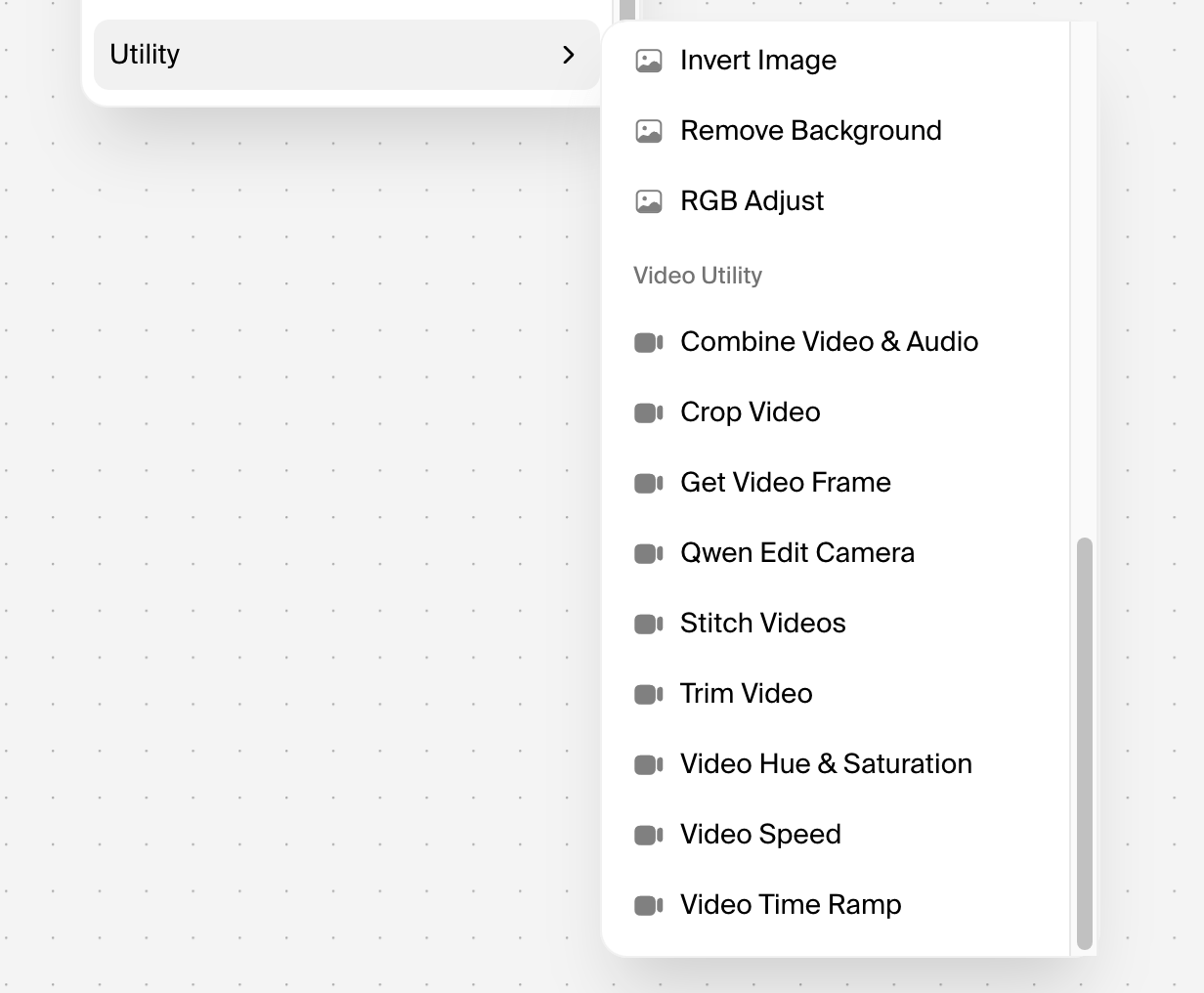
Common use cases:
- Extracting frames from generated videos for thumbnails
- Trimming clips to specific lengths for social media
- Combining AI-generated video with Elevenlabs audio
- Speed ramping for cinematic effects
Best Practices for Utility Nodes
- Organize with groups — Select multiple nodes and group them to create logical sections
- Label with sticky notes — Document workflow logic for yourself or team members
- Use state modifiers early — Clean and prepare data before it reaches AI models
- Keep single responsibility — Each utility node should do one thing well; chain them for complex workflows
- Preview at each step — Use display nodes to check intermediate outputs (e.g., Display Any from rgthree)
Node app builder
Krea’s Node App Builder lets you turn complex workflows into simple, user-friendly apps with custom input forms and clean interfaces, no coding required.
Think of it this way: you spend hours building a sophisticated workflow with 30+ nodes (image generation → style transfer → background removal → upscaling → watermark → video composition). Instead of sharing that intimidating graph with your client or team, you package it as an app where they just:
- Upload an image (or enter a prompt)
- Pick 2-3 settings from dropdowns
- Click “Generate”
- Get the result
How it works
Step 1: Build your workflow
Create your full pipeline in the Nodes editor. Wire up everything you need: multiple models, utility nodes, loops, conditionals, whatever your process requires.Step 2: Define inputs and outputs
Mark which node parameters should be exposed as user inputs:- Text prompts
- Image upload slots
- Dropdown selects (style options, models, aspect ratios)
- Sliders (strength, quality, duration)
- Number inputs (quantity, resolution)
Step 3: Design the app interface
Customize the simple UI that users will see:- Field labels and descriptions
- Input order
- Default values
- Required vs. optional fields
Step 4: Publish and share
Get a shareable link or embed code:- Public apps: Anyone with the link can use them
- Private apps: Share only with team members
- API access: Trigger via the Execute a Node App endpoint for custom integrations
Real-World Use Cases
Agencies → Clients
- Product photo generator: Agency builds a 50-node workflow for e-commerce photo shoots. Client uploads a product photo, picks a background style (beach, studio, minimalist), and gets 10 polished images in 30 seconds.
- Social media content pack: Client enters a product name → app generates 12 social posts with images, captions, and hashtags pre-formatted for Instagram, TikTok, and LinkedIn.
Teams → Internal Users
- Brand-compliant asset generator: Marketing team builds a workflow enforcing brand guidelines (colors, fonts, logo placement). Any team member can generate on-brand visuals without design skills.
- Video repurposing pipeline: Content team uploads one long video → app automatically creates Shorts/Reels/TikToks with captions, branded intros/outros, and platform-specific aspect ratios.
Enterprises → Operations
- Document processing workflow: Image → OCR → data extraction → formatting → database entry. Non-technical staff just drop in documents.
- Customer onboarding automation: New customer info → personalized welcome video → customized product mockups → email template generation.
Technical Details
What gets exposed as app inputs:- Text inputs (prompts, descriptions)
- Image uploads (with optional preview)
- Number fields (with min/max constraints)
- Dropdowns/selects (predefined options from model parameters)
- Boolean toggles (yes/no, on/off)
- Sliders (mapped to node parameter ranges)
- Intermediate nodes (utilities, transformations)
- Model switching logic
- Error handling workflows
- Conditional branching
Pricing:
- Pro plan: Unlocks Nodes + Apps access
- Max plan ($105/month, 60,000 compute units): Unlimited concurrency—run multiple apps/workflows simultaneously
- Business plan (up to 50 seats): Share private Node Apps with your team
- Each app execution costs compute units based on the models used (shown before running via Node Agent)
The Execute a Node App endpoint lets you trigger apps programmatically, perfect for:
- Building custom frontends
- Integrating into existing tools
- Automating enterprise pipelines
Krea Node Agent
Agentic AI has mostly lived in developer tools until now: Krea’s Node Agent turns a sentence into a runnable creative workflow. You type what you want to make. It reads your canvas, plans the pipeline, wires the nodes, and runs the job.Starting a Workflow
Write a natural language description of what you want to make, such as:- “cinematic video of a futuristic city at sunset”
- “generate four variations of a portrait using different styles, then upscale the best one”
- “take an input image, remove the background, and composite it onto three different scenes”
- Existing nodes
- Connections
- Outputs from earlier runs
Most AI tools treat every request as a blank slate. The Node Agent doesn’t. It sees your full canvas state, not just the words you typed.
Plan, Then Build
Review the Plan
The agent shows you a plan before it touches anything. For a futuristic city video, the plan might be four stages:- Prompt refinement
- Image generation (on K1 or Flux)
- Enhancement
- Video generation
- Swap models before building
- Drop stages you don’t need
- Approve the plan to start building
Watch It Build
Once you approve, nodes appear on your canvas one layer at a time. Each one wires into the last as it’s placed. You see the workflow assemble in real time, not just a final result.Validation and cost
Automatic validation
Before the job runs, the agent walks the full graph and checks everything:Transparent cost
Then it shows you compute cost, broken down per node. Nothing runs until you say go.You see what it will cost before anything processes.
Best practices
Writing effective prompts
Leveraging canvas state
The more work you’ve already put on your canvas, the smarter the agent gets:- Style nodes from previous sessions get reused
- Existing models are factored into the plan
- Cached outputs prevent redundant processing
- Grouped workflows are treated as single units
Iteration patterns
- Start broad: Let the agent build a complete pipeline from a simple description
- Tweak incrementally: Change one parameter and watch only affected nodes rerun
- Banish stages: Reject expensive or unnecessary stages before building
- Swap models: Try Flux instead of K1 without rebuilding the whole graph
- Extend workflows: Add new stages (e.g., video after image generation) without starting over
Plan requirements
Node Agent is available with Nodes access:
Each model invocation costs compute units. The agent shows cost before building so you can adjust the plan if needed (drop stages, swap cheaper models).