

There are three ways you can create video with Krea:
- Type a prompt and get a video (text‑to‑video).
- Take a still image and animate it (image‑to‑video).
- Extend existing clips to build longer scenes.
AI generates only short clips (5–12 seconds). Videos take longer to create (1–10 minutes), use 1,000+ compute credits (vs. 30–100 for images), and produce one video per prompt (vs. 2–4 images).
- Frame generation: Quality and detail of individual frames
- Motion consistency: Smoothness and stability of movement across frames
- Character retention: Ability to maintain character appearance and identity throughout the video
Video generation
When you open the Video page, you’ll see three main areas:- Center panel: The prompt box where you write your text prompt, adjust settings, and click Generate
- Left panel: Your previous sessions with all earlier video generations
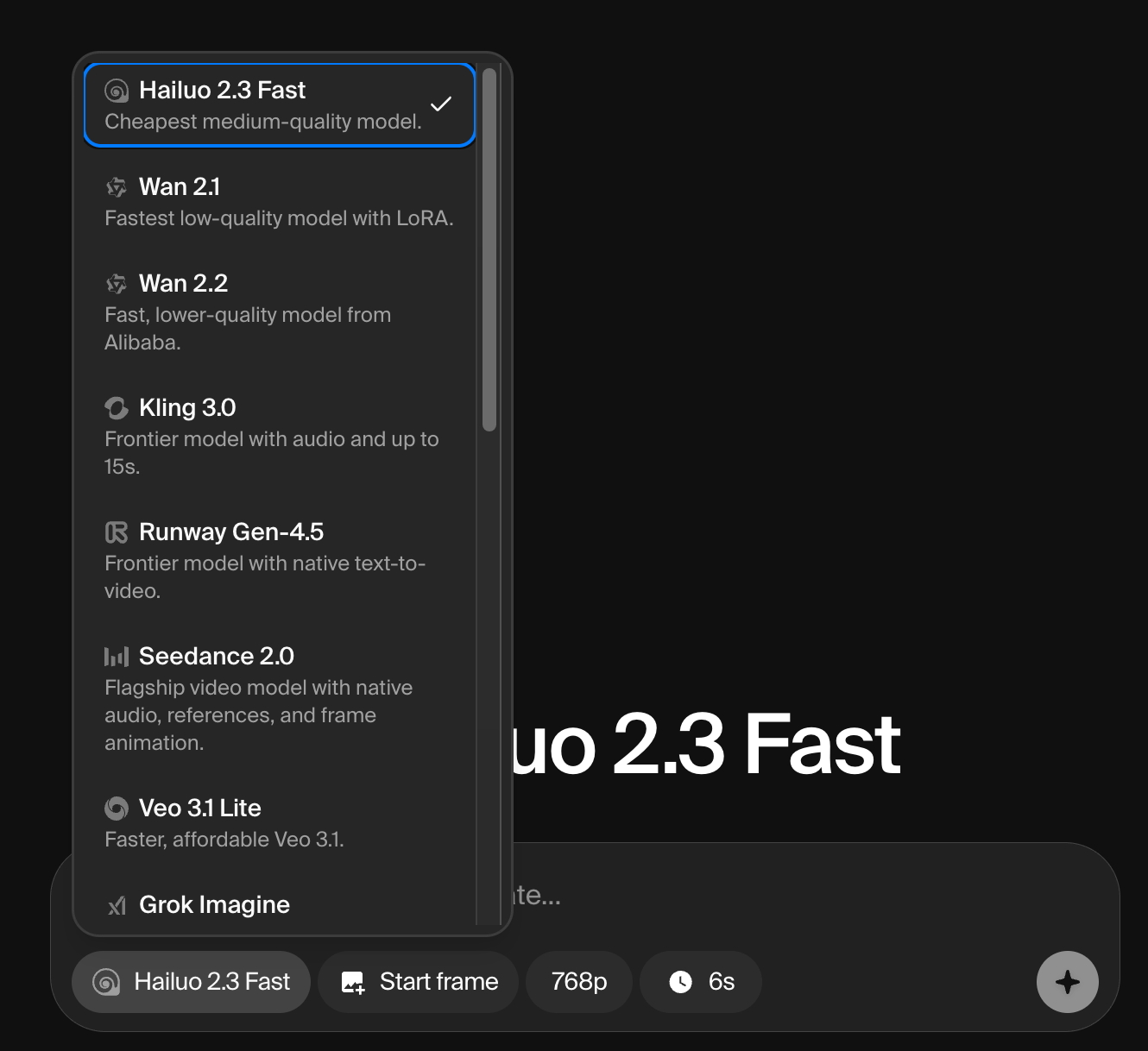
- Bottom-left corner: The model picker to switch between Krea’s video generation models
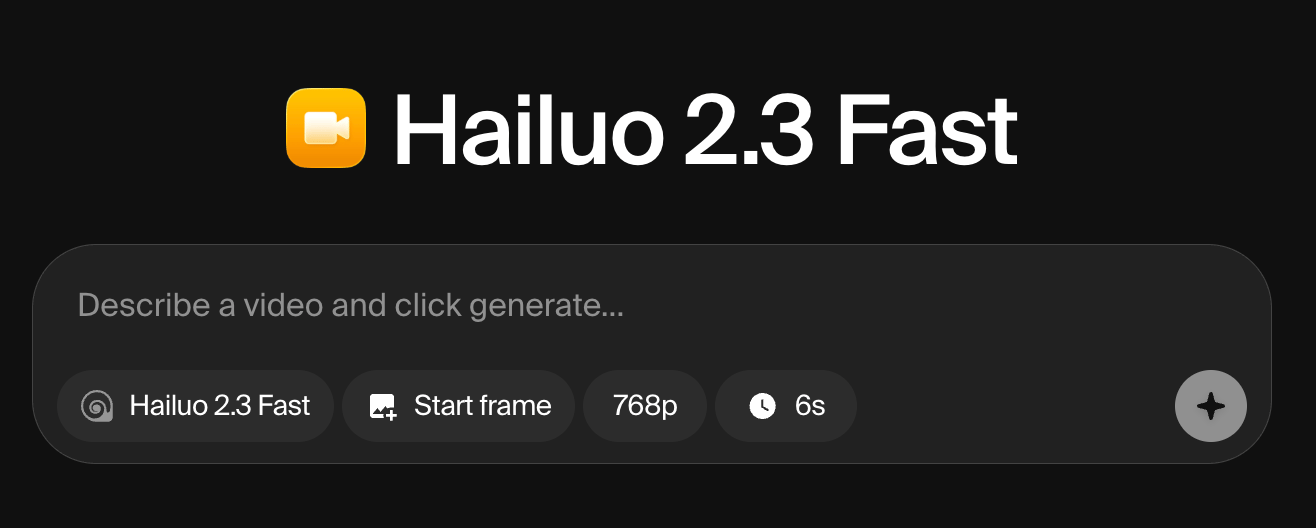
Video Generation Settings
Like our image generation tool, you’ll find settings below the prompt box. Note: Not all models support all settings.
Start and end images are your key tools for turning photos, AI-generated images, or illustrations into videos and animations.
Extending Videos
Individual video clips max out at 12 seconds, but you can extend them with additional generations. The AI uses the final frame (plus preceding video context) to generate more footage seamlessly. To extend a video:- Hover over a previously generated clip
- Click Extend
- Adjust your prompt if needed and generate again
Generate AI video in Krea
Turn prompts and images into video with Veo, Kling, Seedance and more.
Best Practices for Video Models
Model Selection
- Test multiple models with the same prompt to find the best fit for your desired style
- Choose the right model for your goal:
- Character-driven animations: Use Hailuo for its superior character retention
- Dynamic camera movements: Try Runway for better perspective shifts
Workflow Tips
- Start short: Generate 5–10 second clips first to test ideas before committing to longer animations
- Use keyframes strategically: Longer keyframe sequences help the AI understand motion better
- Pre-render complex scenes: Generate frames separately before animating to ensure consistency
- Be specific with prompts: Include detailed motion descriptions (e.g., “camera pans left,” “character walks smoothly”) for better results
Animation generation
Hailuo 2.3 is the best model for animation on Krea, especially for 2D animation, cartoon styles, and anime. It delivers smooth stylized motion, keeps characters consistent across frames, and uses fewer credits (750 units) than most top models.Step-by-Step Guide
1. Select the Model
- Go to the Video page
- In the bottom-left corner, click the model picker
- Choose Hailuo 2.3
2. Upload a Start Frame (Image-to-Video)
Upload your illustration, character design, or photo. This is how Hailuo knows what to animate.3. Write Your Prompt
Describe the motion you want. Example prompt:
"2D anime character walking smoothly across screen, camera pans left to right, clean line art, fluid animation, bright colors"
This helps Hailuo understand both your visual style and the movement you want.
4. Adjust Settings
- Duration: 6s for loops, 10s for extended clips
- Aspect ratio:
- 9:16 for Reels/TikTok
- 16:9 for YouTube
- End frame (optional): Add one to guide where the animation lands: great for loops or landing on a specific shot