

Try Krea 2
Krea’s latest image model — styles, LoRAs, and photographic detail.
Overview
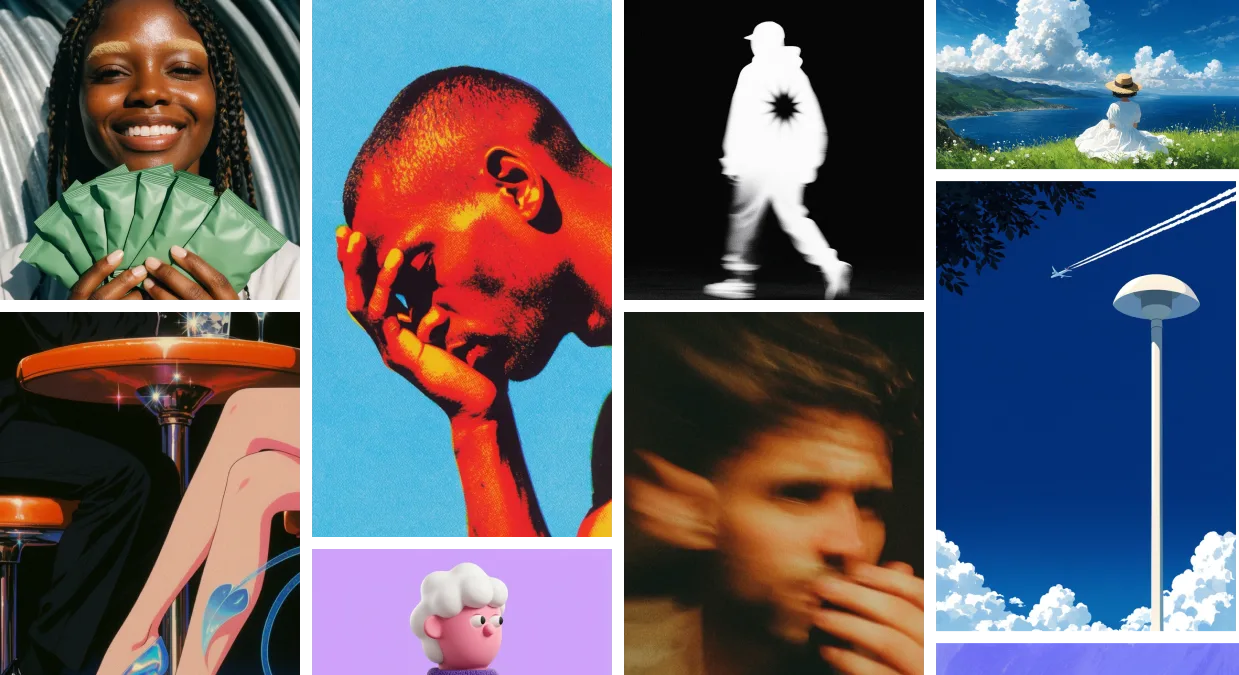
Krea 2 is Krea’s first foundation image model, trained from scratch to give you full control over the look, feel, and creative direction of every image you generate. It ships in three variants — Medium, Large, and Medium Turbo — and supports the most advanced style-transfer system on the market, moodboards, and Generative Sliders. Use Krea 2 when you want expressive, aesthetic results that don’t look like generic AI output: editorial illustration, photorealism with real texture, character work, fashion, worlds, posters, and any project where style and creative direction matter.Variants
At a Glance
Getting Started
- Go to Image Generation — Navigate to krea.ai/image.
- Select a Krea 2 variant — Open the model picker and choose Krea 2 Medium, Krea 2 Large, or Krea 2 Turbo.
- Write your prompt — Describe the subject, setting, mood, and any specific style direction.
- Choose an aspect ratio — Pick from square, portrait, landscape, cinematic, or mobile formats.
- Add visual direction — Drop in style references, attach a moodboard, or apply a Krea style.
- Tune with Generative Sliders — Open the controls panel and adjust Intensity, Complexity, Movement, and Creativity to shape the result before generating.
- Generate — Compare outputs and re-roll with different slider values, references, or prompts.
Style controls
Krea 2 gives you four complementary ways to direct the visual outcome. All four work on every Krea 2 variant.Style references (Srefs)
Upload up to 4 reference images to extract a style and apply it to your output. Each reference has a strength slider so you can dial in how strongly it shapes the result. Krea 2 ships with the most powerful style-transfer system on the market — see the developer guide for examples and how to call it from the API.Moodboards
A moodboard is a saved collection of images that share an overall creative direction — palette, texture, style, mood, or composition. Build a moodboard in the Krea webapp at krea.ai/moodboards, then reference it in Krea 2 to steer the entire generation toward that visual world. Moodboards are the most precise way to set a visual direction in Krea 2.Krea styles (LoRAs)
Apply compatible trained styles from your Krea style library to lock the output to a specific aesthetic or character.Creativity
Pick how literally Krea 2 should follow your prompt:- Raw — No expansion. Renders only what you’ve explicitly described.
- Low — Stays close to the literal prompt, fills only obvious gaps.
- Medium (default) — Balanced. Reasonable interpretation without straying.
- High — Strong expansion. Takes meaningful creative liberty with style, mood, and aesthetics.
Generative Sliders
Generative Sliders are three numeric controls — Intensity, Complexity, and Movement — that shape how Krea 2 interprets your prompt without rewriting it. They’re available in the controls panel for every Krea 2 variant (Medium, Large, and Turbo). Each slider runs from −100 to 100, with 0 as neutral (no effect).How to use them
Keep your prompt steady and change one slider at a time so you can attribute each visual shift to a specific control.
For the API version of this feature, see the Generative sliders developer guide.
Supported Aspect Ratios
API
All three Krea 2 variants are available via the Krea API. See the Krea 2 developer guide for the full request shape, pricing, and per-variant endpoints, plus deep dives on style transfer, moodboards, and Generative Sliders.Open source
Krea 2 is also available as an open-source release, so you can self-host, fine-tune, and train LoRAs on the same models that power Krea’s hosted image generation. Two checkpoints are published:- Krea 2 RAW — the undistilled base checkpoint. Diverse and highly malleable, designed for fine-tuning, post-training, and LoRA training.
- Krea 2 Turbo — an 8-step distilled checkpoint built for fast, high-quality text-to-image inference.