

- The teammate who is leaving. Most steps are theirs. In Krea, only the creator can share or move their own work.
- A workspace admin or owner. Roles, API tokens, and the removal itself.
1. Gallery assets: images, videos and uploads
Who: the teammate who is leaving- Open Assets in the left menu.
- Select the assets the team needs. Click one, then shift-click or drag to select more.
- Right-click the selection and choose Add to folder. Pick an existing folder, or click Create new folder. A single folder such as “Handoff, Sara” keeps things easy to find.
- In the Folders panel on the right, right-click that folder and click Share with workspace. A people icon appears next to the folder.
- Repeat for every folder the team needs.
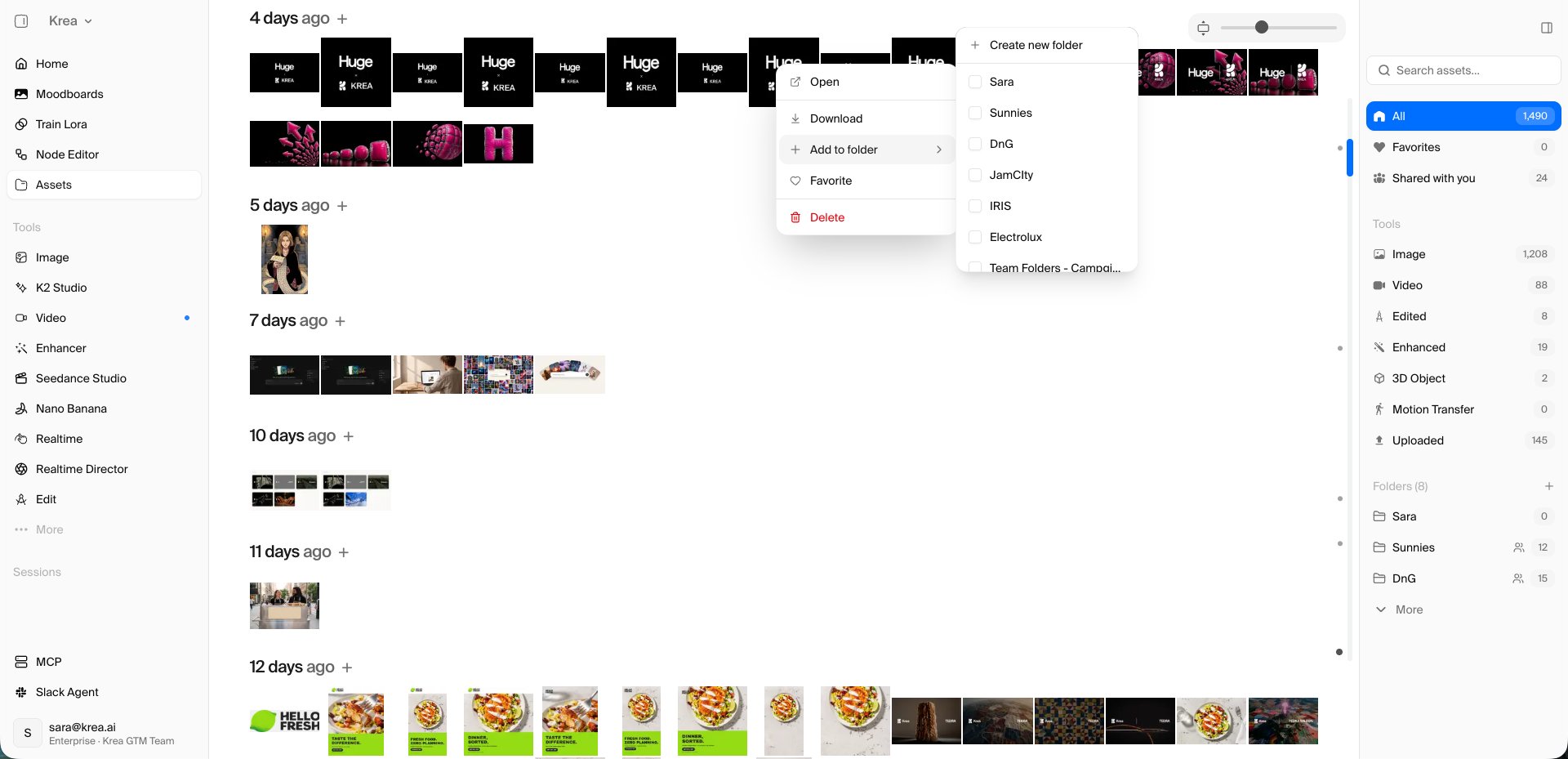
Assets: right-click, Add to folder. Shared folders show a people icon in the Folders panel.
Good to know. Only the folder owner can share a folder, so this has to happen before removal. The number next to a shared folder counts only your own assets. Open the folder to see everything inside. Teammates find shared folders in their own Assets panel and can download what they need.
2. Node workflows
Who: the teammate who is leaving, then one teammate who stays The teammate who is leaving:- Open Node Editor, then the Projects tab.
- Open each workflow the team needs.
- Click Share in the top bar. Under Sharing, choose Workspace (your workspace name). Copy the shareable URL and send it to a teammate.
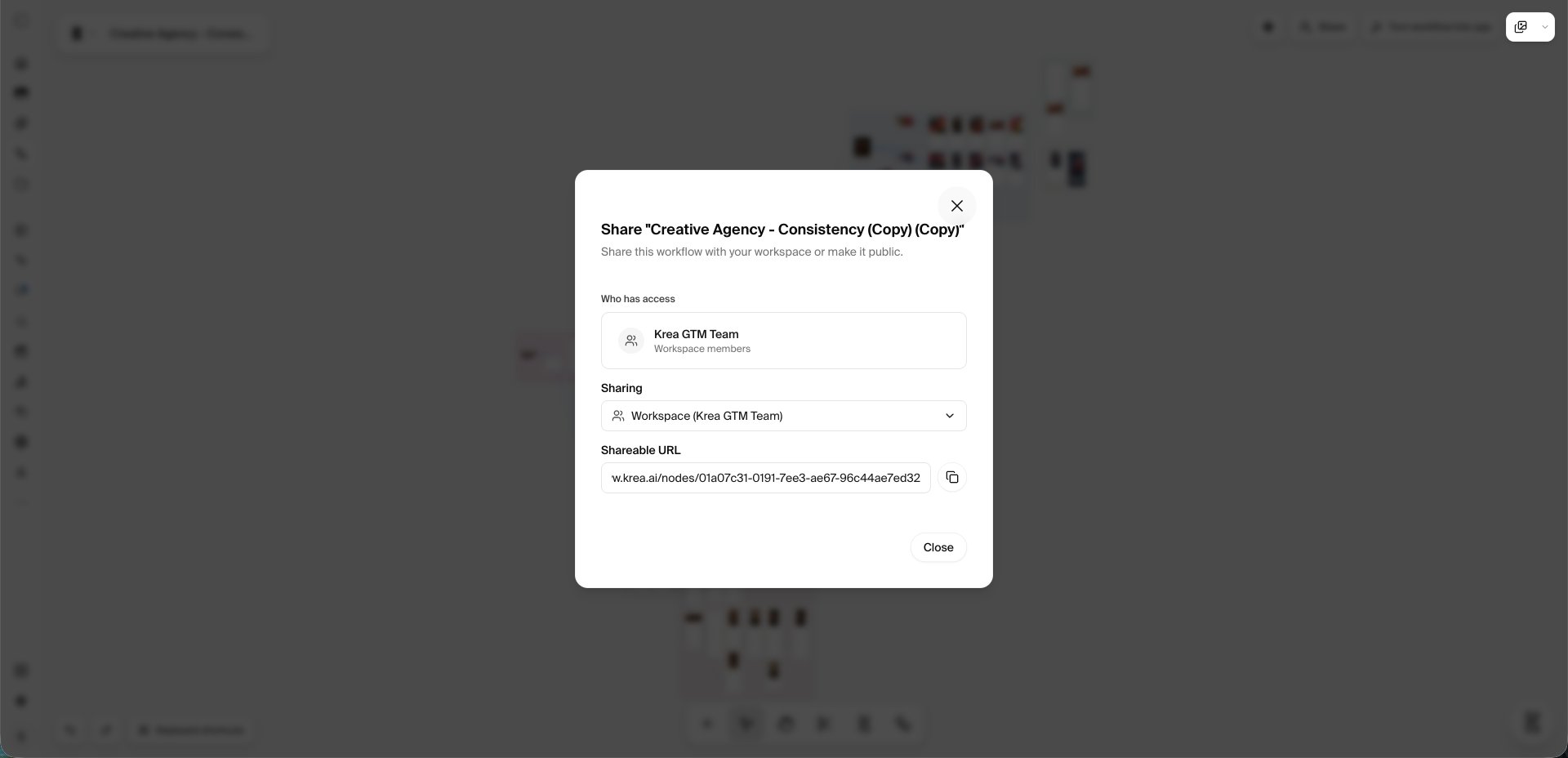
Share dialog for a workflow. Sharing set to Workspace, with the shareable URL below.
- Open the shared workflow link.
- On the preview card, click Clone. The copy is now yours and keeps working after the original author leaves.
Good to know. Workflow sharing is available on Pro plans and above, including Enterprise. Only the author can share a workflow. The clone is the safe copy: keep one per workflow the team relies on.
3. Apps built from workflows
Who: the teammate who is leaving, then one teammate who stays The teammate who is leaving:- Open Node Editor, then the Apps tab.
- On each app, open the ⋯ menu and click Change Scope.
- Choose Team so the whole workspace can see and run it, or Public so anyone with the link can. Click Save Changes. The card badge updates to Workspace or Public.
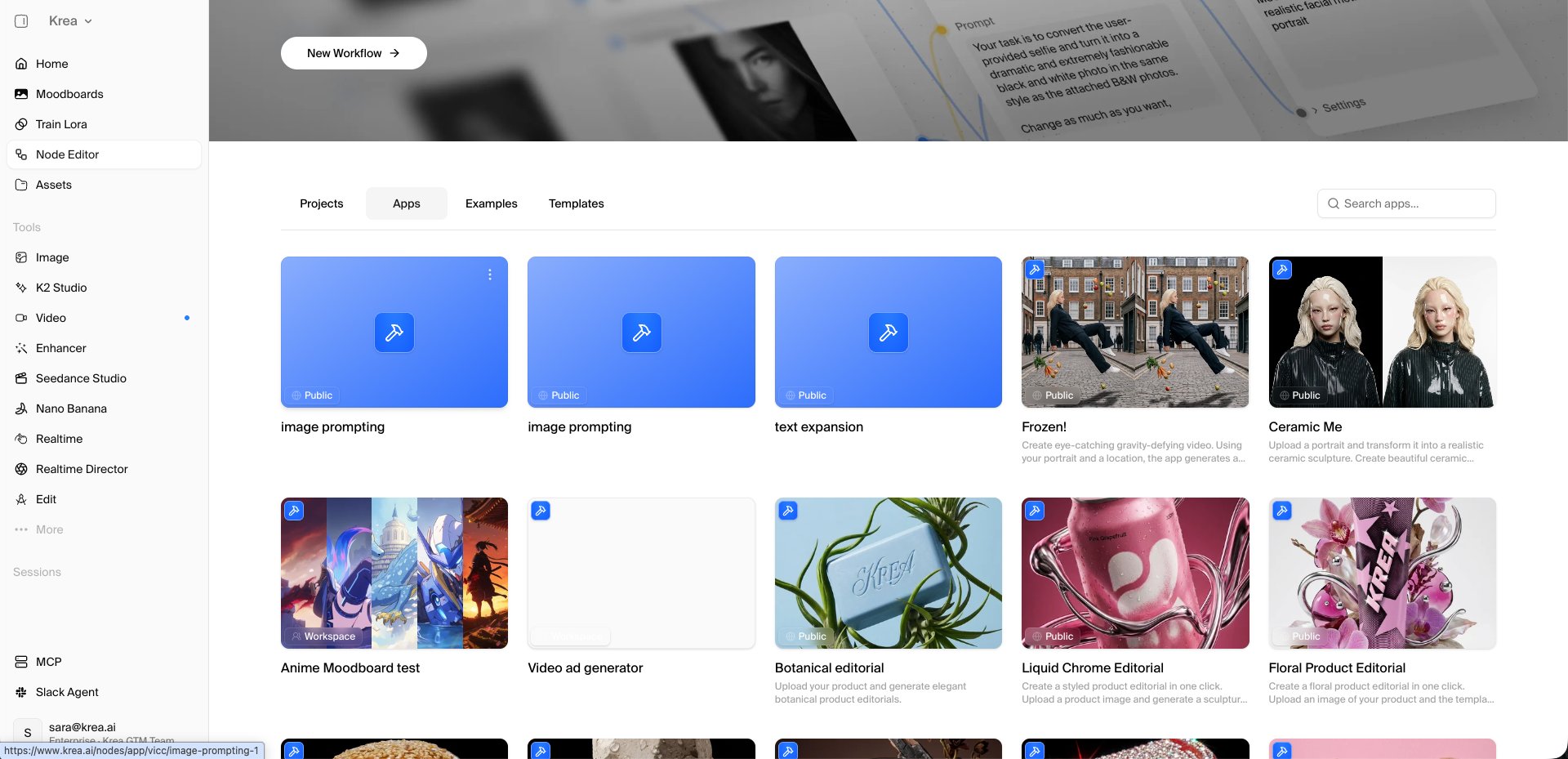
Apps tab. Each card shows its scope badge. The ⋯ menu on a card opens Change Scope.
- Open the app page and click Clone app. The copy is now yours.
Good to know. Only the author can change an app’s scope. Cloning an app needs a paid plan.
4. Agent files
Who: the teammate who is leaving- Open Agent, then Files in the left sidebar.
- Switch the scope at the top to Personal Files.
- Select the folders, files and instructions the team needs.
- Right-click and click Move…. Choose Team Files. You can also drag items straight onto a folder inside Team Files.
- Switch to Team Files and check that everything is there.
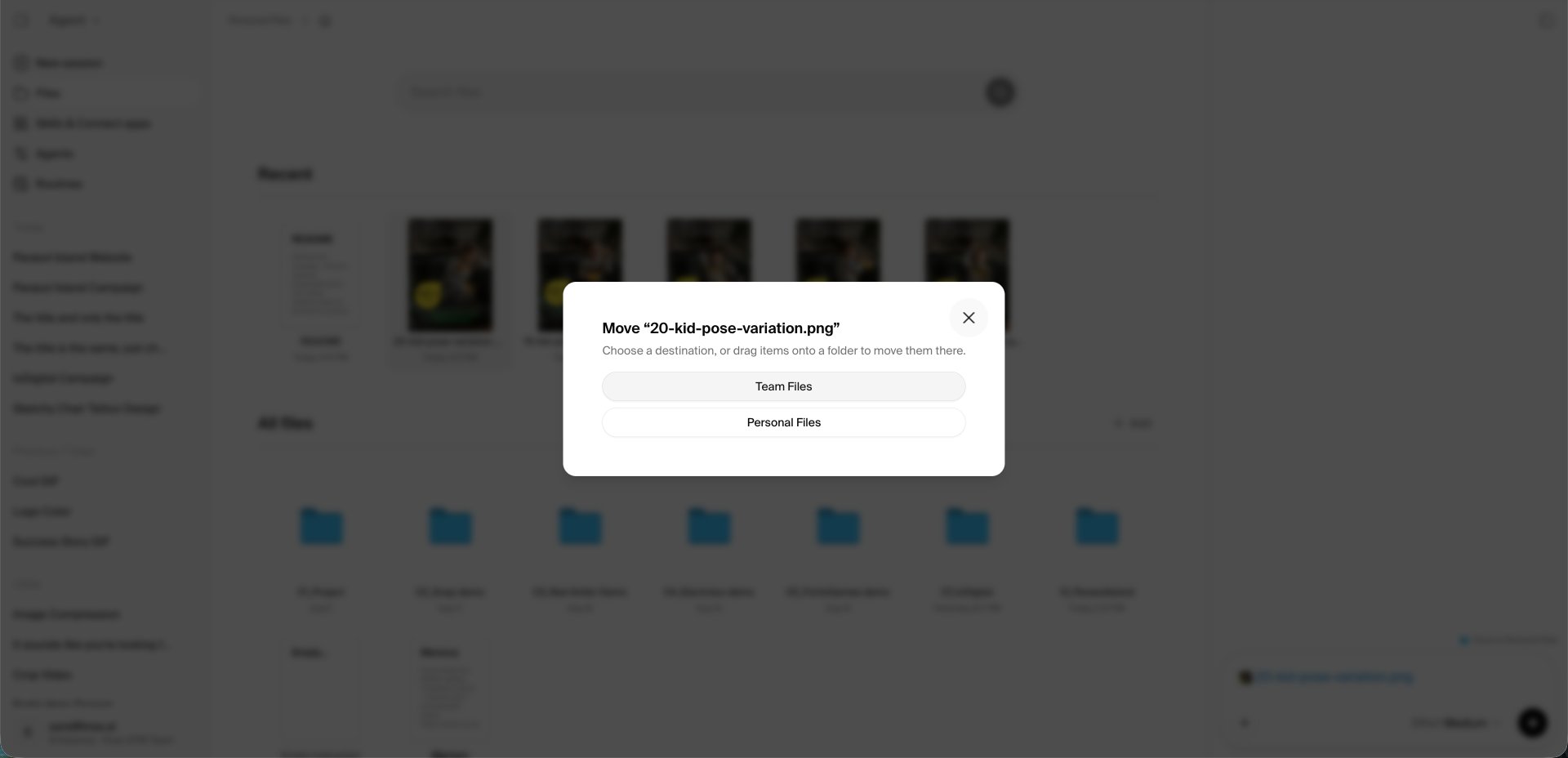
Moving a file from Personal Files to Team Files.
Good to know. Anything left in Personal Files is out of reach for everyone after removal. Every member can add to and edit Team Files. Knowledge that lives only in someone’s head or chats is worth writing down as a New Instruction inside Team Files.
5. Agent chats, routines and custom agents
Who: the teammate who is leaving- Chats cannot be shared or copied. Save the outputs that matter to Team Files (section 4). Copy prompts that work well into an Instruction in Team Files.
- Routines belong to the person who created them. Open Agent, Routines, and ask a teammate to recreate the ones the team needs under their own account.
- Custom agents belong to the workspace and stay available. No action needed.
6. Trained styles
Who: the teammate who is leaving- Open Train Lora.
- Select the style and click Share.
- Under Share with your team, switch on your workspace. Click Done.
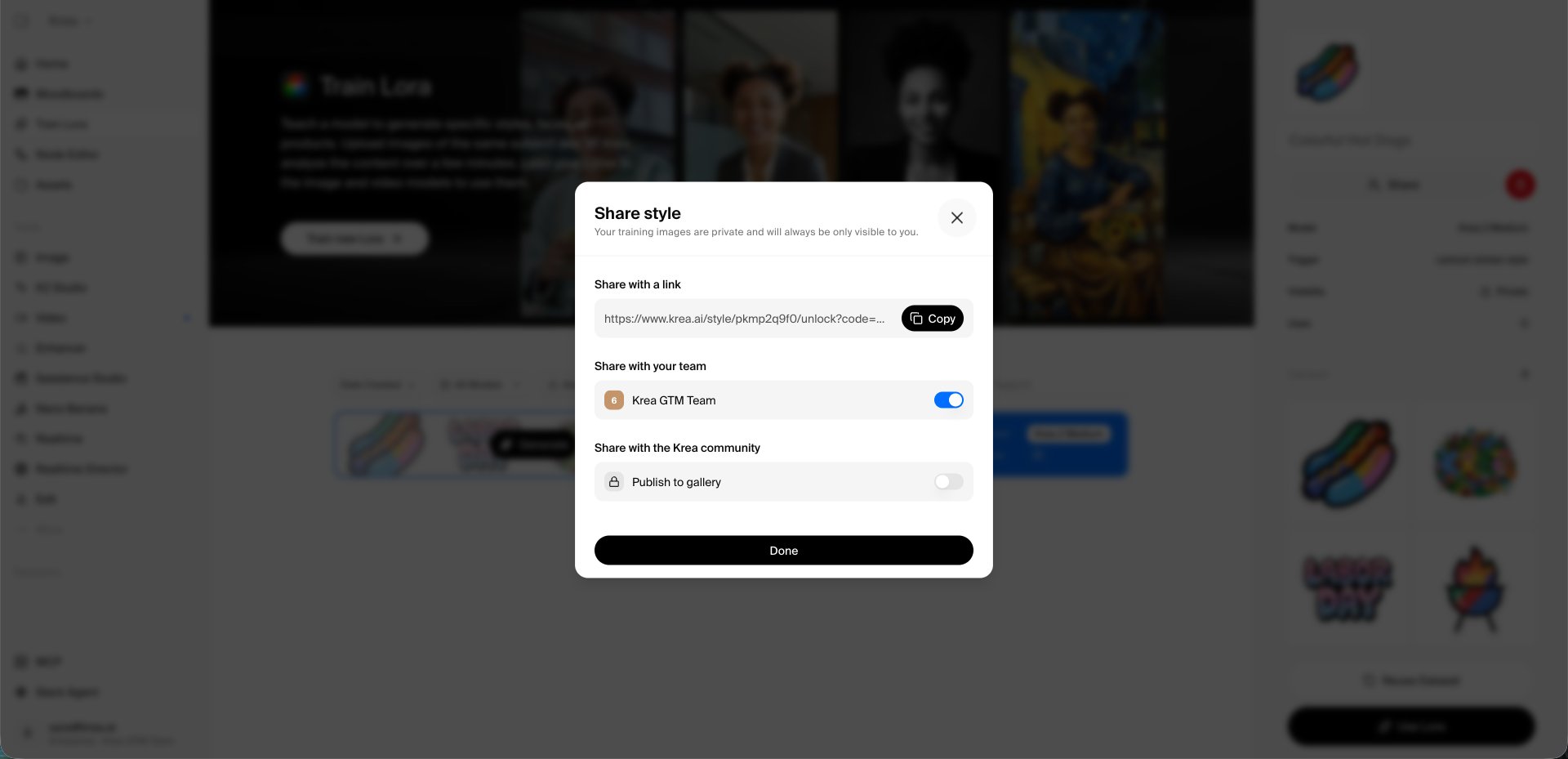
Share style: the team toggle gives the whole workspace access.
Good to know. Teammates can then use the style in their own generations. The access stays after removal. Training images stay private to the person who trained the style.
7. Moodboards
Who: the teammate who is leaving, then one teammate who stays The teammate who is leaving:- Open Moodboards. On each board, open the ⋯ menu and click Share.
- Switch on Link sharing and tick Show references, so teammates can make their own copy.
- Copy the link and send it to a teammate.
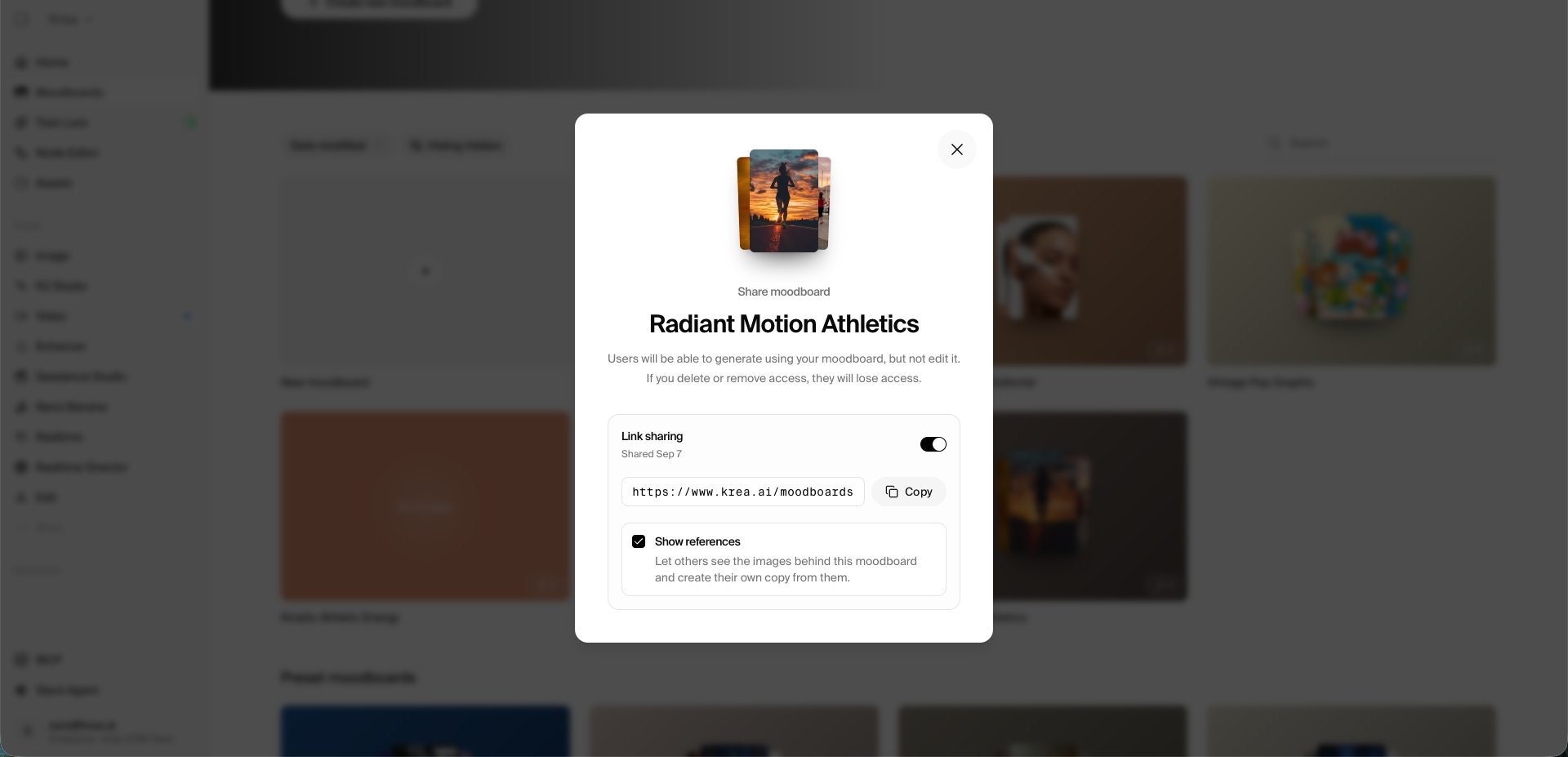
Share moodboard: Link sharing on, Show references ticked.
- Open the link and click Add to my collection.
Good to know. The link works for anyone who has it. Switch Link sharing off again once the teammate has their copy.
8. API tokens and integrations
Who: a workspace admin or owner- Open Settings, API Tokens.
- Find tokens created by the teammate who is leaving. Personal tokens stop working the moment the person is removed.
- For each integration that depends on such a token, create a new token from a staying member’s account and update the integration. Then revoke the old token.
- Slack Agent keeps working after removal. As a quick check, open Settings, Slack Agent and confirm the connection.
9. Roles
Who: a workspace owner- An owner cannot be removed. If the teammate who is leaving is the owner, first open Settings, Members and give a staying member the Owner role.
- If the person is the only owner of your organization, add a second organization owner first. Your Krea contact can help with this.
10. Remove the teammate
Who: a workspace admin or owner- Open Settings, Members. Check that the right workspace is active in the switcher at the bottom left.
- Open the ⋯ menu on the person’s row and click Remove Member.
- Repeat for every workspace the person is in. Removal is per workspace.
- If your company uses SSO or domain sign-in, also remove the person in your identity provider.