













Step 1
Upload artwork
Import your painting, illustration, or photo as a JPG or PNG. Museum Gallery detects edges and prepares your art for clean placement in mockup scenes.
 App by umiros
Museum Gallery turns your artwork into realistic museum and gallery mockups with AI. Upload, place, and export high-res previews for portfolios and sales.
How to use Museum Gallery
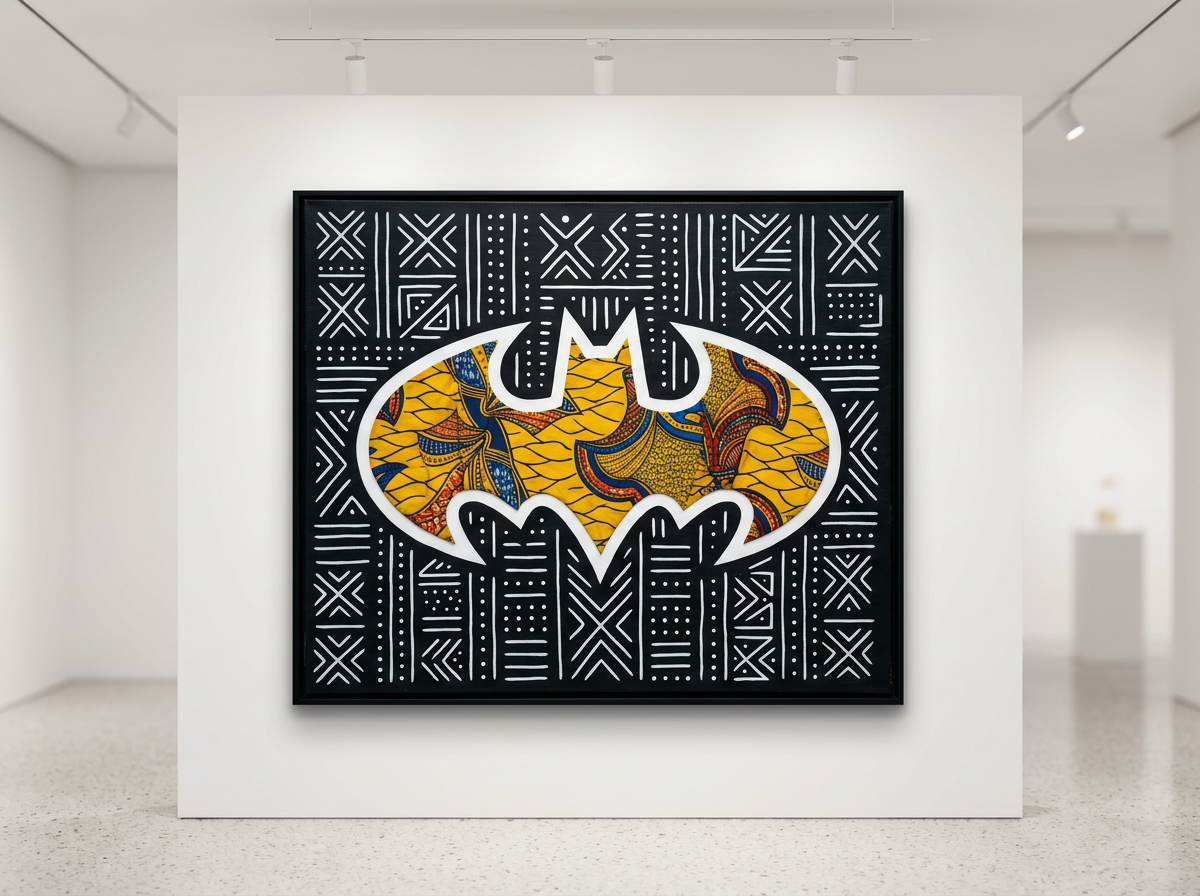
This quick tutorial shows how to mock up your artwork in a realistic museum or gallery scene using AI. Upload your file, adjust the placement and framing, then export polished previews.
Step 1
Import your painting, illustration, or photo as a JPG or PNG. Museum Gallery detects edges and prepares your art for clean placement in mockup scenes.
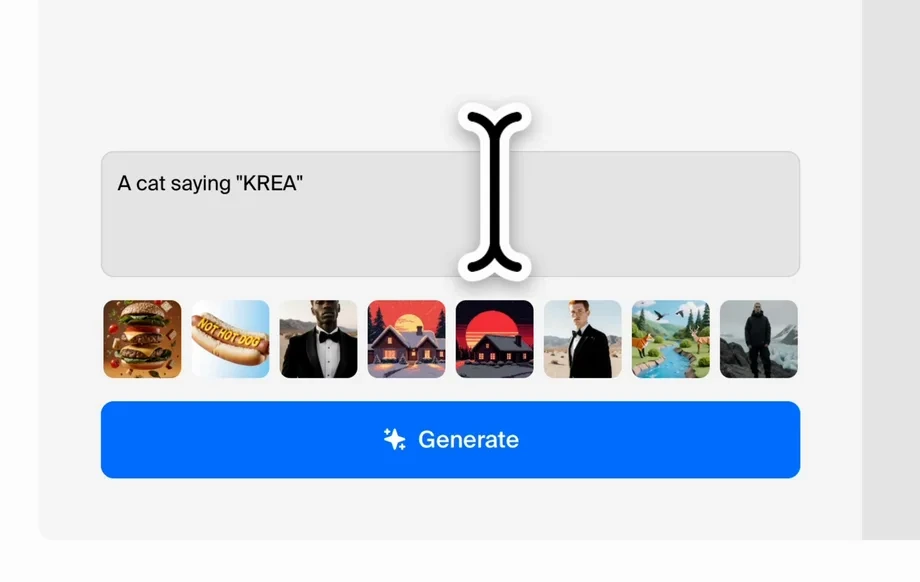
Step 2
Pick a museum or gallery room, then set frame style, matting, scale, and alignment. Fine-tune lighting and perspective for a believable wall display.
Step 3
Download high-resolution mockups for portfolios, online shops, and client reviews. Export multiple variations quickly to test different frames, rooms, and layouts.
Features
Museum Gallery helps you create realistic art presentation mockups with AI—no complex layers or manual perspective work. Place your artwork into curated gallery interiors, control framing and layout, and generate consistent previews fast. Ideal for product listings, portfolio updates, and client approvals with high-quality results.
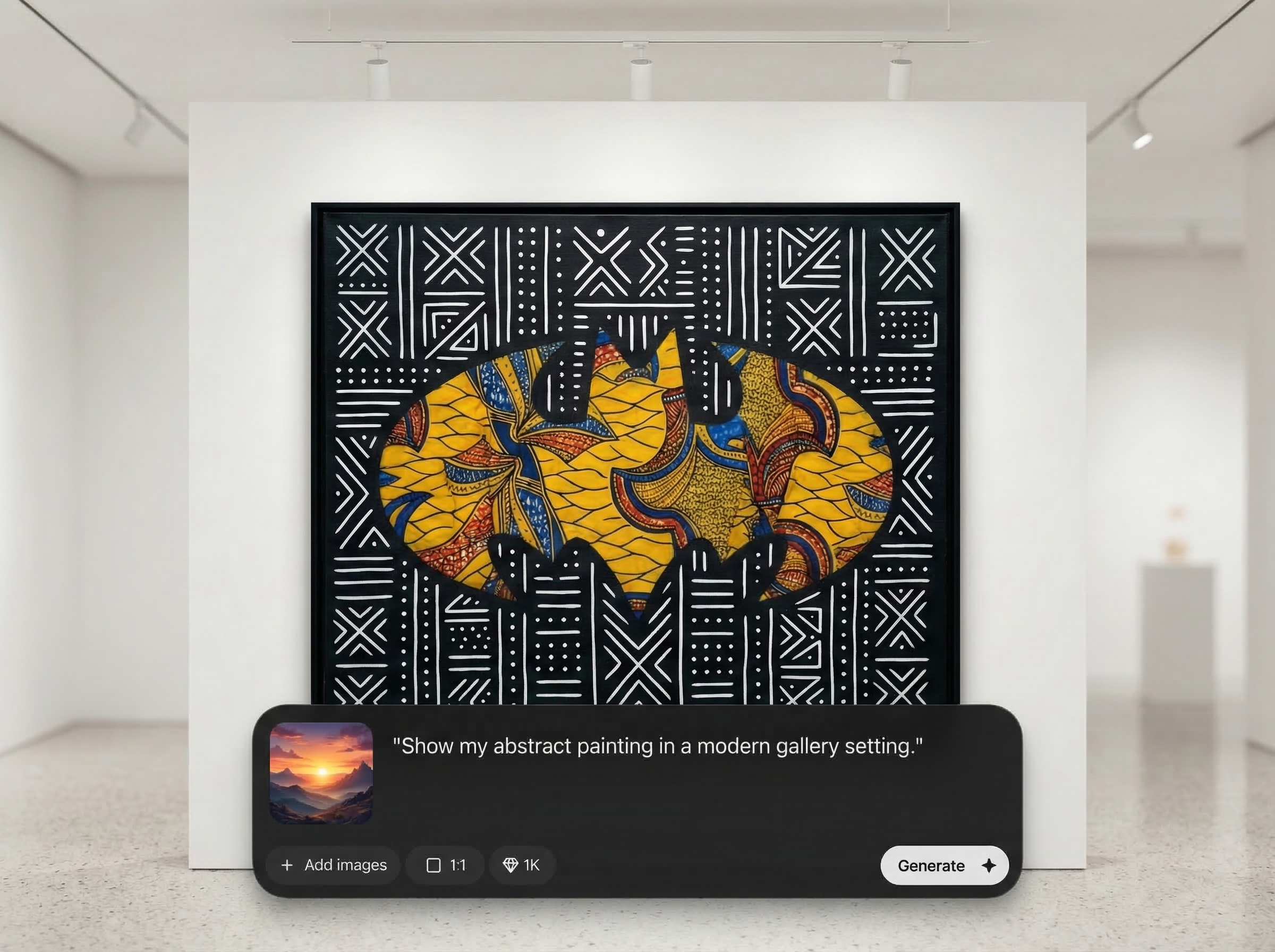
Generate authentic gallery interiors with accurate lighting and wall textures. Your artwork is placed with natural scale and perspective to look like a true exhibition photo.
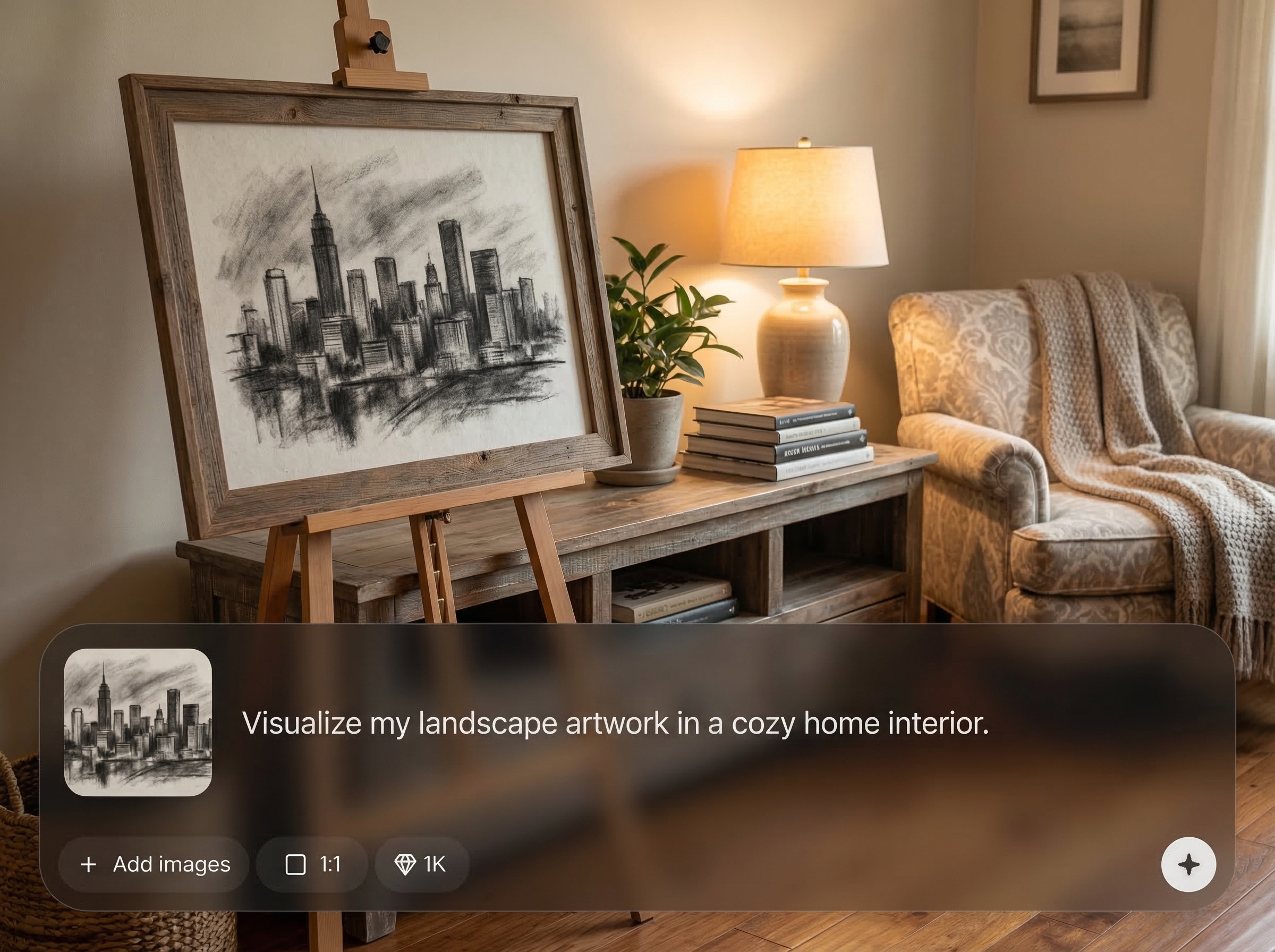
Swap frames, mats, and placements in seconds. Create multiple mockup variants quickly to compare styles and pick the best presentation for your artwork.
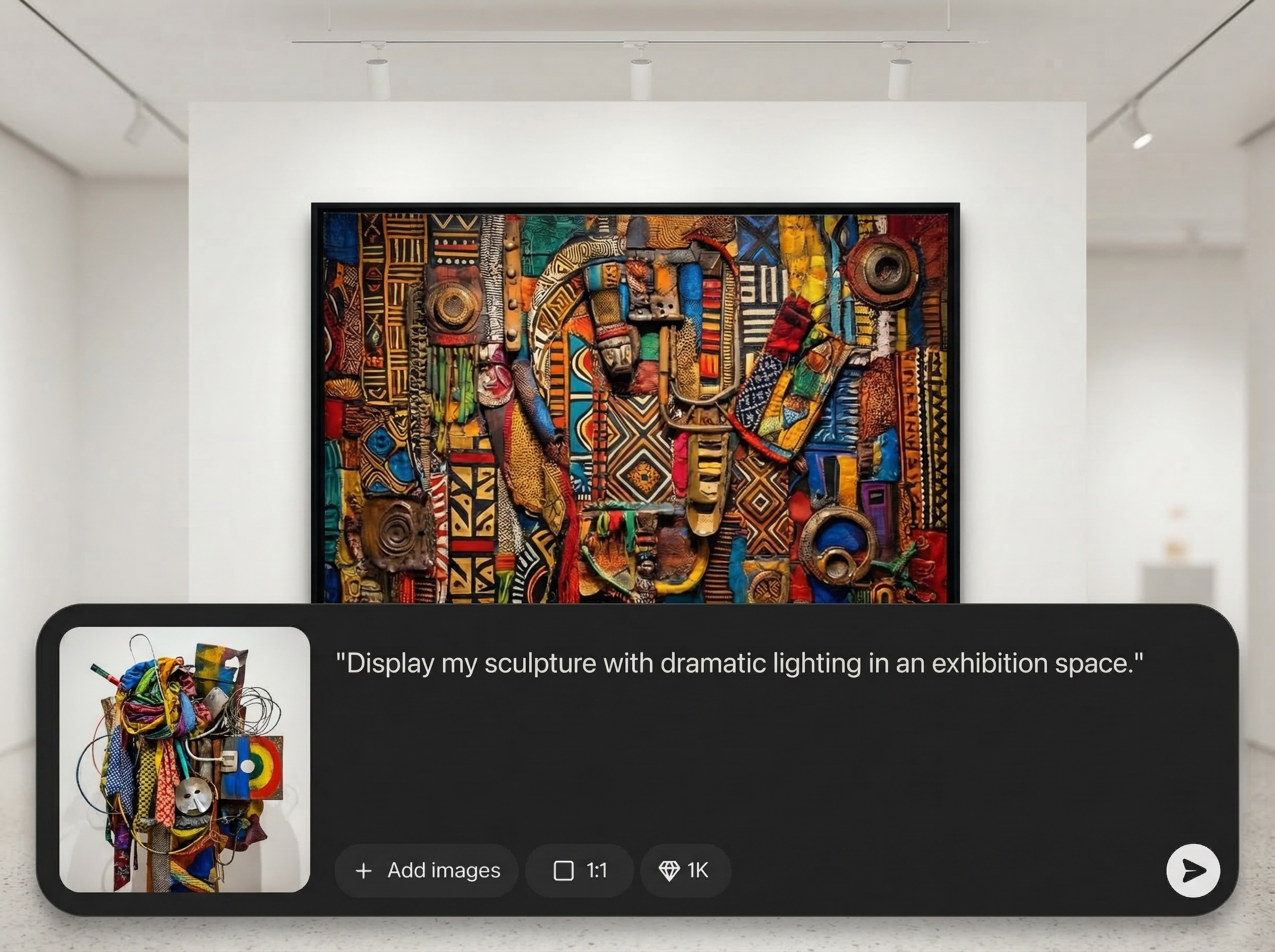
Export crisp mockups suitable for portfolios, pitch decks, and online listings. Keep details sharp while maintaining a clean, professional museum-gallery look.
About
Museum Gallery is an AI art mockup generator that places your artwork into realistic museum and gallery scenes. Upload an image, choose frames, walls, and lighting, then instantly preview how your piece looks on display. Create clean, professional mockups for portfolios, pitches, listings, and social posts—without manual compositing.
Museum Gallery focuses on realistic presentation: clean perspective, believable lighting, and fast iteration. Create consistent mockups across multiple pieces, test framing options, and export polished visuals for portfolios, listings, and approvals—without complex editing workflows.
Open Museum Gallery, upload your artwork, and pick a museum or gallery scene. Adjust frame, scale, and alignment, then export high-resolution mockups to share or publish immediately.
Use cases
Discover how different creators use this app in their workflow.
Show finished pieces in realistic gallery settings to elevate your portfolio. Create consistent mockups across a series for a cohesive, professional look.
Turn flat artwork images into lifestyle-style gallery previews for product pages. Test frames and wall styles to increase buyer confidence and clarity.
Send quick mockup variations to confirm framing, scale, and placement. Reduce back-and-forth by previewing options in a realistic museum context.
Krea is one of the world's leading generative AI platforms. See what others say.
Real reviews on TrustpilotSo many AI tools out there but I always come back to Krea. It's really the one AI platform that 'just works'.
FYN
Krea's interfaces are still the best in the industry. Everything looks and feels so clean and easy to use! Imo the easiest to use gen AI website.

Lynn
Ultra fast generations. Extremely simple to use. All the latest AI models.

Daniel
KREA is the only AI subscription I have right now besides ChatGPT.

Sophia M.
Find quick answers about Museum Gallery, AI mockups, exports, and best results.
Upload common image formats like JPG and PNG. For best results, use a high-resolution file with clean edges so the AI can place your artwork sharply in the gallery scene.
Yes. You can select different room scenes and adjust frame style, matting, scale, and placement. Create multiple variations to compare presentation options quickly and consistently.
Exports are designed to be crisp and presentation-ready for portfolios, listings, and review decks. Generate multiple sizes depending on your use case and keep fine artwork details intact.
Most mockups generate in moments after upload and scene selection. Because the workflow is AI-assisted, you can iterate fast—swap scenes, frames, and layouts without rebuilding from scratch.
Use a well-lit, high-resolution artwork image with minimal glare and a straight-on crop. Then match frame style and lighting to the scene for the most believable museum display.
Upload your art, generate realistic gallery mockups, and export high-res previews in minutes.