








Create
Edit & enhance
Image to Video AI
Upload a photo, describe how it should move, and Krea turns it into a video. Animate portraits, product shots, old photos, and artwork with Kling, Veo, Seedance, Wan, and more, all in one place.
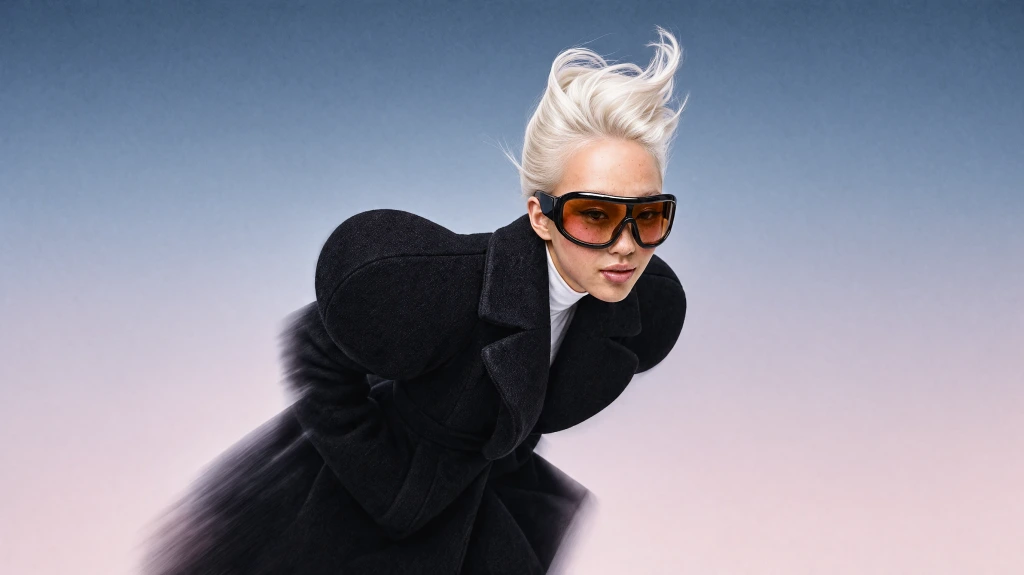
Your image opens as the start frame in Krea's video tool. Generating needs a free Krea account.
How to turn an image into a video with AI
How it works
- 01
Upload your image
Drop a JPG, PNG, WebP, or HEIC image into the box at the top of the page. Portraits, product photos, illustrations, and AI-generated images all work. Use the sharpest version you have.
- 02
Describe the motion and pick a model
Say what should move and what the camera does, for example "she smiles and looks up, slow dolly-in". If you leave the prompt empty, Krea uses a simple prompt for subtle, natural motion.
- 03
Generate and download
Krea opens the video tool with your image as the start frame and generates the clip. Sign in with a free account to generate, then download the video or keep refining it.
Pick the model for the shot
Every model below accepts an image as the start frame in Krea. Pick one in the box above or switch models in the video tool.
Kling 4.0
- Paid plan
- Up to 30s
- Up to 1080p
- Start + end frame
Seedance 2.5
- Paid plan
- Up to 30s
- Up to 1080p
- Start + end frame
Veo 3.1
- Paid plan
- Up to 8s
- Up to 4K
- Start + end frame
MiniMax H3 Max
- Paid plan
- Up to 15s
- Up to 1080p
- Start + end frame
Wan 3.0
- Paid plan
- Up to 30s
- Up to 1080p
- Start + end frame
Kling 3.0
- Paid plan
- Up to 15s
- Start + end frame
Flux 3 Video
- Paid plan
- Up to 20s
- Up to 4K
- Start + end frame
MiniMax H3
- Free plan
- Up to 15s
- Start + end frame
Hailuo 2.3 Fast
- Free plan
- Up to 10s
- Up to 1080p
- Start frame
LTX-2 19B
- Free plan
- Up to 10s
- Up to 768p
- Start frame
Models marked Free plan are open to free accounts; the others need a paid plan. A free account's 100 daily compute units cover about two 5-second LTX-2 19B clips at 512p, while one Hailuo 2.3 Fast or MiniMax H3 clip costs more than that. MiniMax H3 is on the free plan only during the current MiniMax promotion. Durations and resolutions are the maximums each model supports in Krea's video tool.
What you can animate
Image to video works with almost any picture. Here are a few ways to use it.
-
Portraits and people
Add a blink, a smile, a glance over the shoulder, or hair moving in the wind to a portrait or selfie.
-
Product shots
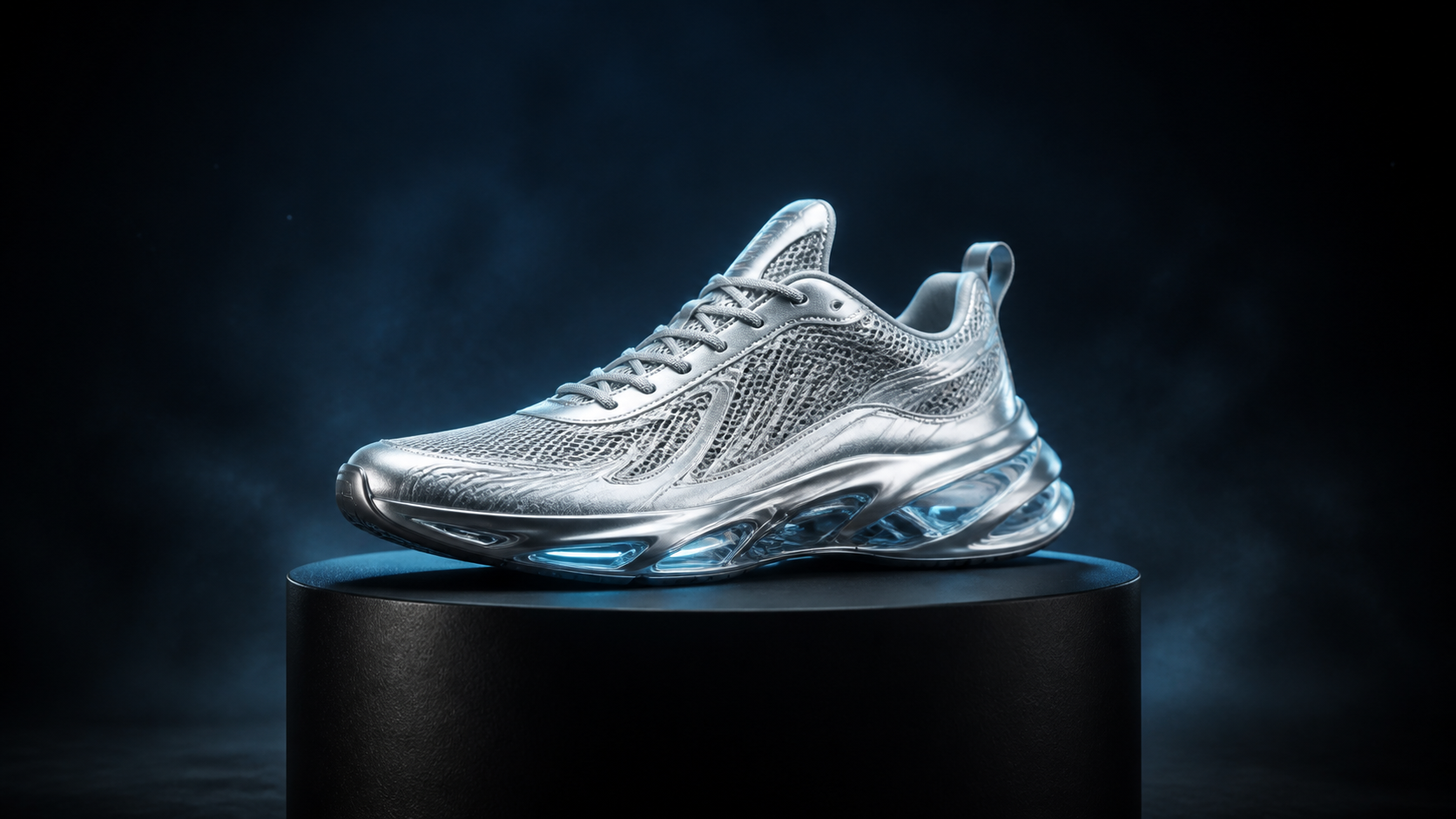
Turn a packshot into a slow reveal, a floating hero shot, or a turning close-up for ads, product pages, and social posts.
-
Old and family photos
Give old family pictures gentle, lifelike motion. Scan or photograph the print, sharpen it with the enhancer if needed, then animate it with a subtle prompt.
-
Art and illustrations
Animate paintings, sketches, anime frames, and AI art while keeping the original style, linework, and palette.
-
Memes and social posts
Make a reaction image move, loop a meme, or turn a still post into a short vertical video for Reels, TikTok, and Shorts.
-
Travel and landscapes
Add drifting clouds, rolling waves, falling snow, or a slow aerial push to travel photos and scenery.
What is image to video AI?
Turn a still photo into a moving shot
Image to video AI takes a single picture and generates the frames that come after it. The model keeps the subject, colors, and composition of your photo and adds the motion you describe in plain words: a head turn, a camera push-in, wind in the trees, steam rising from a cup. Because your image fixes how the first frame looks, the result is far more predictable than generating a video from text alone.
Krea puts several image-to-video models in one place, so you can animate the same photo with different models and keep the version you like best. Use your image as the start frame, or add an end frame to decide exactly where the shot lands. To start from a text prompt instead of a photo, use the AI video generator.
Why animate photos with Krea
One upload, the leading image-to-video models, and the controls to direct the shot.
Open the video toolStart and end frame control
Set the first frame, the last frame, or both. Most image-to-video models on Krea, including Kling, Veo 3.1, Seedance 2.5, and Wan 3.0, can animate between two images, so you decide where the shot begins and where it ends.
Sound on supported models
Veo 3.1, Kling 3.0, Wan 3.0, and other supported models can generate dialogue, ambient sound, and effects together with the motion, so an animated photo doesn't have to be silent.
Compare models side by side
Run the same photo through several models in parallel and keep the best take. Each model has its own strengths, from realism and camera control to stylized motion and long clips.
Image to video AI: frequently asked questions
Everything you need to know about turning photos into videos with Krea.
Image to video AI turns a still photo into a short video clip. You upload an image and describe the motion, and the model keeps your subject, colors, and composition as the first frame while it generates the frames that follow, including camera moves like a push-in or a pan. On Krea, image to video runs on models such as Kling 4.0, Veo 3.1, Seedance 2.5, and Wan 3.0.
It depends on the shot, which is why Krea lets you try several models on the same image. Kling 4.0 and Seedance 2.5 handle long, complex motion in clips of up to 30 seconds; Veo 3.1 is strong on realism, generates sound, and renders up to 4K; Wan 3.0 makes clips of up to 30 seconds with native audio. Run one photo through two or three of them and keep the best take.
ChatGPT is good at writing the motion prompt, but the animation itself comes from a video model. Draft your prompt in ChatGPT, then upload your photo here and paste the prompt, and Krea sends both to a model like Kling, Veo, or Seedance.
Yes, you can start for free. A free account gets 100 compute units a day, enough for about two 5-second clips at 512p with LTX-2 19B. Hailuo 2.3 Fast and MiniMax H3 (free only during the current MiniMax promotion) are also open to free accounts, but one clip from either costs more than a day's free units. Kling, Veo 3.1, Seedance 2.5, and Wan 3.0 need a paid plan.
Clear, well-lit photos with one obvious subject animate best, and portraits, product shots, illustrations, and AI-generated images all work. Use the sharpest version you have and avoid tiny thumbnails or heavily compressed files. You can upload JPG, PNG, WebP, HEIC, and HEIF images, and if an old photo is blurry, sharpen it first with the Krea Enhancer.
Describe what moves and what the camera does, in plain words: "slow push-in, she smiles and looks up, hair moving in the wind" works far better than "make it move". Keep it to one or two actions per clip and don't re-describe what's already in the photo. If you leave the prompt empty, Krea uses a simple prompt for subtle, natural motion.
It depends on the model. The longest single clip is 30 seconds, on Kling 4.0, Seedance 2.5, and Wan 3.0; Veo 3.1 makes 4, 6, or 8-second clips and LTX-2 19B makes 5 to 10 seconds. For longer scenes, extend a clip from its last frame in the video tool.
Up to 4K with Veo 3.1 and Flux 3 Video, and up to 1080p with Kling 4.0, Seedance 2.5, Wan 3.0, and MiniMax H3 Max. LTX-2 19B, the most affordable model on the free plan, renders at 512p or 768p. To sharpen a finished clip, run it through the Krea video upscaler.
Most clips are ready in one to five minutes. In Krea's own measurements, the median wait including the queue is about one minute for LTX-2 19B and Hailuo 2.3 Fast, two to three minutes for Veo 3.1, Seedance 2.5, and Wan 3.0, and about four minutes for Kling 4.0. Longer and higher-resolution clips take more time.
Yes. Veo 3.1, Kling 3.0, Wan 3.0, and other supported models generate ambient sound, effects, and speech together with the motion. To sync a portrait to a specific voice recording, use Krea Lipsync, which turns a photo and an audio file into a talking video.
Yes. Kling 4.0, Veo 3.1, Seedance 2.5, Wan 3.0, and MiniMax H3 Max accept a start frame and an end frame and generate the motion between them. It's the easiest way to control a transition, a product reveal, or a seamless loop: your image opens as the start frame in the video tool, where you can add the end frame.
Most models support landscape 16:9 and portrait 9:16, and many also offer square 1:1 and ratios such as 4:3 or 21:9. Choose 9:16 for TikTok, Reels, and Shorts, and 16:9 for YouTube.
Yes. Krea is available in 11 languages, including Spanish, Portuguese, Japanese, Korean, and Indonesian, and you can write your motion prompt in your own language. If a model misreads a prompt, rewriting it in English usually helps.
Yes, on a paid plan. Paid Krea plans include a commercial license for the videos you create, so you can use them in ads, client work, and products. Only animate images you own or have permission to use.
No. Krea doesn't add a visible watermark to the videos you generate. Some model providers embed invisible provenance markers, such as Google's SynthID in Veo videos.
Krea is SOC 2 compliant, which means an independent auditor has examined its security controls; the Krea Security page has the details. Your upload is used to generate your video and provide the product, and the Krea Privacy Policy explains how files are stored, deleted, and used. Only animate photos of people who have agreed to it.
Krea puts the leading image-to-video models in one workspace, including Kling 4.0, Veo 3.1, Seedance 2.5, Wan 3.0, MiniMax, and Flux 3 Video, so you aren't tied to one company's model. Kling's own app runs only Kling models, and avatar tools like HeyGen center on talking presenters. On Krea you can also set end frames, extend clips, and upscale the result in the same place.
Text to video generates a clip from a written description alone, so the model decides how everything looks. Image to video starts from your picture, so the subject, style, and composition stay the way you want, and the prompt only has to describe the motion. To generate from text, use the AI video generator.
The platform that just works
So many AI tools out there but I always come back to Krea. It's really the one AI platform that 'just works'.
FYN
Verified review
Best interfaces in the industry
Krea's interfaces are still the best in the industry. Everything looks and feels so clean and easy to use! Imo the easiest to use gen AI website.

Lynn
Verified review
Fast, simple, always up to date
Ultra fast generations. Extremely simple to use. All the latest AI models.
Daniel
Verified review
The only AI subscription I need
KREA is the only AI subscription I have right now besides ChatGPT.
Sophia M.
Verified review
New models the same day
I'm a Krea Max user. It's crazy how fast they add models. I see a new AI model on twitter and the same day krea already offers it.
Wirot Ch.
Verified review
The most powerful creative suite
Still the most powerful AI creative suite out there.

Gravion
Verified review
Animate your first image
Upload a photo and turn it into a video in a few minutes.
Related tools
More ways to create and finish video with Krea.
AI Video Generator
Create videos from text prompts or images.
AI Video Upscaler
Sharpen and upscale finished clips.
Lipsync
Turn a portrait and a voice track into a talking video.
Kling 4.0
Clips of up to 30 seconds with start and end frames.
AI Image Enhancer
Sharpen a photo before you animate it.
AI Image Generator
Create the still you want to animate.