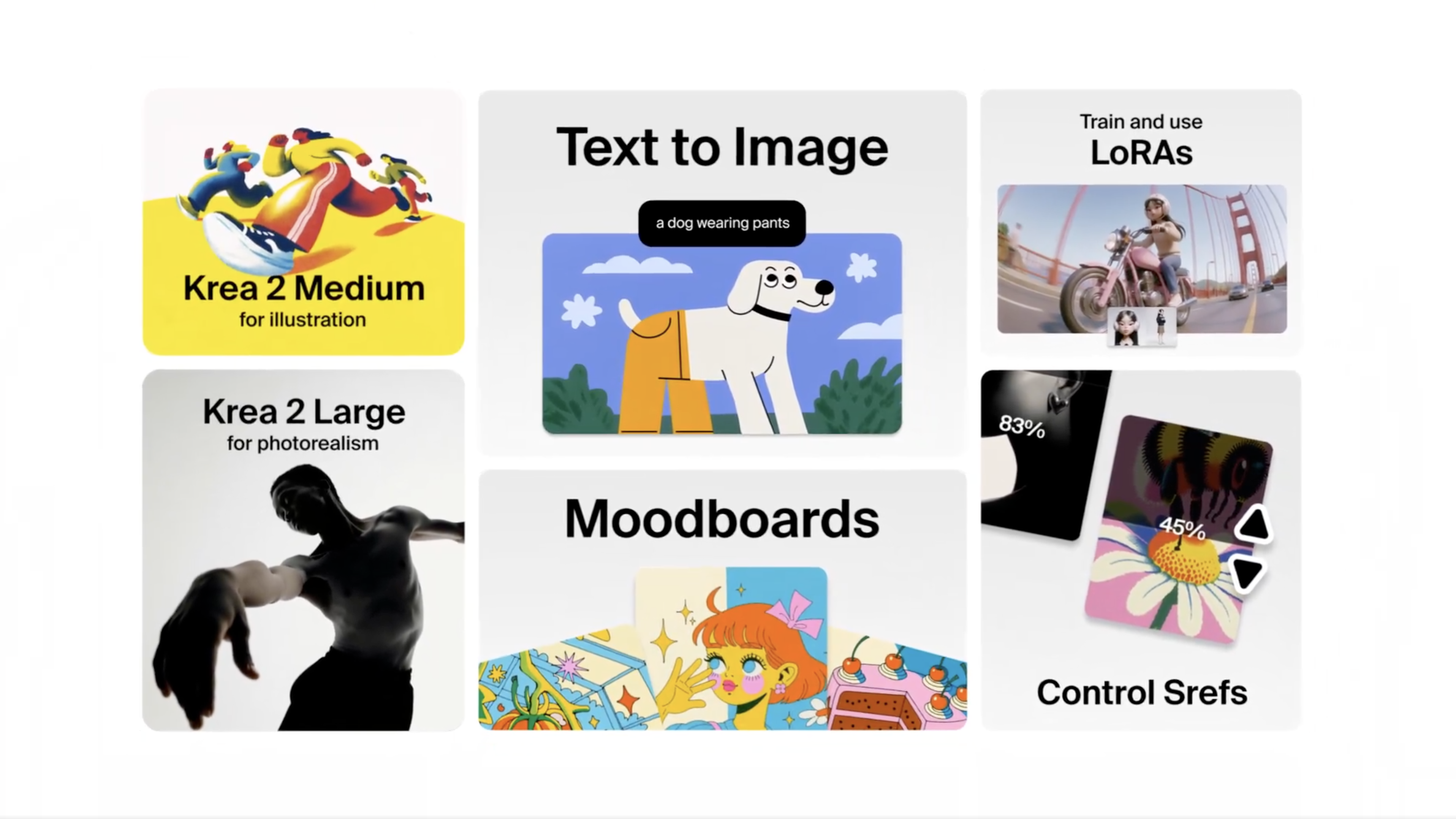
The Krea 2 API gives you programmatic access to Krea 2, our first foundation image model trained from scratch for full control over look, feel, and creative direction. Two model sizes are available — Medium and Large — with style transfer, moodboards, and a tunable creativity parameter.
You can access Krea 2 through our API partners, such as Fal, Comfy, or Runware. We’re also launching with Nous Research, offering access to Hermes since day 0, and you can find support for Claude, OpenClaw, and Codex in our docs.
Here’s what it brings to the table:
-
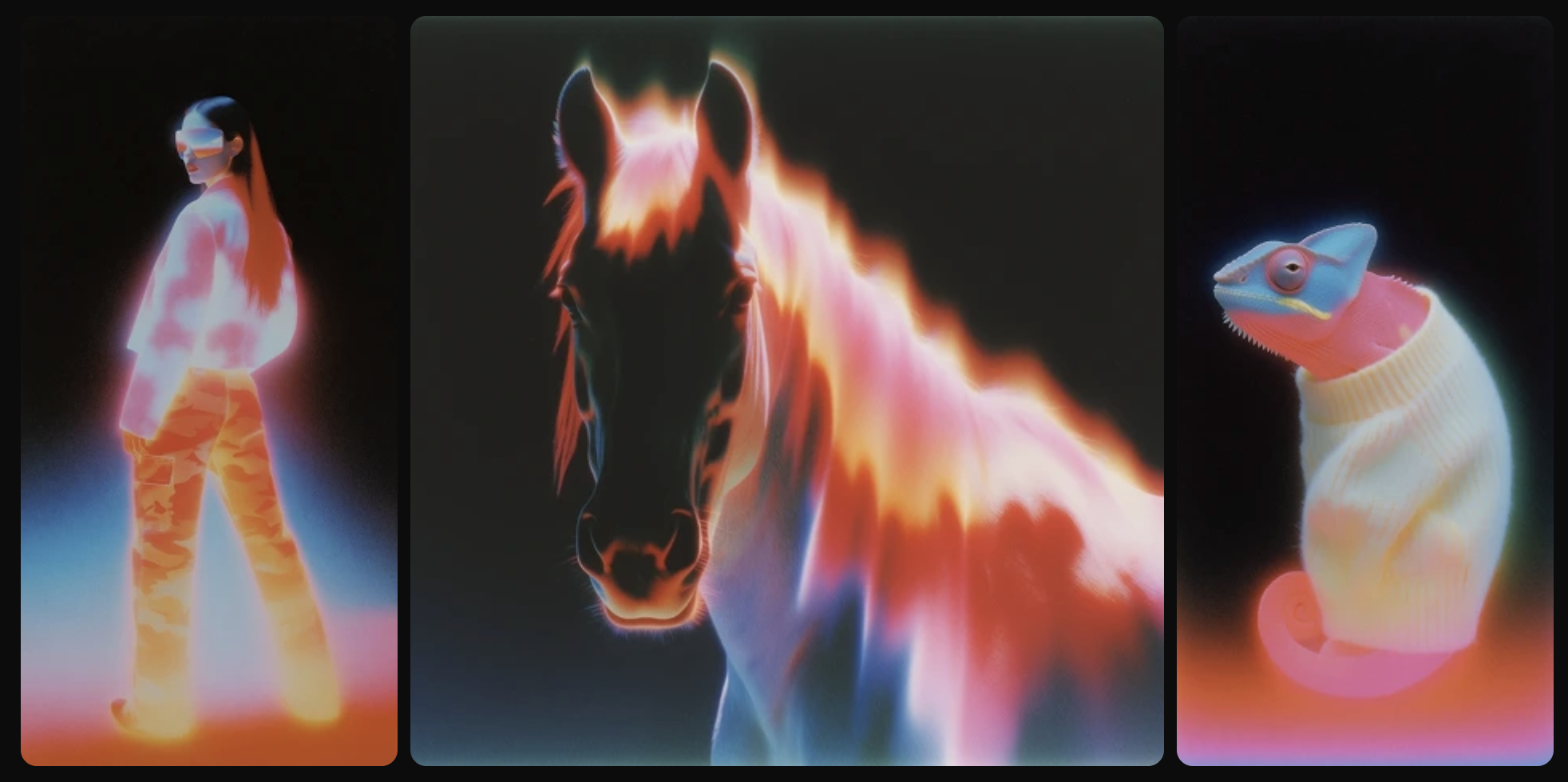
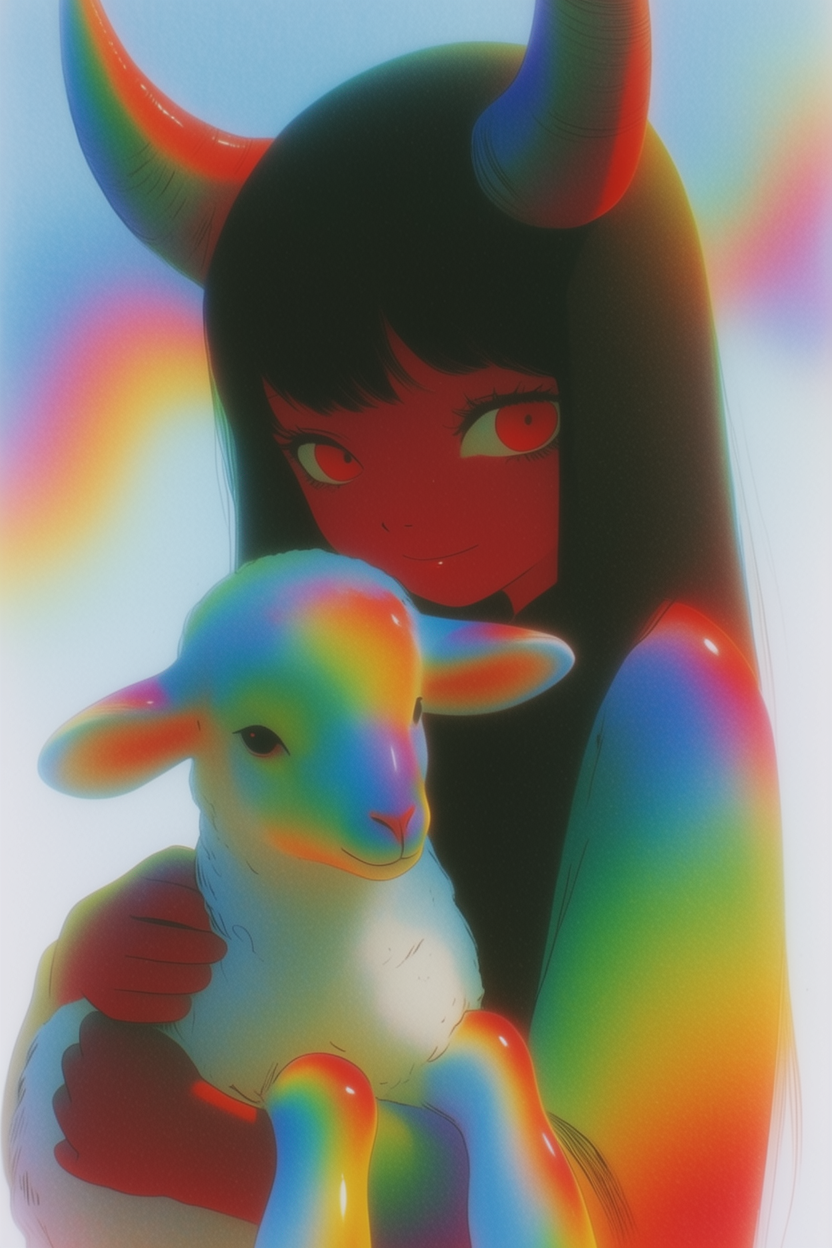
Aesthetic diversity – Krea 2 can generate an incredibly wide range of styles, with particular strength in artistic and expressive directions that other models tend to flatten out.
-
Style transfer – Krea 2 ships with the most advanced style transfer system available. It can extract the style of one or many reference images and apply it to your outputs with precision.
-
Creativity – this is an actual parameter you can tune with Krea 2. At high values, it will make the model to add aesthetic depth, interpretation, and visual richness to whatever you give it.
-
Moodboards – you can pass in an entire moodboard of dozens of images and Krea 2 will understand the overall creative direction, producing outputs that align with it.
Find hundreds of examples with their respective prompts clicking the link below:
Browse the Krea 2 gallery
Hundreds of examples with the prompts that produced them.
Open the galleryWe built Krea 2 for creatives who want real control over what AI produces. We work closely with teams across creative studios, marketing and advertising agencies, fashion, gaming, and architecture — continually taking their feedback back to our research lab to push the model further for every use case. It’s a model that’s actively evolving with the people who use it.
It’s also built for exploration. You don’t always come in with a fully formed idea, and Krea 2 is designed to be a creative collaborator in those moments — something that can take a loose direction and give you back visuals that spark the next idea, rather than forcing you to specify every detail upfront.
Model variants
The Krea 2 API offers two model variants: Krea 2 Medium and Krea 2 Large. Both support the same parameters and feature set — the differences come down to model size, training stage, and the character of the outputs they produce.
If you’re not sure which to start with, try Krea 2 Medium — it’s faster, cheaper, and handles the broadest range of use cases reliably.
Krea 2 Medium
A smaller, faster, and more cost-efficient model with extensive post-training applied. This makes its outputs especially stable and consistent across generations. Medium is particularly strong on illustration, anime, painting, and other expressive or artistic styles.
Krea 2 Large
More than twice the size of Medium, with a softer post-training applied – which gives its outputs a rawer, more textured, and flexible character. Large is the more powerful model overall – at its best, it produces results Medium can’t match. It handles expressive and artistic styles well, and shines on photorealism and “raw” looks like motion blurs, grains, or low dynamic ranges.
Features & Examples
We compiled this list of examples that you can use to test the capabilities of the model.
Aesthetic diversity
Most image models handle complex prompts well, but they tend to fall short on style — defaulting to something sharp, polished, and “safe”. That narrows the creative range you can actually get out of them.
With Krea 2, we put as much effort into how the model understands style as we did into how it understands prompts. The result is a model that can render a wide range of aesthetics – expressive, raw, niche, experimental – without falling into AI looks.
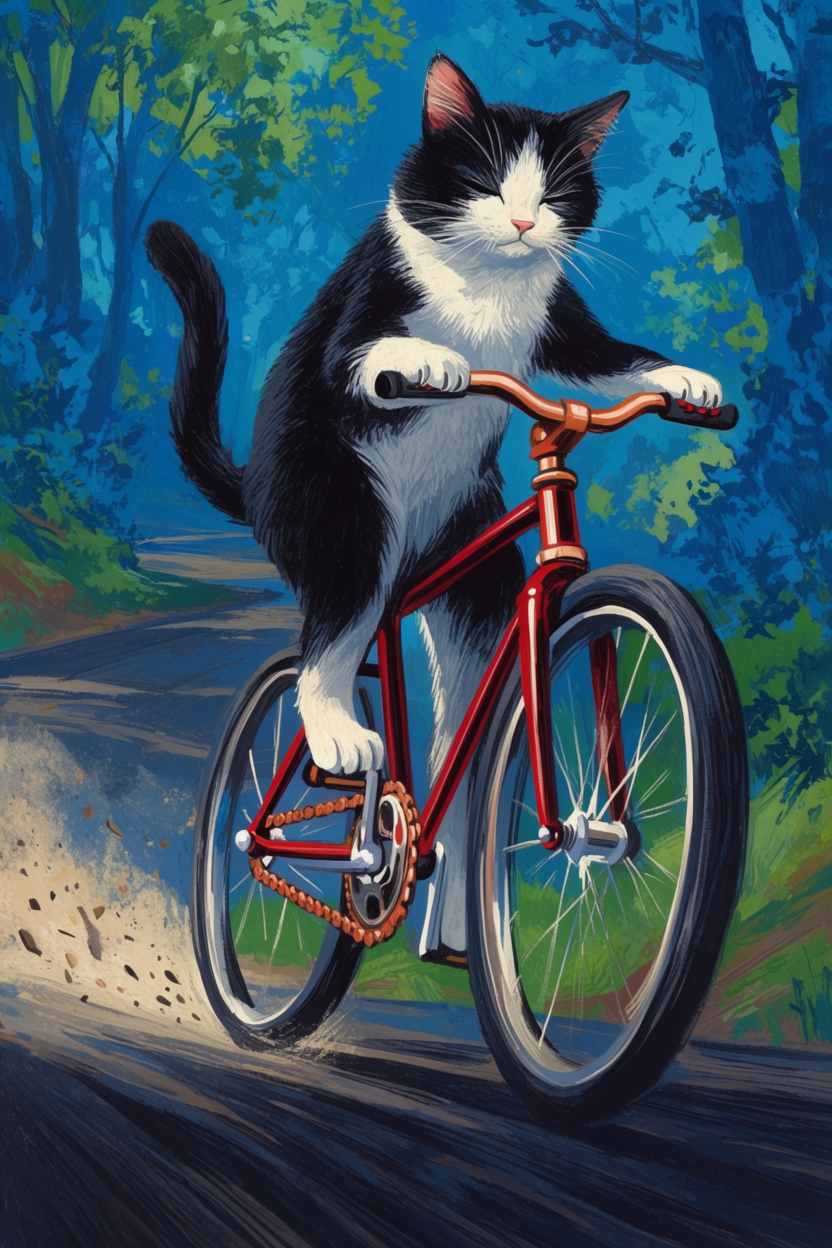
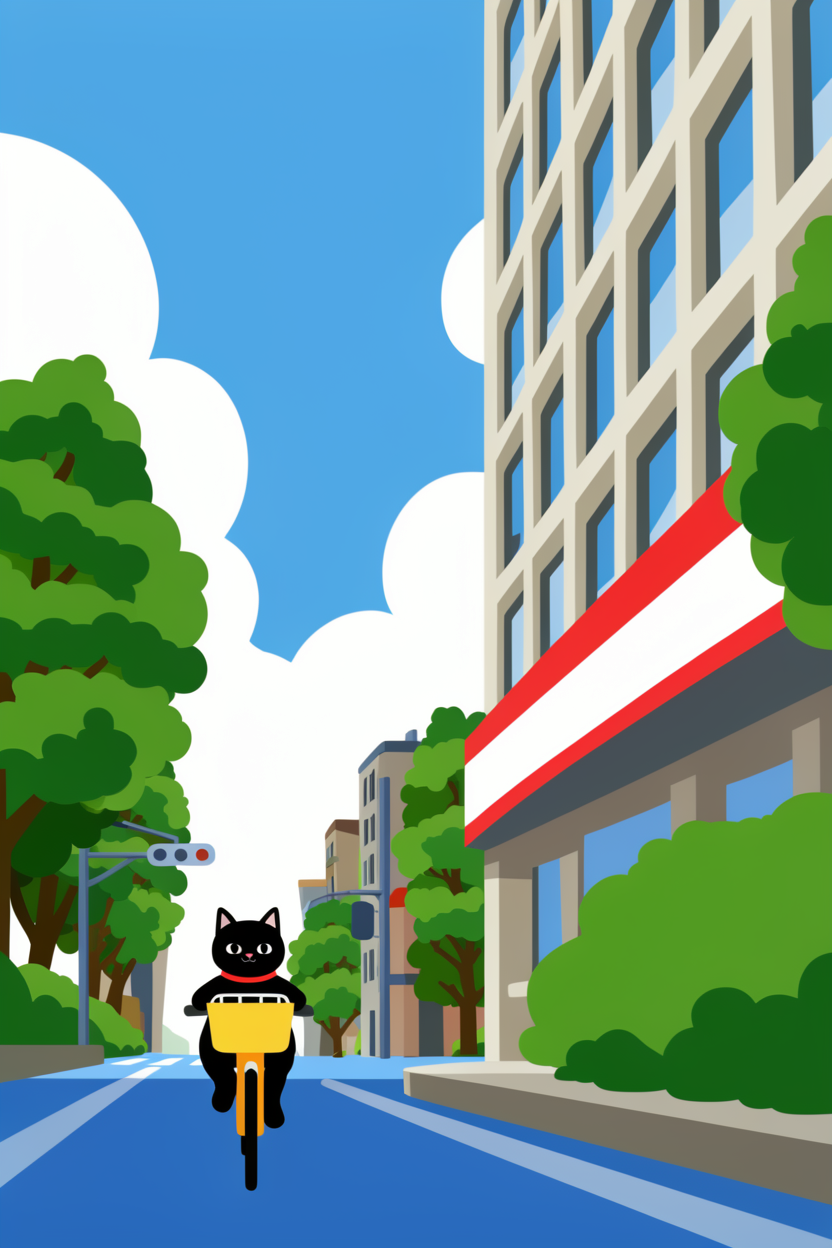
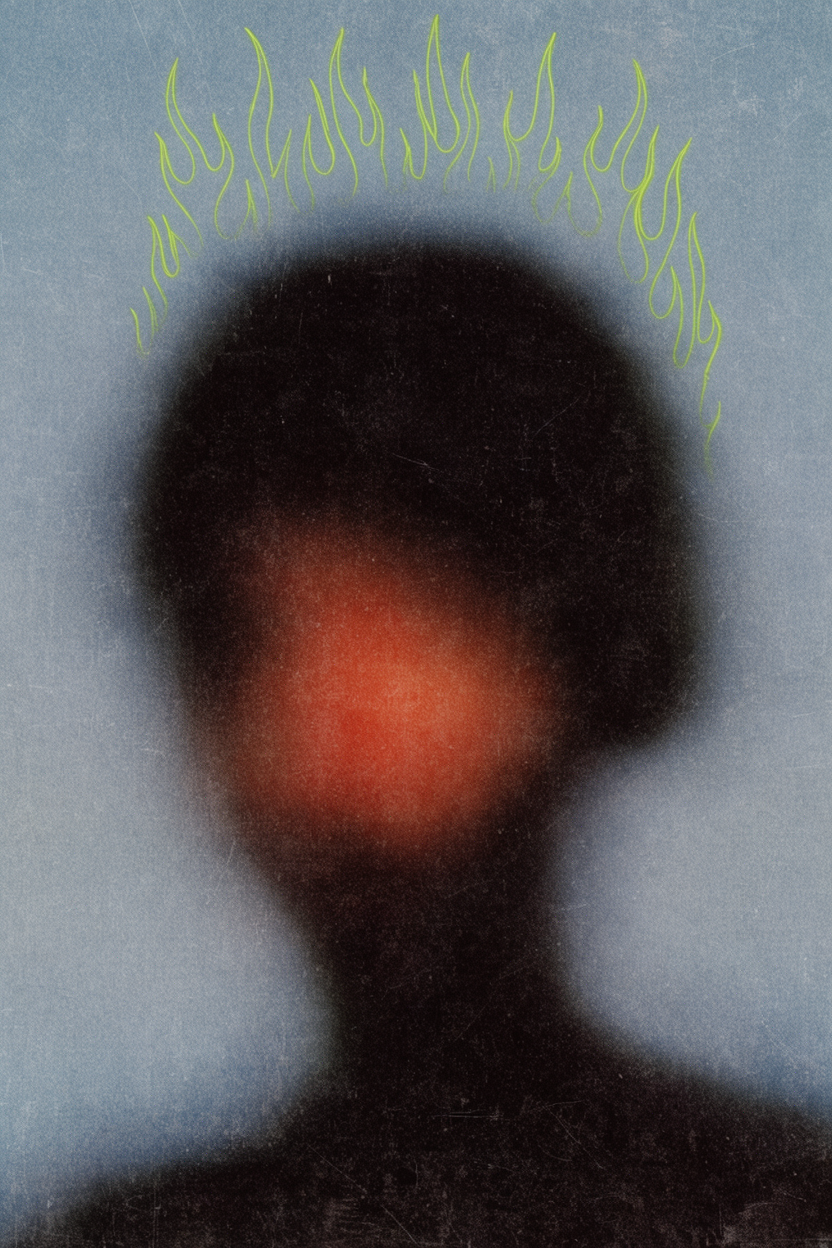
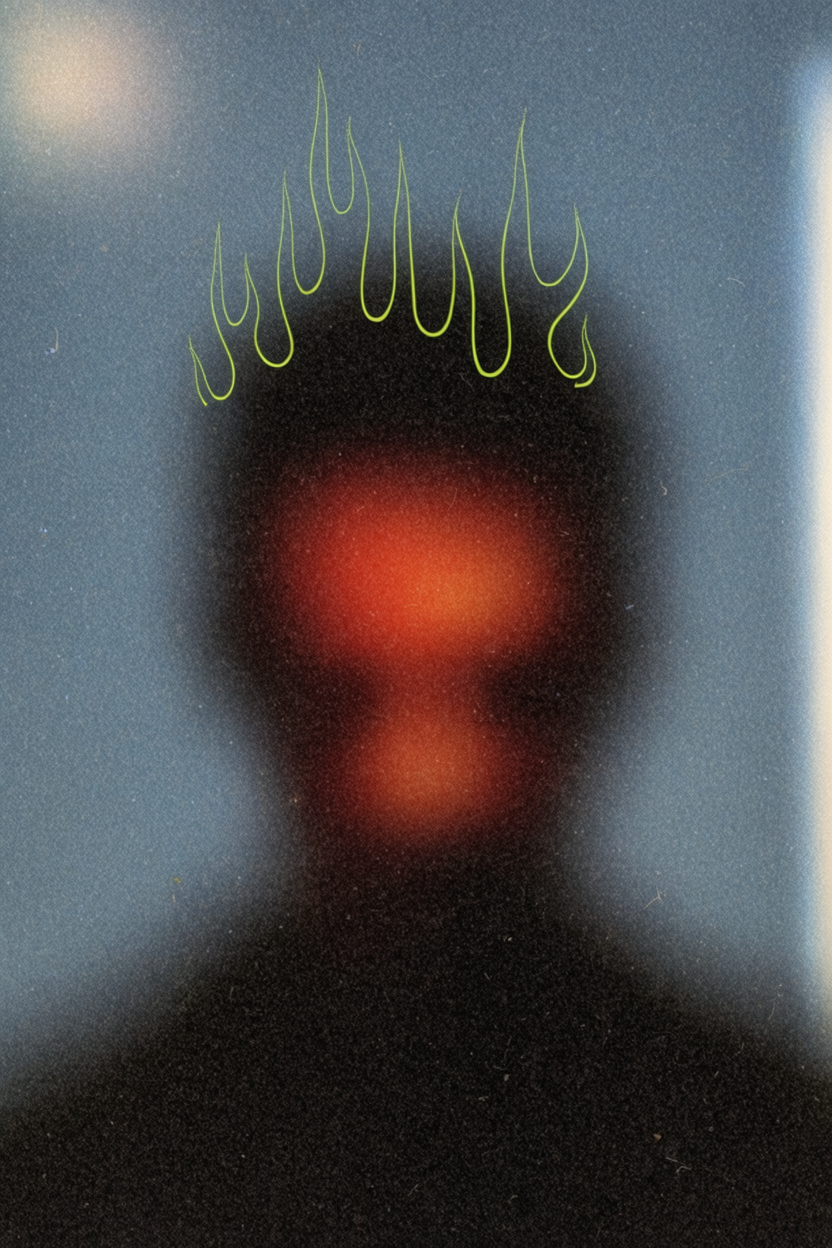
The following are a set of examples created with Krea 2 showcasing a variety of aesthetics:
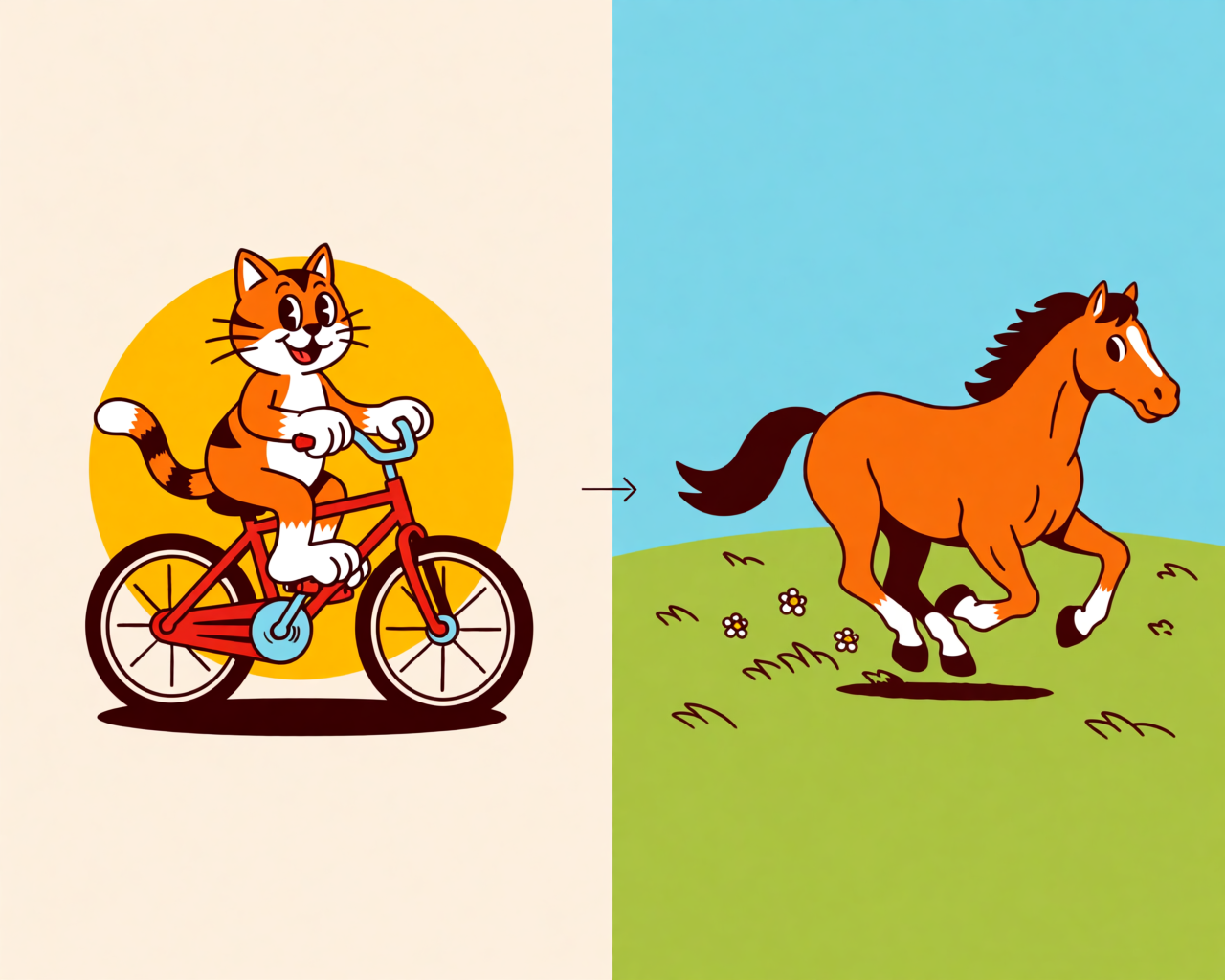
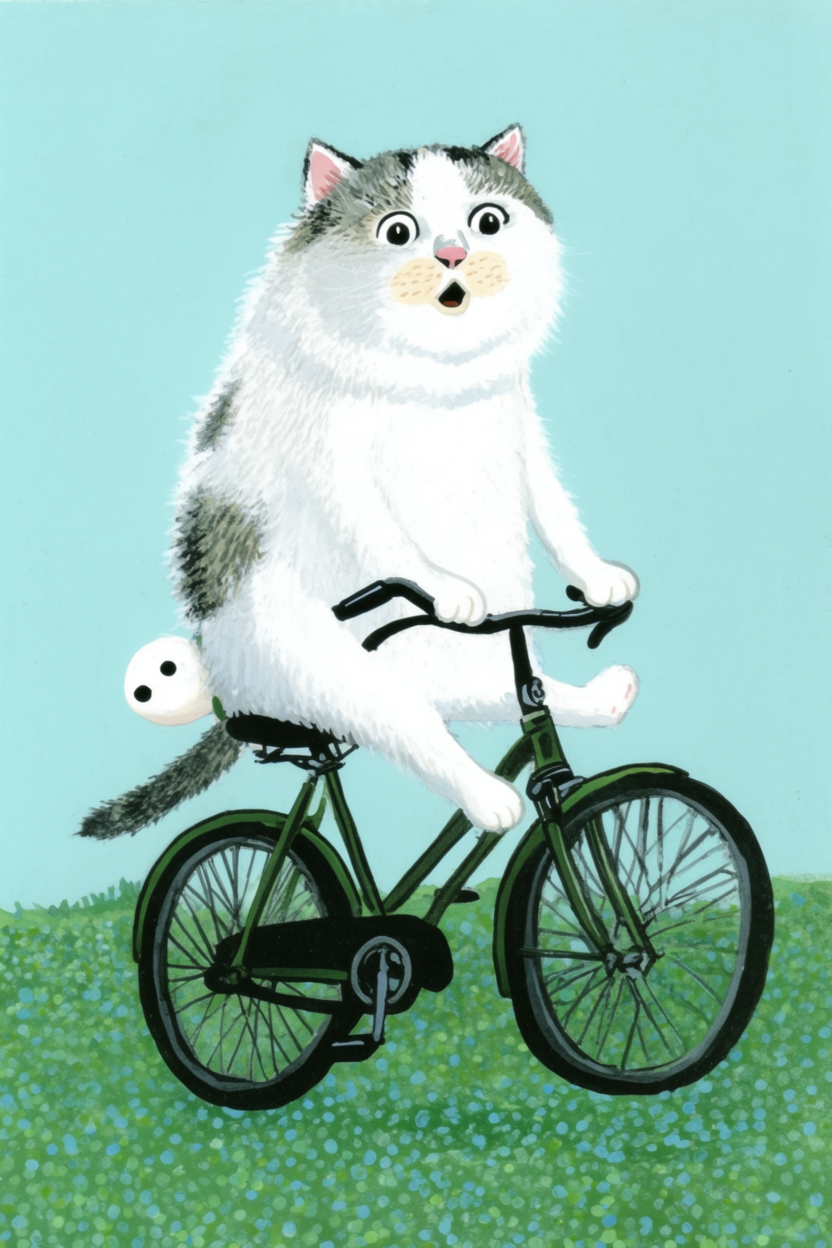
“illustration of a cat riding a bicycle”
Model: Krea 2 Large
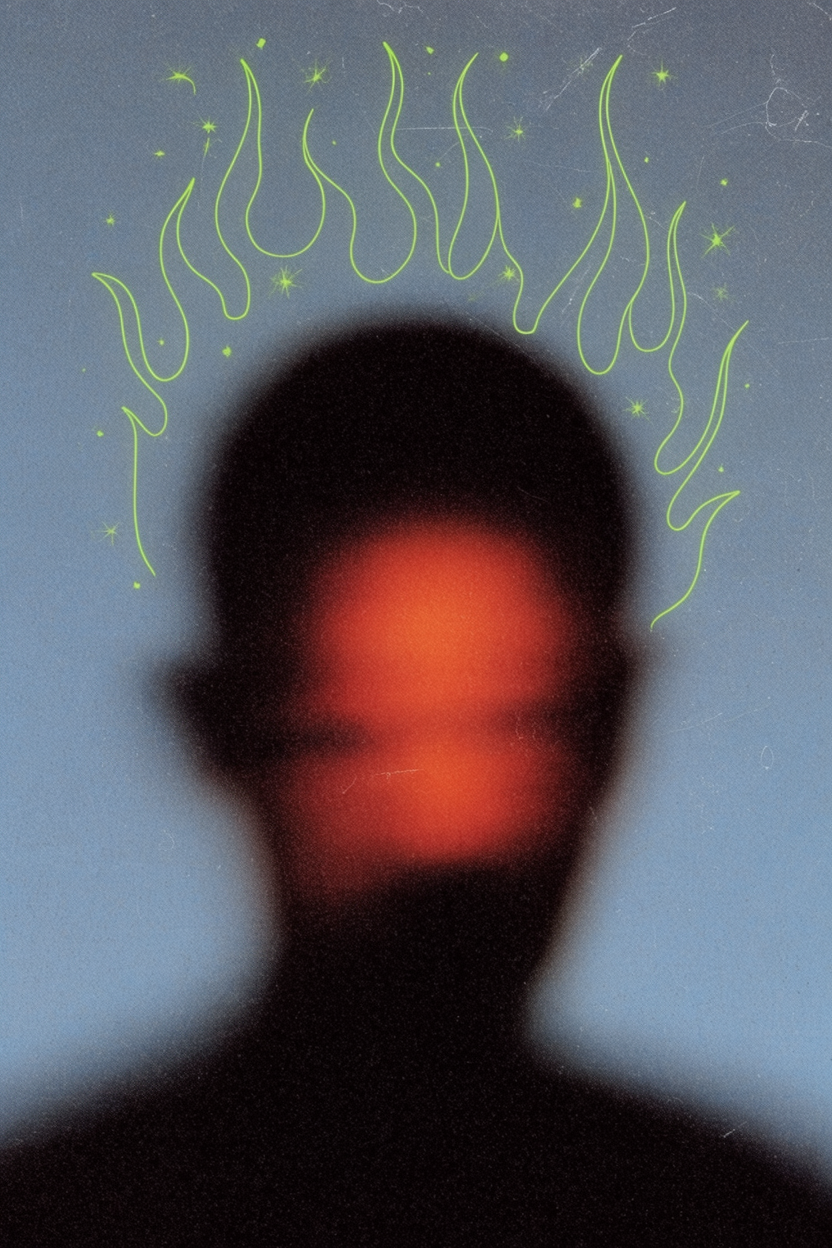
“heavily blurred dark silhouette of a head and shoulders, glowing reddish-orange center on the obscured face, thin neon lime green fire-shaped sparkles above, cool blue-grey background, heavy vintage film grain, lo-fi grunge aesthetic, dusty scratched texture”
Model: Krea 2 Large
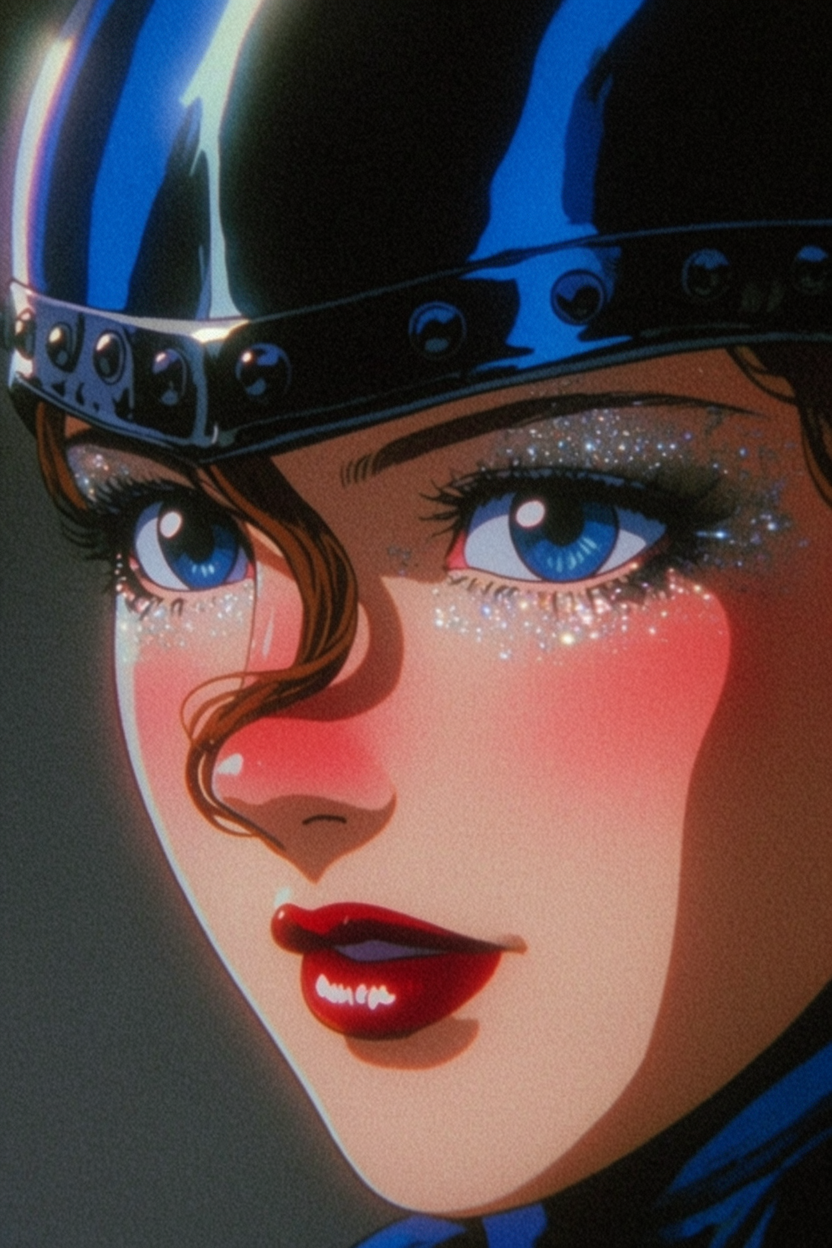
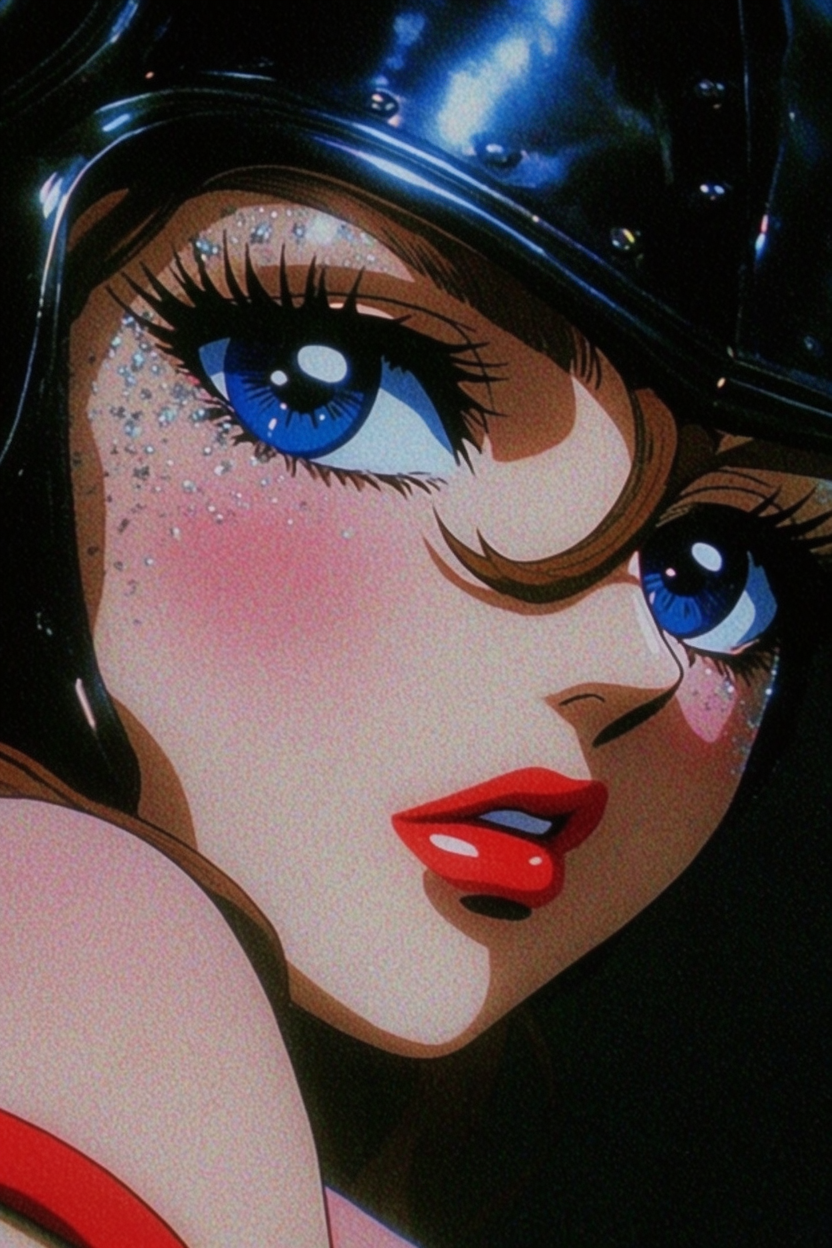
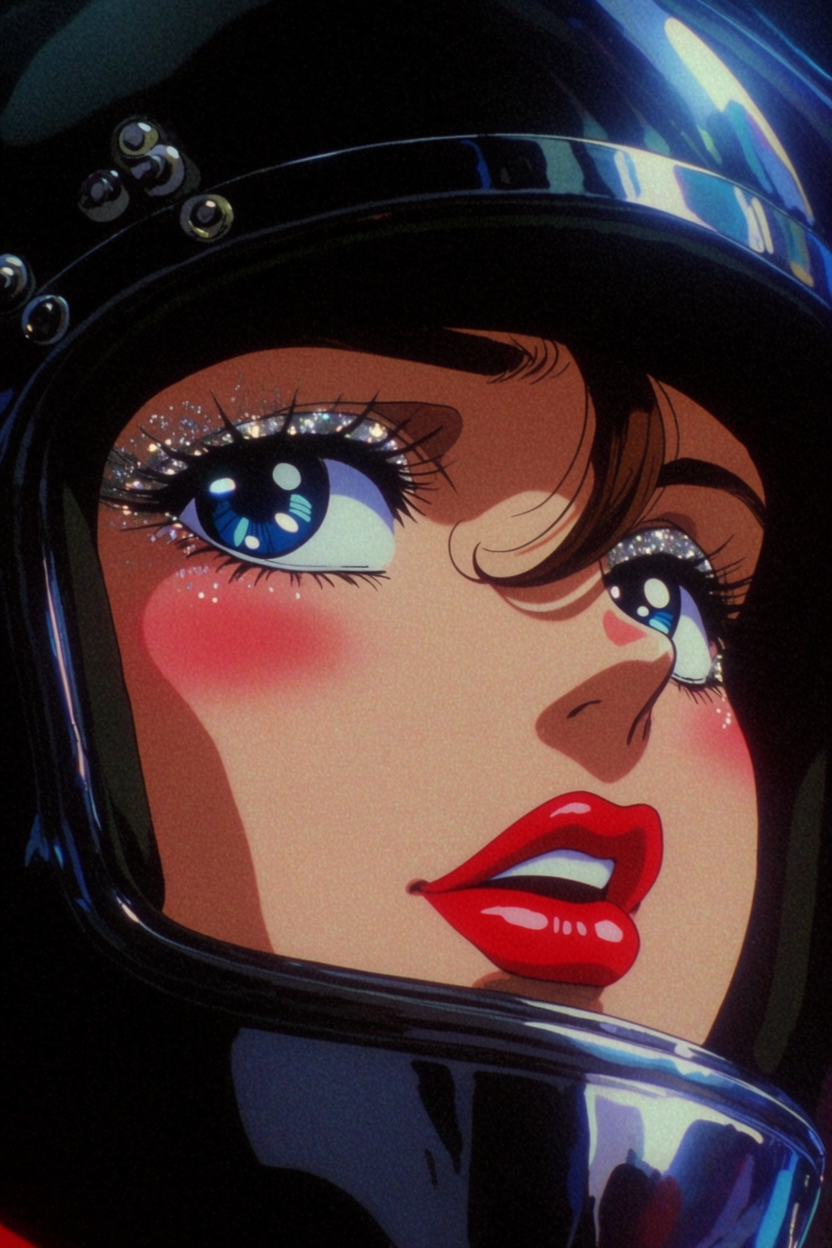
“Close-up portrait of a woman, retro 90s anime style, large vivid blue eyes, flushed cheeks, glossy red lips, silver glitter around her eyes, single brown curl on the nose, wearing a glossy black metallic helmet with rivets, bold blue reflections, dark background, heavy film grain, saturated colors, sharp specular highlights”
Model: Krea 2 Large
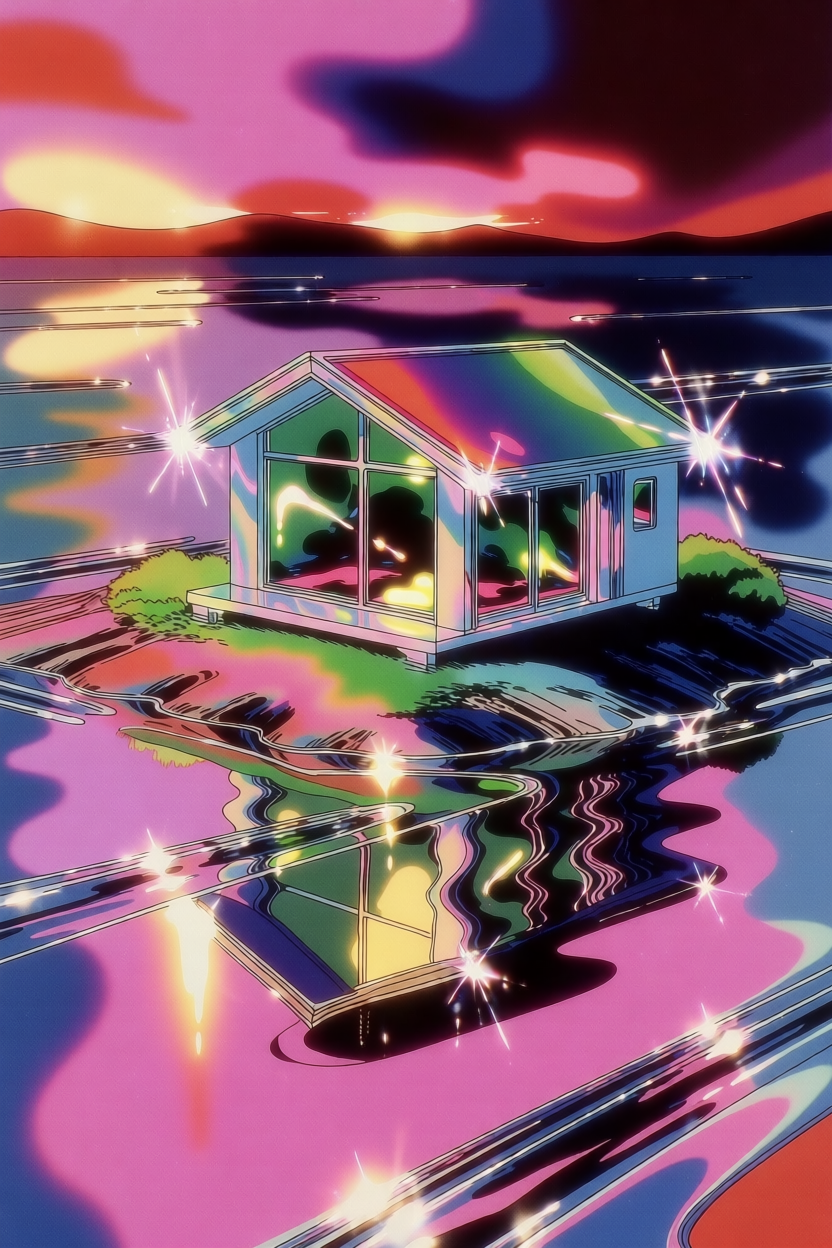
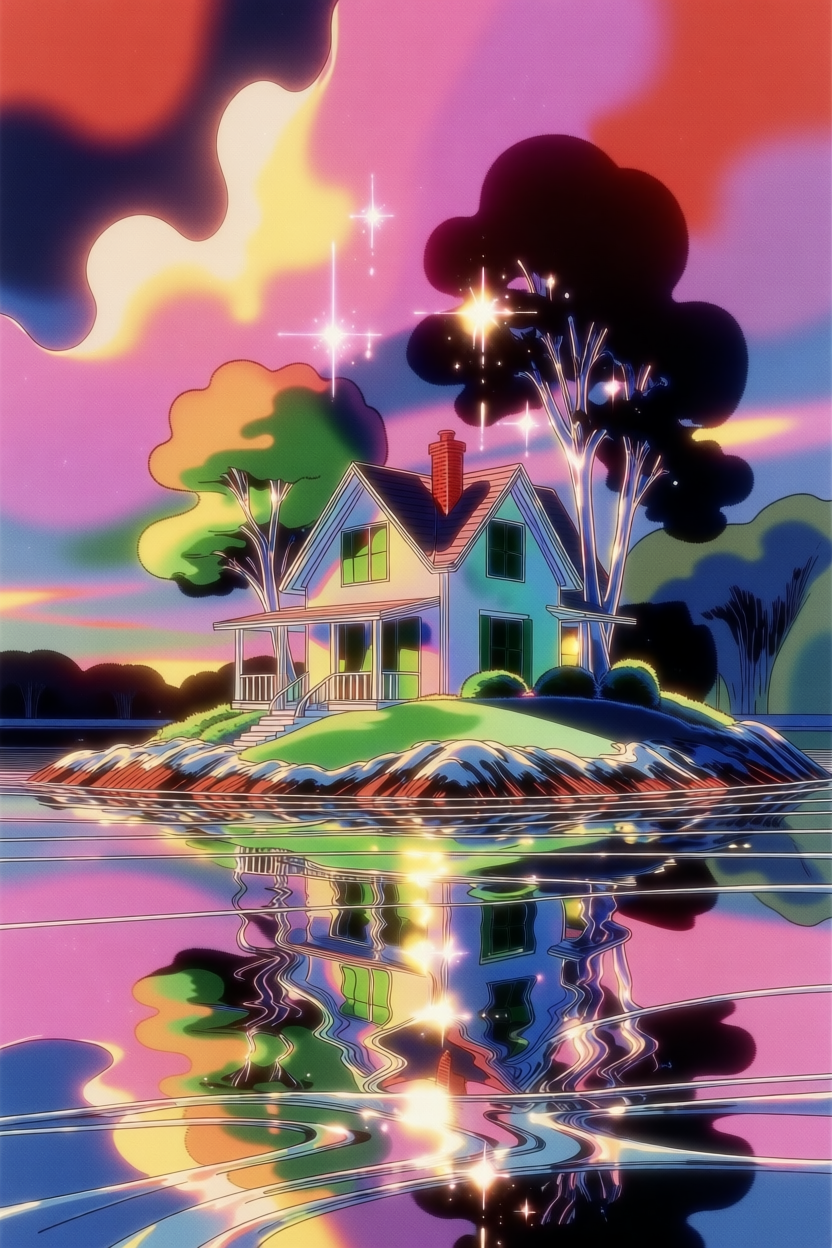
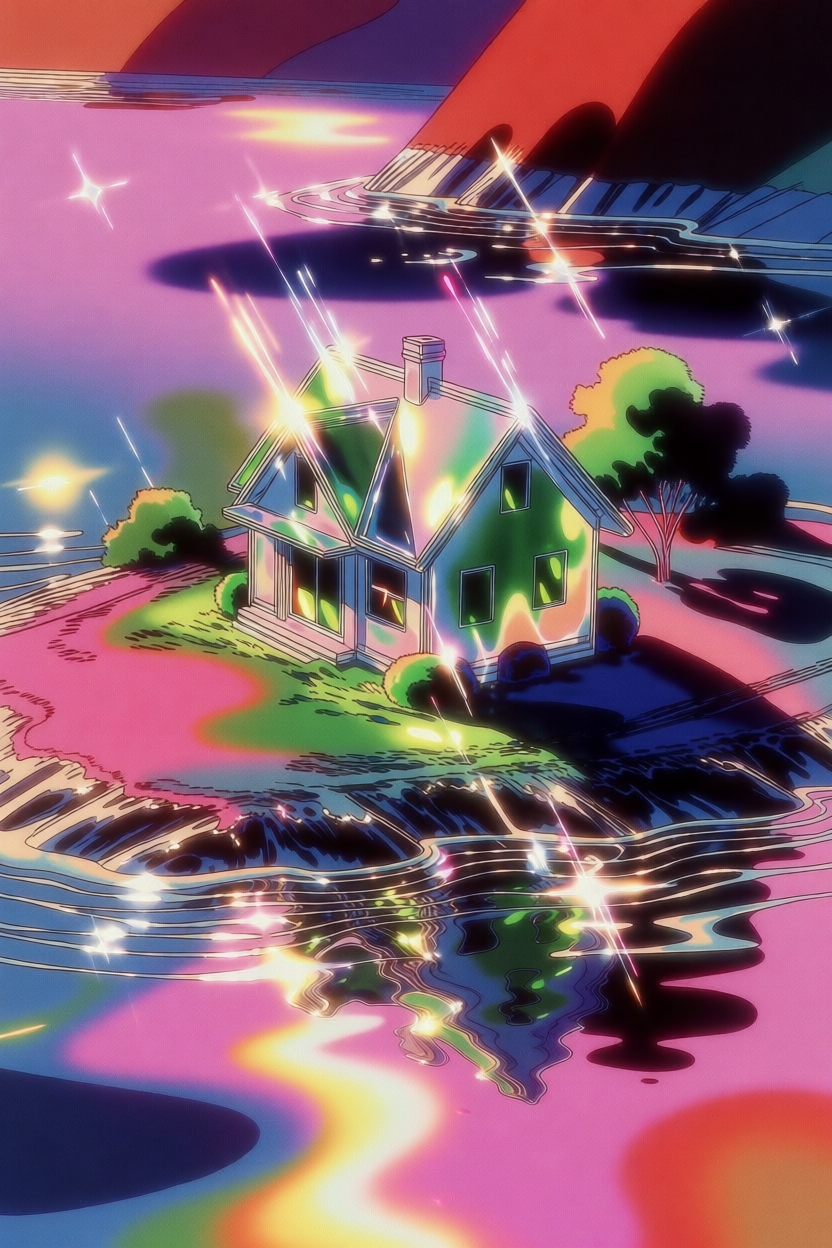
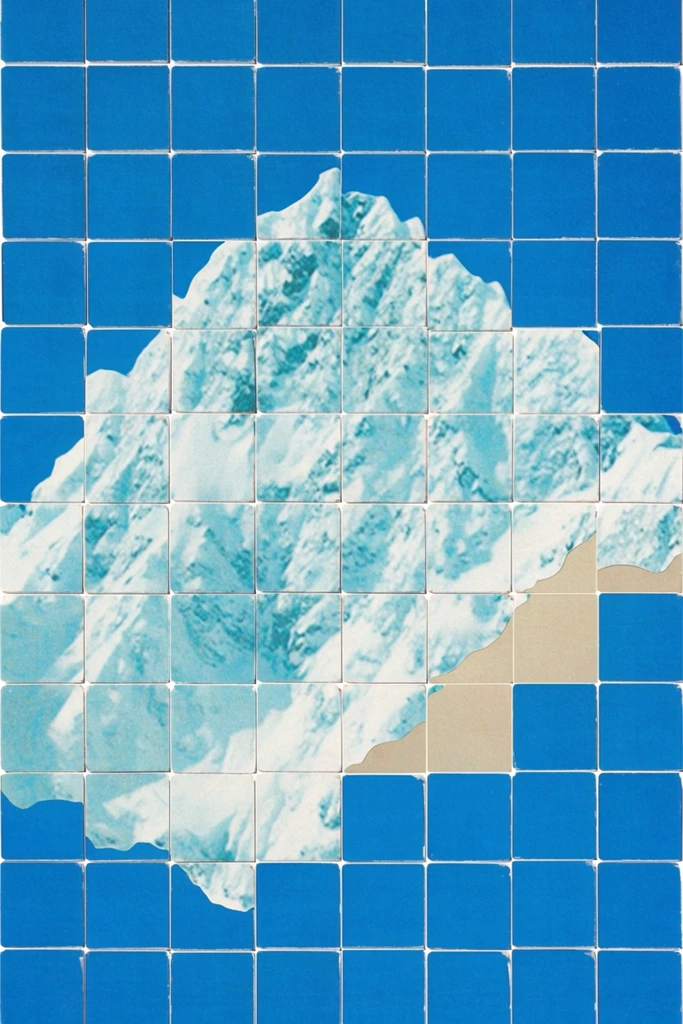
Style Transfer
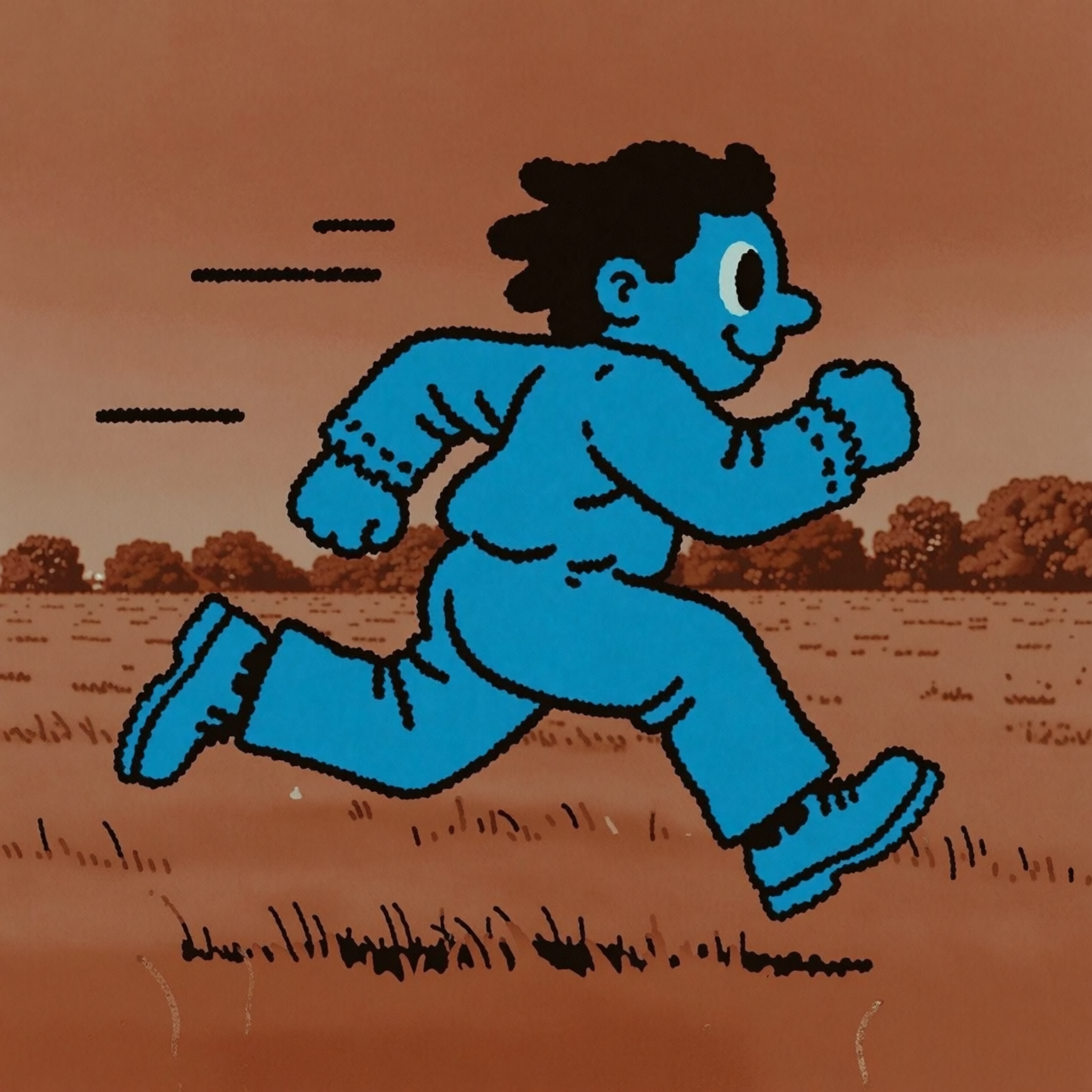
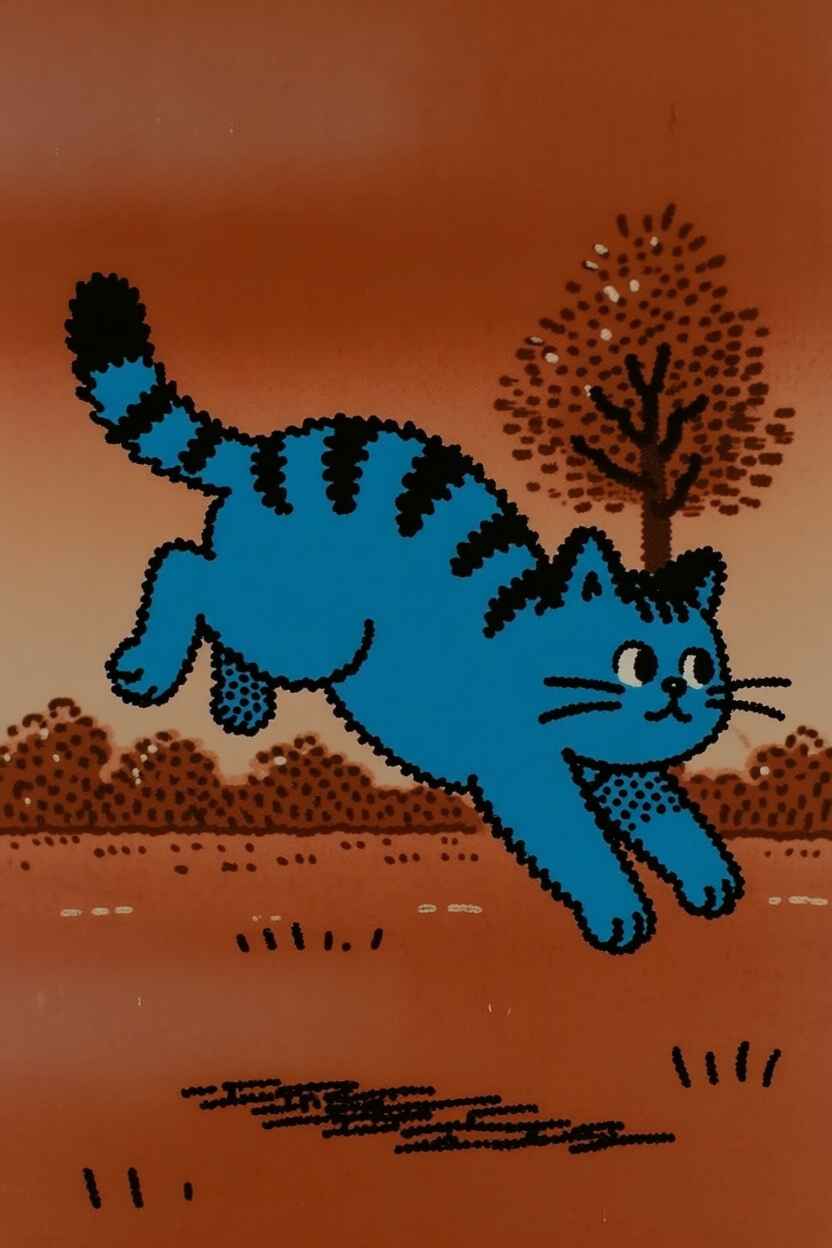
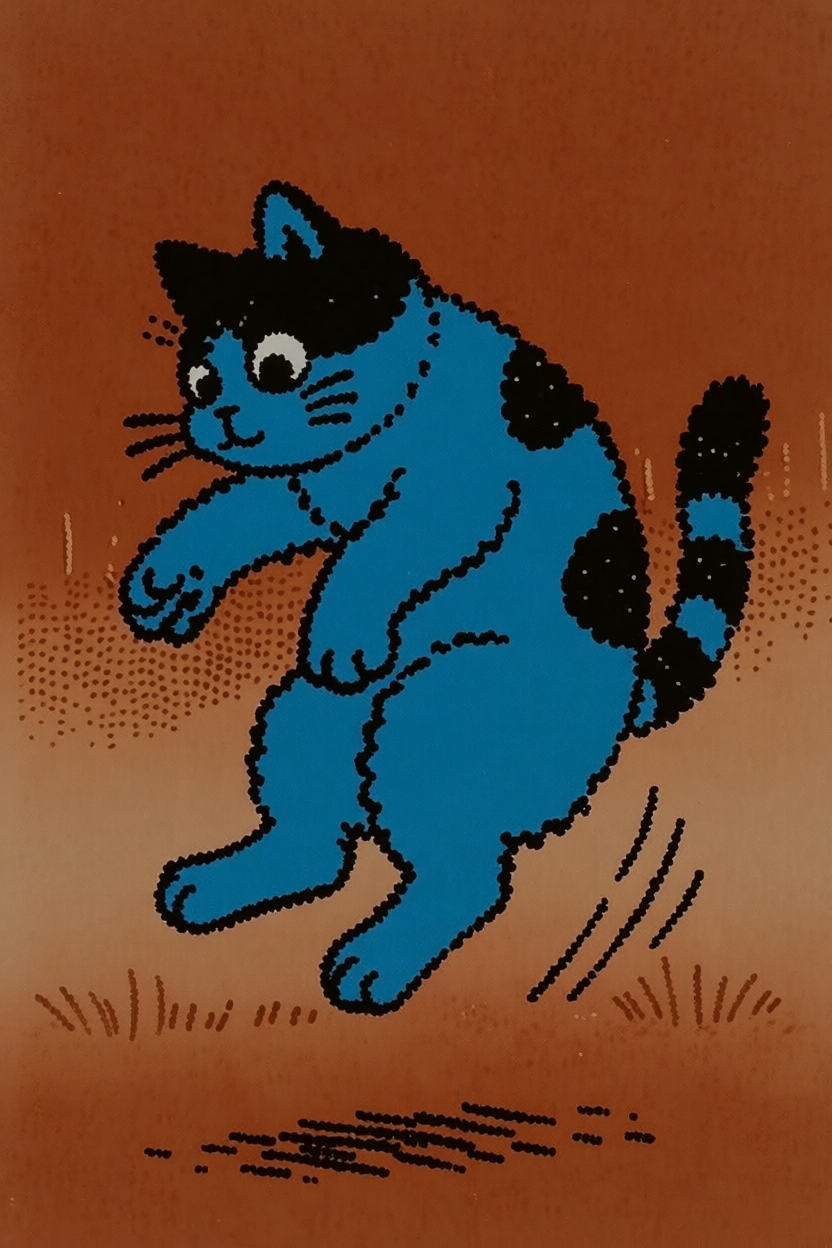
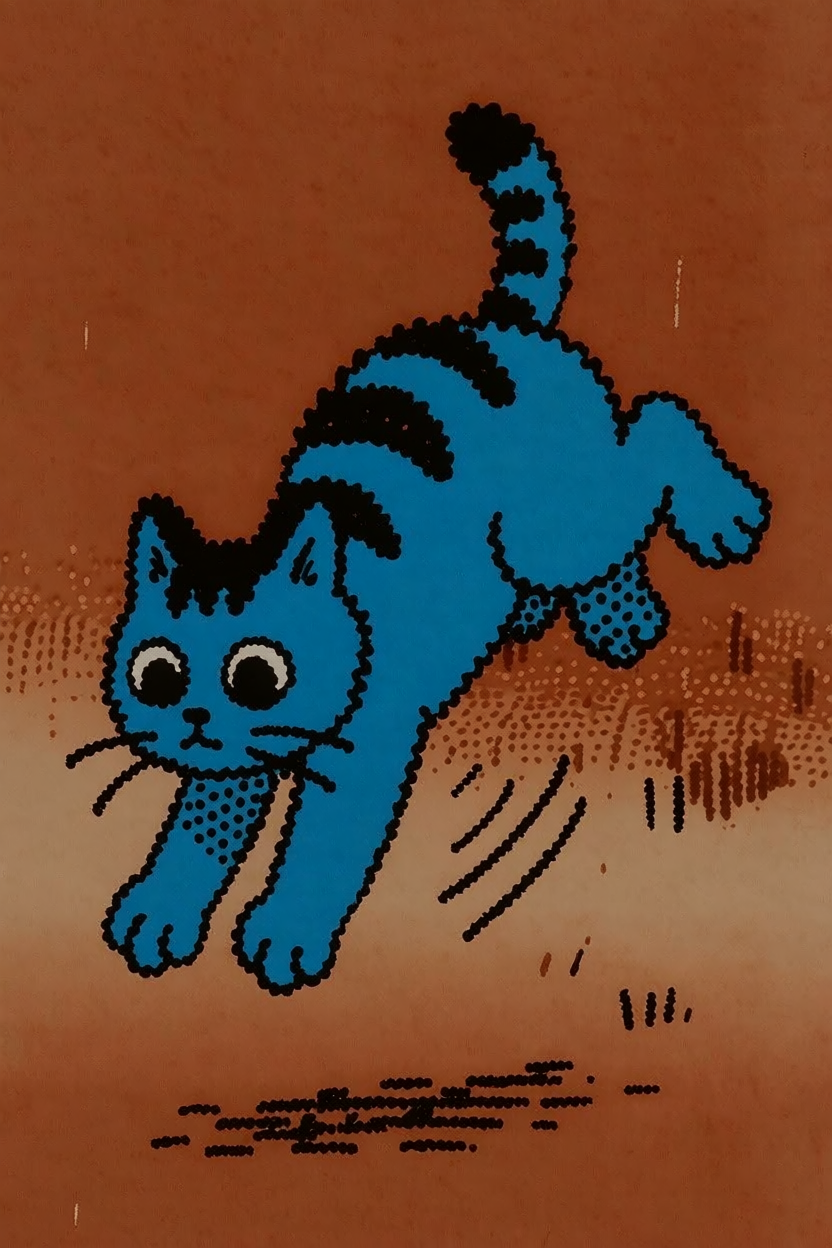
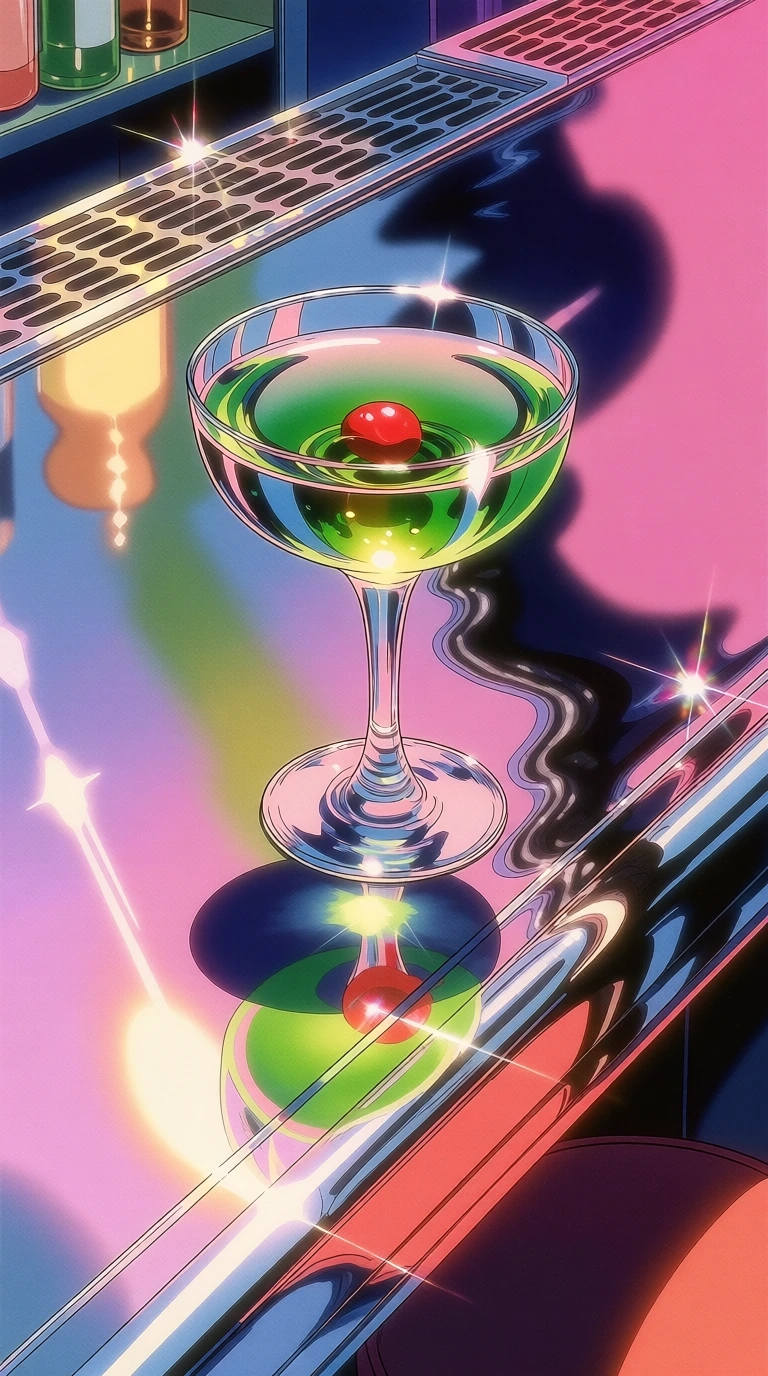
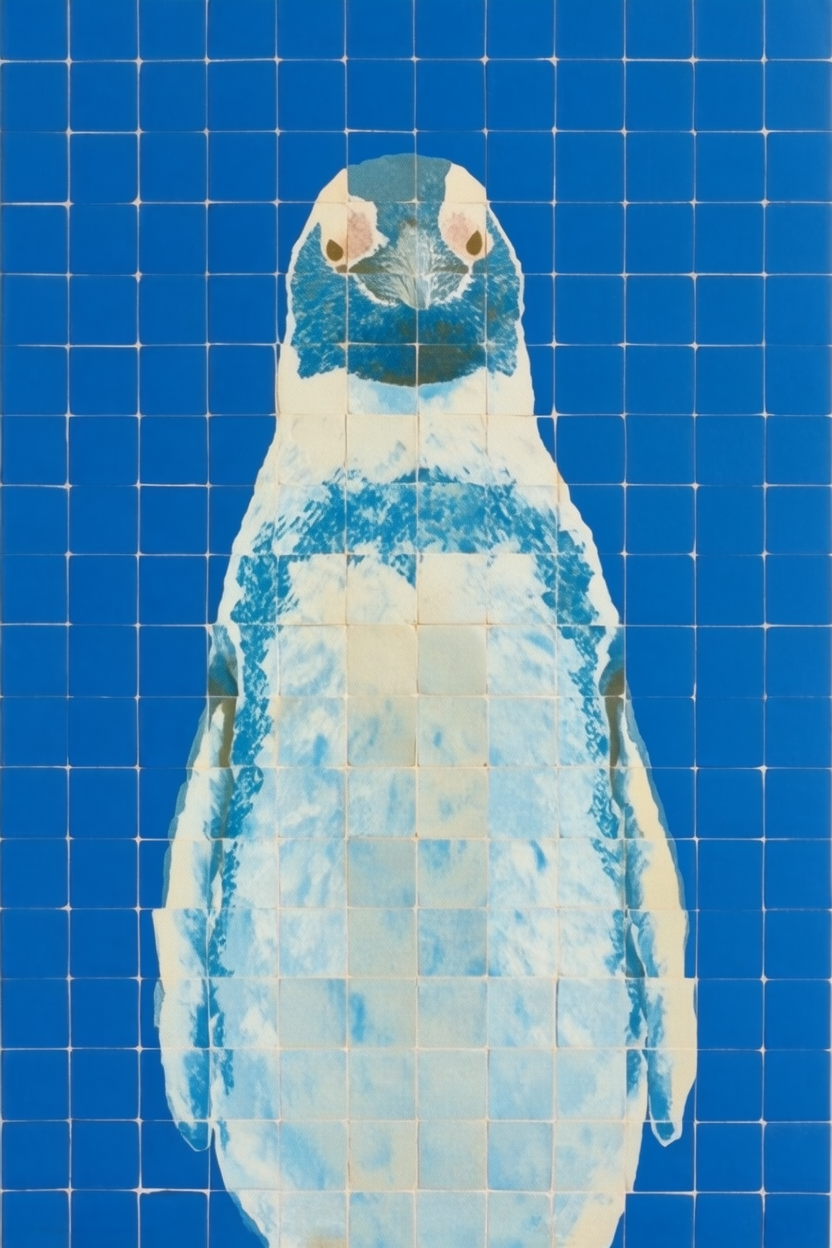
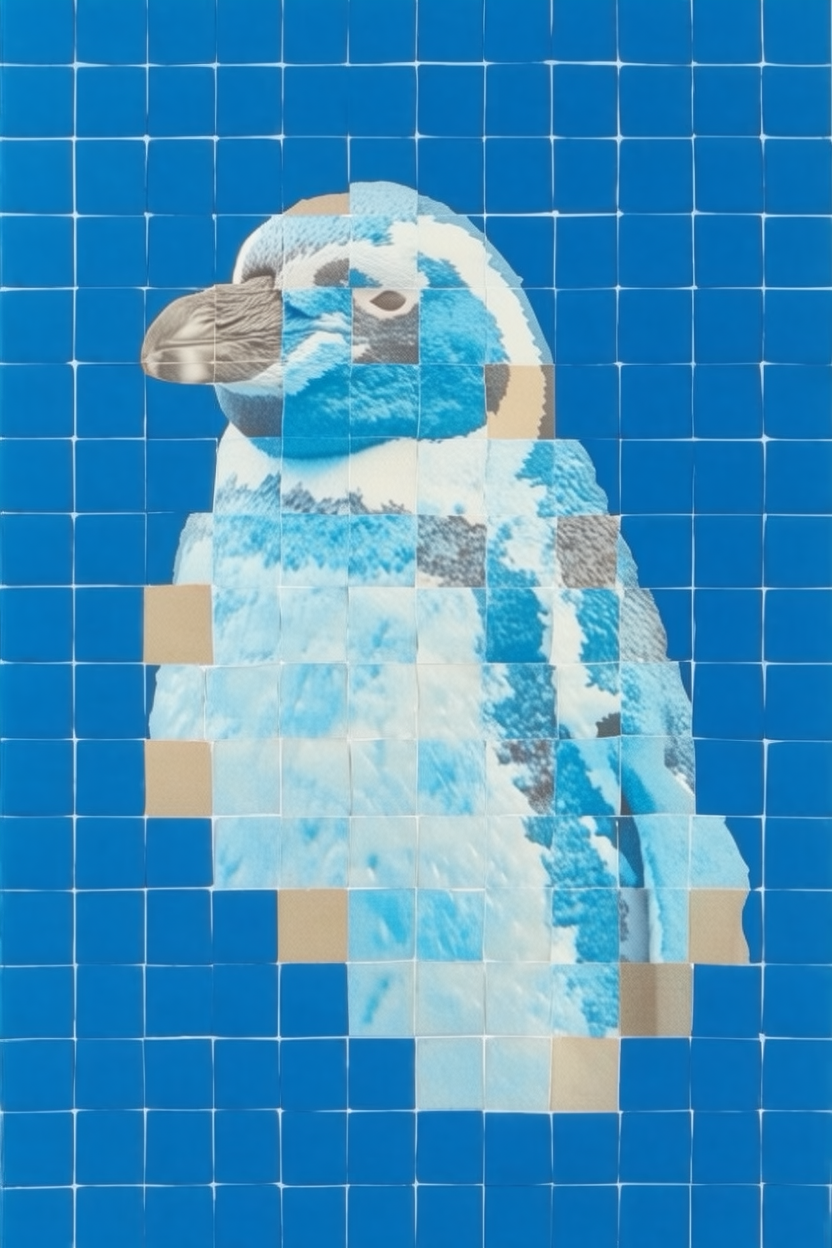
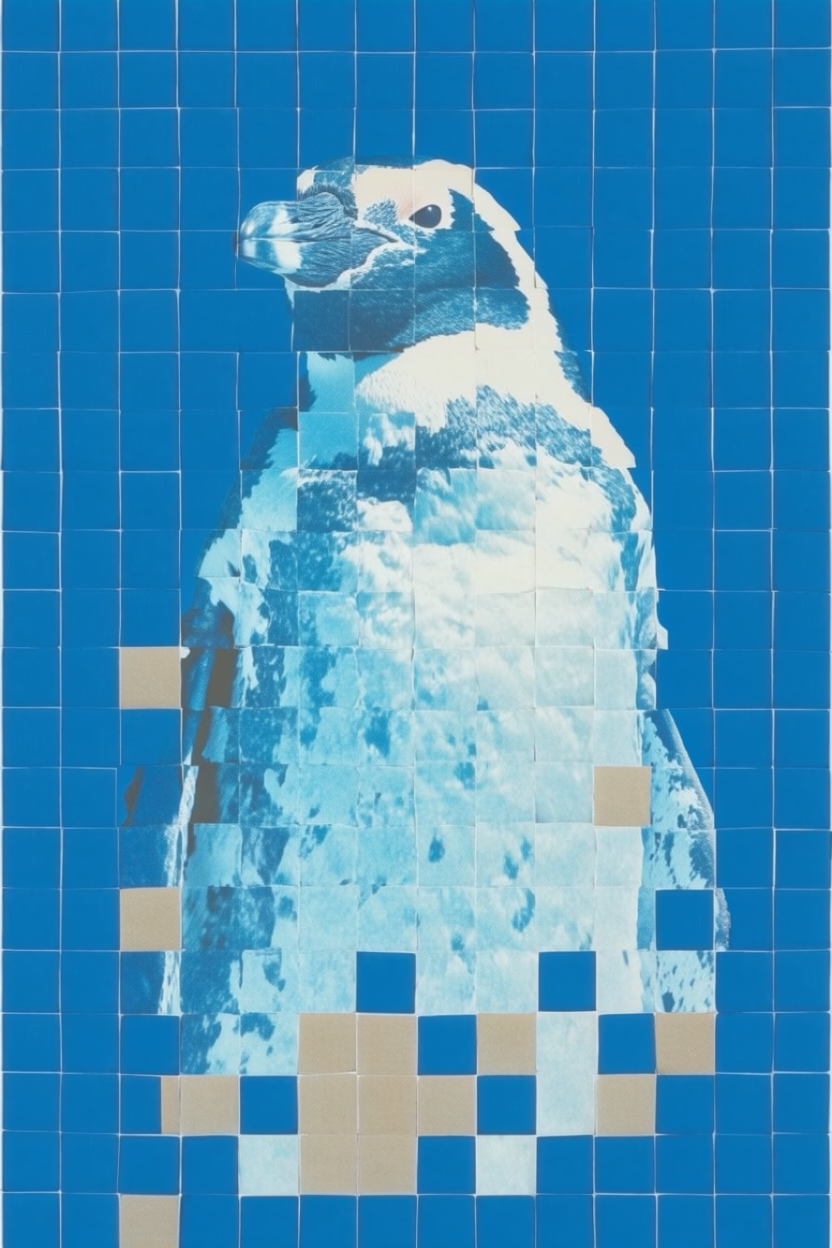
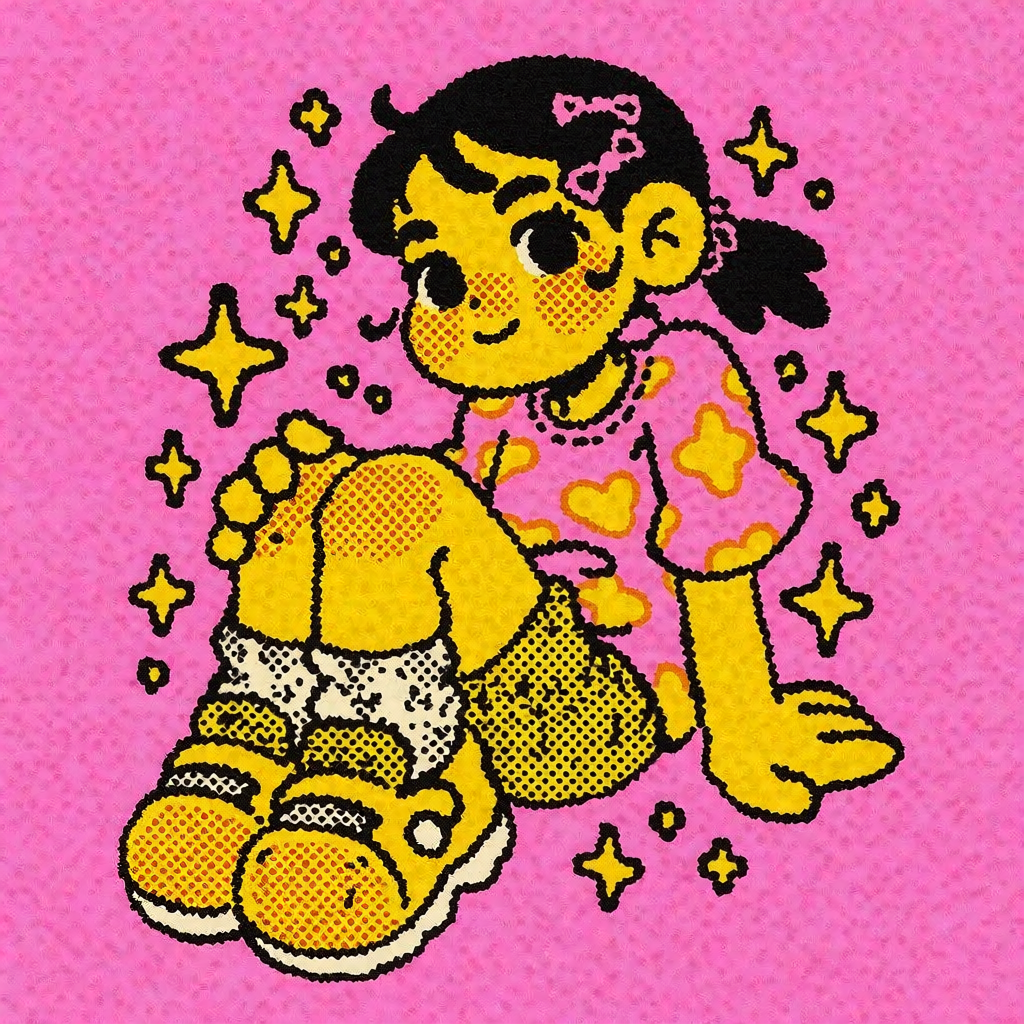
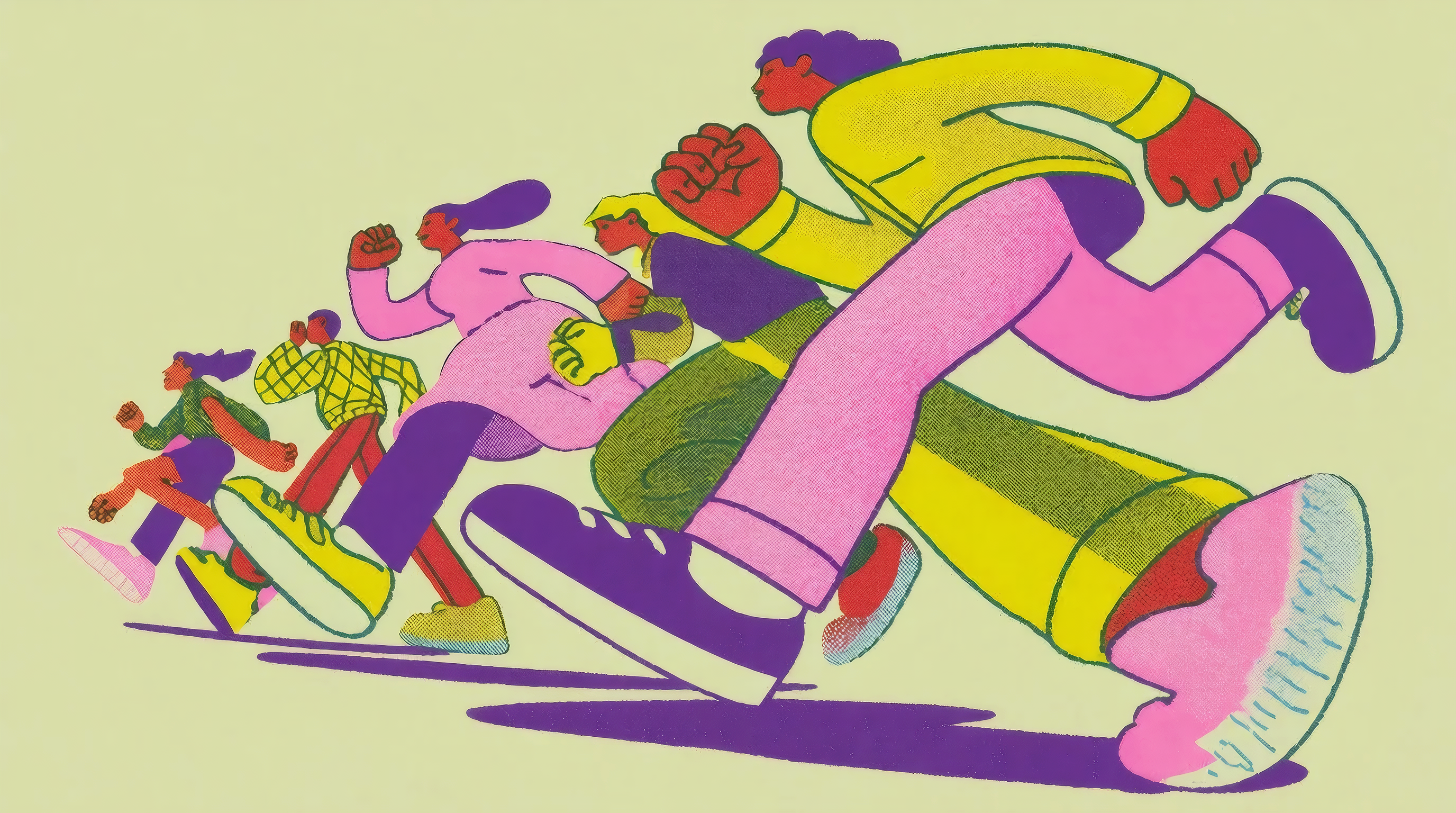
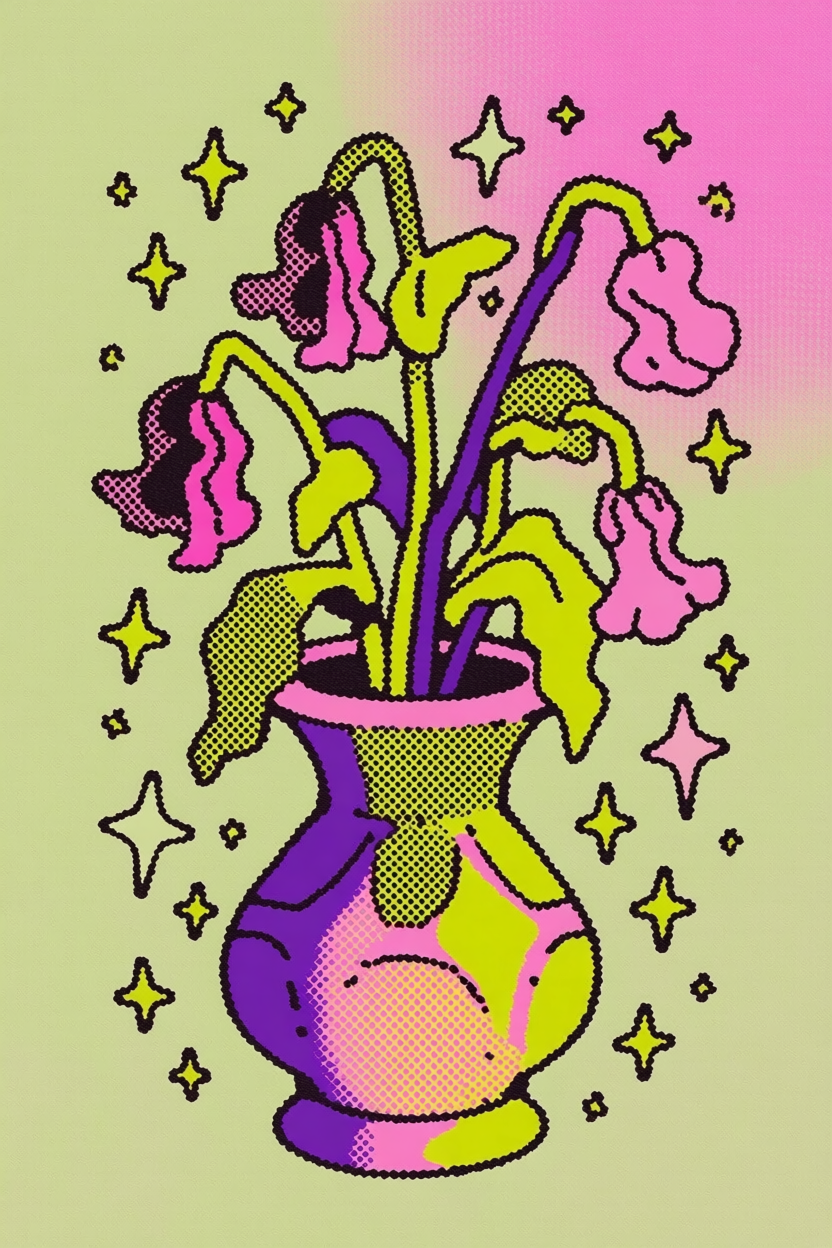
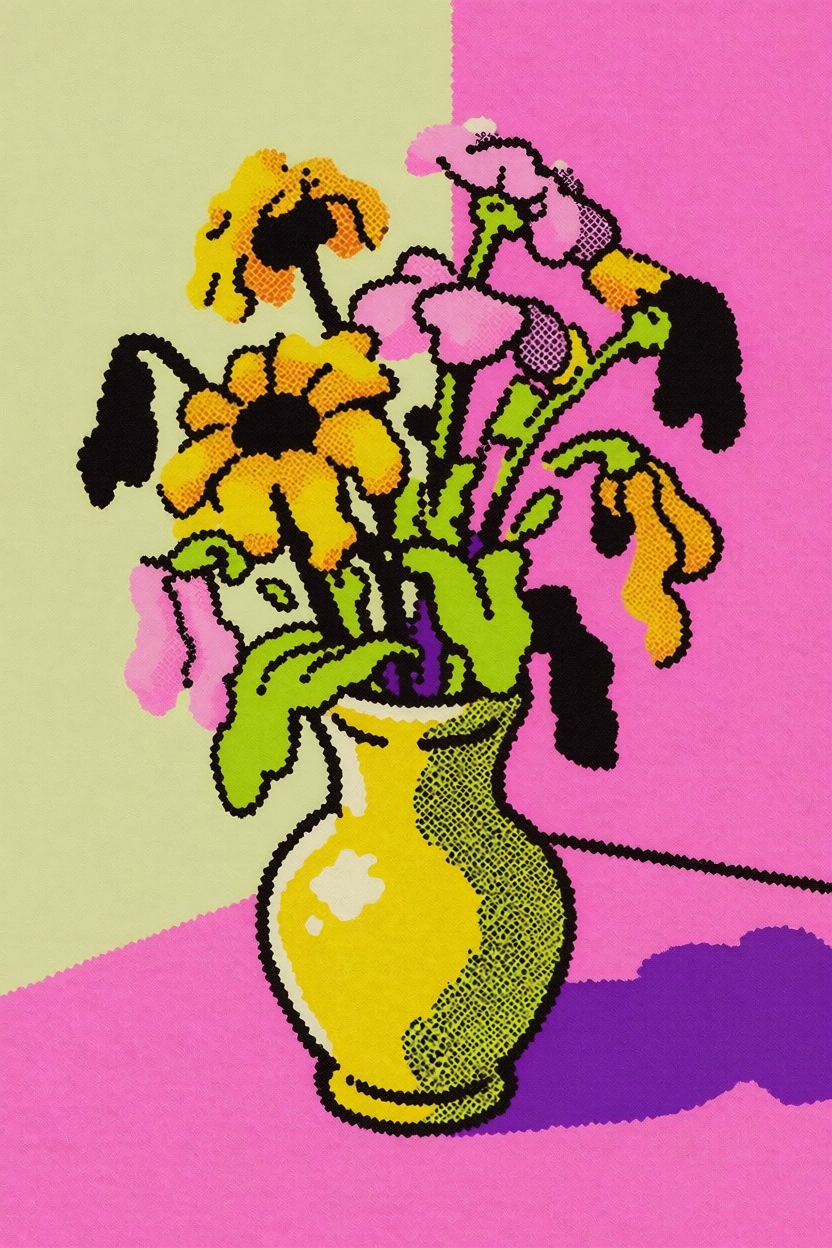
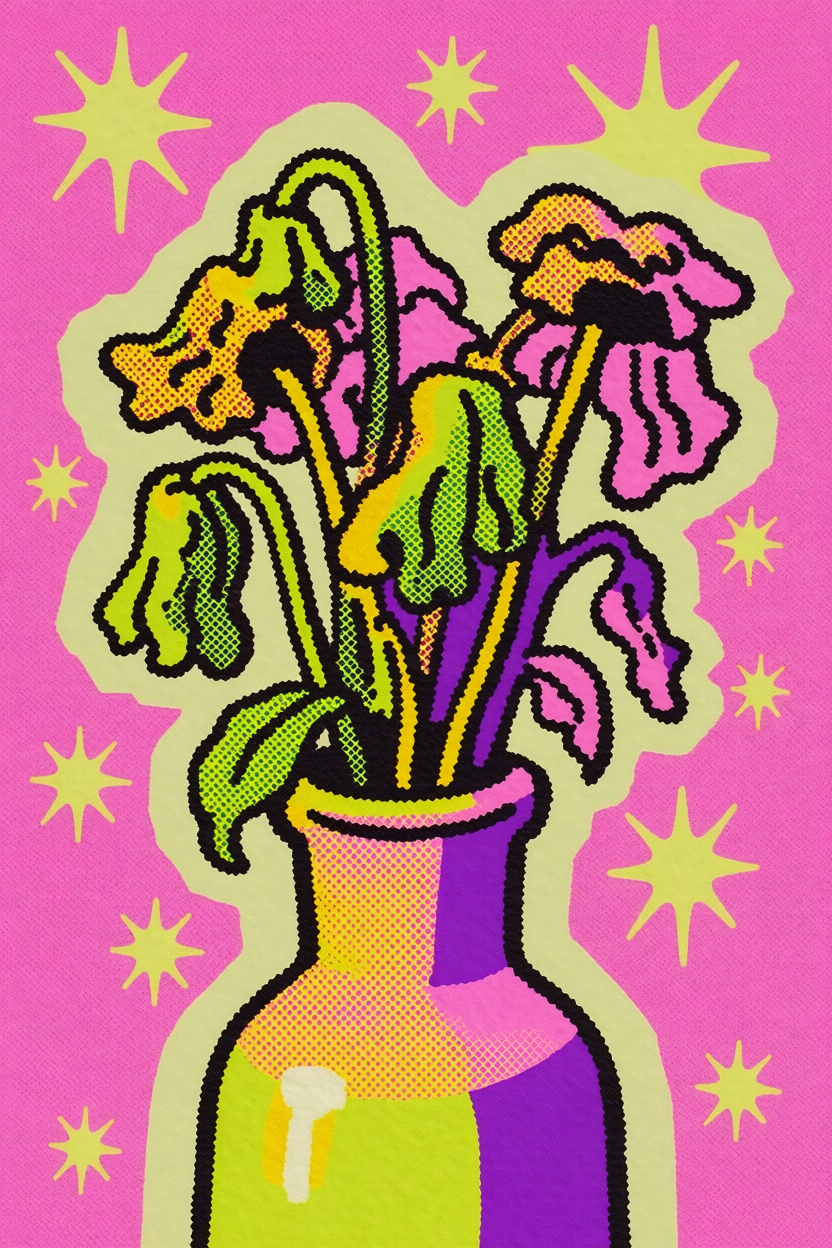
Krea 2 ships with the most powerful style transfer system on the market. Pass in a single reference image or combine several, and Krea 2 will extract the style and apply it to your output — letting you decide how strongly each reference shapes the final image.
The following were generated using style references:
Creativity
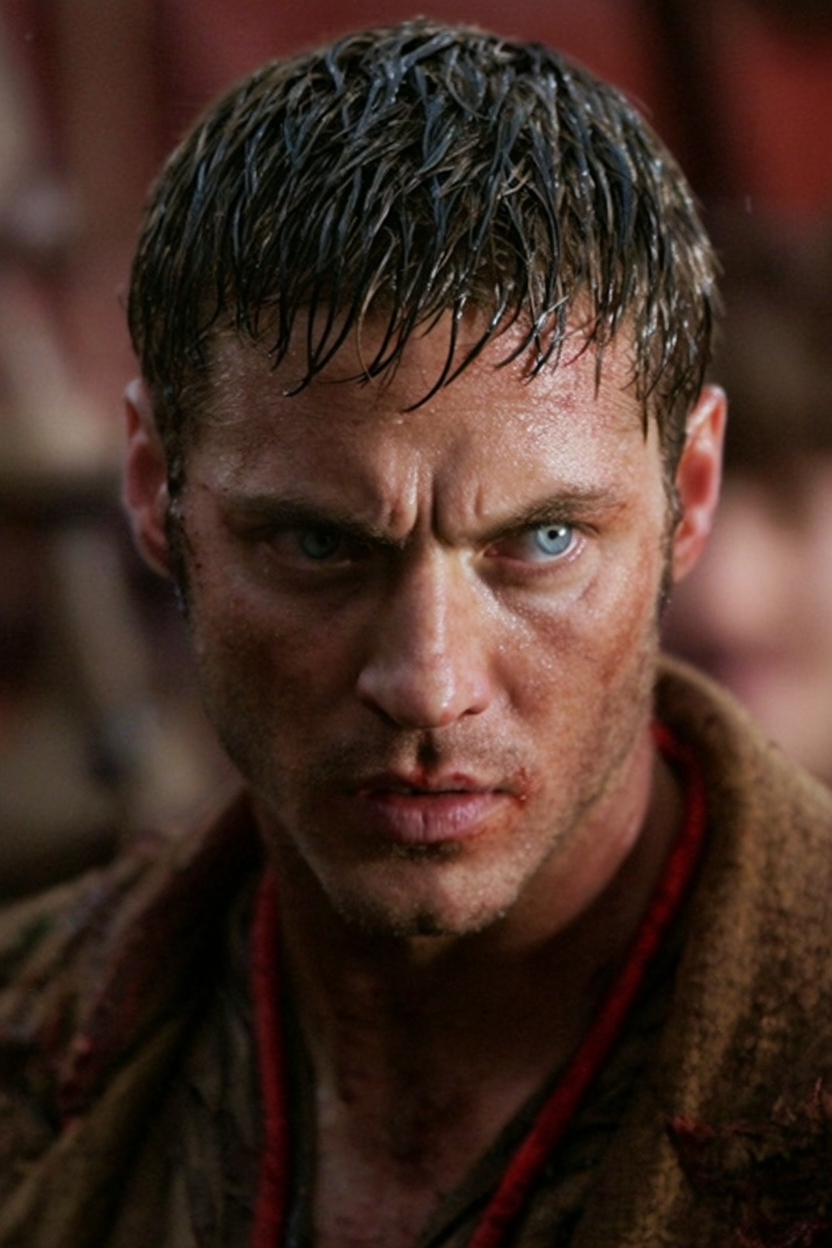
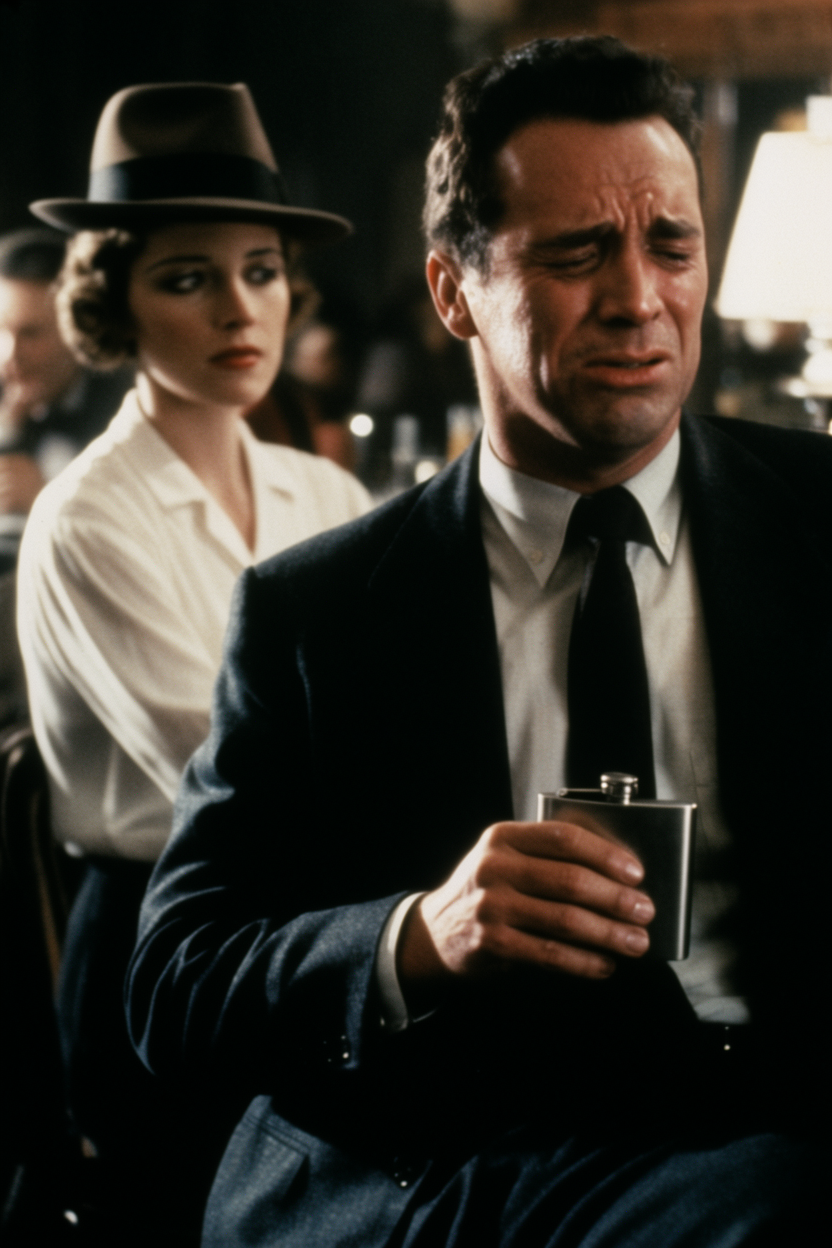
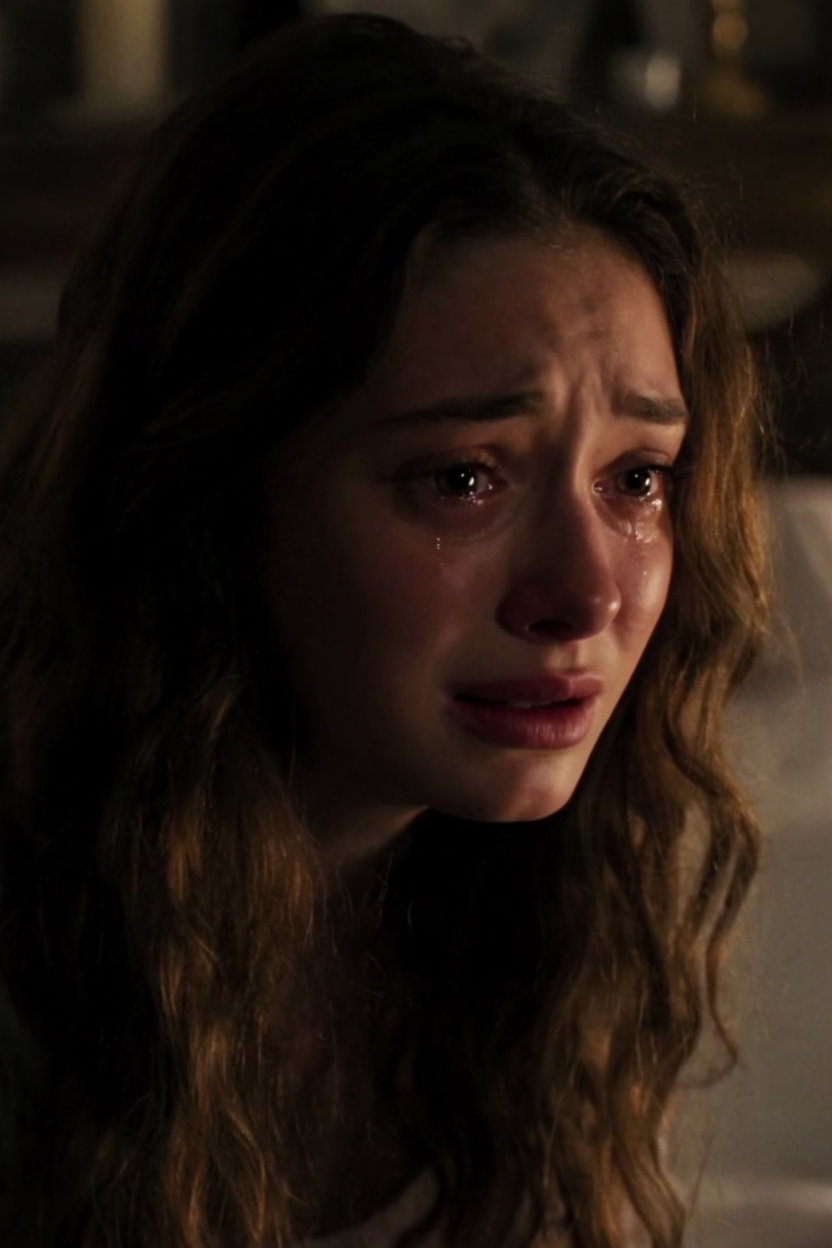
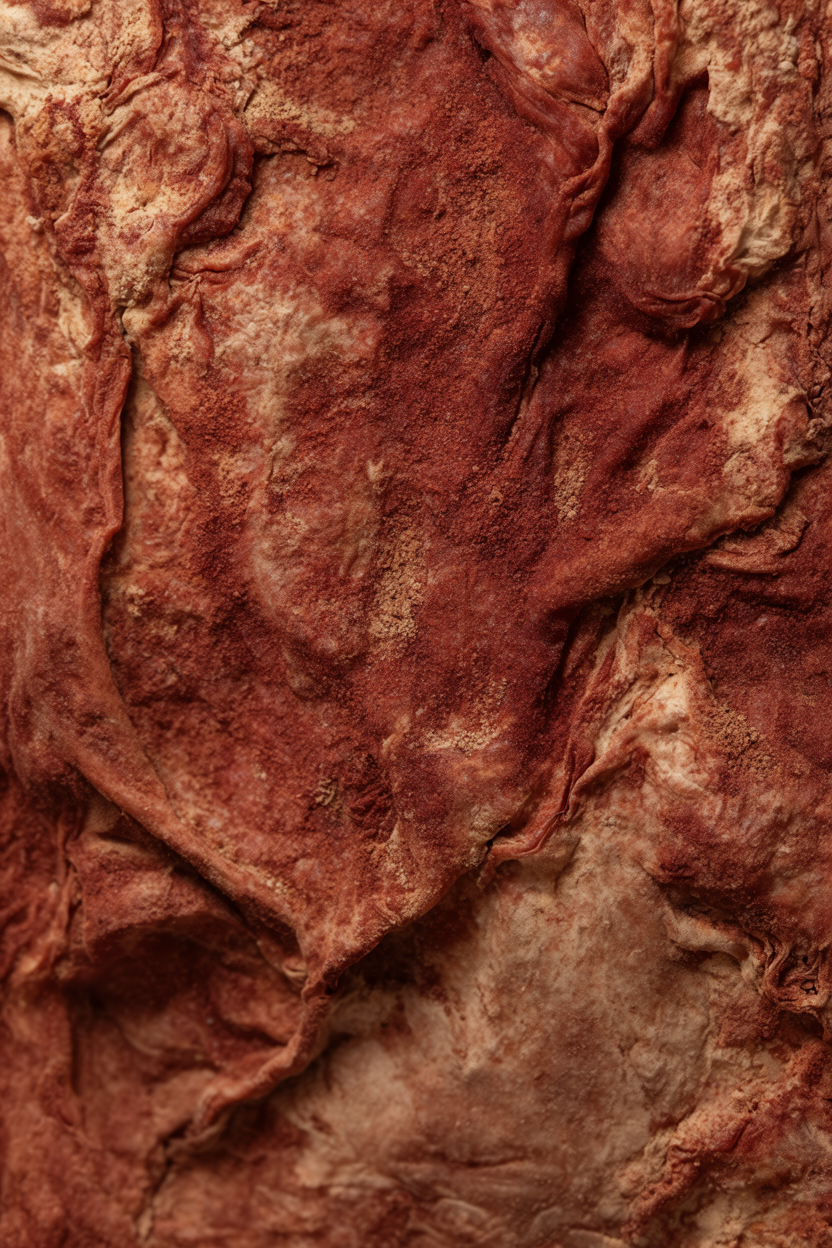
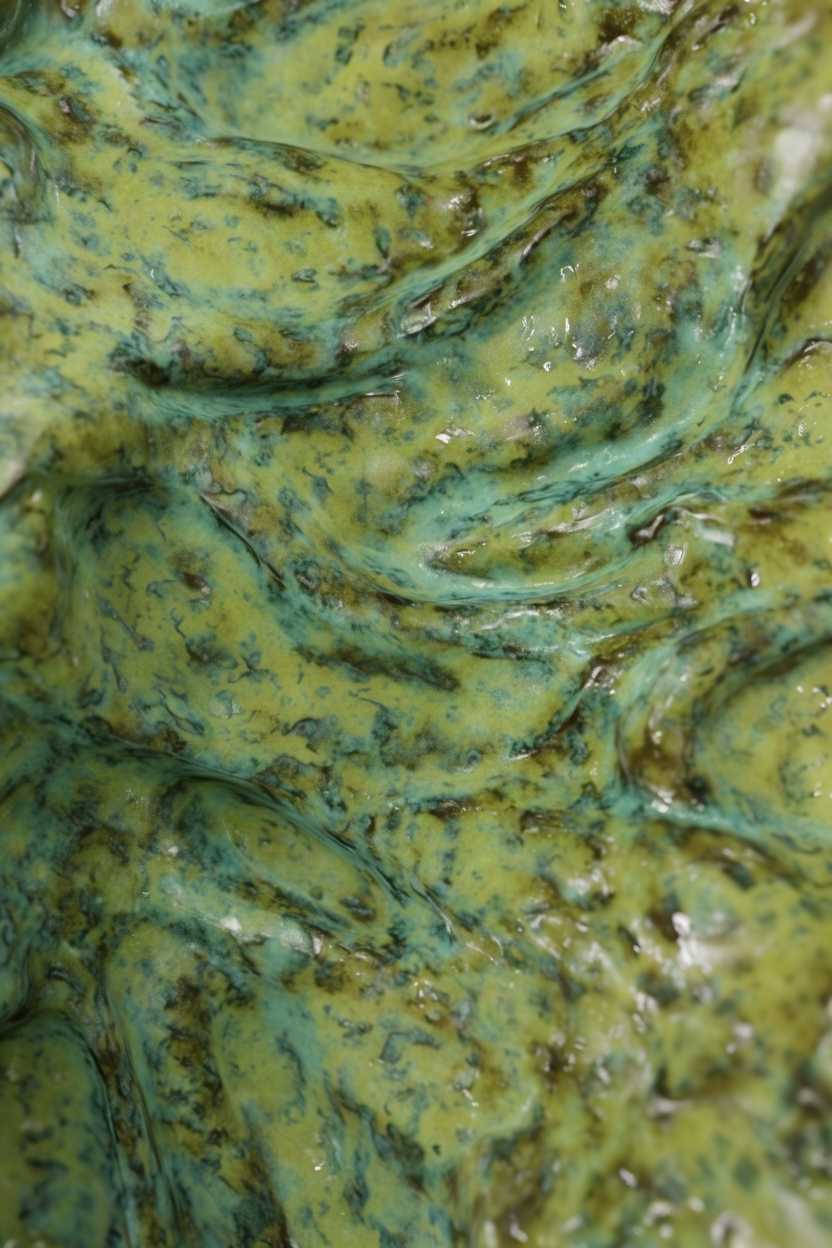
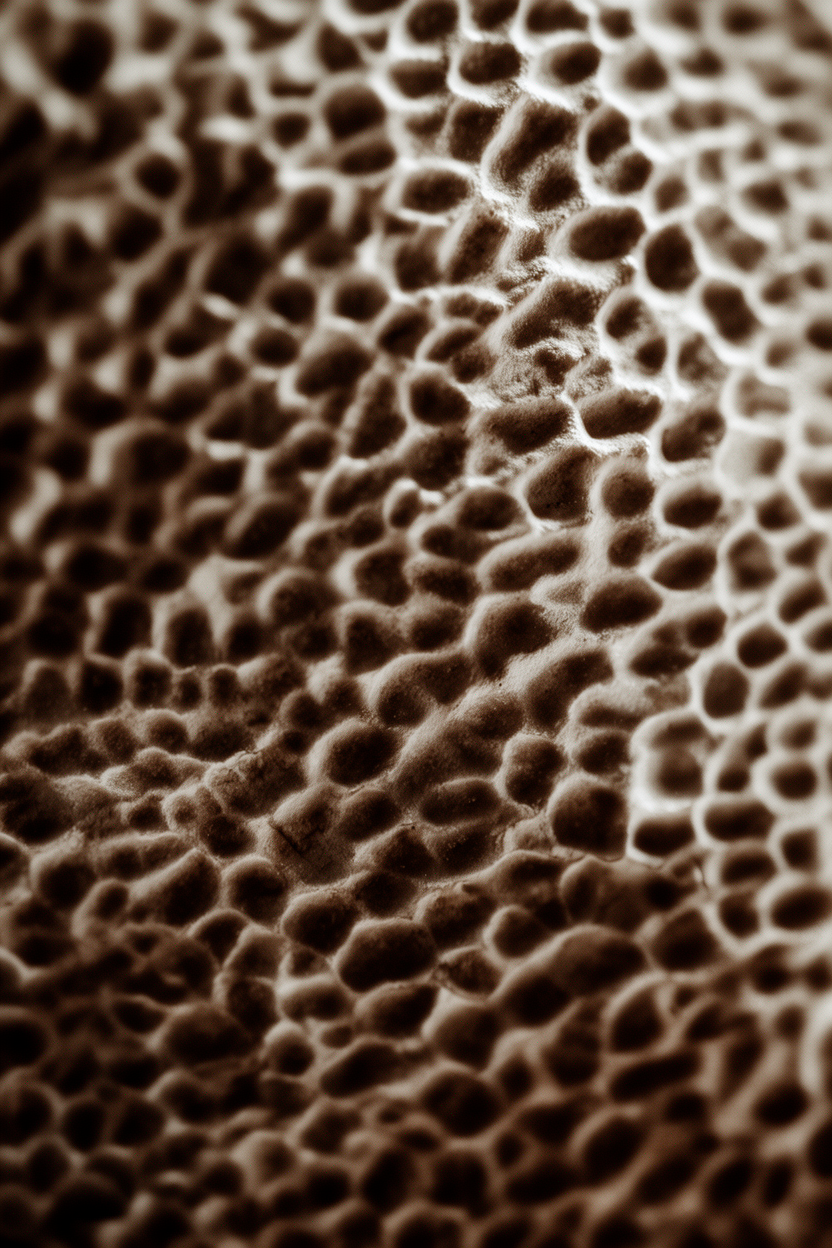
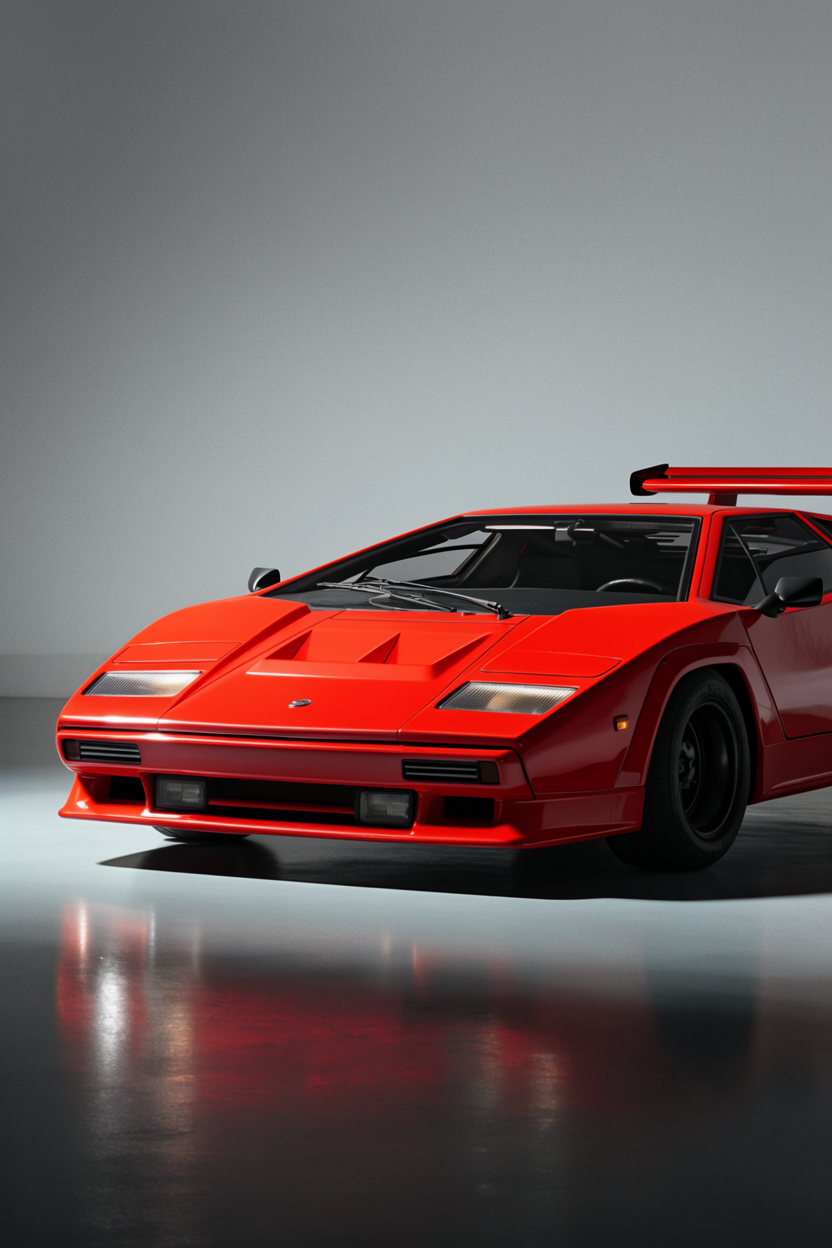
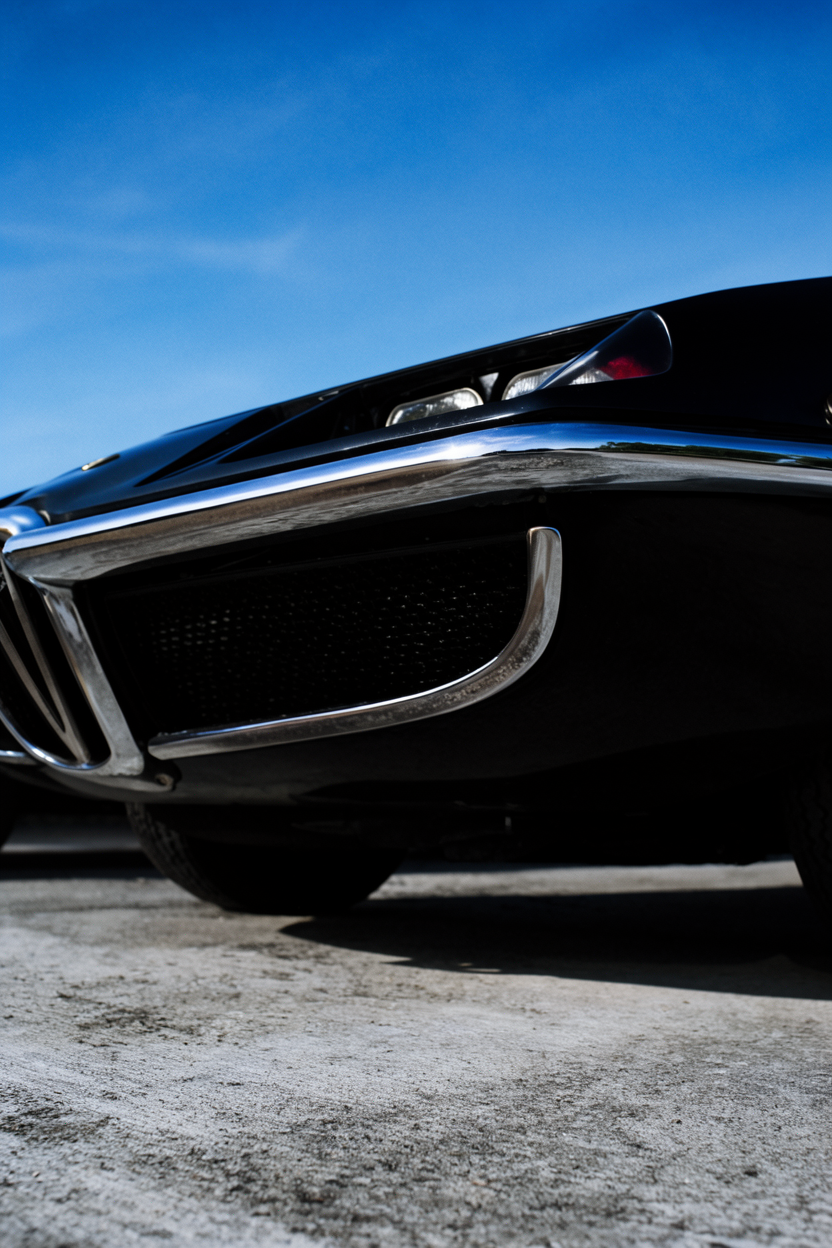
Creativity is an actual parameter that you can tune for Krea 2. When a prompt is short or vague, the model can fill in the missing pieces — style, composition, camera angle, color palette — adding visual depth where you haven’t specified it. The creativity parameter controls how far that expansion goes.
Set it to high and the expansion gets stronger — the model takes more creative liberty with style, mood, and aesthetics. Set it to low and the model sticks more closely to what’s in your prompt. Set it to raw and the model performs no expansion at all, rendering only what you’ve explicitly described.
The following examples were created with creativity set to medium:
“cinematic still, dramatic scene”
Model: Krea 2 Large
“organic texture”
Model: Krea 2 Large
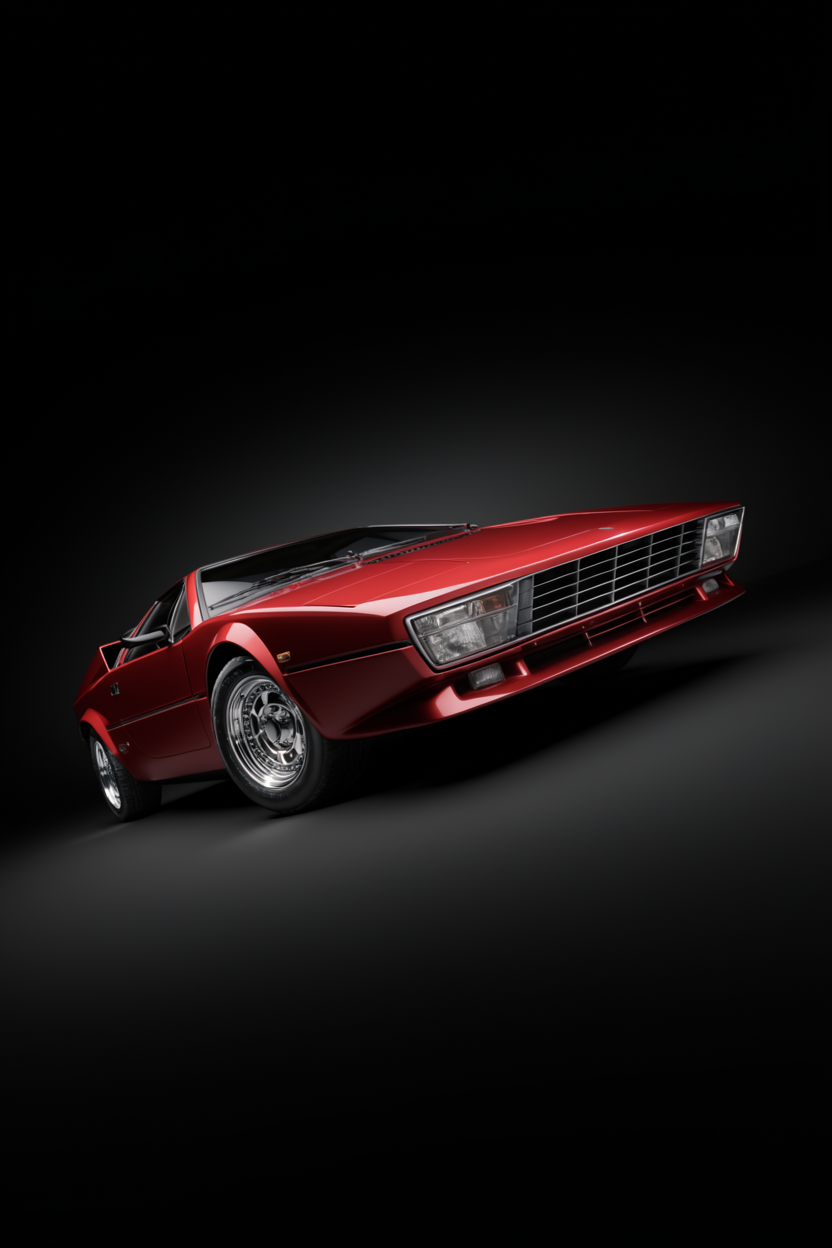
“retro supercar”
Model: Krea 2 Large
Moodboards
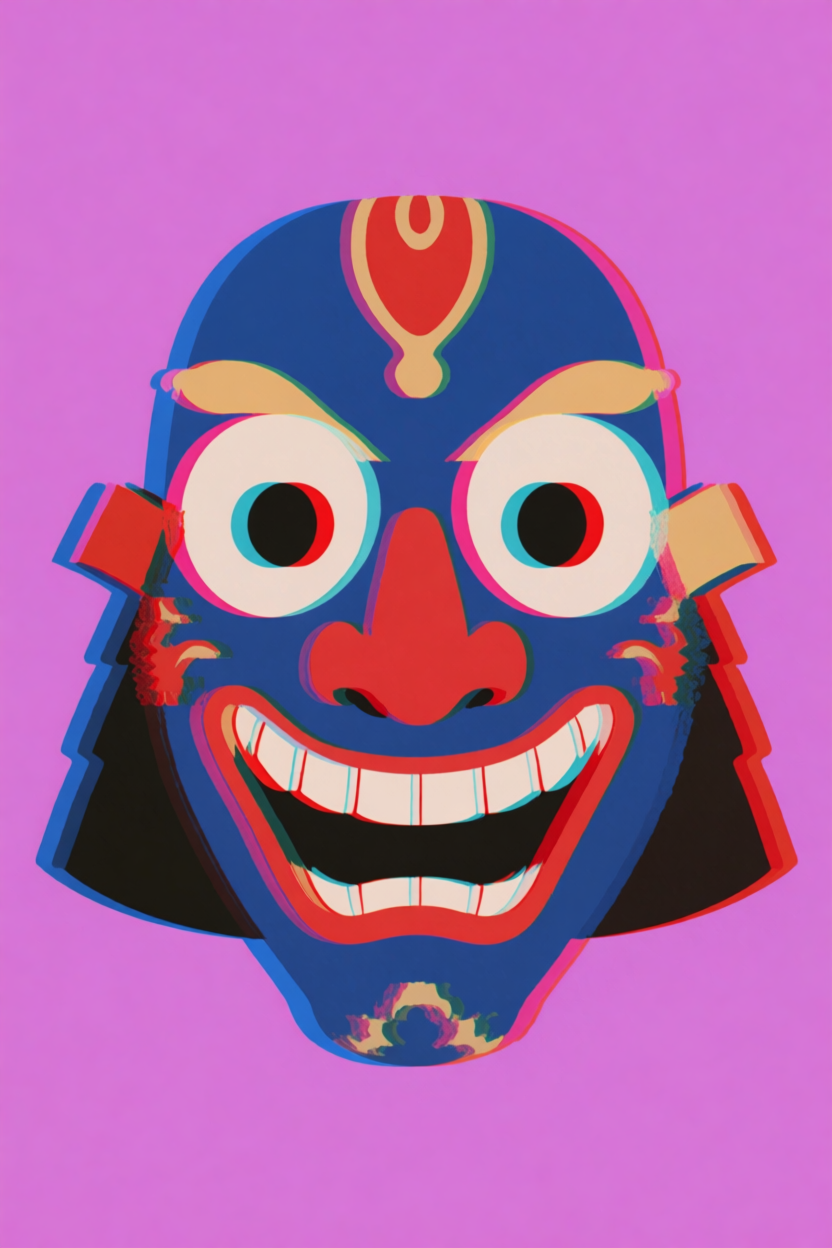
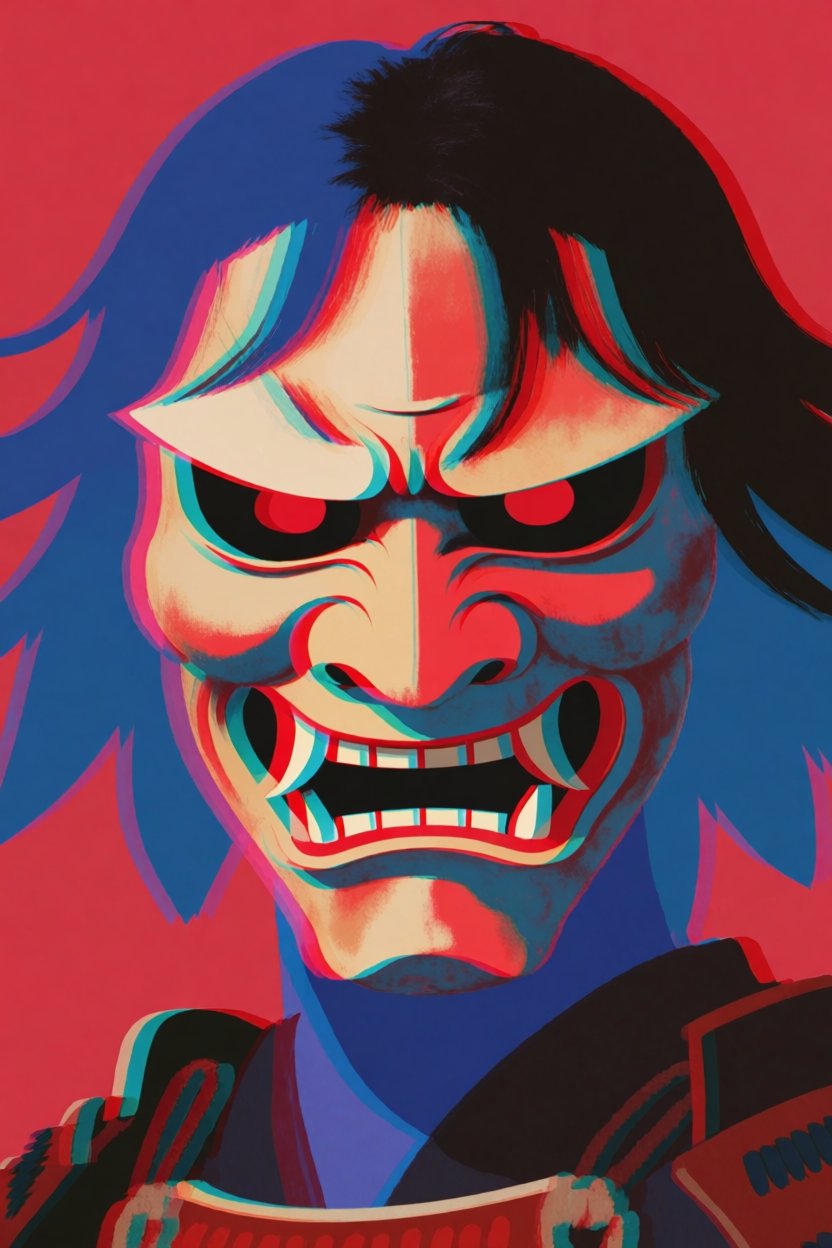
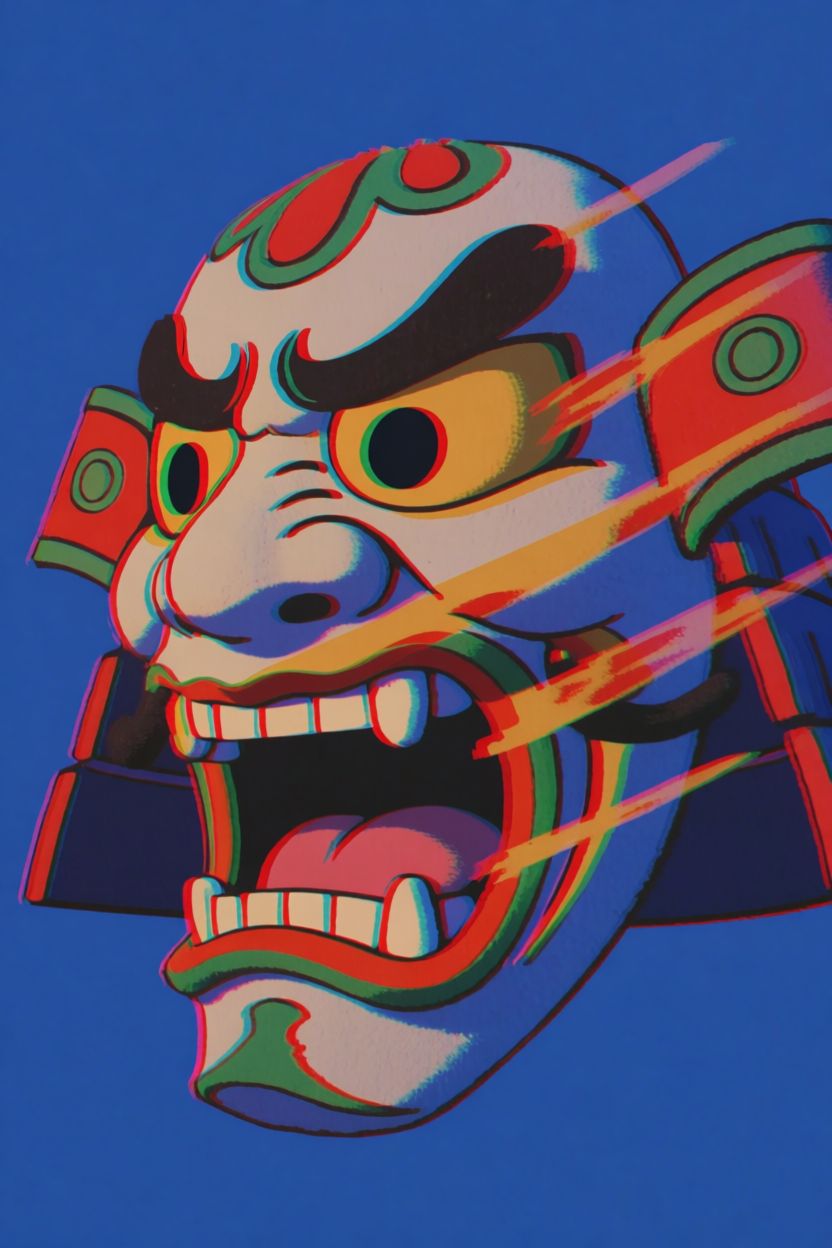
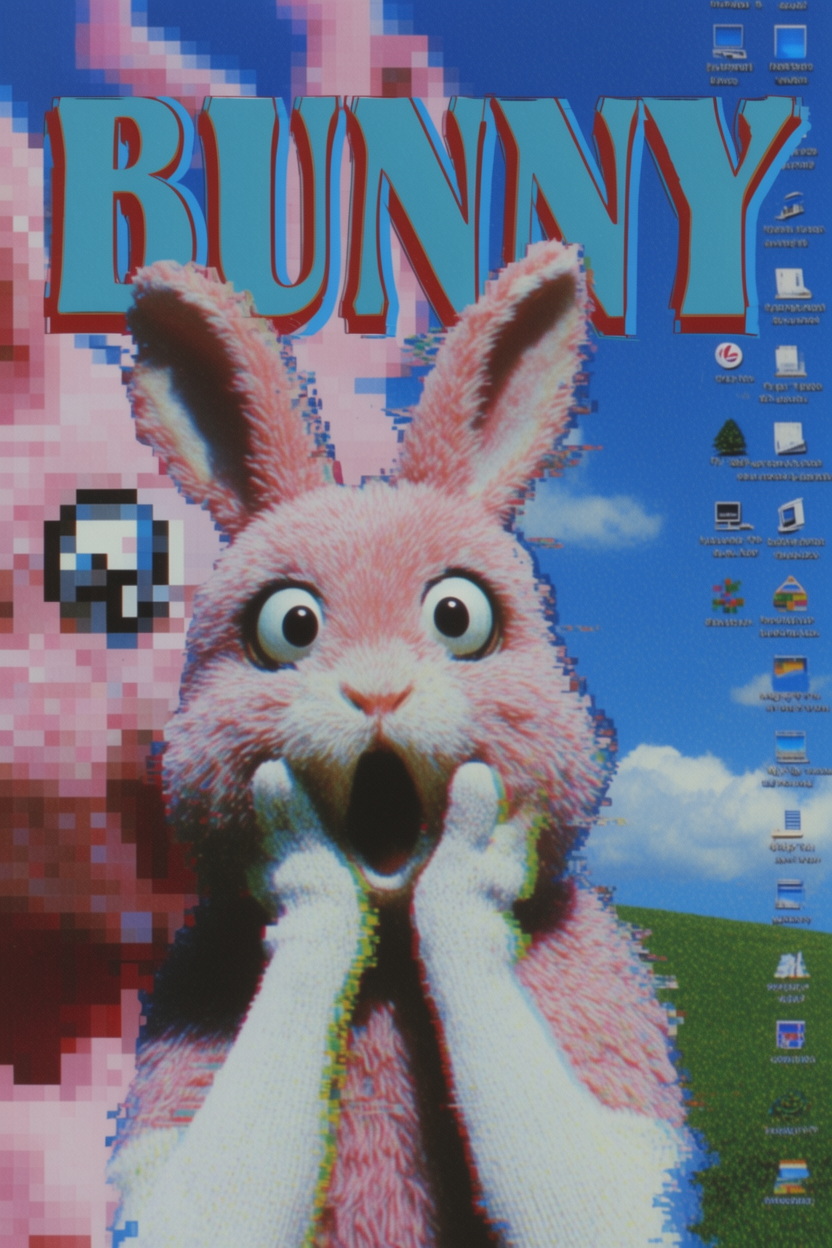
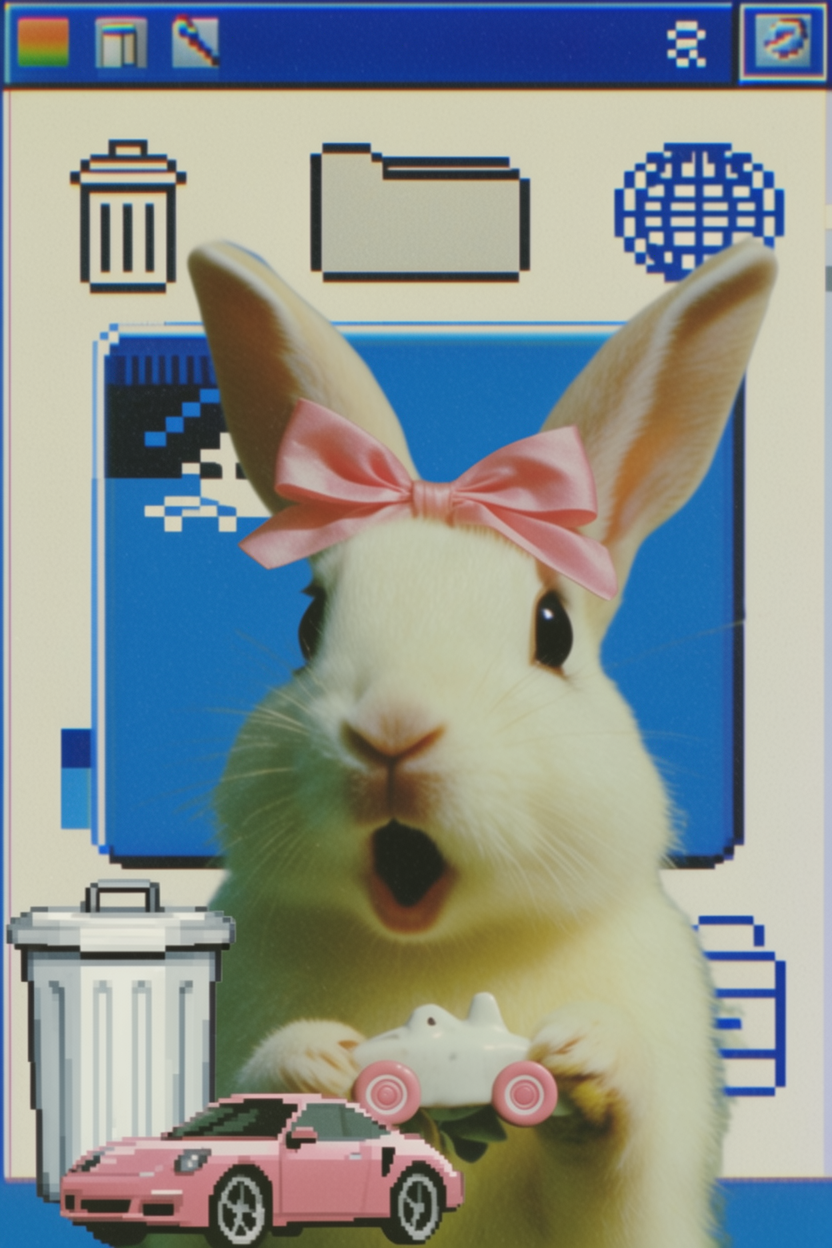
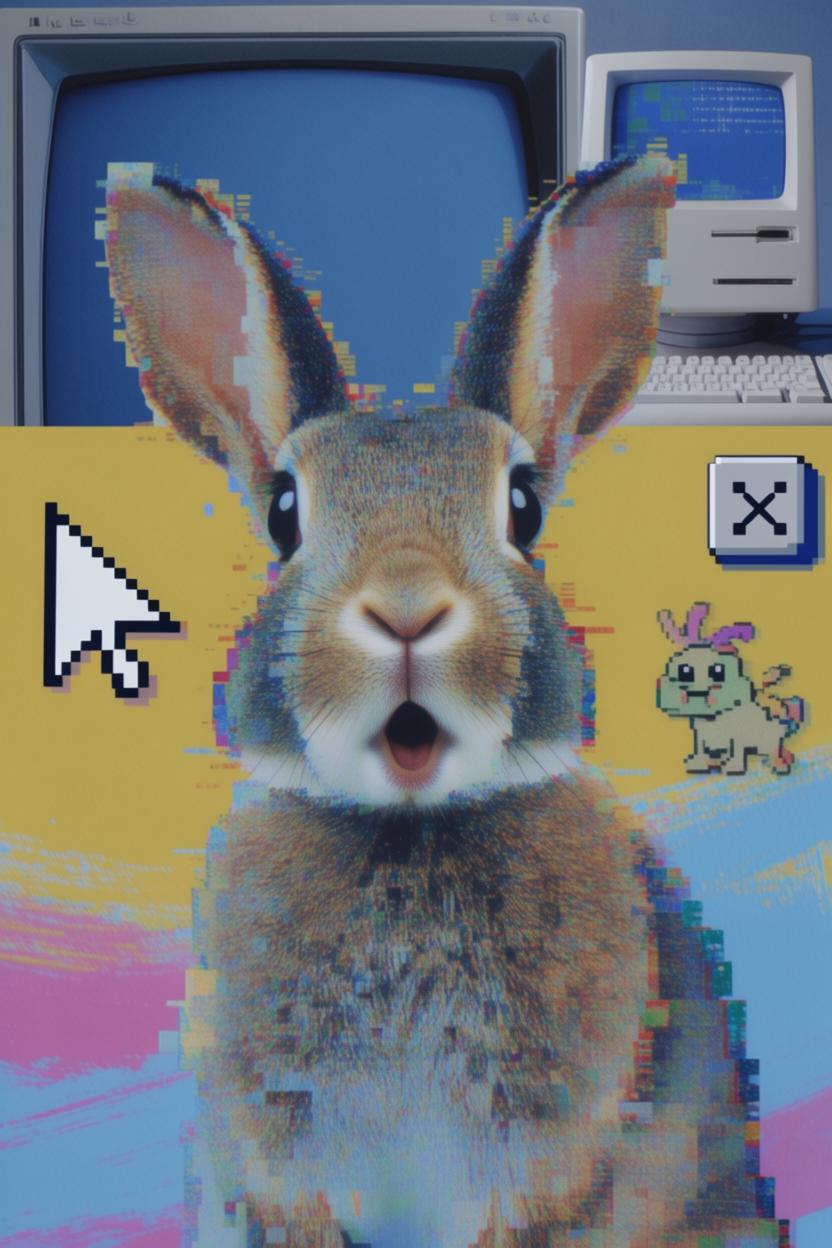
A moodboard is the most precise way to set a visual direction with Krea 2. Moodboards are built from a group of images that share an overall creative direction — palette, texture, style, mood, or composition. You can create one in Krea and reference it when you run inference through this API.
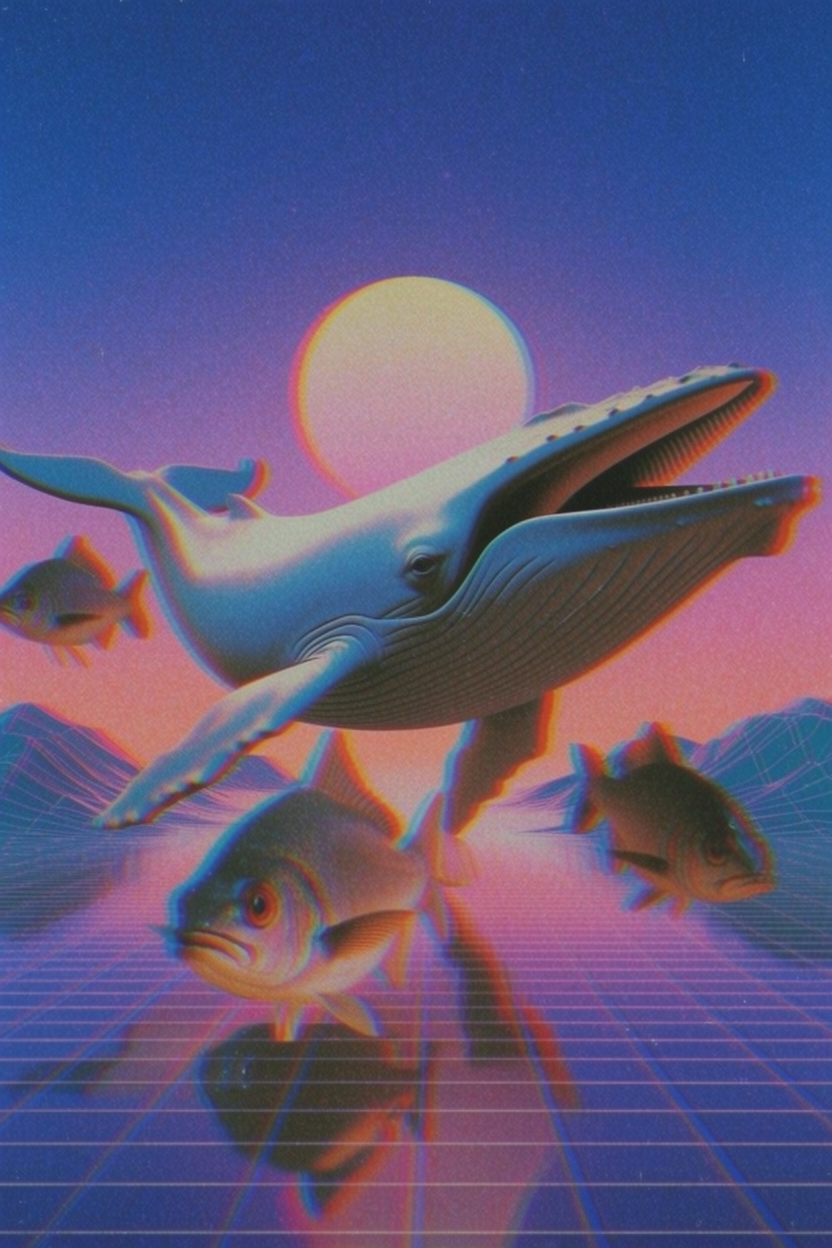
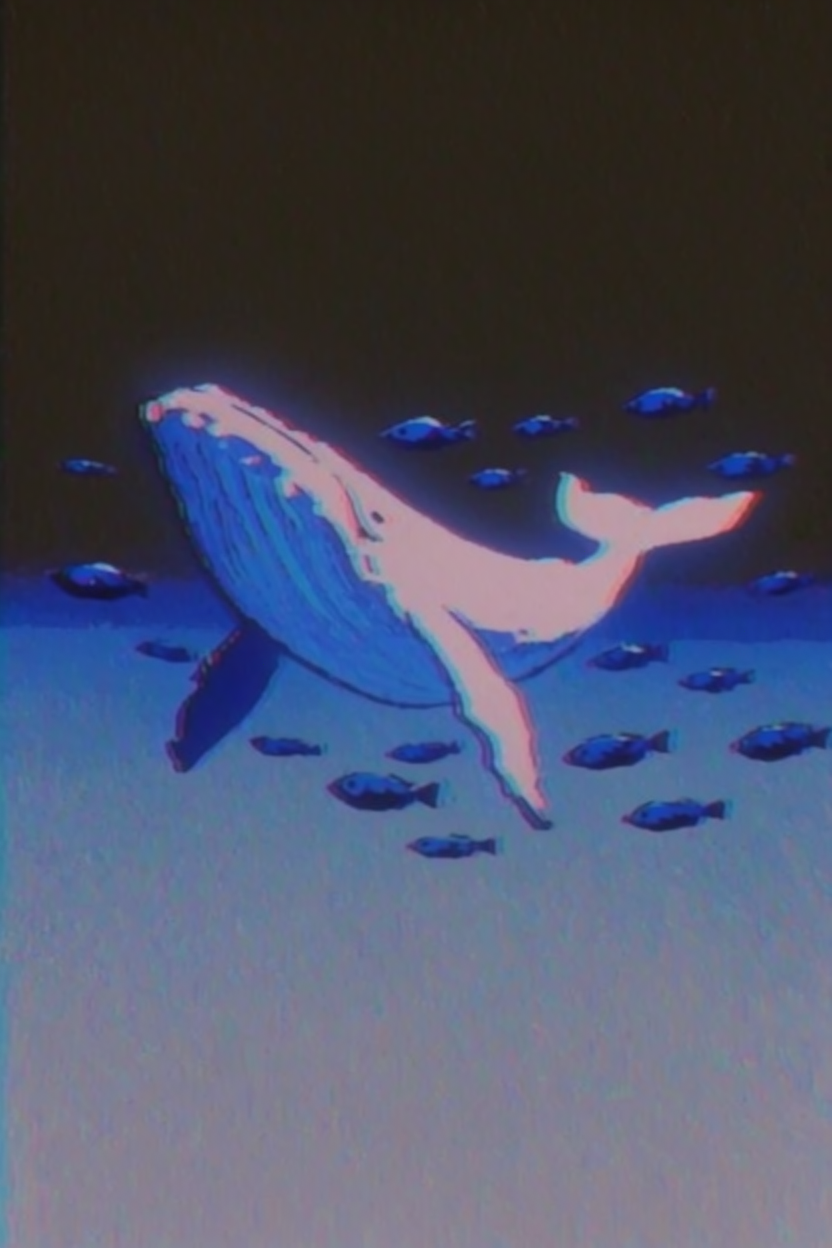
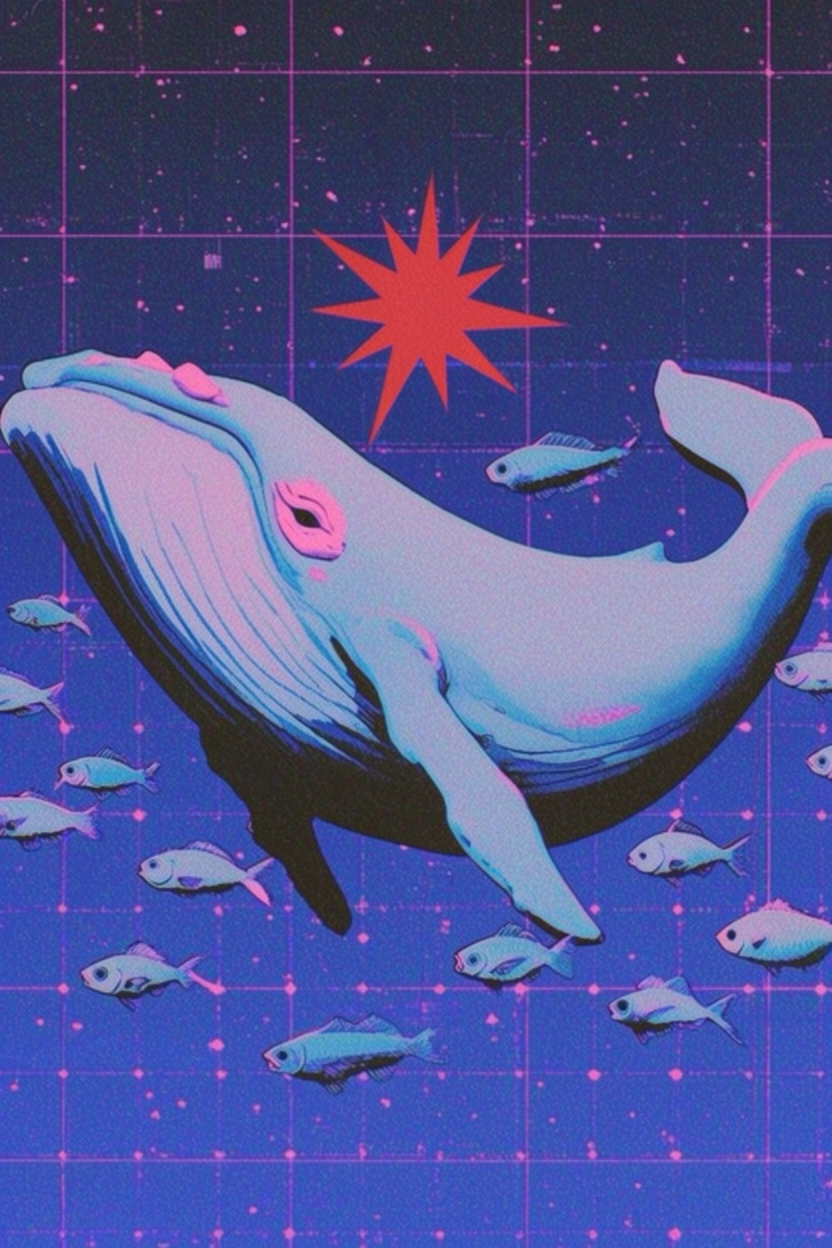
The following examples show how activating a moodboard can transform the output of even very simple prompts.
“a flying whale with small fish swimming around her in the air”
Model: Krea 2 Large
“A samurai mask”
Model: Krea 2 Medium
“a surprised bunny”
Model: Krea 2 Large
API Setup
Create an API token from your Krea account settings. Krea 2 has two versions of the model available in the API:
Endpoints
Krea 2 Medium
https://api.krea.ai/generate/image/krea/krea-2/medium
Krea 2 Large
https://api.krea.ai/generate/image/krea/krea-2/large
Parameters
Both versions of Krea 2 support the following parameters.
| Parameter | Type | Notes |
|---|---|---|
| prompt | string | Required text prompt |
| aspect_ratio | string | 1:1, 4:3, 3:2, 16:9, 2.35:1, 4:5, 2:3, 9:16 |
| resolution | string | Currently just 1K |
| seed | number | Optional seed |
| creativity | enum | raw, low, medium, high |
| image_style_references | array | Optional style references |
| moodboards | array | Optional moodboards, currently max 1 |
| styles (coming soon) | array | Optional trained styles (LoRAs) |
Fetch completed jobs
Completed jobs can be fetched from: https://api.krea.ai/jobs/{job_id}. You can also pass an X-Webhook-URL header to receive a POST when the job completes.
More detailed API docs are available at docs.krea.ai/developers/introduction. It covers things like the job lifecycle, webhook integrations, generating api tokens, etc.
API Examples
Below you can find a set of short guides that will show you how to use all the different features that come with Krea 2:
Generate an image
const API_BASE = "https://api.krea.ai";
const API_TOKEN = process.env.KREA_API_TOKEN;

async function waitForJob(jobId) {
while (true) {
const response = await fetch(`${API_BASE}/jobs/${jobId}`, {
headers: {
Authorization: `Bearer ${API_TOKEN}`
}
});

if (!response.ok) {
throw new Error(`Failed to fetch job: ${response.status}`);
}

const job = await response.json();

if (job.status === "completed") return job;
if (job.status === "failed" || job.status === "canceled") {
throw new Error(`Job ${job.status}`);
}

await new Promise((resolve) => setTimeout(resolve, 3000));
}
}

const response = await fetch(`${API_BASE}/generate/image/krea/krea-2/medium`, {
method: "POST",
headers: {
Authorization: `Bearer ${API_TOKEN}`,
"Content-Type": "application/json"
},
body: JSON.stringify({
prompt: "A cinematic product photo of a glass lamp on a marble table",
aspect_ratio: "4:5",
resolution: "1K",
creativity: "low"
})
});

if (!response.ok) {
throw new Error(`Generation failed: ${response.status}`);
}

const createdJob = await response.json();
const completedJob = await waitForJob(createdJob.job_id);

console.log(completedJob.result.urls);
Use style transfer
import { openAsBlob } from "node:fs";

const API_BASE = "https://api.krea.ai";
const API_TOKEN = process.env.KREA_API_TOKEN;

async function waitForJob(jobId) {
while (true) {
const response = await fetch(`${API_BASE}/jobs/${jobId}`, {
headers: {
Authorization: `Bearer ${API_TOKEN}`
}
});

if (!response.ok) {
throw new Error(`Failed to fetch job: ${response.status}`);
}

const job = await response.json();

if (job.status === "completed") return job;
if (job.status === "failed" || job.status === "canceled") {
throw new Error(`Job ${job.status}`);
}

await new Promise((resolve) => setTimeout(resolve, 3000));
}
}

const file = await openAsBlob("./style-reference.png", {
type: "image/png"
});

const formData = new FormData();
formData.append("file", file, "style-reference.png");
formData.append("description", "Style reference for Krea 2");

const uploadResponse = await fetch(`${API_BASE}/assets`, {
method: "POST",
headers: {
Authorization: `Bearer ${API_TOKEN}`
},
body: formData
});

if (!uploadResponse.ok) {
throw new Error(`Upload failed: ${uploadResponse.status}`);
}

const asset = await uploadResponse.json();

const generationResponse = await fetch(`${API_BASE}/generate/image/krea/krea-2/medium`, {
method: "POST",
headers: {
Authorization: `Bearer ${API_TOKEN}`,
"Content-Type": "application/json"
},
body: JSON.stringify({
prompt: "A portrait of a dancer in a quiet studio",
aspect_ratio: "4:3",
resolution: "1K",
creativity: "medium",
image_style_references: [
{
url: asset.image_url,
strength: 0.6
}
]
})
});

if (!generationResponse.ok) {
throw new Error(`Generation failed: ${generationResponse.status}`);
}

const createdJob = await generationResponse.json();
const completedJob = await waitForJob(createdJob.job_id);

console.log(completedJob.result.urls);
Adjust creative thinking
Use creativity to control how literally Krea 2 follows the prompt.
-
raw: raw prompt -
low: close to the prompt -
medium: balanced, default -
high: more expressive interpretation
Use moodboards
After you’ve created a moodboard in the krea webapp, you can use it in the api:
const response = await fetch("https://api.krea.ai/generate/image/krea/krea-2/large", {
method: "POST",
headers: {
Authorization: `Bearer ${process.env.KREA_API_TOKEN}`,
"Content-Type": "application/json"
},
body: JSON.stringify({
prompt: "A campaign image for a new outdoor lamp collection",
aspect_ratio: "16:9",
resolution: "1K",
creativity: "high",
moodboards: [
{
id: "your-moodboard-id",
strength: 0.35
}
]
})
});

const job = await response.json();
Pricing
| Model type | Text-to-image | Style references | Moodboards |
|---|---|---|---|
| Medium | $0.030 | $0.035 | $0.040 |
| Large | $0.060 | $0.065 | $0.070 |
Note: combining moodboards with style references will not increase the price per generation, i.e., it will be $0.04 for Medium and $0.07 for Large.
Frequently asked questions
What is the Krea 2 API?
What's the difference between Krea 2 Medium and Krea 2 Large?
How much does the Krea 2 API cost?
Related: Krea 2 image model · Krea 2 Turbo · Krea 2 deep dive walkthrough · training public LoRAs for Krea 2