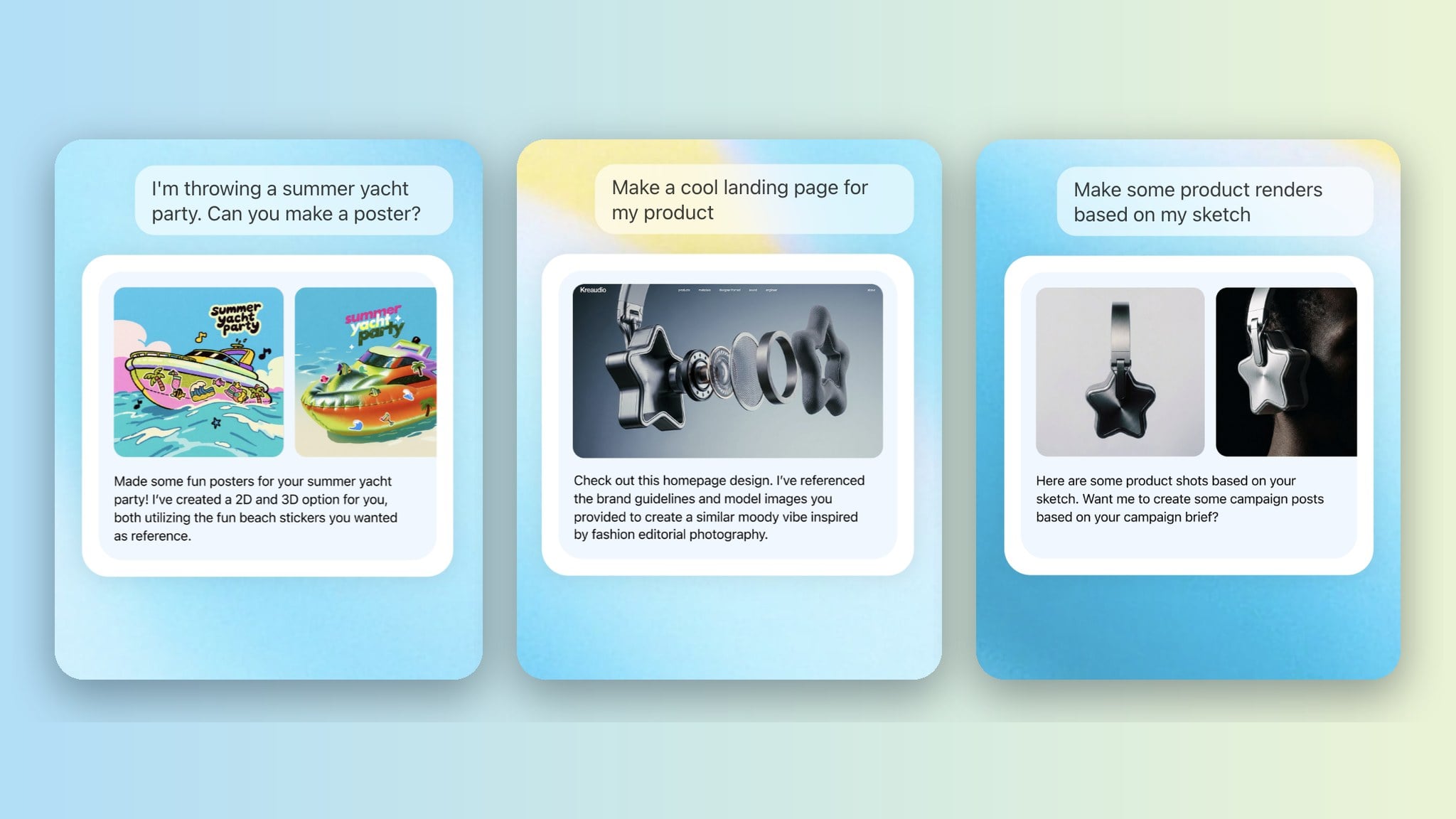
ChatGPT is where a lot of creative work starts now: the brief, the shot list, the first draft of a prompt. Until recently, the generation itself happened somewhere else. You copied the prompt out, opened another tab, generated, downloaded, and pasted the result back into the chat to talk about it.
Krea for ChatGPT removes that loop. It connects Krea’s image and video models, your moodboards and styles, and your Krea context library to a ChatGPT conversation. You describe what you want, ChatGPT calls Krea, and the result appears in the thread. This guide covers how to install it, what ChatGPT needs from you to generate well, which models you can use, and three real examples.
Add Krea to ChatGPT
Connect your Krea account and start generating from a ChatGPT conversation.
Add to ChatGPTCan ChatGPT generate images and video?
On its own, ChatGPT can plan a scene, write a strong prompt, and generate images with its built-in image model. It cannot choose between models for a specific look, it cannot use the references, moodboards, and styles you keep in Krea, and it cannot generate video.
Krea for ChatGPT fills those gaps. Once connected, ChatGPT can:
- Generate images with any model in Krea’s lineup, more than 25 image models as of September 2026, from Krea 2 Large and Krea 2 Turbo to Nano Banana Pro, Seedream 5 Pro, and Flux 1.1 Pro Ultra.
- Generate video with more than 40 video models, including Seedance 2.5, Veo 3.1, Kling 3.0, MiniMax H3 Max, and Runway Gen-4.5.
- Use your Krea references. Attach images in the chat as style references, start images, or image-to-image sources. Apply a Krea moodboard or a trained style by name.
- Save to your Krea library. Create folders in your Krea context library and mirror files from the conversation into them.
It is the same Krea MCP server that powers Krea’s connections for Claude, Codex, and Cursor, packaged as a ChatGPT app and approved by OpenAI.
How do I connect Krea to ChatGPT?
Krea is listed in ChatGPT’s Plugins directory, so there is no server URL to paste.
- Open Settings. In ChatGPT, open Settings from the menu.
- Go to Plugins. Select the Plugins tab. It lists every app you can add to ChatGPT.
- Search for Krea and add it. Type “Krea” in the search field, select Krea, and sign in with your Krea account when ChatGPT asks.
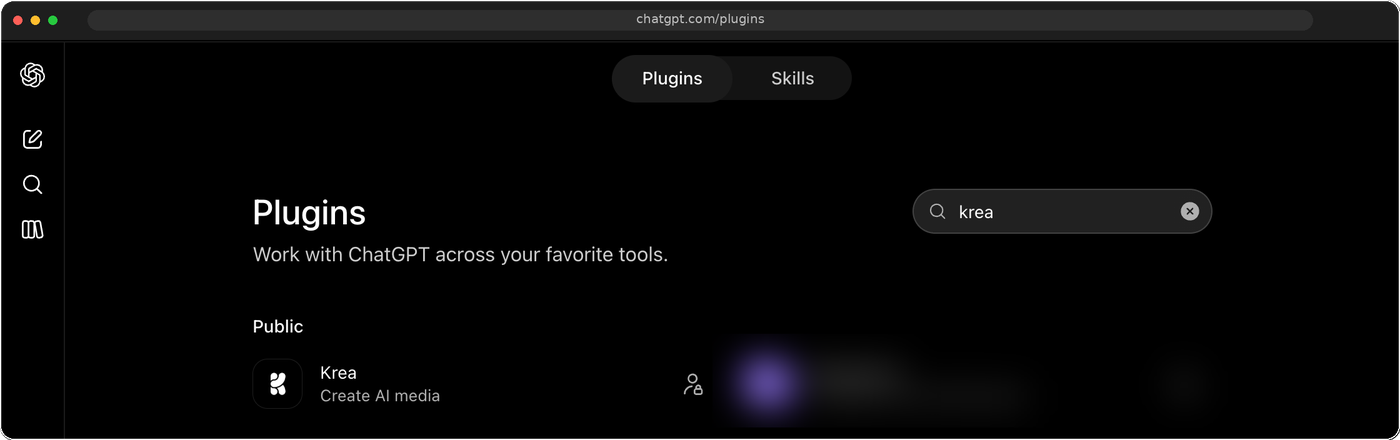
You can also open the Krea install link directly in ChatGPT.
Prefer to add Krea as an MCP server? In Settings → MCP servers, add a Streamable HTTP server with this URL, then click Connect and sign in:
https://api.krea.ai/openai-mcpA note on your Krea account. Generations run on your Krea account, the same one you use at krea.ai. Some models need a paid plan. If a request is blocked, the app shows Krea’s plans inside ChatGPT, and eligible free accounts can start a 3-day Pro trial from there.
Once connected, start a new conversation and ask ChatGPT to generate an image or a video. ChatGPT calls Krea’s tools for you.
What does ChatGPT need to generate a Krea image or video?
You write in plain language. ChatGPT maps what you say to the parameters of the model it calls. Four things decide the result:
| Input | What it is | How you give it |
|---|---|---|
| Prompt | The subject, action, setting, camera, and style. | Write it in the chat. Be specific about light, lens, and mood. |
| Model | The Krea model that generates. | Name it (“with Krea 2 Large”, “use Seedance 2.5”) or let the app pick the closest match. |
| References | Images, video, or audio the model should follow. | Attach files in the chat, or name a Krea moodboard or style. |
| Format | Aspect ratio, resolution, and for video, duration and sound. | Say it in words: “vertical for Stories”, “10 seconds, with sound”. |
What each model accepts varies. Two examples from Krea’s public model schemas:
- Krea 2 Large (image) takes a prompt, an aspect ratio (1:1, 4:3, 3:2, 16:9, 2.35:1, 4:5, 2:3, or 9:16), up to 10 image style references with a strength from 0 to 1, one moodboard, trained styles, and an optional source image for image-to-image with a strength control. It also exposes Krea 2’s intensity, complexity, and movement sliders, and a creativity setting from
rawtohighthat controls prompt expansion. - Seedance 2.5 (video) takes a prompt, an aspect ratio (16:9, 4:3, 1:1, 3:4, 9:16, or 21:9), a duration from 4 to 30 seconds, a resolution of 480p, 720p, or 1080p, an optional start and end image, up to 30 reference images, 10 reference videos, and 10 reference audio clips, and a switch for generated audio.
You do not need to remember any of this. Ask for “a 9:16 clip, 12 seconds, that starts from the poster you just made, with sound” and ChatGPT fills in the parameters. If you want to know what a model supports, ask ChatGPT to check the model’s schema.
Which Krea models can you use from ChatGPT?
Every model in Krea’s public API is available. Name one in your request, or describe the look and let the app choose. A few to know:
Images
- Krea 2 Large — best for expressive photorealism, with style transfer and moodboards.
- Krea 2 Medium — best for expressive illustrations.
- Krea 2 Turbo — the fastest Krea 2 model, for quick iterations.
- Nano Banana Pro — Google’s most capable image model, strong on complex instructions.
- Seedream 5 Pro — high quality with precise editing control and text rendering.
- Flux 1.1 Pro Ultra — BFL’s highest quality text-to-image model.
- GPT Image 2 — OpenAI’s editing-focused model, also available through Krea.
Video
- Seedance 2.5 — the default for most video: up to 30 seconds, native audio, up to 1080p, up to 50 references.
- Veo 3.1 — highest quality with audio; Veo 3.1 Fast and Lite for speed and cost.
- Kling 3.0 — frontier model with audio and clips up to 15 seconds.
- MiniMax H3 Max — strong prompt adherence with image, video, and audio references.
- Runway Gen-4.5 — native text-to-video with cinematic visuals.
- Wan 3.0 — 30-second clips with native audio and image, video, and audio references.
The full list changes as Krea adds models. Ask ChatGPT to “list Krea’s video models” for the current lineup.
How to generate AI images from ChatGPT with Krea
The three examples below are real requests made through Krea for ChatGPT. Each one is a single message plus attachments; the reply comes back in the same thread.
Example 1: An event poster in two styles
Request: “I’m throwing a summer yacht party. Can you make a poster?”
References: A set of beach stickers, attached in the chat.
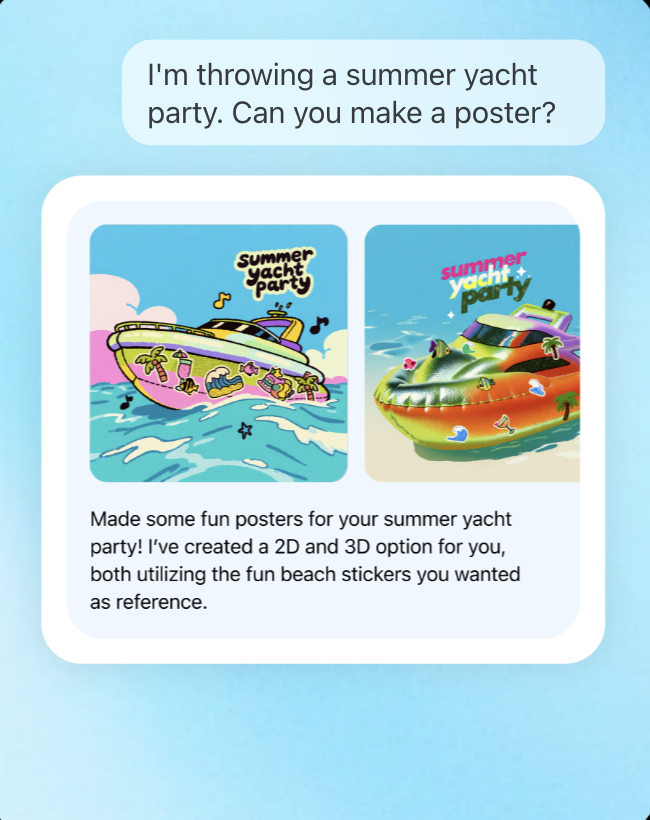
Result: Two posters: a flat 2D illustration and a glossy 3D version, both built around the stickers and both carrying the “summer yacht party” title. ChatGPT explains what it made and why, so the next message can be a correction (“keep the 3D one, make it night, add the date”).
To steer it: Name a model if you want a specific look (“use Krea 2 Medium for the 2D one”). Ask for a print or Stories format (“4:5 for the flyer, 9:16 for Instagram”). Raise the style strength if the stickers should show up more.
Example 2: A landing page mockup from brand guidelines
Request: “Make a cool landing page for my product.”
References: The brand guidelines and product model images, attached in the chat.
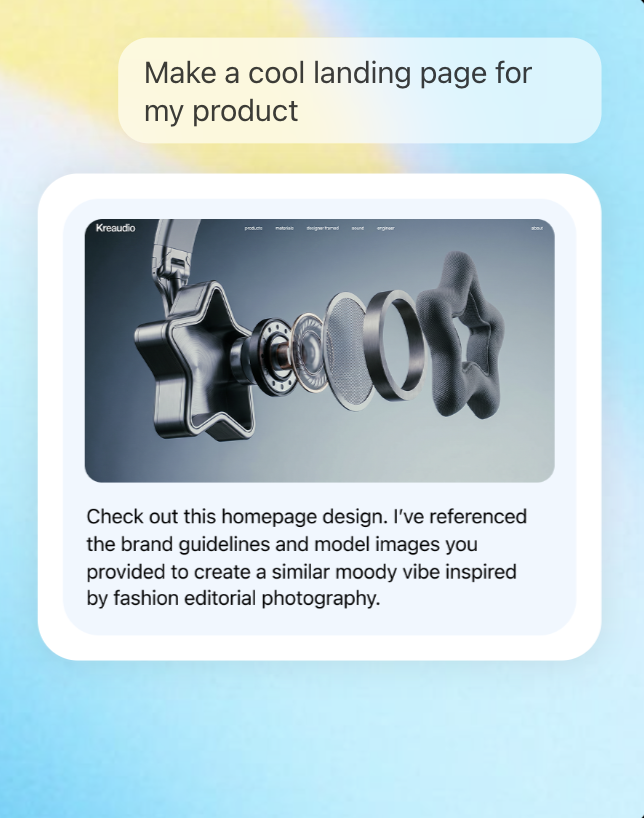
Result: A homepage design with the product as an exploded hero shot, in a moody style inspired by fashion editorial photography. The reply names the references it used, which makes it easy to ask for a second direction (“same layout, brighter, on white”).
To steer it: Attach real product shots for the hero. Ask for the exact viewport (“16:9, desktop hero only”). If your brand has a trained Krea style, name it and the app applies it.
Example 3: Product renders from a sketch
Request: “Make some product renders based on my sketch.”
References: A hand sketch of star-shaped headphones.
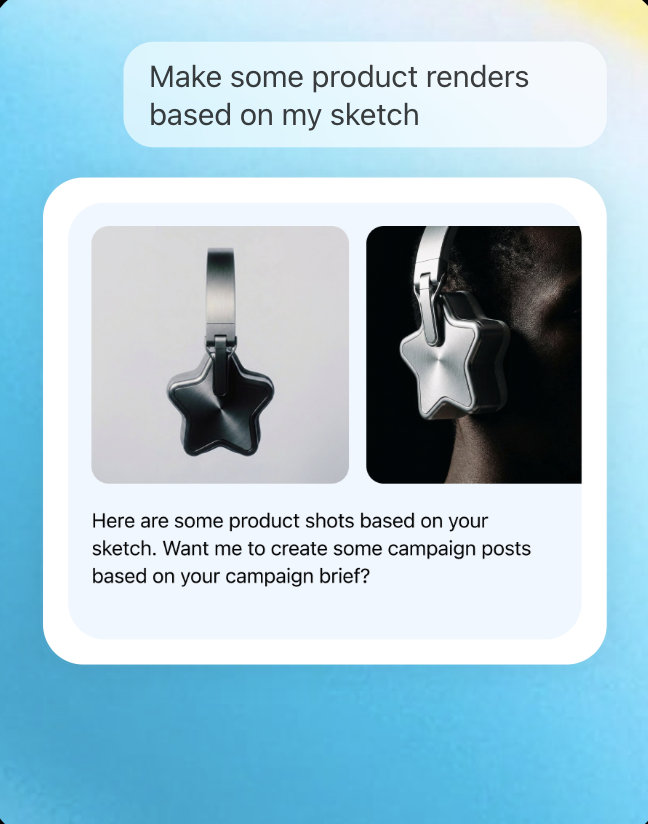
Result: Two studio shots that keep the sketch’s shape: one clean pack shot on grey, one worn in profile on black. The reply offers the next step, campaign posts from your campaign brief, without being asked.
To steer it: Start with image-to-image from the sketch and a high strength for a clean render, then lower the strength if the model drifts too far from your lines. Ask for a set (“three angles, same lighting”) so the shots match.
The pattern is the same each time: a plain request, the references you already have, and a short correction loop in the same thread. You never leave ChatGPT.
How to generate AI video from ChatGPT with Krea
Video works the same way. Describe the clip, attach or point to references, and name a model if you have one in mind. A good first request has five parts: subject and action, setting, camera, format, and sound.
Here is a request that gives Seedance 2.5 everything it needs:
Make a 10-second vertical video for Instagram Stories with Seedance 2.5. Start from the 3D yacht poster you generated. Slow push-in on the boat, palm trees swaying, water glinting, warm late-afternoon light. Add sound: gentle waves and a light summer beat.
ChatGPT maps that to a start image (the poster), a 9:16 aspect ratio, a 10-second duration, and generated audio. To iterate, reply in the same thread: “make it 15 seconds and end on the title”, or “same shot with Veo 3.1”.
Useful things to know:
- Start and end frames. Give the model an image to start from, or both a first and last frame, to control the motion.
- References. Seedance 2.5 accepts up to 30 reference images and 10 reference videos or audio clips. Attach a video for camera movement, or an audio clip for rhythm.
- Length and resolution. Seedance 2.5 and Wan 3.0 go up to 30 seconds; Kling 3.0 up to 15; most others 4 to 10. Resolution depends on the model, up to 1080p on Seedance 2.5 and up to 4K on LTX-2.5 Fast.
- Sound. Seedance 2.5, Veo 3.1, Kling 3.0, and Wan 3.0 generate audio natively. Ask for it.
Moodboards, styles, and your context library
Krea for ChatGPT is more than a generation button. The same tools you use in Krea are available in the chat.
- Moodboards. Create a moodboard from images in the conversation, or apply one you already have. Krea 2 reads the moodboard’s creative direction and keeps outputs aligned to it.
- Styles. Apply a trained Krea style by name, with a strength you set. Useful for brand looks and recurring characters.
- Context library. Ask ChatGPT to create folders in your Krea context library and mirror files from the conversation into them: references, generated images, briefs. Everything you make in ChatGPT is in your Krea account afterwards, ready for Krea Edit, Realtime, or Train.
- Also available. Image enhancement and upscaling, and 3D generation, through the same connection.
What can ChatGPT do once Krea is connected?
In short: plan and produce in one place.
- Turn a brief into a prompt, generate the image, and revise it in the same thread.
- Try the same prompt across models (“show me this in Krea 2 Large, Nano Banana Pro, and Seedream 5 Pro”) and compare.
- Animate a still you just made into a short clip with sound.
- Keep your references, moodboards, and results organized in Krea while you work in ChatGPT.
Frequently asked questions
What is Krea for ChatGPT?
How do I install it?
Do I need a Krea account?
Does it work on the Krea free plan?
Which Krea models can I use?
Can I use my own images as references?
Can I change an image or video after it is generated?
How long can videos be?
Where do my results go?
Does this use the same connection as Claude or Codex?
Add Krea to ChatGPT
Connect your Krea account and start generating, right where you're already chatting.
Add to ChatGPT