Style references let you guide the look of an image without rewriting your whole prompt. In Krea Image, you can pick a style transfer preset, write what you want to generate, and let Krea 2 Large carry the preset’s visual language into the result.
Make images in any style
Choose a preset look and generate your subject with Krea 2 Large.
Try style transferStart in Image
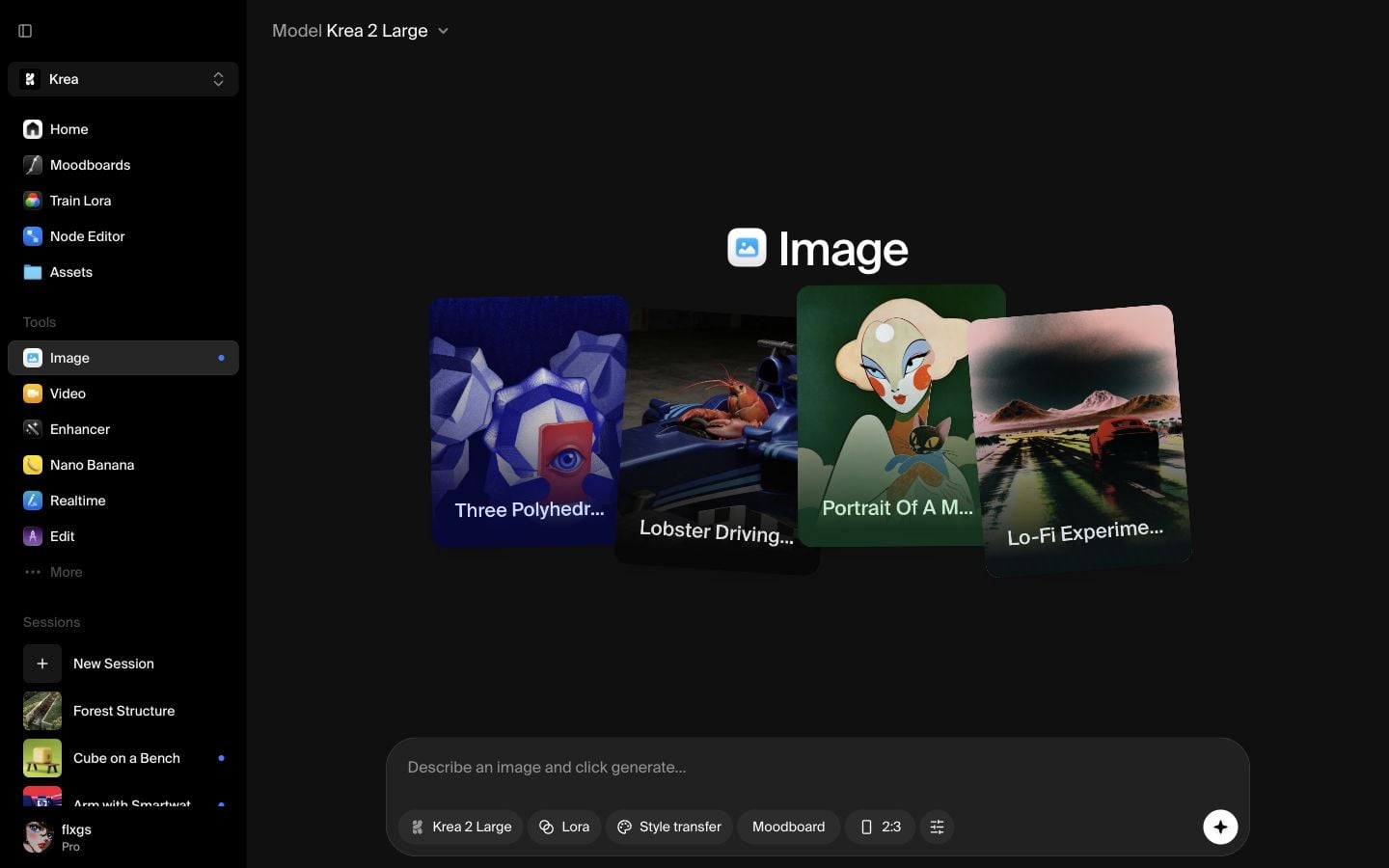
Open Image and make sure the model is set to Krea 2 Large. Style references work best when the model has enough room to interpret both the prompt and the visual reference.
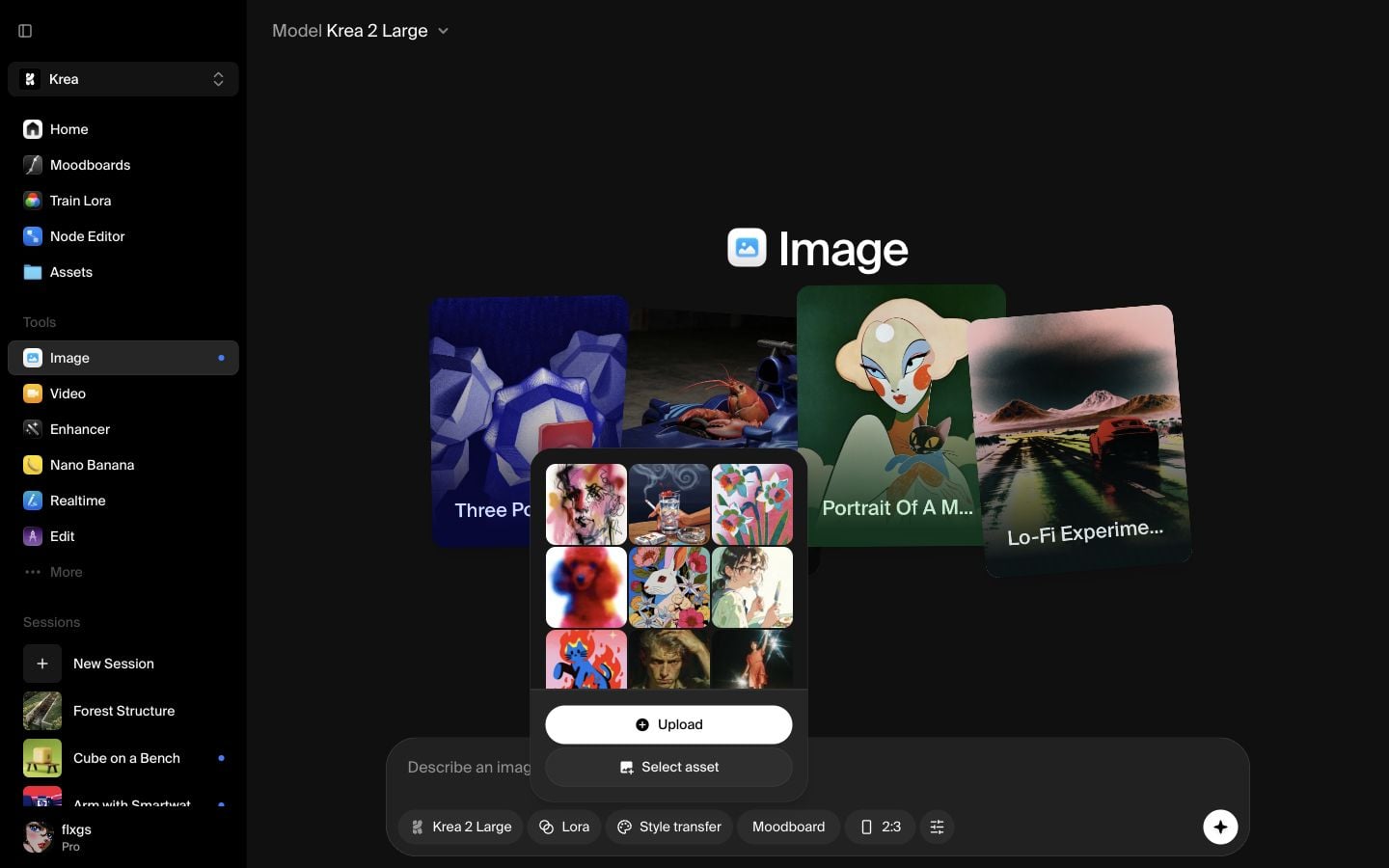
Open Style transfer and hover a preset
Click Style transfer in the prompt bar. Krea opens a grid of preset style references. Hover the presets to inspect the visual direction, then choose the one that matches the mood you want. For this example, we selected a colorful botanical illustration preset.
Add your prompt
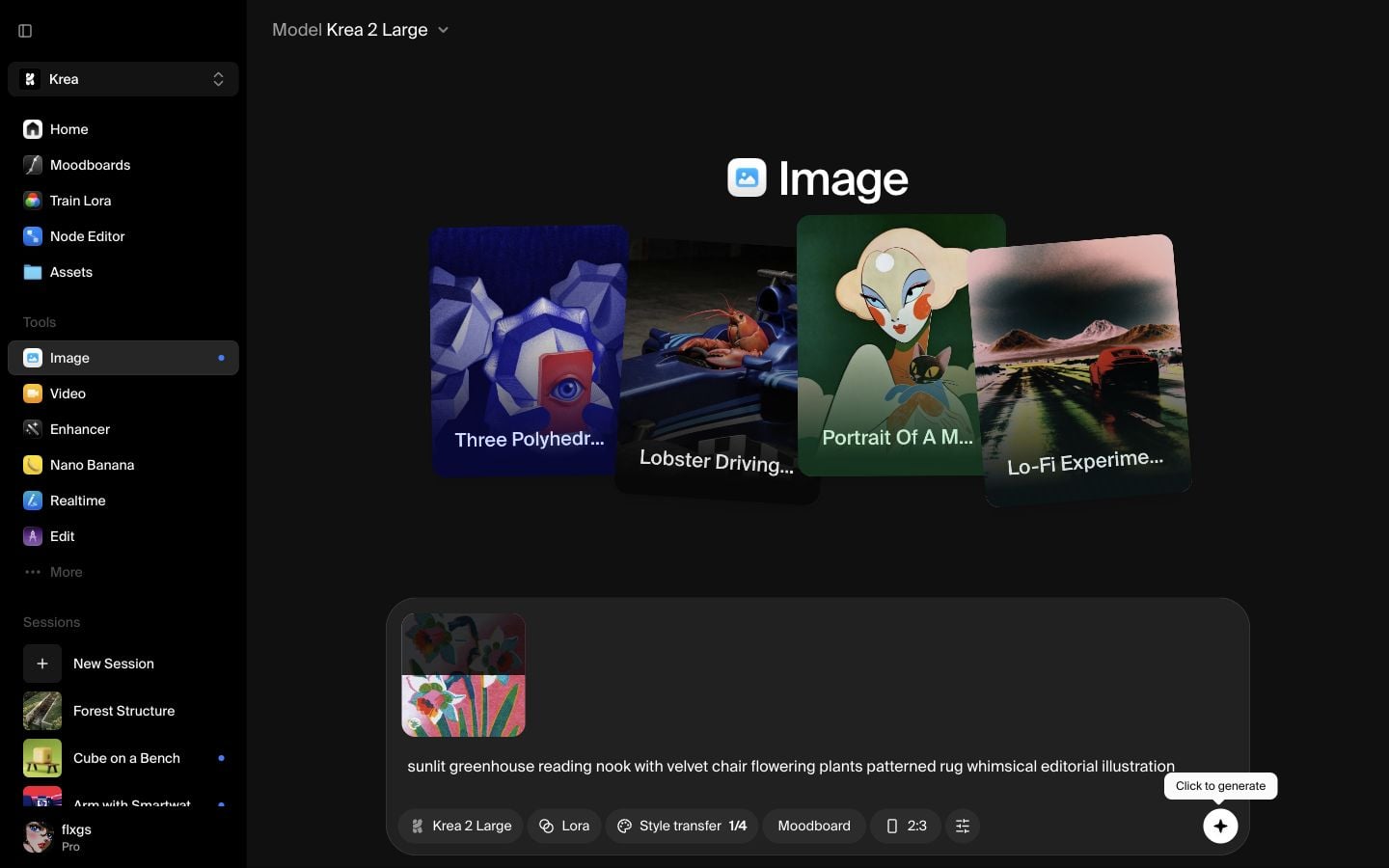
After selecting a preset, the reference thumbnail appears inside the prompt bar and Style transfer shows 1/4, meaning that you can add up to 4 style references. Write the subject you want Krea to generate. Here, the prompt was:
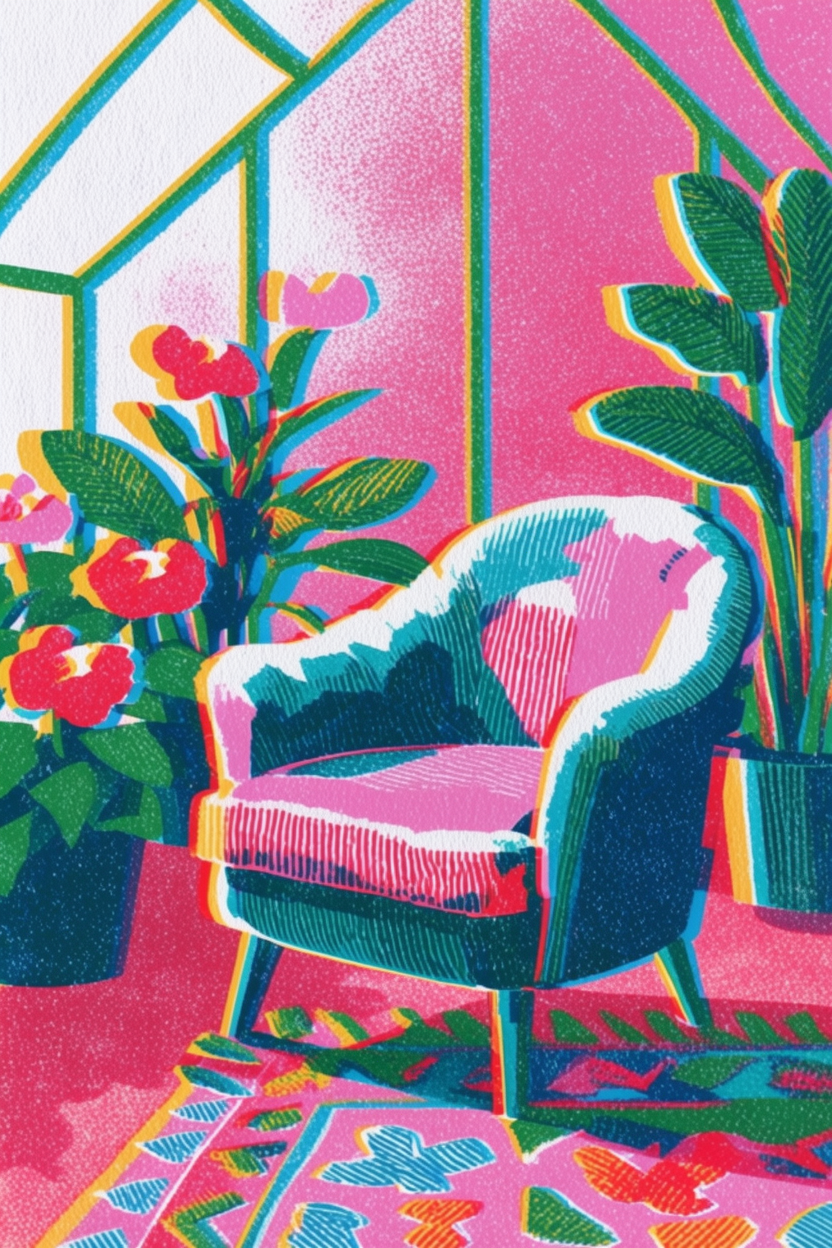
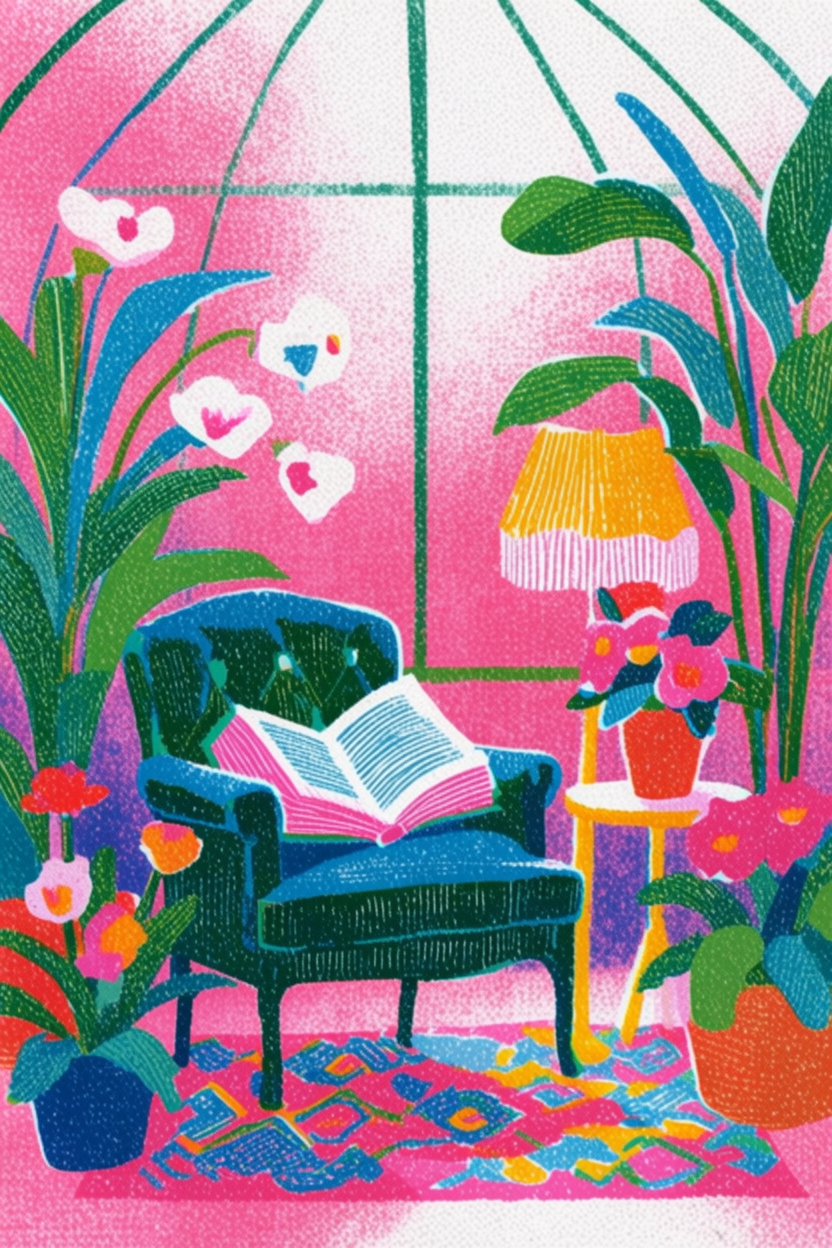
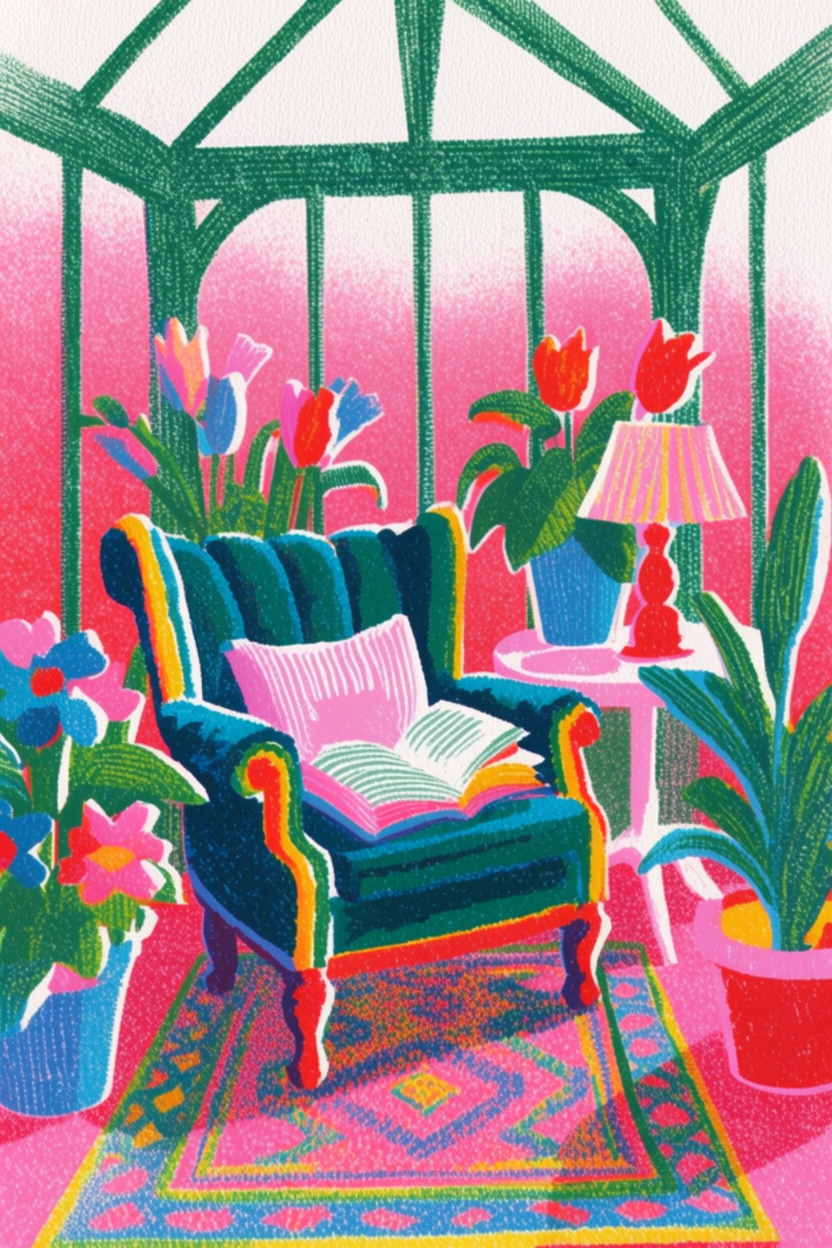
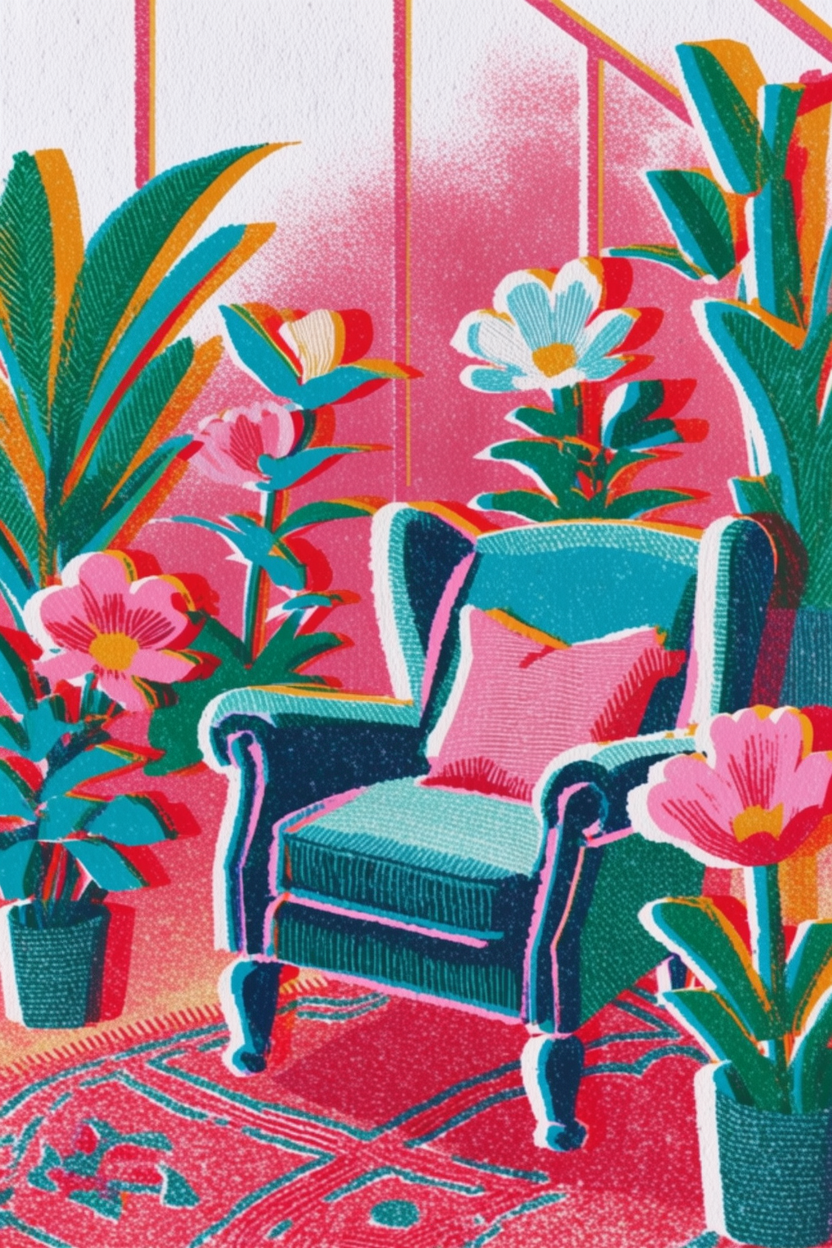
sunlit greenhouse reading nook with velvet chair flowering plants patterned rug whimsical editorial illustration
Generate with the style reference
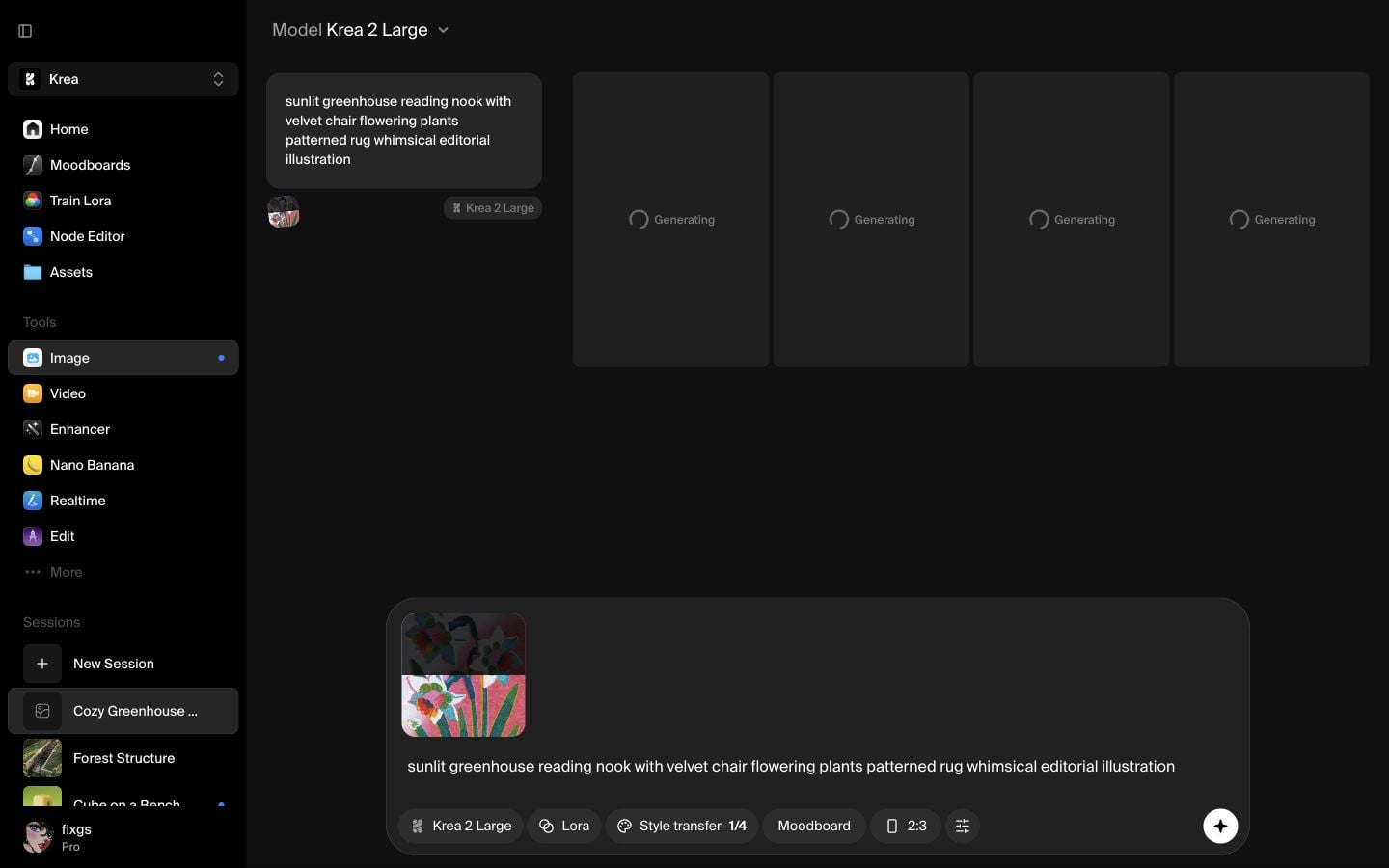
Click the generate button. The prompt card keeps the selected style reference visible, so you can confirm that the result is being generated with Krea 2 Large and the style reference attached. You can also select the percentage of the style reference directly from the image thumbnail by dragging the white line up or down.
Review the styled outputs
The finished images keep the subject from the prompt while borrowing color, texture, and illustrative treatment from the style reference. If the subject is right but the style is too strong or too weak, try another preset or adjust the reference strength before generating again — the same style-first approach carries over to editing and stylizing a photo you already have.
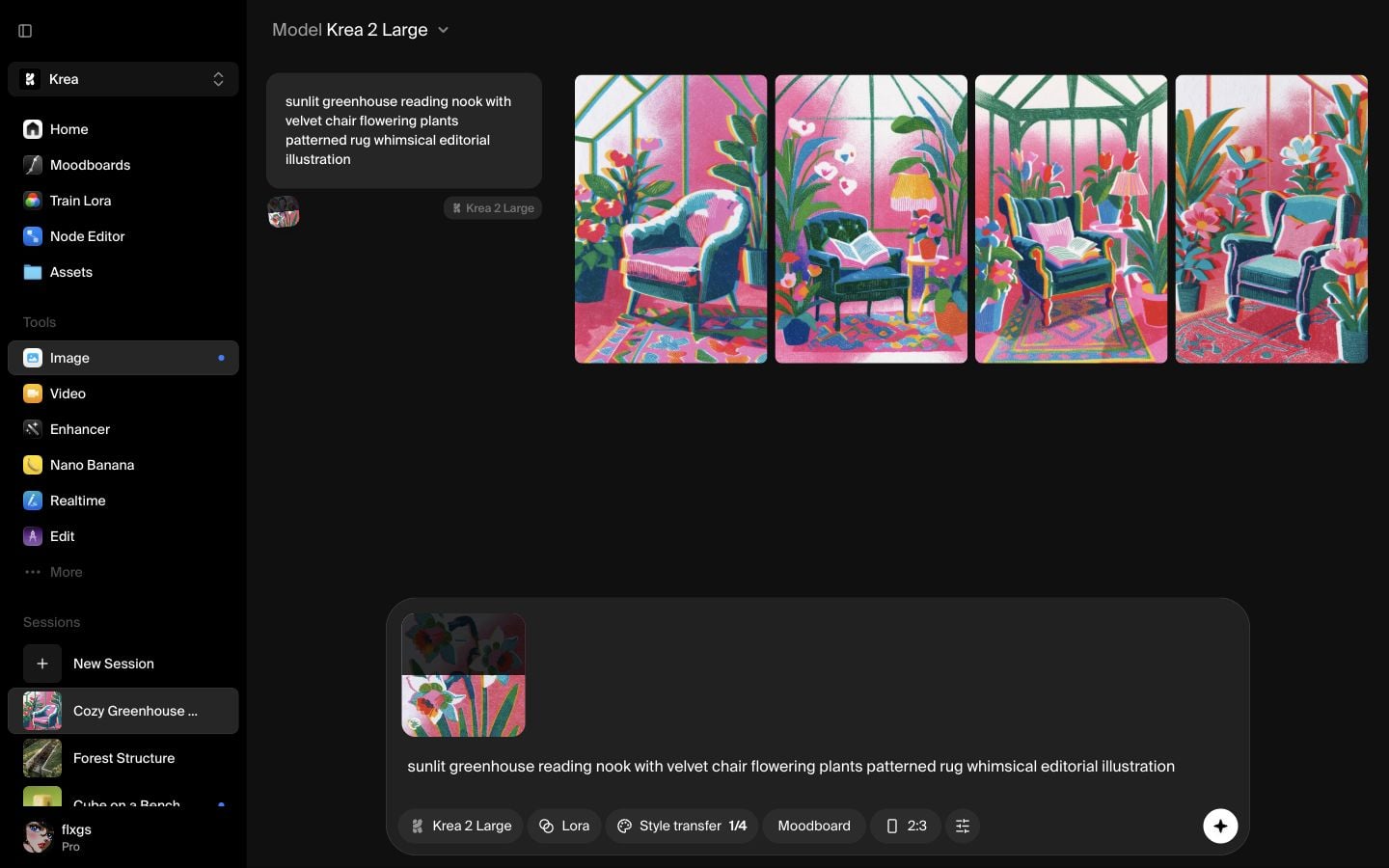
Style reference results
Krea
Generated in Krea Image
Quick checklist
- Use Krea 2 Large for the generation.
- Open Style transfer from the prompt bar.
- Hover the presets and choose one with the look you want.
- Confirm the style reference thumbnail appears in the prompt bar.
- Write the subject normally, then generate.
For a deeper look at how style reference strength and combining multiple references works, see the Krea 2 prompting guide.
Generate with a style reference
Pick a Style transfer preset in Image, write your prompt, and generate with Krea 2 Large.
Open Image