“Best video editing software” hides two different questions. If you have footage — clips from a phone, a camera, or a screen recording — and you need to cut it, arrange it on a timeline, and grade the color, you need a traditional non-linear editor (NLE): CapCut, DaVinci Resolve, or Adobe Premiere Pro. If you need to generate a new clip from scratch, or make a prompt-driven change to one (“make the sky sunset orange,” “extend this shot six seconds”), that’s a different job, and it’s the one AI tools like Krea are built for. This guide compares the three editors on the free tier and the paid tier, then draws the line on what Krea does and does not replace.
The best video editing software at a glance
| Tool | Best for | Price (Sept 2026) | Free tier | Where it stops |
|---|---|---|---|---|
| CapCut | Fast, phone-first social edits | Free; Standard ~$9.99/mo; Pro $19.99/mo or $179.99/yr | Full basic timeline, multi-track, chroma key, 1080p export | No real color grading; Pro-tagged templates carry a watermark below Standard |
| DaVinci Resolve | A complete free professional NLE | Free; Studio $295 one-time | Yes — full editing, color, Fairlight audio, and Fusion VFX, up to 4K/60fps | Studio-only: Neural Engine AI tools, >60fps, Magic Mask, cloud collaboration |
| Premiere Pro / Premiere Rush | Industry-standard, multi-app Adobe workflows | Premiere Pro $22.99/mo (single app, annual plan); Creative Cloud Pro $69.99/mo for generative AI credits; Rush free + $9.99/mo | Rush: capped exports and a watermark | No perpetual license; the headline generative AI features need the pricier plan |
| Krea (Krea Agent) | Generating a new clip, or a prompt-driven edit to one | Free: 100 compute units/day; Agent on Max, Business, Creator Max, Enterprise | Cut, trim, and generative extend on a built-in timeline | Not a multi-track NLE — no frame-level color grading, 8-track cap |
Make a new clip or extend one with a prompt
Krea Agent generates video and puts it on a timeline you can cut and extend. It doesn't replace CapCut, Resolve, or Premiere for arranging existing footage.
Try Krea AgentHow we chose and tested
We picked the three editors people actually name when asked “what’s the best video editing software” — CapCut for volume and social reach, DaVinci Resolve for the strongest free professional tier, and Premiere Pro for the industry-standard paid tool — then ran the same task through each one: trim a three-minute raw clip into a 45-second highlight, add captions, apply one color pass, and export at 1080p. We verified every price and limit against the vendor’s own pricing or help page in this session on September 23, 2026: CapCut’s pricing help page, CapCut’s Standard vs Pro comparison, Blackmagic Design’s DaVinci Resolve pricing page, and Adobe’s Creative Cloud plans page. Prices and free-tier limits change; check the vendor page before you commit to a plan.
CapCut — fastest for phone-first, social-ready cuts
CapCut’s free plan carries the full basic toolkit: cut, split, a multi-track timeline, keyframe animation, chroma key, speed ramping, filters, free music, and basic AI voiceover, with export capped at 1080p. The catch sits in the templates, not the core editor: effects and templates marked “Pro” add a watermark to your export unless you subscribe. Standard, at roughly $9.99 a month, removes that watermark and unlocks more templates and text styles but keeps the 1080p cap and leaves out CapCut’s full AI toolkit. Pro, at $19.99 a month or $179.99 a year, adds 4K export, the complete AI set (camera tracking, vocal isolation, speaker-ID captions, AI voice effects), and over 100 GB of cloud storage.
Settings recipe — auto-caption a highlight clip:
- Import the clip and trim it on the timeline to your 45-second selection.
- Open Text > Auto captions, set the language, and choose the “Word by word” style with a 48pt font and a karaoke highlight color.
- Generate, then nudge any misread words directly in the caption track.
- Export at 1080p, 30fps, H.264 High profile. If the source template you used is Pro-tagged, expect a watermark unless you’re on Standard or Pro.
Tip: build your own caption style once and save it as a favorite — it carries over to new projects without re-tagging a Pro template.
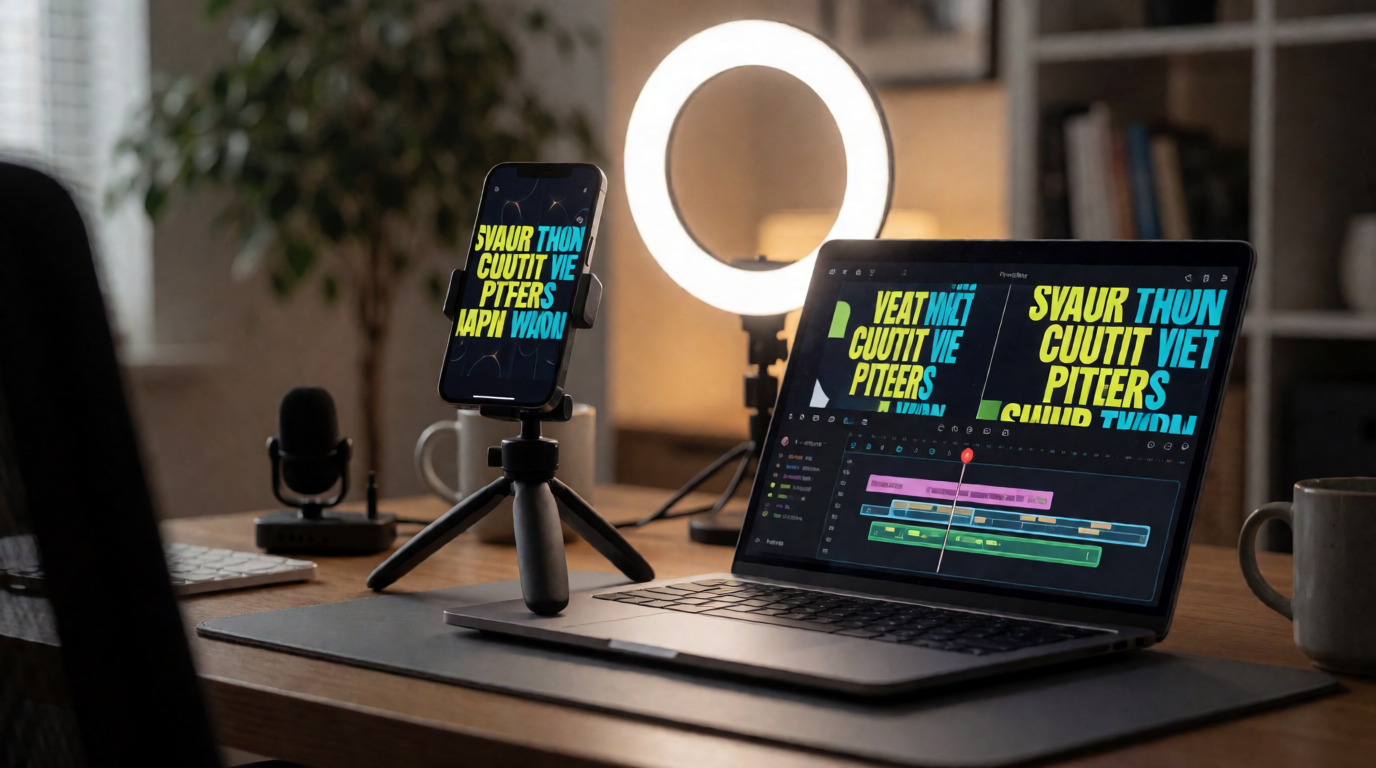
A phone-first CapCut edit in progress
Illustrative still generated with Krea 2, not a CapCut screenshot.
Where it stops: CapCut’s color tools are filters and presets, not a scopes-and-wheels grading workflow, and the deeper AI features sit behind Pro. If the shot needs precise, repeatable color correction across a multi-camera project, this is the wrong tool for that step.
DaVinci Resolve — the strongest free professional editor
DaVinci Resolve’s free edition is not a trimmed demo. It ships the same editing page, the Color page with full node-based grading, Fairlight for audio post, and Fusion for visual effects, at up to 4K and 60fps, with no watermark and no time limit. Blackmagic Design’s pricing page states Studio costs $295 once — no subscription — and adds the DaVinci Neural Engine AI tools (Magic Mask, AI noise reduction, speed warp), text-based editing, resolutions and frame rates beyond 4K/60fps, film grain, and Blackmagic Cloud collaboration.
Settings recipe — normalize color across clips, then grade:
- On the Cut page, drop your clips on the timeline and use Detect Scene Cuts in the Smart Bin to auto-split one long take into shots.
- Switch to the Color page. Select a reference clip’s grade, then use Color Match with a neutral still to normalize white balance across clips shot on different cameras.
- Add a serial node, and on the primaries wheels push Lift up about 2 points on shadows and Gain down about 3 points on highlights for a filmic contrast rolloff.
- In Fairlight, run Loudness Normalization to -16 LUFS for streaming delivery before you export.
Tip: grade one hero clip first, save it as a PowerGrade, then apply it to the rest of the timeline for a consistent look in one pass.
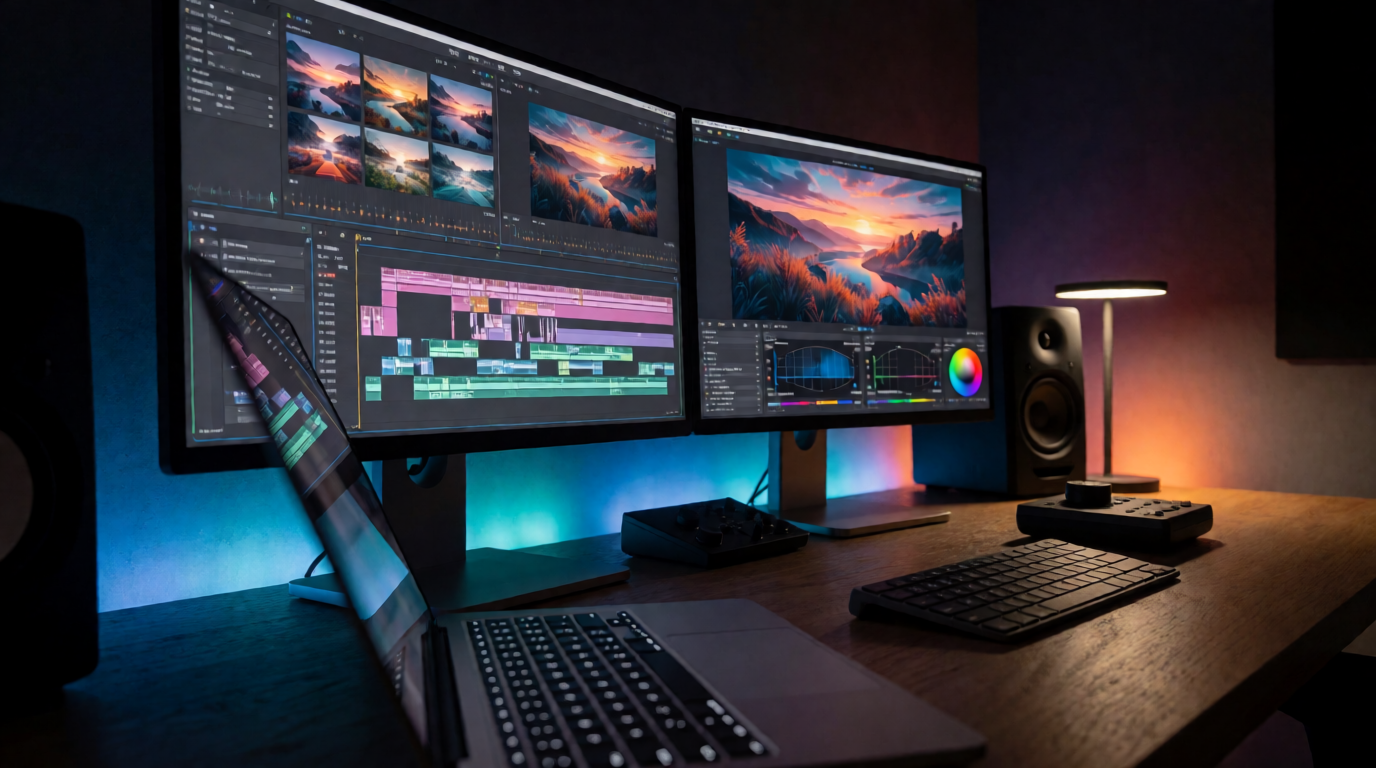
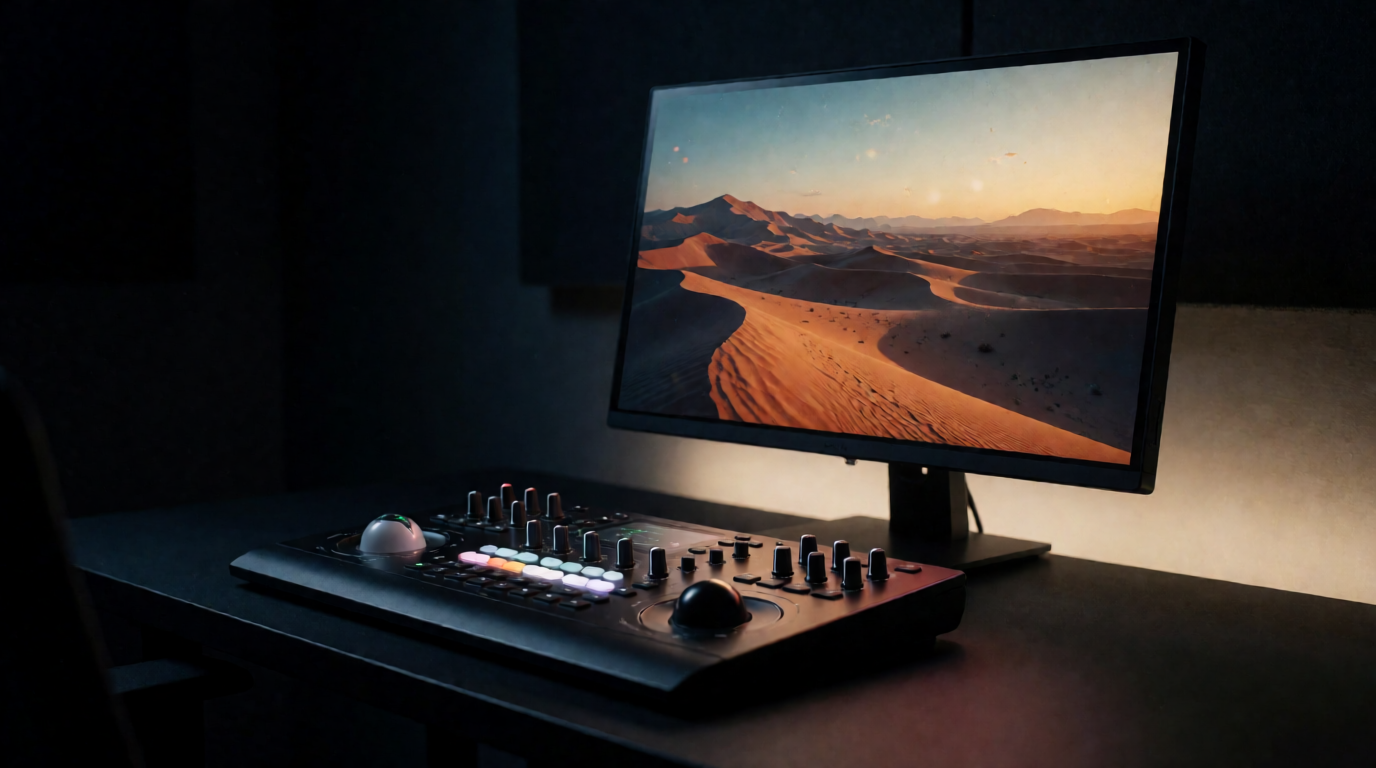
A colorist's grading suite
Illustrative still generated with Krea 2, not a DaVinci Resolve screenshot.
Where it stops: the free edition caps out at 4K/60fps and 8-bit formats, and it doesn’t include Studio’s AI tools, Magic Mask rotoscoping, or Blackmagic Cloud. For most independent creators, though, the paid features are optional rather than blocking.
Premiere Pro / Premiere Rush — the industry-standard, multi-app workflow
Premiere Pro remains the tool most studios and agencies standardize on, and Adobe’s plans page lists the single-app plan at $22.99 a month on an annual, billed-monthly commitment. The 2026 generative AI features — object masking, generative extend — ship with Premiere Pro, but a usable credit allocation for them requires the pricier Creative Cloud Pro plan at $69.99 a month, which bundles every Adobe app. Premiere Rush, Adobe’s lighter mobile-and-desktop editor, has a free tier with capped exports and projects, and unlocks fully for about $9.99 a month.
Settings recipe — cut on the transcript, then grade:
- Open Edit > Text-Based Editing and transcribe the sequence.
- Read the transcript panel and delete filler words and dead air directly in the text — Premiere removes the matching clips from the timeline automatically.
- Open Lumetri Color, apply a Cinematic LUT as a starting point, then adjust the Shadows and Highlights sliders to taste.
- Export through Media Encoder with the “Match Source - Adaptive High Bitrate” preset for YouTube delivery.
Tip: do the transcript-based cut first, before any color work — trimming after grading means re-checking every cut point for a color break.
A broadcast editing workstation
Illustrative still generated with Krea 2, not a Premiere Pro screenshot.
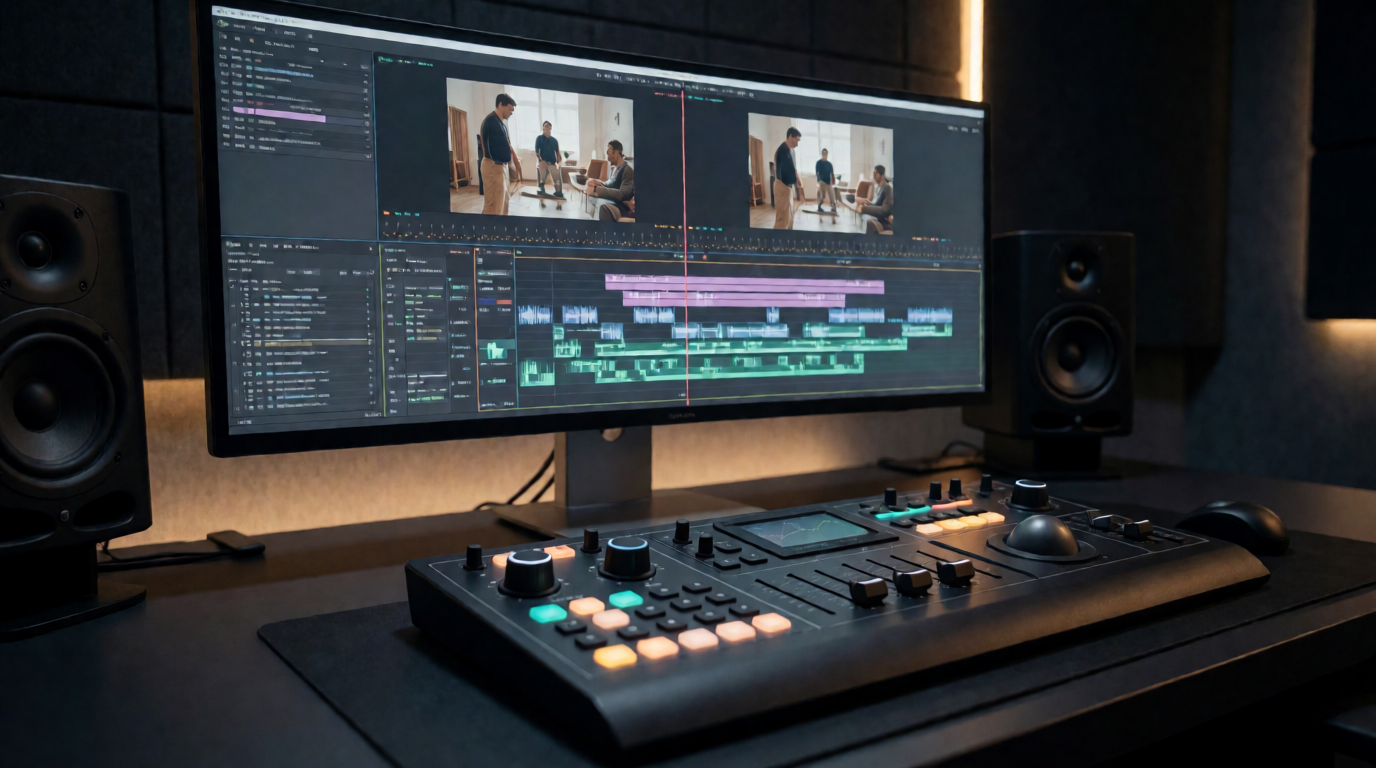
Where it stops: there’s no perpetual license, and the generative AI headline features are effectively gated behind the more expensive all-apps plan rather than the single-app subscription most editors already pay for.
Krea — a different job: generating a clip, or a prompt-driven edit to one
Here is the honest distinction this whole comparison turns on. CapCut, DaVinci Resolve, and Premiere Pro all assume you already have footage and need to cut, arrange, and grade it on a timeline. Krea, through Krea Agent, assumes the opposite starting point: you describe a shot in a prompt, and a video model generates it. Krea Agent also ships a timeline video editor for the clips it generates — cut, trim, delete, and a “generative extend” gesture that asks a model to continue a clip past its current end — but it caps out at eight tracks, and it does not do precise frame-level trims of footage a model didn’t produce, multi-camera sync, or the node-based color grading that DaVinci Resolve or Premiere handle natively.
Copy-paste prompt — generate a clip and extend it in the built-in editor:
Create a 10-second clip of a matte black wireless speaker on a wooden table under a warm studio light, then extend it 6 seconds: the camera slowly pulls back to reveal a sunlit living room around it. Keep the same speaker and lighting style throughout, 16:9, use Seedance 2.5. When it’s done, open it in the video editor so I can trim the start and export an MP4.
Tip: name the model, the clip length, and the aspect ratio explicitly in the prompt — vague briefs produce clips that don’t match on a second generation, which defeats the point of building a timeline out of them.
A prompt-driven transformation of a still product photo into a lit video frame
Illustrative still generated with Krea 2. This is a still, not a claim that Krea grades video like a color-page tool.
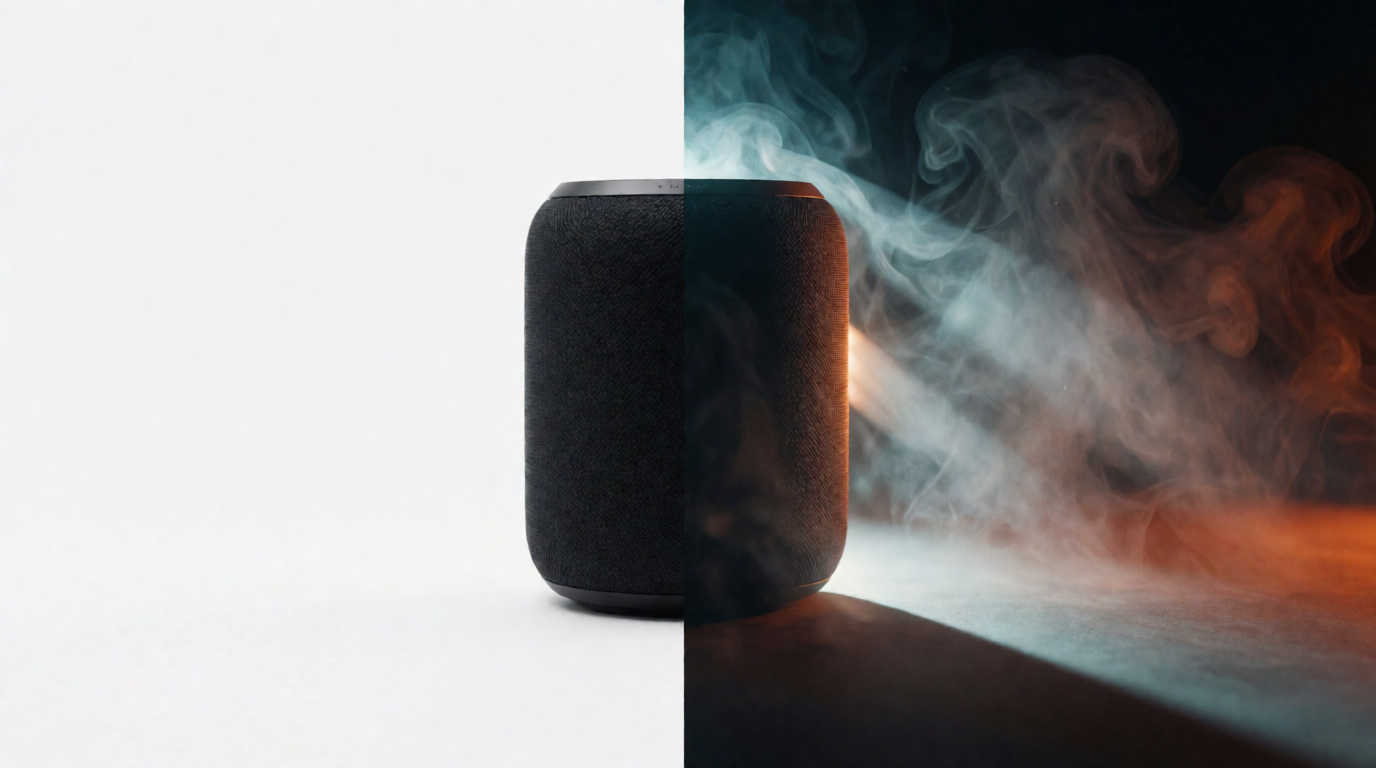
Where it stops, plainly: if the job is “cut and arrange the footage I already have,” Krea is not a substitute for a timeline-based NLE. It does not do multi-track editing of external footage, precise frame-level cuts on non-generated clips, or traditional color grading. It is the right tool when the job is “generate a new clip” or “make a prompt-driven change to a clip,” not “edit my footage.” For the full model lineup behind that generation step, see the 5 best AI video models on Krea.
Rights, exports, and where each tool stops
| Tool | Free-tier export cap | Watermark on free tier | AI features on free tier | License model |
|---|---|---|---|---|
| CapCut | 1080p | Only on Pro-tagged templates/effects | Basic AI voiceover only | Subscription (Standard/Pro) |
| DaVinci Resolve | 4K, 60fps | None | None (Studio-only) | Free, or $295 one-time for Studio |
| Premiere Rush | Capped exports/projects | Yes, until upgraded | None | Subscription |
| Krea (Agent) | 100 compute units/day | None | Generation is the free tier’s core | Subscription for Agent access |
Which video editing software should you pick?
Working out which job the footage actually needs
Illustrative still generated with Krea 2.
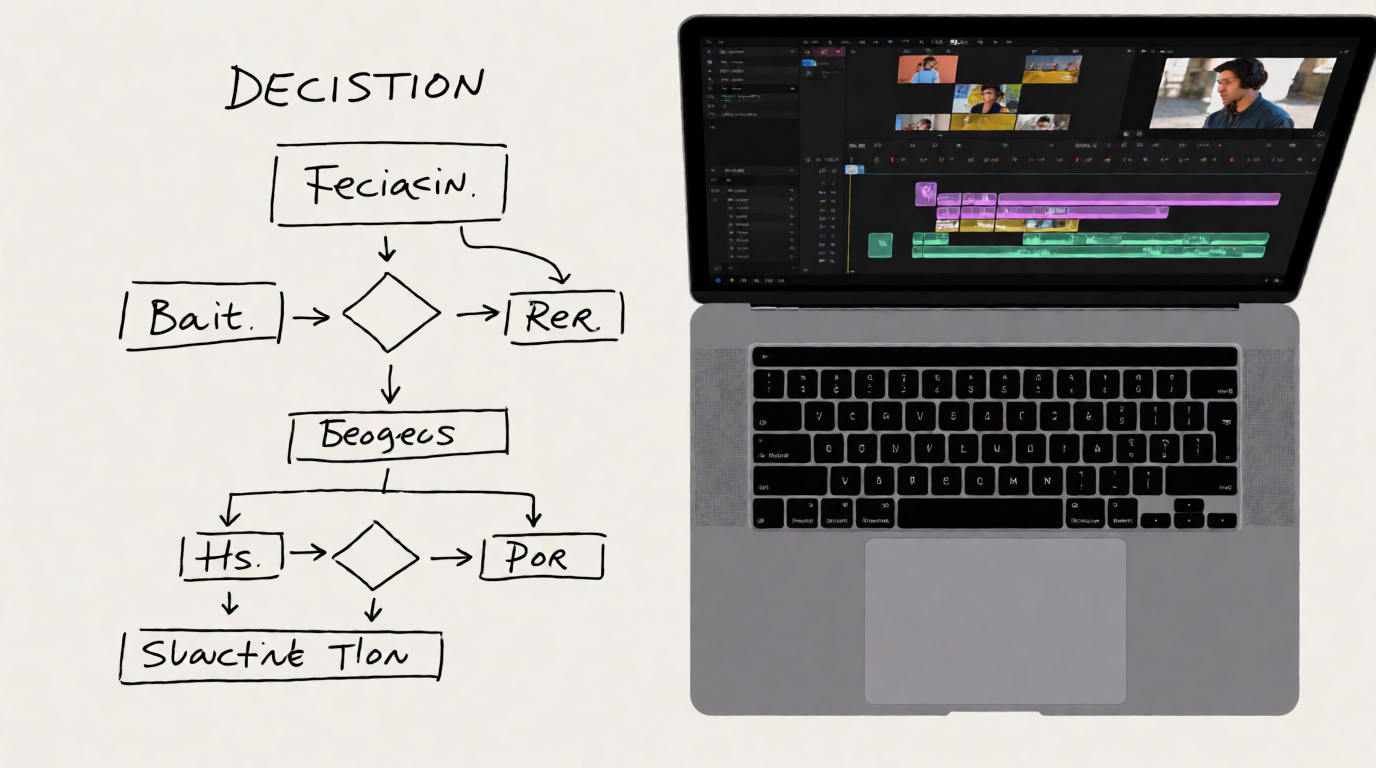
Pick by the job, not the brand:
- You’re cutting short-form content on your phone for TikTok or Reels → CapCut. The free tier’s timeline is genuinely capable; pay only when the watermark or 4K cap actually blocks you.
- You want a full professional NLE and can’t justify a subscription → DaVinci Resolve. The free edition covers editing, color, and audio post with no artificial ceiling on the core workflow.
- You work in an agency or studio pipeline built around Adobe → Premiere Pro. It’s the standard other editors have to interoperate with, and Rush covers quick mobile cuts on the same ecosystem.
- You don’t have footage yet, or you want to extend a shot with a new generated beat → Krea. That’s a generation problem, and pairing a timeline editor over an NLE won’t solve it faster.
- You’re doing both → generate or extend clips in Krea, then bring the export into DaVinci Resolve or Premiere for the multi-track arrangement and final color pass. The two jobs aren’t competitors; they’re sequential steps in the same project.
Frequently asked questions
What is the best software for video editing?
Is there a free video editor as good as Premiere?
Is CapCut actually free, or does it watermark my videos?
Can AI edit my video?
What is the difference between CapCut and DaVinci Resolve?
Does Krea replace Premiere Pro or DaVinci Resolve?
Related reading
- How to Edit Video with Krea Agent: Cut, Extend and Export Generated Clips
- The 5 Best AI Video Models on Krea in 2026
Generate your first clip with Krea
Describe a shot, get a generated clip, and cut or extend it on the built-in timeline. Krea Agent is included on Max, Business, Creator Max and Enterprise plans.
Try Krea Agent