“Edit a photo with AI” now covers two different jobs, and mixing them up wastes time. The first job is a precise fix: change one region, extend a background, relight a face, without touching the rest of the image. The second job is a style pass: push the whole photo toward a look — cinematic grade, retro film, a duotone filter, a cartoon illustration. Some tools do both well. Most are built for one and bolt on the other. This guide tests six AI photo editors on both jobs, with real prompts and settings for each.
The best AI photo editors at a glance
| # | Tool | Best for | Price model (Sep 2026) | Free route |
|---|---|---|---|---|
| 1 | Krea Edit | Region edits plus a generated style pass in one tab | Free plan; paid from $9/mo | Daily free compute |
| 2 | Adobe Photoshop (Firefly Generative Fill) | Maximum precision, seamless fill and expand | $22.99/mo single app; bundles from $19.99/mo | 7-day trial |
| 3 | Fotor | One-click filters and effects for social posts | Free with watermark; Pro $8.99/mo | Free (watermarked non-HD export) |
| 4 | PicsArt | Mobile-first stylizing and retro effects | Free (5 credits/week); Pro $15/mo | Limited weekly credits |
| 5 | Luminar Neo | Sky replacement and landscape mood grading | One-time license from $119 | 7-day trial |
| 6 | Pixlr | Budget stylize filters plus a built-in generator | Free tier; Premium $6.49/mo (annual) | Free simple/advanced editor |
Restyle a photo in one tab
Select a region, describe the change, or apply a color palette — then generate the rest of the shot without leaving the browser.
Open EditHow we chose and tested
Prices and plan shapes come from each vendor’s published pages as of September 2026: Adobe Photoshop plans, Adobe Firefly pricing, Fotor pricing, PicsArt pricing, Skylum’s Luminar Neo pricing, and Pixlr pricing. Krea’s numbers come from krea.ai/pricing — 100 free compute units a day, Basic at $9/month for 5,000 compute units, no video, 3D, Nodes, or commercial license on the free plan. Every image in this post began as a single Krea 2 generation from the exact prompt shown beside it. The Pixlr illustration’s shop sign was corrected with Nano Banana Pro through Krea; the other images are unretouched. None were generated with a competitor tool.
To keep the comparison honest, we ran two kinds of test on every tool: a precision test (change one region — a background, a sky, an object — without disturbing anything else) and a style test (push the whole photo toward a specific look, then judge how much control the tool gave over how far it went).
What separates a good AI photo editor
- Precision vs. style, as separate controls. A tool that only offers a full-photo filter cannot do a clean regional fix, and vice versa.
- The free route, honestly stated. Free often means a watermark, a weekly credit cap, or a trial window.
- What the “AI” part actually changes. Some “AI editors” are a preset library with an AI cutout bolted on; others generate genuinely new pixels.
- Batch and mobile. A single hero shot and 200 vacation photos are different problems.
How do I stylize a photo with AI?
The pattern is the same across every tool below, only the interface changes. Upload the photo. Pick a style path: a filter/preset (fastest, least control), a text prompt describing the target look (most control), or a reference image to match. Apply it to the whole photo or a selected region. Compare against the original before you commit — style passes are easy to overdo. The sections below give the exact recipe for each tool.
1. Krea Edit — region edits plus a generated style pass
Krea Edit is built around a canvas, not a filter list. Select a region — draw a box, paint a mask, or click an object to auto-select — and describe the change; the model fills it in and matches the surrounding lighting. For a full style pass, apply a color palette, relight the scene with up to four virtual lights, or run it through the camera lens simulator. Because generation and editing share the same tab, a snapshot can be relit, restyled, and re-composited without an export-import loop.
Settings recipe:
Open Edit → drop in the photo → select a region or leave it whole → describe the target look or pick a color palette → Relight if the light direction should change → compare against the original before exporting.
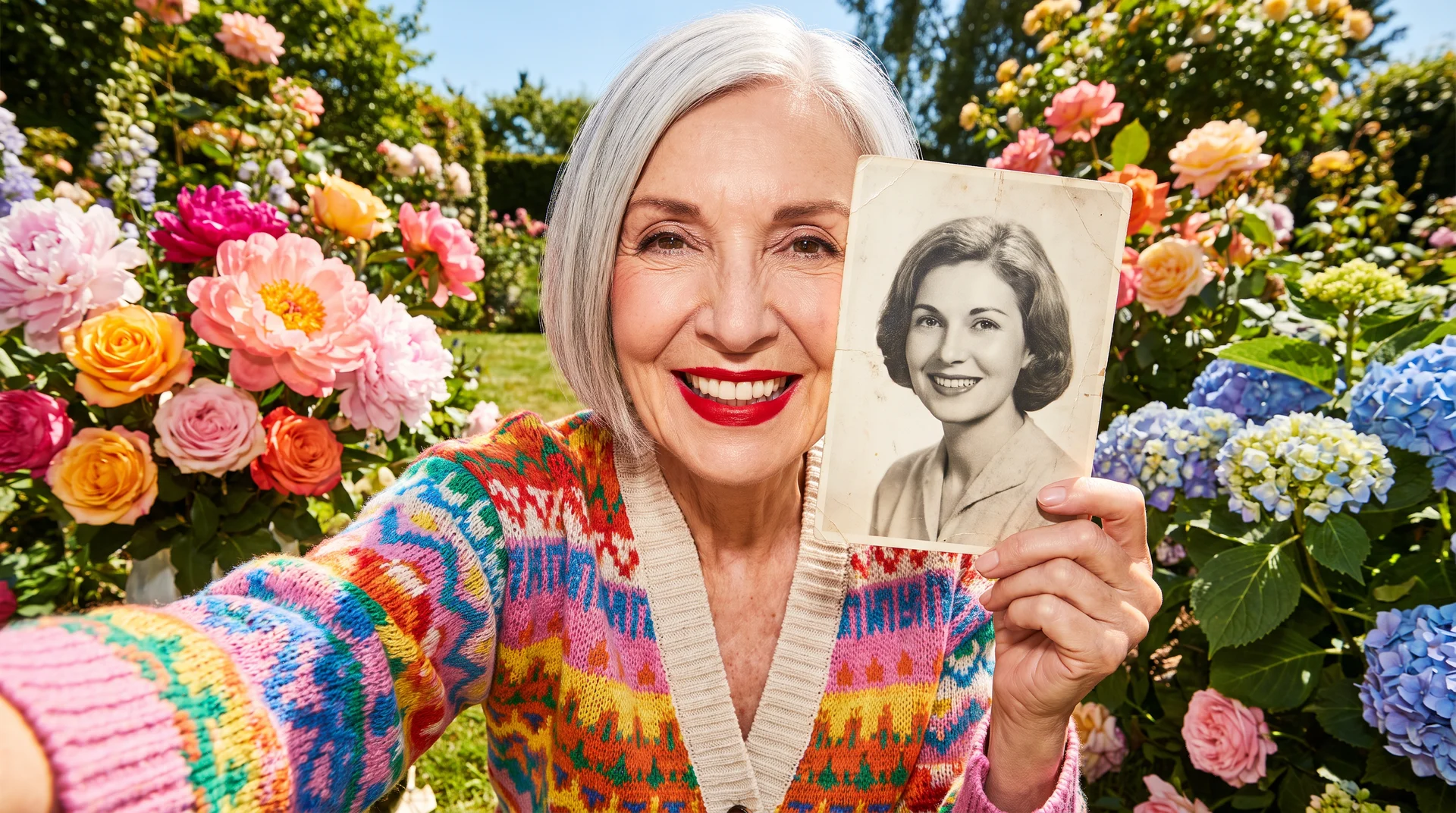
editorial portrait of a woman in a plain white t-shirt against a blank studio wall, restyled with a warm cinematic film grade, dramatic side lighting, shallow depth of field, teal and orange color palette, 35mm portrait photography
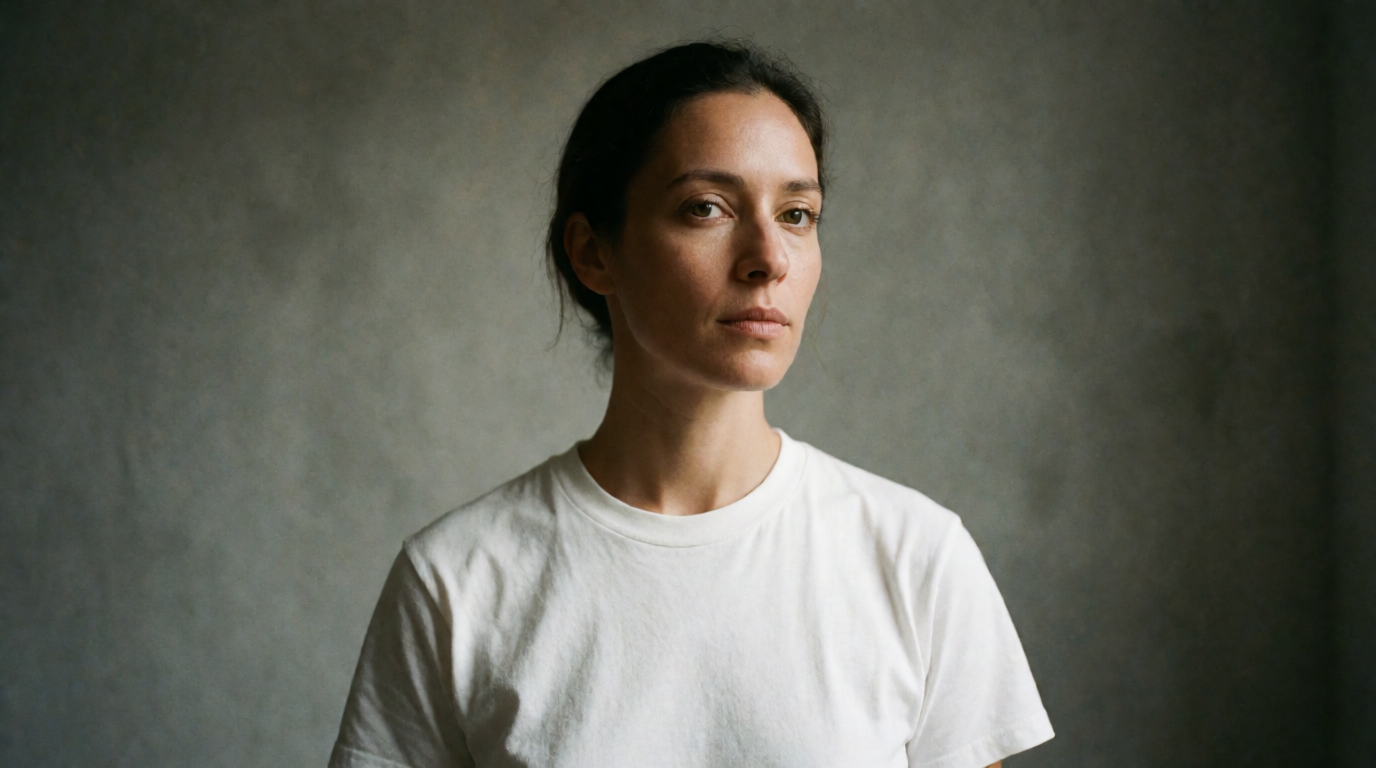
Variation tip: name the color pairing explicitly (“teal and orange,” “muted sage and rust”) — vague words like “cinematic” alone give inconsistent grades between runs.
Krea’s free plan gives 100 compute units a day, covering Krea 2 image generation, region edits, and basic upscaling to 2K; paid plans start at $9/month (Basic, 5,000 compute units) and add the commercial license (pricing). Editing sits next to generation, the Enhancer, and video — a photo can be shot, edited, and upscaled without switching apps, the same adjacency covered in our background remover roundup.
Where it stops: there’s no preset filter library for a one-tap “vintage” look — every style pass is a described change or a manual light/palette setup, more control but a slower first step than a filter grid. And the free plan’s daily allowance suits trying and light use, not a batch of hundreds of photos.
Try region editing on Krea — runs on the free plan.
2. Adobe Photoshop (Firefly Generative Fill) — the precision standard
Photoshop’s Generative Fill, powered by Adobe Firefly, is the reference for seamless regional edits: select an area, type a description or leave the prompt blank, and the model fills, extends, or removes content while matching perspective, lighting, and grain. Standard-resolution Generative Fill inside Photoshop does not consume premium AI credits on a paid plan. The single-app plan is $22.99/month; the Photography plan bundles 1,000 AI credits with 1TB storage at $19.99/month.
Settings recipe:
Make a selection with the lasso or object-select tool → open the contextual task bar → Generative Fill → type the target (or leave blank to remove) → generate three variants and pick the cleanest → flatten once satisfied.
close-up portrait of a man laughing outdoors, background extended into a golden hour city skyline with warm bokeh lights, seamless generative-fill edges, photographic realism
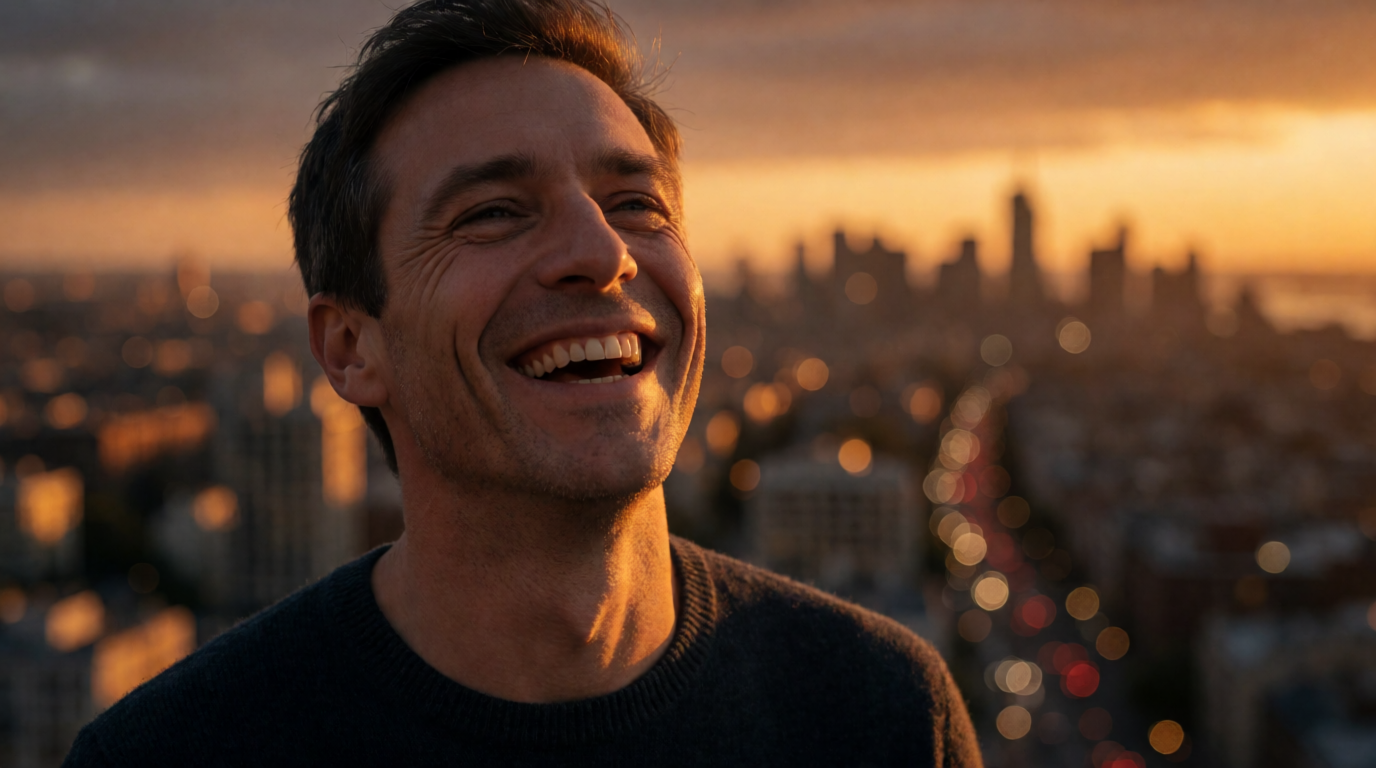
Variation tip: for a canvas expand (not just a fill), drag the crop tool outward first so Generative Fill has empty pixels to work with, then prompt the new area.
Where it stops: this is a desktop app with a real learning curve, and full style transformations across a whole batch are not Generative Fill’s job — it is a regional-precision tool, not a one-click style engine. For a browser-based take on the same clean-removal job, see Krea’s object removal tool.
3. Fotor — one-click filters for social posts
Fotor leans toward the style side: a library of over 200 photo effects and one-click AI filters (oil painting, cartoon, cyberpunk, seasonal presets) sits alongside a basic AI editor. The free plan works but exports non-HD with a watermark; Fotor Pro removes the watermark and unlocks the full library at $8.99/month or $39.99/year.
Settings recipe:
Upload photo → Effects tab → pick a style category (Retro, Cyberpunk, Painting) → adjust the intensity slider → export HD (Pro) or watermarked (free).
young woman on a city rooftop at sunset, stylized with a vibrant neon pink and blue duotone filter, high contrast, glossy magazine cover look
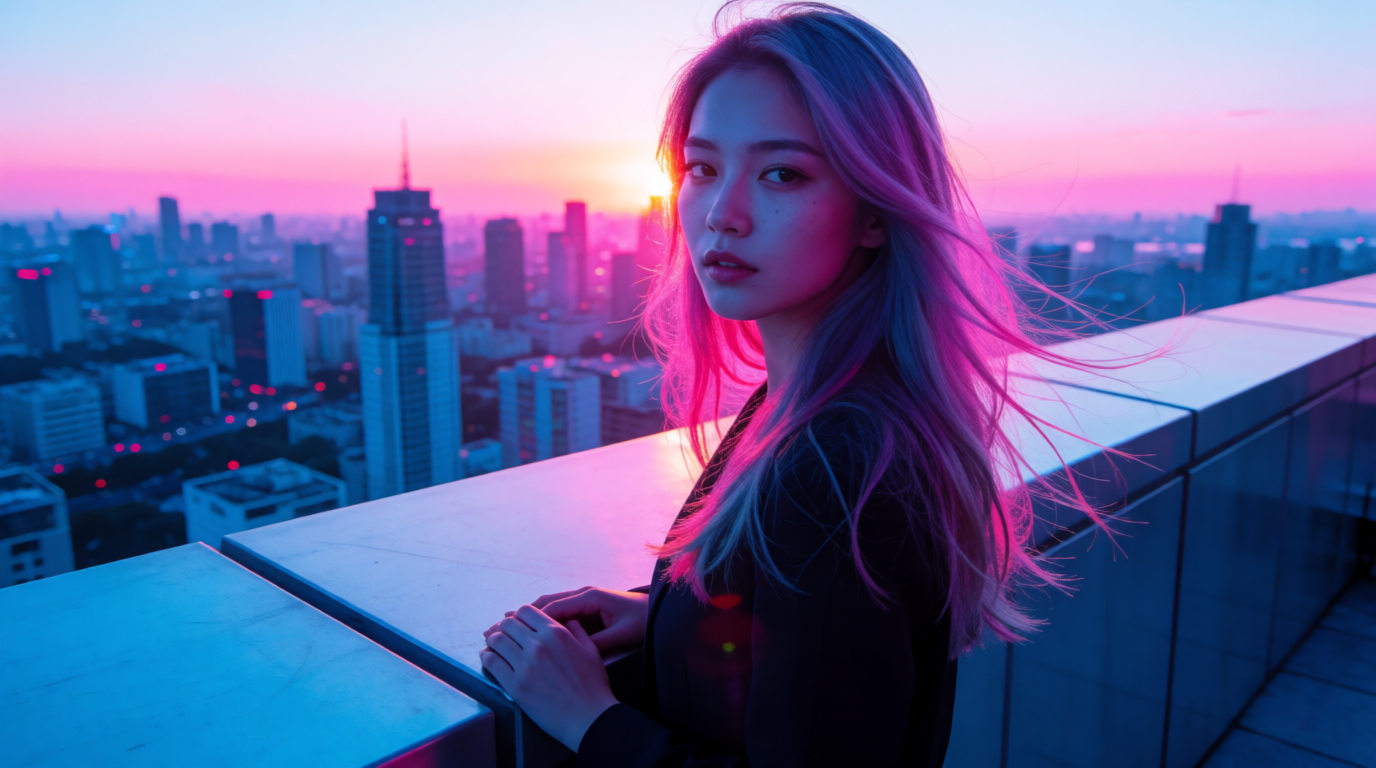
Variation tip: run the same photo through two or three filter categories before picking one — Fotor’s presets look very different from each other and the thumbnail preview undersells the effect.
Where it stops: the free tier’s watermark and capped resolution rule it out for print or sale, and its regional precision tools are much shallower than Photoshop’s.
4. PicsArt — mobile-first stylizing
PicsArt is the phone-native option: AI filters, retro/VHS effects, and background/object removal live in a swipe-friendly mobile editor. The free plan gives 5 AI credits a week — enough to try, not to lean on daily. PicsArt Pro is $15/month (or $10.50/month billed yearly) and lifts the credit cap.
Settings recipe:
Open photo in the app → Effects → choose a stylize pack (Retro, Glitch, Sketch) → apply and adjust opacity → export.
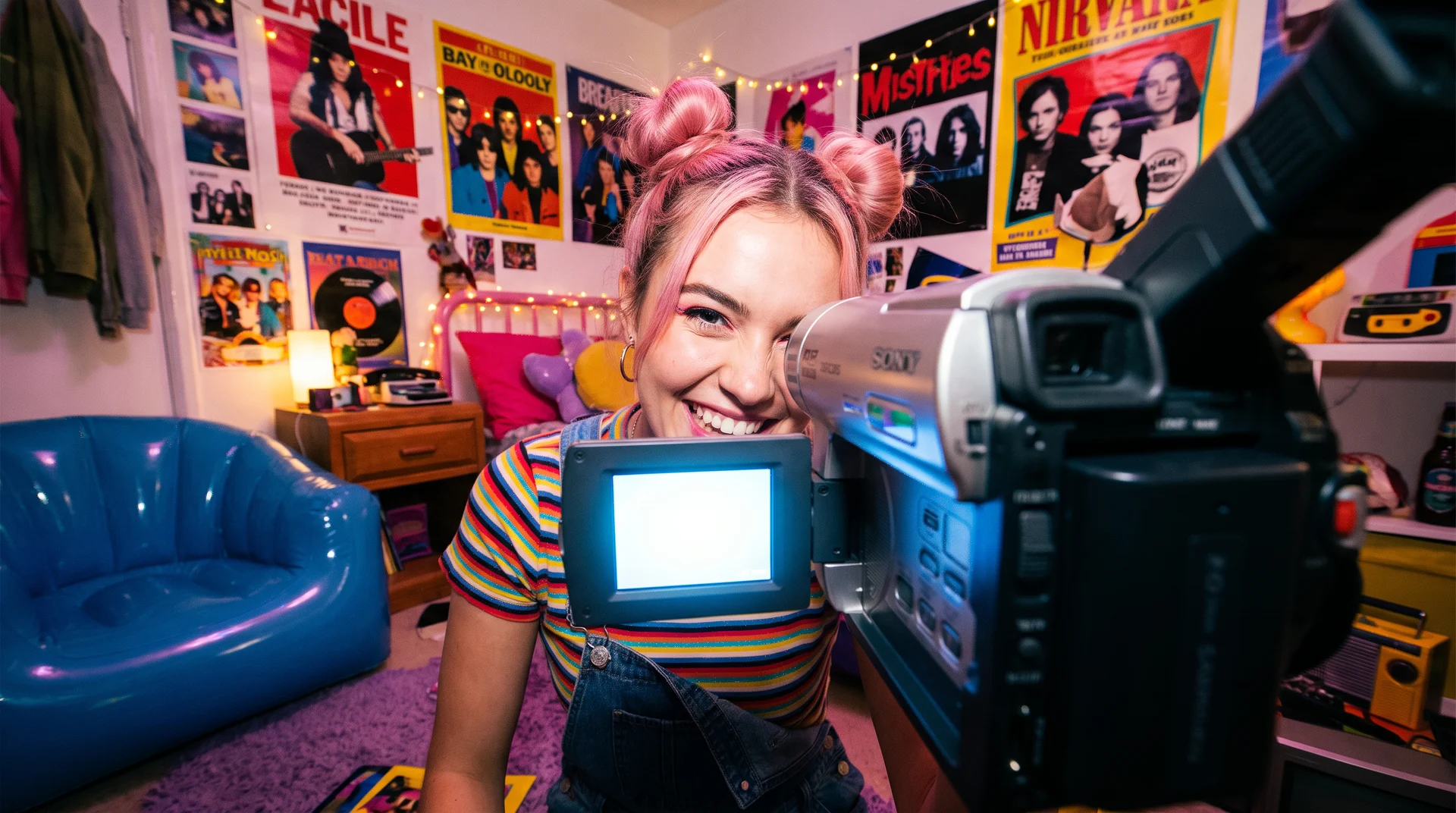
retro 1980s VHS style photo of a skateboarder on a suburban street, grainy film texture, chromatic aberration, faded warm tones, nostalgic snapshot aesthetic
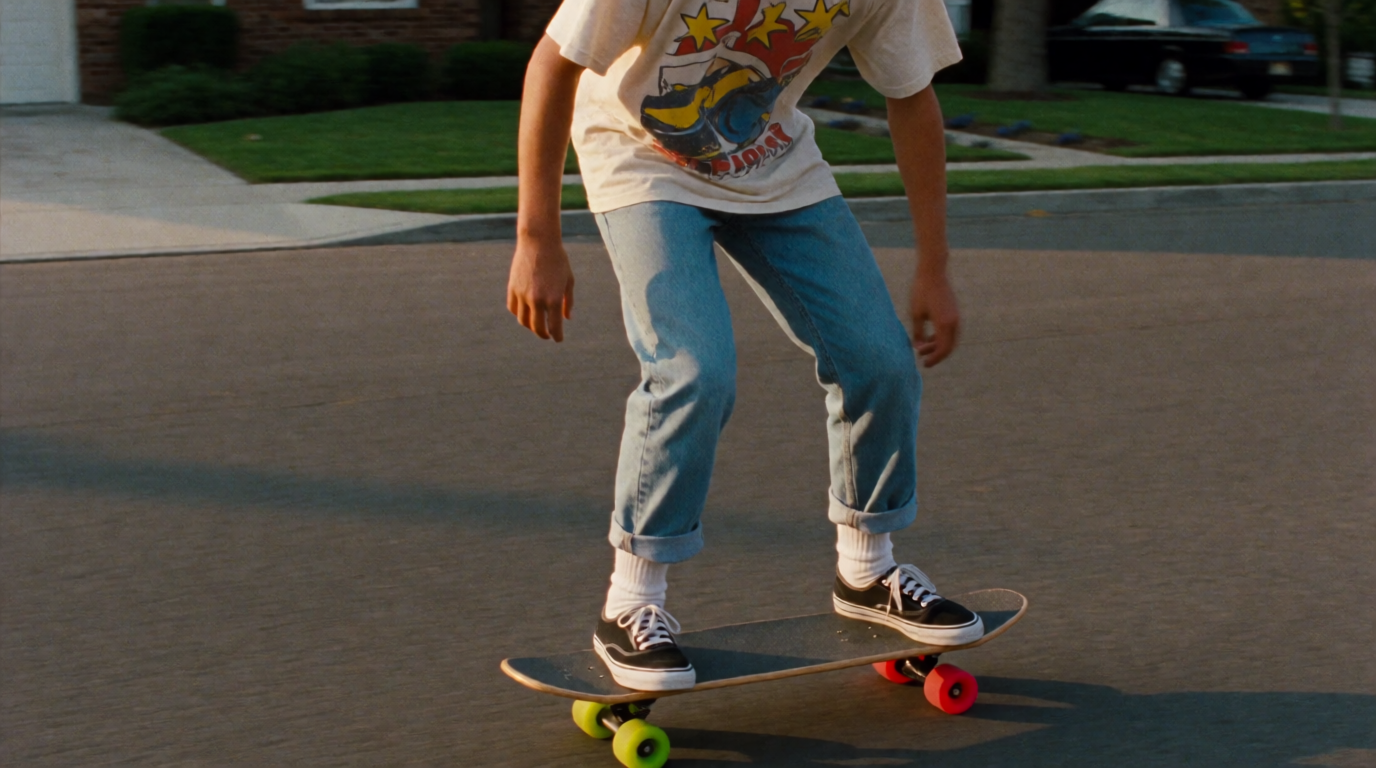
Variation tip: layer a grain or scan-line effect at reduced opacity over a color-filter pass — combining two light effects reads more natural than one heavy one.
Where it stops: the weekly free-credit cap is tight for daily editing, and PicsArt’s precision tools trail well behind desktop editors — it is built for fast phone edits, not pixel-level correction.
5. Luminar Neo — sky and landscape mood
Luminar Neo specializes in a job the other tools handle poorly: replacing an overcast sky with a dramatic one and relighting the whole landscape to match. Skylum sells it as a one-time perpetual license rather than a subscription — Desktop at $119, Cross-device at $159, Max at $179 — though the generative tools (GenErase, GenExpand, GenSwap) run for one year from purchase, not forever, and major future versions may need another payment.
Settings recipe:
Open photo → Sky AI → pick or upload a replacement sky → Relight Scene to match the new sky’s color temperature → Atmosphere AI for haze/depth → export.
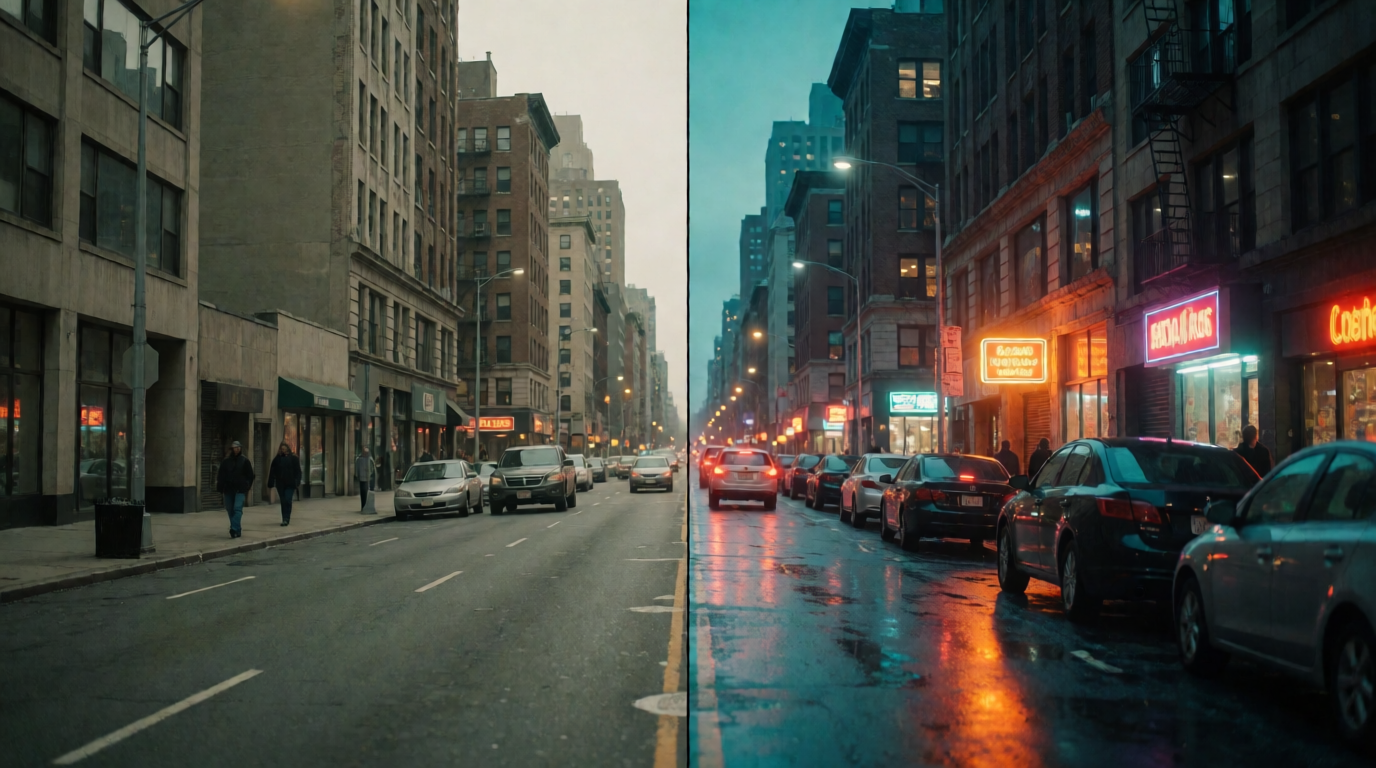
wide landscape photo of mountains and a still lake, dramatic golden-hour sky with layered clouds replacing a flat overcast sky, enhanced atmospheric haze, moody cinematic color grade
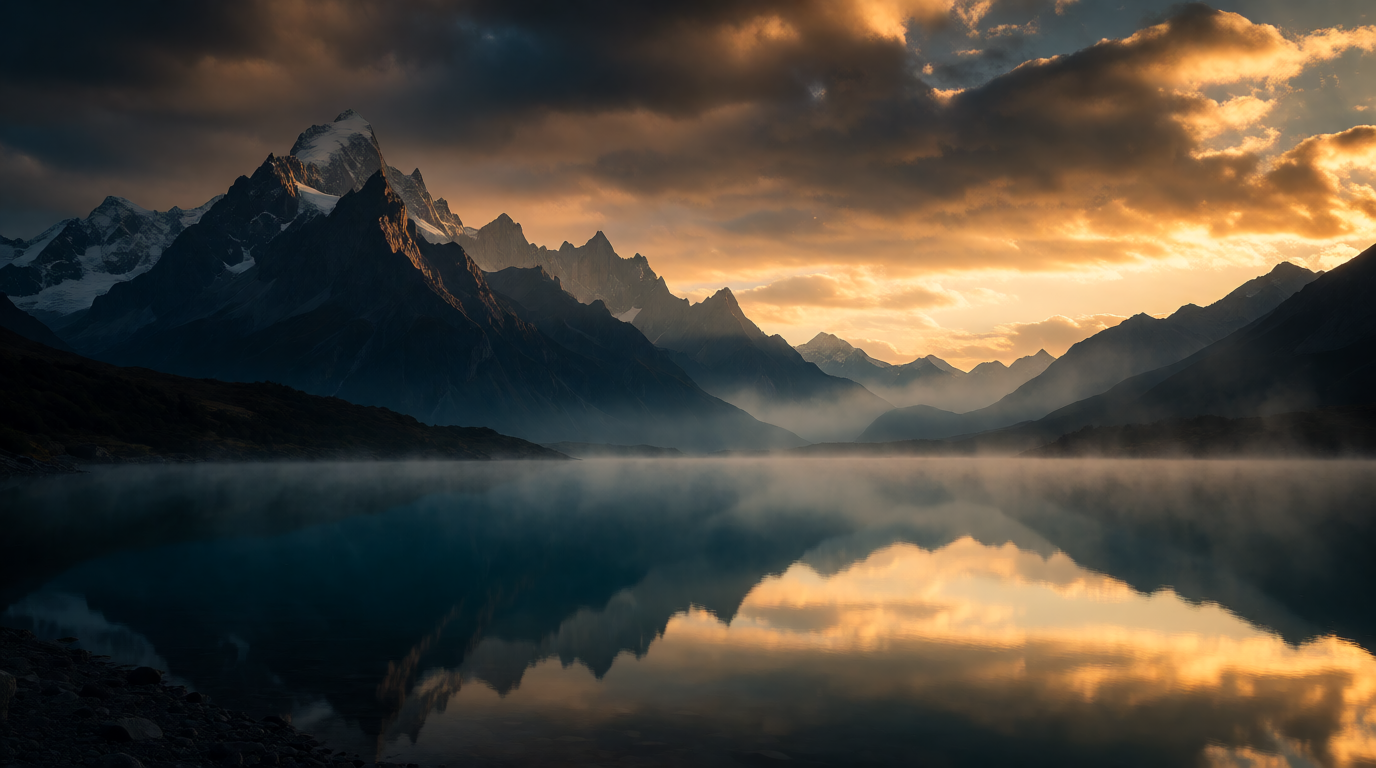
Variation tip: match the new sky’s light direction to the existing shadows in the photo before running Relight Scene — a mismatched sun angle is the tell that gives sky swaps away.
Where it stops: it is built for photographers, not portraits or product shots — the AI tools are tuned for landscapes and skies, and the “lifetime” license only covers the generative features for one year.
6. Pixlr — budget stylize plus a built-in generator
Pixlr bundles a free browser editor with 15+ AI models (including image generation) behind one login, at a lower price than most of this list. The free tier gives limited access to the simple and advanced editors and the image generator; Premium is $6.49/month billed yearly (or $9.99/month) and adds five editors and 1,000 monthly AI credits.
Settings recipe:
Open the AI editor → upload photo → Stylize/Filters tab → pick a style (cartoon, painterly, anime) → adjust strength → export.
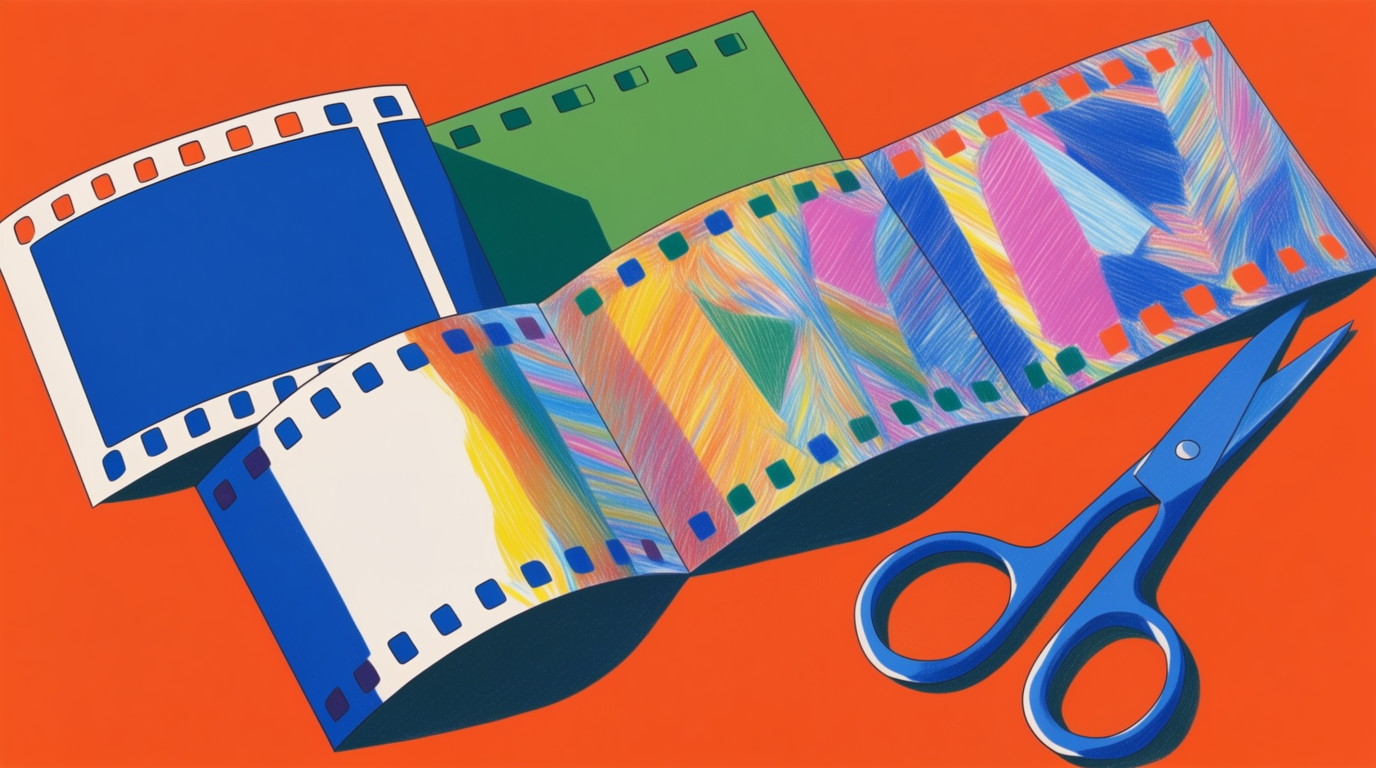
street photo of a small coffee shop turned into a vibrant flat-color cartoon illustration, bold outlines, simplified shading, poster-like graphic look

Variation tip: keep “bold outlines” and “simplified shading” in the prompt — dropping them tends to produce a soft painterly result instead of a clean cartoon.
Where it stops: at the free and Premium tiers, the credit pool caps how much stylizing you can do monthly, and its precision tools are lighter than Photoshop’s or Krea’s.
Precision vs. style: pick by what the photo needs
| The photo needs | Family | Best fit |
|---|---|---|
| One region fixed without touching the rest | Precision | Photoshop Generative Fill, Krea Edit |
| A whole-photo filter or look, fast | Style | Fotor, PicsArt, Pixlr |
| A sky or landscape mood change | Style, specialized | Luminar Neo |
| Both, in one tool | Both | Krea Edit |
| Batch of many photos, one consistent look | Style, batch | Fotor or PicsArt (desktop/mobile), Pixlr (credits allowing) |
Which AI photo editor should you pick?
- One tool for both a fix and a style pass: Krea Edit — region editing and a generated look share a canvas, and the free plan covers trying it.
- Maximum precision on a hard regional edit: Adobe Photoshop with Generative Fill — nothing else matches its edge quality on a background swap or object removal.
- Fast filters for a social post, budget-friendly: Fotor or Pixlr, watermark and credit caps permitting.
- Editing from a phone: PicsArt.
- Skies and landscape mood specifically: Luminar Neo, and only if the one-time license fits your budget better than a subscription.
If the style pass is really the first step of making an image rather than fixing one, start where generation lives: generate the shot, push the look with a style reference, and upscale the result before export. For removing a background as part of the same edit, see our background remover comparison; for the region-edit toolset in detail, see the Krea Edit walkthrough.
Frequently asked questions
What AI can edit photos?
How to make a pic look cool?
How to stylish a photo?
How to do AI photo editing?
How can I correct or edit photos with AI?
Is there a free AI photo editor?
Try Krea Edit
Region edits, relighting, and color palettes — free to start, on the same canvas as generation.
Open Edit