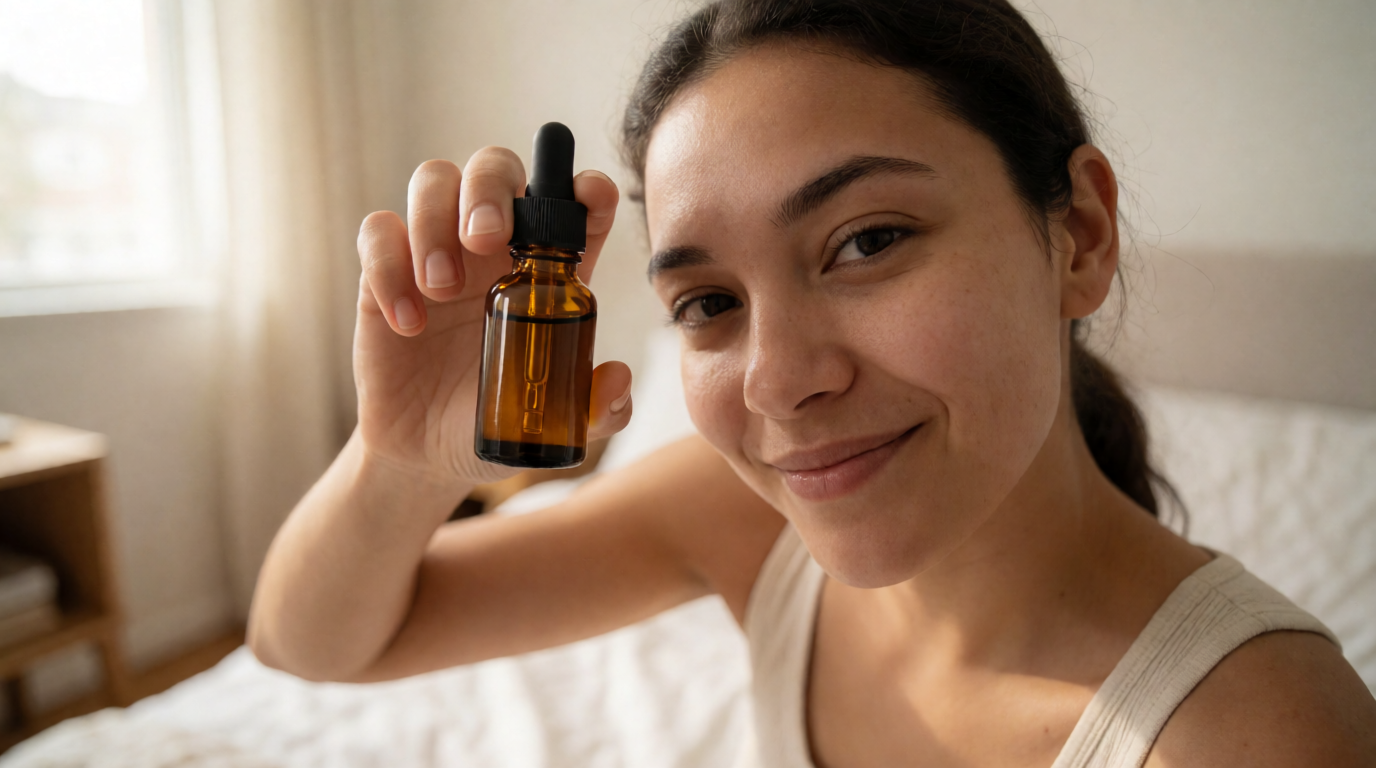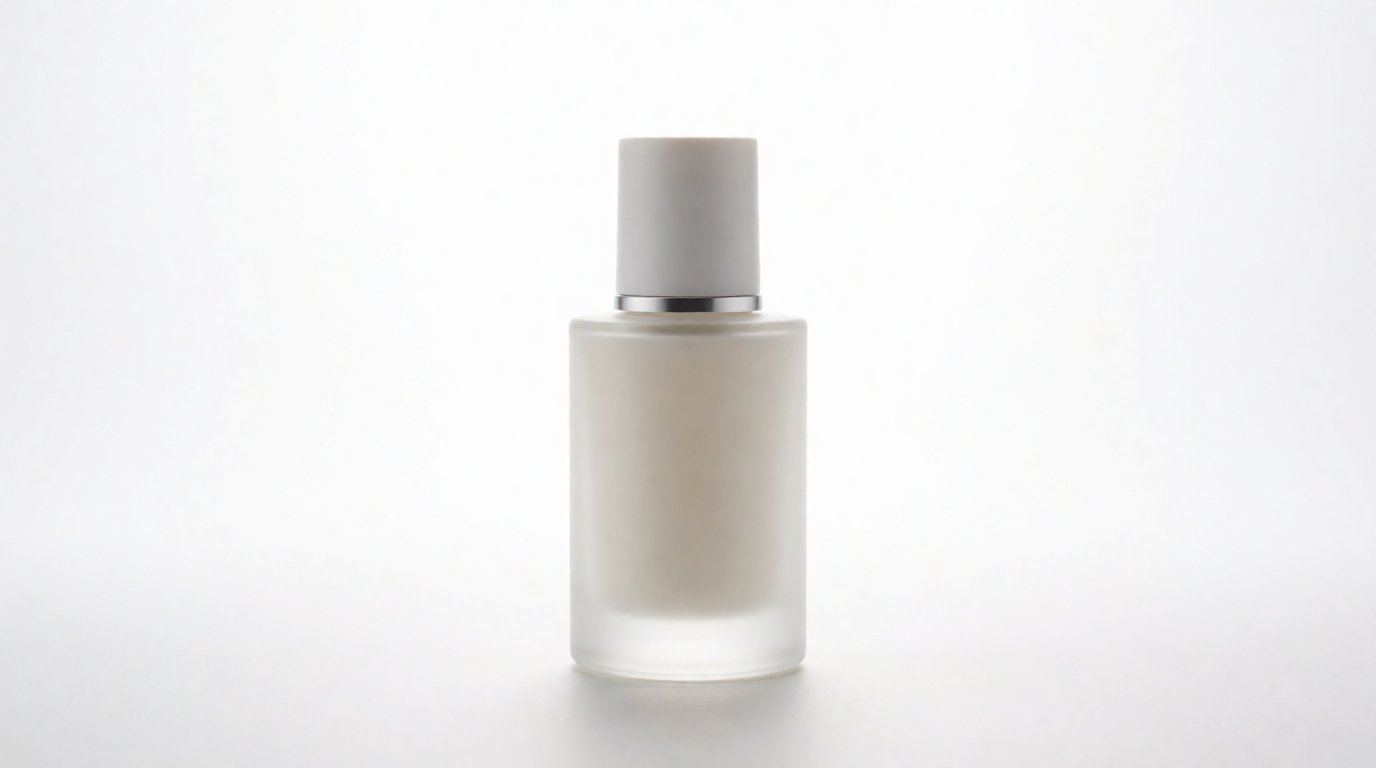
“Make the background white” is really one of two jobs. Either you have a photo and you need to replace its background with white, or you need a new image that starts on white. The tool choice follows the job. It also follows the destination: Amazon requires a pure white background — RGB 255, 255, 255 — on every main product image, while your own site only needs consistency.
This guide covers both jobs. It compares the tools that do them, with exact steps, copy-paste prompts, and the marketplace rules that decide how white “white” has to be.
The job: from a busy background to a clean white one
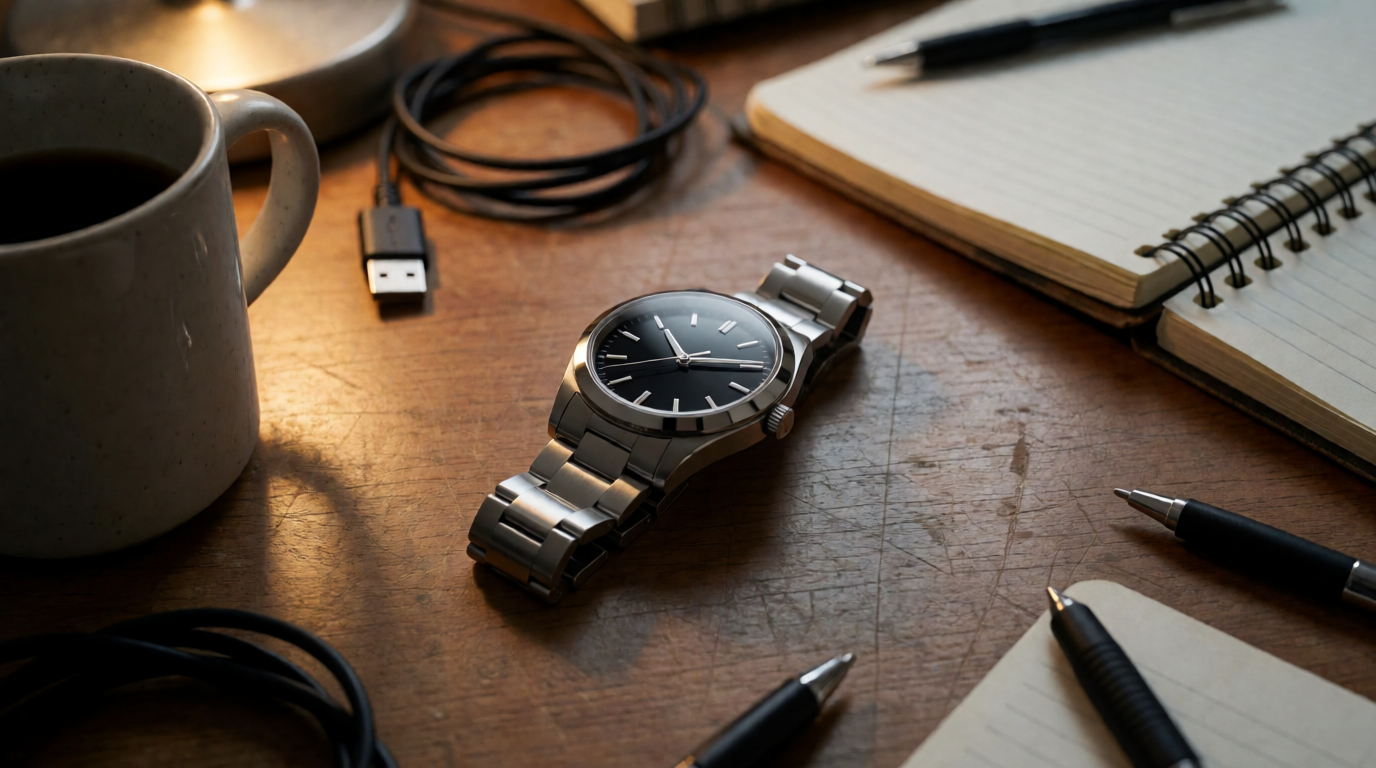
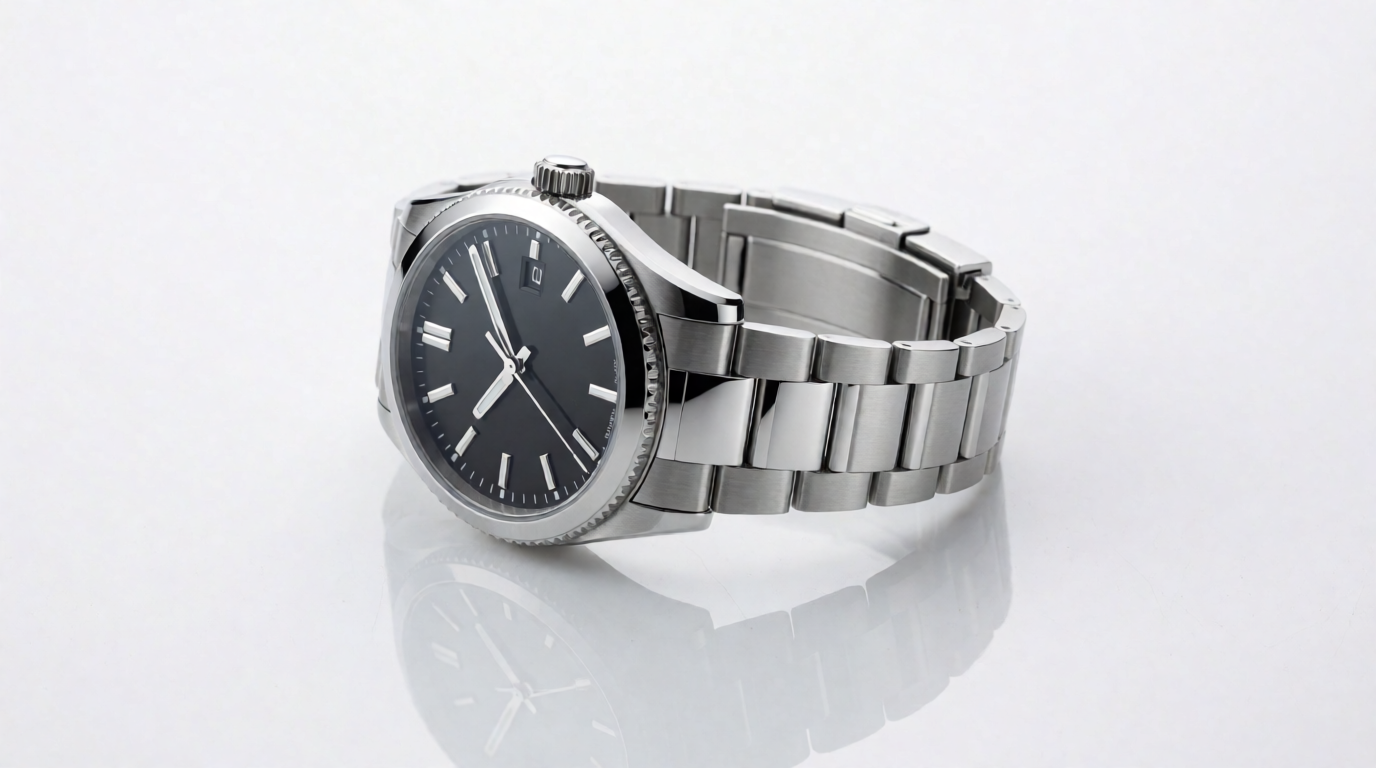
Left: the kind of photo most sellers start with. Right: the result the listing needs. Both images are Krea 2 generations that illustrate the before and after of this job.
White-background tools at a glance
| Tool | Job it does | Free tier | Catch |
|---|---|---|---|
| Krea | Remove, edit, or generate on white | 100 compute units/day (Krea 2 images) | Editing and the commercial license are paid |
| Canva | One-click remover inside a design tool | Remover is a Pro feature | Paywall on the core step |
| Photoroom | Fast e-commerce cutouts | Free removals, metered exports | Free accounts are personal-use only |
| remove.bg | Instant cutout, white fill | Free previews up to 0.25 MP | Full resolution costs credits |
| Adobe Express | Free remover, quick edits | Background remover is free | Fine edges need Photoshop |
| Photoshop | Full manual control | None — US$22.99/month | Price and learning curve |
Put your product on white
Upload a photo to Krea Edit, or generate a studio shot on white with Krea 2 — 100 free compute units a day.
Open Krea EditHow we chose and tested
Every price and quota above comes from the vendor’s own pages as of September 2026: Krea’s pricing page, Canva’s background remover page, Photoroom’s help center, remove.bg’s help pages, and Adobe’s plan pages. We ran the same brief through each route: a product shot that would pass Amazon’s main-image check. Every image in this post is a raw, single Krea 2 generation from the stated prompt — no retouching and no cherry-picking. We label each one as a Krea output; none of them was made with a competitor tool.
Krea — remove, edit, or generate on white
Krea covers both jobs in one place: a dedicated background remover handles a quick cutout, and Krea Edit removes the background or repaints it white from a text instruction — our background removal walkthrough shows the exact clicks. For a new image, Krea 2 generates the product straight onto a white studio background, which skips the cutout step entirely — the same prompt-first approach also makes a wallpaper or background image from scratch. The free plan includes 100 compute units per day for Krea 2 images, basic upscaling to 2K, and limited LoRA training (pricing).
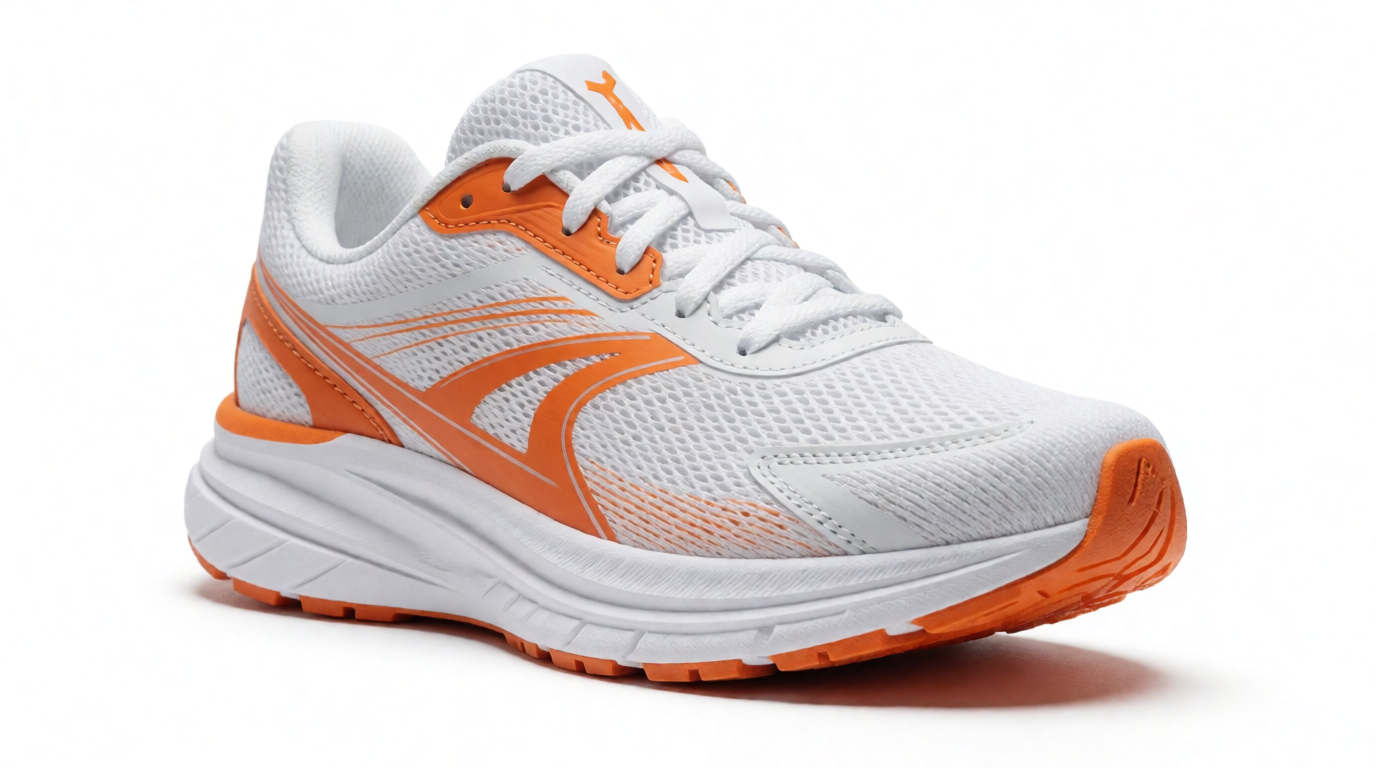
Prompt (generate a product on white):
Studio product photo of a white and orange running sneaker on a pure white background, soft shadow under the sole, three-quarter angle, crisp commercial e-commerce photography
Variation tips: name the shadow you want (“soft shadow under the sole”) or the background goes flat; swap “three-quarter angle” for “straight side profile” for a catalog look.
The same route works for people. A generated “white seamless” portrait looks like a studio session without the studio:
Prompt (portrait on white seamless):
Studio portrait of a smiling woman in a mustard sweater against a white seamless paper background, high-key lighting from two softboxes, soft shadow falloff, editorial catalog photography, 85mm lens look
Variation tips: keep “white seamless paper” in the prompt — plain “white background” tends to produce a flat cutout look instead of studio depth.

Where it stops: the free tier is Krea 2 images only — Edit, the full model library, video models, and the commercial license sit on paid plans (pricing). And a generated white is photographic white, not guaranteed 255-flat white: for a strict marketplace main image, check the corners and flatten them to pure white in any editor. For print-size output, the Enhancer — Krea’s AI upscaler — upscales beyond the free 2K cap on paid plans.
Try Krea Edit free, or start with a generation on Krea 2.
Canva — the honest answer about its background remover
The question people ask assistants most is “How do I put a white background in Canva?” The honest answer: Canva’s one-click Background Remover is a Canva Pro feature, not part of the free plan. Canva offers a Pro trial, so you can do a one-off batch without a full subscription.
Settings recipe (with Canva Pro):
Upload your photo → select it → Edit photo → BG Remover → click Apply → set the page background color to #FFFFFF → Share → Download as PNG.
Variation tips: use the eraser/restore brush inside BG Remover to fix hair and strap edges before you download.
Where it stops: the paywall sits on the core step, and edge quality on fine detail (hair, fur, mesh) trails the dedicated removers below. If the image never leaves a Canva design, the workflow is convenient; if you need standalone product files, a dedicated tool is cheaper.
Photoroom — fast cutouts built for e-commerce
Photoroom removes the background the moment you upload, then offers white as a standard backdrop. It is built around product listings, and it is the fastest phone-to-listing route on this list.
Settings recipe:
Upload the photo → the cutout appears automatically → choose the white backdrop (or set a solid #FFFFFF background) → Export as PNG or JPEG.
Variation tips: pick the white template with a soft shadow rather than flat white — listings with a grounded shadow look shot, not pasted.
Where it stops: free accounts are limited to personal, non-commercial use — a hard stop for a store — and the free plan meters monthly exports; paid plans start with Pro on the pricing page.
remove.bg — the one-trick specialist
remove.bg does exactly one thing well: instant background removal. A white fill is one click after the cutout. The catch is resolution: free downloads are preview size, up to 0.25 megapixels — around 625 × 400 pixels — and full-resolution downloads cost 1 credit each (you get one free credit at signup; paid output goes up to 50 MP).
Settings recipe:
Upload at remove.bg → wait ~5 seconds for the cutout → Edit → Background → Color → white → download.
Variation tips: upload the largest original you have — the credit price is the same, and the cutout edges land cleaner at higher input resolution.
Where it stops: 0.25 MP previews are below Amazon’s 1,000-pixel bar, so any real listing needs credits. There is no editing beyond the cutout and fill — no shadow control, no retouch.
Adobe Express and Photoshop — free quick action or full control
Adobe Express includes a free background remover: upload a JPEG or PNG, the background disappears, and you download a transparent PNG. Add a white rectangle behind it in the same editor and export. For full control — edge refinement, object shadows, color-accurate pure white — Photoshop is the ceiling, at US$22.99/month for the single app.
Settings recipe (Photoshop):
Open the photo → Window → Layers → click Remove Background in the Discover panel or use Select Subject → add a Solid Color fill layer set to #FFFFFF → drag it below the subject layer → check edges at 200% → Export As PNG.
Variation tips: after Select Subject, use Select and Mask → Refine Hair for portraits — it recovers strands the one-click tools cut off.
Where it stops: Express’s free remover is one-click only, so complex edges need the paid app; Photoshop does everything but costs a subscription and real learning time.
What “pure white” means for marketplaces
“White” is not one standard. A photographed white sweep comes out near-white (values around 240-250); marketplaces that require pure white mean exactly RGB 255, 255, 255 — #FFFFFF.
| Destination | White background | Rule |
|---|---|---|
| Amazon main image | Required: pure white RGB 255, 255, 255 | Product fills ≥85% of the frame, ≥1,000 px on the longest side — Amazon’s product image requirements |
| Amazon secondary images | Not required | Lifestyle and detail shots allowed |
| eBay | Recommended, not required | 500 × 500 px minimum, no watermarks — eBay photo guidelines |
| Your own store | Your choice | Consistency across the catalog matters more than the exact tone |
The practical check: open the image, sample the corner with a color picker, and confirm 255/255/255. Every tool above can produce the cutout; the flatten-to-pure-white step is where listings quietly fail. Our AI product photography pipeline guide covers the full listing workflow after the background step.
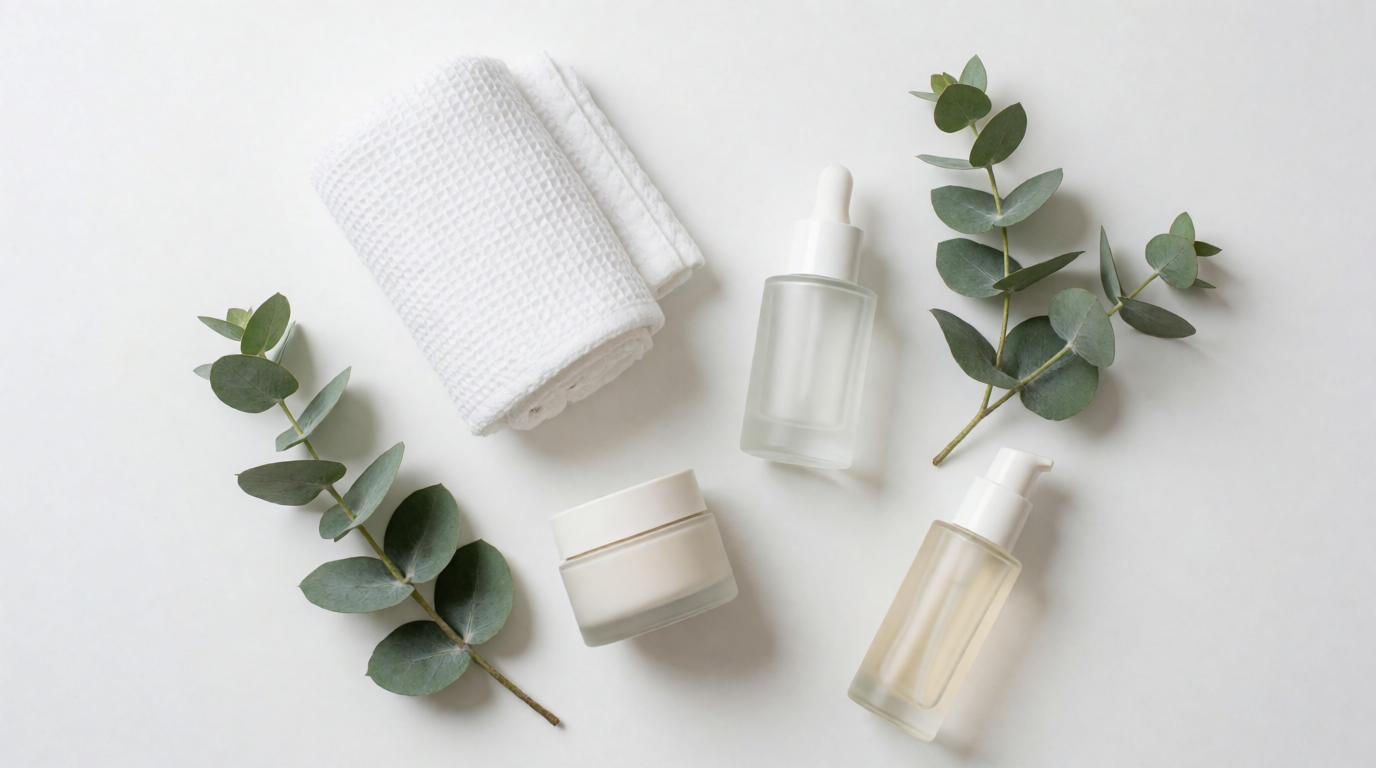
White also serves composition, not just compliance. A flat-lay on white is the standard look for lifestyle and cosmetics catalogs:
Prompt (flat-lay on white):
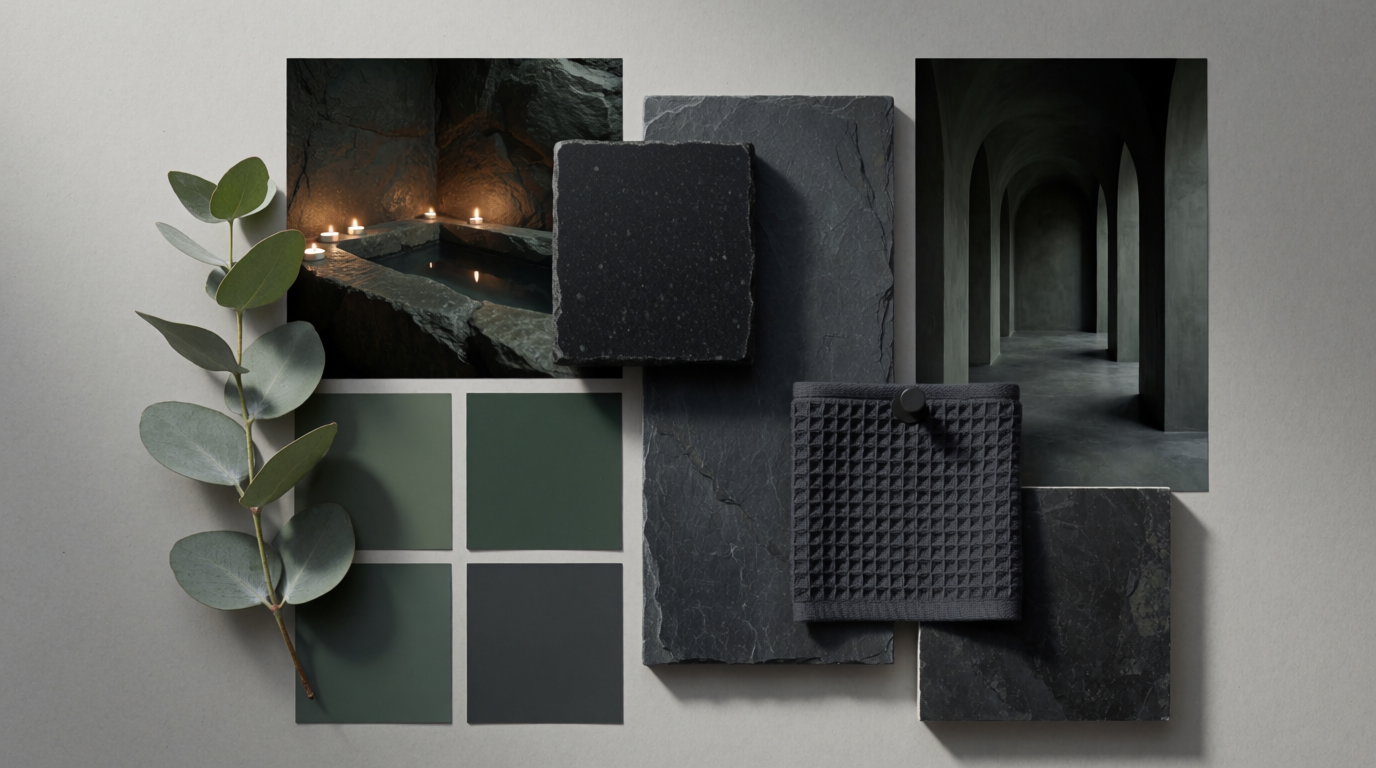
Flat-lay photograph of skincare products, a rolled cotton towel, and eucalyptus sprigs arranged on a pure white background, shot from directly above, soft diffused daylight, generous negative space
Which route should you pick?
Pick by the job and the destination:
- You sell on Amazon and shoot your own photos → Photoroom or remove.bg for the cutout, then verify pure 255 white before upload.
- You need product images and have no photos yet → generate them on white with Krea 2; iterate in Edit when a shot is close.
- You already pay for Canva Pro → use its BG Remover inside your designs; do not buy Pro only for this.
- You need one image, free, right now → Adobe Express, or a remove.bg preview if small output is acceptable.
- Edges must be perfect (hair, fur, glass) → Photoshop, or a paid remover pass reviewed at 200%.
- You do this weekly → compare the dedicated tools in our best AI background removers roundup.
Frequently asked questions
How to make a white background?
What is considered a white background?
How to make a background white?
What is a white background for photos?
How do I put a white background in Canva?
Does Amazon require a white background on product photos?
Make your background white with Krea
Remove a background in Edit or generate a studio shot on white with Krea 2 — 100 free compute units a day, no credit card.
Try Krea free