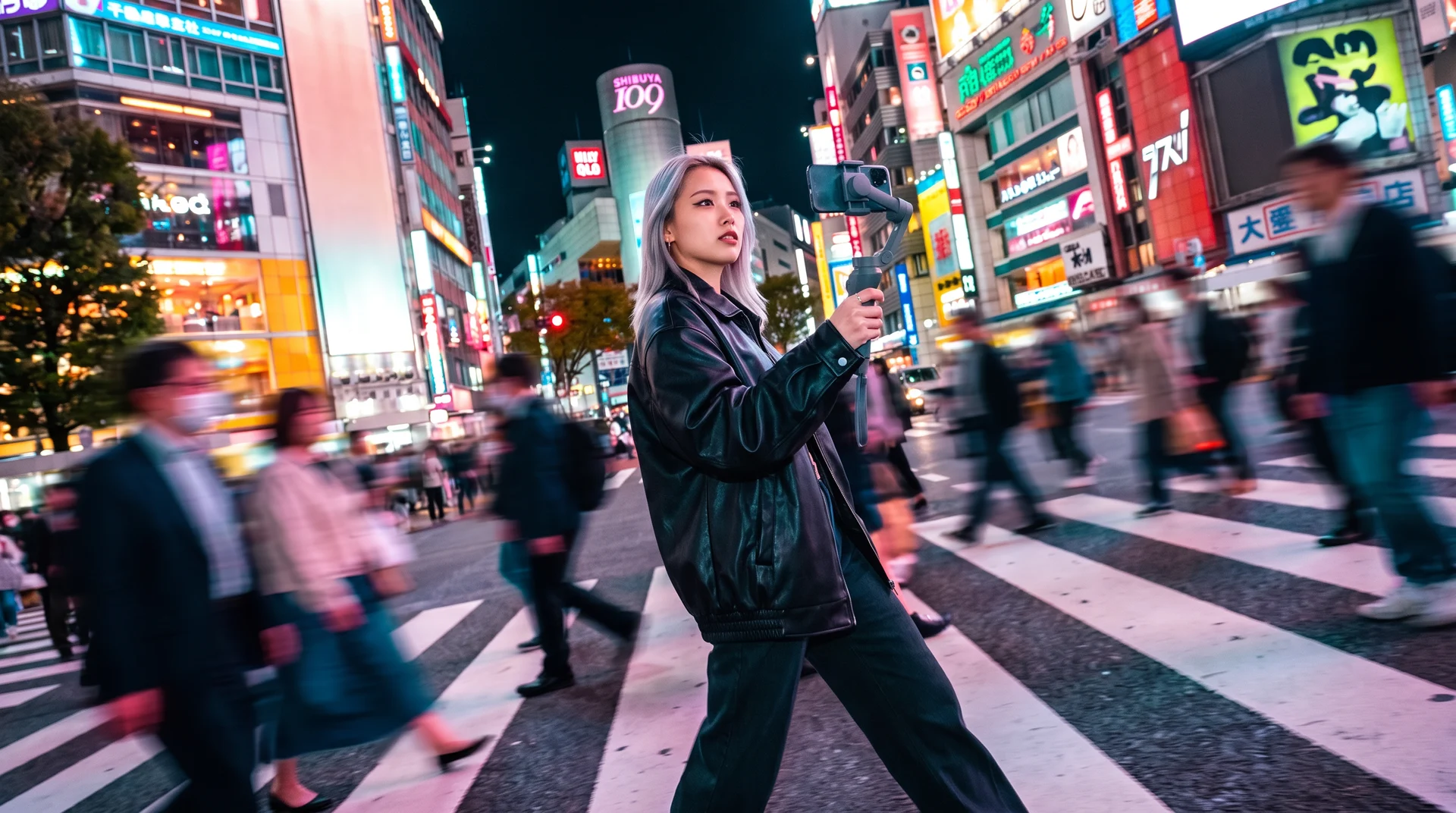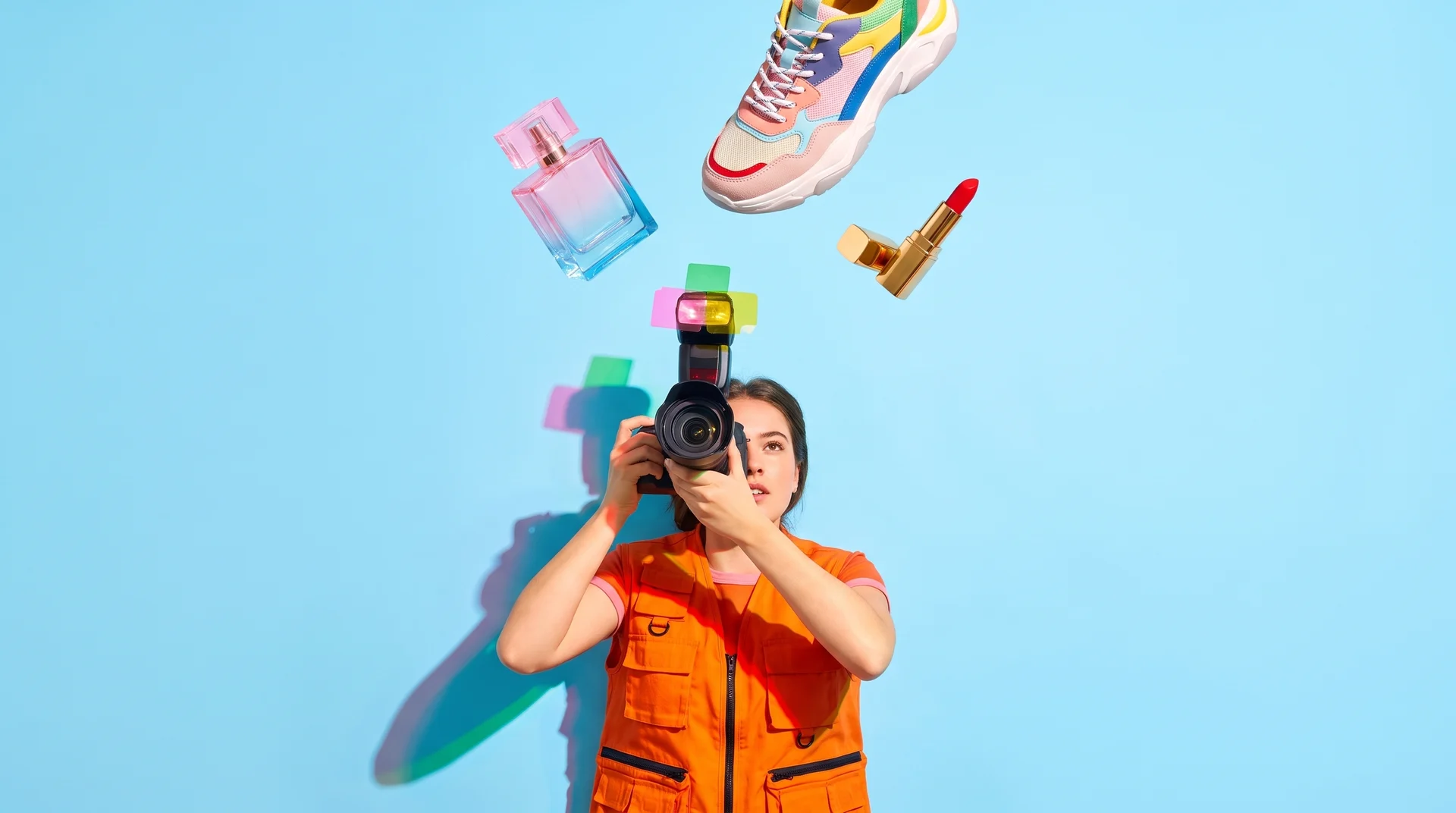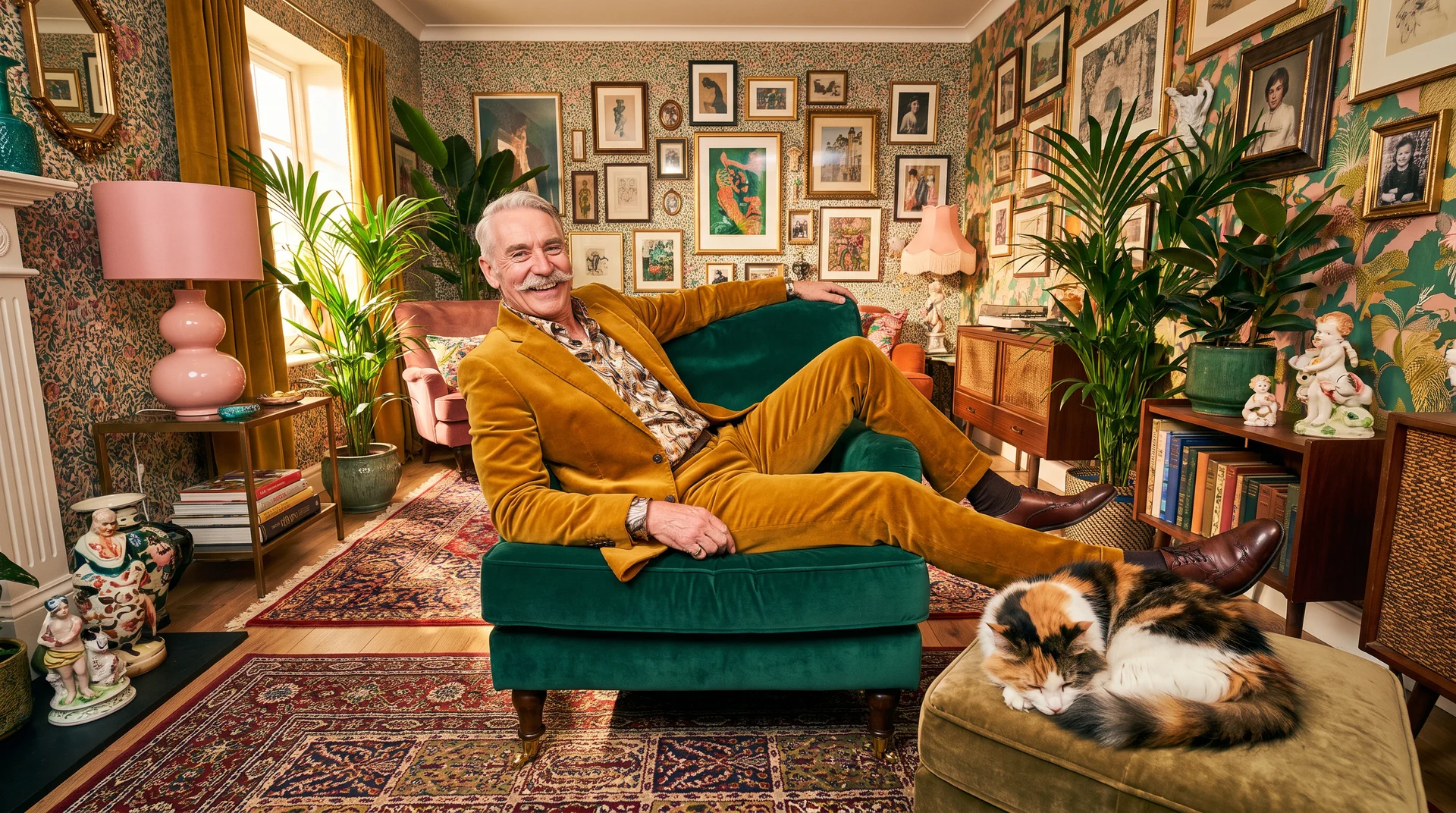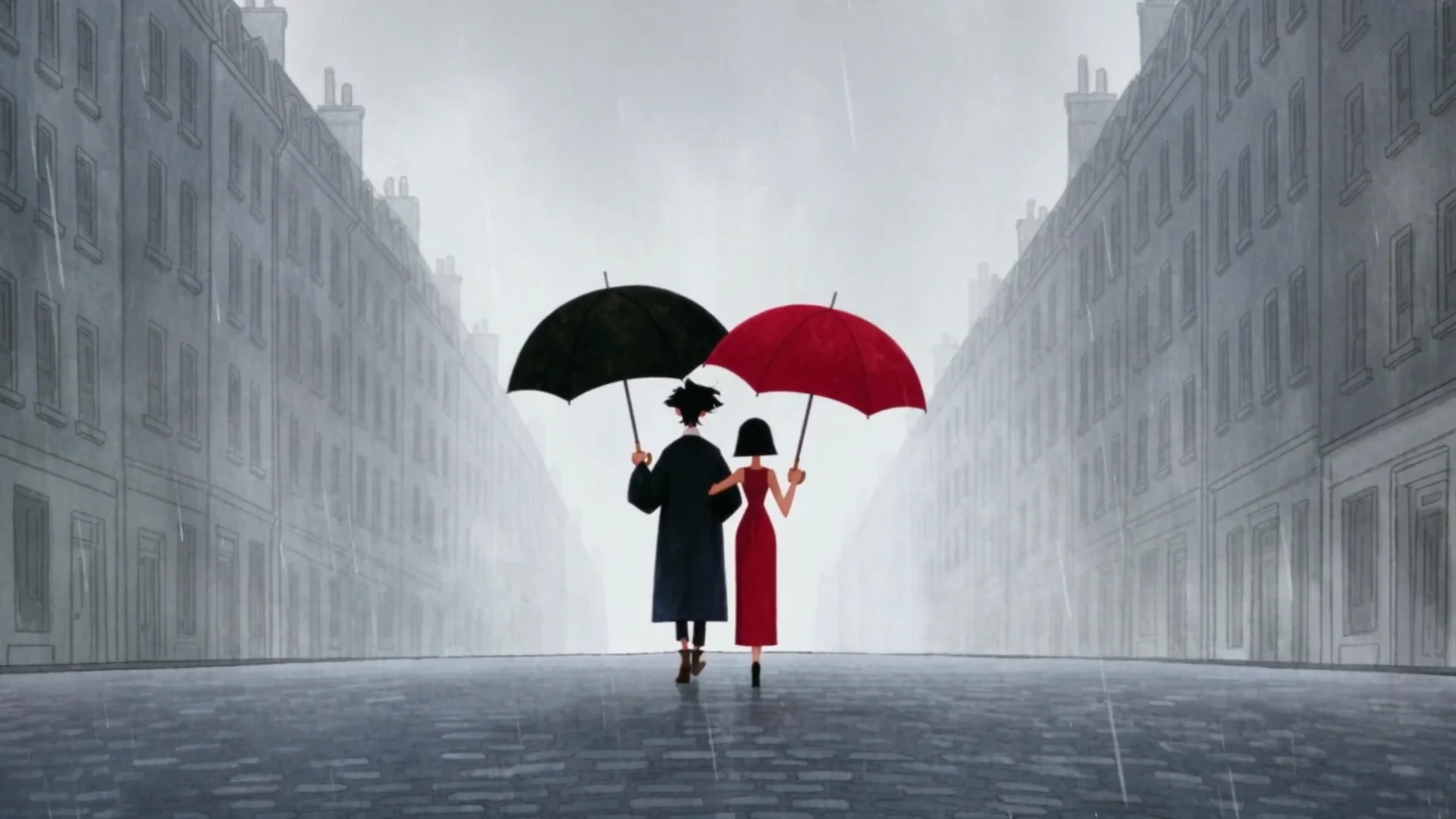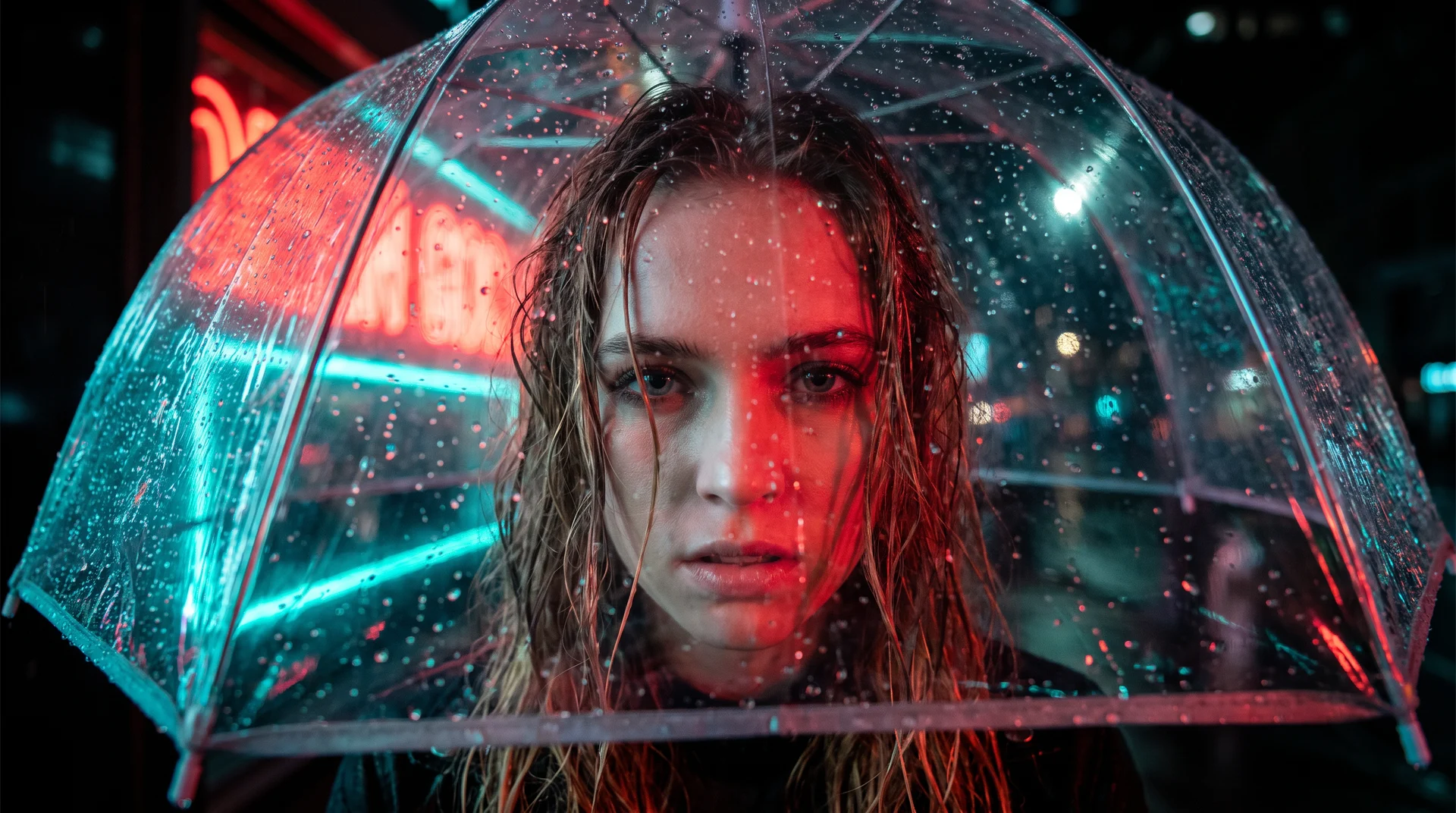
MiniMax H3 (Hailuo 3) is the latest multi-modal omni model from MiniMax. H3 is open-weight, and performs extremely well in video generation and multi-modal reasoning. For example, it can generate videos with sound track, add video to an existing sound track, and more. MiniMax’s H3 announcement says the model generates video with native stereo sound for clips up to 15 seconds at 2K.
In this article we show case the benefits of the new MiniMax H3 model and show samples with a few prompts.
HOW WE CHOSE THE PROMPTS
A useful H3 brief gives the product still responsibility for appearance, the motion clip for a two-second push-in, and the audio file for the soundtrack while locking the logo, packaging text, and frame composition. Morphic’s H3 guide structures a brief around reference roles, timed beats, and explicit production constraints. MiniMax illustrates the structure with three sources: a Hitchcock-style camera reference, a character image, and singing audio. That structure prevents a product image from accidentally dictating movement or a motion clip from importing its cast. Conflicting references can dilute H3’s adherence, especially when two sources compete for the same role.
Generate with Hailuo 3 now
Open the Krea video generator, pick Hailuo 3, and run your first multi-modal brief.
Try Hailuo 3TRY IT ON KREA
Frame control makes Hailuo 3 on Krea the fit for clips with fixed opening and closing images: set start and end frames across 5-to-15-second generations. Role-tag image, video, or audio references, then select one of six 2K aspect ratios; side-by-side outputs identify the reference whose influence is misaligned. Comparison exposes which image, video, or audio reference is steering the output away from the intended direction. Start with the smallest reference set that proves the direction, then polish only after the primary control holds.
At a Glance: 6 MiniMax H3 Prompt Jobs
| # | Prompt | Best for | Control that matters |
|---|---|---|---|
| 1 | Product spokesperson | Product-launch clips | Identity and packshot roles |
| 2 | Camera-language transfer | Editorial motion | Video-reference movement |
| 3 | Singing character | Character performance | Voice and audio direction |
| 4 | Start-to-end transformation | Product reveals | Opening and closing frame states |
| 5 | UI launch film | App and interface demos | Exact copy and timed screens |
| 6 | Keep-the-shot edit | Revision passes | Protected elements outside the change |
Quick Start Prompts for MiniMax H3
1. Product Spokesperson Film
Prompt:
Use Image 1 for the presenter’s face, hair, body proportions, and identity. Use Image 2 for the product’s shape, color, materials, and label design. Create a 10-second 16:9 product-launch film in a sunlit design studio.

0–3 seconds: medium shot of the presenter holding the product at chest height and looking toward camera.
3–7 seconds: slow dolly-in as the presenter turns the product so its front label faces camera.
7–10 seconds: clean close-up of the product on the worktable while the presenter remains softly visible behind it.

Look: premium but natural commercial photography, soft directional morning light, realistic hands, accurate product proportions, restrained neutral palette.
Sound: quiet studio room tone, one gentle product placement sound, no music and no dialogue.
Limits: keep the presenter recognizable from Image 1; preserve the product’s silhouette, color, and label layout from Image 2; do not add extra products or text.
Variation tips: Use a pale-oak retail display shelf for the product’s lone packshot, placing the presenter behind it to establish retail context. Use a 9:16 crop. Replace room tone with a short spoken line.
Separate the presenter from the packshot before you ask for performance. H3 accepts up to nine images, three video clips, and three audio files within its overall file limit, allowing separate sources to distinguish the presenter from the product while bringing performance, product detail, and sound into one generation context. Separate role labels make the presenter responsible for performance and the packshot responsible for product accuracy, reducing ambiguity over which source controls each result.
The closing close-up gives a commercial team a clear approval point. You can judge the bottle’s silhouette and label apart from the presenter’s performance, which makes this a practical first test for a launch asset.
2. Camera-Language Transfer
Prompt:
Use Video 1 only for camera movement, framing rhythm, and shot energy. Use Image 1 only for the subject’s identity, wardrobe, and color palette. Create a 8-second editorial fashion clip of the person from Image 1 walking through a concrete gallery.

0–2 seconds: begin in a wide three-quarter view.
2–6 seconds: reproduce the smooth lateral tracking movement and gradual push-in from Video 1 while the subject takes three natural steps.
6–8 seconds: hold a medium close-up as the subject turns slightly toward the light.

Look: overcast daylight, realistic fabric movement, muted gray architecture, 35mm editorial camera feel.
Sound: soft footsteps and distant gallery ambience only.
Limits: borrow no people, objects, logos, or colors from Video 1; preserve the subject and wardrobe from Image 1; no cuts.
Variation tips: Show the gallery around the subject with a rising crane move that lifts the camera from waist height to an overhead view. Change walking to a seated turn. Use a product image instead of a person.
A reference clip can supply camera language without bringing its cast or setting along. MiniMax says H3 supports video-to-video motion transfer and uses a reference video for Hitchcock-style movement in its own multimodal example. “Only for camera movement” limits the clip’s contribution, while “borrowed scene details” keeps its cast and setting out of the new scene.
Keep the exercise short. A single H3 generation tops out at 15 seconds, yet an eight-second movement study can become one purposeful shot in a larger edit rather than an overextended scene that drifts from its intended rhythm.
3. Singing Character
Prompt:
Use Image 1 for the singer’s identity, hairstyle, clothing, and facial features. Use Audio 1 for the vocal performance and voice. Create a 9-second vertical performance clip of the same singer on a small stage under one warm spotlight.

0–3 seconds: close-up as the singer begins the first phrase from Audio 1.
3–7 seconds: slow handheld push toward a medium shot; the singer performs naturally and keeps eye contact near camera.
7–9 seconds: hold on the final expression as the supplied vocal phrase ends.

Look: intimate live-session video, dark background, warm amber key light, subtle microphone stand, realistic mouth movement and breathing.
Sound: use only Audio 1 for vocals; add very low live-room ambience; no added music, applause, or spoken words.
Limits: retain the identity from Image 1 and do not change the lyric, vocal timing, or performer’s wardrobe.
Variation tips: Use a spoken take of the Image 1 performer saying “Stay close,” timed to the supplied vocal phrase. Switch to a voiceover product demo. Reduce ambient sound to silence.
Sound changes the production brief because it sets performance timing as well as mood. MiniMax says H3 generates native 32 kHz stereo audio and uses reference audio to clone or transfer a voice. Naming the vocal source, its timing, and the only permitted ambience gives the performance a concrete target.
Keep the supplied phrase concise. Early users have reported end-of-clip lip-sync or audio drift in complex cases, so “use only Audio 1” and a nine-second duration make this better suited to a tight social cut than a full song.
Detailed Editing Prompts for H3
4. Start-to-End Product Transformation
Prompt:
Use Start Frame 1 as the exact opening composition and End Frame 1 as the exact final composition. Create a 7-second 16:9 product-reveal animation that transforms the first scene into the second.

0–2 seconds: hold the opening frame’s product position, camera angle, and lighting.
2–5 seconds: the packaging opens through a physically believable unfolding motion; small paper layers lift and settle naturally.
5–7 seconds: arrive at the end frame with its final product arrangement, camera angle, and crop.

Look: clean tabletop product film, soft overhead studio light, realistic paper fibers, restrained shadows, precise edges.
Sound: gentle paper unfolding and one soft settling sound; no music or narration.
Limits: preserve the product design, label placement, background color, and camera position; do not introduce hands, extra objects, or new copy.
Variation tips: Begin with the box closed, then unfold its panels into the approved flat-lay product arrangement. Use a before-and-after room scene. Test fabric instead of paper.
Approved opening and final compositions narrow the reveal to motion that can plausibly travel between those two layouts. With both compositions set, the paper can unfold along that path and settle into the approved crop. Krea’s Hailuo 3 lets you animate directly from a chosen opening frame to a chosen final frame, keeping the motion anchored to both approved compositions. Once you lock the opening and closing compositions, the prompt can focus on physical continuity rather than hoping the product reaches an approved final crop.
This is especially useful after a product still has passed review. The animation inherits the established layout, leaving the paper movement to carry the reveal.
5. UI Launch Film
Prompt:
Use Image 1 as the source of truth for the phone, app interface, logo, layout, and all visible text. Create a 10-second vertical app-launch film.

0–3 seconds: show the phone on a pale stone surface with the screen displaying the exact headline “PLAN LESS. MAKE MORE.”
3–7 seconds: the camera slowly moves closer as one finger taps the primary button and the interface transitions to the next screen.
7–10 seconds: hold on the final screen with the exact button label “CREATE PROJECT” and the logo unchanged.

Look: polished product-design film, soft daylight, crisp glass reflections, restrained blue-and-cream palette, readable screen at every beat.
Sound: one subtle tap sound and quiet room tone; no voice or music.
Limits: preserve the UI hierarchy, logo shape, and quoted text exactly; no extra buttons, misspelled copy, or unreadable screen elements.
Variation tips: The readable app interface appears on a laptop set on a pale stone desk, with a cursor clicking the primary button. Limit copy to one headline. Turn the tap into a cursor interaction.
The approved screen remains the visual authority because motion makes additional copy harder to preserve. MiniMax attributes stronger recovery of small text and brands to In-Context Regeneration, which reuses the original multimodal context while producing 2K output. It also reports strong early commercial results for instruction following and brand rendering, though independent early testing found text and logo accuracy imperfect.
Quote each required string and keep it short. That makes it easier to inspect the headline, button label, and logo individually before the clip enters a campaign.
6. Keep-the-Shot Revision
Prompt:
Using the uploaded 8-second product clip, preserve the product’s position, scale, label, camera move, lighting direction, background, reflections, sound timing, and final frame.

Change only the product cap from brushed silver metal to translucent cobalt-blue resin with subtle internal bubbles and realistic edge thickness.

Keep the cap’s original shape and attachment point. Match the existing highlights and shadow direction. Do not alter the bottle, typography, tabletop, hand movement, camera motion, music, room tone, or any area outside the cap.
Variation tips: The approved bottle, label, and shot remain intact when the cap material alone is updated. Replace a background only. Preserve an approved end frame.
Once a shot works, protect it aggressively. MiniMax presents H3 as one model for generalized reference and editing tasks through natural-language relationship descriptions rather than separate task-specific systems. Protected camera movement, label, and final frame confine “make the cap blue” to a local material edit.
Use this after the composition earns approval. A precise material change retains the decisions already carrying value instead of restarting the production brief from a blank prompt.
How to Use These Prompts on Krea
Test the smallest viable H3 brief first, then compare and enhance only after the clip’s primary control holds. Krea lets you compare Hailuo 3 beside other models and enhance or upscale a selected output within the same suite, which makes it easier to isolate whether identity, movement, or copy is the actual weak point.
Artificial Analysis placed H3 first for video editing with audio during its launch window and in the top three for text-to-video and image-to-video; it reported a 2K price of about $7.80 per minute with audio. That price makes short, controlled tests more practical than generating long batches before you know whether the key reference relationship works.
Begin with one identity image or one motion clip. Add audio, an end frame, or a protected edit only after that first decision remains stable across results. H3’s 15-second ceiling means longer scenes need multiple generations and stitching, but short purpose-built shots are easier to select and revise. Krea lets you generate an H3 clip, compare candidate results in the browser, and enhance the selected result before the next revision.
Close
Treat each H3 generation as a production decision with a source, a timed action, and a limit. Start with Prompt 1 when identity and product fidelity matter, Prompt 2 when movement is missing, and Prompt 6 when a strong clip needs one controlled change rather than a new concept.
That sequence keeps every reference legible to the model because each new input answers a specific creative question. A product image can establish what stays true, a reference clip can establish how the camera moves, and a sound file can establish how the moment feels within one short H3 brief.
Turn a brief into a clip
Test any of these six prompts in Krea and compare the results side by side.
Open Krea Video