Create




Edit & enhance








Krea 3
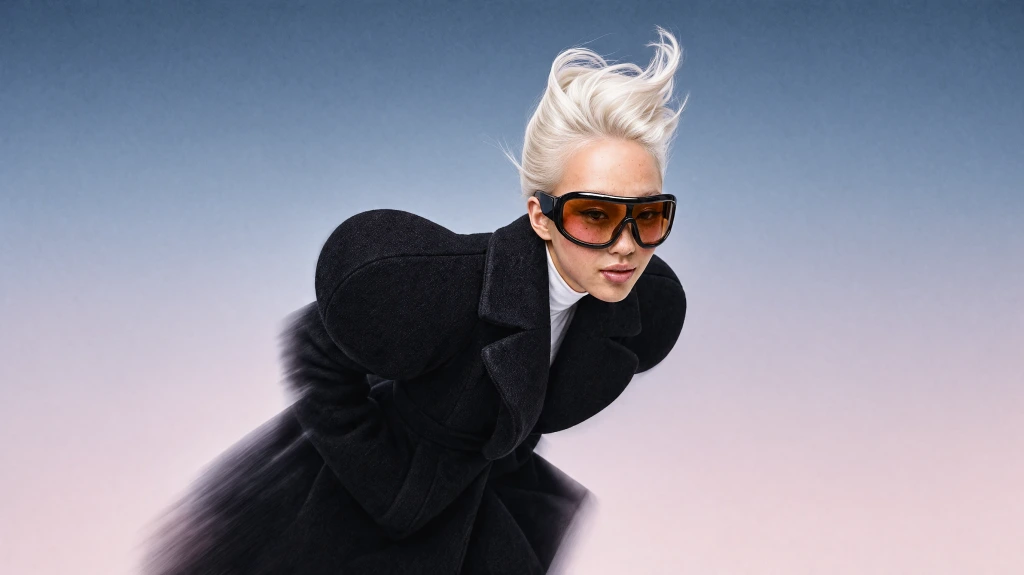
Our most advanced image model. Photoreal, editorial, on-brand.
Try Krea 320+ AI tools for images, video, 3D and audio in one app.
Open KreaCreate
Edit & enhance
Shape the way Krea 2 thinks.
New controls for intensity, complexity, movement, and creative direction let you steer generations without rewriting the same idea over and over.
Any style you
can imagine
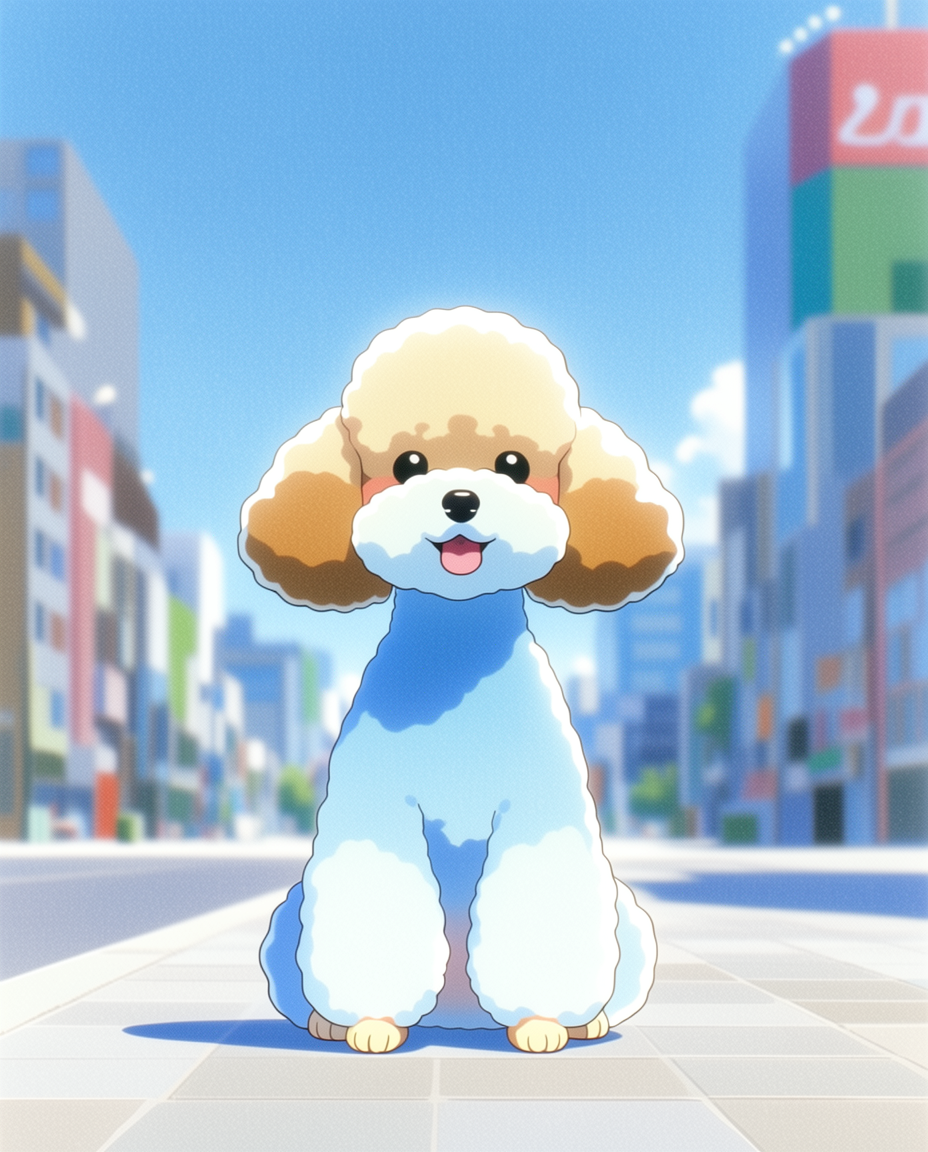
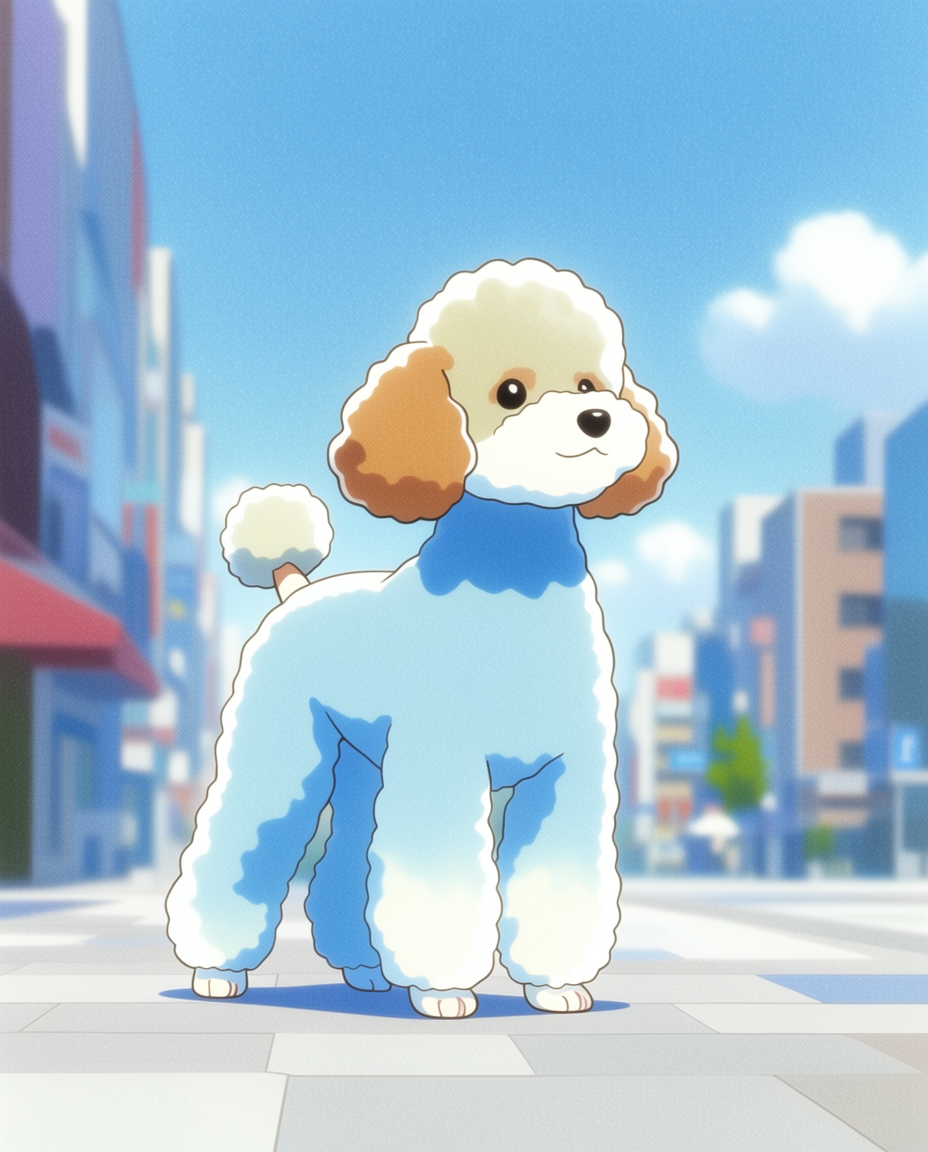
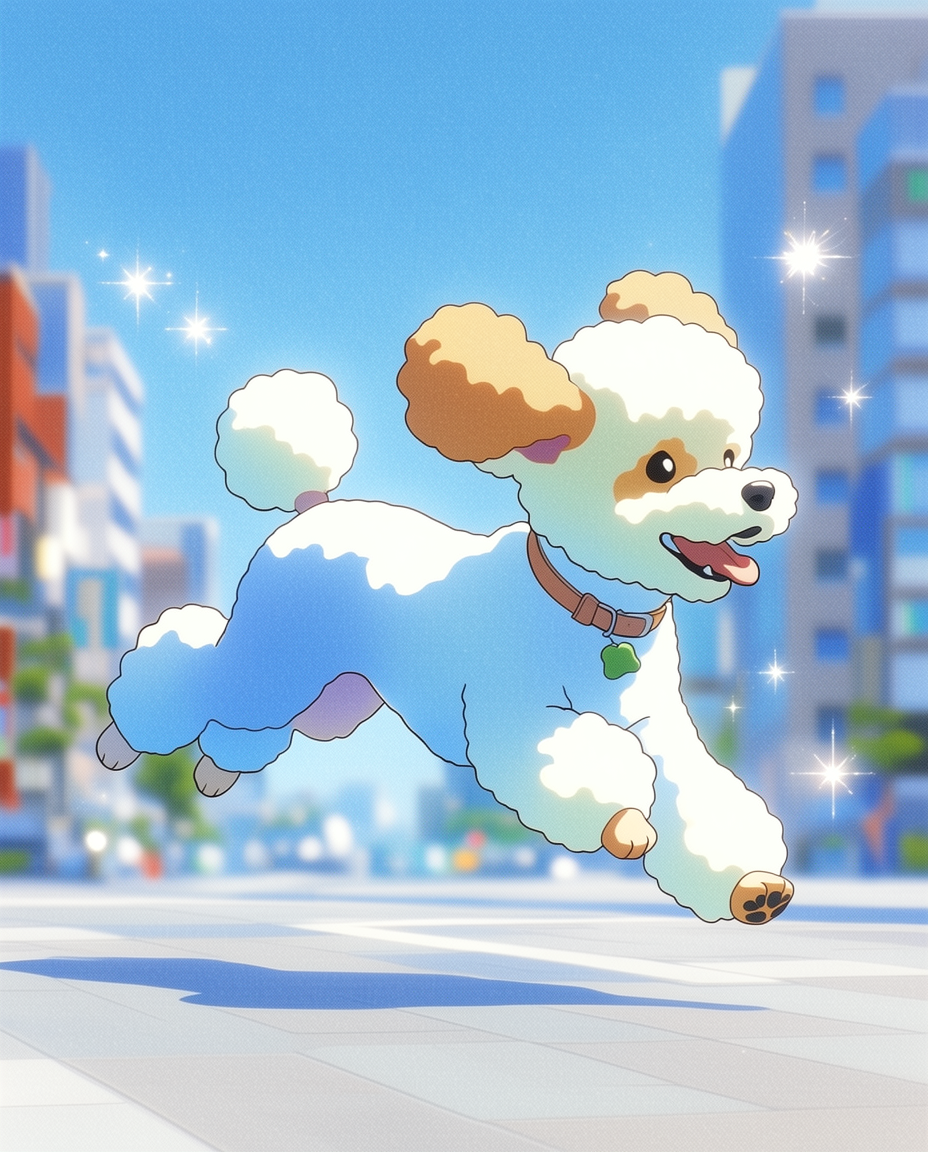
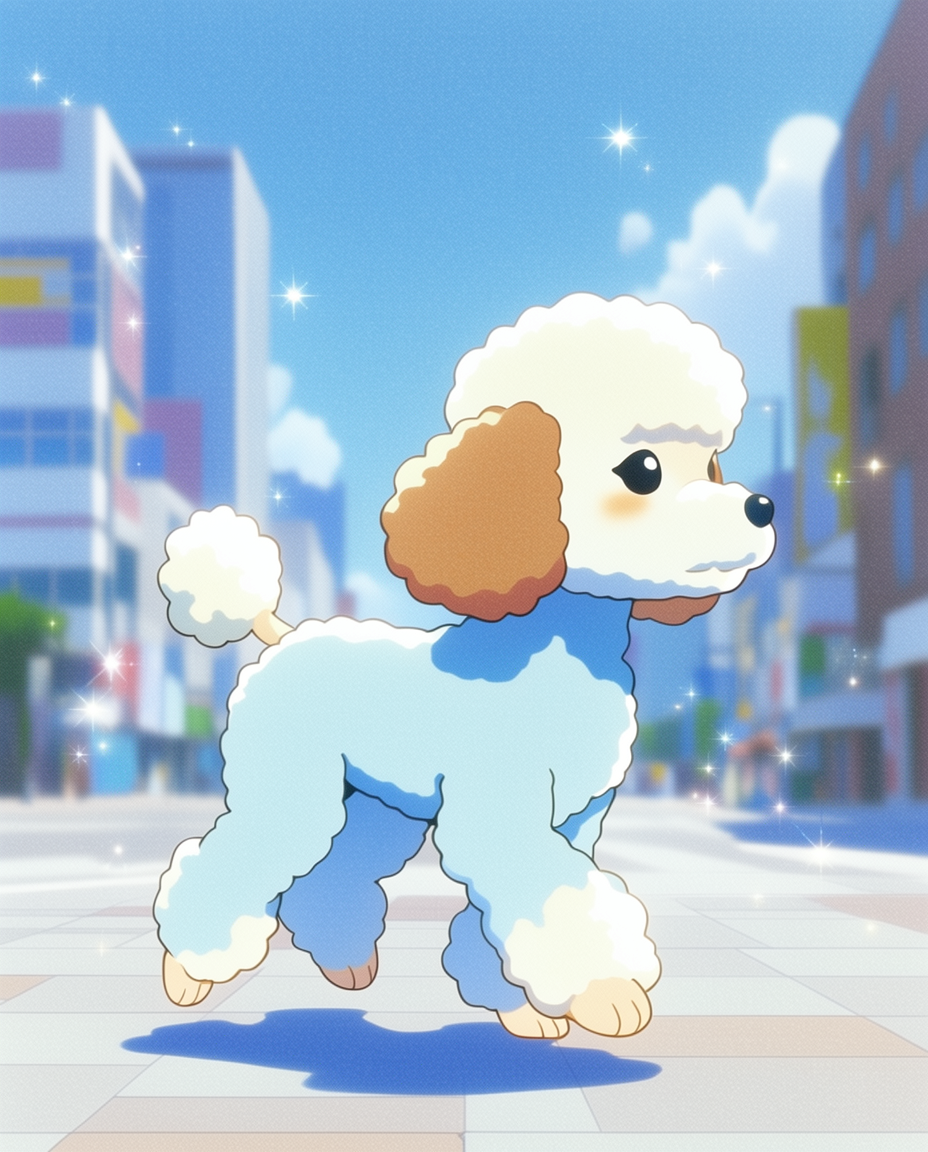
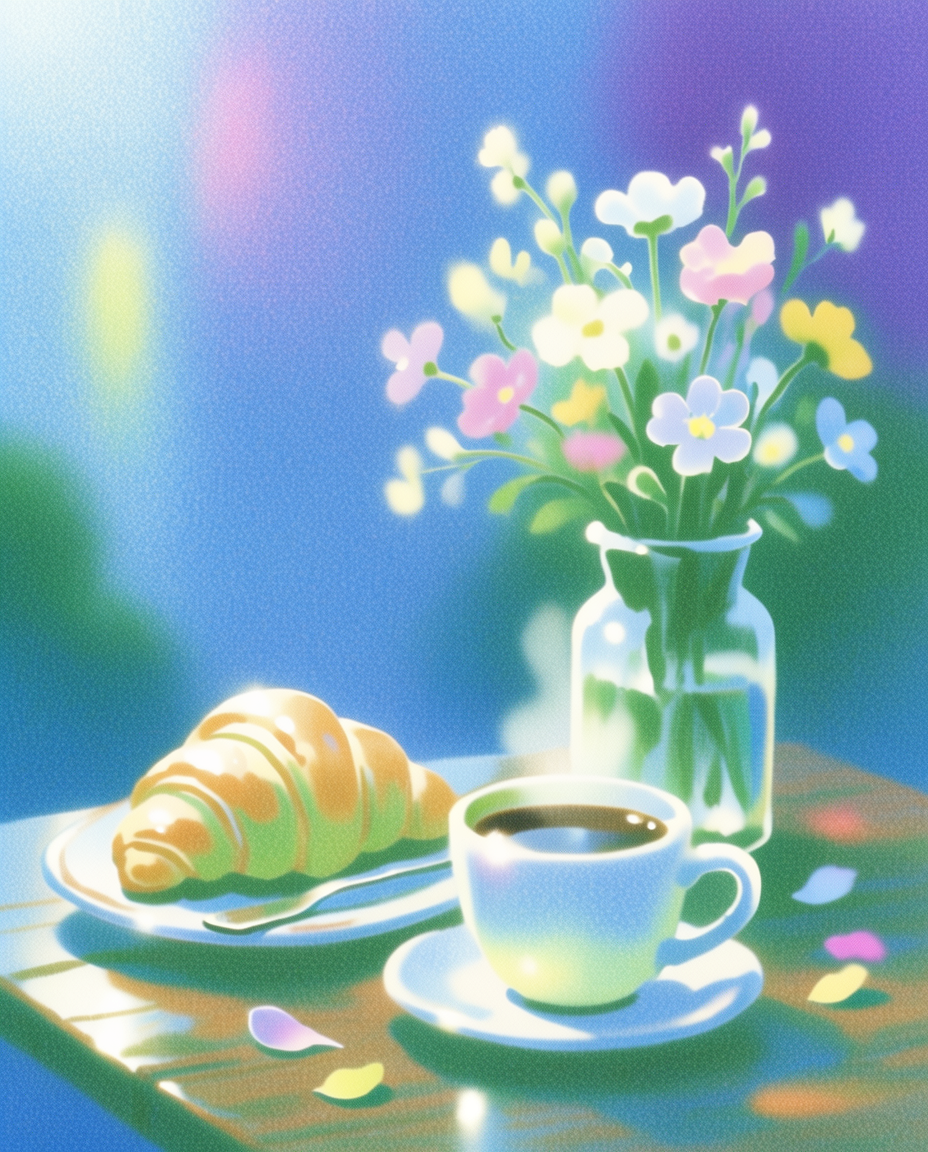
We built K2 with a clear purpose: to deeply understand aesthetics. Create breathtaking visuals on the fly with style references.
Control the
outcome
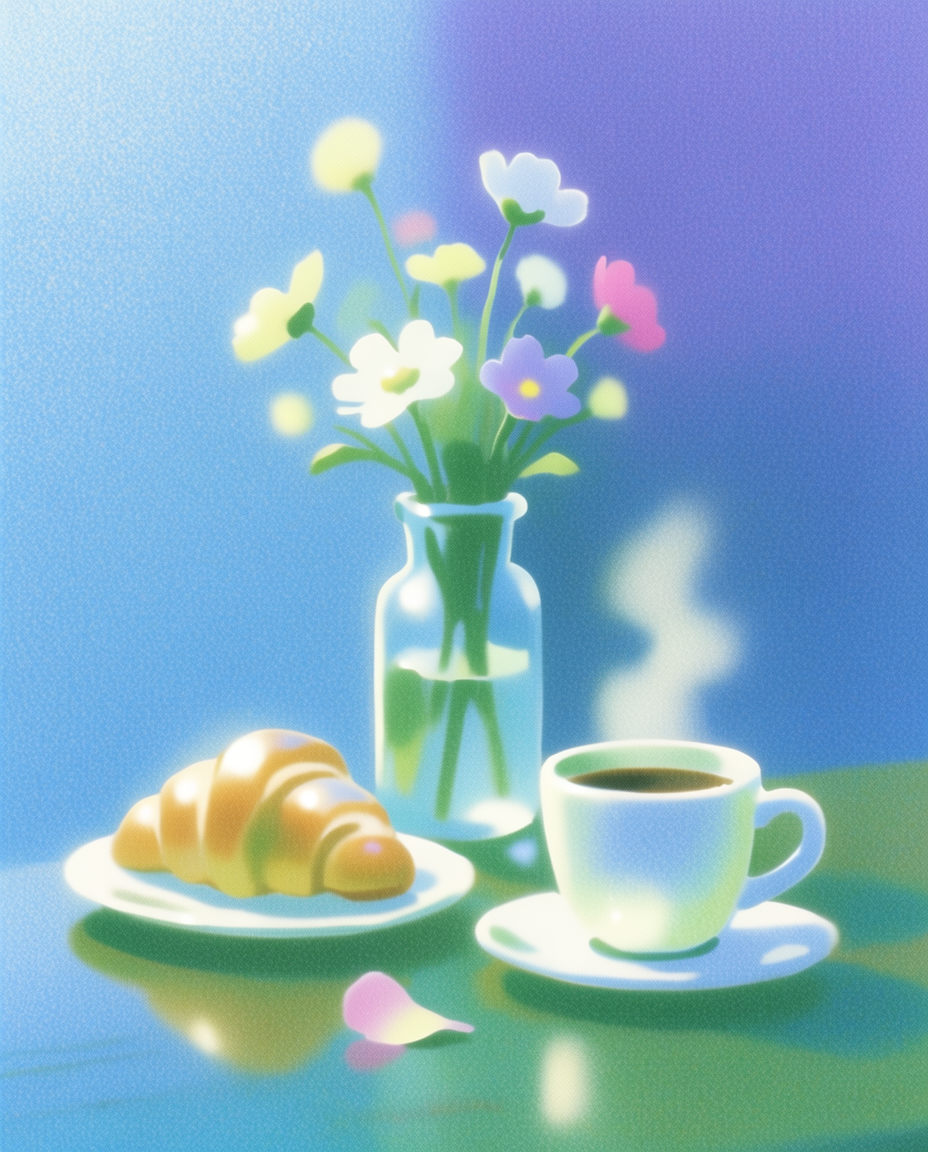
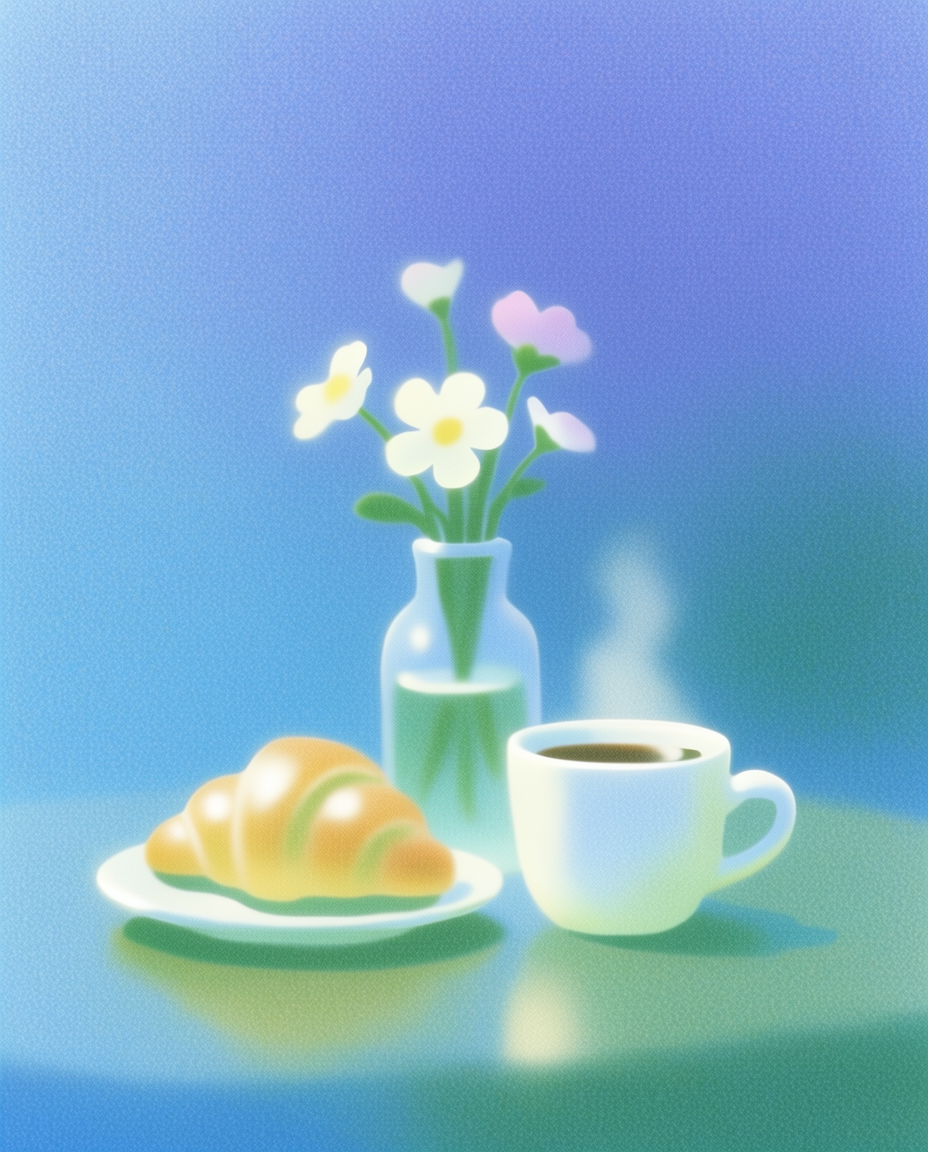
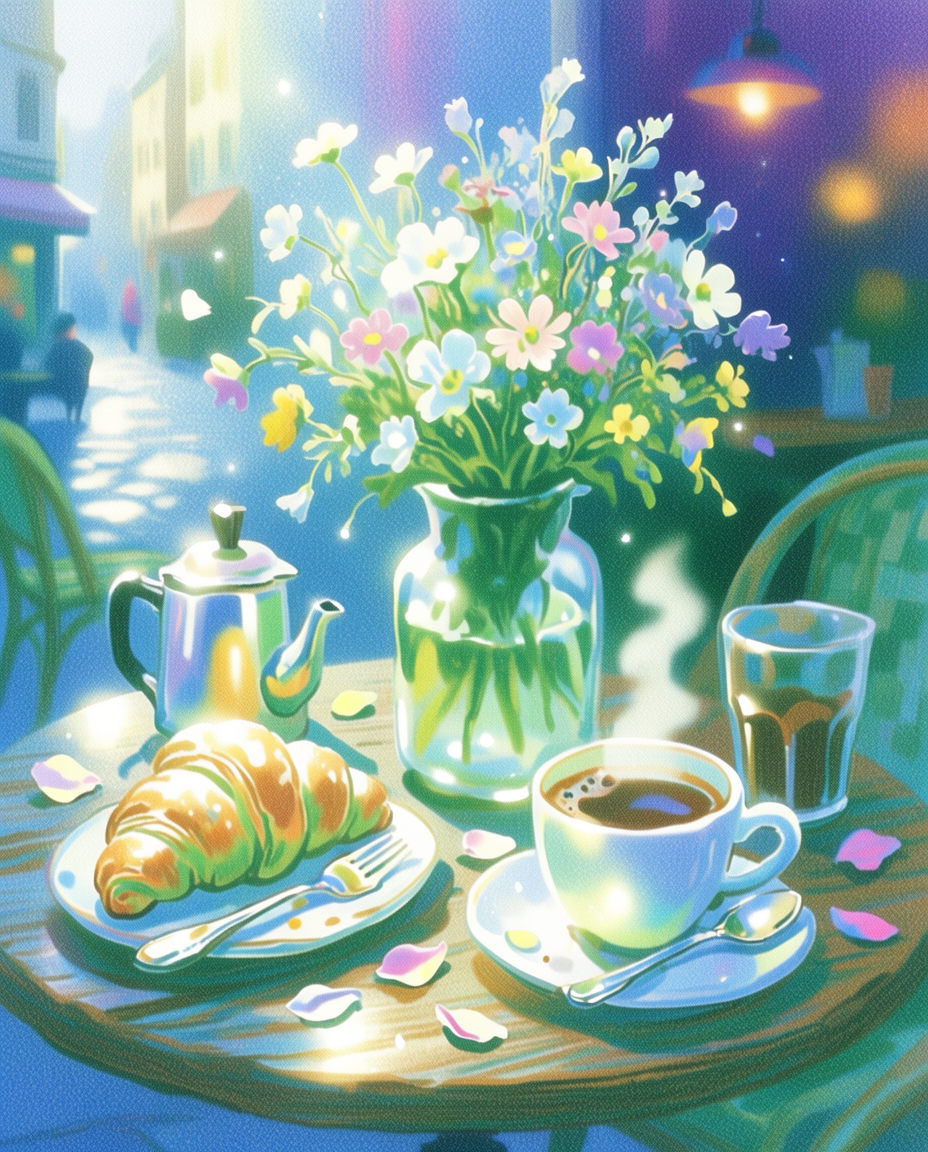
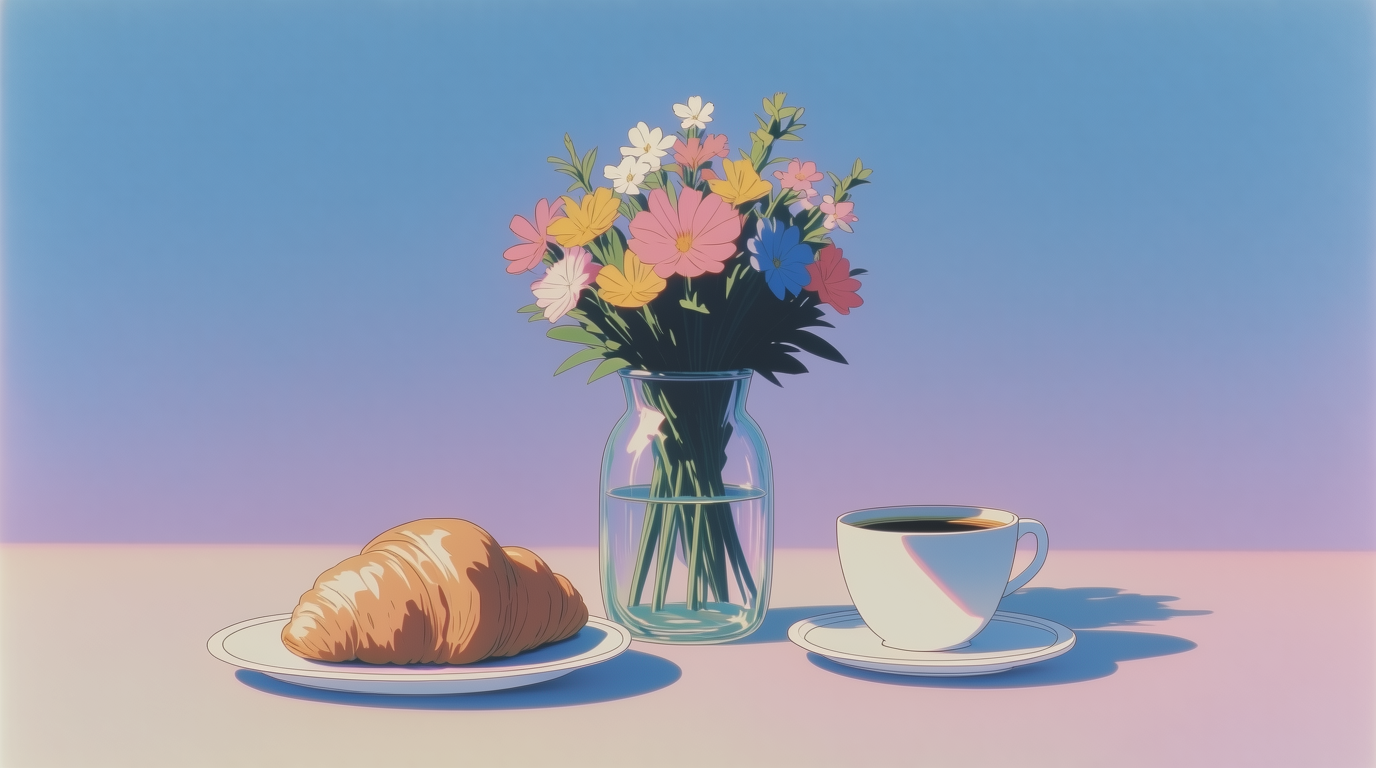
Keep the prompt steady and use Generative Sliders to decide how much visual information Krea should add. A simple flower study can stay clean and minimal, or grow into a richer, denser composition.
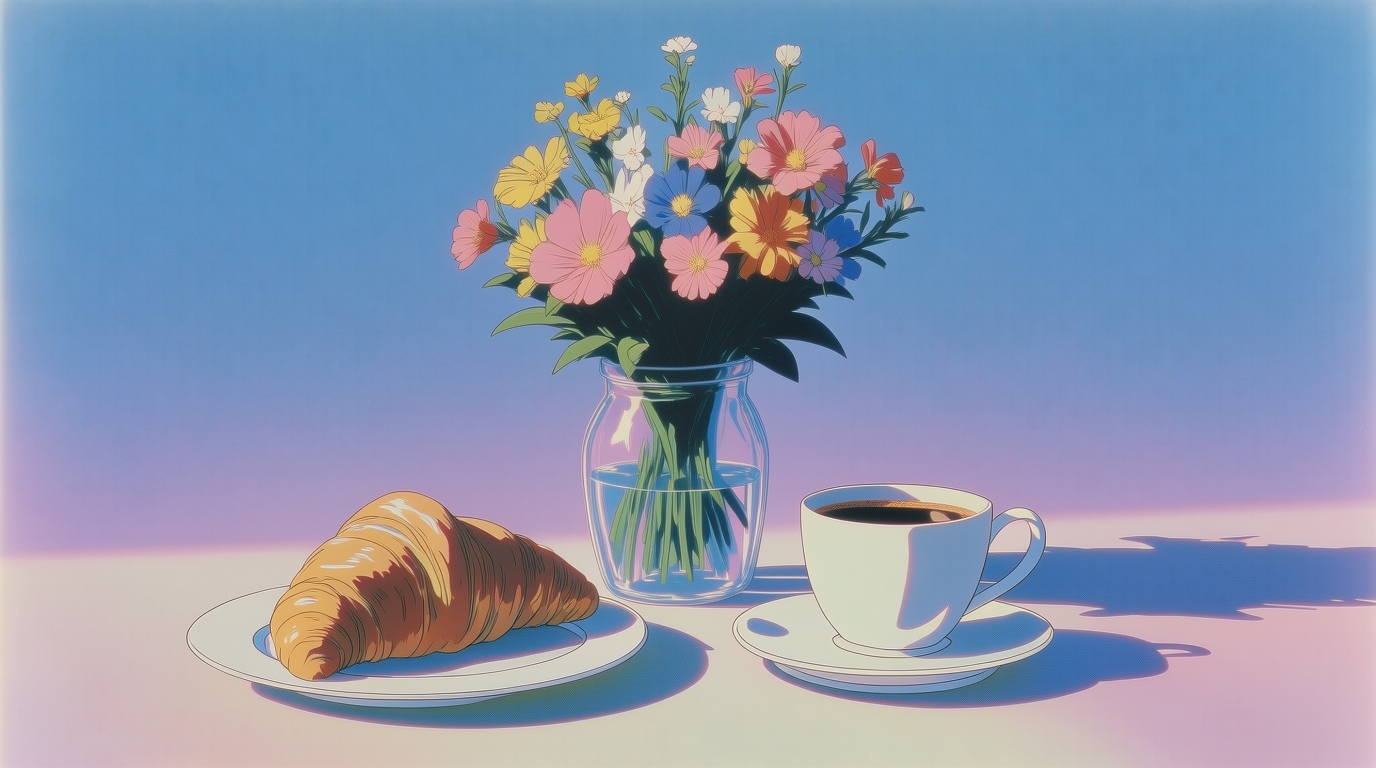
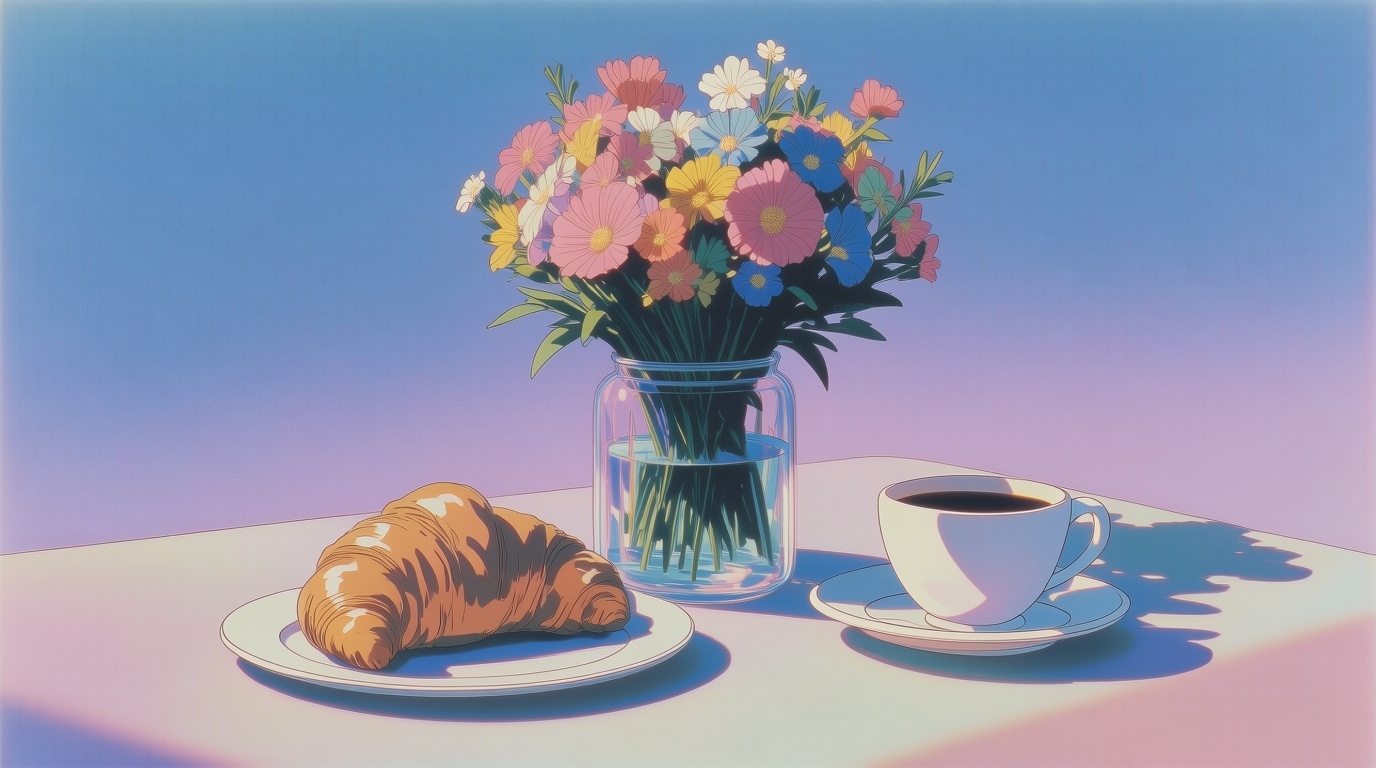
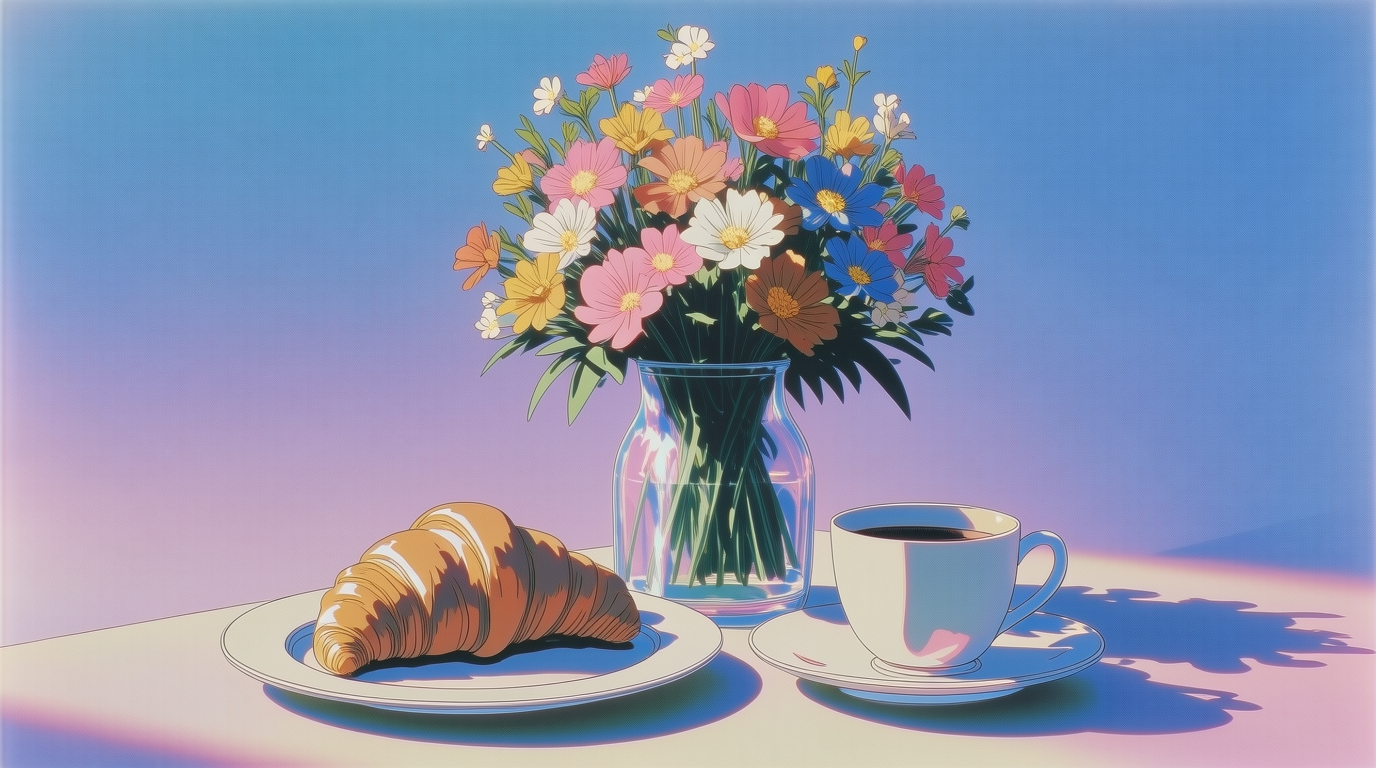
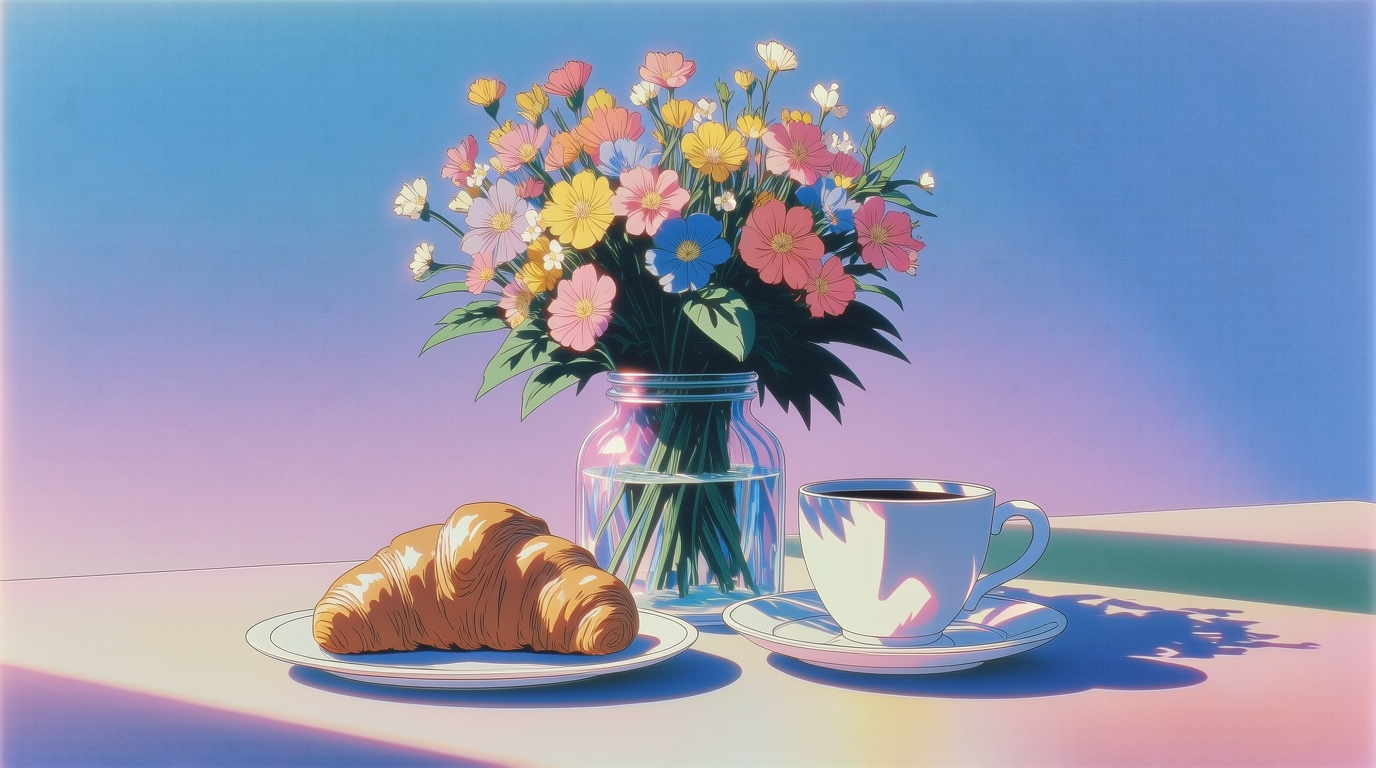
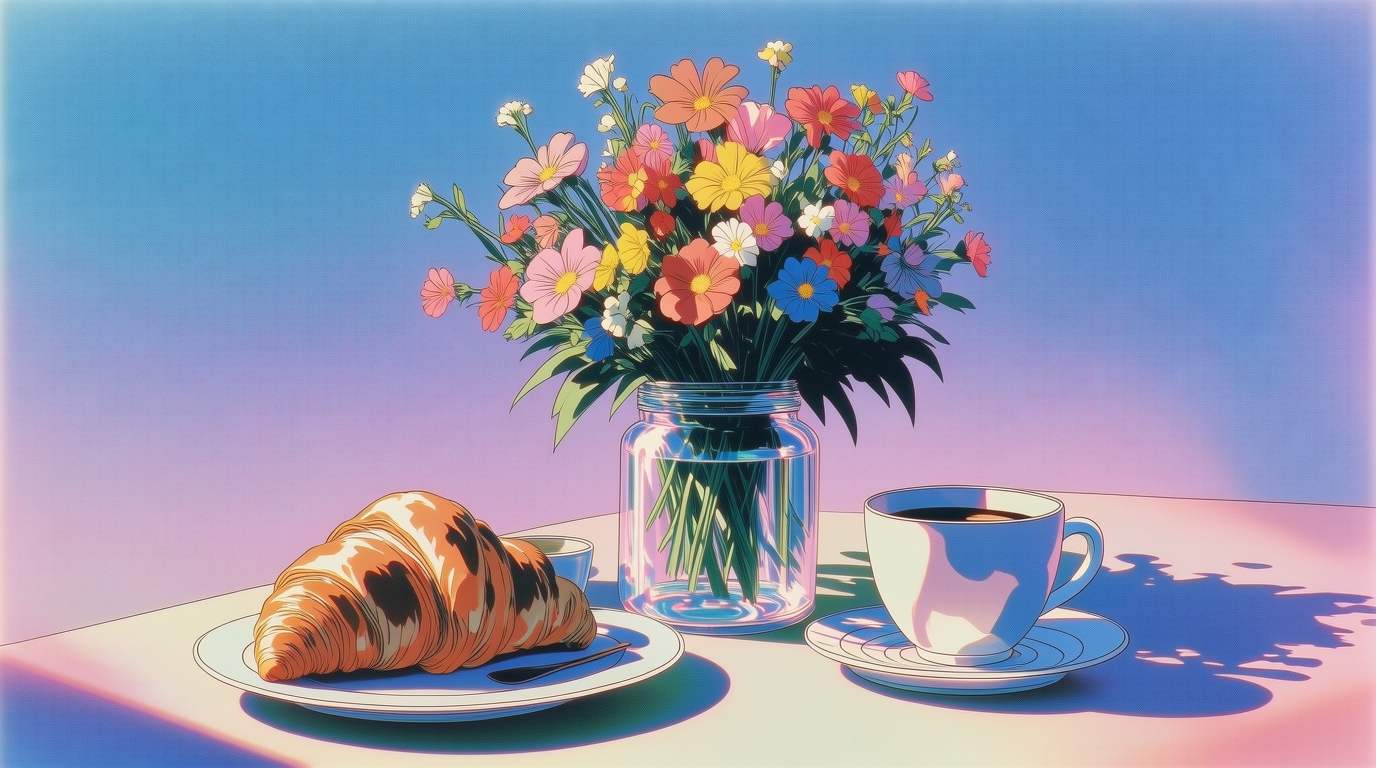
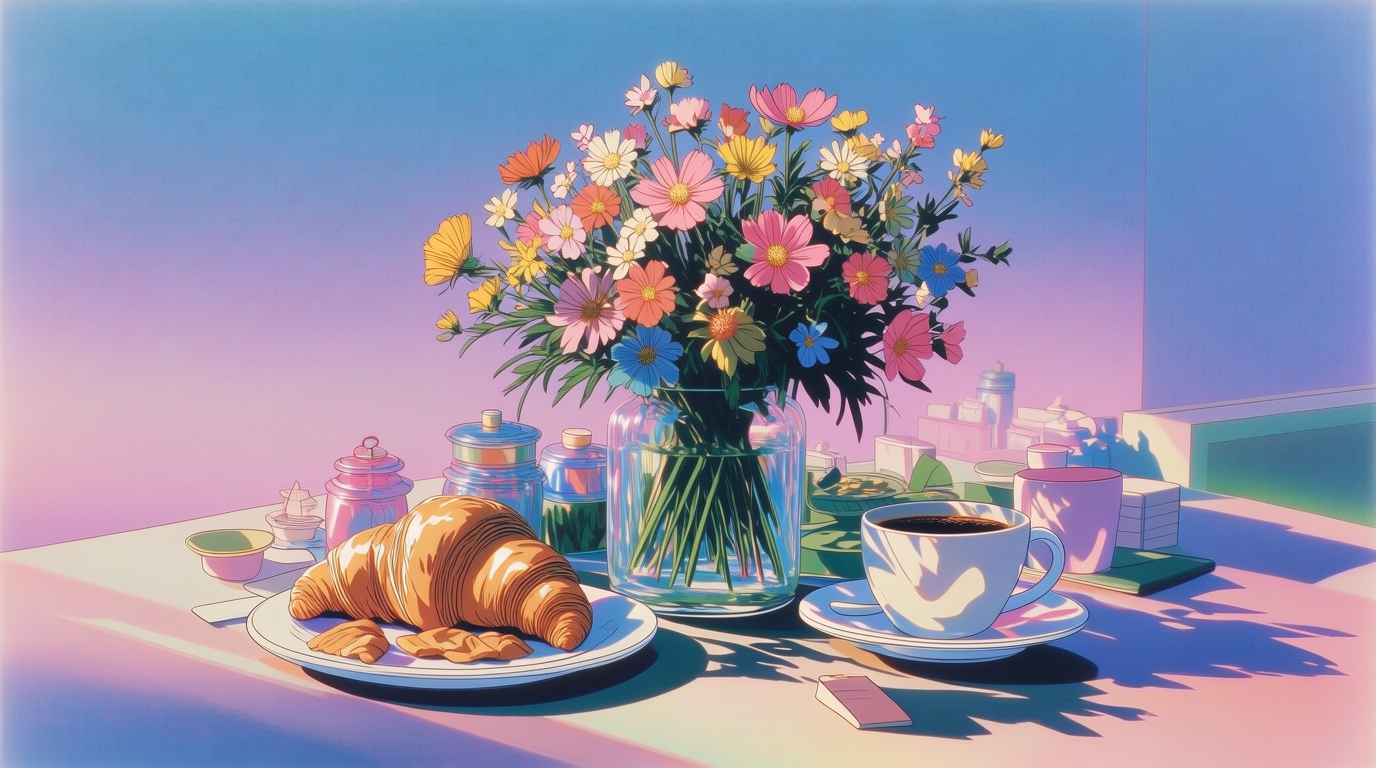
Complexity
Slider value -100
Every setting
changes the result
Generative Sliders turn variation into direction. Movement changes the energy of the scene, while Complexity changes how much visual information Krea 2 adds. Keep the prompt steady and choose the kind of difference you want.
UI preview
Tune the image before you generate.
Open the controls panel in Krea 2 and steer the model from one place. Push the result toward cleaner compositions, stronger motion, richer detail, or a more literal read of your prompt.
New
Krea 3 for production image editing
Generative Sliders are a Krea 2 feature. For edits that need to keep your product intact, try Krea 3, our new image editing model built for production. It finishes an edit in under 8 seconds with native 2K output.
Explore Krea 3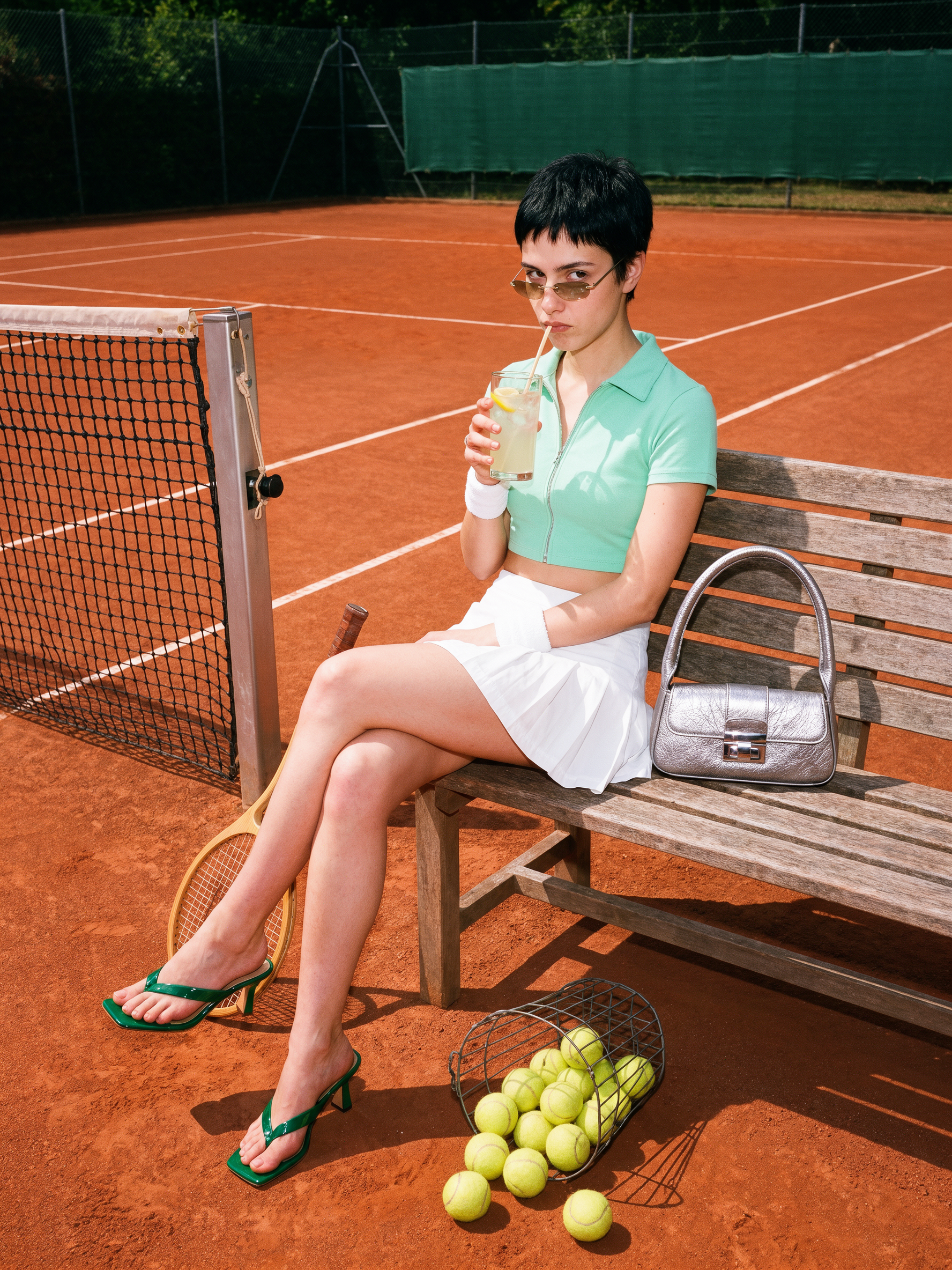
Trusted by over 30,000,000 users From 191 countries. We've got a plan for everybody...
Free
Get free daily credits to try basic features.
Basic
Access our most popular features
Pro
Advanced features and discounts on compute units
Max
Full access with higher discounts on compute units
For Teams and Enterprises
Workplace management, collaboration, and enterprise customizations
Business
Secure and collaborative workspace for growing teams
Enterprise
Enterprise-grade security with dedicated support and admin features


Questions people ask about Generative Sliders
Generative Sliders are controls in the Krea 2 image tool that shape the model’s creative direction before an image is generated, while keeping your original prompt intact.
The panel includes Intensity, Complexity, and Movement sliders, plus a Creativity mode selector. Intensity changes how stylized the image feels, Complexity changes how dense or minimal the composition is, Movement changes pose and camera energy, and Creativity changes how direct or exploratory the result feels.
For Intensity, Complexity, and Movement, 0 is the neutral setting. Moving left reduces that quality, and moving right increases it.
Use Raw when your prompt is already precise. Use Low or Medium when you want Krea 2 to add helpful visual detail without moving too far from your words. Use High when you want a more exploratory interpretation.
No. Creativity controls how direct or exploratory the result feels. Intensity is a visual control that changes how strongly stylized the generated image feels.
Random mode changes the Generative Slider settings every time you submit a generation. It is useful for quickly exploring different directions, then turning it off once you find a result you want to fine-tune.
For clean design, icons, and editorial illustration, try lowering Complexity and keeping Movement near neutral. For cinematic images, fashion, worlds, or expressive character work, try raising Intensity and adding a small amount of Movement.
Generative Sliders are currently available for everyone using Krea 2.
Start with a prompt. Tune the result.
Open Krea 2, tap the controls button, and try one Generative Slider at a time.
Generate with Krea 2