













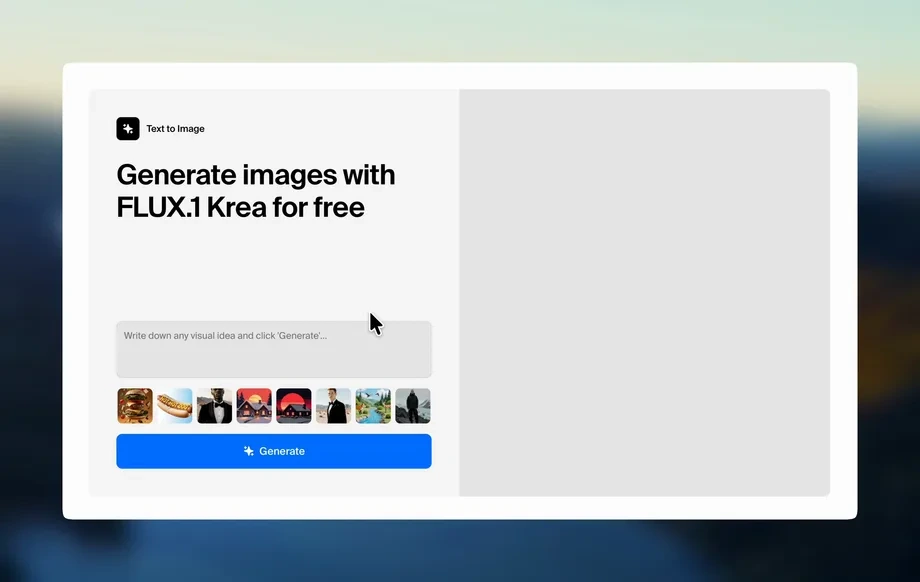
Step 1
Upload
Import your final render at the highest available resolution. Start with a clean image to maximize sharpness, detail recovery, and overall enhancement quality.
Enhance final renders with AWOS_ENHANCER_PRO. AI sharpening, upscaling, and denoise for pro-quality output—spend credits wisely. Try it now.

How to use AWOS_ENHANCER_PRO
Use AWOS_ENHANCER_PRO to polish a completed render with targeted AI enhancement. Choose a strong base image, preview improvements, and spend credits only when the result meets your quality bar.
Step 1
Import your final render at the highest available resolution. Start with a clean image to maximize sharpness, detail recovery, and overall enhancement quality.
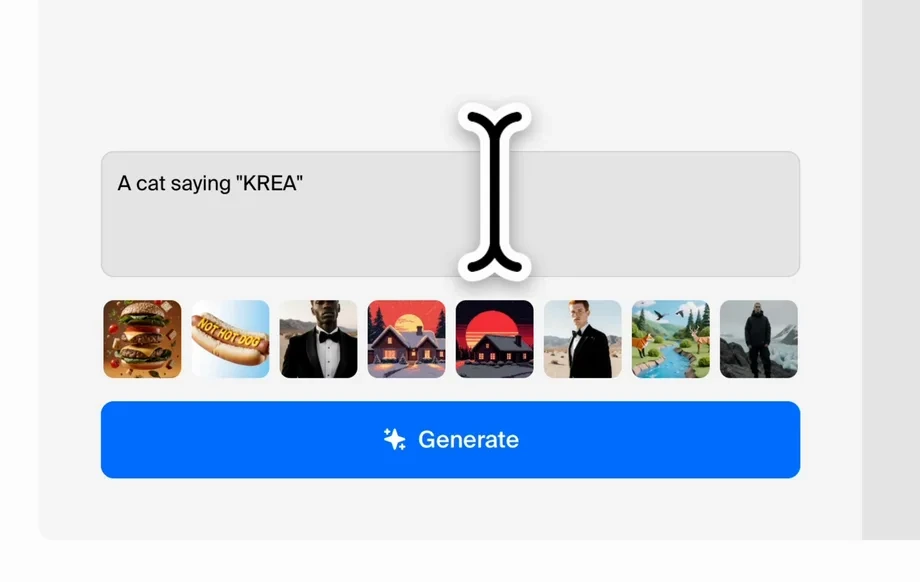
Step 2
Run the enhancer to improve clarity, reduce noise, and refine edges. Review the preview carefully and adjust your selection to avoid unnecessary credit use.
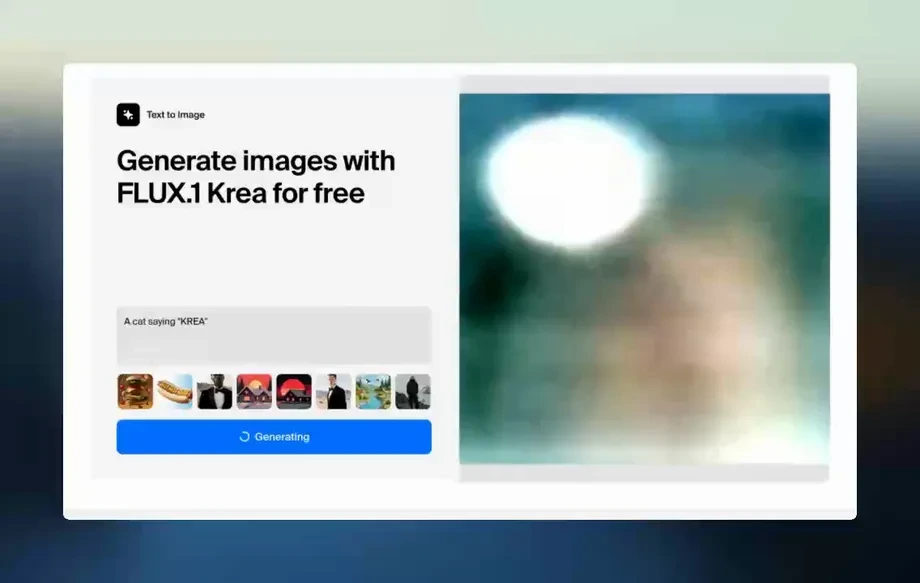
Step 3
Download the enhanced output in your preferred format. Use the polished render for delivery, portfolios, product pages, or final production assets.
Features
AWOS_ENHANCER_PRO applies machine learning enhancement designed for post-processing final images. It sharpens details, reduces noise, and improves perceived resolution while keeping textures natural. Because each enhancement consumes credits, it’s optimized for decisive, high-value finishing passes where quality matters most.
Add a professional finish to completed renders with AI-driven sharpening and clarity. Improve micro-contrast and edge definition without turning the image into an overprocessed look.
Reduce grain and compression artifacts while recovering fine structure. The model balances smooth areas and textured regions to keep surfaces clean, readable, and production-ready.
Use credits efficiently by enhancing only your best candidates. Preview improvements first, then commit when the quality gain is clear and worth the final-render upgrade.
About
AWOS_ENHANCER_PRO is a professional AI enhancer built for final renders that need a clean, high-end finish. Improve sharpness, reduce noise, and boost detail while preserving natural textures and edges. This enhancement uses credits, so apply it selectively to your best outputs for maximum impact and consistent quality.
AWOS_ENHANCER_PRO focuses on final-render quality, delivering sharper details, cleaner surfaces, and refined edges with AI enhancement. It’s built for selective, high-impact upgrades, with a credit-based approach that encourages intentional finishing rather than wasteful iteration.
Upload your best final render, run the enhancer, and review the preview at 100% zoom. If the improvement is worth the credits, export the enhanced file and keep the original as a backup.
Use cases
Discover how different creators use this app in their workflow.
Polish client-ready renders with sharper details and reduced noise. Ideal for last-step improvements before export, handoff, or publishing to production channels.
Enhance product renders for crisp edges and clean textures. Improve perceived quality for listings, ads, and landing pages without re-rendering from scratch.
Upgrade selected hero shots with a premium finish. Use the enhancer sparingly to make key images look more refined, consistent, and high resolution.
Krea is one of the world's leading generative AI platforms. See what others say.
Real reviews on TrustpilotSo many AI tools out there but I always come back to Krea. It's really the one AI platform that 'just works'.

FYN
Krea's interfaces are still the best in the industry. Everything looks and feels so clean and easy to use! Imo the easiest to use gen AI website.

Lynn
Ultra fast generations. Extremely simple to use. All the latest AI models.

Daniel
KREA is the only AI subscription I have right now besides ChatGPT.

Sophia M.
Answers to common questions about AI final-render enhancement and credit-based usage.
It enhances completed renders using AI to sharpen details, reduce noise, and improve perceived resolution. The goal is a clean, professional finish that preserves natural textures and edges.
Yes, it can improve apparent resolution and crispness as part of the enhancement process. Results depend on the input quality, so starting with the highest-resolution render delivers the best output.
Each enhancement consumes a set amount of credits based on the app’s credit policy. Because credits are limited, it’s best used for final selections rather than bulk testing.
Use it at the end of your pipeline, after the render is finalized. It’s designed for last-pass cleanup and detail refinement, not for iterative drafting or early experimentation.
It’s tuned to keep results natural, but any enhancer can over-emphasize edges on low-quality inputs. Preview carefully, and choose images with clean lighting and minimal compression for best results.
Clean final renders with good exposure, minimal blur, and higher resolution perform best. Extremely noisy, heavily compressed, or motion-blurred images may see limited improvement or unwanted artifacts.
Keep your original file and treat the enhanced version as a new export. That makes it easy to compare results and decide which version to use for final delivery.
It can help produce cleaner, sharper images that look better at larger sizes. For print, export at the highest practical resolution and review fine details to ensure no halos or artifacts appear.
Enhance only your top candidates and validate composition first. Use previews and check critical areas—faces, text, edges, and textures—before committing to the final credit-spending pass.
Apply a credit-based AI finishing pass when you’re ready to ship your highest-quality image.