If you upload a photo to ChatGPT and ask “where is this” or “whose picture is this,” it will answer. It will also sometimes be wrong, because it is guessing from visual clues and general knowledge, not checking a photo against a database of other photos. OpenAI’s own ChatGPT Image Inputs FAQ describes image inputs as a way to “understand and interpret images you add to conversations,” letting you ask about objects in a photo, analyze a document, or explore visual content. Nowhere does it describe searching the web for matching images or checking whether your photo has appeared elsewhere. That’s the real decision behind “Can ChatGPT reverse image search”: ChatGPT has no image index to search against, so it can describe what it sees but it cannot tell you where else that exact photo lives online.
A true reverse image search needs an index of billions of crawled images to compare against. ChatGPT is a conversation model with vision; it reasons about the pixels in front of it, plus whatever it already knows about the world, which is why it can often name a famous landmark correctly and can be wrong, or simply refuse to guess, on an ordinary street. That distinction matters for anyone trying to find where a photo came from, confirm a person’s identity, or track down a stolen image. This guide covers the four tools that actually do reverse image search, checked against their own documentation on 2026-09-23, plus where Krea’s image-to-prompt tool fits and where it very much does not.
What a reverse image search actually starts with: a real photo, checked against an index
Illustrative, raw Krea 2 generation. Prompt: 'Close-up photo of hands holding a smartphone above a printed photograph on a wooden desk, the phone camera app open and framing the photograph in its viewfinder, soft natural window light from the left, shallow depth of field, editorial photography look.'

Reverse image search options at a glance
| Tool | Free? | Best for | Catch |
|---|---|---|---|
| ChatGPT | Not a reverse image search | Describing and reasoning about one image’s content | No image index; can’t confirm where else a photo appears |
| Google Lens | Yes | Broad matching: products, plants, landmarks, similar images | No published per-user rate limit, but only finds what’s already indexed |
| TinEye | Yes, capped | Exact and near-duplicate matches, tracking a stolen or edited image | 100 searches/day, 300/week on the free web tool |
| Bing Visual Search | Yes | Similar images, shopping matches, object identification | No published free-tier cap, but Microsoft notes its AI can make mistakes |
| Yandex Images | Yes | Faces, and photos from Russian-language and Eastern-European sources | Treat any face match as an unverified lead, not a confirmed identity |
| Krea image-to-prompt | Yes, 100 compute units/day | Turning an image into a prompt to regenerate a similar or evolved version | A different job entirely: does not locate or identify a photo’s source |
Turn an image into a prompt, not a search
Drop any image into Krea and get a detailed, generation-ready prompt in seconds. This recreates a similar image; it does not find where the original came from.
Try image-to-prompt on KreaHow we chose and tested
Every price, quota, and capability claim below comes from the vendor’s own page or help center, checked on 2026-09-23: OpenAI’s ChatGPT Image Inputs FAQ, Google’s Search with an image help article, TinEye’s “Is TinEye free to use?” and “Is there a limit to how many searches I can do?” articles, and Microsoft’s Bing Visual Search support page. Yandex does not publish a dedicated capabilities page for Yandex Images in English, so its face-matching reputation is sourced to independent OSINT and investigation write-ups, flagged as such below rather than presented as a vendor claim.
We did not run a live face or location search through each tool’s interface for this guide; that isn’t something we can do from inside an agent session without a browser. Instead, each tool section below gives the documented steps for using it correctly, sourced to the pages above, and the “test subject” images throughout the post are Krea-generated stand-ins that illustrate the kind of photo each tool handles well or poorly. None of the people or places pictured are real.
A place-identification test photo (illustrative only):
Photorealistic travel photo of a distinctive stone lighthouse on a rocky coastline at golden hour, dramatic clouds, gentle lens flare, high detail, professional travel photography
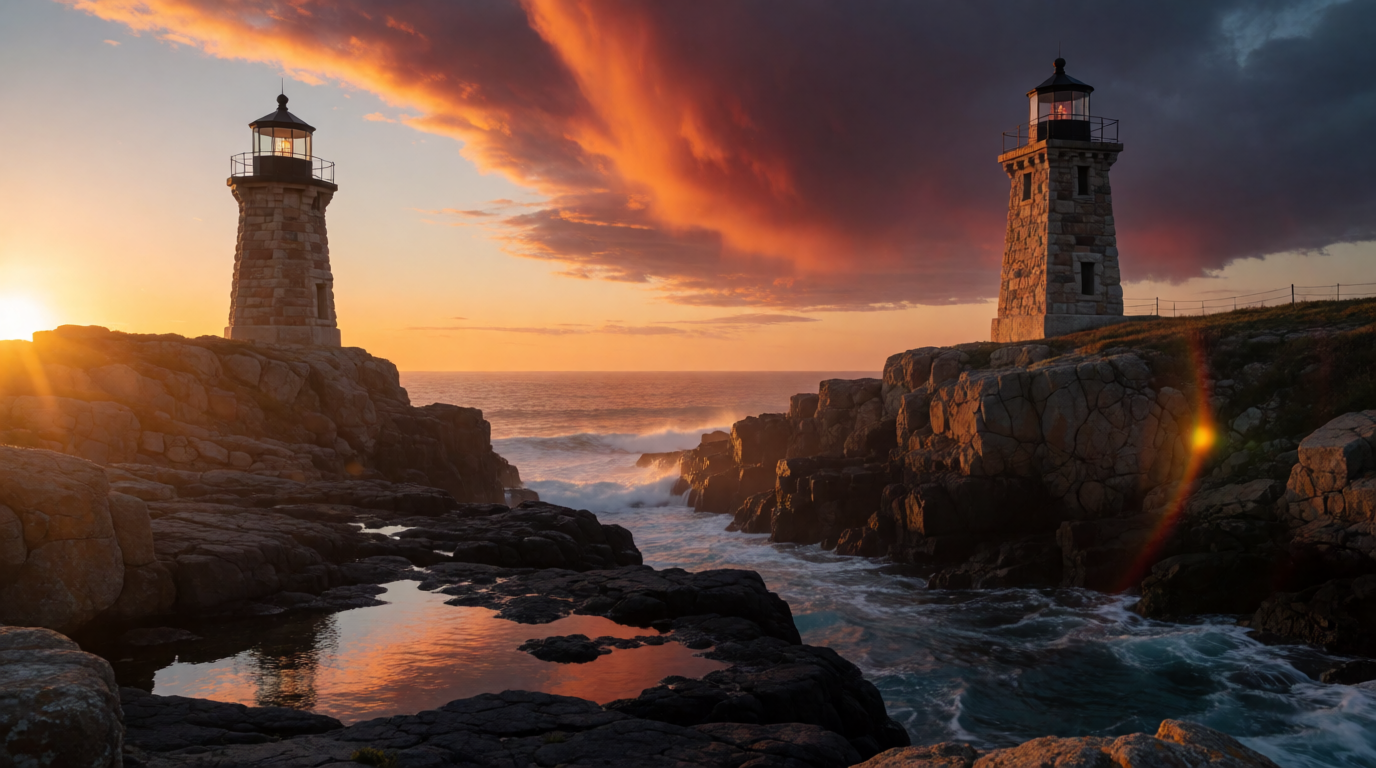
A photo like this is exactly what reverse image search is built for: distinctive enough that a landmark-matching index has a chance, generic enough that a human guessing from memory alone would struggle. ChatGPT can describe this image (“stone lighthouse, golden hour, dramatic sky”) but cannot tell you whether the specific lighthouse in the photo has been photographed and indexed elsewhere, because it isn’t checking one.
Google Lens: the broad, general-purpose default
Google Lens is the tool most people mean when they say “reverse image search” in 2026. It’s built into the Google app, the Google.com search bar, and Chrome, and Google’s own help article on searching with an image describes uploading, dragging, or pasting an image or URL to get matching and visually similar results. It’s free, with no sign-in required for casual use.
Settings recipe (Google Lens):
Open Google.com or the Google app → tap the camera icon in the search bar (or, on the web, right-click any image and choose “Search image with Google Lens”) → upload a photo, drag a file in, or paste an image URL → Lens returns exact matches, visually similar images, and the pages that host them → use the filters above the results to narrow by image size or by site.
Variation tips: crop tightly around one object before searching if you want that object identified rather than the whole scene; on mobile, circle just the region you care about instead of letting Lens read the full frame.
Where it stops: Lens can only surface pages and images that are already indexed. A private photo that has never been posted anywhere online returns nothing, no matter how distinctive it is. Google does not publish a specific per-user rate limit for casual use of Lens or Search by Image, but automated or bulk querying gets rate-limited and blocked, which is why third-party scraping tools exist as a separate paid category.
TinEye: the exact-match specialist
TinEye, launched in 2008, is the oldest reverse image search engine still running, and it’s built for a narrower job than Lens: finding exact copies and edited variants (crops, resizes, recolors, watermark removal) of one specific image, rather than guessing what a photo generally shows. TinEye’s own help center confirms the free web tool requires no account and caps free, non-commercial use at 100 searches per day and 300 per week.
Settings recipe (TinEye):
Go to tineye.com → upload an image, paste an image URL, or drag a file into the search box → TinEye returns matches it considers exact or near-duplicate → sort results by Best match, Most changed, Biggest image, or Newest, and use the domain filter to check whether one specific site is hosting your image.
Variation tips: if you’re trying to prove a photo was copied or stolen rather than identify what’s in it, start with TinEye before Lens; its match logic is tuned for pixel-level and crop-level duplicates, which is exactly the “did this site steal my photo” question.
Where it stops: TinEye does not do object, landmark, or scene recognition at all. It won’t tell you what the photo depicts, only where the same (or a visually near-identical) image already exists in its index. If TinEye’s crawler never picked up a copy of your photo, the search returns zero results even if the image is public elsewhere.
Bing Visual Search: shopping and object identification
Bing Visual Search is Microsoft’s answer to Lens, built into Bing.com, the Bing app, and the Microsoft Edge sidebar. Microsoft’s own support page states plainly: “Visual Search lets you search the web using an image instead of text. You can use Visual Search to find similar images, products, pages that include an image, and even recipes.” It’s free, with no account required for basic use.
Settings recipe (Bing Visual Search):
Go to bing.com/images → click the camera icon in the search box → drag in a photo, upload a file, paste an image URL, or take a webcam photo → Bing returns pages using the image, visually similar images, and, for products, shopping links with price and retailer → in Microsoft Edge, right-click any image on a page and choose “Search the web for this image” instead of saving it first.
Variation tips: for product photos specifically, Bing’s shopping match tends to surface retailer links quickly; for “where is this place,” Lens is generally the stronger first stop, with Bing as a second opinion.
Where it stops: Microsoft’s own support page notes that Bing “uses AI to help better understand” an uploaded photo’s content, and adds that “while we continuously improve our AI features, AI might still make mistakes.” Treat an object or landmark identification as a starting point to verify, not a final answer, especially for anything involving a person’s identity.
Yandex Images: the one to try for faces
Yandex Images has an outsized reputation in the OSINT and journalism community as the strongest free option specifically for matching faces, and for surfacing results from Russian-language and Eastern-European sources that Google and Bing tend to miss. This is a reputation earned through outside testing and investigation write-ups (independent, not a vendor claim), rather than something Yandex publishes as a stated feature. The search itself is free and requires no account.
Settings recipe (Yandex Images):
Go to yandex.com/images → click the camera icon in the search bar → upload a photo or paste an image URL → Yandex returns a “similar images” grid, including a section it groups by faces or subjects it judges to be the same, plus a list of pages where the image or a close variant appears → scroll past the immediate visual matches to the linked-page section for actual source pages.
Variation tips: run the same photo through Yandex after Lens rather than instead of it; investigators commonly get different result sets from the same photo on each engine, and an empty Lens search is not proof the photo isn’t findable elsewhere.
An illustrative face test photo (AI-generated, not a real person):
Photorealistic close-up portrait of a middle-aged man with a short grey beard and glasses, looking directly at the camera, neutral studio grey background, soft key light, 85mm lens look

Where it stops: face-matching accuracy on Yandex is inconsistent, and multiple independent write-ups on the topic stress the same caveat: an apparent face match is a lead to check, not a confirmed identity. We did not run this AI-generated portrait through Yandex or any other face-search tool; it exists only to show what kind of photo triggers the face-matching path.
Krea: turn the image into a prompt, a different job entirely
None of the above is what Krea’s image-to-prompt tool does, and being clear about that is the point of this section. Image-to-prompt looks at an image you drop into the image tool and writes a dense, generation-ready description of it, covering medium, style, subject, lighting, composition, color, and environment. That description is built so you can generate a new image that looks similar to, or intentionally evolved from, the one you started with. It does not check the photo against any index, and it cannot tell you where the photo came from, who is in it, or where it was taken.
Put plainly: reverse image search answers “where did this come from.” Image-to-prompt answers “how do I describe this so I can make something like it.” They are opposite directions on the same photo. If your actual question is “who took this” or “where is this place,” image-to-prompt will not get you there, and you should go back to Google Lens or TinEye instead.
Copy-paste workflow:
Upload your reference image into the image tool → drop it onto the “Create Prompt” zone that appears → a description streams into the prompt box word by word → edit any clause you want to change → generate.
To show the shape of what image-to-prompt writes, without stitching together a screen recording, we generated a photo, wrote a dense, image-to-prompt-style caption for it in the same subject → lighting → composition order Krea’s own tool uses, edited one clause, and generated the result again.
Prompt (original generation):
Photorealistic photo of a red vintage bicycle with a wicker basket leaning against a pale blue stucco wall covered in climbing ivy, narrow cobblestone street, soft morning light, film photography look
Image-to-prompt-style description, with the time-of-day clause edited:
Editorial photo of a weathered red vintage bicycle with a wicker basket, leaning against a pale blue stucco wall dense with climbing ivy, narrow cobblestone street at dusk with warm string lights overhead, soft golden light, muted earthy palette, shallow depth of field, gentle film grain, travel photography style
Same bicycle, evolved: original generation, then a regenerated variation from an edited description
Both images are single, raw Krea 2 generations from the prompts printed above. Neither reverse-image-searches the other; the second is a new generation from an edited description of the first, which is exactly what image-to-prompt is for.


Where it stops: nothing here identifies a real bicycle, a real street, or a real photographer, and it shouldn’t be mistaken for that. If you upload a genuine photo and want to know if it’s stock, stolen, or where it was taken, image-to-prompt is the wrong tool; use Google Lens or TinEye instead. The Free plan covers image-to-prompt and Krea 2 generation at 100 compute units a day with no account required beyond sign-in; the full model library in Image, Enhancer, Edit, and Video sit on paid plans.
Which one should you use?
Pick by what you’re actually trying to find out:
- You want to know what’s in a photo, or ask follow-up questions about it → ChatGPT is genuinely good at this. Just don’t expect it to tell you where else the photo has appeared.
- You want to find where a photo came from, or what it depicts → start with Google Lens; it’s the broadest free index and the default most people already have on their phone.
- You think a specific photo was copied, cropped, or stolen → TinEye is built for exactly that, at 100 free searches a day.
- You’re checking a product photo or want retailer links → Bing Visual Search tends to surface shopping matches quickly.
- You’re trying to match a face, or a photo is from a Russian-language or Eastern-European source → add Yandex Images as a second opinion, and treat any match as a lead to verify, not a confirmed identity.
- You want to recreate a similar image, or evolve one you already made → that’s image-to-prompt on Krea, not a search tool at all. Our product photography pipeline guide and best AI image upscalers roundup cover what to do with the image once you’ve generated it.
Frequently asked questions
Can ChatGPT reverse image search?
What's the best reverse image search tool?
Can AI find where a photo was taken?
Does Google Lens cost money?
How many free searches does TinEye allow?
Can Krea find the source of an image?
Have an image? Turn it into a prompt, not a search
Drop any photo into Krea and get a generation-ready description in seconds, then generate a similar or evolved version. 100 free compute units a day, no credit card.
Try image-to-prompt on Krea