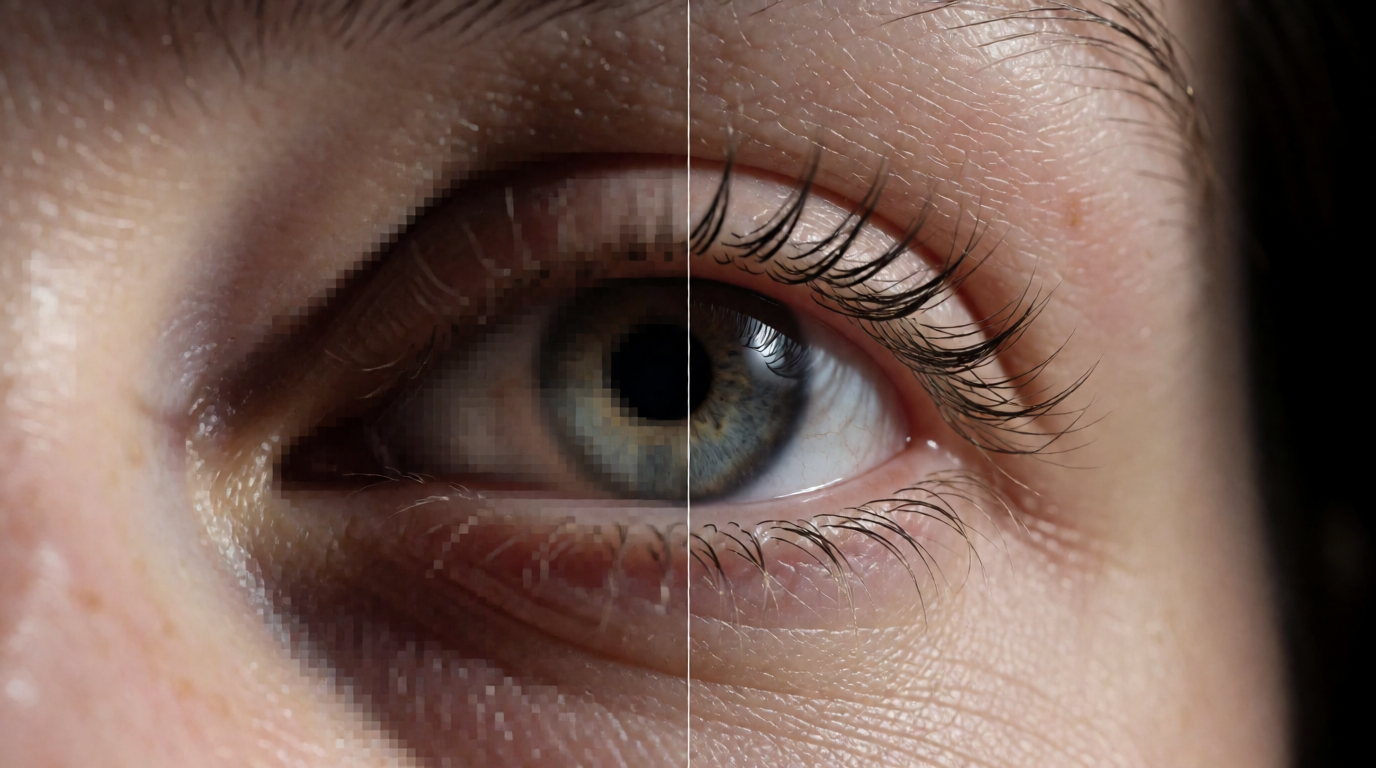
Upscalers split into two families that people constantly confuse. Fidelity upscalers enlarge what exists and invent as little as possible — right for photos of real people and products. Creative upscalers generate plausible new detail while enlarging — right for AI images, illustrations, and renders, where “what exists” is often too soft to print. Choosing from the wrong family is why upscaled portraits grow strange skin and why upscaled renders stay mushy.
This guide covers both families and says which is which.
The best AI image upscalers at a glance
| # | Tool | Family | Price model (Aug 2026) | Free route |
|---|---|---|---|---|
| 1 | Krea Enhancer | Both — adjustable | Paid plans; free tier has basic 2K upscaling | Basic 2K upscaling free |
| 2 | Magnific (Freepik) | Creative | Credit subscriptions from ~$20/mo | Trial credits |
| 3 | Topaz Gigapixel AI | Fidelity | Subscription, $149/yr Personal | Trial |
| 4 | Upscayl | Fidelity | Free, open source | Fully free |
| 5 | Adobe Super Resolution | Fidelity | Included in Adobe plans | With Adobe plan |
| 6 | Let’s Enhance | Fidelity-leaning | Credits | Small trial pack |
Upscale your image to 8K
One dial on the Krea Enhancer covers fidelity cleanup and full creative re-detailing.
Upscale an imageHow we chose and tested
Prices and plan shapes come from each vendor’s published pages as of August 2026 — Topaz Labs (which ended perpetual licenses in September 2025; Gigapixel is now subscription-only), Magnific (folded into Freepik’s credit platform after the April 2026 rebrand), Upscayl on GitHub, Adobe’s Super Resolution docs, and Let’s Enhance. The Krea texture and restoration examples in this post are raw single generations and enhancement passes from the stated settings — no retouching.
What separates a good upscaler
- Fidelity vs. creativity, explicitly controlled. The best tools expose the trade-off as a slider instead of deciding for you.
- Behavior on faces and text. The two places where invented detail becomes an error rather than an improvement.
- Batch and speed. One hero image and 400 product shots are different problems.
- Cost model. Subscriptions, credits, and free tiers suit different volumes.
1. Krea Enhancer — creative upscaling with a control dial
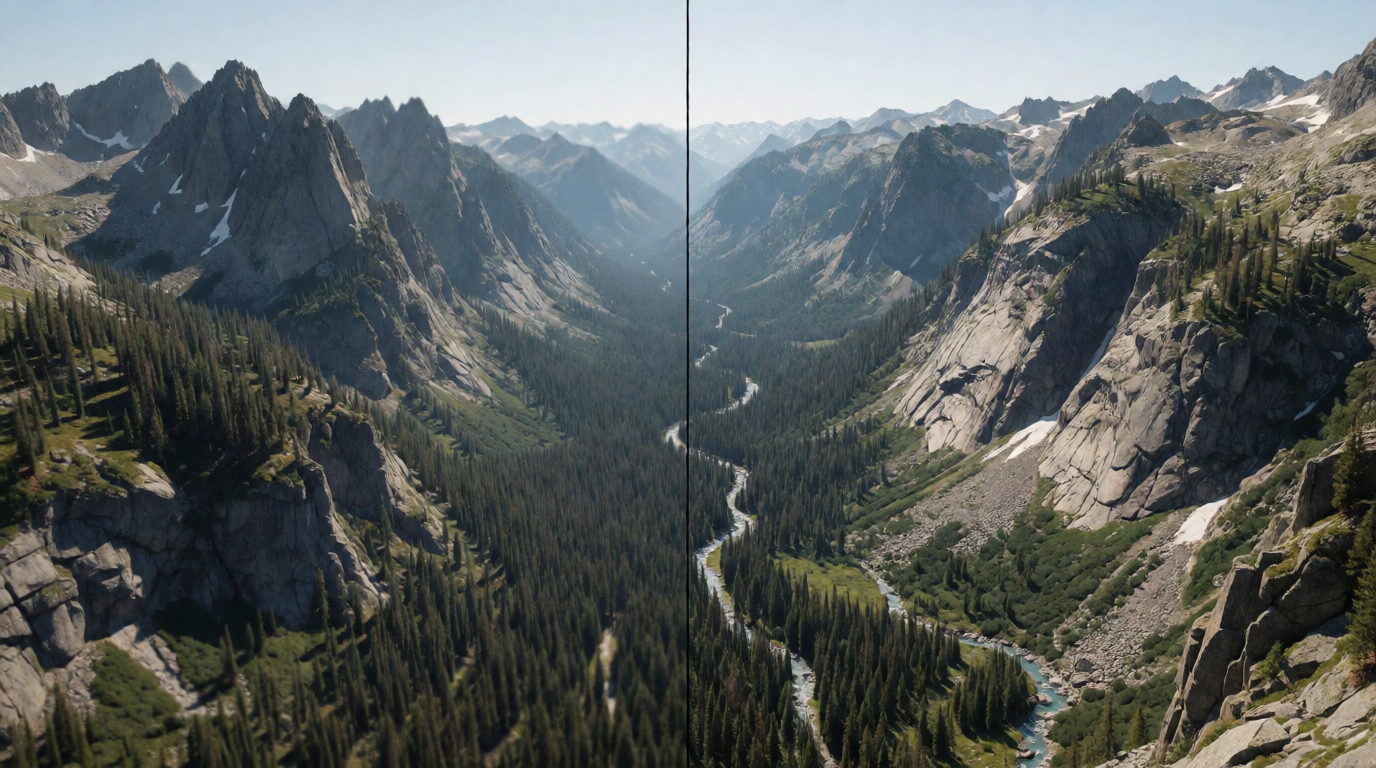
The Krea Enhancer upscales to 8K-class output with a strength control that spans the whole fidelity-creativity range: low strength cleans and sharpens like a fidelity tool, high strength re-details skin, fabric, vegetation, and materials like a creative one, the same dial covered against five other photo tools in our best AI photo enhancers guide. That makes it the rare single tool that handles both an AI render that needs invented detail and a decent photo that only needs enlarging.
Settings recipe (AI image or render):
Scale 2-4x · creativity medium · one pass · inspect edges, then one low-creativity pass if geometry drifted.
Settings recipe (real photo):
Scale 2x · creativity at or near zero · mask faces and logos if the tool version supports region control.
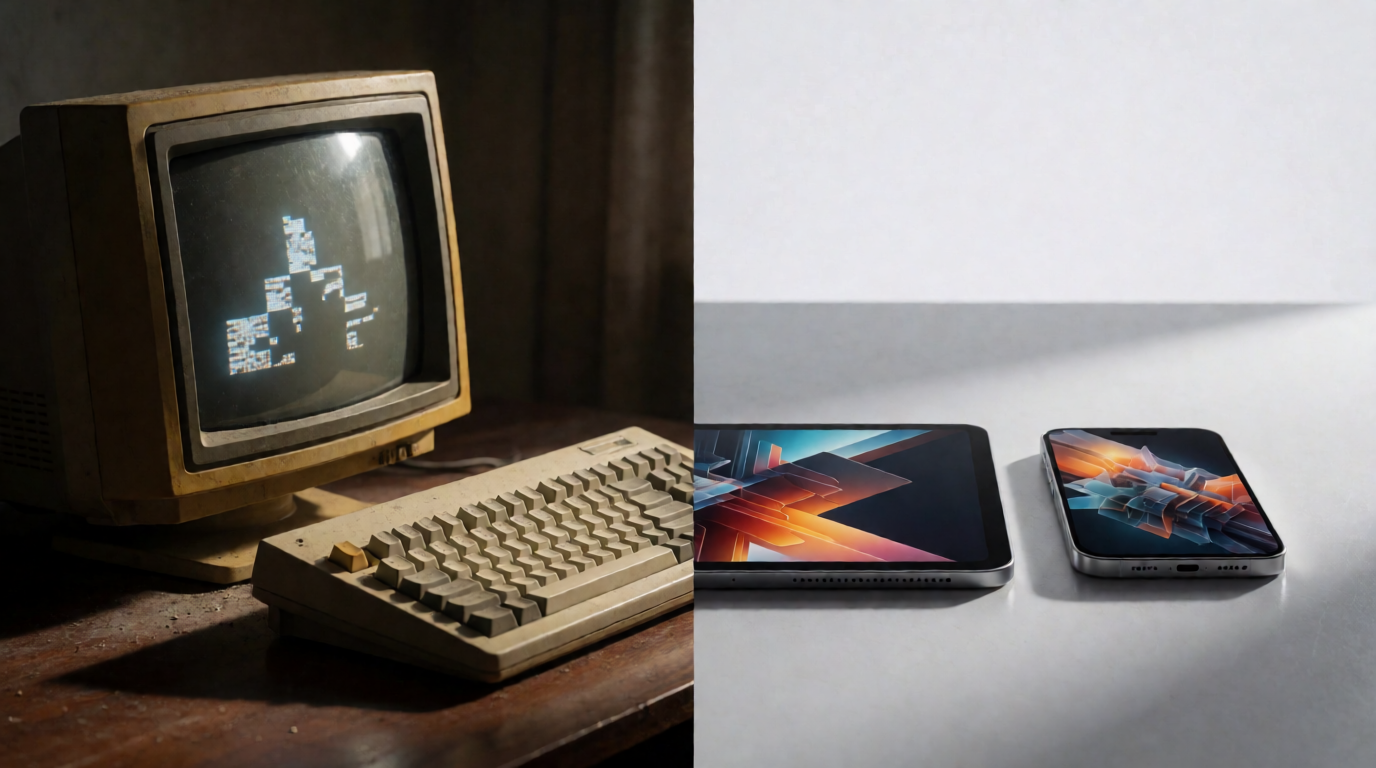
What “re-detailing” means at texture level — fibers, weave, and edge sharpness that the source pixels never contained:
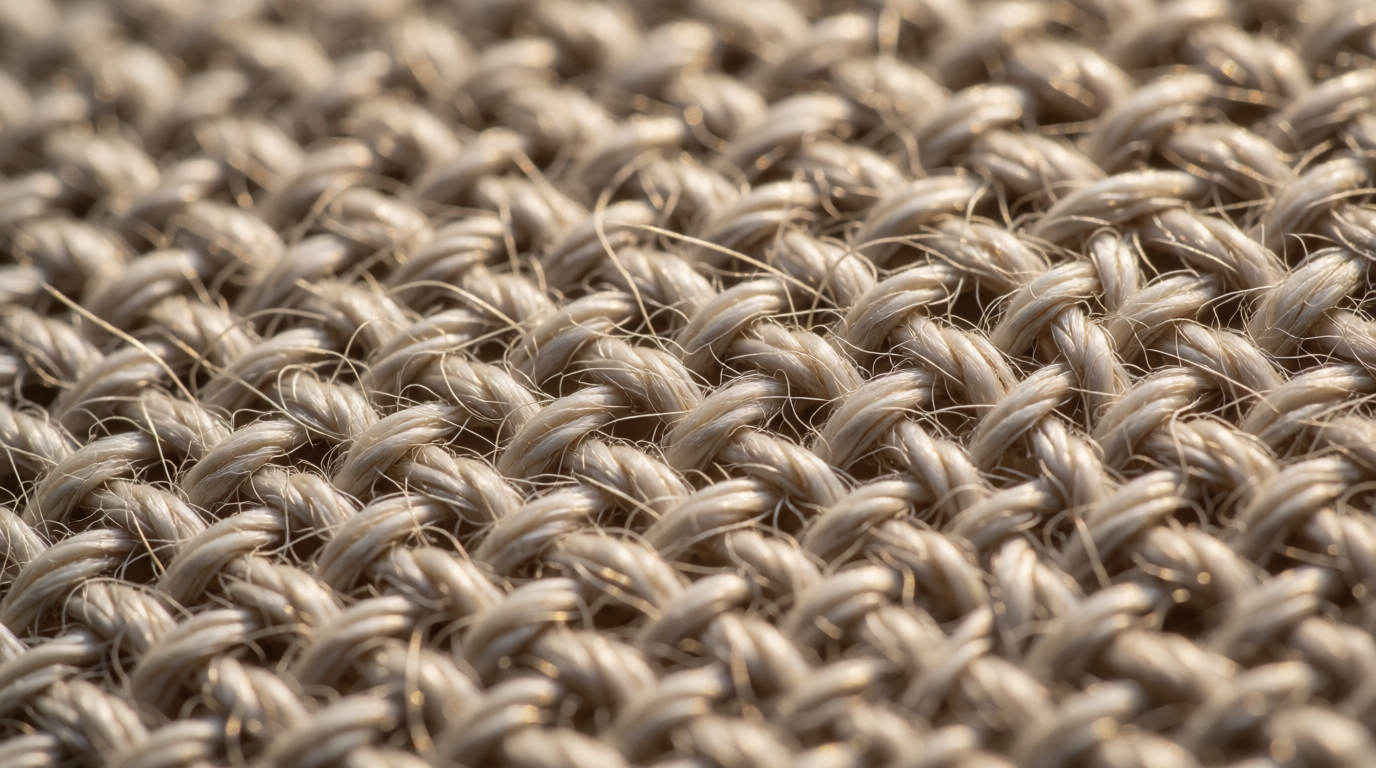
It runs in the browser — Krea’s free plan (100 compute units a day, no credit card) covers basic upscaling to 2K, and paid plans unlock the full 8K-class Enhancer with the creativity dial (pricing) — and sits next to generation, Krea 2, and editing — an AI image can be made, refined, and enhanced without leaving the tab. That adjacency is the practical argument: most upscaling jobs in 2026 are the last step of an AI-generation workflow, not a standalone task. (Starting from generation? See our guide to the best free AI image generators.)
The honest limit: at maximum strength it changes the image — as every creative upscaler does. Keep faces and logos at low strength or mask your passes.
2. Magnific — maximum invented detail
Magnific made creative upscaling famous, and its “hallucination” control still produces some of the most dramatic before-afters in the category. It shines on illustrations, concept art, and renders. Since Freepik’s April 2026 rebrand folded the standalone upscaler into its credit platform, access runs through credit subscriptions starting around $20/month.
Settings recipe:
Creativity high for art and renders, resemblance high when the client has approved the composition; never both maxed — they fight.
Where it stops: high settings drift far from the input — a feature for art, a bug for photographs — and the credit pricing assumes professional volume.
3. Topaz Gigapixel AI — the photography standard
Gigapixel remains the fidelity reference: 4-6x enlargements of real photos with dedicated models for faces, low-resolution scans, and compressed sources. Note the 2026 pricing reality: Topaz ended one-time licenses in September 2025; Gigapixel is now $149/year (Personal). It is batch-friendly and deliberately boring — it does not invent, which is exactly why photographers trust it.
Settings recipe:
Standard model for clean sources, Recover model for compressed or scanned ones, face recovery on only when faces are small in frame.
Where it stops: it will not rescue an image whose detail never existed — an AI render upscaled in Gigapixel gets bigger, not richer. That job belongs to the creative family.
4. Upscayl — the best free upscaler
Upscayl is free, open source, and runs entirely on your machine (Windows, macOS, Linux) using open Real-ESRGAN-family models. For zero dollars it delivers strong fidelity upscaling with complete privacy — nothing leaves your computer, which matters for unreleased product imagery.
Settings recipe:
General photo model at 4x for most sources; digital-art model for illustrations; batch folder mode for sets.
Where it stops: no creative mode, no special face handling, and speed depends on your GPU. On a laptop without one, a batch takes coffee-break time.
5. Adobe Super Resolution — already in your workflow
If you live in Lightroom or Camera Raw, Super Resolution doubles linear resolution on RAW files with one click, no extra subscription. It is strictly faithful and integrates with the rest of a photo edit — the right first move for photographers before deciding whether a bigger, riskier enlargement is needed at all.
Settings recipe:
Apply on the RAW before any other edit; export the enhanced DNG and grade that.
Where it stops: 2x only, RAW-oriented, and inside Adobe’s ecosystem. It is a feature, not a product.
6. Let’s Enhance — batch volume on the web
Let’s Enhance targets e-commerce and real-estate volume: hundreds of images, consistent settings, API access, credit pricing — see our full breakdown of its tiers and cancellation steps for the details. Throughput and predictability are the product.
Settings recipe:
Lock one preset per product line; run a 10-image pilot before burning a large credit pack; check whether your plan’s credits expire.
Where it stops: per-image quality is competitive rather than category-leading.
Matching settings to the image
The single most useful habit: decide how much invention the image can tolerate before opening the tool.
| Source image | Family | Setting |
|---|---|---|
| Photo of a person or product | Fidelity | Creativity at or near zero |
| Real photo, slightly soft, going large | Fidelity first, creative low if needed | Low strength, inspect faces |
| AI-generated image or illustration | Creative | Medium strength, iterate |
| Architectural or 3D render for boards | Creative | Medium-high; watch geometry edges |
| Old or damaged photo to restore | Fidelity + restoration model | Recover/restore mode, grain preserved |
| Anything with logos or small text | Fidelity | Mask text regions if the tool allows |
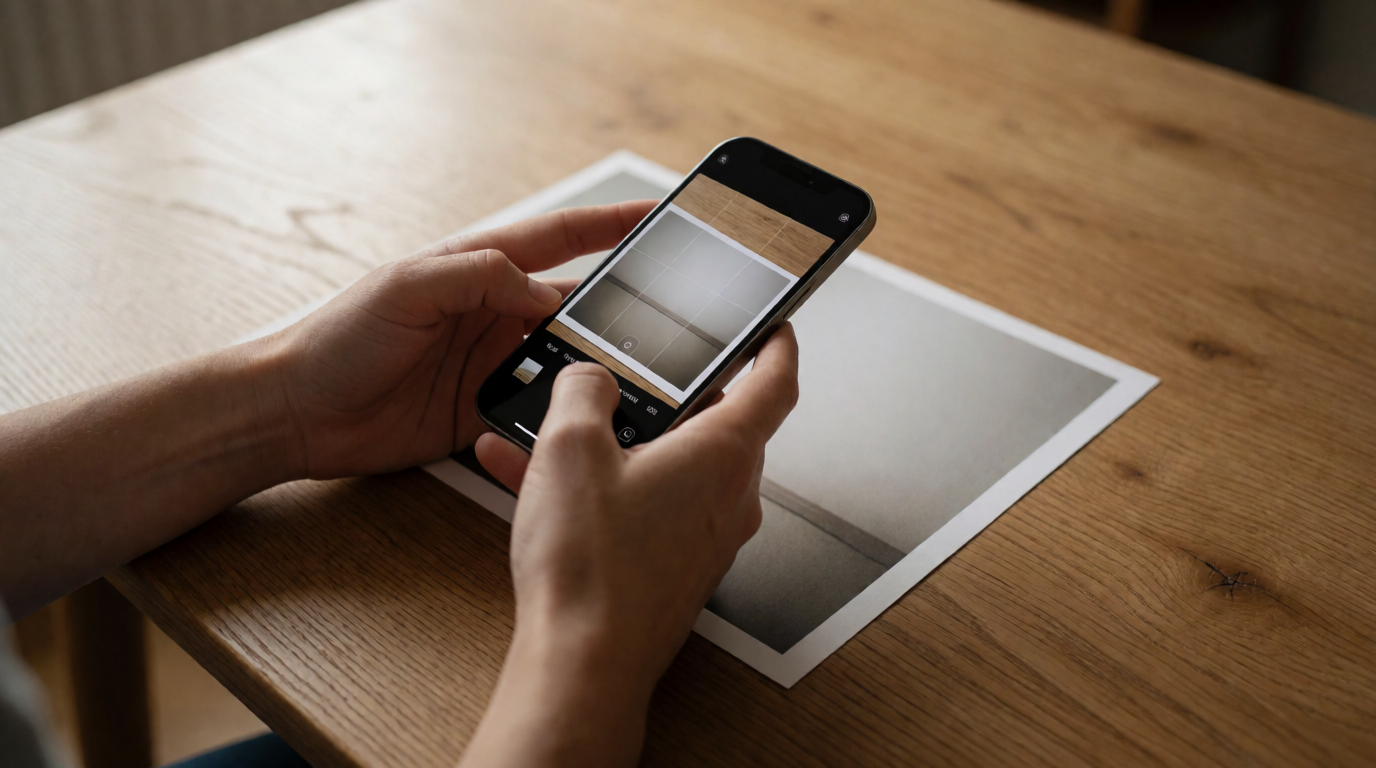
Restoration deserves its own row because it is the one job where both families cooperate: a fidelity pass to repair, then the lightest creative touch to bring back texture the damage destroyed —
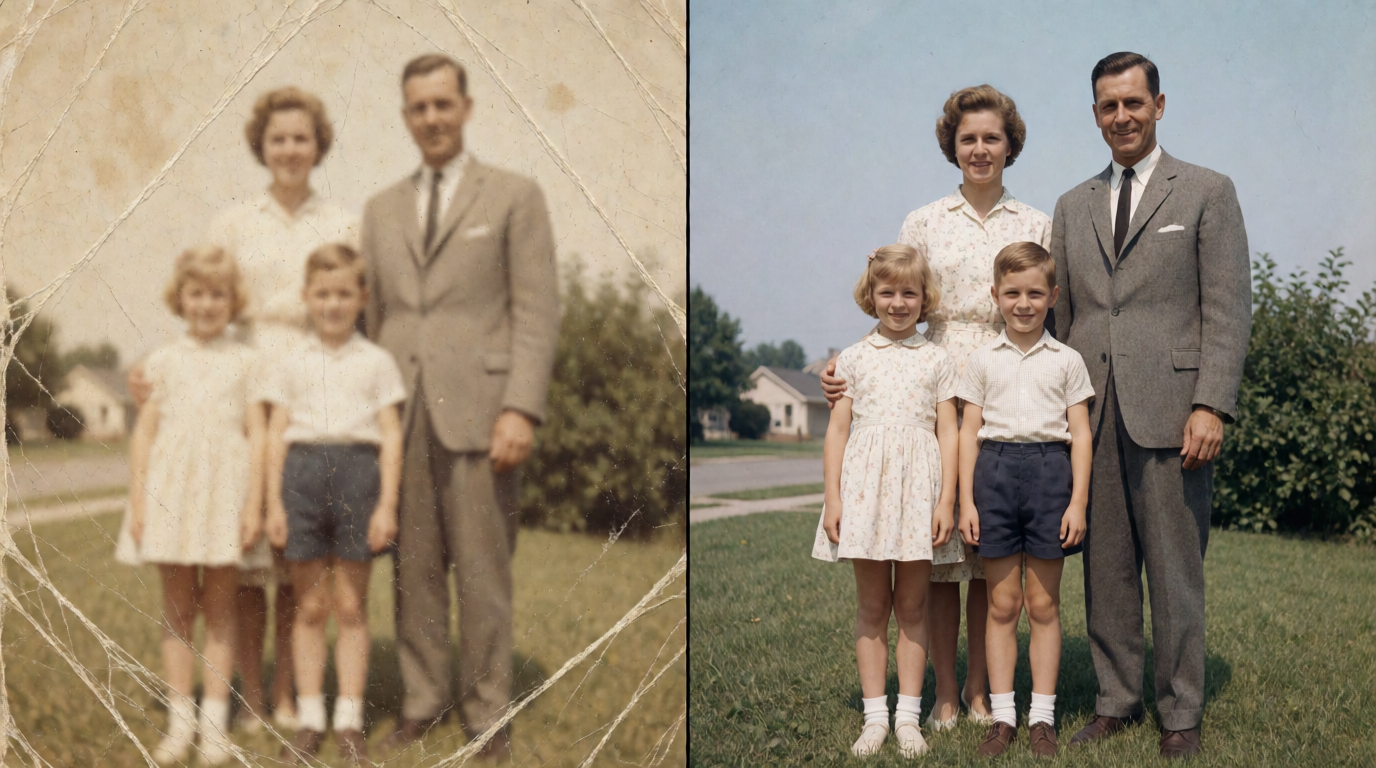
Two passes beat one heroic pass: a fidelity enlargement to 2x, then a low-strength creative pass, keeps identity while still adding print-worthy texture. In Krea this is one tool with two runs of the dial; elsewhere it is two products. Renders headed for a presentation board have their own workflow — see the enhancement step in our AI architectural rendering guide.
Which upscaler should you pick?
Start from what the pixels are. Real photograph of a person: fidelity family — Gigapixel, Super Resolution, or Upscayl for free. AI image, render, or illustration: creative family — Krea Enhancer or Magnific, because the input’s own detail is not worth preserving. Mixed pipeline or unsure: a tool with a strength dial (Krea Enhancer) covers both ends without buying twice.
Frequently asked questions
What is the best AI image upscaler?
Is there a good free AI image upscaler?
How do I upscale an image without changing it?
Can I upscale an image to 4K or 8K?
How do I restore an old photo with AI?
Should I upscale before or after editing?
Try the Enhancer
Basic 2K upscaling is free with 100 daily compute units; paid plans unlock 8K-class detail with the adjustable creativity dial.
Try the Enhancer