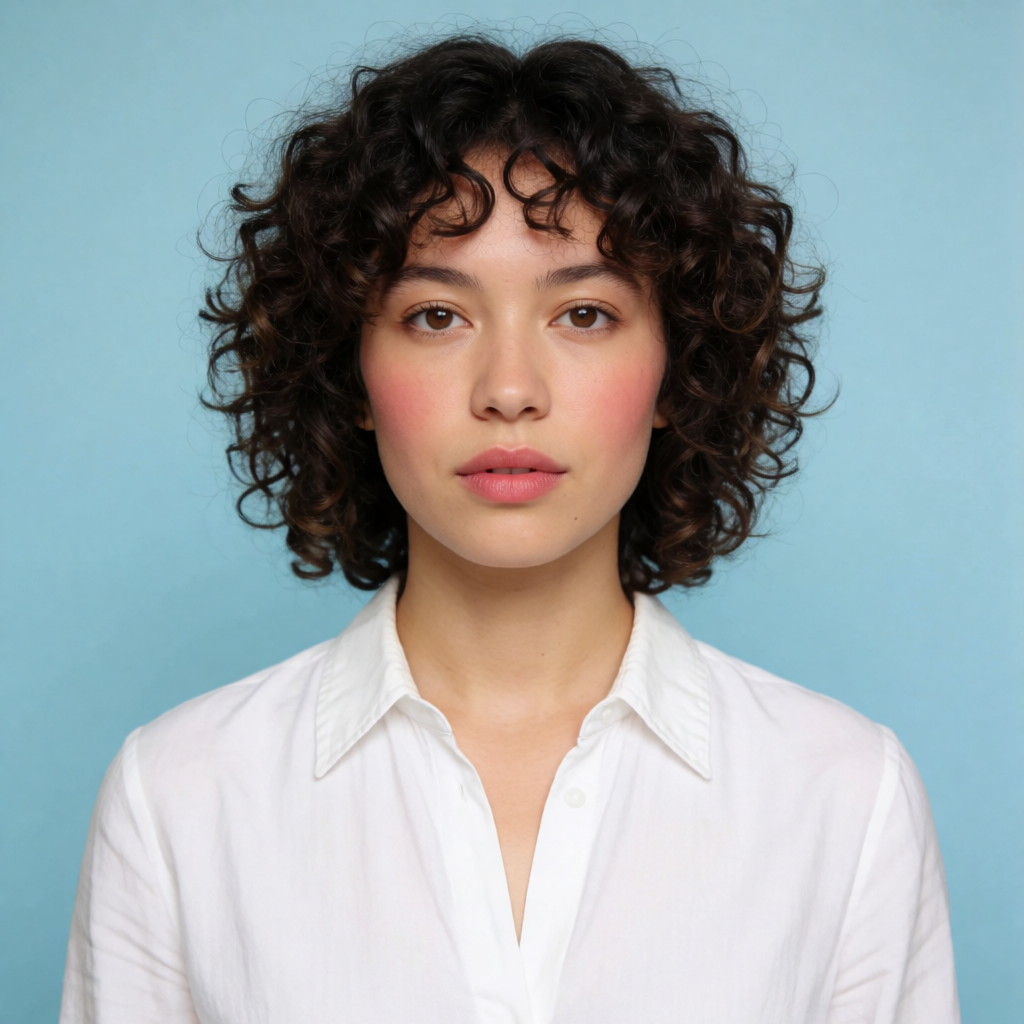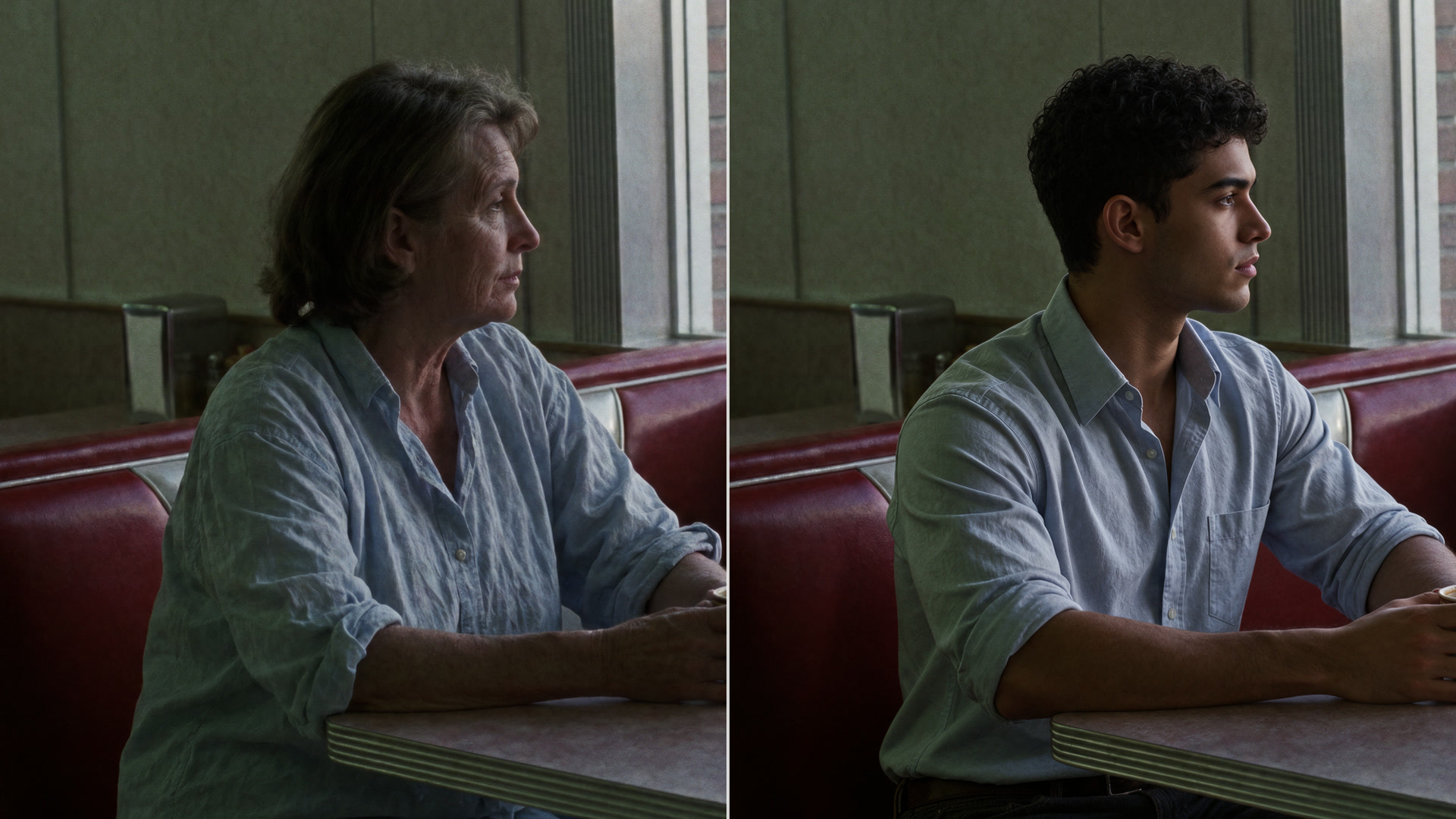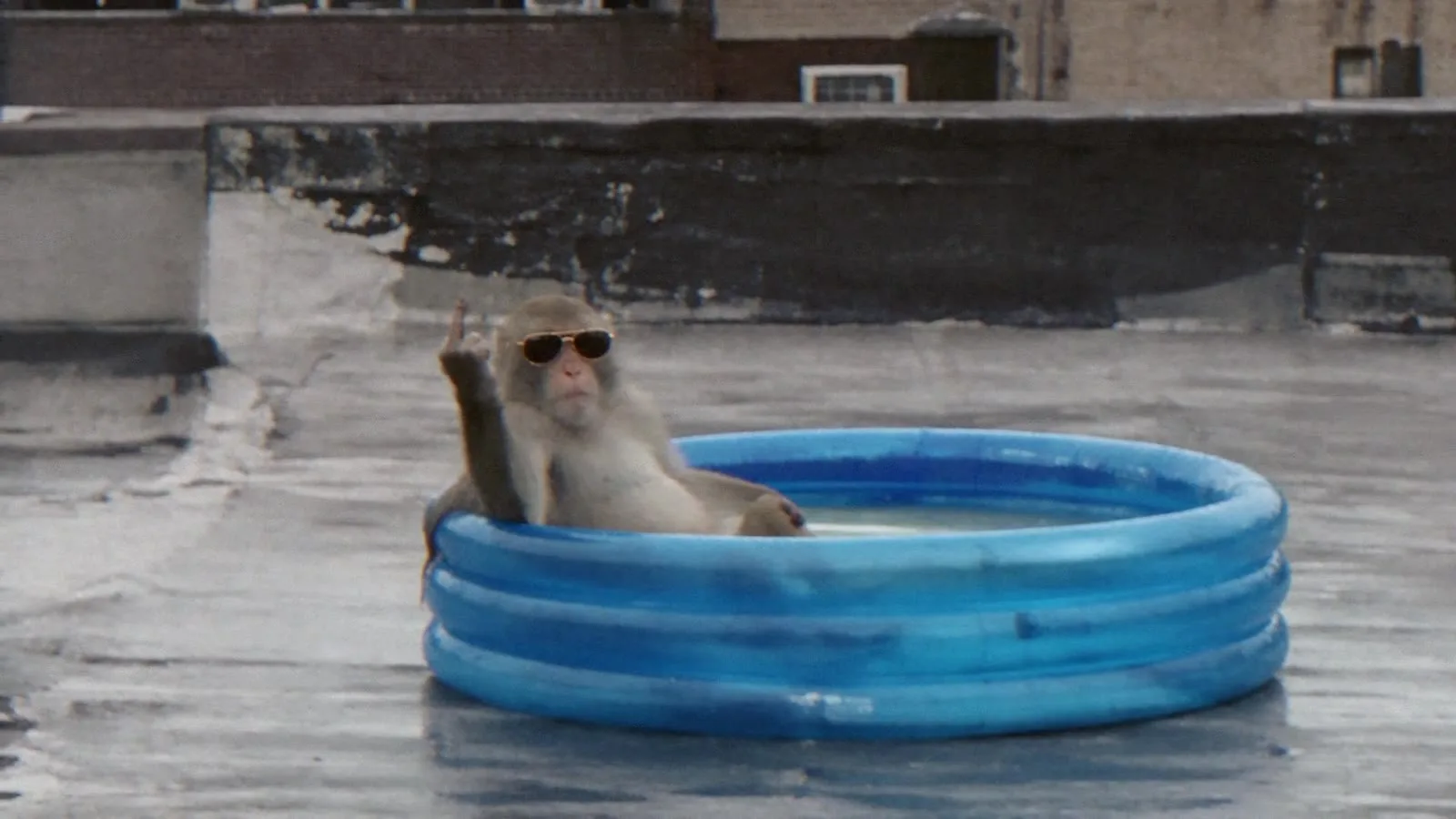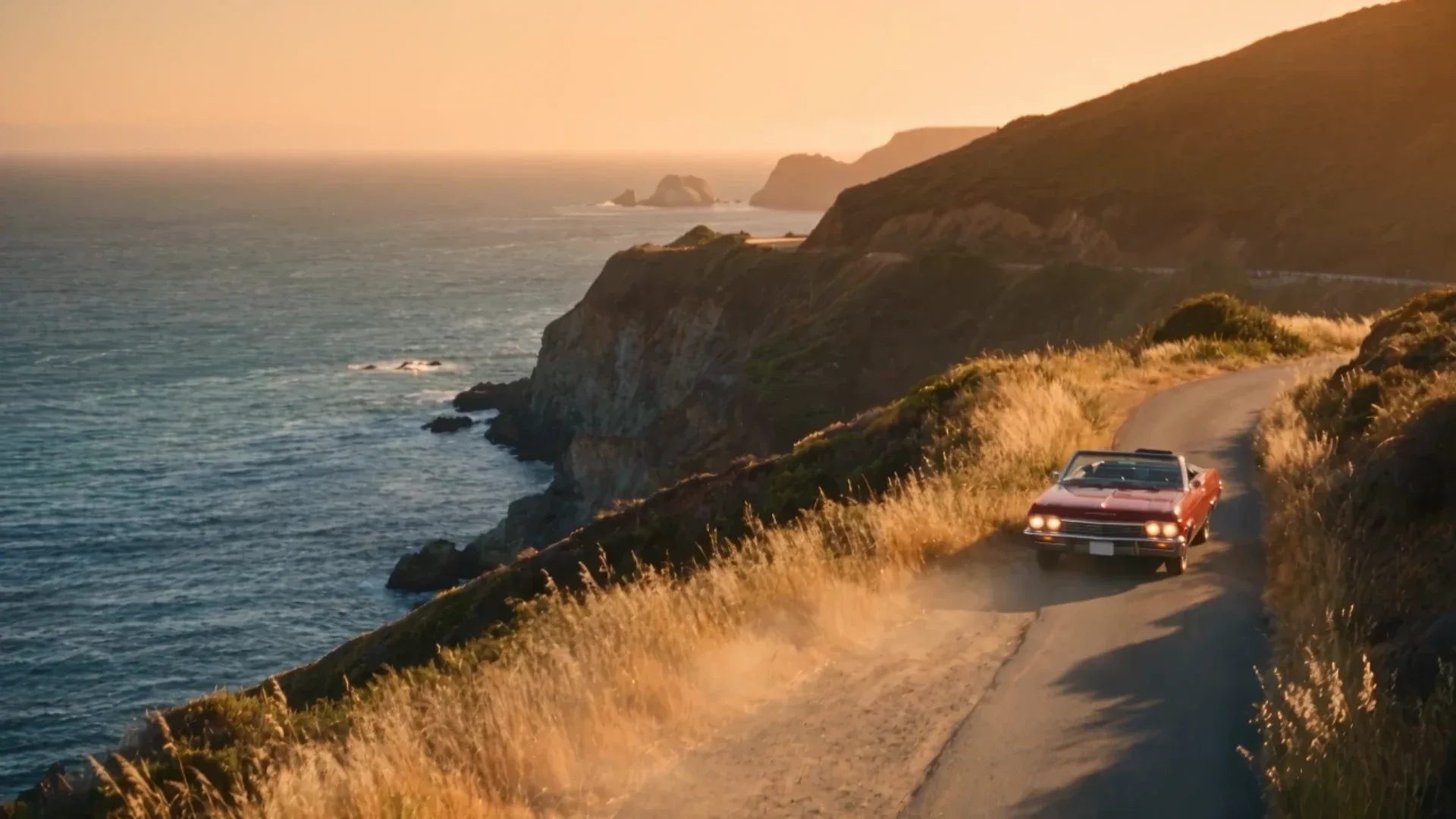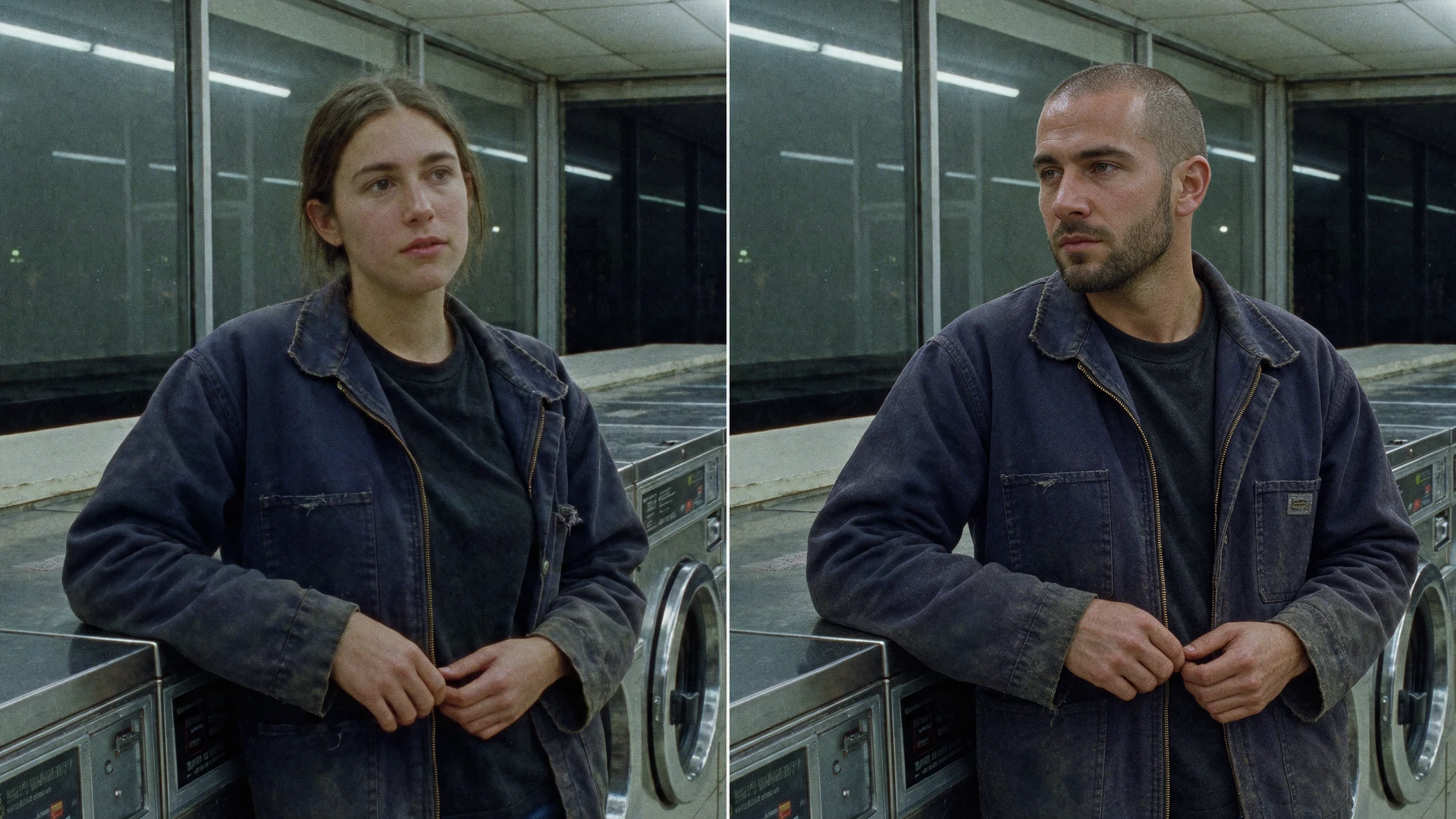
To face swap a video with AI, you give a tool the clip you want to keep and a photo of the person you want in it. The tool redraws that person into every frame and leaves the rest alone: the movement, the camera, the cuts and the sound. On Krea that tool is Video Swap. You upload one video, add one to four reference images, and generate.
This guide walks through a full swap in Krea Video Swap, then covers what makes a clean result, how to swap a whole character instead of only a face, how to handle several people, how developers run the same swap through the API and MCP, and the consent rules that apply to all of it.
Before you start: Video Swap runs on a paid Krea plan. You can open it and look around without one, but you need to sign in and have a plan to generate. See Krea pricing for the plans.
The short version
- Open Krea Video Swap. In the app it is the first mode in Krea Video.
- Upload the video you want to keep. Standard takes 4 to 29 seconds. MP4, MOV, WebM and OGG are accepted.
- Add one to four reference images of the person (or outfit, object or background) you want in the video. JPG, PNG, WebP, AVIF and HEIC are accepted.
- Add a prompt if you need one. It is optional. Use it to say who replaces whom, like “@img-2 replaces the man on the left”.
- Pick a model: Standard, Lite or Recast. Then pick the quality (resolution).
- Generate, check the result, and upscale it if you need a sharper file.
What Video Swap actually changes
Video Swap is built to keep the source clip’s performance and replace what is in it. Krea describes it as replacing people, outfits, objects or the setting in a video while keeping its motion, timing, camera and sound. The original audio is laid back onto the result, so dialogue and music stay as they were.
The part that matters for a face swap: Video Swap swaps the whole person shown in your reference, not only the face. If your reference photo shows a woman with short red hair in a denim jacket, the result is that woman, hair and jacket included, moving the way the original person moved. That is usually what people mean by “put me in this video”. If you only want to change a face and keep everything else, read Swap a whole character, an outfit, or just a face below.
You also do not have to tell the tool what each reference replaces. Krea plans that step for you: it looks at frames from the source and at your references, and works out which person (or object, outfit or background) each image should replace. A prompt only overrides that plan when you want a specific mapping.
How to face swap a video, step by step
1. Open Video Swap
Go to krea.ai/apps/video-face-swap and open the tool, or go straight to Krea Video with Video Swap selected. Video Swap is the first mode in Krea Video’s mode menu.
No clip of your own yet? The Explore grid in Video Swap has example swaps you can open and recreate with your own references. It is a quick way to learn what kind of footage works before you shoot anything.
2. Upload the source video
The source is the clip you want to keep: the movement, the framing, the camera, the sound. In the panel it is labeled Video to edit, with the hint “Upload a video to swap things in it.”
Length limits depend on the model you pick in step 5:
| Model | Source length | Quality options |
|---|---|---|
| Standard (default, Seedance 2.5) | 4 to 29 seconds | 480p, 720p, 1080p |
| Lite (Wan 3.0) | 4 to 15 seconds | 480p, 720p, 1080p |
| Recast (MiniMax H3 Max Recast) | 5 to 30 seconds, no single shot over 15 seconds | 768p, 1080p (people only) |
If your clip is longer than the selected model takes, Krea opens a trim dialog so you can keep the part you need. Only the trimmed part is swapped, and only that part is priced. Switching to a model with a shorter limit marks the video “Too long” until you trim it.
3. Add one to four reference images
References are the photos of what you want to see in the video. The panel labels them References, with the hint “These will replace their closest match in your video.” You can add up to four.
For a face swap, the reference is a photo of the person who should appear. Use a sharp, well-lit image where the face is clearly visible. A head-and-shoulders shot works, and a full-body photo also tells the tool how the person is dressed. Each reference is treated as a complete description of the new person, so whatever the photo shows (hair, glasses, jacket) can come through in the result.
Only upload a photo of someone who agreed to it. More on that in Use video face swap responsibly.
4. Add a prompt (optional)
The prompt field is labeled Prompt (optional). Your inputs appear as pills you can mention: the video is @vid-1 and the references are @img-1 to @img-4. The placeholder shows the kind of prompt that helps:
@img-2 replaces the man on the leftMost single-person swaps need no prompt at all. Add one when the clip has several people and you care who becomes whom, or when the tool’s automatic choice picked the wrong person on a first run.
5. Pick a model
- Standard is the default and the one to start with. It takes the longest clips (up to 29 seconds) and runs Krea’s full swap pipeline on Seedance 2.5.
- Lite runs on Wan 3.0 and takes clips up to 15 seconds. Use it for short clips or as a second try with a different model.
- Recast runs on MiniMax H3 Max Recast. It swaps people only, takes one photo per new person ordered from left to right in the frame, and renders at 768p or 1080p.
If one model gets a clip wrong, the same clip on another model is a reasonable second attempt.
6. Choose quality and generate
Pick the quality (480p, 720p or 1080p on Standard and Lite; 768p or 1080p on Recast). The panel shows the cost in compute units before you click, and the price scales with the length of the source and the resolution. 720p is the default and a sensible first pass. Run 1080p once you know the swap works.
The finished video appears in your Krea Video history labeled Video Swap. It keeps the source’s length and audio. The aspect ratio follows the source; some renders snap to the nearest standard frame (16:9, 9:16, 4:3, 1:1, 3:4 or 21:9).
7. Check the result and finish it
Watch the whole clip at full size, not just the first second. Look at the frames right after a cut, the moments when the person turns away from the camera, and any close-up. Those are where a swap is most likely to slip.
If the result looks right but soft, run it through Krea’s video upscaler before you export. If you want to extend the scene with new shots of the same character, generate them with the AI video generator using the same reference image.
Face swap a video in Krea
Upload a clip, add up to four reference photos, and Video Swap replaces the person while keeping the motion, camera and sound.
Open Video SwapTips for a cleaner video face swap
Most bad swaps trace back to the inputs. These are the habits that matter most:
- Use a clear, front-facing reference. Sharp, evenly lit, face unobstructed: no sunglasses, no hand over the mouth, no hair across the eyes. A tiny or compressed image gives the tool less to work with.
- Match the lighting roughly. A reference shot in soft daylight drops into a daylight clip more naturally than a flash-lit selfie does into a sunset scene.
- Prefer single, continuous shots. Video Swap handles cuts, but one continuous take is the most reliable case. Recast does not accept a single shot over 15 seconds.
- Keep the person reasonably large in frame. A face that fills the frame (a talking-head close-up) and a figure that is tiny in a wide shot are both harder than a medium shot.
- Stay inside the length limits. 4 to 29 seconds on Standard, 4 to 15 on Lite, 5 to 30 on Recast. Trim to the part you need; you pay for the trimmed length, not the full file.
- One reference per person. For two people, add two references and say who replaces whom in the prompt.
| If you see this | What to change |
|---|---|
| The original person’s face shows through, especially in a close-up | Use a sharper, larger reference. Try a wider shot of the same moment, or run the clip on another model. |
| The wrong person was replaced | Add a prompt that maps it: “@img-1 replaces the woman in the red coat”. Position words (left, right, front) help. |
| The swap slips for a few frames after a cut | Trim the clip to one shot, or split it and swap each shot separately. |
| The new person’s clothes are not what you wanted | The reference’s outfit carries over. Use a reference that shows the outfit you want, or add a separate outfit reference. |
| The result looks right but soft | Upscale it with Krea’s video upscaler. |
| Your clip is rejected as too long or too short | Check the limits for the selected model, then trim, or switch to Standard or Recast for longer clips. |
Swap a whole character, an outfit, or just a face
Video Swap decides what each reference is for. Krea sorts every reference into one of four kinds: a character (a person to swap in), clothing, an object, or a background. That gives you a few different jobs from the same panel:
- Swap the whole character. Upload a photo of the new person. Their face, hair, build and outfit replace the original person’s. This is the default, and the one the example clips in this post show.
- Swap only the outfit. Upload a photo of the garment on its own, such as a jacket laid flat or a product shot. The person stays; the clothes change.
- Swap an object or the setting. A photo of a car, a product or a location can replace the matching thing in the video.
- Mix them. With four slots, one clip can get a new person, a new jacket and a new background in one run.
Only the face, keeping the original hair and clothes? Video Swap does not have a separate face-only mode. It treats a person reference as the whole person. The closest you can get is a tight headshot as the reference plus a prompt such as “keep the original clothes and hairstyle”, and then checking the result. Treat that as a request, not a guarantee. For still images, a true face-only swap is what Krea’s photo face swap does, and how to face swap a photo walks through it.
Swapping more than one person in a video
You can add up to four references, so one clip can have up to four new people. Two habits make it work:
- One reference per person. Do not put two people in one reference image.
- Say who replaces whom. Use the pills: “@img-1 replaces the dancer on the left, @img-2 replaces the dancer on the right”. Without a prompt, Krea picks the closest match for each reference, which is usually right but worth checking.
On Recast, the order matters: add one photo per new person, ordered left to right as they appear in the frame.
Multi-person swaps are the harder case. People who overlap, cross in front of each other or leave and re-enter the frame give the tool more chances to mix them up. Check every crossing, and if one person comes out wrong, a clearer mapping in the prompt is the first fix.
Video face swap for developers: the API and MCP
The same Video Swap runs outside the browser.
Krea API. Send a POST to https://api.krea.ai/generate/video/krea/video-swap with your source video URL and one to four reference URLs. The full schema is in the Video Swap API reference.
curl -X POST https://api.krea.ai/generate/video/krea/video-swap \
  -H "Authorization: Bearer $KREA_API_KEY" \
  -H "Content-Type: application/json" \
  -d '{
    "source_video": "https://example.com/source.mp4",
    "references": ["https://example.com/new-person.png"],
    "model": "seedance-2-5",
    "resolution": "720p",
    "prompt": "@Image1 replaces the woman on the left"
}'source_videoandreferences(1 to 4) are required. Each can be a public URL, a base64 data URI or an uploaded asset URL.modelisseedance-2-5(Standard, the default),wan30(Lite) orminimax_h3max_recast(Recast).resolutionis 480p, 720p or 1080p on Standard and Lite, and 768p or 1080p on Recast.promptis optional. In the API the references are@Image1to@Image4, in the order you send them.
The request returns a job. Poll it as described in the job lifecycle docs, or pass a webhook. The price is the chosen model’s price for the source’s length, plus a per-second swap fee on Standard and Lite. API calls draw on your API balance, which is separate from an app subscription.
MCP. Krea’s MCP server exposes a swap_video tool with the same inputs (source video, one to four references, optional prompt, model and resolution). Connect it to Claude, Cursor or another MCP client and ask in plain language: “swap the person in this clip with the person in this photo.” The ChatGPT connector does not include swap_video.
Krea Agent. Inside Krea, the Agent can run a video swap for you as part of a longer task, and it asks before it runs one.
Use video face swap responsibly
A good video face swap is easy to mistake for real footage. That is what makes it useful for creative work, and it is also why the rules are strict.
Krea’s terms prohibit content that is fraudulent or deceptive, and name “actions and content which impersonate individuals without their consent (e.g. deepfakes)” as a specific case. They also prohibit using content you do not own without the owner’s prior consent. Sexually graphic content is prohibited. A violation is grounds for losing access.
In practice:
- Swap in only people who said yes. Your own face, a cast member who agreed, a model you hired with a release, or a character you created yourself.
- Use footage you have the rights to. Your own clips, licensed stock, or video you generated. A scene from a film or someone else’s post is not yours to rework.
- Do not impersonate. Never make a real person appear to say or do something they did not, and never present a swap as real footage of an event.
- Public is not consent. A public figure, a stranger or a coworker in a public video has not agreed to be swapped.
- Label it. When a viewer could take the result for untouched footage, say it is an AI edit.
Where to go next
- Still photo instead of a video? Use Krea’s photo face swap. The step-by-step is in how to face swap a photo with AI.
- Need a sharper file? Run the finished swap through the AI video upscaler.
- Need new shots of the same character? Generate them in the AI video generator with the same reference image.
Frequently asked questions
How do I face swap a video with AI?
How do I swap a face in a video without changing anything else?
Is Krea Video Swap free?
How long can the video be?
What file types does Video Swap accept?
Can I swap more than one person in a video?
Can I swap clothes, objects or the background instead of a face?
Does the swapped video keep the original audio?
What resolution is the output?
Can I face swap a video through an API?
Is it legal to face swap someone into a video?
Swap a face in your next video
One clip, up to four reference photos, and the original motion, camera and sound kept.
Try Video Swap