Seedance 2.5 is ByteDance’s most advanced video model: one take up to 30 seconds, native audio on every clip, and up to 50 image, video and audio references. You can use it in the browser on Krea with no setup, or call it through the Krea API. This tutorial walks through a full generation on Krea, from picking an input mode to downloading a finished, upscaled clip.
Before you start: Seedance 2.5 on Krea is available on the Pro plan and above. See Krea pricing for plan details, or read is Seedance 2.5 free? if you are deciding whether to upgrade.
Open Seedance 2.5 on Krea
Generate up to 30 seconds with native audio, start and end frames, and up to 50 references.
Open Seedance 2.5Where to use Seedance 2.5
Seedance 2.5 is a hosted model. ByteDance serves it through its own apps and API, and through platforms that license it. On Krea there are two ways in:
- Krea Video in the browser. Open Seedance 2.5 directly, or go to Krea Video and pick Seedance 2.5 in the model selector.
- The Krea API. One API key gives you Seedance 2.5 alongside every other video model on Krea. The Seedance 2.5 API guide has code examples.
The rest of this guide uses the browser.
Step 1: Choose how you want to drive the shot
Seedance 2.5 accepts four kinds of input, and you can combine them.
- Text only. Write a prompt and generate. Best for exploring ideas or when the look doesn’t need to match anything existing.
- Start frame. Upload or generate an image and Seedance 2.5 animates from it. This is the most reliable way to lock composition, character and lighting.
- Start and end frame. Add a last frame and the model plans the motion between the two. Use it for transitions, reveals and loops.
- References. Add up to 30 image references, 10 video references and 10 audio references to control characters, products, motion and sound. Each reference keeps a subject consistent across the whole clip.
A good default for product and character work is a start frame plus a few image references. Start frames can come from any image model on Krea, so you can design the frame and animate it in the same workspace.
Worked example: animate a start frame
Here’s the start-frame path end to end, as we ran it on Krea in October 2026. First we generated the frame with Nano Banana Pro on Krea: a red 1960s convertible parked on a cliffside coastal road at golden hour, with no people in shot.
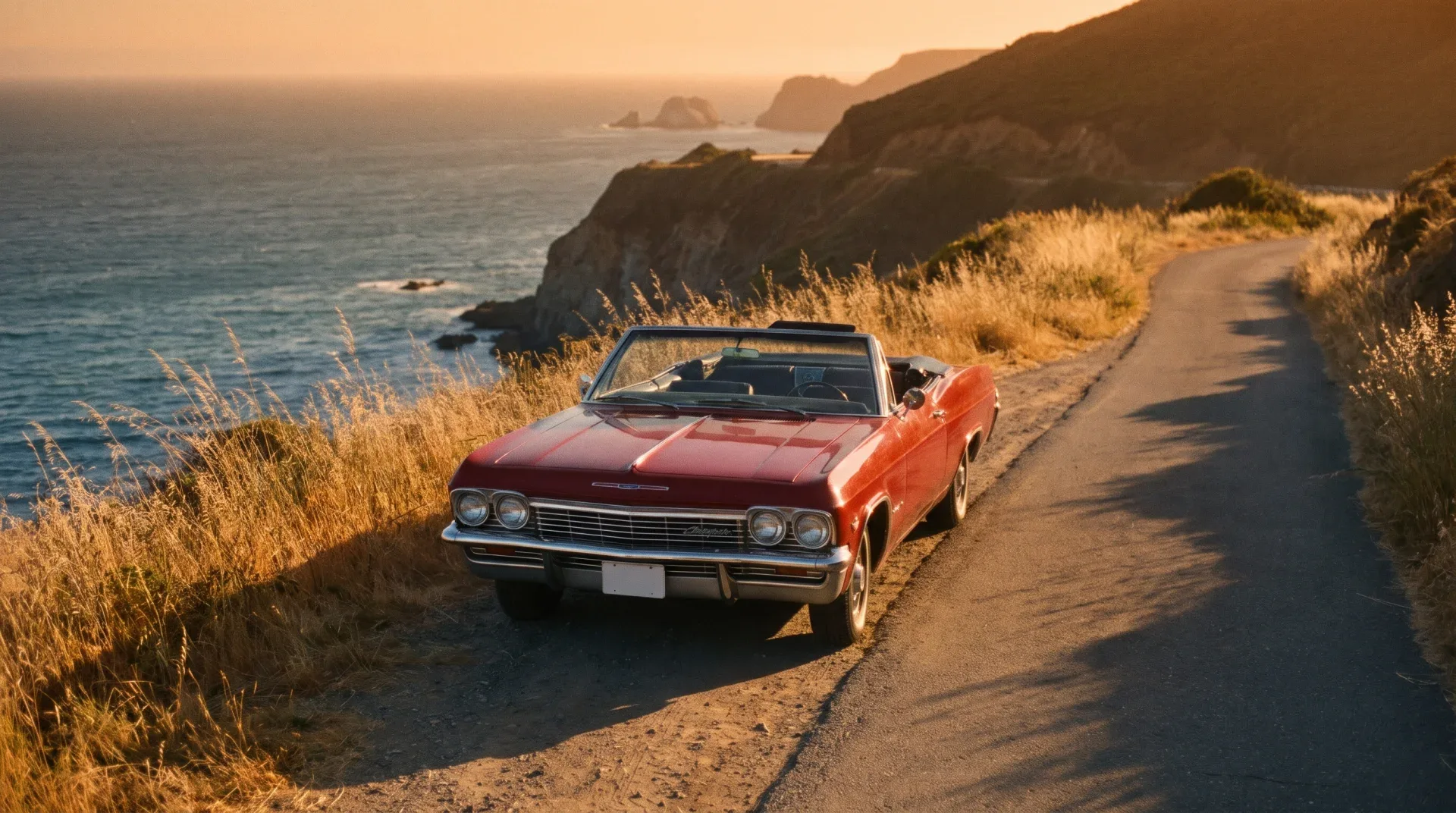
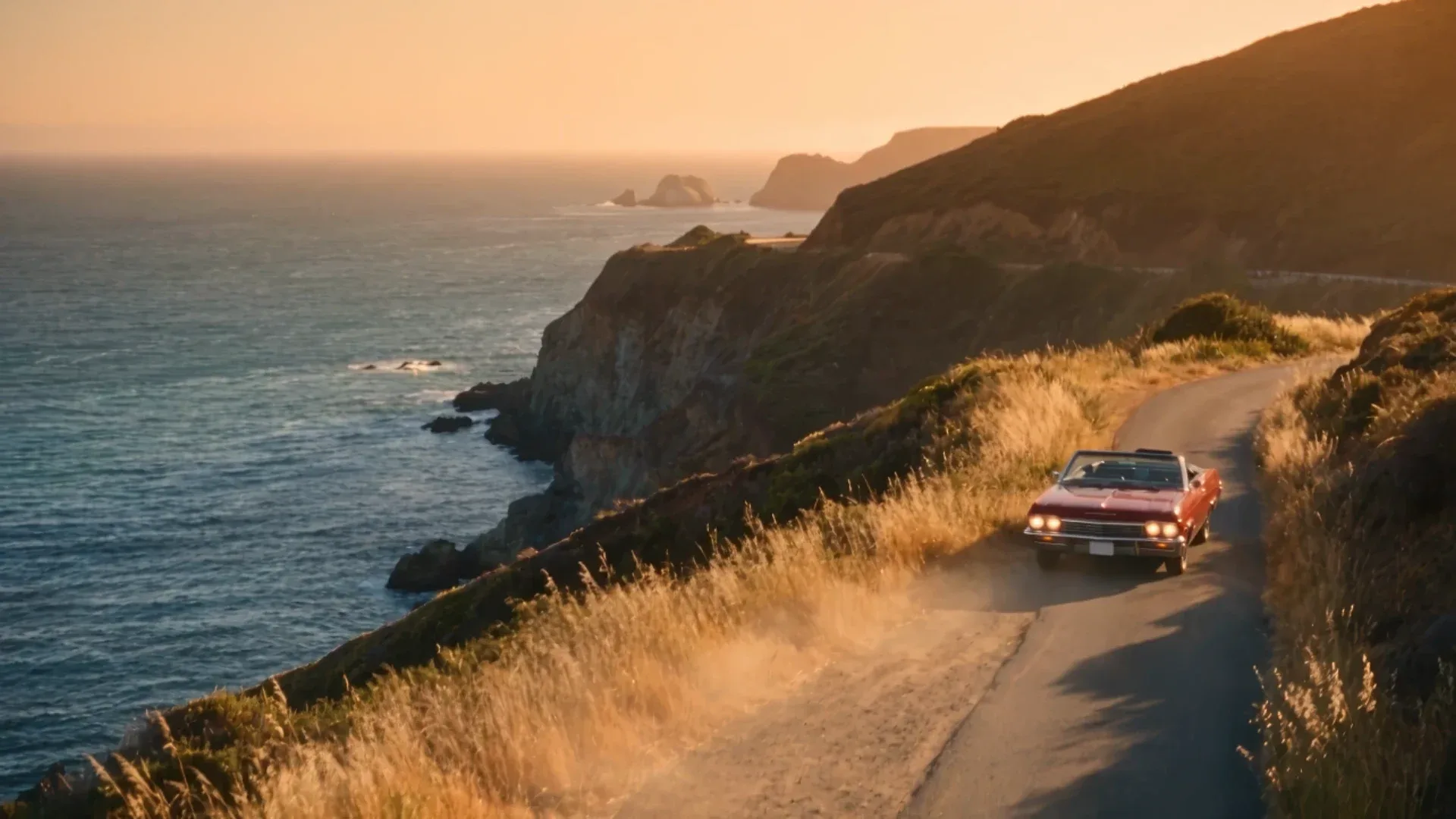
Then we gave Seedance 2.5 that image as the start frame, at 8 seconds, 720p and 16:9, with this prompt:
@Image1 as the first frame. The parked red convertible's headlights flick on, then the car pulls away from the camera along the cliffside road at a steady pace, dust lifting from the shoulder, wild grass whipping in the wind. Camera: smooth crane up and back to reveal the coastline and the glittering sea below as the car shrinks into the distance. Audio: engine turning over and rumbling away, wind, distant surf.The clip took 2 minutes 45 seconds to render. It does what the prompt asks in order: the headlights come on, the car pulls away kicking up dust from the shoulder, and the camera rises to show the coastline as the car shrinks down the road. The car’s shape and color and the warm evening light carry straight over from the start frame, which is why a start frame is the most reliable way to lock a look.
Three things made this prompt work:
- The frame sets the look and the prompt sets the motion. The prompt doesn’t re-describe the car’s color or the light. It only says what moves and how the camera behaves.
- One clear event per beat. Headlights, then pull-away, then the reveal. Each has a physical consequence (dust, whipping grass) that sells the motion.
- The sound follows the action. The engine turns over, then rumbles away as the car leaves, under wind and surf.
One practical note: Krea’s Seedance guidance warns that uploaded images and videos showing realistic human faces are blocked. Start frames with people work best as stylized or non-photoreal images, or use a character reference instead. Our example frame avoids the issue by having no people in it.
Step 2: Write the prompt like a director
Describe the shot, not a list of keywords. A reliable structure:
- Subject and setting: who or what is on screen, and where.
- Action: what happens, in order. For longer clips, write it as beats.
- Camera: framing and movement, such as a slow push-in, handheld or orbit.
- Light and mood: time of day, light quality, color.
- Sound: dialogue in quotes, effects and ambience. Seedance 2.5 generates audio in the same pass, so describe what should be heard.
Here is a prompt from the Seedance 2.5 prompt gallery that follows that structure:
A model in a flowing red silk dress drifts weightlessly underwater in a turquoise cenote, sunlight beams piercing from the surface above, fabric billowing in slow motion, bubbles trailing upward, ethereal ambient soundtrack with muffled water sounds.
If you only have a rough idea, write it out as a full brief first: subject, action, camera, lighting, sound. On the API, the enhance_prompt option has Krea rewrite a short prompt into a fuller Seedance-style brief before generating. For a deeper breakdown, read the Seedance 2.5 prompt guide.
Step 3: Set duration, resolution and aspect ratio
- Duration: any length from 4 to 30 seconds. Shorter clips cost less and finish faster. Go long only when the shot needs one continuous take.
- Resolution: 480p, 720p or 1080p. 720p is the default and a good balance for most work. Use 1080p for final delivery.
- Aspect ratio: 16:9, 4:3, 1:1, 3:4, 9:16 or 21:9. Pick the shape of the final placement, such as 9:16 for Reels and TikTok or 21:9 for a cinematic frame, rather than cropping later.
Cost scales with duration and resolution. On Krea, Seedance 2.5 costs roughly 76 compute units per second at 480p, 171 at 720p and 421 at 1080p, so a 5-second 720p clip is about 856 CU. The generate button shows the exact cost before you commit. The full breakdown is in Seedance 2.5 pricing.
Step 4: Draft first, then render the final
Long, high-resolution takes are the expensive ones, so check the idea before paying for it. Turn on draft mode to render a fast 480p preview billed at the 480p rate. Watch it for motion, blocking, timing and audio. If it works, render the full-quality version. If not, change the prompt and draft again.
In our tests the savings were real on both cost and time. A 5-second product shot took 1 minute 10 seconds as a 480p draft (about 380 CU), compared with 2 minutes 24 seconds at 720p (856 CU) and 4 minutes 30 seconds at 1080p (about 2,106 CU). The draft was enough to spot that our “macro, 100mm” wording cropped the bottle too tightly. The full test is in the draft mode guide.
This habit matters most on 20- to 30-second clips at 1080p, where one full render costs several times more than a draft. More on draft mode, extend and reframe in the Seedance 2.5 draft mode guide.
Step 5: Generate and compare takes
Hit generate. When the clip finishes, review it with sound on, since audio is part of the output. Seedance 2.5 is strong on prompt adherence, but any video model varies between runs, so it often pays to generate a second take of a promising prompt and pick the best one.
If a take is close but not right, change one thing at a time: the camera move, a single action beat, or one reference. Changing everything at once makes it hard to tell what helped.
Step 6: Extend or reframe the clip
Once you have a take you like, you don’t have to start over to change it:
- Extend continues the clip from where it ends, for a longer sequence that keeps the same look.
- Reframe changes the aspect ratio of an existing clip, for example turning a 16:9 master into a 9:16 cut, with Seedance filling the new area instead of cropping. Reframe is available in Krea’s Premiere Pro, After Effects and DaVinci Resolve plugins and through the API.
- Effects apply preset looks and motions to a generation.
Step 7: Upscale for 4K delivery
Seedance 2.5 renders up to 1080p. For a 4K master, run your final clip through Krea’s video upscaler. Upscaling only the take you keep is far cheaper than rendering every attempt at a higher resolution.
Step 8: Download and use it
Download the finished clip from Krea and drop it into your editor. If you edit in Premiere Pro or After Effects, Krea’s plugins let you generate and place shots without leaving the timeline.
Common mistakes
- Rendering long 1080p clips before drafting. Draft at 480p first.
- Vague prompts. “Cool cinematic video of a car” gives the model nothing to hold. Name the car, the move, the light and the sound.
- Too many conflicting references. Each reference should do one job: a face, an outfit, a product, a motion style.
- Cropping instead of choosing a ratio. Set the final aspect ratio before generating, or use reframe.
Related reading
- What Is Seedance 2.5 and What Can It Do
- Seedance 2.5 Prompt Guide
- 10 Best Seedance 2.5 Examples + Prompts
- Seedance 2.5 vs MiniMax H3
- Seedance 2.5 vs Wan 3.0
- Can You Run Seedance 2.5 Locally?
Frequently asked questions
Where can I use Seedance 2.5?
Which Krea plan do I need for Seedance 2.5?
How long can a Seedance 2.5 video be?
Can Seedance 2.5 make 4K video?
Can I animate my own image with Seedance 2.5?
Does Seedance 2.5 generate sound?
What is the cheapest way to test a Seedance 2.5 prompt?
Make your first Seedance 2.5 video
Open Seedance 2.5 on Krea, draft at 480p, then render and upscale the take you keep.
Try Seedance 2.5