An AI face swap replaces the face in one photo with a face from a second photo, and matches the target photo’s pose, expression, lighting, and skin tone. On Krea that is two uploads and one button, at AI Face Swap. The tool works on still photos. The same page lists dedicated video and GIF face swaps as coming soon.
You only need a photo that already has a face (the target) and a clear photo of the face you want to use (the source). No layers, masks, or desktop editor.
Before and after: a studio portrait
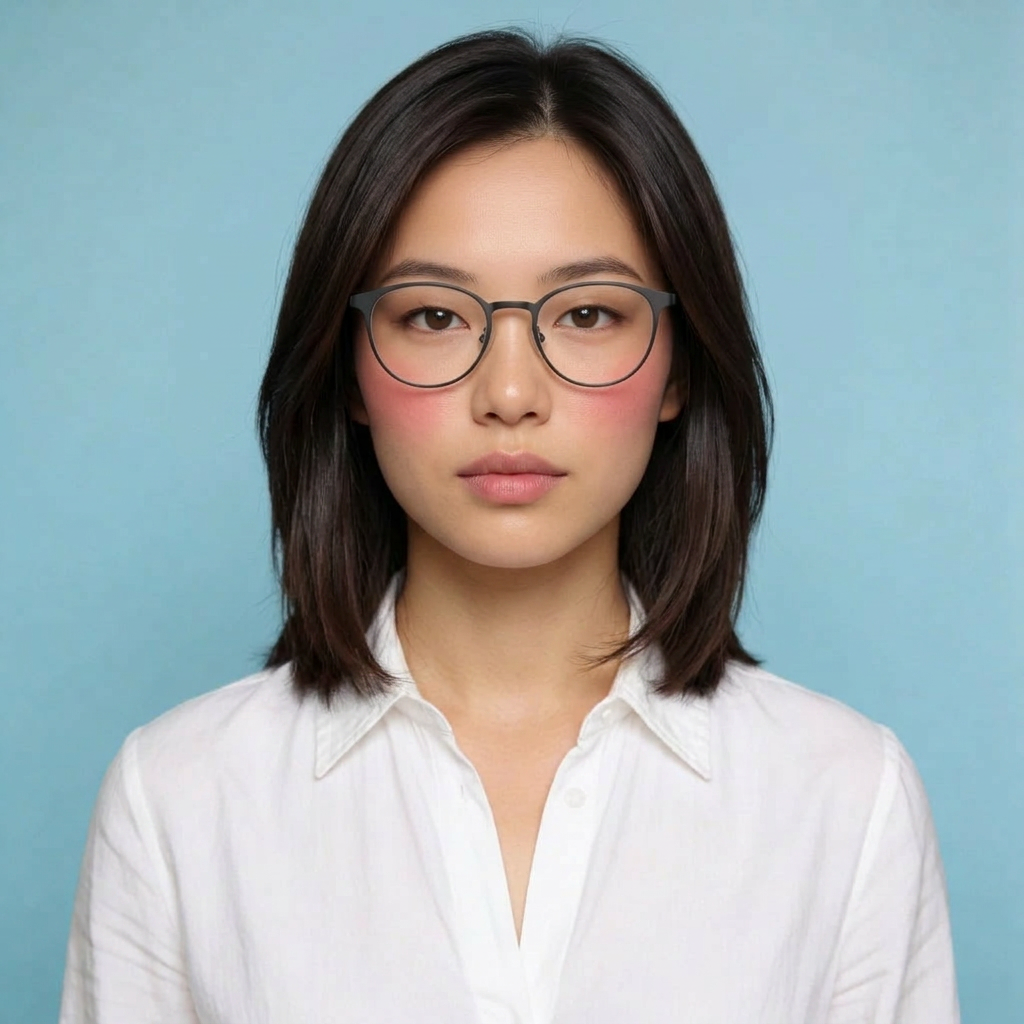
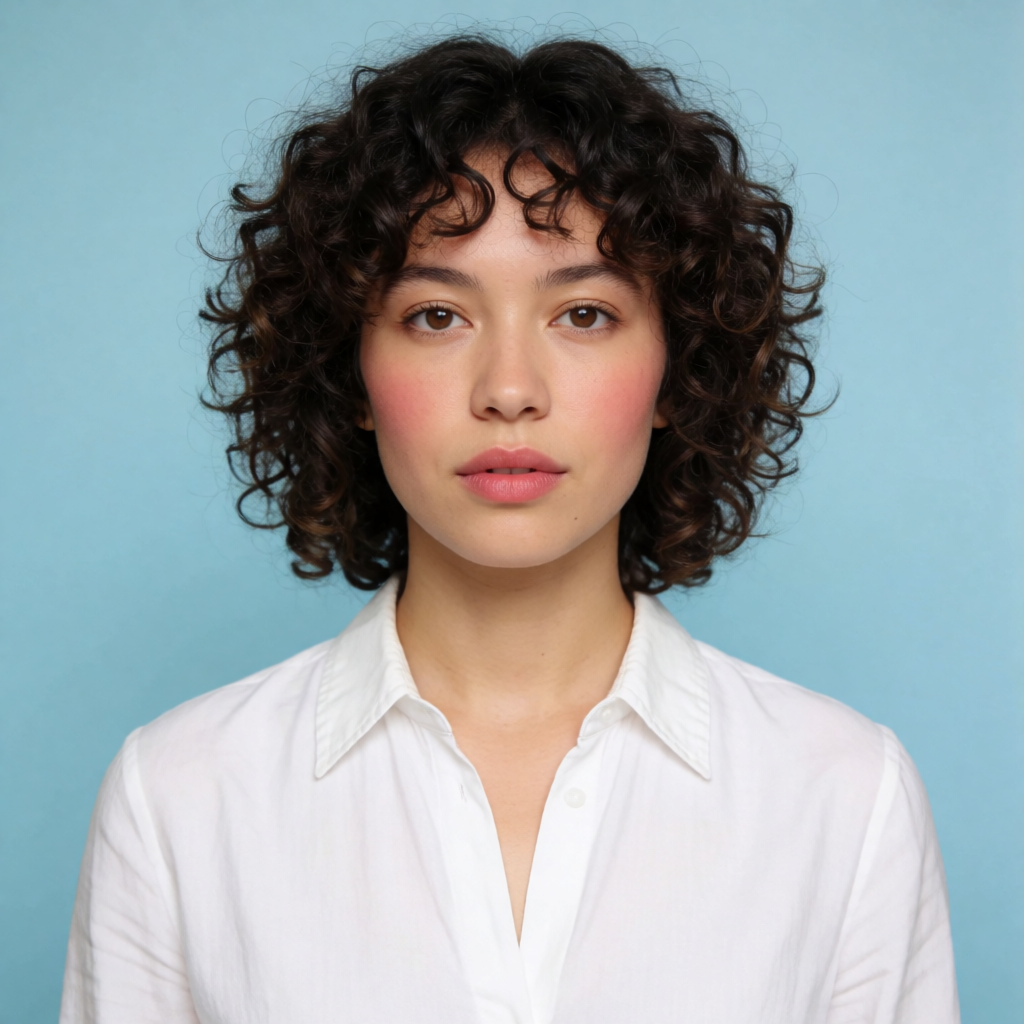
Left: the target photo from Krea’s face swap page. Right: the generated face swap. The shirt, pose, and background stay; the face, hair, and glasses change. Both images are the pair published on the app.
The short version
- Open Krea’s AI face swap. The page says you can start with no account and no credit card. Free usage limits may apply.
- Upload the target photo. This is the picture whose face you want to replace. PNG, JPEG, WEBP, HEIC, and HEIF are accepted.
- Upload the source face. A clear, well-lit photo of the face you want to insert, with a similar angle to the target.
- Click Face Swap. The button is marked 2 CU. Most results come back within a few seconds.
- Check the face, then refine. Download it, or keep editing in Krea Edit and the Enhancer.
What an AI face swap keeps
A face swap photo is not a new portrait from scratch. The scene stays the scene. Krea’s face swap page describes the edit this way: the source face is blended into the target photo while the target’s pose, expression, lighting, and skin tone are matched. The page also says the tool maps facial geometry so the new face fits the target’s angle.
What the published example actually changes is worth seeing before you rely on it. In the portrait above, the white shirt and blue background stay. The hair goes from straight to curly, and the glasses disappear. Treat hair, glasses, and other accessories as things to check, not as a guarantee either way.
The page says the strongest results are single-subject portraits. Group photos can come back inconsistent when faces are small or overlapping.
How to face swap a photo
1. Upload the target photo
The target is the photo you want to keep: the pose, the clothes, the room, the framing. On the app it is labeled Target Image, with the hint “Upload the photo with face to replace.”
Pick a frame where the face is large enough to see and not blocked by a hand, a phone, or heavy shadow. A sharp photo beats a screenshot. If the only file you have is blurry, noisy, or tiny, fix that first. How to improve photo quality covers unblur and upscale, and how to restore old photos covers scratches and tears on a print. A face swap cannot recover detail the file never had.
2. Upload the source face
The source is the face you want to insert. On the app it is labeled Your Photo, with the hint “Upload the face you want to insert.”
Use a photo where the face is clear, high resolution, evenly lit, and not covered by sunglasses, a mask, or hair across the eyes. The app’s own tip is to choose a target whose angle is similar to the source. A front-facing source dropped onto a sharp profile has less real information to match, and the blend has to invent more.
Only upload a face you have the right to use. That means your own face, or someone who agreed. The consent rules are in the section below.
3. Generate the face swap
Click Face Swap. The control on the page is marked 2 CU (compute units). The page says most generations finish within a few seconds, depending on image size and complexity, and that you do not mask or composite by hand.
The same page says the tool is free to use, that uploads are not used to train Krea’s models, and that the output is high resolution. It does not publish a pixel size for that output, so “high resolution” here means the claim on the app, not a specific width.
If the first result looks slightly off, run it again with the same two photos, or swap in a clearer source. A second pass is normal. Face edits are sensitive to the source crop.
Same clothes, a different face
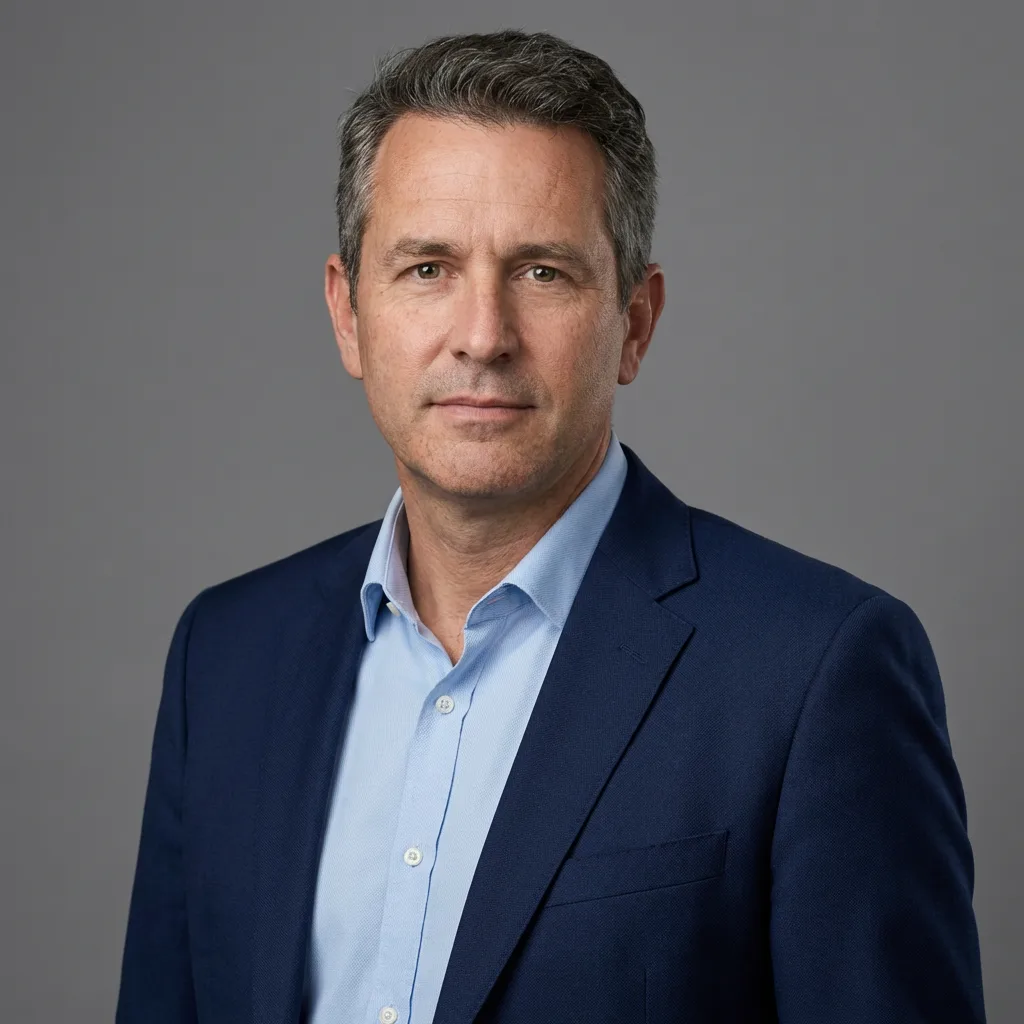
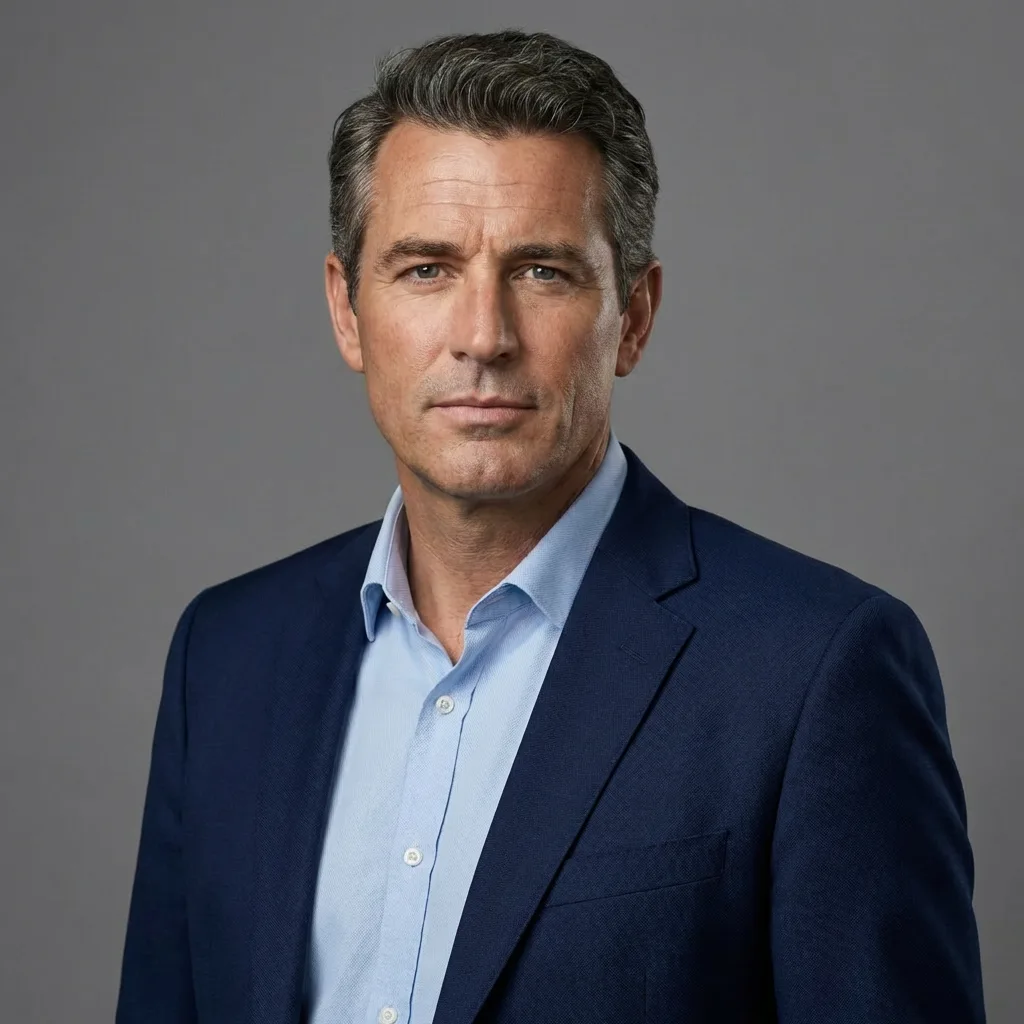
The before-and-after pair shipped with the face swap app. The blazer, shirt, and background stay. The face is replaced.
4. Refine the result
The face swap page offers two next steps after the image is done: continue in the AI image editor or enhance the result. In the blog’s usual paths those are Krea Edit and the Enhancer.
Use Edit when one thing is wrong and the rest is right: a stray edge along the jaw, a background you want changed, a lighting pass. How to edit and stylize a photo with AI walks through that kind of follow-up edit. Use the Enhancer when the swap looks right but you need a larger file for a print or a layout.
The face swap page also links image to image for a restyle after the swap. That is a separate edit, not part of the face swap click.
Swap a face in a photo
Upload a target photo and a source face. Krea's AI face swap runs in the browser, and the page says you can start without an account.
Open face swapTips for a cleaner face swap photo
The app’s FAQ gives the practical bar: a clear, high-resolution source face, good lighting, little obstruction, and a target where the face is visible at a similar angle. Clearer inputs produce a more natural blend.
| If you see this | What to change |
|---|---|
| The new face looks pasted on | Use a source with similar lighting direction, then run it again. The tool is built to match shadows, highlights, and skin tone; a very dark source on a bright target gives it less to match. |
| Eyes or mouth look soft | Crop the source tighter on the face, or start from a higher-resolution file. Obstruction (bangs, glasses glare, a hand) is the usual cause. |
| The angle feels wrong | Pick a target whose head turn is close to the source. Front to front is the reliable case. |
| A group photo only fixes one person, or fixes the wrong one | Use a single-subject portrait. The page says group photos may be inconsistent when faces are small or overlap. |
| Hair or glasses are not what you expected | Compare against the original. The published portrait example changes both. If the rest of the photo is right, fix the leftover detail in Krea Edit. |
| The file is too small to print | Run the finished swap through the Enhancer. Fix the face first, then add pixels. |
A few capture habits matter more than any slider:
- Light the face from the front. Window light, not a hard overhead lamp, and not a flash straight into glasses.
- Keep the camera near eye level for both photos if you want a straight portrait.
- Shoot or export the largest file you have. A messaging-app preview is compressed. Start from the camera roll.
Where people use a face swap
The face swap page groups the job into four uses. All of them are still photos.
- Replace a face in a portrait or profile photo. Keep the pose, the clothes, and the scene, and put a different face in. The headshot pair above is that job.
- Make a meme, a reaction image, or a social post when you have the right to use both faces.
- Place a face into a character look — the page names cinematic, illustrated, anime, and 3D styles — while the target’s visual style stays consistent.
- Try a marketing visual such as an ad concept, a thumbnail, or a campaign frame, without compositing each one by hand.
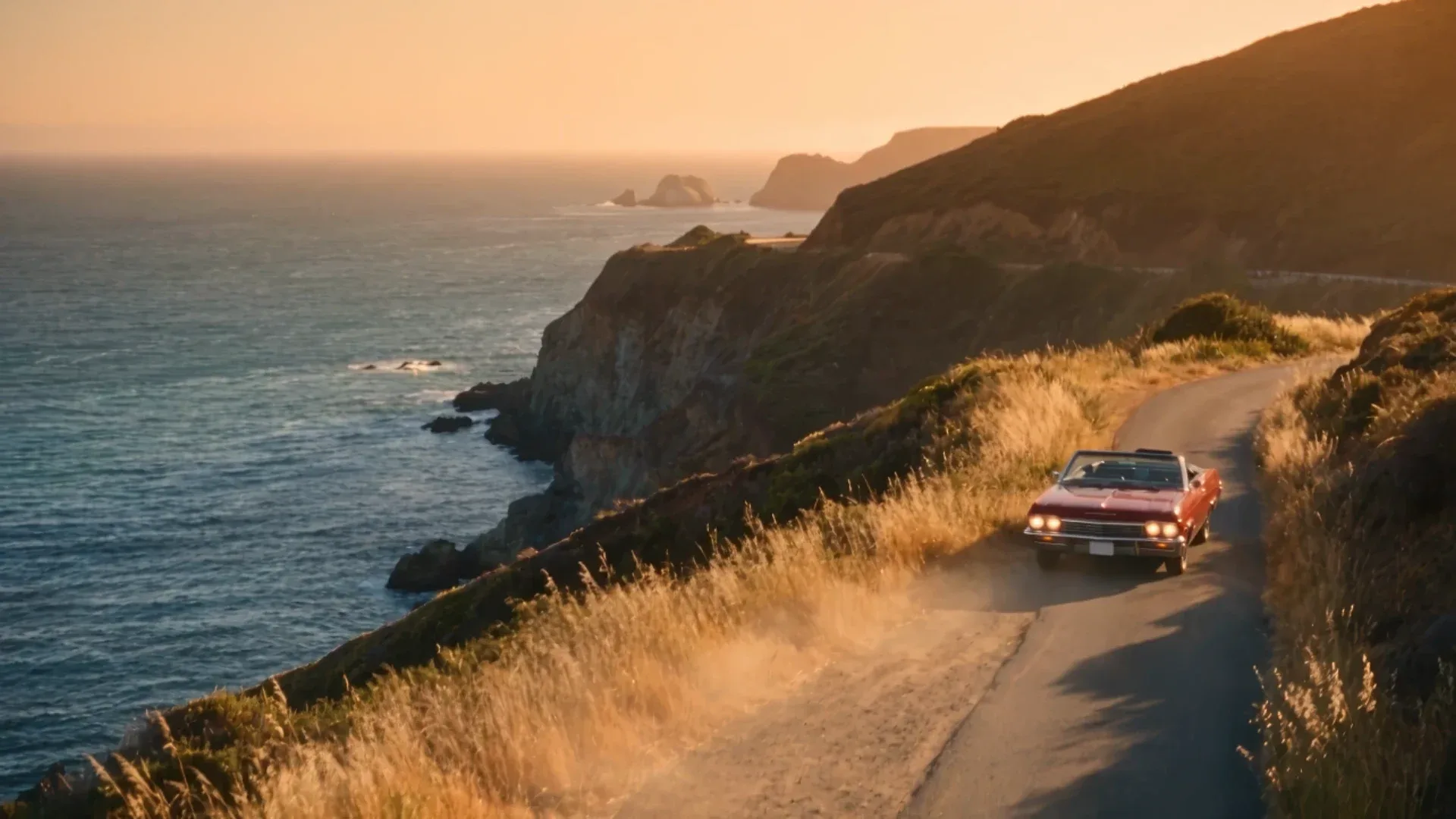
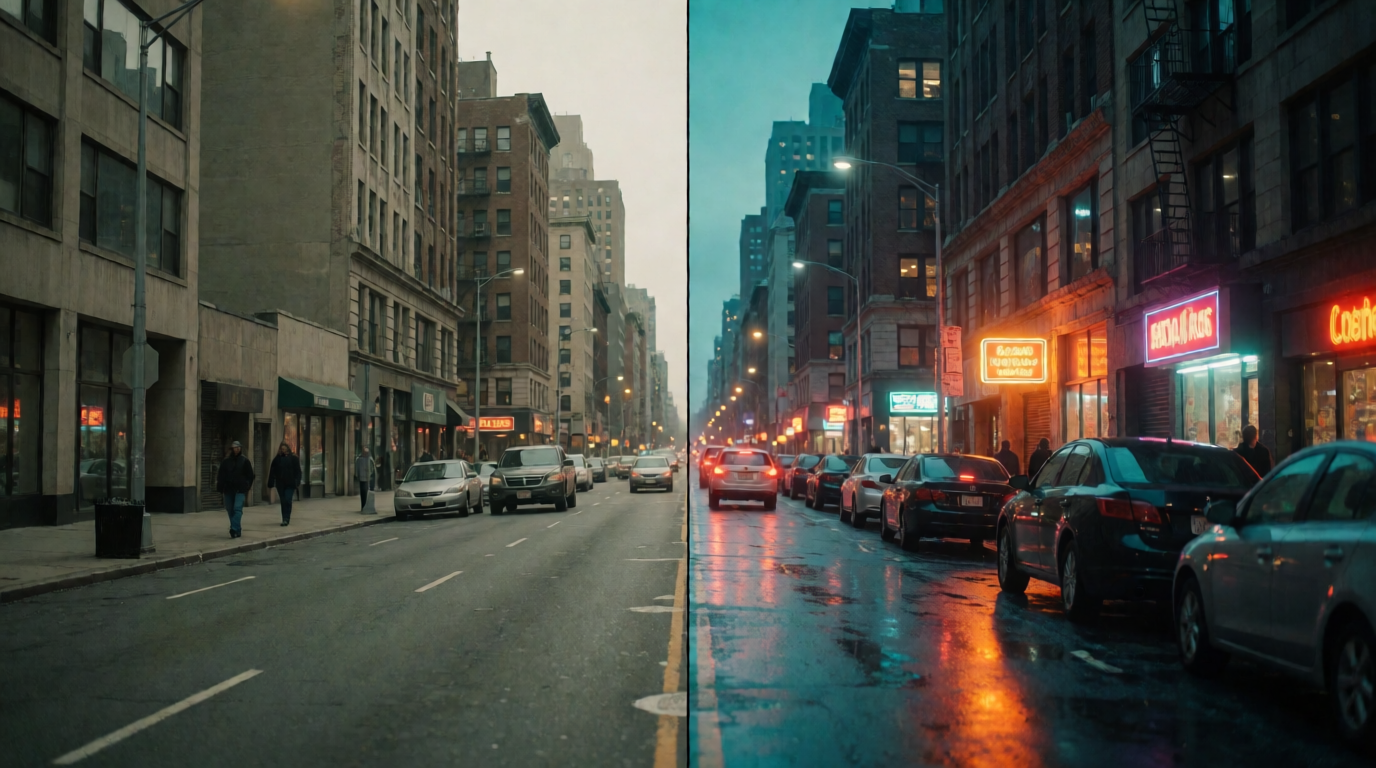
These four frames are the style examples published on the face swap page. They show the same kind of output the app is selling: a face carried into a different grade, from golden-hour blossoms to a cool haze.
Face swap examples across styles
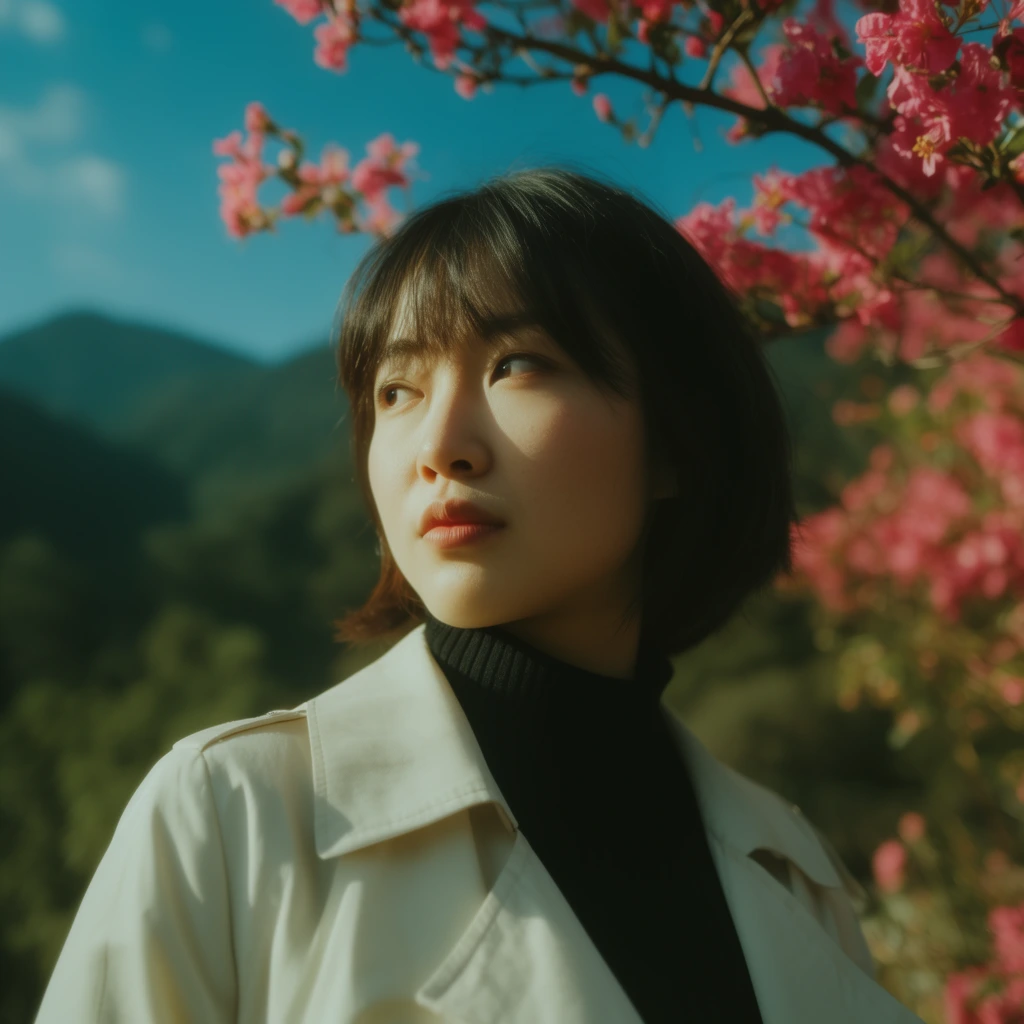
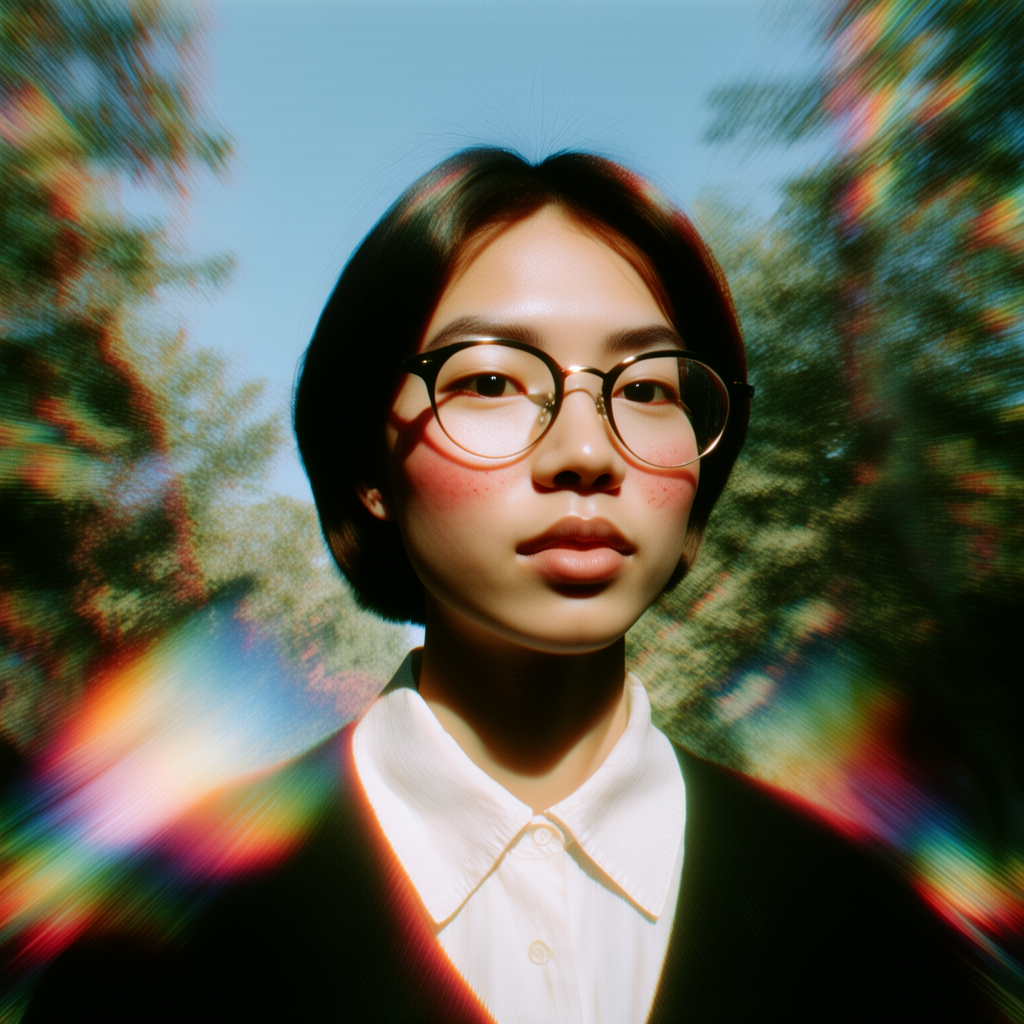
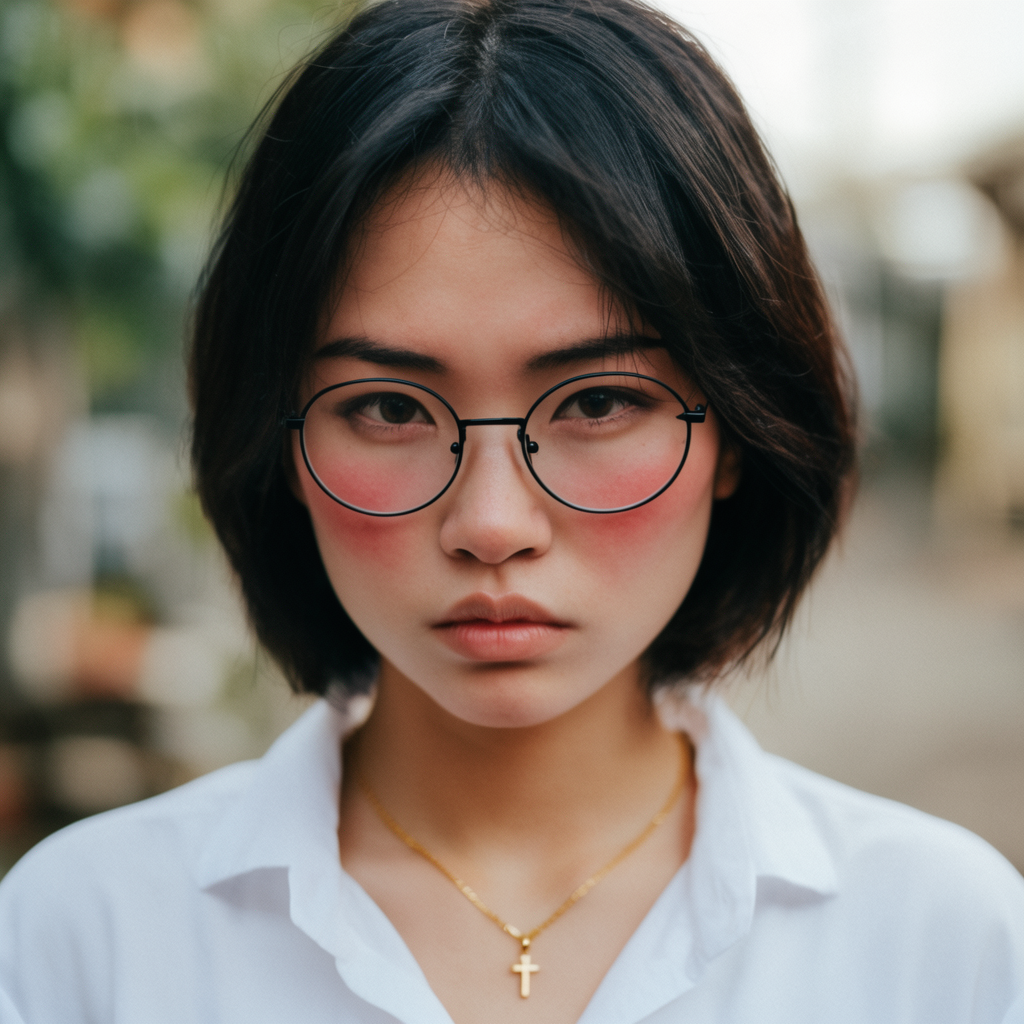
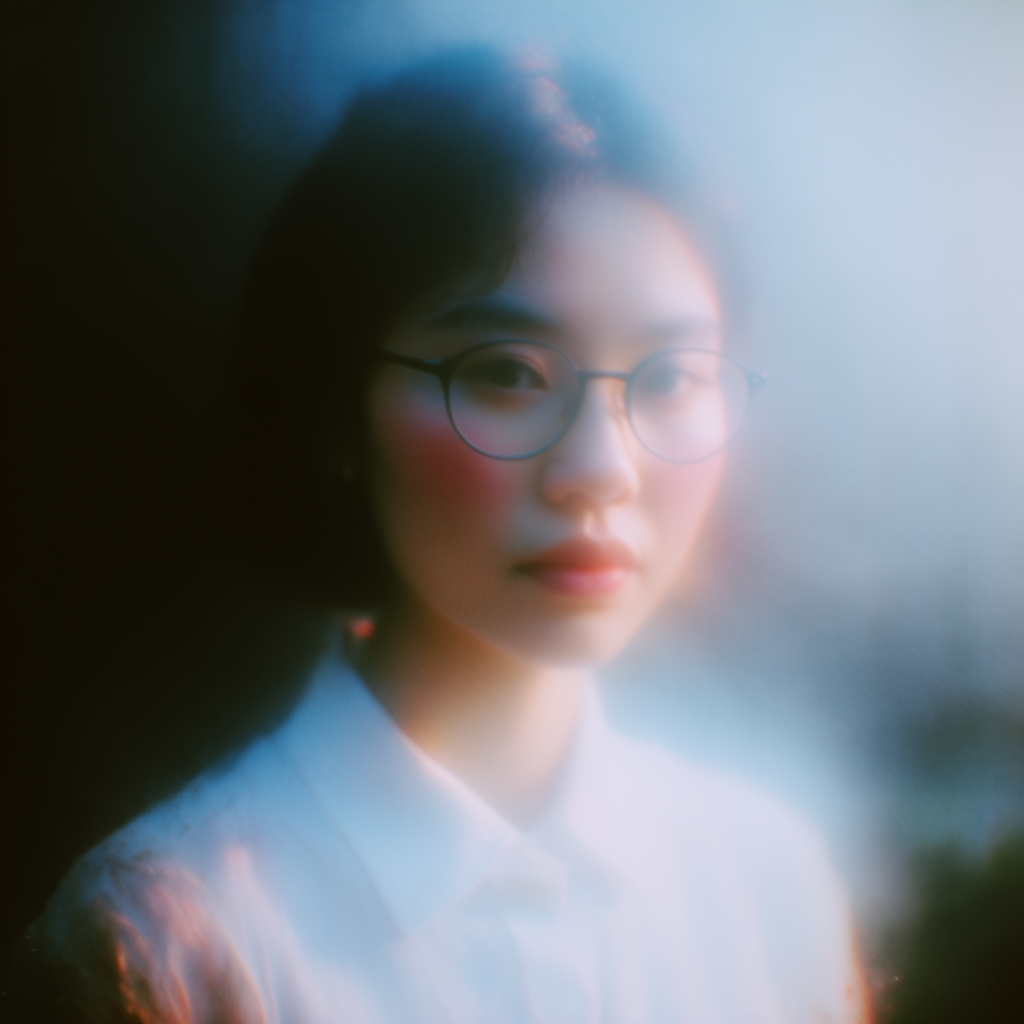
Labeled on the app, left to right, top to bottom: Cinematic Bloom, Retro Prism, Street Portrait, Dream Haze.
Only swap faces you have the right to use
A realistic face swap is easy to mistake for a real photo. That is the point of the tool, and it is also the limit.
Krea’s terms prohibit content that is fraudulent, deceptive, or otherwise objectionable, and they name a specific case: “actions and content which impersonate individuals without their consent (e.g. deepfakes).” The same terms say you will not use content you do not own without the owner’s prior consent, or in a way that violates someone else’s rights. Sexually graphic content is prohibited. A violation is grounds for losing access.
Apply that before you upload:
- Use your own face, or get a clear yes from the person whose face you insert and from whoever holds the rights to the target photo.
- Do not impersonate. A swap that presents someone as saying or doing something they did not, including a fake quote, a fake ID, or a fake news photo, is the use the terms call out.
- Do not swap a stranger, a public figure, or a coworker because the picture was public. Public is not consent.
- Say it is an edit when a viewer could reasonably think the photo is untouched. File names such as
headshot-face-swap.pnghelp the next person who finds the file. - Commercial use has two checks. The face swap FAQ says you can use the images commercially in many cases if you have the rights and you follow the law and platform rules. The pricing block on that same page lists a commercial license on Basic and above, and does not list it on the Free plan. If the image is for a client or an ad, confirm the plan before you ship it. Pricing details live on krea.ai/pricing.
This guide does not cover video face swap, because the app does not offer it yet. The page says photo face swap is available now, and that dedicated video and GIF workflows are coming soon.
Read the result like a photo, not like a filter
Zoom to 100% and compare the swap with both source files:
- Identity. Eyes, mouth, and jaw should read as the source person. If they do not, run it again with a sharper source.
- Edges. Look along the hairline, ears, and neck for a halo or a color seam.
- Light. The shadow under the chin and the highlight on the forehead should agree with the rest of the scene.
- Leftover accessories. Glasses, earrings, and hats sometimes stay from the target or vanish with it. The portrait example on the app drops the glasses.
- Text and hands, if any are in frame. They are not the face, and they should not have moved.
Keep the two originals next to the result. If you later need to prove which file was the edit, the sources are the record.
Frequently asked questions
What is an AI face swap?
How do I face swap a photo?
Is Krea's AI face swap free?
Do I need an account to face swap?
How long does a face swap take?
What photo formats can I upload?
Does AI face swap work on video or GIFs?
Does it work on a group photo?
How do I get a better face swap?
Can I use a face-swapped image commercially?
What happens to the photos I upload?
Is it allowed to face swap someone without consent?
Try a face swap on a photo you can use
Two uploads, then Face Swap. Photo only for now. Video and GIF tools are marked coming soon on the app.
Start face swap