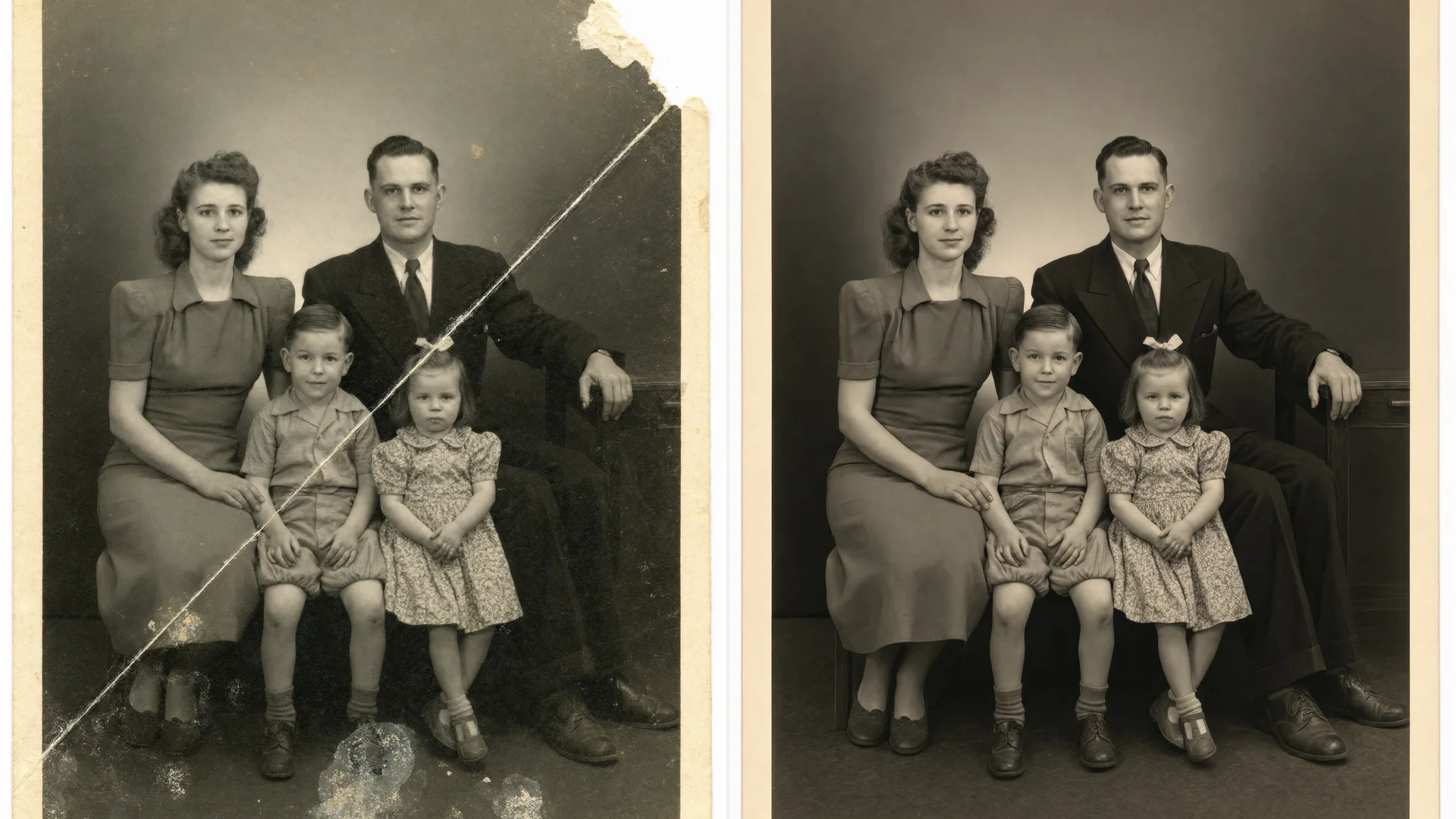
Restoring an old photo takes four steps: digitize the print, repair the damage, optionally add color, and upscale the result so it prints sharply. The repair step used to mean hours with a clone brush in Photoshop. Today an AI editing model does most of it in seconds. The scan you start from and the checks you do afterwards still decide whether the result looks like your grandmother or like a stranger.
This guide covers the whole workflow, with the settings that matter at each step. It uses Krea’s tools for the AI steps, but the scanning, diagnosis and print advice applies whatever software you use.
Looking for deleted photos on your phone instead? That is recovery, not restoration: check the Recently Deleted album in Google Photos or iCloud Photos first, since both keep deleted items for a limited time.
Before and after: a torn 1940s family portrait
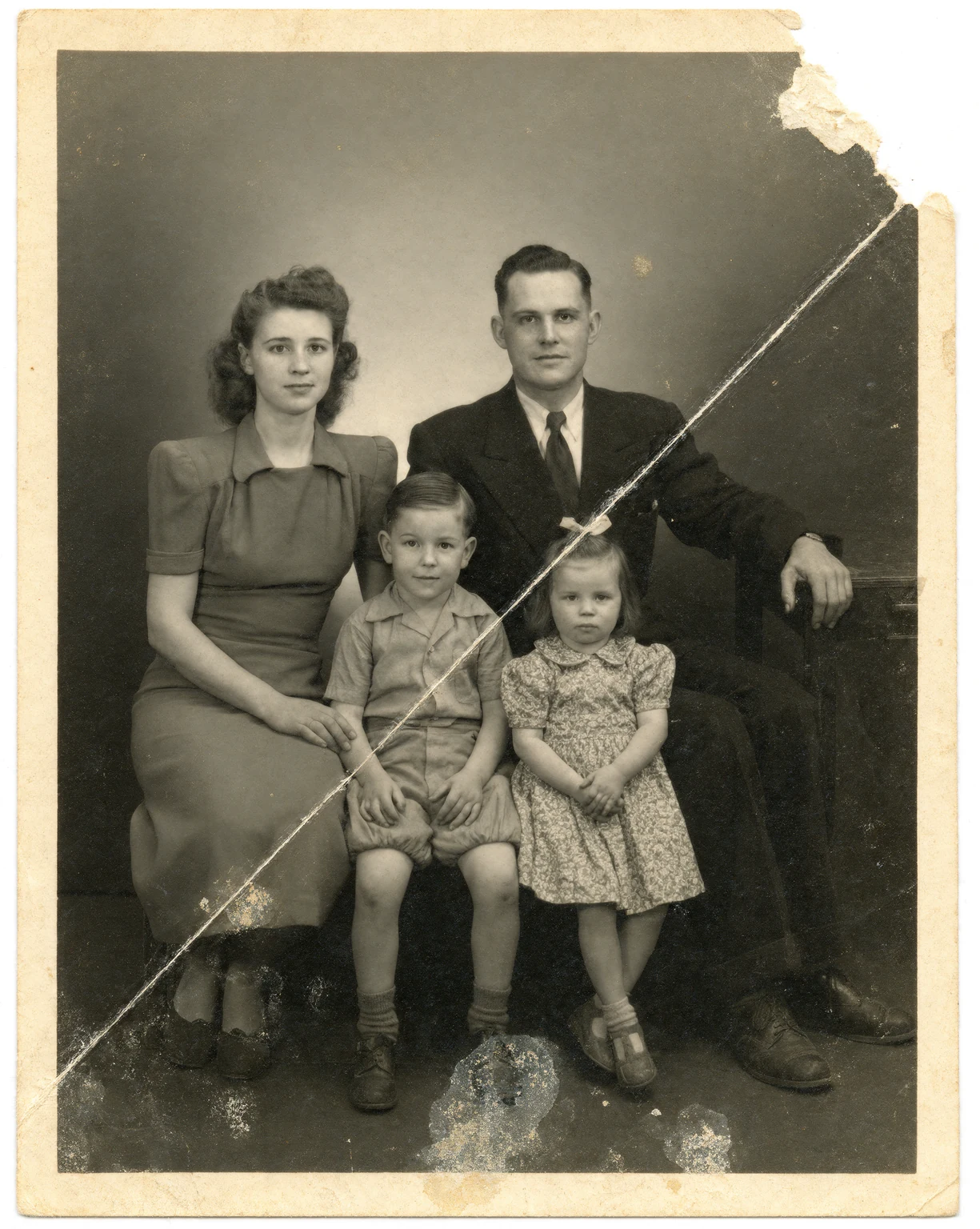
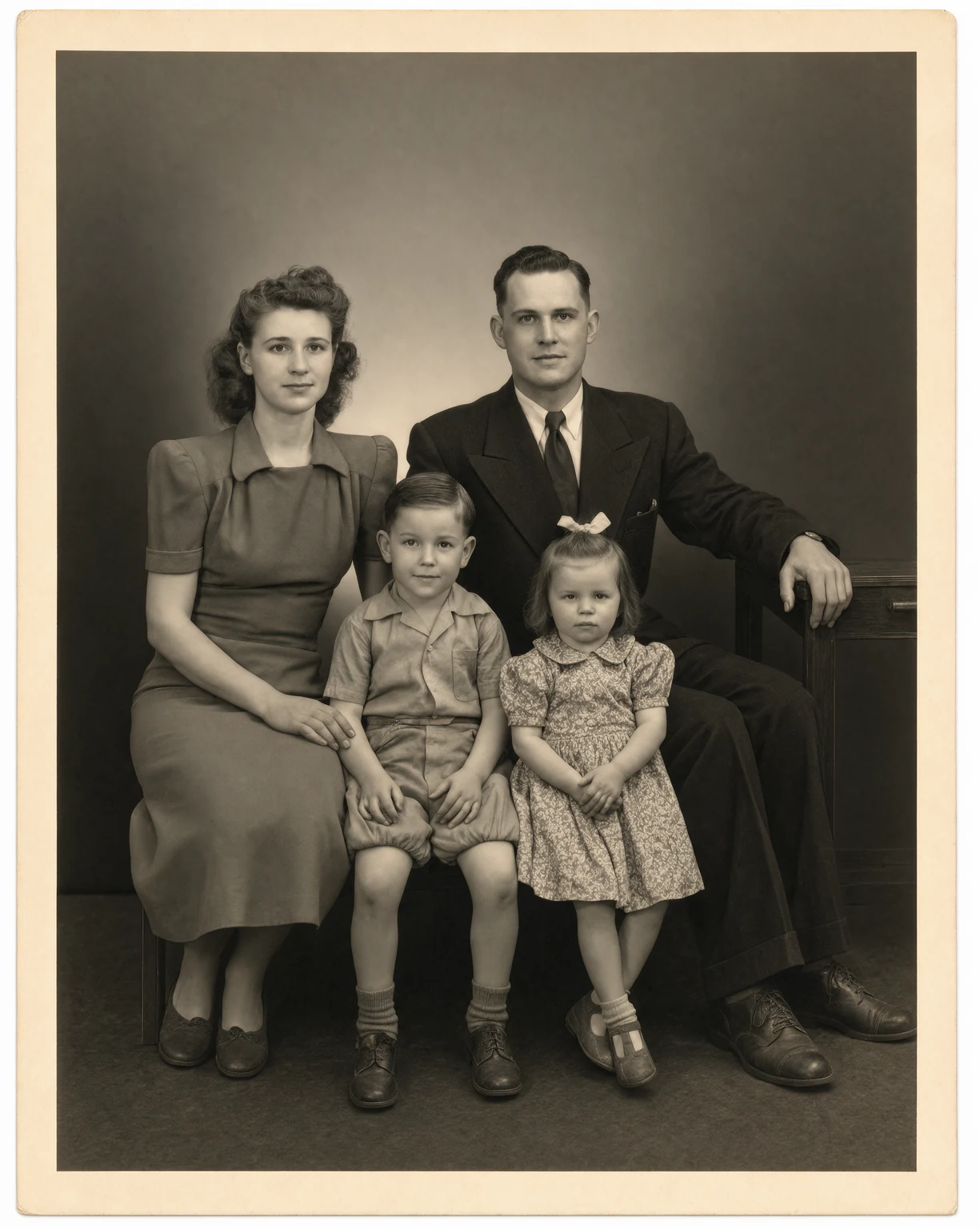
Left: the damaged print. Right: a Krea 3 restoration of it. The people, pose and black and white tones stay the same; the tears, creases and dust are gone.
The short version
- Protect the original. Handle it by the edges and never try to fix the physical print.
- Digitize it. Flatbed scan at 600 DPI or more, or photograph it in soft, even light.
- Diagnose the damage. Scratches, tears and fading need a different fix from blur.
- Repair it. Upload the scan to Krea’s photo restoration tool, or to unblur if blur is the main problem.
- Colorize it (optional). Run the repaired black and white photo through the photo colorizer.
- Upscale it for print. Use the Krea Enhancer to add the pixels a large print needs.
- Check the faces against the original scan, and keep both files.
Step 1: Protect the original print
The digital copy is what you restore. The print itself should leave the process exactly as it went in.
- Handle prints by the edges, with clean, dry hands or cotton gloves. Fingerprint oils stain emulsion over time.
- Don’t flatten curled or cracked prints by force. Scan them as they are; the repair step deals with the cracks.
- Don’t peel photos stuck to glass or to each other. You will tear the emulsion. Scan through the glass or photograph the stuck pair, and talk to a professional conservator if the physical print matters.
- Don’t tape, glue or write on the front. If you need to label a print, use a soft pencil on the back.
- Keep every original after scanning. A better scanner or a better model next year can only work from the print.
Step 2: Digitize the photo
The scan sets the ceiling for everything that follows. AI repair recovers a lot, but it cannot see detail that the scan never captured.
With a flatbed scanner (best)
- Resolution: 600 DPI for standard prints. Use 1200 DPI for small prints such as wallet photos and contact sheets, so the file still has enough pixels to print larger later.
- Color mode: scan in color, even for black and white photos. It keeps the sepia and the tonal information that a grayscale scan throws away.
- File type: save as TIFF or PNG if your scanner offers it, otherwise the highest-quality JPEG. Avoid re-saving JPEGs over and over.
- Clean the glass with a microfiber cloth before each session. Dust on the glass looks exactly like dust on the photo.
- Turn off automatic “dust removal” and heavy sharpening in the scanner software. You want the raw scan; the repair step handles the rest.
With a phone (good enough for most prints)
- Use soft, even daylight near a window, out of direct sun. Turn off the flash: it causes glare on glossy prints.
- Keep the phone parallel to the photo so the frame stays rectangular, and fill the frame with the print.
- Photograph glossy prints at a slight angle to a window if you see reflections, or use a scanning app that removes glare by combining several shots, such as Google’s PhotoScan.
- Shoot photos in albums page by page if they are stuck down, then crop each one.
Step 3: Diagnose the damage
Each kind of damage has a likely fix. Look at the scan at 100% zoom before you choose a tool.
| Damage | What it looks like | Fix |
|---|---|---|
| Scratches and dust | Thin white or black lines, specks | Photo restoration |
| Creases and folds | Bright lines across the image, often with cracked emulsion | Photo restoration |
| Tears and missing corners | Ragged edges, white gaps | Photo restoration; check the result closely if a face is affected |
| Stains and water damage | Brown or yellow blotches, tide lines | Photo restoration |
| Fading | Low contrast, washed-out shadows, yellow or magenta cast | Photo restoration recovers faded detail |
| Blur | Soft focus or motion blur from the original camera | Unblur image |
| Small size or low resolution | A tiny print or a small file that pixelates when enlarged | Enhancer after the repair |
| Black and white | No damage, but you want color | Colorizer after the repair |
Most old photos have several of these at once. Fix the damage first, then colorize, then upscale. Each step works best on a clean input.
Step 4: Repair scratches, tears and fading
Krea’s photo restoration tool runs Krea 3, Krea’s image editing model, with a restoration instruction already filled in. It removes scratches, creases, tears, stains and dust, recovers faded detail, and keeps the people, the pose, the framing and the original black and white or sepia tones.
- Open photo restoration and sign in. Krea 3 edits need a free Krea account.
- Upload your scan. JPG, PNG, HEIC and WEBP files work, so a phone photo of a print uploads as it is.
- Wait for the result. Most edits come back in under 8 seconds, at native 2K resolution.
- Compare it with the original. If something looks off, run it again: every editing model gets things wrong sometimes, and a second run often fixes it.
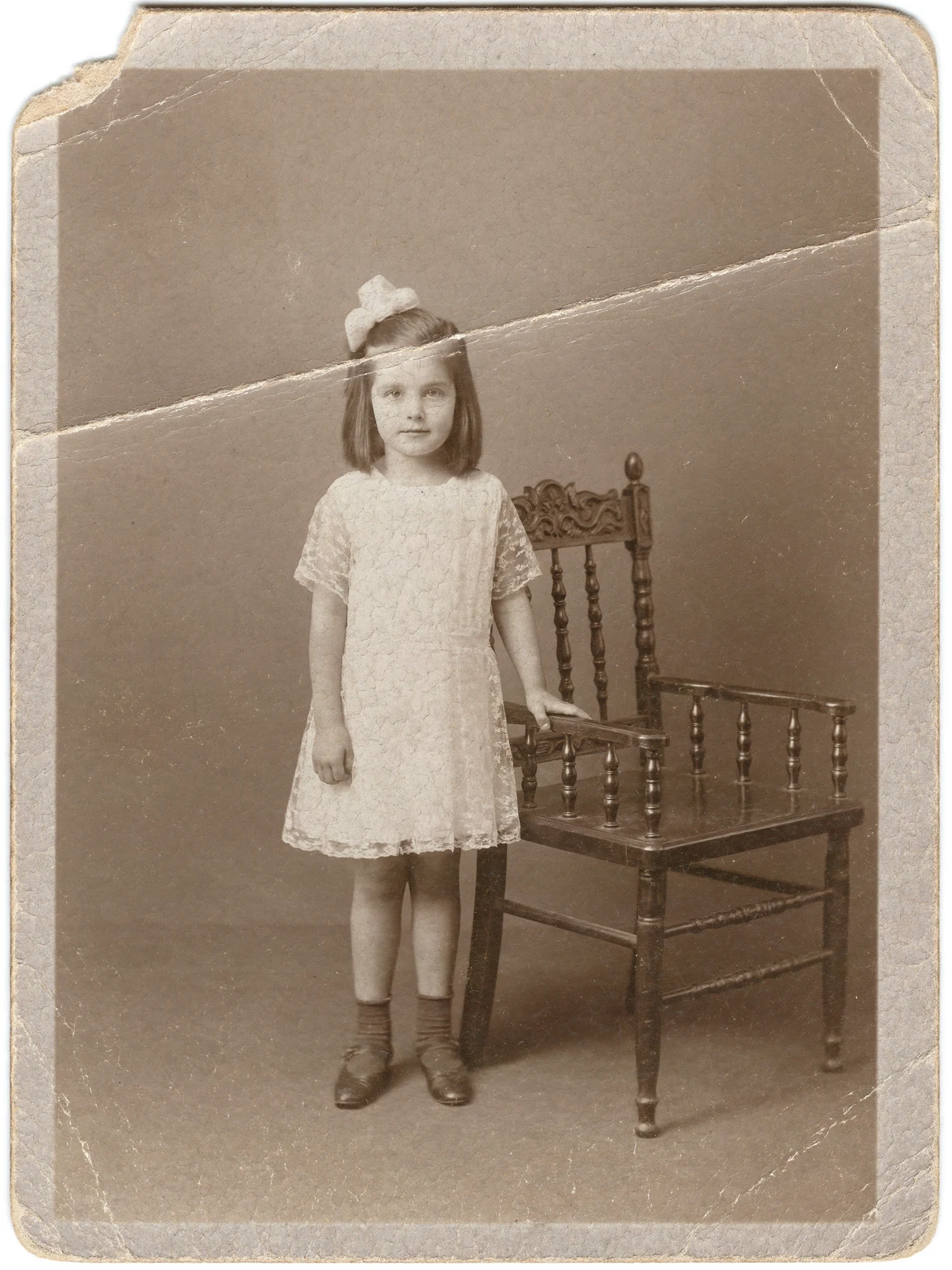
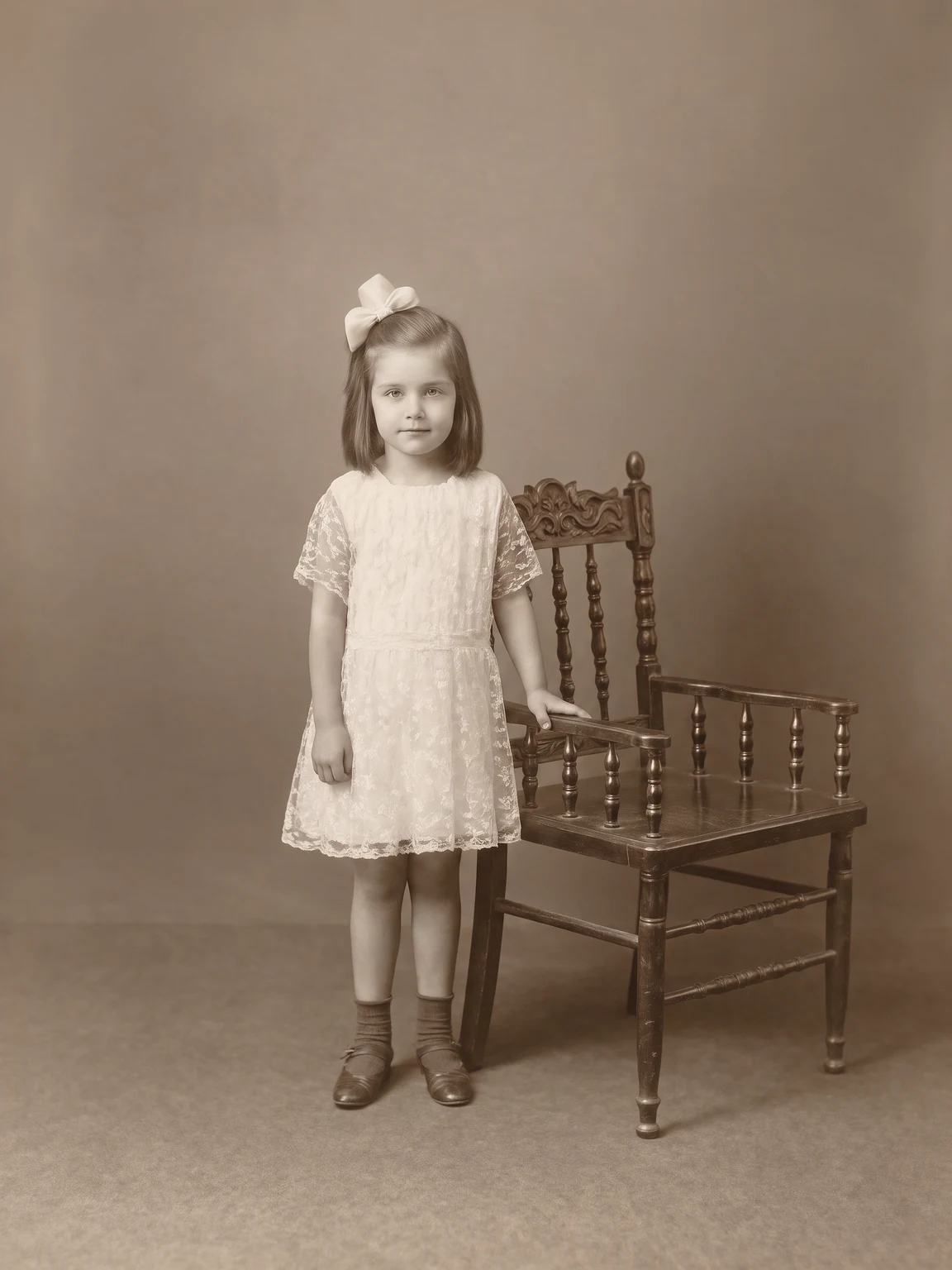
A cracked 1920s sepia portrait, before and after Krea 3. The sepia tone is kept; only the damage is removed.
Write your own restoration instruction
If you want more control, open Krea Edit and describe the repair yourself. Start from the instruction the restoration tool uses and adjust it:
Restore this old photo. Remove scratches, creases, tears, stains, and dust, and recover faded detail. Keep the same people, faces, pose, framing, and original tones.
Useful variations:
- Keep the paper texture: add “Keep the original paper grain and slight softness of the print” if the result looks too clean for a 1920s photo.
- Fix one area only: “Repair only the tear across the top-left corner. Do not change anything else.”
- Remove a color cast: “Remove the yellow cast from fading and restore neutral black and white tones.”
When blur is the real problem
Restoration fixes damage to the print. It does not fix a photo that was out of focus or shaken when it was taken. For that, use unblur image: it removes motion blur and soft focus and recovers fine detail in faces, text and textures, while the people, colors and composition stay the same.
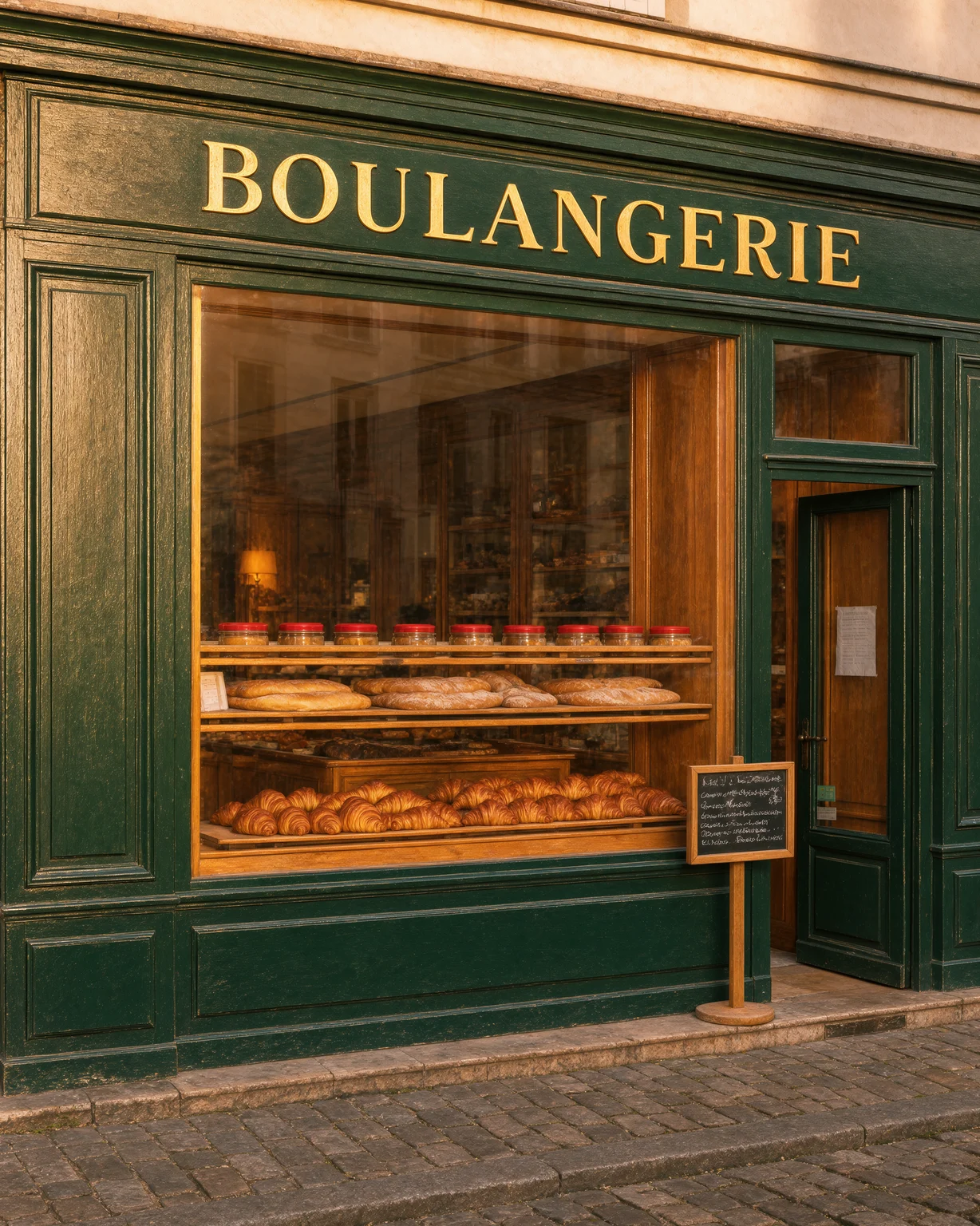
A shaky storefront photo, before and after unblur. The blur is removed; the scene stays the same.
Step 5: Colorize a black and white photo (optional)
Once the photo is repaired, the photo colorizer turns black and white into realistic color. It reads skin, sky, foliage, clothing and materials and colors each one, instead of washing the whole image with one tint.
Two things to know before you colorize:
- The colors are a likely guess, not a recovery. A black and white photo does not contain its original colors, so the AI infers them from what it recognizes. If you know a dress was blue or a car was red, say so in Krea Edit instead, for example “Colorize this photo. The woman’s dress is navy blue.”
- Keep the black and white version too. The restored monochrome photo is the closer record of the original. The colorized one is an interpretation.
Colorize after you repair, not before. Scratches and stains confuse the colorizer, and repairing a colorized photo can shift the colors.
Step 6: Upscale for printing
A restored photo often needs more pixels than the scan had, especially if you want to print it larger than the original. Print shops ask for about 300 pixels per inch for a sharp print, so:
| Print size | Pixels needed at 300 PPI |
|---|---|
| 4 × 6 in | 1200 × 1800 |
| 5 × 7 in | 1500 × 2100 |
| 8 × 10 in | 2400 × 3000 |
| 11 × 14 in | 3300 × 4200 |
A 2K restoration is enough for small prints. For an 8 × 10 or a framed enlargement, run the finished photo through the Krea Enhancer. It sharpens detail and increases resolution, and it works on old family photos as well as modern ones. You can try it free without an account, with a limited number of free enhancements. Paid plans upscale images up to 22K (pricing). Our roundup of AI image upscalers compares it with other options.
Restore an old photo now
Upload a scan or a phone photo of the print. Krea 3 removes scratches, tears and stains in seconds with a free Krea account.
Restore my photoStep 7: Check the result before you share it
AI restoration is very good at removing damage and very confident when it has to invent detail. Check these before you print or share:
- Faces. Compare eyes, mouth and hairline with the original scan at the same size. Where a large part of a face was missing, the model has to invent it, and the person may look slightly different.
- Hands, jewelry and text. Small details such as rings, buttons, shop signs and handwriting are where invented detail shows first.
- Over-smoothing. If skin looks plastic or the paper grain is gone, run it again or use a custom instruction that asks to keep the grain.
- Keep the files together. Save the original scan, the restored version and any colorized version side by side, with names like
1946-wedding_scan.tif,1946-wedding_restored.pngand1946-wedding_color.png. Note in the file name or caption that the restored and colorized versions are AI edits, so later family members know which file is the original record.
AI restoration or a professional restorer?
AI restoration covers most family photos: scratches, folds, stains, fading, small tears and missing corners. A professional photo restorer is still worth paying for when:
- a large part of a face is missing and you need an accurate likeness rather than a plausible one,
- the physical print itself needs conservation, such as photos stuck to glass, flaking emulsion or mold,
- the photo is an archival or historical record and every change has to be documented.
Professional restoration is usually quoted per photo, based on how much damage there is. Run the photo through an AI tool first: even if you then hire a professional, you will know which problems are easy and which are the hard part.
Store the originals properly
Once the photos are digitized, keep the prints out of the conditions that damaged them in the first place:
- Store them in acid-free sleeves or archival boxes, not in old “magnetic” albums with adhesive pages.
- Keep them somewhere cool, dark and dry. Avoid attics, basements and walls in direct sun.
- Back up the scans in at least two places, for example a cloud drive and an external disk.
If you want to keep editing your restored photos, for example to change the lighting or stylize them, see our guide to editing and stylizing photos with AI.
Frequently asked questions
How do I restore an old photo for free?
Can a very old or badly damaged photograph be restored?
What resolution should I scan old photos at?
Should I restore or colorize first?
Does AI restoration change people's faces?
Can I restore old photos on my phone?
Are the colors in a colorized photo accurate?
Is restoring old photos the same as recovering deleted photos?
Bring an old photo back
Repair the damage with Krea 3, add color with the colorizer, and upscale for print with the Enhancer.
Start restoring