“Bad quality” is not one problem. A photo can be too small, out of focus, grainy, too dark, or crushed by compression, and each of those has a different fix. Run the wrong fix and you make it worse: sharpening a noisy photo sharpens the noise, and upscaling a blurry photo gives you a bigger blurry photo.
So the fastest way to improve photo quality is to name the problem first, then apply the one fix that matches it. This guide walks through the five common causes, how to spot each one, and how to fix it, both when you take the photo and after the fact with AI tools.
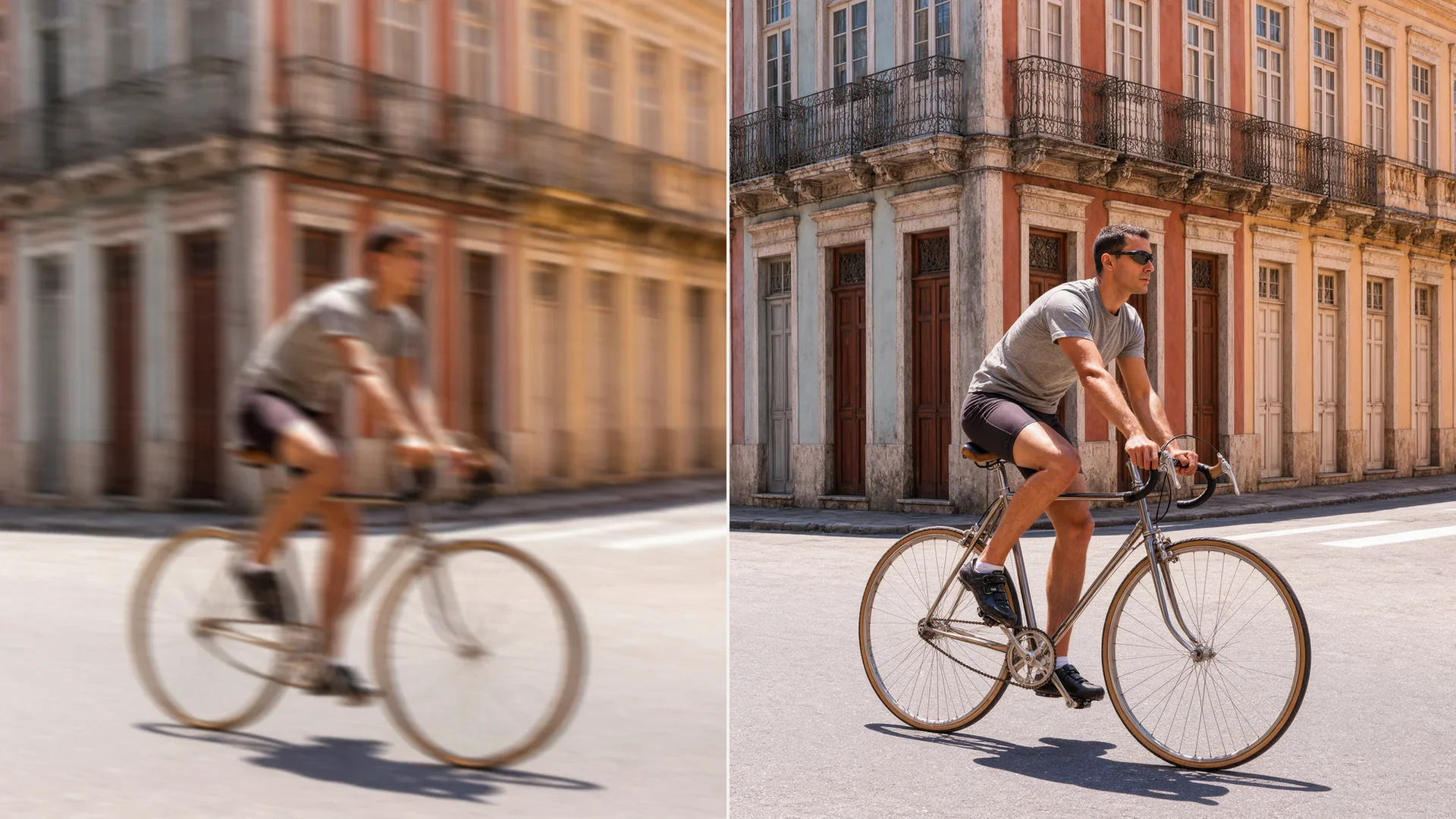
Before and after: a motion-blurred street photo
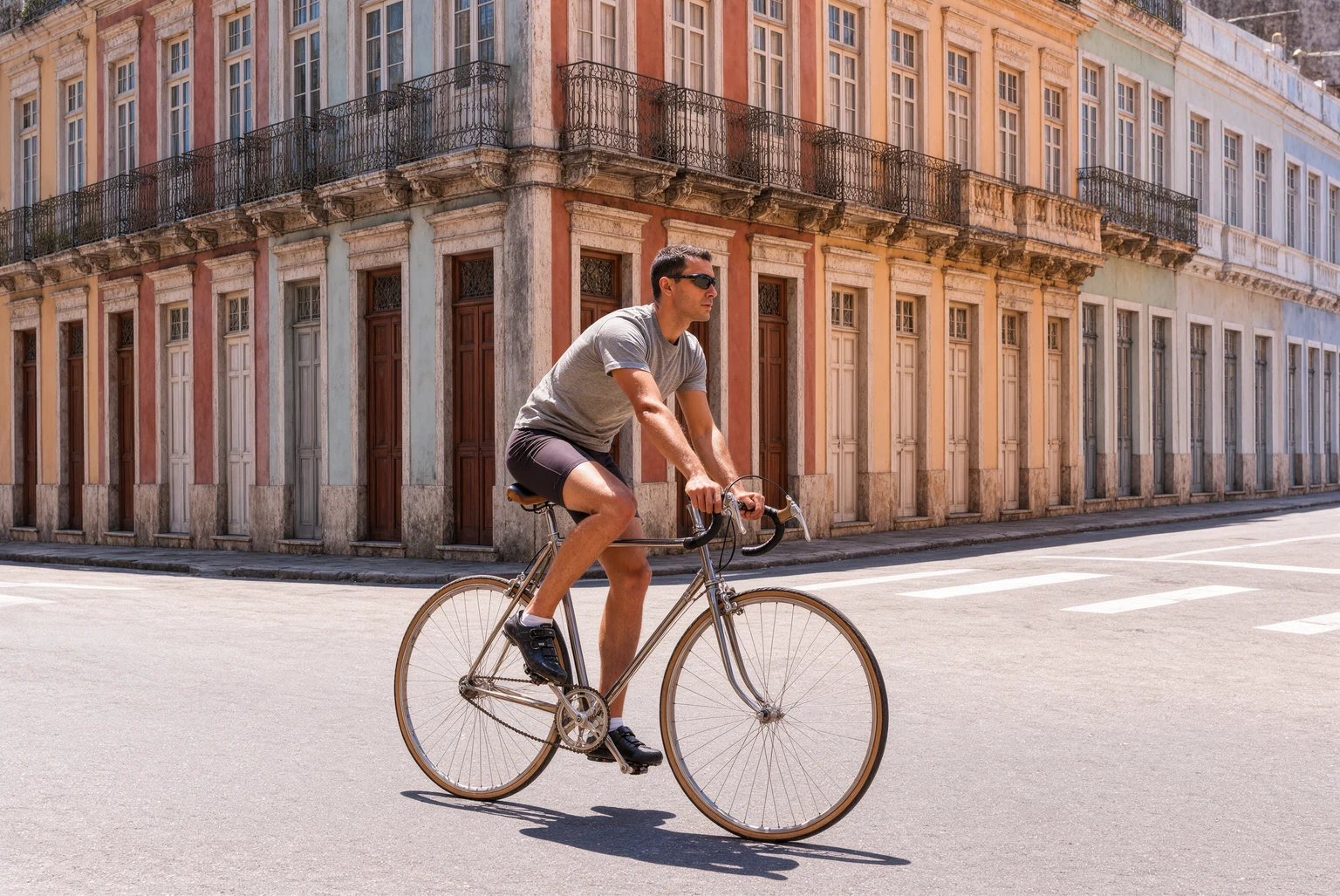
Left: a photo ruined by motion blur. Right: the same photo after one pass of Krea’s unblur tool. The rider, the bike and the street stay the same; the blur is gone.
The short version
- Diagnose it. Zoom to 100% and decide which problem you have: too few pixels, blur, noise, bad light, or compression artifacts.
- Fix it at the source if you can. Clean the lens, hold the phone still, add light, and shoot at the camera’s full resolution.
- Fix blur before size. Use Unblur image on a soft or shaky photo first.
- Then fix size, noise and compression. Run the photo through the Krea Enhancer to add resolution and clean up grain and blocky JPEG artifacts.
- Fix light last, with a normal brightness and contrast edit, so the other steps work from a clean image.
- Video? The same logic applies, with the video upscaler.
Why photos look low quality
| Problem | How to spot it at 100% zoom | Most common cause | Fix |
|---|---|---|---|
| Low resolution | Visible square pixels, soft edges when enlarged | Small original, screenshot, image saved from social media, heavy crop | Upscale with the Enhancer |
| Blur | Doubled or smeared edges (motion), or everything soft (focus) | Camera shake, moving subject, missed focus, dirty lens | Unblur image, then upscale if needed |
| Noise and grain | Speckled colored dots, worst in shadows and skies | Low light, high ISO, small phone sensor, digital zoom | Enhancer |
| Bad lighting | Dark faces, blown-out sky, orange or blue color cast | Backlight, mixed indoor light, flash | Exposure and white balance edit |
| Compression | Blocky squares, halos around edges, color banding in gradients | Repeated JPEG saves, messaging apps, social uploads | Enhancer; start from the original file if you still have it |
Most bad photos have two of these at once. A night photo sent over a messaging app, for example, is usually noisy, compressed and small. Fix them in this order: blur, then resolution, noise and compression, then light.
1. Low resolution: add pixels with an upscaler
A photo with too few pixels looks fine as a thumbnail and falls apart when you crop it, print it, or view it full screen. Classic resizing (bicubic in Photoshop, or “resize” in a phone editor) only stretches the pixels you have, so the result is bigger but just as soft.
An AI upscaler works differently: it predicts the detail that should be there, so edges, hair, text and textures come back sharp at the larger size.
Upscaling a pixelated, low-resolution image
The example from Krea’s Enhance page: a pixelated input and the enhanced result.
How to do it with Krea:
- Open the Krea Enhancer and upload the photo (JPEG, PNG or WebP).
- Choose an upscaling factor and run it. A limited number of enhancements are free without an account.
- Compare the result with the original at 100%, then download it.
The free plan includes basic upscaling to 2K; paid plans go up to 22K for large prints, per krea.ai/pricing.
How many pixels do you need? For a sharp print, aim for 300 pixels per inch: 1200 × 1800 for a 4 × 6 in print, 2400 × 3000 for 8 × 10 in. For screens, match the display: about 1920 pixels wide for a laptop and 3840 for a 4K monitor.
At capture: shoot at the camera’s full resolution, avoid digital zoom (walk closer instead), and send photos as files or links rather than through apps that shrink them.
2. Blur: sharpen the photo before you enlarge it
Blur comes in two kinds. Motion blur smears edges in one direction, because the camera or the subject moved. Focus blur makes everything uniformly soft, because the camera focused on the wrong thing or the lens was dirty.
A “sharpen” slider only boosts contrast at edges. It makes a slightly soft photo crisper, but on real blur it adds halos without bringing back detail. For real blur, use a model that reconstructs it:
- Open Unblur image and upload the blurry photo. Krea 3 edits need a free Krea account.
- Run it. Krea 3 removes motion blur and soft focus and recovers fine detail in faces, text and textures, while keeping the people, colors and composition. Most edits come back in under 8 seconds.
- If the photo is also small, send the sharp result to the Enhancer to upscale it.
Unblur: camera shake on an indoor photo
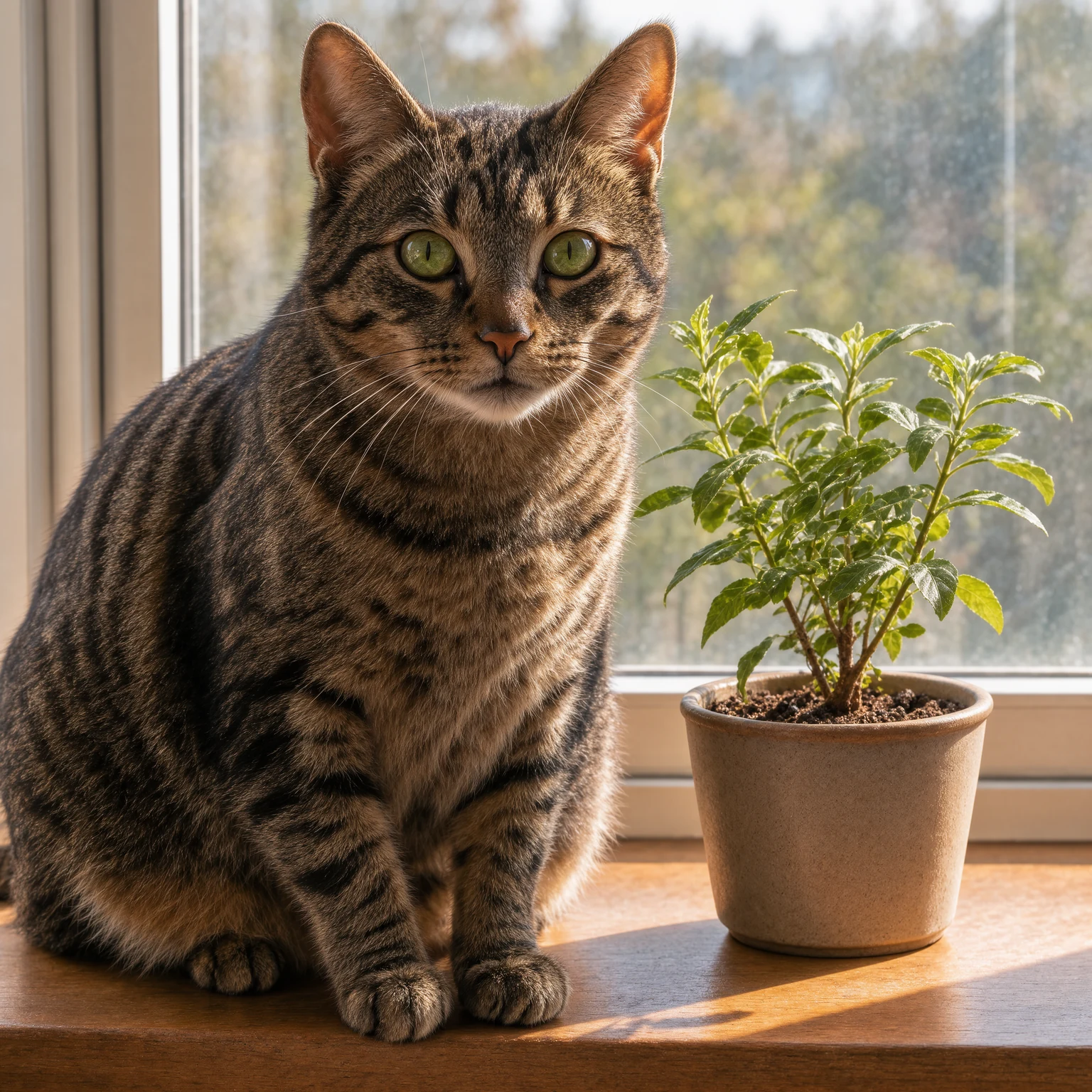
Be realistic about severe blur. When a face or a line of text is too blurred to read, any AI model has to invent the detail. The result can look sharp and still be wrong, so compare it with the original, especially for faces, license plates and documents.
At capture: clean the lens (a fingerprint smear is the most common cause of soft phone photos), hold the phone with both hands or brace it on something, tap the subject to focus, and use burst mode for moving subjects.
3. Noise and grain: clean up low-light photos
Noise is the colored speckle you see in dark areas of photos taken in low light. The camera raises its sensitivity (ISO) to compensate for the missing light, and the sensor’s random errors become visible. Small phone sensors and digital zoom make it worse.
- After the fact: the Krea Enhancer works well on noisy and grainy images: it upscales and cleans up the speckle in the same pass, so you don’t need a separate denoise step.
- Don’t sharpen a noisy photo first. Sharpening treats every grain as detail and makes it more visible.
- At capture: add light (move toward a window or a lamp) before anything else. Use night mode on a tripod or a steady surface, and keep the zoom at 1x.
4. Bad lighting: fix exposure and color
Lighting problems are the one category where a normal photo editor is usually the right tool. The photo’s information is there; it is just too dark, too bright or the wrong color.
- Exposure and shadows. Raise shadows on a backlit face instead of raising overall brightness, which blows out the sky.
- Highlights. Lower highlights to recover a bright sky or a white shirt. Fully white areas have no data left to recover.
- White balance. Correct an orange (tungsten) or blue (shade) cast so skin looks natural.
- Contrast, last. Add a little to bring back depth after the other fixes.
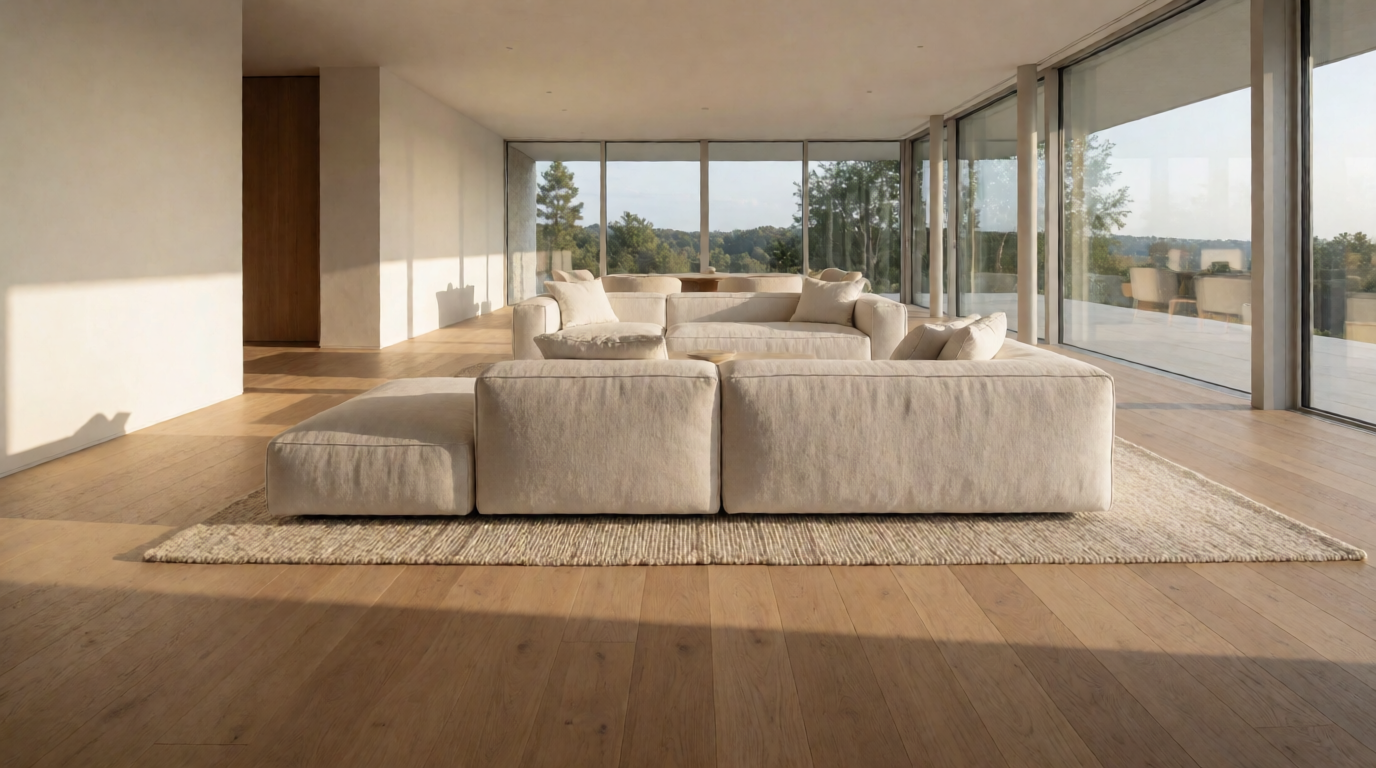
Every phone gallery app and every desktop editor has these four controls. If you want a different look rather than a correction, such as studio light or golden hour, Krea’s change lighting tool relights a photo from a text description.
At capture: put the light source in front of your subject, not behind them, turn on HDR for scenes with bright sky and dark foreground, and avoid on-camera flash at close range.
5. Compression artifacts: start from the best file you have
Every time a JPEG is saved, or a photo passes through a messaging app or social platform, it is compressed again. The signs are blocky 8 × 8 squares in smooth areas, halos around edges, and banding in skies.
- Find the original first. The copy in your camera roll, the photographer’s original, or the “original quality” download option almost always beats any repair.
- If the compressed copy is all you have, run it through the Enhancer. It redraws detail at a higher resolution, which replaces the blocky texture rather than enlarging it.
- Save the result once, as PNG or a high-quality JPEG, and edit from that file rather than re-saving the JPEG.
Improve a photo now
Upload a low-resolution, noisy or compressed photo and the Krea Enhancer upscales and cleans it up in seconds. A limited number of enhancements are free without an account.
Enhance a photoWhich Krea tool to use
| Your photo is… | Use | Notes |
|---|---|---|
| Small, pixelated, grainy or compressed | Enhancer | Limited free use without an account; free plan upscales to 2K, paid plans up to 22K |
| Blurry from shake, motion or missed focus | Unblur image | Krea 3 edit; free account needed; keeps people and composition |
| Blurry and small | Unblur first, then the Enhancer | Sharpen before you enlarge |
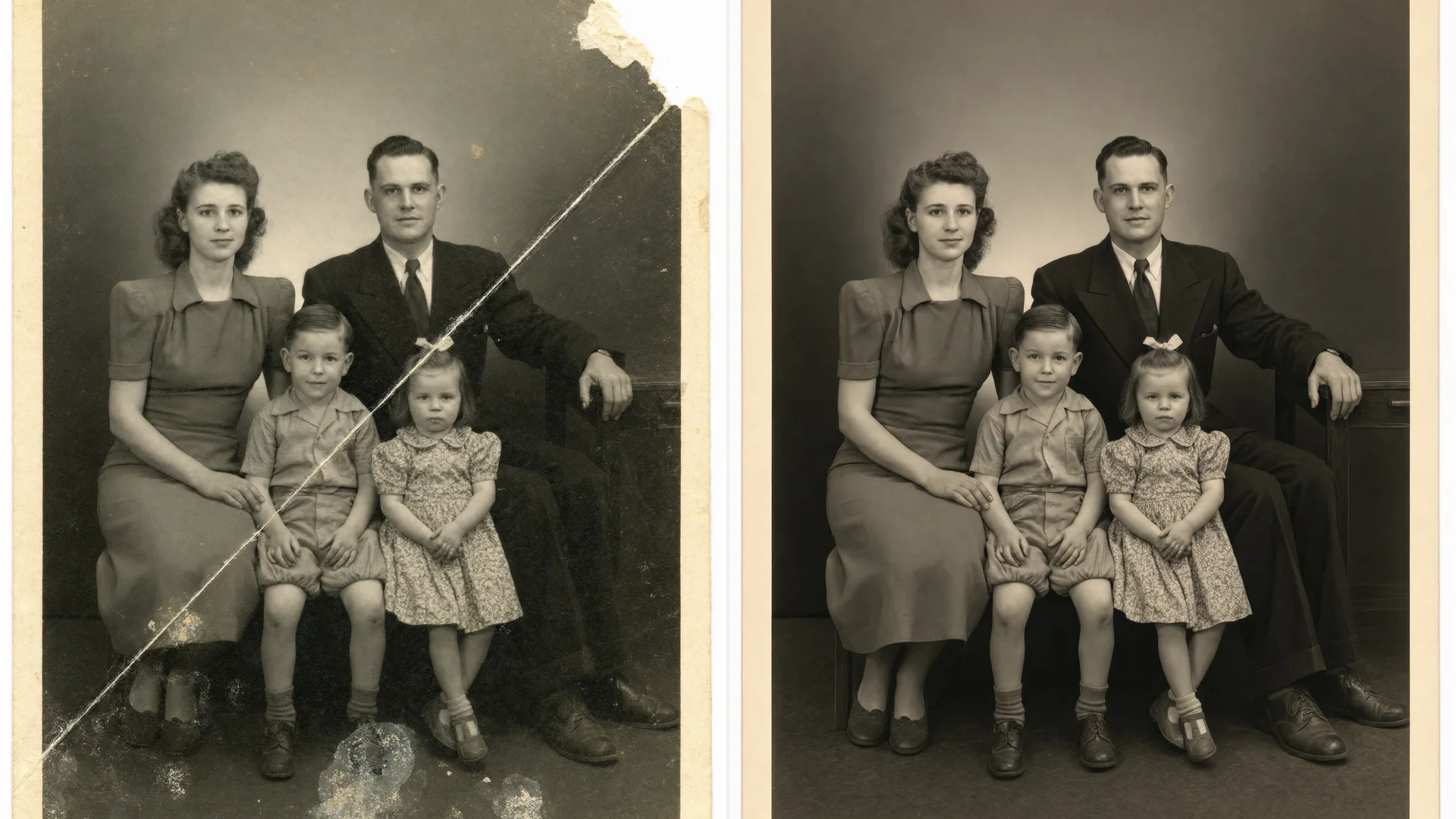
| An old print with scratches, tears or fading | Photo restoration | Krea 3 edit; then upscale for printing |
| A low-quality video | Video upscaler | MP4, up to 8x depending on source resolution and plan; signed-in free users get up to 4 videos every 24 hours |
Improving video quality
Video has the same five problems, multiplied by every frame, and frame-by-frame photo tools produce flicker. Use a video model instead: Krea’s video upscaler takes an MP4 and lets you pick 1x, 2x, 4x or 8x, depending on the source resolution and your plan. It needs a signed-in account, and free users can enhance up to 4 videos every 24 hours.
At capture, the same rules apply: clean the lens, add light, lock focus and exposure, and record at the highest resolution and frame rate your phone offers.
When AI is the wrong fix
- When the original exists. A better source file always beats a repaired copy. Ask the sender for the original or the full-resolution download first.
- For evidence and documents. If the exact text or face matters (an ID, a receipt, a license plate), AI-reconstructed detail is a guess, not a recovery.
- For a print that is the only copy. Scan it properly first. Krea’s guide to the best AI photo enhancers compares tools if you need a specific workflow.
Frequently asked questions
How can I improve the quality of a photo for free?
How do I make a blurry photo clear?
Does upscaling improve photo quality?
Why do my photos look blurry or grainy on my phone?
Can I improve the quality of a screenshot or an image saved from social media?
Can I improve video quality the same way?
Make your photo look the way you remember it
Fix blur with Krea 3, then upscale and clean up noise and compression with the Enhancer.
Improve my photo