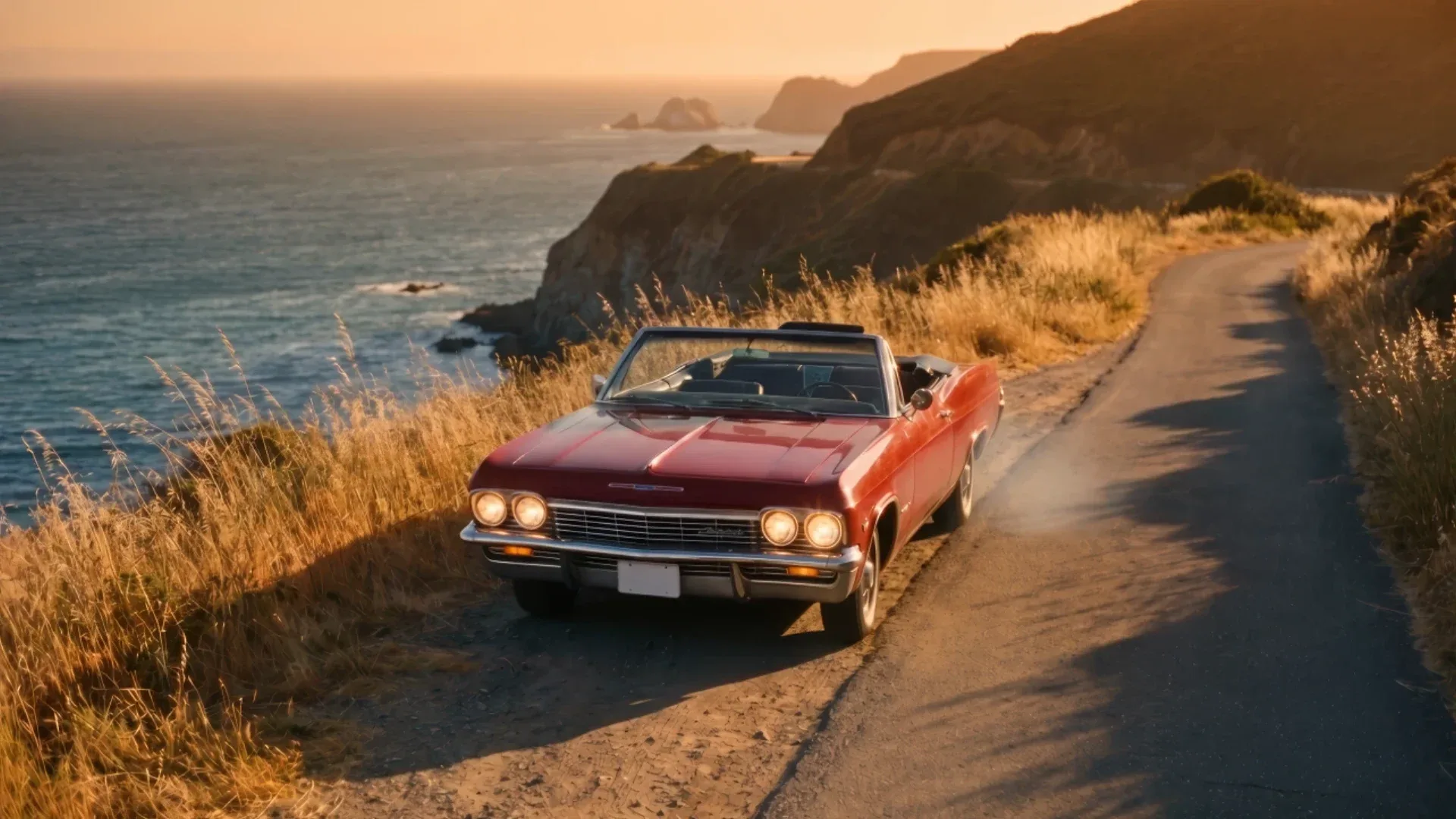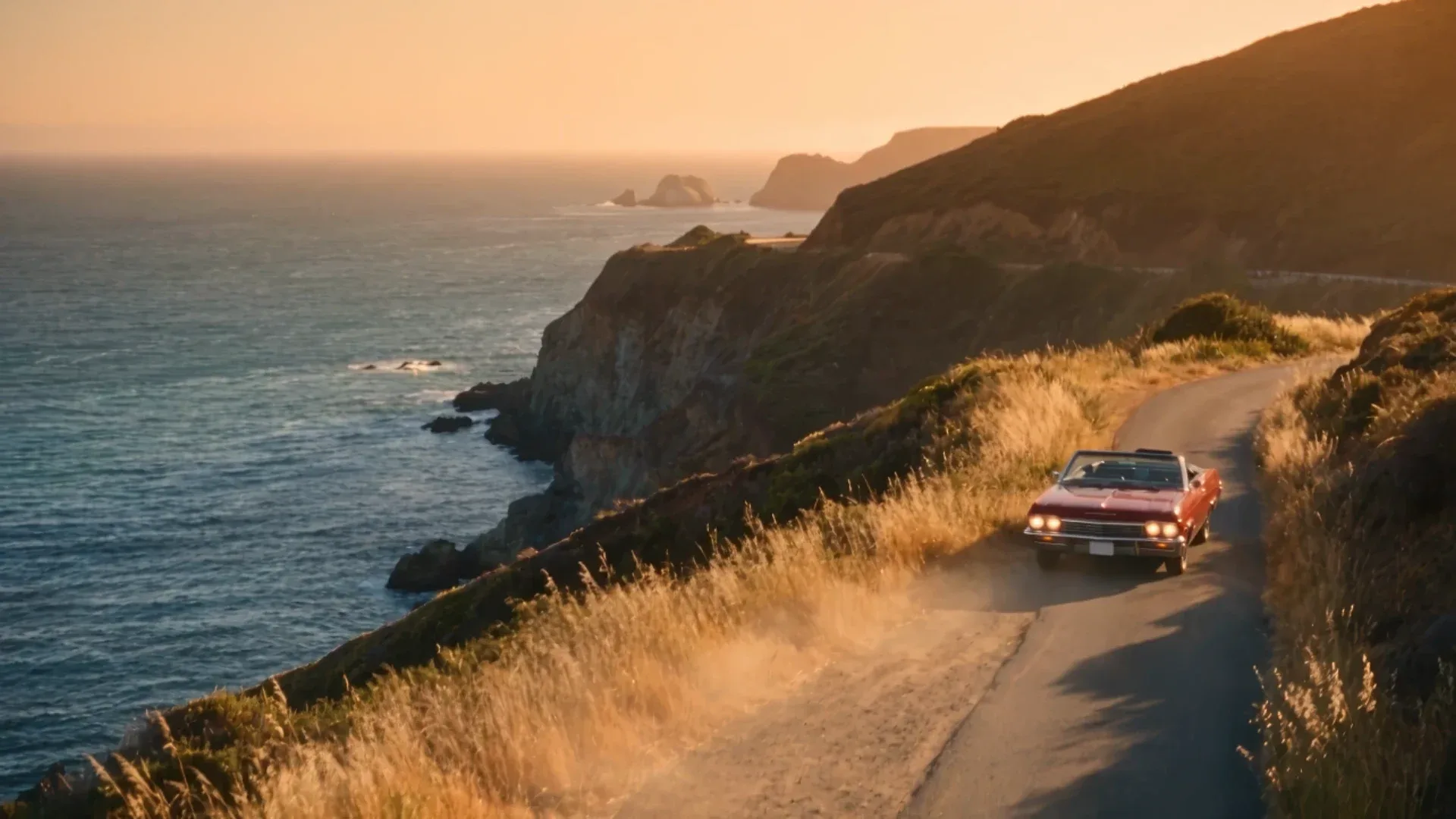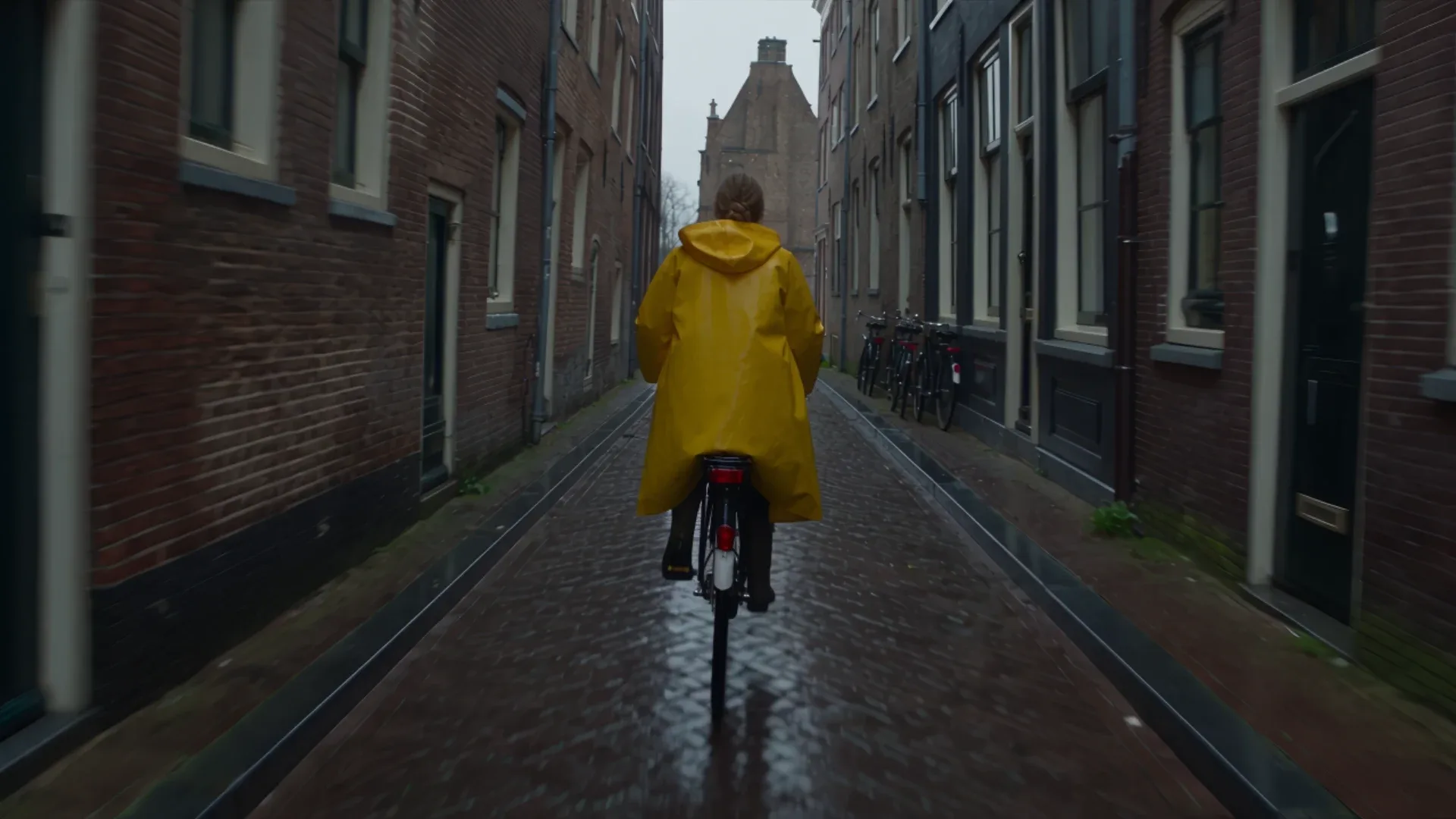
Text-to-video is only part of Seedance 2.5. On Krea it has four more workflows: draft mode for cheap 480p previews you can turn into full 1080p renders, extension to continue a clip, reframe to change a video’s aspect ratio, and video editing to change part of an existing clip from a text instruction. This guide covers how each one works, what it costs, and when to use it.
First, a correction. Early coverage of Seedance 2.5, including our own pre-launch post, said it outputs native 4K. It doesn’t. Seedance 2.5 renders at 480p, 720p or 1080p. For 4K, render at 1080p and upscale, as covered below.
Key takeaways
- Draft mode renders a fast 480p preview at the 480p rate. Once you’re happy with it, the final pass regenerates the same clip at 1080p.
- Extension continues an existing clip. The output keeps the source video’s aspect ratio.
- Reframe pads your video to a new aspect ratio and has Seedance fill the empty space.
- Editing follows the input video: when the prompt reads as an edit, the output length and ratio match the source.
- Max native resolution is 1080p. For 4K delivery, upscale the 1080p render with Krea’s video upscaler.
Try draft mode on Seedance 2.5
Preview your shot at 480p, then render the keeper at 1080p, all in Krea Video.
Open Seedance 2.5Draft mode: preview at 480p, finish at 1080p
A long Seedance 2.5 take is expensive to get wrong. A 30-second clip at 1080p uses roughly 12,600 compute units (CU). If the camera move or the beat timing is off, you’ve paid for a render you won’t use.
Draft mode exists to prevent that. With draft on, Seedance 2.5 renders a fast 480p version of your prompt, billed at the 480p rate of about 76 CU per second. You check the parts that usually fail: structure, motion, timing, whether the cuts land, and whether the action reads. Then you decide.
When a draft works, you promote it. The final pass doesn’t re-roll from scratch. It regenerates the same task at 1080p, using the draft’s prompt, references, seed, duration, aspect ratio and audio settings. You get a higher-resolution version of what you approved, not a new random take.
Things to know:
- The final pass is always 1080p. It’s the only resolution the second pass accepts, and it bills at the 1080p rate (about 421 CU per second).
- Drafts expire after seven days. After that the promote option disappears, and you’d need to generate again.
- Any resolution you pick is ignored while draft is on. Drafts are always 480p.
What draft mode saves
At 5 seconds a draft costs about 380 CU, against about 2,100 CU for a 5-second 1080p render. For a 30-second clip it’s about 2,300 CU against about 12,600 CU. If it takes three tries to get the motion right, drafting first means paying the 1080p price once instead of three times.
Use draft mode for anything over 10 seconds, multi-shot timelines, and complex camera moves. It isn’t worth it for a 4-second product spin you could just render at 720p.
Draft vs 720p vs 1080p: a real test
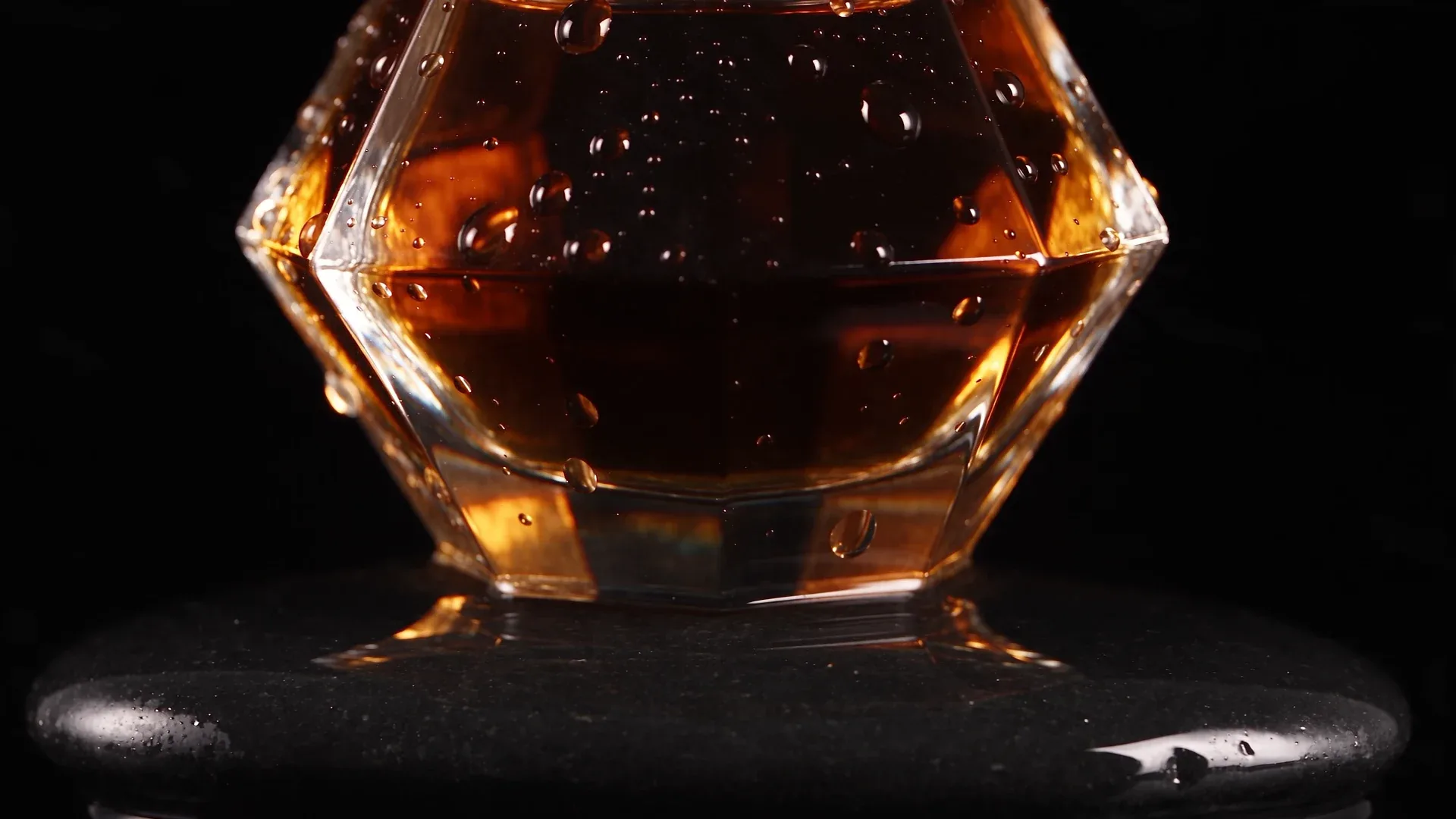
To see what a draft actually tells you, we ran one 5-second product prompt three ways on Krea in October 2026: as a 480p draft, as a full 720p render and as a full 1080p render. All three used the same prompt, the same seed (777), 16:9 and no references:
Macro product shot, 100mm. A faceted glass perfume bottle filled with amber liquid stands on a wet black stone plinth, water droplets running down the glass. A thin ring of white light sweeps across the bottle from left to right as the camera orbits 90 degrees around it at a steady, controlled pace. Crisp studio lighting, deep black background. Audio: low ambient hum, a single water drip, a clean chime as the light ring passes.| Version | Output size | Render time | Compute units |
|---|---|---|---|
| Draft (480p) | 854×480 | 1m10s | ~380 |
| 720p | 1280×720 | 2m24s | 856 |
| 1080p | 1920×1080 | 4m30s | ~2,106 |
Render time is measured from job submission to completion on Krea for a single run each, so treat it as an indication, not a benchmark.
What the draft caught. All three versions framed the shot the same way: a tight macro on the lower half of the bottle sitting on the wet stone, with the top of the bottle out of frame. Our “macro, 100mm” wording cropped harder than we meant. The 480p draft shows that problem just as clearly as the 1080p render. It cost under a fifth of the credits and took about a quarter of the time of the 1080p render. That’s the draft’s job: catch framing, lighting and composition mistakes before you pay full price. The orbit we asked for is subtle in all three, which the draft also shows.
What it didn’t do. The same seed did not give an identical shot at each resolution. The droplets, the facets and the tone of the liquid differ between the three clips. So re-rolling a draft’s prompt and seed at a higher resolution isn’t a reliable way to keep a take you like. In the Krea Video app, promote the draft instead. Promoting re-renders that exact draft task at 1080p rather than starting a new generation. (Our test ran the three versions as separate jobs through the API, which is why they differ.)
Fix, then draft again. For this shot the next step would be a second draft with a wider instruction, such as “full bottle in frame, product centered, 85mm”, before spending 1080p credits.
Extend: continue a clip
Extension takes an existing video and keeps going. You write what happens next, and Seedance 2.5 continues from the source with the same lighting, characters and camera language.
How to prompt it:
- Use the words “extend” or “continue” so the request is treated as an extension: “Extend @Video1 by 10 seconds.”
- Write the new beats with time ranges, as you would for a fresh clip. For example: “1–5s: the camera pushes in toward the coffee bean until the frame goes black.”
- You can also extend backward, adding a lead-in before the clip starts: “Extend backward 10s…”
The output keeps the source video’s aspect ratio. Because a source video is attached, the job is billed for the input seconds plus the output seconds at the lower reference-video rate. On Krea the charge is based on the length actually delivered.
Reframe: change aspect ratio without cropping
Reframe runs in Krea’s Premiere Pro, After Effects and DaVinci Resolve plugins, and through the Krea API.
Reframing turns a 16:9 clip into 9:16 for Reels, or a square into 21:9 ultrawide, without cropping off the subject. Krea pads your source video to the target aspect ratio with solid bars, then asks Seedance 2.5 to fill them with matching content. The original frame stays in place and the model extends the scene around it.
Reframe works best when the edges of the frame are simple and continuous, such as sky, walls, landscape or a studio backdrop. If something important crosses the edge of the frame, like a hand reaching out of shot, check the result closely.
Seedance 2.5 supports six aspect ratios: 16:9, 4:3, 1:1, 3:4, 9:16 and 21:9.
Edit: change part of a video with text
Attach a video as a reference and describe a change: “Replace the product in @Video1 with @Image1,” “Remove the text from this video,” “Change only the jacket to red.” Seedance 2.5 recognizes this as an edit.
For edits, the output length and aspect ratio follow the input video. Any duration or ratio you set is ignored, not rejected. A 9-second source gives you a 9-second edit. Krea handles this automatically, so you can leave the controls as they are.
Tips for clean edits:
- Use clear instructions: “Edit @Video1 to…”, plus a constraint like “change only the character.” Conversational and non-English instructions are recognized too.
- Say what must stay the same, such as the camera, the lighting and the background, as well as what changes.
- Reference videos must each be 2–30 seconds long, with a 30-second total across all reference videos.
Resolution: 480p, 720p, 1080p, and how to get 4K
| Resolution | Approx. CU per second | 5-second clip | 30-second clip |
|---|---|---|---|
| 480p (and drafts) | ~76 | ~380 | ~2,280 |
| 720p (default) | ~171 | 856 | ~5,140 |
| 1080p | ~421 | ~2,110 | ~12,640 |
These are for generations without a reference video. Jobs with a reference video bill input plus output seconds at a lower per-second rate. Krea shows the exact cost before you generate.
A practical workflow:
- Explore at 480p or in draft mode. Iterate on motion and structure cheaply.
- Choose 720p for social. It’s the default and holds up on phones.
- Render 1080p for client or ad work. Promoting a draft gets you there directly.
- Upscale for 4K. Run the 1080p render through Krea’s video upscaler to deliver at 4K.
If you need native 4K straight from the model, choose a model that renders it, such as Veo 3.1. Our Seedance 2.5 vs Veo 3.1 comparison covers that trade-off. Note that the comparison was written before Seedance 2.5 added 1080p on Krea.
Related reading
- Seedance 2.5 Prompt Guide
- How to Use Seedance 2.5: Step-by-Step Tutorial
- Seedance 2.5 Pricing: Cost Per Video
- Is Seedance 2.5 Free?
- Can You Run Seedance 2.5 Locally?
- Seedance 2.5 API Access: Guide and Code Examples
Frequently asked questions
What is Seedance 2.5 draft mode?
Does a draft look the same as the final render?
Does Seedance 2.5 generate 4K video?
Can Seedance 2.5 edit an existing video?
How do I extend a video with Seedance 2.5?
How does reframing work in Seedance 2.5?
Draft, extend, and reframe in one place
Seedance 2.5 and Krea's video upscaler run in the same workspace, from first draft to 4K delivery.
Try Krea Video