
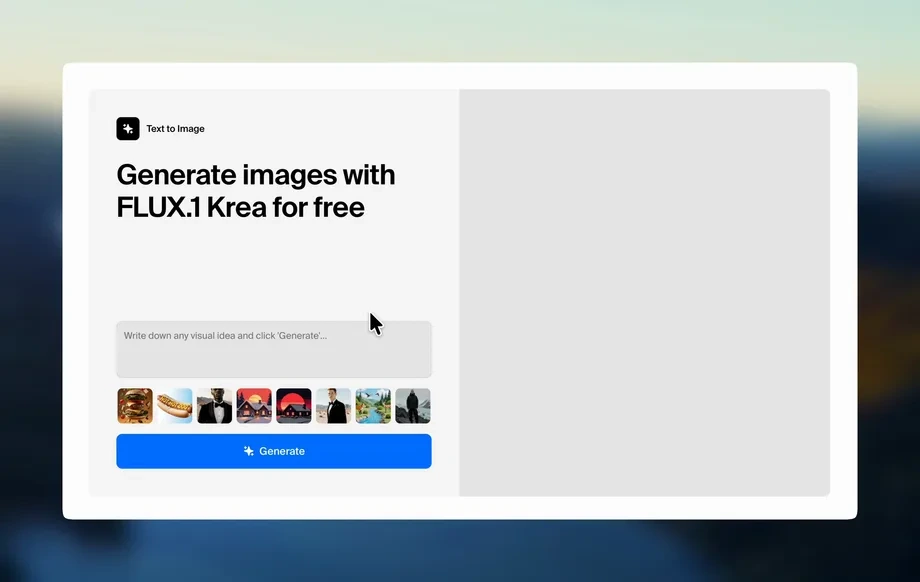
Step 1
Upload
Add your experience image and confirm it’s framed for 16:10. The tool prepares the file for AI enhancement while keeping composition and layout intact.
Upscale 16:10 experience images with AI for sharper details and clean edges. Enhance resolution, reduce noise, and export fast—try it online now.
Run the app to see your first output
How to use Image Upscaler 16:10
Follow these steps to upscale experience images in a consistent 16:10 format. You’ll upload your file, choose enhancement settings, and download a sharper, higher-resolution result ready to use anywhere.
Step 1
Add your experience image and confirm it’s framed for 16:10. The tool prepares the file for AI enhancement while keeping composition and layout intact.
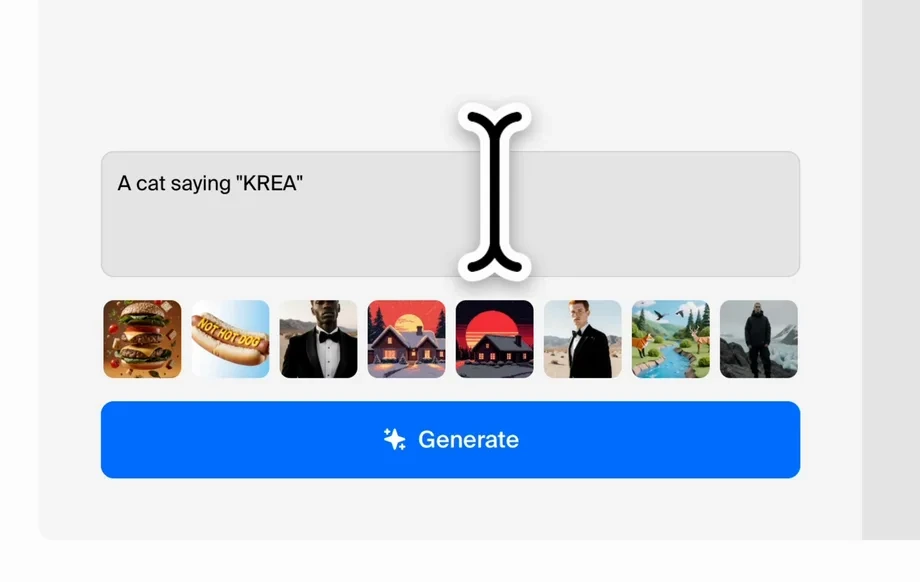
Step 2
Select your upscale strength and enhancement options. The AI increases resolution, sharpens details, and reduces noise to produce a clean 16:10 image.
Step 3
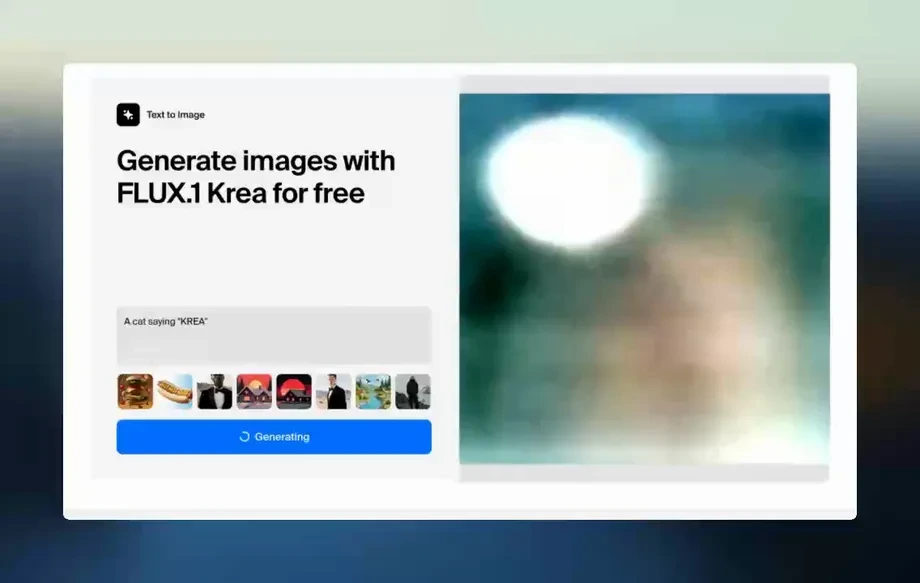
Preview the improved result, then export the upscaled file. Use the new 16:10 image in slides, web sections, demos, or documentation without extra editing.
Features
Image Upscaler 16:10 uses AI to boost resolution while keeping a consistent 16:10 aspect ratio. It improves clarity, reduces compression artifacts, and enhances edges so text and interface details look crisp. Get fast, reliable upscales for screens, mockups, and product visuals without complex workflows.
Upscale experience images while maintaining a clean 16:10 frame. Keep layouts consistent across web, slides, and demos without manual resizing or repeated exports.
AI enhancement restores clarity in textures and edges, reduces noise, and minimizes compression artifacts. Ideal for screenshots, UI panels, and image-heavy experience sections.
Generate higher-resolution 16:10 images quickly in your browser. Preview results, iterate on settings, and download ready-to-use files without installing extra software.
About
Image Upscaler 16:10 enhances experience images in a true 16:10 aspect ratio using AI upscaling. Increase resolution while preserving clarity, textures, and readable UI elements with cleaner edges and less noise. Upload an image, upscale to a sharper 16:10 output, and download results in seconds for presentations, product pages, and demos.
Get consistent 16:10 outputs with AI-powered clarity improvements designed for experience images. Enhance edges, reduce artifacts, and keep layouts intact for web, slides, and demos. Fast previews and simple controls help you reach the right balance of sharpness and realism quickly.
Open the tool, upload your 16:10 image, and choose your enhancement strength. Preview the upscaled result, make quick adjustments, and download a cleaner high-resolution image.
Use cases
Discover how different creators use this app in their workflow.
Upscale 16:10 experience images for sharper hero visuals, feature highlights, and interactive sections that stay consistent across responsive layouts.
Improve clarity of 16:10 screenshots and mockups so text, charts, and UI elements remain crisp on large displays and projectors.
Enhance 16:10 walkthrough images for guides and help centers, reducing blur and artifacts while keeping the original framing intact.
Krea is one of the world's leading generative AI platforms. See what others say.
Real reviews on TrustpilotSo many AI tools out there but I always come back to Krea. It's really the one AI platform that 'just works'.

FYN
Krea's interfaces are still the best in the industry. Everything looks and feels so clean and easy to use! Imo the easiest to use gen AI website.

Lynn
Ultra fast generations. Extremely simple to use. All the latest AI models.

Daniel
KREA is the only AI subscription I have right now besides ChatGPT.

Sophia M.
Quick answers about AI upscaling, 16:10 output, quality, and export options.
It uses AI upscaling to increase image resolution while keeping a 16:10 aspect ratio. Results are sharper, cleaner, and better suited for experience images, UI screenshots, and web sections.
Yes. The workflow is designed to preserve a consistent 16:10 frame so your composition stays aligned for displays, presentations, and page layouts that require 16:10 visuals.
AI enhancement can reduce compression artifacts, add perceived sharpness, and improve edges. Extremely blurred images may still have limits, but most screenshots and exports see noticeable clarity gains.
Yes. It’s optimized for experience images where clean lines and readable text matter. Upscaling helps UI elements look crisper and reduces jagged edges from low-resolution captures.
Processing time depends on your image size and chosen settings, but most upscales complete quickly. You can preview results, adjust options, and export without a lengthy workflow.
Common image formats are supported for upload and export. Choose a format that matches your workflow, such as high-quality outputs for web use, documentation, or presentation slides.
For consistent results, reuse the same settings across images. This helps maintain uniform sharpness and a matching 16:10 look across a set of experience images or screen captures.
No. Image Upscaler 16:10 works online in your browser. Upload your file, run AI upscaling, and download the enhanced 16:10 result without installing additional software.
The goal is to preserve the original image while improving clarity. Minor changes can occur with strong enhancement settings, so use the preview to select the most natural-looking result.
Upload a 16:10 experience image and get a sharper, higher-resolution result in seconds with AI upscaling.