








Create
Edit & enhance
Motion control AI for any character
Upload a character and a driving video. Kling Motion Control, Runway Act 2, or Wan 2.2 Animate copies every move, gesture, and expression onto your character.
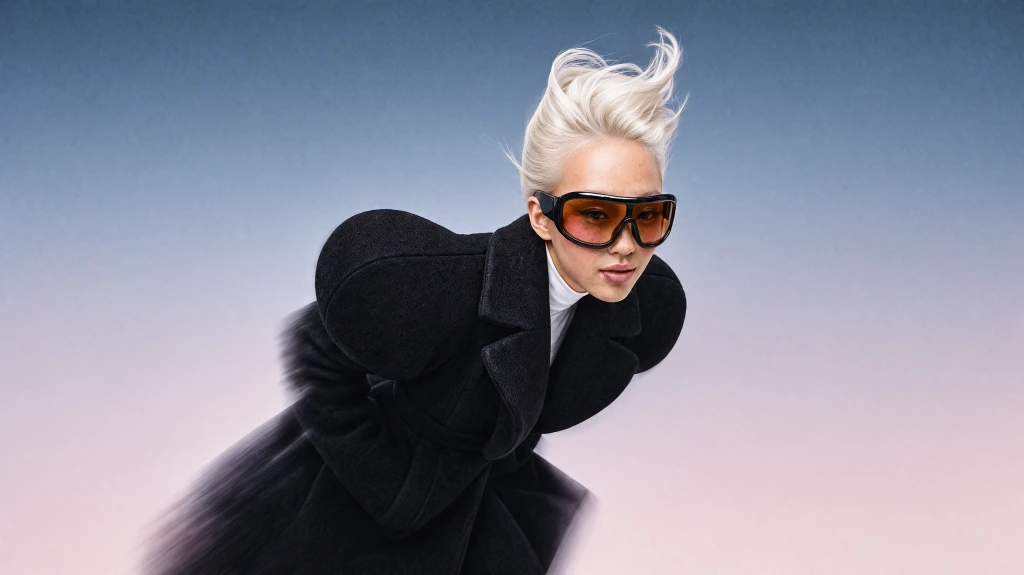
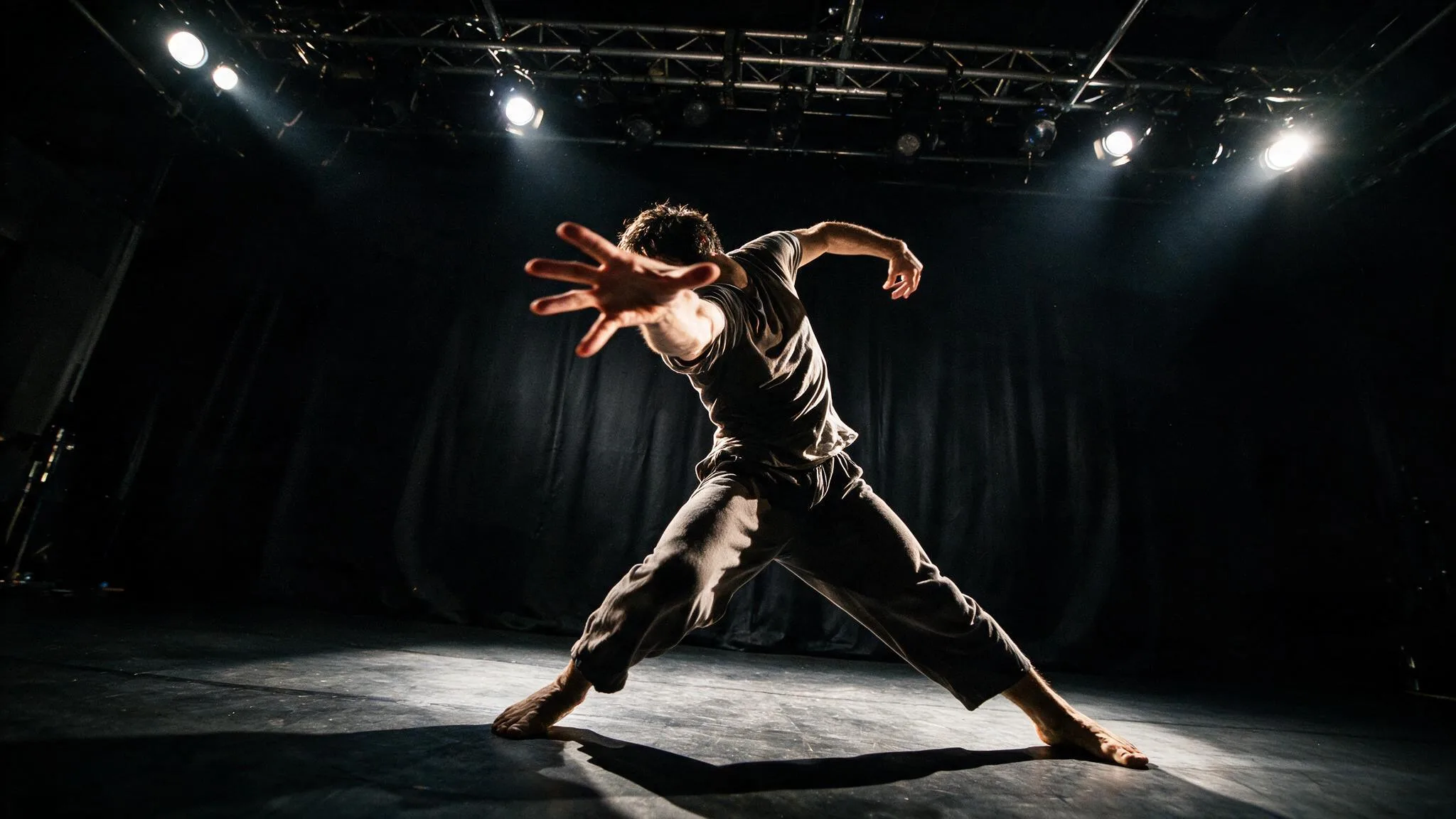 Example character
Your files open in Krea's Motion Transfer tool, where you pick the model and generate. Motion transfer needs a paid plan.
How to transfer motion with AI
Three steps, in your browser.
- 01
Upload a character
Add a photo or video of the person, pet, mascot, or illustrated character you want to animate. A sharp, full-body shot works best.
- 02
Add a driving video
Upload or record the performance to copy: a dance, a walk, a gesture, or a line of dialogue. Krea uses up to 30 seconds of it.
- 03
Pick a model and generate
Choose Kling Motion Control, Runway Act 2, or Wan 2.2 Animate, then generate. Your character performs the motion in a few minutes.
Motion control AI
Copy any movement onto any character
Motion control AI, also called AI motion transfer, takes the movement from one video and applies it to a different character. Instead of describing a dance or a gesture in a prompt, you show it: the model tracks the body, hands, and face in the driving video and renders your character doing the same thing, frame by frame.
Krea puts the leading motion transfer models in one tool: Kling Motion Control v3 and v2.6, Runway Act 2, and Wan 2.2 Animate Move and Replace. Use them to animate a still portrait, put your own performance onto a 3D or anime character, or replace the person in an existing clip while the scene stays the same.
What you can do with motion transfer
One driving video, any character. Pick the model by what you want to keep: your character’s own frame, or the scene of the driving video.
Open Motion TransferAnimate a still image
Turn one photo or illustration into a character that dances, walks, or talks, with the exact timing of your driving video.
Replace a person in a video
Wan 2.2 Animate Replace swaps the whole character in your video for the one in your image and keeps the camera move, lighting, and background of the original scene.
Act it out yourself
Record your own performance with your webcam right in the tool, and the model carries your expressions and body language onto the character.
Motion transfer models on Krea
Every model takes a character and a driving video. Kling, Act 2, and Wan Move animate your character in its own frame; Wan Replace puts it into the driving video’s scene.
Kling Motion Control v3
Kling’s latest motion control. Follows full-body choreography and hand movement closely and keeps the driving video’s original audio.
- ~124 units/sec
- Paid plans
Kling Motion Control v2.6
The previous Kling Motion Control. Costs less per second than v3, with the same inputs and the same 30-second limit.
- ~83 units/sec
- Paid plans
Runway Act 2
Runway’s character performance model. Strong on facial expression and upper-body acting, which suits dialogue and reaction shots.
- ~111 units/sec
- Paid plans
Wan 2.2 Animate Replace
Puts your character into the driving video in place of the original person, keeping the rest of the scene, the camera move, and the lighting.
- ~111 units/sec
- Paid plans
Wan 2.2 Animate Move
Animates your character inside its own image with the motion from the driving video, at 720p.
- ~111 units/sec
- Paid plans
Costs are compute units per second of output video, at the settings the Motion Transfer tool uses (Kling in Pro mode, Wan at 720p). The video is as long as your driving video, up to 30 seconds.
Motion transfer for creators and studios
Film the movement once, then give it to any character.
Dance trends
Put a trending TikTok or Reels dance on your mascot, your pet, or an AI character without filming it again.
Virtual characters
Drive a 3D, anime, or illustrated character with your own movement for Shorts, VTuber clips, and stories.
Ads and UGC
Reuse one recorded performance across several spokespeople or product characters to test creative variations.
Previs and storyboards
Act a scene out yourself, then transfer the motion onto concept characters before a real shoot.
Game and animation tests
See how a character design moves with real motion reference before you rig or keyframe it.
Memes and edits
Make a classic portrait, a painting, or a toy figure copy a famous move.
Motion control AI: frequently asked questions
Everything you need to know about AI motion transfer on Krea.
Motion control AI, or AI motion transfer, copies the movement from a driving video onto a different character. The model tracks the pose, hands, and face in each frame of the driving video and renders your character, from a photo or a video, doing the same thing. On Krea you upload the character and the driving video, pick a model such as Kling Motion Control v3, and generate.
Upload your character image or video and a driving video at the top of this page, then click Transfer motion. Both files open in Krea’s Motion Transfer tool, where you choose the model and generate. It takes a few minutes and needs a paid plan.
Kling Motion Control is Kling’s model for transferring the motion in a reference video onto a character image or video. Krea runs Kling Motion Control v3 and the earlier v2.6 in Pro mode, with driving videos up to 30 seconds, and keeps the original audio of the driving video. You don’t need a separate Kling account.
The best tool is the one that lets you try several models on the same clip, because each handles motion differently. Krea runs Kling Motion Control v3 and v2.6, Runway Act 2, and Wan 2.2 Animate Move and Replace side by side: Kling for full-body moves and dance, Act 2 for facial performance, and Wan Replace for swapping the person in an existing video.
No, motion transfer needs a paid Krea plan. Free accounts get 100 compute units a day for image generation and other free tools, but the motion transfer models aren’t included, and a 10-second Kling Motion Control v3 clip costs about 1,244 units on its own. The Basic plan’s 5,000 monthly units cover about 40 seconds of Kling v3 video; see Krea pricing.
No. ChatGPT can describe a scene or write a prompt, but it can’t copy the movement from your video onto another character. For that you need a motion transfer model such as Kling Motion Control or Runway Act 2, which take a driving video as input.
Yes. Wan 2.2 Animate Replace swaps the whole character in your video for the one in your image, and keeps the background, camera move, and lighting of the original clip. It replaces the full person, body and clothes included, not only the face; to swap just a face in a photo, use Krea Face Swap.
Use a sharp, well-lit character image with the whole body visible and a pose close to the first frame of the driving video, as a JPG, PNG, or WebP. For the driving video, an MP4, WebM, or MOV clip with one person, a steady camera, and the full body in frame gives the cleanest motion. Fast spins, cut-off limbs, and several people in frame give weaker results.
The video is as long as your driving video, up to 30 seconds. Krea trims longer driving videos to 30 seconds before generating, and every model bills per second of output, so shorter clips cost less.
Wan 2.2 Animate Move and Replace render at 720p in Krea’s tool, and Kling Motion Control runs in its Pro mode. The result follows the framing of your inputs, so a sharp character image and a clean, well-lit driving video matter most. To sharpen a finished clip, run it through the AI video upscaler.
Most clips finish in a few minutes. Wan 2.2 Animate is usually the quickest, while Kling and Runway Act 2 take longer, especially for long driving videos or at busy times. You can leave the page; the video stays in your Motion Transfer session.
With Kling Motion Control, yes: Krea keeps the original audio of your driving video by default, so music and speech stay in sync with the movement. To make a character photo say new lines instead, use AI lip sync.
Yes, paid Krea plans include a commercial license, so you can use the videos in ads, client work, and products. Only use footage, characters, and likenesses you own or have permission to use, and label synthetic media where your platform requires it.
No. Krea doesn’t add a watermark to the motion transfer videos you generate, so you can download and post them as they are.
Your files are uploaded to your Krea account and sent to the provider that runs the model you pick (Kling, Runway, or Wan) to generate the video. Krea checks the character against its content policy before generating. Read the Krea privacy policy for how Krea stores and uses your data.
Yes, if you want several motion models in one place. Krea runs Kling Motion Control v3 and v2.6 next to Runway Act 2 and Wan 2.2 Animate, so you can compare them on the same character and driving video, then upscale or edit the result in the same account. Krea doesn’t offer free motion transfer or a library of template dances, so you bring your own driving video.
Yes. If you don’t have reference footage, describe the motion in a prompt and animate your image with the AI video generator, which runs models such as Kling, Veo, and Seedance. Motion transfer is for when the character has to match an exact performance.
The platform that just works
So many AI tools out there but I always come back to Krea. It's really the one AI platform that 'just works'.
FYN
Verified review
Best interfaces in the industry
Krea's interfaces are still the best in the industry. Everything looks and feels so clean and easy to use! Imo the easiest to use gen AI website.
Lynn
Verified review
Fast, simple, always up to date
Ultra fast generations. Extremely simple to use. All the latest AI models.
Daniel
Verified review
The only AI subscription I need
KREA is the only AI subscription I have right now besides ChatGPT.
Sophia M.
Verified review
New models the same day
I'm a Krea Max user. It's crazy how fast they add models. I see a new AI model on twitter and the same day krea already offers it.
Wirot Ch.
Verified review
The most powerful creative suite
Still the most powerful AI creative suite out there.
Gravion
Verified review
Make any character move
Upload a character and a driving video, then pick the motion model that fits the shot.
Related tools
Create the character, the voice, and the rest of the video with Krea.
Image to Video
Animate a still image from a text prompt, no driving video needed.
AI Lip Sync
Make a character photo talk with a script or your own voice.
AI Video Generator
Generate full scenes with Kling, Veo, Seedance, and more.
Video Upscaler
Sharpen and upscale your finished clip.
AI Voice Generator
Turn text into natural speech for your character.
3D Model Generator
Turn an image of your character into a 3D model.