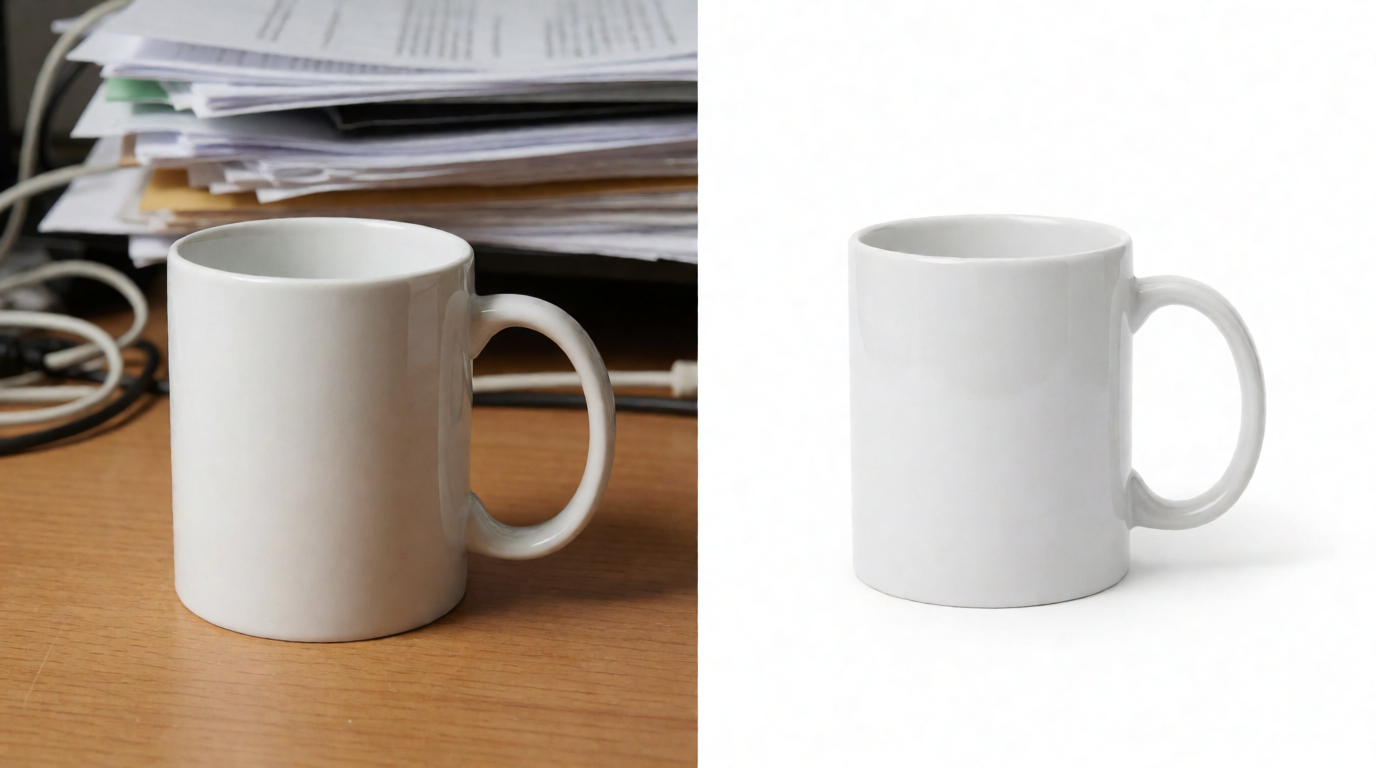
Every background remover in this list produces a usable cutout from an easy image. The real differences show up in three places: how the tool handles hair, glass, and fine edges; what the free route actually gives you; and what happens after the cut — whether you can place the subject on a new background without leaving the tool. This guide compares seven tools on those three points and says which job each one fits.
The best AI background removers at a glance
| # | Tool | Best for | Price model (Aug 2026) | Free route |
|---|---|---|---|---|
| 1 | Krea Edit | Cutout plus a new AI background in one tab | Free plan; paid from $9/mo | Daily free compute |
| 2 | remove.bg | Bulk product cutouts, API | 1 credit per HD image; packs from $3 | Free preview downloads (0.25 MP) |
| 3 | Adobe Express | Free one-off cutouts with clean edges | Free with an Adobe account | Free (credit-limited) |
| 4 | Adobe Photoshop | Maximum edge control after the cut | $22.99/mo single app | 7-day trial |
| 5 | Canva | Cutouts inside a design workflow | Canva Pro, $18/mo or $144/yr | Pro trial |
| 6 | Photoroom | E-commerce batches and templates | Paid plans; remover credit-free on paid plans | Free web tool for one-offs |
| 7 | Pixelcut | Quick mobile-first removal | Pro $10/mo ($8/mo yearly) | Limited free removal |
Remove a background in one click
Drop an image into Krea Edit, right-click, and lift the subject — then generate a new background in the same tab.
Open EditHow we chose and tested
Prices and plan shapes come from each vendor’s published pages as of August 2026: remove.bg pricing, Adobe Express, Adobe’s Creative Cloud plans, Canva Pro, Photoroom pricing, Pixelcut pricing, and Krea pricing. Every image in this post is a raw, single Krea 2 generation from the exact prompt shown beside it — no retouching, no cherry-picking. None of the images here came from a competitor tool.
To test a remover yourself, you need a hard source image. This kind of clutter is a fair stress test:
flat lay of a stainless steel wristwatch on a marble table among coffee cups, notebooks, and scattered pens, top-down view, natural window light

Variation tip: swap “wristwatch” for your own product and keep the clutter — a remover that isolates the watch here will handle your catalog.
What separates a good background remover
- Edge quality on hair, glass, and mesh. Solid objects are a solved problem; fine edges are not.
- The free route, honestly stated. Free often means low resolution, a watermark, or a small credit pool.
- What happens after the cut. A transparent PNG is rarely the end goal; the next background matters.
- Batch and API. One hero image and 400 SKUs are different problems.
Hair is where tools separate. A subject like this — backlit, with fine flyaway strands against a busy street — breaks weak segmentation models:
editorial portrait of a woman with voluminous curly hair standing on a busy city street at golden hour, shallow depth of field, natural light

How do I remove the background in a photo?
The workflow is the same in every tool on this list. Upload the photo. The AI segments the subject automatically, usually in a few seconds. Inspect the edges at 100% zoom — hair, fingers, and any straps or handles. Use the tool’s restore and erase brushes to fix misses. Then export a transparent PNG, or place the subject on a new background before export. The sections below give the exact recipe for each tool.
1. Krea Edit — cutout plus a generated background in one tab
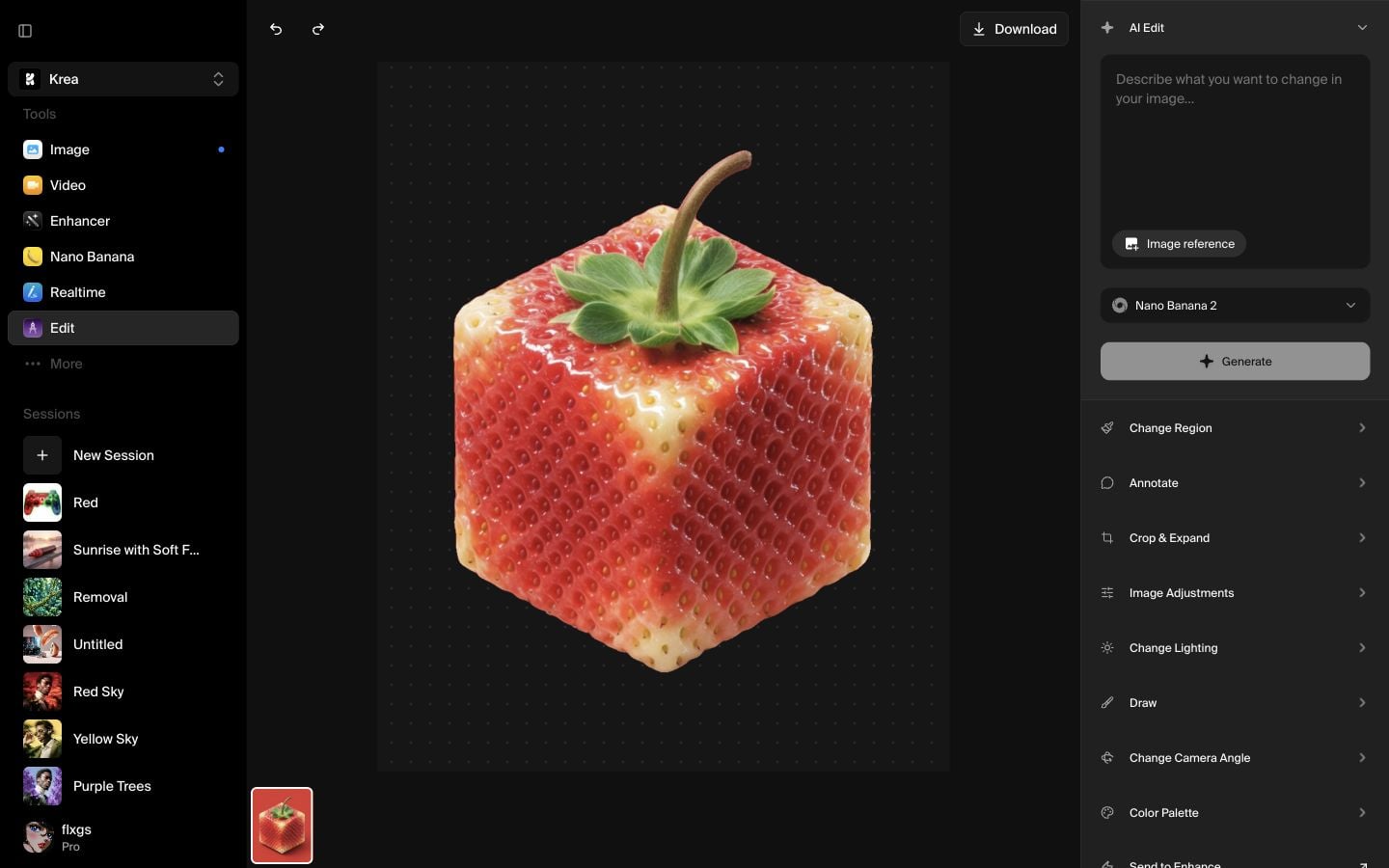
Krea Edit treats background removal as one step in an editing canvas rather than a standalone utility. Add an image to the canvas, right-click it, and choose Remove Background; the subject lifts onto a transparent canvas you can download or keep working on. The full click-by-click walkthrough is in our how-to guide.
Settings recipe:
Open Edit → Select asset → right-click the image → Remove Background → wait for the transparent grid → Download.
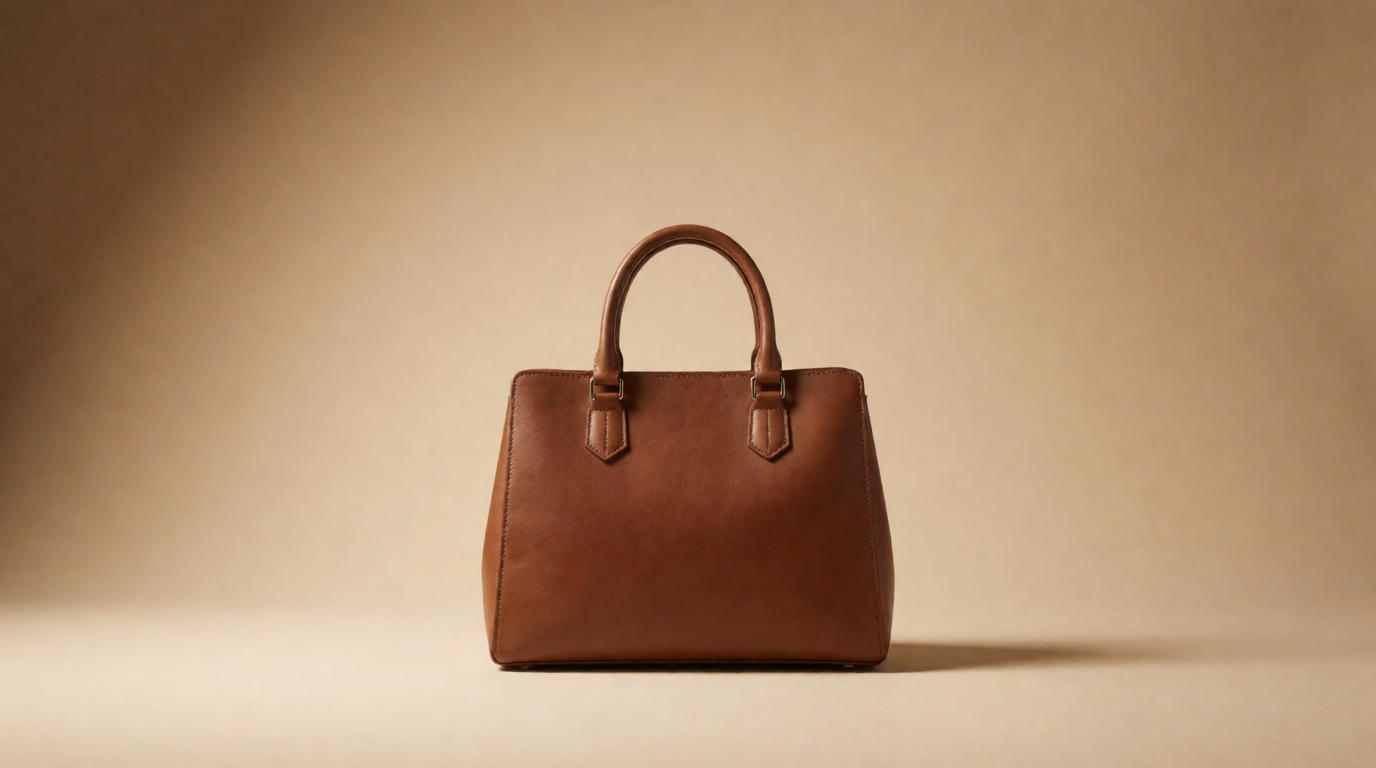
The practical argument for Krea is what happens next. The same tab generates the replacement background, so a cutout becomes a finished composite without an export-import loop. A studio backdrop like this is one prompt away:
brown leather handbag on a warm beige studio backdrop with a soft gradient, minimal e-commerce hero image, gentle contact shadow, professional product photography
Variation tip: name the backdrop color and the shadow type (“cool gray sweep, hard rim light”) and keep the rest of the prompt fixed.
Krea’s free plan includes a daily compute allowance that refills every day and covers Krea 2 image generation and basic upscaling to 2K; paid plans start at $9/month (Basic, 5,000 compute units) and carry the commercial license (pricing). Cutouts sit next to generation, the Enhancer, and video, so the whole product-shot pipeline stays in one place — the same adjacency covered in our AI product photography guide.
Where it stops: Krea has no bulk background-removal API aimed at catalogs — clearing 400 SKUs in one batch is remove.bg or Photoroom territory. And the free plan’s daily allowance is for trying and light use, not production volume.
Try background removal on Krea — the right-click cutout runs on the free plan.
2. remove.bg — the bulk and API standard
remove.bg built the category and still defines the transactional model: one credit removes one background in HD, up to 50 megapixels. Preview-size downloads (up to 0.25 megapixels, roughly 625×400) are free and unlimited on the website. Credits come pay-as-you-go from $3 for 3 credits, or on subscription — 200 credits for $39/month, 500 for $89/month. The API, the desktop app, and the Photoshop extension all draw from the same credit pool.
Settings recipe:
Upload → auto cutout → open Edit → use Erase/Restore at 100% zoom on hair and straps → download HD with a credit, or the free preview to check quality first.
Variation tip: run the free preview on your five hardest images before buying credits; edge quality on your subject matter is the only benchmark that counts.
Where it stops: remove.bg removes backgrounds and nothing else. There is no canvas, no new background generation, no design layer — and per-image credits get expensive next to flat-rate tools if you process thousands of images a month.
3. Adobe Express — the best free one-off cutout
The Adobe Express background remover is the strongest free route for single images: upload a JPG, PNG, or WebP, the AI cuts in about two seconds, and you download a full transparent PNG — no watermark. It uses the same segmentation lineage as Photoshop, so edges hold up well. You need a free Adobe account, and free-plan usage is limited by a monthly pool of generative credits; premium plans lift the limits.
Settings recipe:
Upload to the Express remover → download the transparent PNG → if edges miss, open in the Express editor and brush restore/erase.
Variation tip: for a white product background, add a white rectangle layer behind the cutout in Express before export.
Where it stops: the free tier is rationed by credits, and Express offers far less edge control than Photoshop — there is no fine mask editing when the auto cut misses fine hair.
4. Adobe Photoshop — maximum control after the cut
Photoshop’s one-click Remove Background lives in the contextual task bar and the Quick Actions panel; Adobe documents the flow in its help pages. The click itself is table stakes — the reason to pay for Photoshop is what follows: the cut lands as a non-destructive layer mask, and Select and Mask’s refine-edge brush recovers individual hairs no one-click tool can. The single-app plan is $22.99/month.
Settings recipe:
Open image → click Remove Background in the contextual task bar → Alt-click the layer mask to inspect → Select and Mask → refine-edge brush over hair → output to layer mask.
Variation tip: on product shots, follow the cut with a 1px mask contraction to kill background fringing.
Where it stops: price and weight. $22.99/month and a desktop install are hard to justify if one-click cutouts are all you need — the free Express tool uses similar AI for that job.
5. Canva — can Canva remove background?
Yes — with a paid plan. Canva’s one-click Background Remover is a Canva Pro feature; it is not part of the free tier. Canva Pro lists at $18/month or $144/year, with a free trial. Inside a design-first workflow it is genuinely convenient: the cutout drops straight into whatever social post or deck you are building, with brush-based restore and erase for cleanup.
Settings recipe:
Select the image → Edit photo → BG Remover → brush Restore over missed subject areas, Erase over leftovers → Apply.
Variation tip: duplicate the image layer before removing, so the original background stays available behind the cutout at reduced opacity.
Where it stops: the remover is welded to Canva’s editor — there is no API and no batch mode, and paying $18/month makes little sense unless the rest of Canva earns its keep. For one-off free cutouts, Adobe Express does the same job at $0.
6. Photoroom — built for e-commerce batches
Photoroom aims squarely at sellers: cutouts, batch editing, and marketplace-ready templates. The web remover is free to try for one-off images. On paid plans, the Background Remover consumes no AI credits: Photoroom’s credit docs list it as a core tool with unlimited use under a fair-use policy. The Pro plan adds batch exports and a monthly AI-credit allowance that varies by plan and region. An API serves higher volumes.
Settings recipe:
Batch upload the product set → apply one template (background, shadow, margin) to all → review edge misses individually → export the batch.
Variation tip: build one template per marketplace (white for Amazon, lifestyle for your own store) and re-run the same batch through each.
Where it stops: Photoroom composes backgrounds from templates and presets rather than open-ended generation, and headline dollar pricing is quoted at checkout by region — check the pricing page rather than third-party lists.
7. Pixelcut — the quick mobile option
Pixelcut — rebranded to Pixa in March 2026 — is a mobile-first editor whose background remover runs free in the browser for limited use, without a sign-up. Pro is $10/month, or $8/month billed yearly, and lifts removal to unlimited. For clearing a handful of listings from a phone, it is one of the fastest paths available.
Settings recipe:
Open the web remover → upload → auto cutout → tap Erase/Restore for touch-ups → export PNG, or swap in a preset background first.
Variation tip: shoot the product against any plain wall first; even a weak contrast edge doubles the auto cutout’s hit rate.
Where it stops: free usage is limited, and the toolset is shallower than the desktop suites — fine-edge repair on hair is not its game. It is a phone-speed tool, priced and shaped accordingly.
How to make a white background?
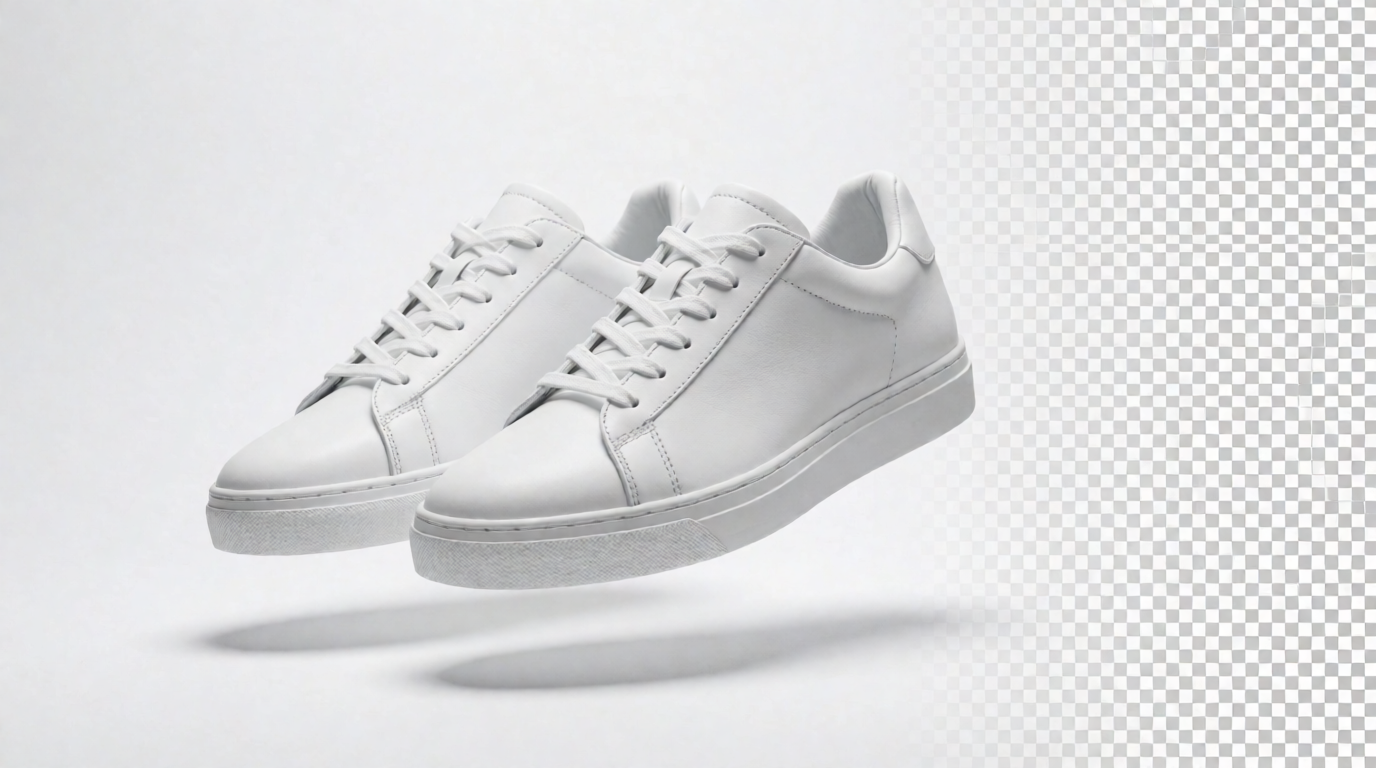
Two routes. Route one: remove the background with any tool above, then fill the empty layer with pure white (#FFFFFF) — Express, Canva, Photoroom, and Photoshop all do this in one step, and marketplaces like Amazon require exactly this. Route two, when the product shot is being created rather than repaired: generate it on white directly. This is one prompt in Krea 2:
studio product photograph of a pair of white leather sneakers centered on a seamless pure white background, soft even lighting, subtle contact shadow under the shoes, e-commerce catalog style
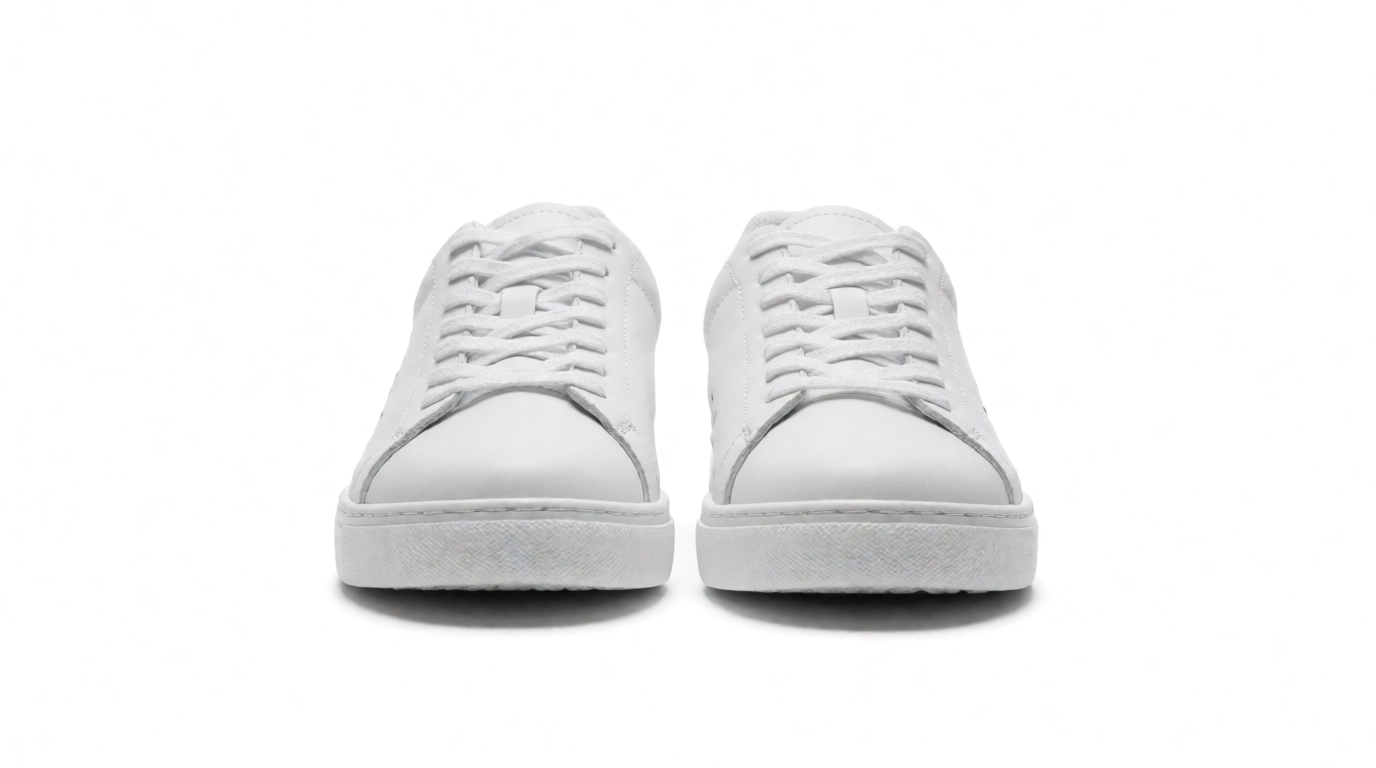
Variation tip: keep “seamless pure white background” and “subtle contact shadow” fixed and swap only the product; the shadow line is what stops the image from floating.
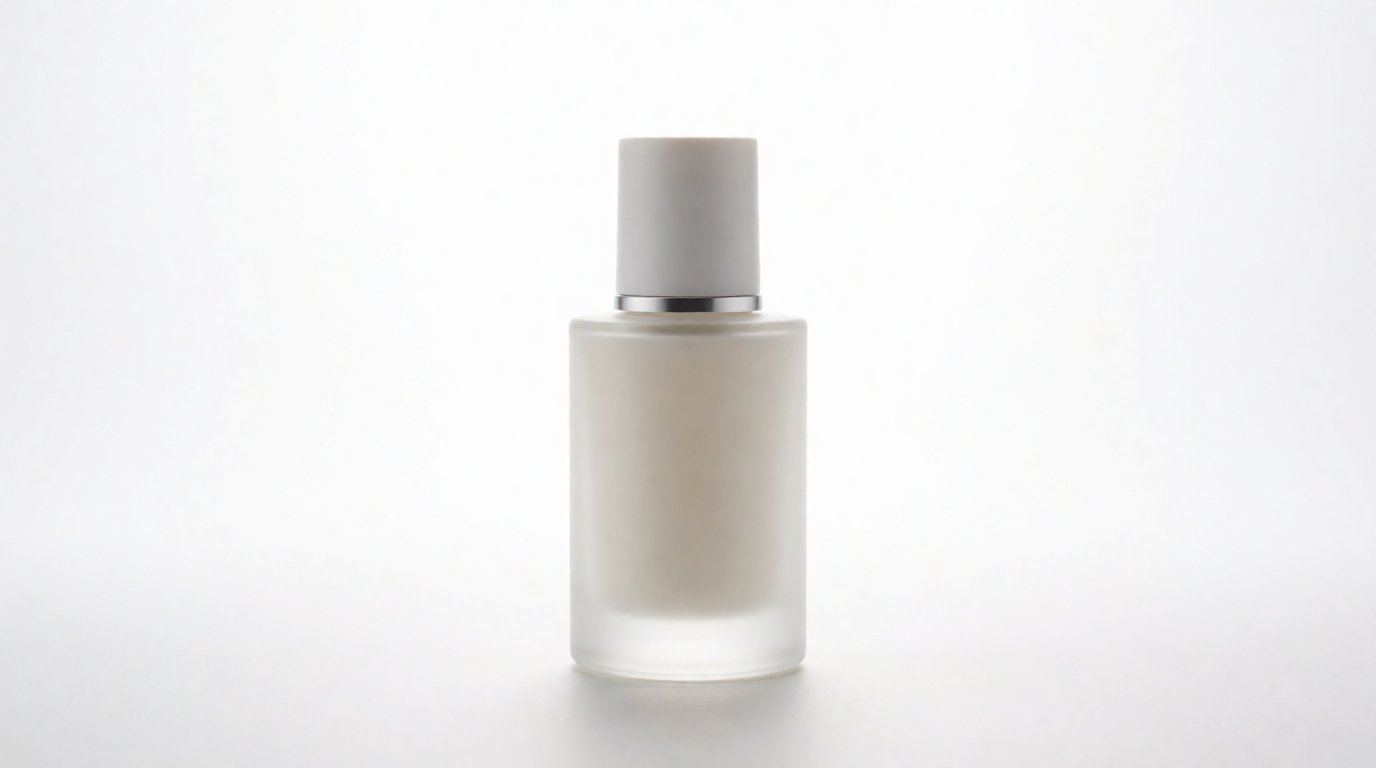
The same pattern gives any studio backdrop — gray reads as premium for cosmetics:
amber glass cosmetics bottle on a smooth light gray studio background, soft top light with a gentle reflection, minimal product photography

Which is the best background remover? Pick by job
- One free cutout, right now: Adobe Express — full-resolution transparent PNG at $0.
- Cutout plus a new AI background: Krea Edit — remove, generate, and composite in one tab. Krea also runs a dedicated background remover if the cutout is the only step you need.
- Hundreds of SKUs or an API: remove.bg for pure removal volume; Photoroom when you also need templates and shadows.
- Fine hair on a hero image: Photoshop — the refine-edge brush is still unmatched.
- You already live in Canva: Canva Pro — the remover is good, but only worth it inside that subscription.
- Phone in hand, listing to post: Pixelcut.
If the cutout is step one of making an image rather than fixing one, start where generation lives: generate the shot, remove or replace the background in Edit, and upscale the result with Krea’s AI upscaler for print. And if budget is the constraint, our roundup of free AI image generators covers the $0 end of the whole pipeline.
Frequently asked questions
Which AI is best for removing background?
Can AI remove backgrounds?
Is there a free way to remove background?
How do I remove backgrounds for free?
Can Canva remove background?
How do you remove the background in Photoshop AI?
Make the cutout and the new background in one place
Right-click removal in Edit runs on Krea's free plan, next to Krea 2 generation and the Enhancer.
Try Krea Edit