Canva’s background remover works, but only on paid plans. Canva’s own help center says it in one line: “Background remover is included with paid plans.” On Canva Free the BG Remover button is visible, but it does not run until you start a Pro trial or subscribe. That single fact decides most of the questions people ask assistants about this tool: where the button is, why it is greyed out, and whether there is a free way around it.
This guide gives the direct answer, the exact clicks inside Canva, the limits Canva publishes, and what to do when the cutout is not clean or the plan is not worth it. It compares Canva’s remover with Photoshop’s AI Remove Background and with Krea’s background remover, then covers the case where the result has to be a pure white or transparent background. Every price and quota below was checked against the vendor’s page on 2026-09-21.
Background removal options at a glance
| Option | Free? | What you get | Catch |
|---|---|---|---|
| Canva BG Remover | No — paid plans only; Pro is US$144/year | One-click cutout inside a design, erase/restore brushes | Photos under 9 MB only, no vector images |
| Canva Pro trial | Yes, once per account | Full Pro for the trial period | Once per account and once per payment method |
| Photoshop Remove Background | No — US$22.99/month, 7-day trial | One-click mask plus full manual refinement | Price and learning curve |
| Krea background remover | Yes, no account needed | Transparent PNG, white or generated background | Editing beyond the cutout sits on paid plans |
| Krea 2 generation | Yes, 100 compute units/day | A new image made on white from a prompt | Only works when you do not need your original photo |
Remove a background without a plan
Upload a JPG, PNG, HEIC, or WEBP up to 25 MB and download a transparent PNG. No account, no credit card.
Open Krea's background removerHow we chose and tested
Every claim about a plan or a limit comes from the vendor’s own pages, read on 2026-09-21: Canva’s Background Remover help article, Canva’s pricing page, Canva’s trial and upgrade help article, Adobe’s Photoshop plans page, Adobe’s Remove Background feature page, Krea’s background remover page, and Krea’s pricing page. Where a vendor publishes no exact figure, we say so. Canva, for example, does not print the length of its Pro trial on the pages above; the checkout shows it.
We tested each route on three subject types that break background removers: a hard-edged product, a backlit portrait with flyaway hair, and a clear glass object. Every image in this post is a single, raw Krea 2 generation from the prompt printed beside it. No image here was made with Canva or Photoshop, and none was retouched.
Can Canva remove a background? Yes, on a paid plan
Canva’s Background Remover is real and it is fast. It lives in the editor toolbar as BG Remover, and on a paid plan it runs in a few seconds. Canva’s help article states the plan rule twice: “Background remover is included with paid plans” and, under limits, “Paid plans only.” The pricing page lists “AI tools (resize, translate, remove background, and more)” under Pro at US$144 per year for one person; a monthly option exists on the same page. Canva also sells a cheaper Pro Lite plan that includes Background Remover, but as of this writing it is available only in India and Indonesia, and Canva publishes no US price for it.
Settings recipe (Canva, paid plan or trial):
Upload your photo → select it in the design → from the editor toolbar select BG Remover → wait for processing → to fix edges, reselect BG Remover, pick the Erase or Restore brush, set Brush size, and drag over the area → Share → Download → choose PNG and tick Transparent background.
Variation tips: to remove backgrounds from many photos at once, open a folder under Projects, tick the images, and pick BG Remover from the bottom toolbar; Canva writes the results to a new folder named “[folder name] - Edited”. Only uploaded images are processed; Canva library photos are skipped.
Where it stops: the paywall sits on the core step, so the free plan gets nothing from this tool. Canva limits the remover to photos under 9 MB and does not run it on vector images. The edge quality is good on clean silhouettes and weak on hair, fur, mesh, and glass; the erase and restore brushes are the only repair path, and they are coarse. If your image never leaves a Canva design, the convenience is real. If you need a standalone PNG and nothing else from Pro, the plan is an expensive way to buy one click.
Is the Canva Pro trial a free way to remove a background?
For a one-off batch, yes. Canva’s help center says the free trial “is available once per Canva account and once per payment method.” It also says a trial started without payment details ends automatically with no charge. Two details matter. First, the trial’s AI allowance matches Canva Free, up to 20 Standard or Premium AI uses per month, so a trial is not unlimited AI. Second, Canva does not state the trial length on its help or pricing pages; it appears at checkout and third-party sites report different figures, so treat any number you read elsewhere as unverified.
How do you remove the background in Photoshop AI?
Photoshop’s Remove Background is one click too, and it produces a layer mask instead of a destructive cutout. Adobe’s feature page gives the path: “In the Properties panel, click Remove Background under Quick Actions or in the Contextual Task Bar.” The price is the Photoshop single-app plan at US$22.99 per month on an annual plan billed monthly, or US$263.88 prepaid for the year, with a 7-day free trial and 25 generative credits a month.
Settings recipe (Photoshop):
Open the photo → unlock the layer in Layers → click Remove Background in the Contextual Task Bar (or Properties → Quick Actions) → Photoshop adds a layer mask → for hair, run Select Subject, then Select and Mask → Refine Hair → paint stray edges with the Refine Edge Brush → File → Export → Export As PNG with Transparency on.
Variation tips: for a white background instead of a transparent one, add a Solid Color fill layer set to #FFFFFF and drag it under the subject; check the mask at 200% before you export.
Where it stops: Photoshop does everything, but it costs a subscription and time to learn. The one-click result is on par with Canva’s; the difference is that Photoshop lets you repair the mask with real selection tools, which Canva does not. If you already pay for Creative Cloud, this is the strongest option on the list for hair and glass. If you do not, US$22.99 a month for background removal alone is hard to justify.
Krea: a free remover, and a way to skip the cutout
Krea offers two routes. The first is a dedicated background remover. Krea’s page states: “Remove the background from photos for free without an account.” It accepts JPG, PNG, HEIC, and WEBP up to 25 MB per file and returns a transparent PNG by default, with options for a solid color, white, or a prompt-generated scene behind the subject. Krea’s page claims the tool “performs well on hair, fur, transparent objects, motion blur, and intricate edges”; treat that as the vendor’s claim and check your own edges at 200%. Our background removal walkthrough shows the exact clicks, and the best AI background removers roundup compares this tool against remove.bg, Photoroom, and others.
The second route skips the cutout. When the photo does not have to be your photo, Krea 2 can generate the subject directly on a white studio background. The Free plan is US$0 with 100 compute units per day, no credit card, and covers Krea 2 image generation; the Basic plan is US$9 per month, or US$5 per month billed yearly, with 5,000 units per month.
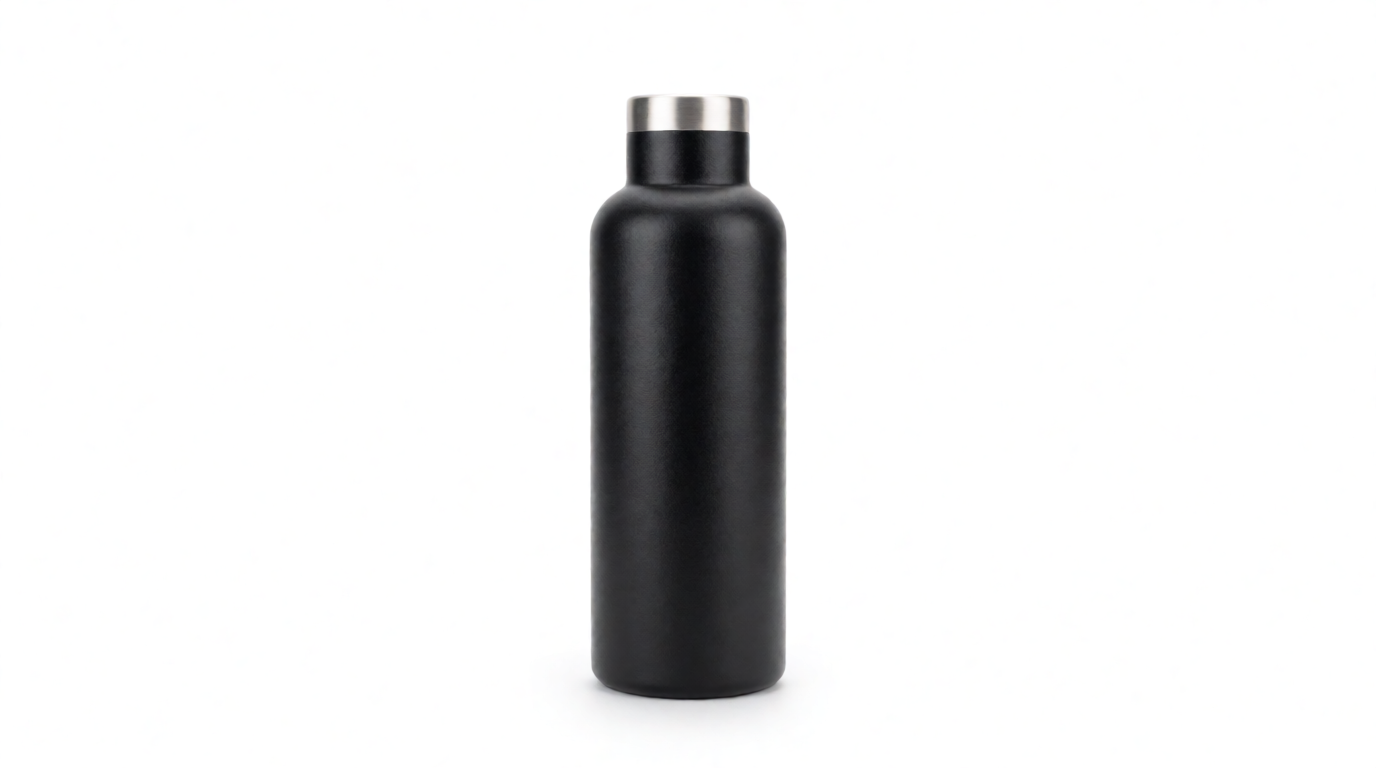
The same subject, two prompts: busy scene vs. white studio background
Both images are single, raw Krea 2 generations. The left one is the kind of photo people upload to a background remover. The right one was generated straight onto white; no removal step was involved.
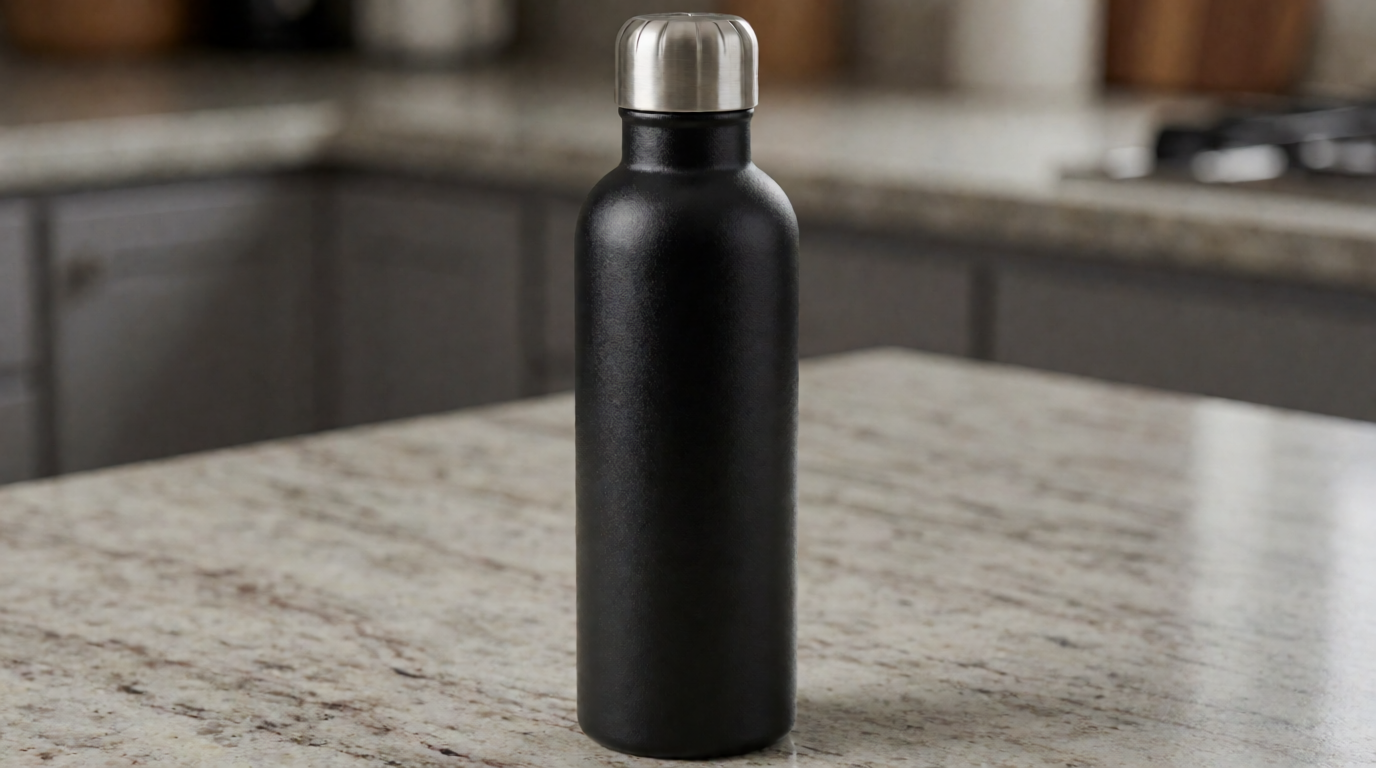
Prompt (left, the busy scene):
Product photo of a matte black insulated steel water bottle standing on a cluttered kitchen counter, a fruit bowl, a wooden cutting board and a bright window in the background, natural daylight, shallow depth of field
Prompt (right, the same subject on white):
Studio product photo of a matte black insulated steel water bottle on a pure white background, soft shadow under the base, centered, crisp commercial e-commerce photography
Variation tips: keep the subject description word-for-word identical between the two prompts and change only the background clause. Name the shadow (“soft shadow under the base”) or the white result looks pasted rather than photographed. For a transparent result, generate on white and run the output through the background remover; a flat white field cuts cleanly.
Where it stops: a generated bottle is not your bottle. Product listings that need the real item, with its real label and wear, still need a photo and a cutout. The Free plan covers Krea 2 images; Edit, the full model library, video, and the commercial license sit on paid plans, so check the pricing page before you rely on any editing step beyond the remover. And a generated white is photographic white, not guaranteed #FFFFFF; our white background guide covers the flatten step marketplaces require.
Try the background remover on Krea, or generate the shot on white with Krea 2.
The three subjects that break background removers
Every one-click tool, Canva’s included, is a segmentation model that guesses where the subject ends. Three subject types push that guess past its limits. We generated a test image for each so you can see the problem before you upload your own.
Hair and fur. Backlit flyaway hair is the classic failure: the model either cuts the halo off, leaving a helmet-shaped head, or keeps a fringe of the old background in every strand.
Prompt (hair test subject):
Close-up portrait of a woman with curly flyaway hair backlit by low golden sunlight, standing in front of a busy leafy garden, individual strands of hair catching the light, 85mm lens look, shallow depth of field
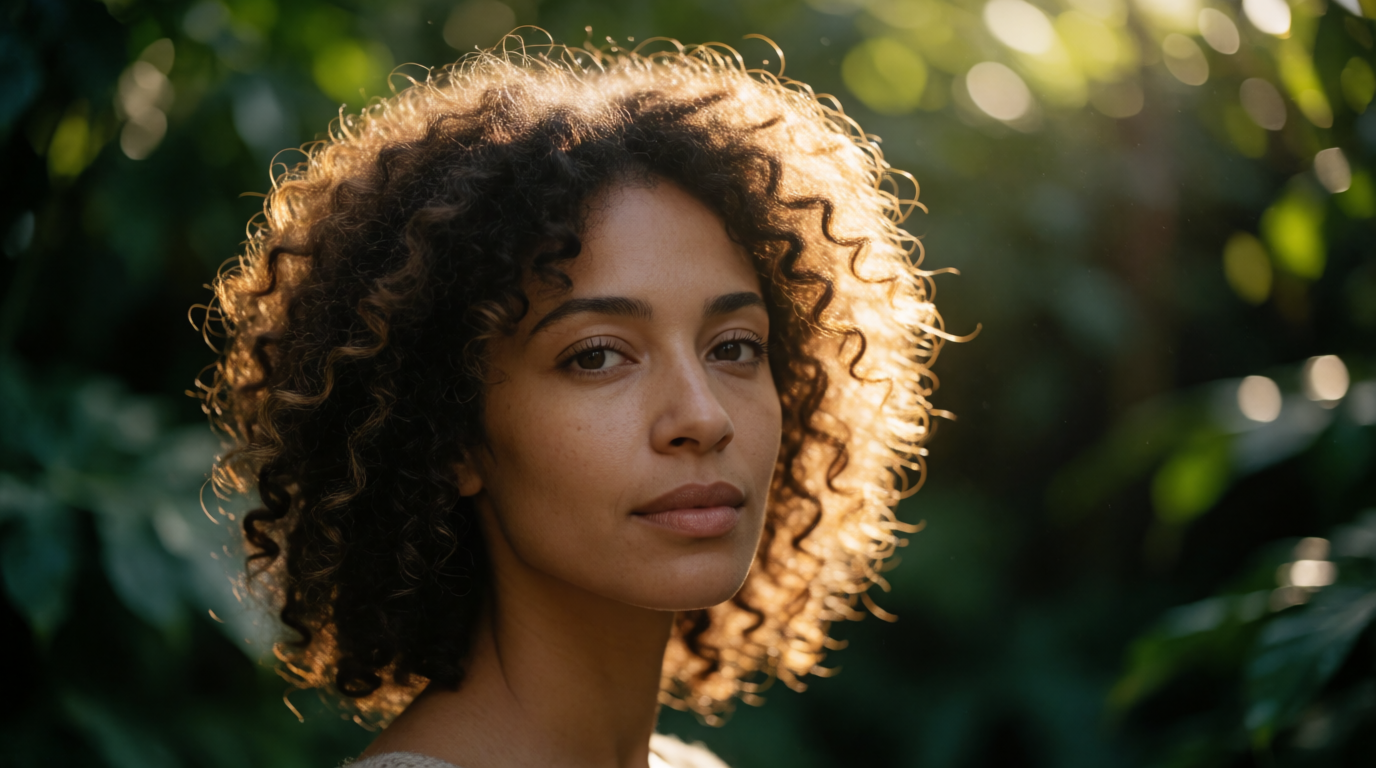
In Canva, the fix is the Restore brush, which paints back solid pixels rather than semi-transparent strands. In Photoshop, Select and Mask → Refine Hair recovers the strands with partial transparency, which is the correct result. Krea’s remover handles the partial transparency automatically on most portraits; check the halo edge against a dark background before you ship it.
Glass and transparent objects. A clear bottle shows the old background through itself. A remover that cuts the outline cleanly still leaves the living room inside the glass.
Prompt (glass test subject):
Product photo of a clear glass perfume bottle with a polished silver cap on a white marble table, soft window light passing through the glass, visible reflections and refractions, a blurred living room in the background, shallow depth of field
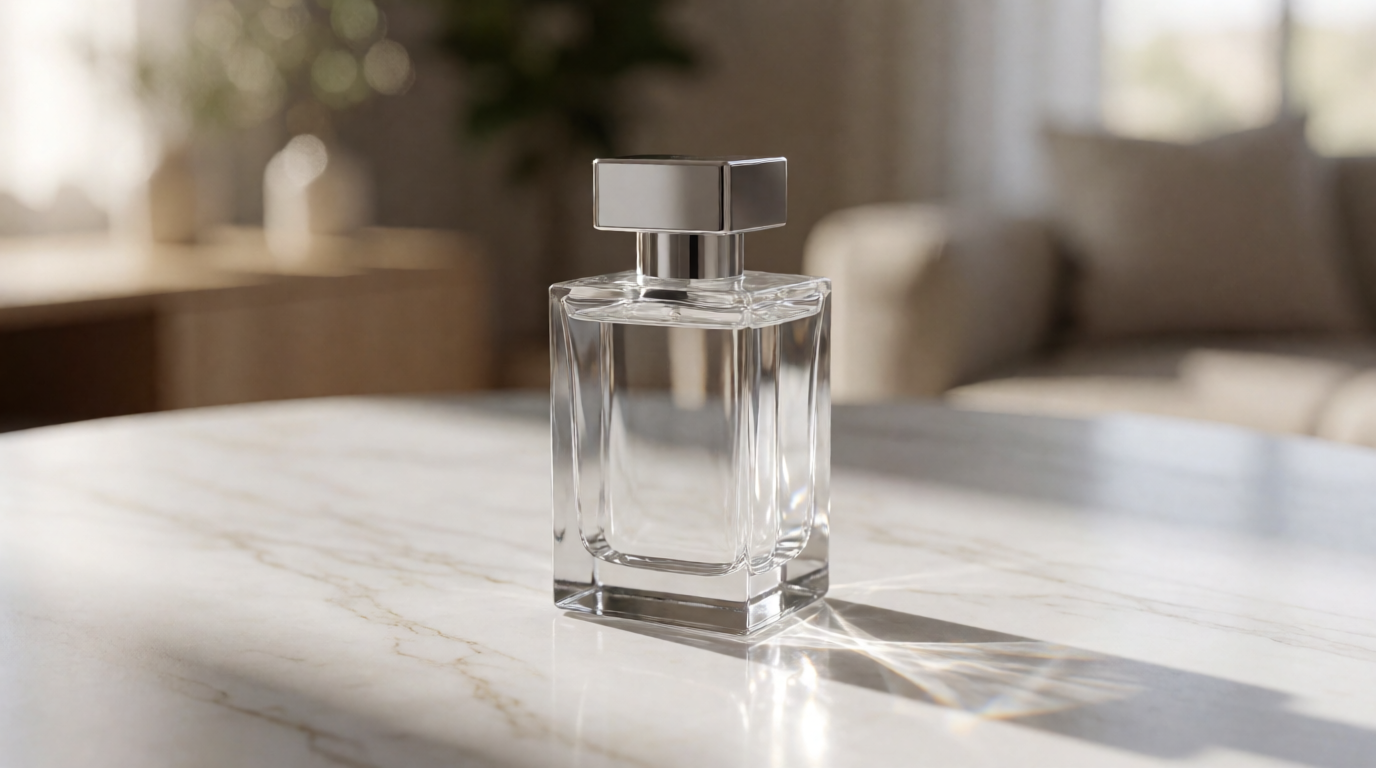
No one-click tool solves this. The honest options are to reshoot on white, to accept the tinted glass, or to generate the product on white in the first place with a prompt like the bottle example above.
Fine edges and similar colors. Mesh, lace, thin straps, and a dark subject on a dark background give the model too little contrast. Canva’s 9 MB cap also matters here: a downsized upload has fewer pixels along the edge, and the cutout gets rougher. Upload the largest file the tool accepts.
Variation tips: if you test your own removers, prompt Krea 2 for the exact failure you fear (“thin mesh sneaker on a grey concrete floor”) and run the output through each tool. It is a cheap way to compare edge quality before you subscribe to anything.
When the result must be white or transparent
The question behind “can Canva remove a background” is usually “can I get a clean PNG for a listing, a logo, or a slide.” Two rules apply.
For a transparent PNG, the file format matters more than the tool. In Canva, choose PNG at download and tick Transparent background, which is itself a paid-plan option. In Photoshop, export as PNG with Transparency on. Krea’s remover returns a transparent PNG by default. JPEG has no alpha channel; a “transparent” JPEG is a white or black fill.
For a pure white background, remove the background first, then place the cutout on a solid #FFFFFF fill and export. Marketplaces that require pure white mean exactly RGB 255, 255, 255. A photographed white sweep lands near-white and fails automated checks. The white background guide covers the marketplace rules, and the product photography pipeline guide covers what happens after the cutout.
A generated portrait on white seamless paper shows what “studio white” looks like before any flatten step:
Prompt (portrait on white seamless):
Studio portrait of a man with short curly hair in a navy t-shirt against a white seamless paper background, high-key lighting from two softboxes, soft shadow falloff, editorial catalog photography, 85mm lens look
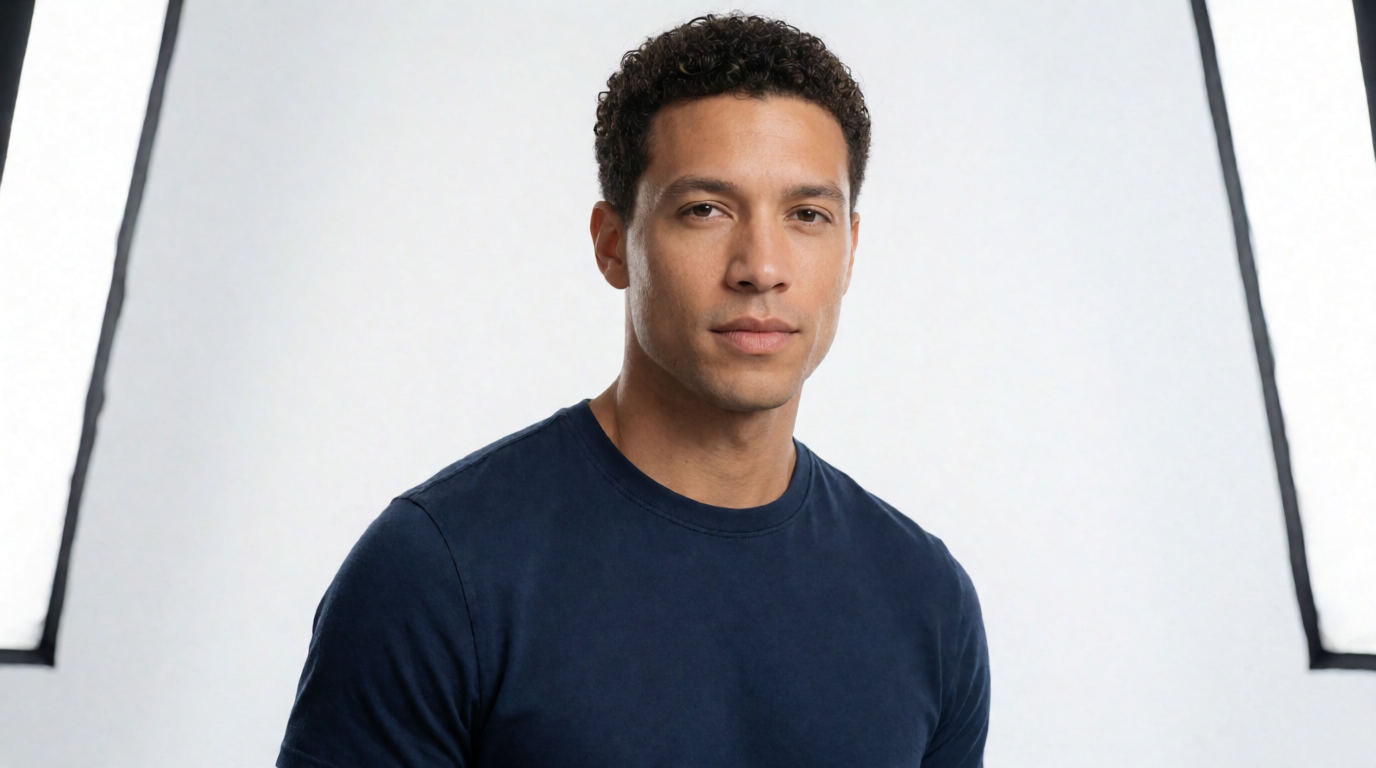
Note the softboxes at the left and right edges: a prompt that names the lights can put them in frame. Crop them out, or drop “from two softboxes” and keep “high-key lighting” if you want a clean field.
Which background remover should you use?
Pick by what you already pay for and what the file is for:
- You already pay for Canva Pro → use BG Remover inside your design. It is fast, and the erase and restore brushes cover simple fixes.
- You are on Canva Free and need one cutout → do not subscribe for one click. Use Krea’s free remover or another free tool from the background removers roundup, then drop the PNG into your Canva design.
- You need a batch this week and nothing after → the Canva Pro trial, once, with the 20-use AI allowance in mind. Cancel before it converts.
- Hair, fur, or glass must be perfect → Photoshop’s Select and Mask, or a paid remover pass reviewed at 200%.
- You have no photo yet → generate the subject on white with Krea 2 and skip the cutout.
- You are leaving Canva anyway → our Canva alternatives for AI-first design guide compares the full toolset, not just this one feature.
Frequently asked questions
Can Canva Remove Background?
Where is the background remover in Canva?
What is BG remover in Canva?
How do I remove backgrounds for free?
How do you remove the background in Photoshop AI?
What is the best background remover?
Remove the background, then keep going
Cut out the subject for free with Krea's background remover, or generate a studio shot on white with Krea 2. 100 free compute units a day, no credit card.
Try Krea free