“What is the best AI photo enhancer?” has a different answer for a blurry phone shot, a scanned print from 1968, and a 1024-pixel AI image that needs to be 4K. All three get called “enhancing,” but they are different jobs: deblurring and denoising, restoration of faded color and damaged faces, and upscaling. Most tools do one well and the others passably. This guide compares six enhancers — Krea Enhancer, Remini, Topaz Photo, Adobe Lightroom and Photoshop, Let’s Enhance, and the free desktop app Upscayl — by which job each actually does, what the free tier gives you, and where each one stops. It also answers the question people ask ChatGPT most: whether ChatGPT itself can upscale an image.
What does “enhance photo” mean?
An AI photo enhancer takes an existing image and produces a version with more usable detail. That means one or more of these operations:
- Upscaling — increasing pixel dimensions (1920×1080 to 3840×2160, which is 4K UHD) while adding plausible detail so the result does not look soft.
- Deblurring and sharpening — recovering edges lost to camera shake, missed focus, or heavy JPEG compression.
- Denoising — removing grain from low-light phone shots and high-ISO camera files without smearing texture.
- Face recovery — reconstructing eyes, teeth, and skin on small or blurry faces.
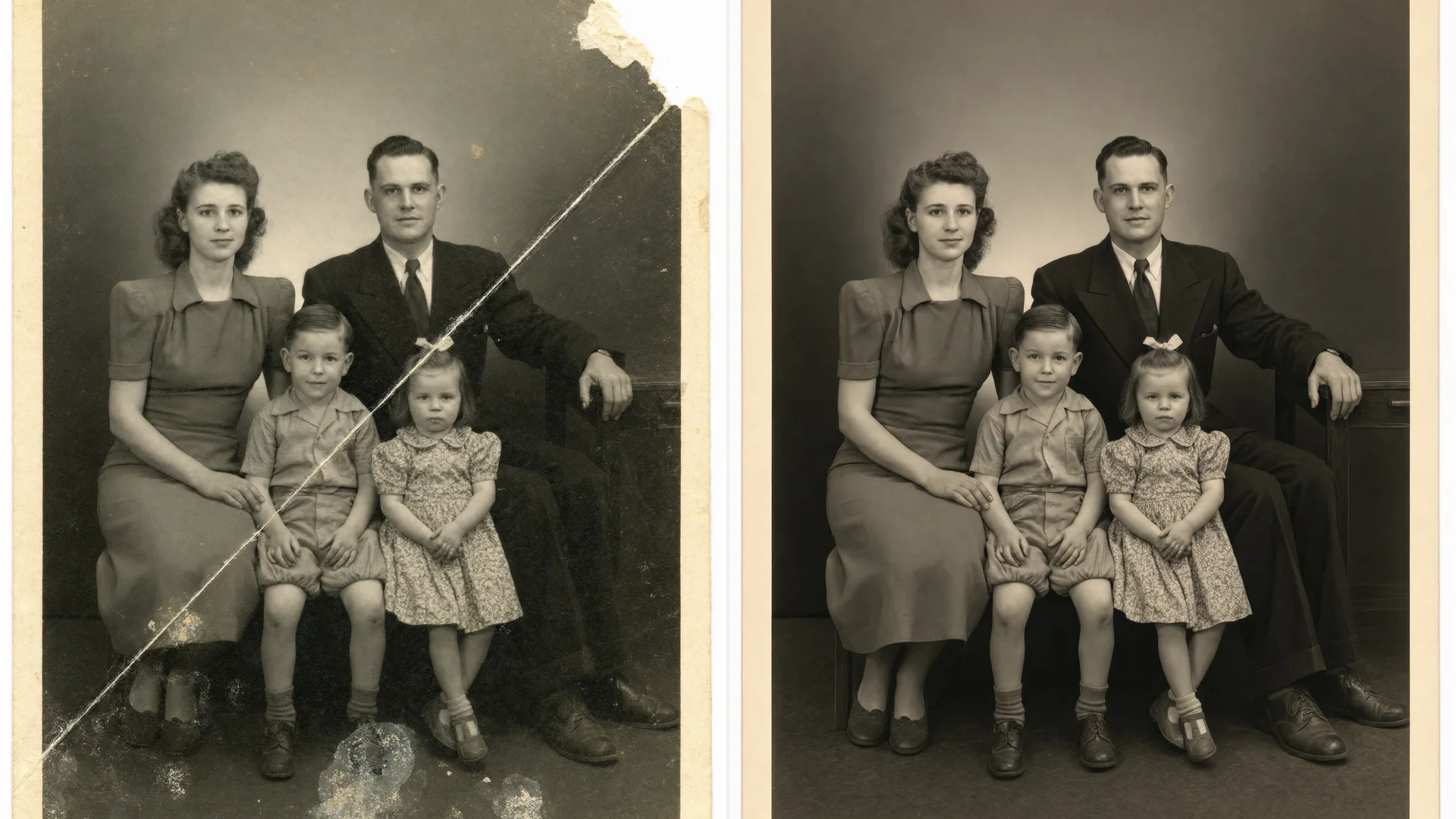
- Restoration — fixing faded color, scratches, and dust on scanned prints.
Two limits apply to every tool. An enhancer cannot recover information the camera never captured — it estimates it — so text, logos, and faces can come out plausible but wrong. And the more a tool invents, the further the result drifts from the original. Fidelity tools invent less; creative tools invent more. Our guide to the best AI image upscalers covers that split in depth; this post is about fixing real photos.
AI photo enhancers at a glance
| # | Tool | Best at | Free tier | Price (Sep 2026) |
|---|---|---|---|---|
| 1 | Krea Enhancer | Upscaling plus re-detailing in the browser; AI images and photos | 100 compute units/day; basic upscaling to 2K | Basic from $9/mo (5,000 units) |
| 2 | Remini | Faces, selfies, old family photos on a phone | Free app with ads | In-app plans from $4.99/week |
| 3 | Topaz Photo | Denoise, sharpen, face recovery, up to 6x upscale on a desktop | No trial mode; 10 free browser upscales | Personal $199/yr |
| 4 | Adobe Lightroom / Photoshop | 2x Super Resolution and raw Denoise inside an editing workflow | 7-day trial | Lightroom $11.99/mo; Photography plan $19.99/mo |
| 5 | Let’s Enhance | Batch web upscaling with credits | 10 one-time credits, watermarked, 8 MP max | Starter $9/mo annual |
| 6 | Upscayl | Free, offline, open-source upscaling | Fully free | $0 |
Enhance a photo in your browser
Upload a blurry or low-res image to the Krea Enhancer and upscale it in seconds. Basic upscaling to 2K is on the free plan.
Try the EnhancerHow we chose and tested
Every price, quota, and resolution figure comes from the vendor’s own page, checked in September 2026: Krea’s pricing page and Enhancer page, Remini’s App Store listing (Remini publishes no public pricing page), Topaz Labs’ pricing page and upscale documentation, Adobe’s Lightroom plans page and Super Resolution announcement, Let’s Enhance’s pricing page, Upscayl on GitHub, and OpenAI’s image generation guide. Where a vendor publishes no figure, we say so.
We judged each tool on the three jobs — upscaling, deblur/denoise, and face and restoration work — plus the free tier and the price of the first paid step. The photos in this post are single, raw Krea 2 Turbo generations from the exact prompt printed beside each one. They show the kinds of photos each tool is built for; they are not before-and-after results from any tool, including Krea’s own Enhancer.
Can ChatGPT upscale an image?
No — not in the sense of enlarging your photo while keeping it the same photo. OpenAI’s image generation documentation lists three standard output sizes for its GPT Image models — 1024×1024, 1536×1024, and 1024×1536 — plus custom sizes where neither edge exceeds 3,840 pixels and the total pixel count stays between 655,360 and 8,294,400 (4K). It documents no upscale or enlarge function. When you upload a photo and ask ChatGPT to “enhance” it, the image model generates a new image guided by your photo and your prompt. The output is a fresh generation at one of those sizes, not your original pixels made larger, so faces, text, and small details can change. Use a dedicated enhancer when the goal is the same photo, only sharper and larger.
1. Krea Enhancer — upscale and re-detail without leaving the browser
The Krea Enhancer upscales an image and adds detail in one pass; Krea’s Enhancer page describes it as a way to “increase resolution, sharpen details, and upscale to 8K in seconds.” It runs several enhancement models. The Krea-native one has a strength control that runs from a light cleanup pass to full creative re-detailing, and there are step-by-step guides for two third-party models inside it: Magnific for maximum invented detail and Topaz Generative for photo-leaning results. For something you just generated, Quick Upscale is one click inside an image session.
Krea’s pricing page lists the Free plan at $0 with 100 compute units per day, no credit card, and “upscale images up to 2K resolution using our basic upscaling models.” Paid plans unlock what the page calls “paid image upscalers, including Topaz Standard, that support outputs up to 22K.” Basic is 5,000 compute units per month at $9/month, or $5.25/month on the annual plan (a 40% discount shown at the time of writing); Pro is 20,000 units at $35/month, or $21/month annually. Every plan also includes image generation and the Edit tool, and as of October 2026 that includes Krea 3, Krea’s latest in-house model for generating and editing images, so a blurry photo can be enhanced and then have a distraction removed in the same tab.
Settings recipe (real photo):
Upload → scale 2x → strength low (cleanup, not re-detailing) → run once → zoom to faces and any text → if edges still look soft, run a second low-strength pass rather than one high-strength pass.
Settings recipe (AI image to 4K):
Start from a 1K generation → scale 4x → strength medium → inspect hands, fabric, and background geometry → re-run at lower strength if anything drifted.
Variation tips: for portraits, stop at 2x and low strength — a face with more detail than the lens captured stops looking like the person. For product shots, one medium-strength pass on a plain background is usually enough.
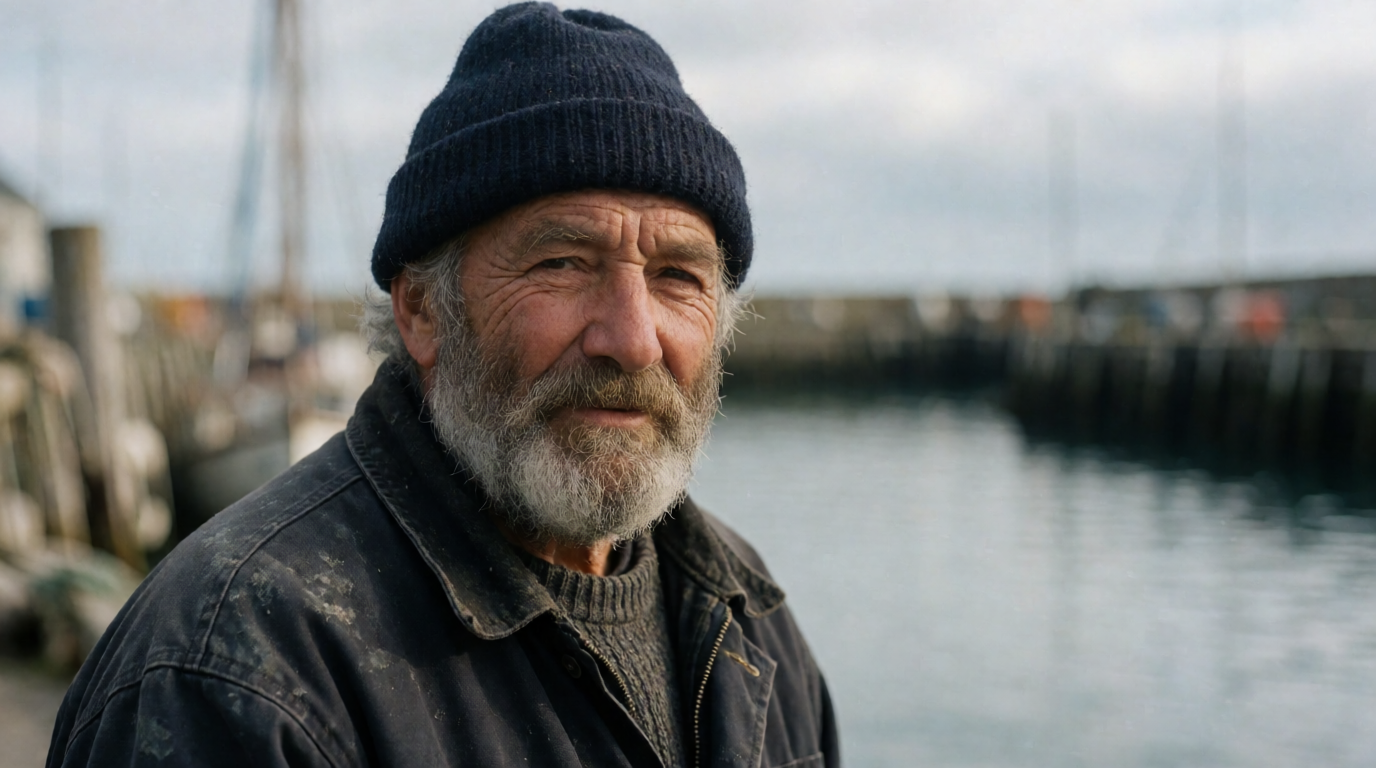
The kind of photo the first recipe is for — a natural-light portrait with real skin texture — as a single raw Krea 2 Turbo generation, shown as an example input, not as Enhancer output:
Prompt (Krea 2 Turbo):
Candid street portrait of an elderly fisherman in a wool cap, weathered skin, salt-and-pepper beard, overcast harbor light, 85mm lens, shallow depth of field, natural color, documentary photography
Where it stops: it is a browser tool, not a photo editor — no raw processing, no batch queue of 400 files, no offline mode. At high strength it changes the image the way every creative enhancer does, so faces and logos need the low-strength recipe. The free plan covers basic upscaling to 2K only; 4K and beyond sit on paid plans. And it works on stills — video upscaling is a separate app at /apps/video-upscale.
2. Remini — the phone app for faces and old family photos
Remini, made by Bending Spoons, is the app most people mean when they say “that app that fixes old photos.” Its strength is faces: it reconstructs eyes, skin, and hair on small, blurry, or scanned portraits in a few taps, with a confidence desktop tools rarely match — a restoration job, not the one-tap aging and restyle filters compared in our FaceApp alternatives guide. A web version runs at app.remini.ai. Remini publishes no public pricing page; prices appear inside the app. Its App Store listing shows in-app purchases of Remini Lite Weekly at $4.99 and $7.99, Remini Pro Weekly at $9.99, and a 1 Month plan at $9.99, and notes that the free version shows ads between enhancements and before saving.
Settings recipe (old portrait):
Open the photo → run the default Enhance → compare with the original at the face, not the whole frame → if the face looks like a different person, undo and try an enhance mode without face reconstruction.
Variation tips: on group shots, enhance one face at a time and check each. The failure mode is not a blurry result; it is a sharp result of someone who looks slightly wrong.
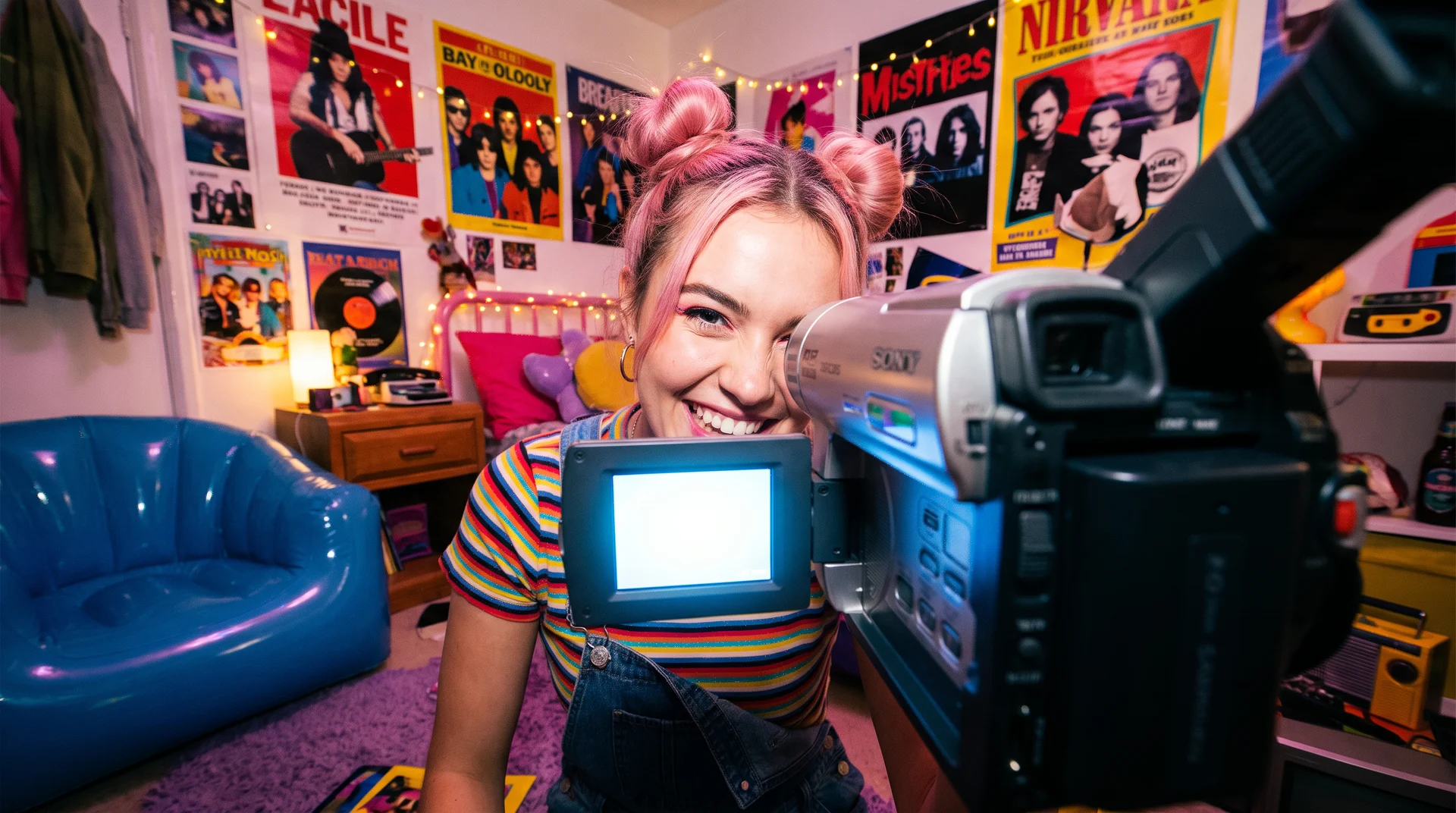
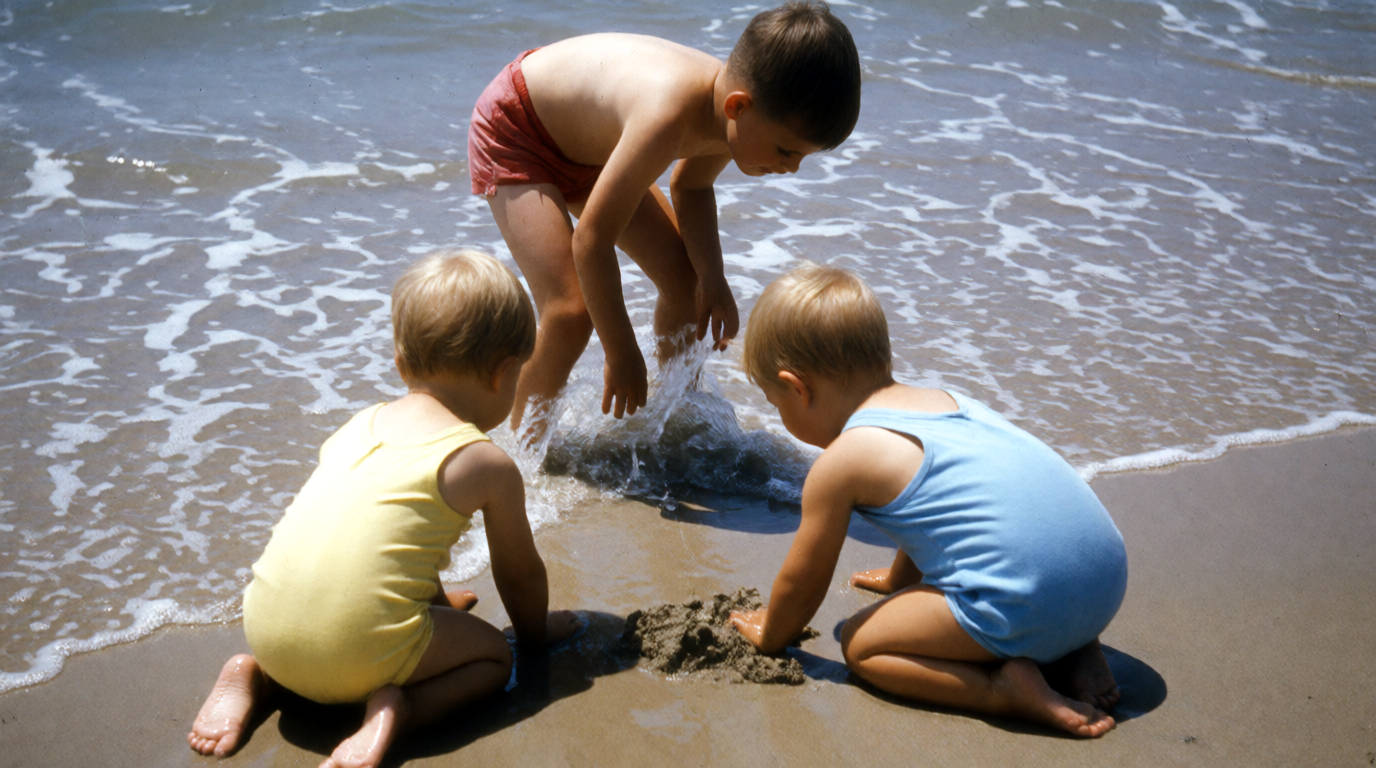
The scanned-print job Remini is known for, shown as a raw Krea 2 Turbo generation of the look — not Remini output:
Prompt (Krea 2 Turbo):
A 1960s Kodachrome family photograph of three children on a beach, faded warm colors, slight vignette, soft focus, scanned print with a thin white border, nostalgic snapshot aesthetic
Where it stops: weekly billing makes it the most expensive tool here for regular use, and the free tier is ad-supported with limited exports. Face reconstruction is aggressive — a feature on a tiny scan, a bug on a photo where the person has to look exactly like themselves. There is no raw support and no print-size control.
3. Topaz Photo — the desktop standard for denoise, sharpen, and face recovery
Topaz Photo, the successor to Topaz Photo AI, bundles Denoise, Sharpen, Recover Faces, and Upscale with generative models Topaz calls Wonder and Standard Max, plus Dust and Scratch removal and Super Focus for missed-focus shots. Its upscale documentation puts the maximum scale at 6x — only when the original is small — with output capped at 32,000 pixels on the long side or a 2 GB file. Topaz’s pricing page lists it as a subscription: Personal at $199/year, or $25/month billed annually, or $39 month-to-month; Pro at $599/year; the Topaz Studio bundle from $399/year — see our full Topaz pricing and system-requirements breakdown for the RAM and GPU minimums. There are no perpetual licenses. Topaz’s documentation states there is no trial mode in Topaz Photo, but you may test it for two days and request a refund within two days of purchase. The free route is Topaz’s browser upscaler, “free to try on up to 10 images with no watermarks,” up to 8x.
Settings recipe (noisy phone photo):
Denoise first, at a strength where grain goes but skin and fabric texture stay → Sharpen low, for camera shake → Recover Faces only if a face is under roughly 200 pixels wide → Upscale last, 2x, with a fidelity model rather than a generative one.
Variation tips: keep that order — denoise, sharpen, upscale — because an upscaler amplifies whatever noise is left. Turn off Recover Faces on faces that are already sharp; it can smooth them.
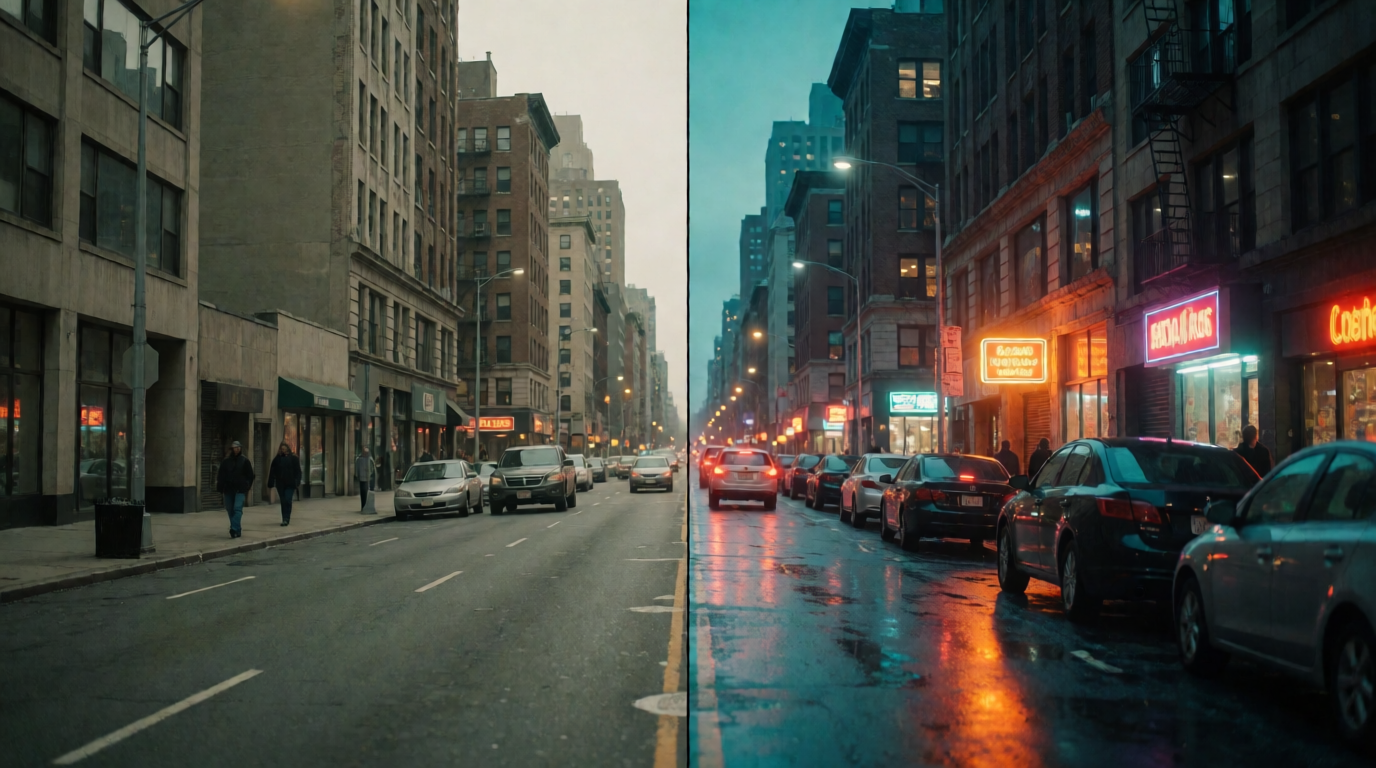
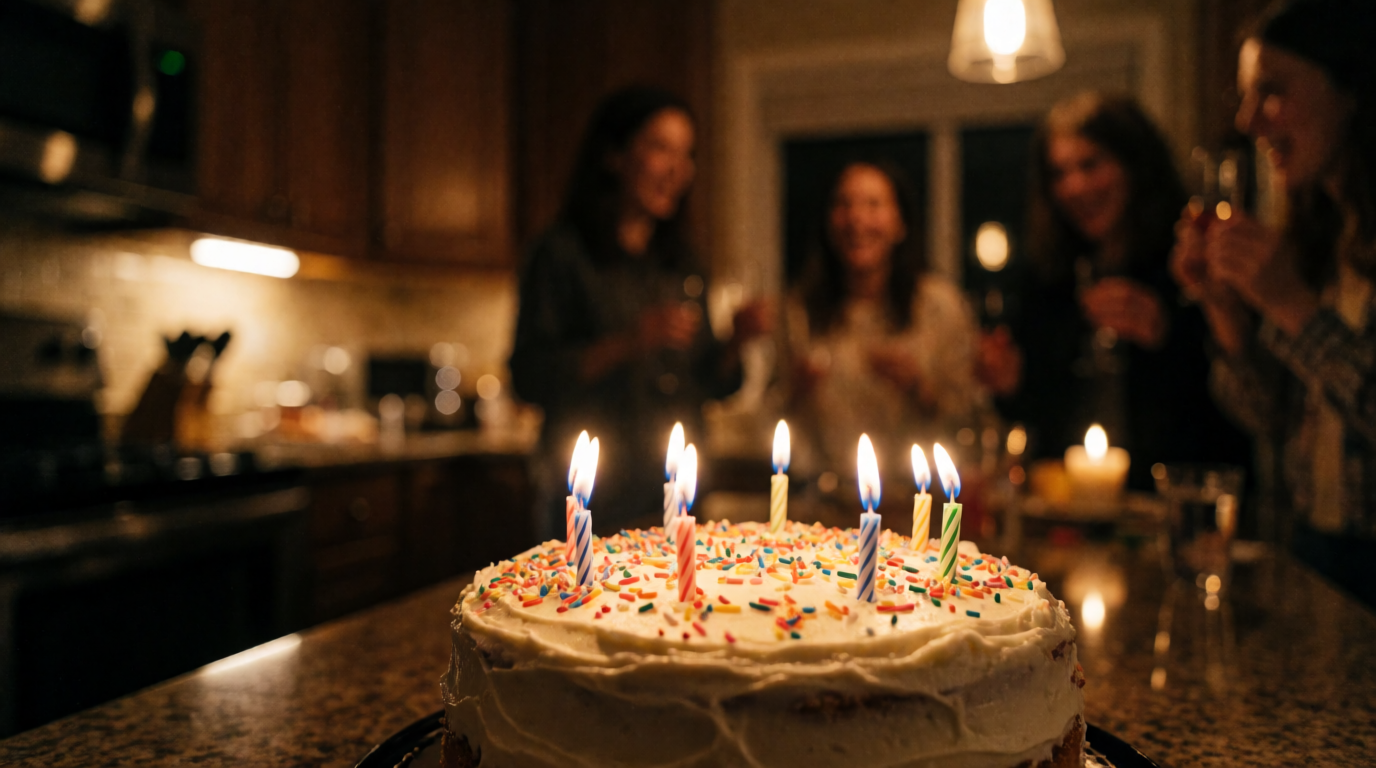
The low-light, high-ISO shot Topaz is built for, as a raw Krea 2 Turbo generation of a typical input:
Prompt (Krea 2 Turbo):
Handheld smartphone photo of a birthday cake with lit candles in a dim kitchen, warm tungsten light, friends out of focus in the background, high ISO grain, candid party moment, realistic phone-camera look
Where it stops: $199/year is the highest entry price here, with no ongoing free plan and no trial mode — the two-day refund window is the trial. It is a desktop install with GPU requirements, the wrong fit for a one-off fix on a phone. Its generative models invent detail like every creative upscaler, so the fidelity models are the safer default for real photos.
4. Adobe Lightroom and Photoshop — Super Resolution and Denoise inside your edit
If you already pay for Adobe, you already have two of the most conservative enhancers on the market. Adobe’s Super Resolution, in Camera Raw, Lightroom, and Lightroom Classic, “doubles the linear resolution of the photo” — twice the width and height, four times the pixels — and works on raw files as well as JPEG, PNG, and TIFF, capped at 65,000 pixels on the long side and 500 megapixels. AI Denoise removes noise with machine learning, and Adobe’s post states it “is currently supported only for Bayer and X-Trans mosaic raw files.” Adobe’s plans page lists Lightroom at US$11.99/month (annual, billed monthly) with 1 TB of storage, and the Photography plan at US$19.99/month, which adds Photoshop; both have a 7-day free trial.
Settings recipe (Lightroom or Camera Raw):
Open the raw file → Detail panel → Denoise at 40-60 for high-ISO files → Enhance → tick Super Resolution → the result saves as a new DNG at 2x → finish exposure and color on the DNG.
Variation tips: Super Resolution is fixed at 2x; for 4x, run it, export, and run again on the export — expect softening on the second pass.
Where it stops: 2x per pass, no face reconstruction, and no deblur for missed focus — these are fidelity tools that refuse to invent. AI Denoise is raw-only, so a phone JPEG gets the older manual noise reduction. Nothing here is free beyond the 7-day trial.
5. Let’s Enhance — batch upscaling on the web with credits
Let’s Enhance is a browser upscaler built around credits, the tool to look at when the problem is 300 product photos rather than one portrait. Its pricing page lists 10 free credits at sign-up, with a watermark “removed for paid users,” and free upscales capped at 8 megapixels. Starter is $9/month billed annually (or $12 month-to-month) for 100 credits and outputs up to 256 megapixels; Pro is $24/month annually (or $32) for 300 credits and up to 350 megapixels; Max is $34/month annually (or $45) for 500 credits and up to 512 megapixels. Business tiers exist but the page lists no prices.
Settings recipe (batch of product photos):
Upload the set → choose the photo model, not digital art → set a fixed pixel width, such as 2,400 px for a store listing, rather than a multiplier → light denoise on → process → spot-check three files before you download the batch.
Variation tips: a fixed output size keeps a mixed batch consistent; a multiplier does not. Keep tone and color adjustments off so the set matches the originals.
Where it stops: the free credits are a one-time trial with a watermark, not a monthly tier. Face work and restoration are basic next to Remini or Topaz. And a single large upscale can cost several credits, so check the per-image cost before a batch.
6. Upscayl — the free, offline option
Upscayl is a free, open-source desktop upscaler under the AGPL-3.0 license for Linux, macOS 12+, and Windows 10+. It runs Real-ESRGAN models locally through Vulkan, so photos never leave your machine and it costs nothing at any volume. The catch is in the README: “You’ll need a Vulkan compatible GPU (Graphics Card) to upscale images,” and many integrated graphics chips do not work. Upscayl’s site lists upscaling up to 16x with face enhancement, and the project maintains a custom-models repository.
Settings recipe (default):
Select the image → the general photo model (or the digital-art model for illustrations) → scale 4x → output PNG → run; try the sharpen variant if the first result looks waxy.
Variation tips: batch mode processes a whole folder with one setting. Switch models rather than scales when a result looks wrong — the model matters more than the multiplier.
Where it stops: the README is explicit that Upscayl “cannot de-blur or do focus adjustment on your image.” It enlarges and cleans pixelated, low-resolution images; it does not fix camera shake, missed focus, or damaged faces. No GPU, no Upscayl. No restoration or color work at all.
Free photo enhancers compared
“What photo enhancer is free?” has a short answer once the fine print is on one table:
| Tool | Free allowance | Watermark | Renews | What it will not do free |
|---|---|---|---|---|
| Krea Enhancer | 100 compute units/day; basic upscaling to 2K | No | Daily | Higher-res upscalers (to 22K) are paid |
| Remini | Free app with ads and limited exports | No (ads) | Daily | Ad-free, unlimited use |
| Topaz Photo | No trial mode; browser tool free for 10 images | No | Not stated | Desktop app; 2-day refund is the only trial |
| Adobe Lightroom | 7-day trial | No | Once | Anything after day 7 |
| Let’s Enhance | 10 credits at sign-up, 8 MP max | Yes | Never | Unwatermarked or larger output |
| Upscayl | Everything, offline | No | Not applicable | Deblur, focus fixes, restoration |
For a blurry photo, the only fully free tool that runs on any machine is the Krea free plan at 2K; Upscayl is fully free but needs a Vulkan GPU and does not deblur.
How to make an image 4K quality
“4K” for a photo means 3,840 pixels on the long side — UHD is 3840×2160. A 1920×1080 image needs exactly 2x, inside Adobe’s Super Resolution limit and the low-strength Krea recipe. A 1024-pixel AI image needs roughly 4x, where creative re-detailing (Krea Enhancer at medium strength, Topaz’s generative models, Let’s Enhance) earns its place, because a pure fidelity 4x looks soft. A 4K file from a 640-pixel source is 6x — the top of Topaz’s range, and beyond what any tool does without visibly inventing content.
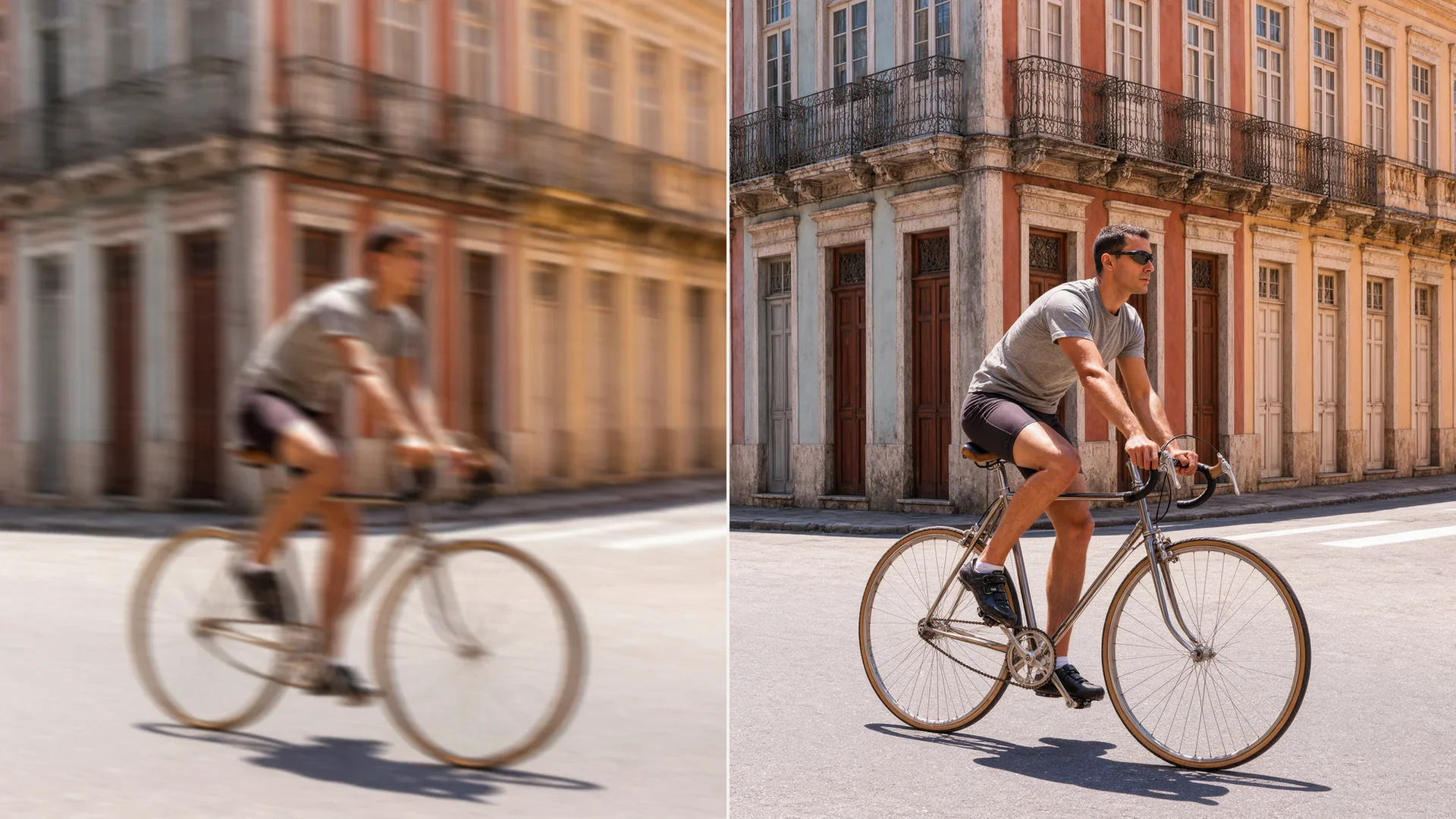
Two more photo types that behave differently under enhancement, both raw Krea 2 Turbo generations of typical inputs:
Photo types that enhance differently, generated with Krea 2 Turbo
Both are single, raw Krea 2 Turbo generations, shown as example inputs. Motion and fur (left) reward a fidelity pass at low strength; engraved micro-detail on a still product (right) tolerates a medium creative pass.
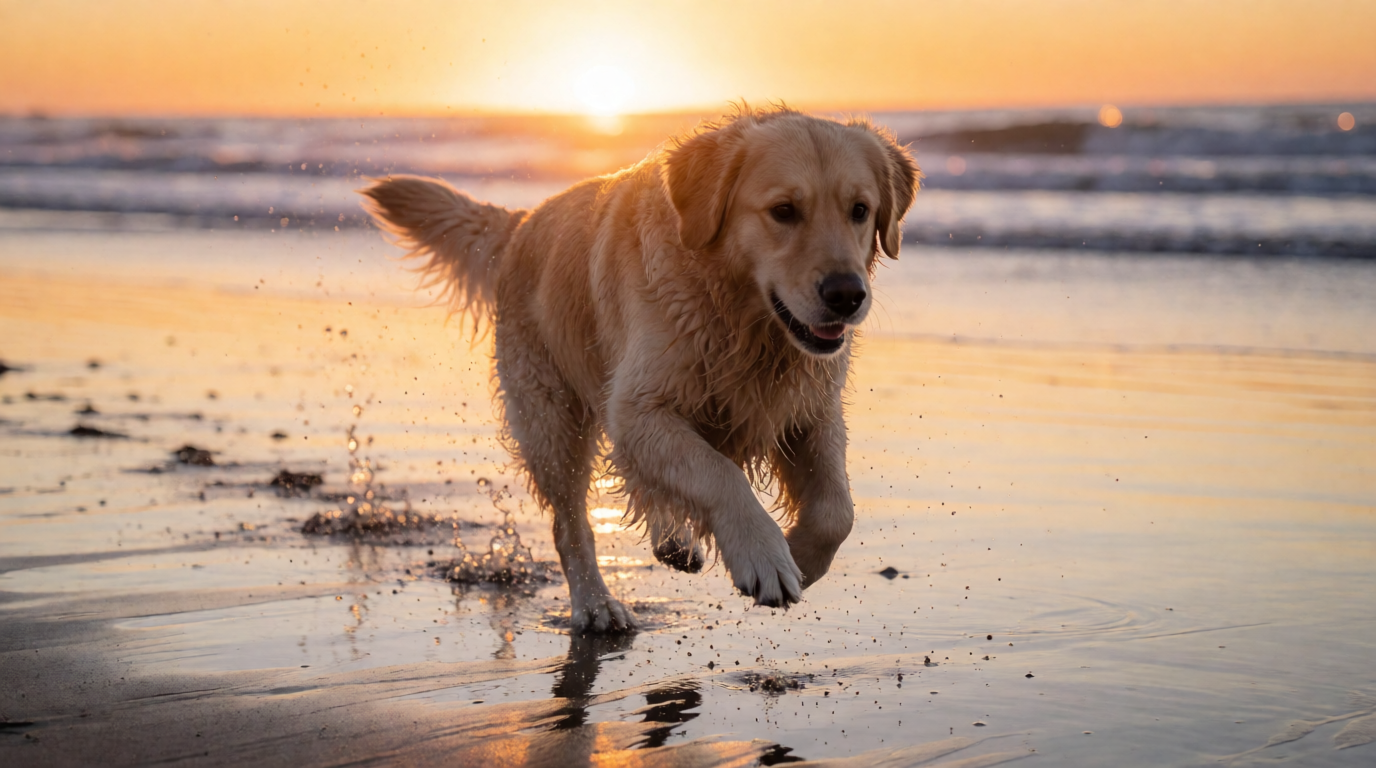

Prompt (retriever):
A golden retriever running along a wet beach at sunrise, sand and water spray frozen mid-air, telephoto lens, backlit fur, sharp eyes, wildlife photography style
Prompt (pocket watch):
Close-up product photo of a vintage brass pocket watch on dark slate, engraved details on the case, soft studio light, macro lens, fine texture and sharp micro-detail, commercial product photography
Variation tips: fur, hair, and water spray are where creative upscalers hallucinate strands and droplets — keep strength low. Metal, stone, and fabric on a still product are where a medium pass adds convincing texture without changing what the object is.
Which AI photo enhancer should you pick?
Pick by the job, not the feature list:
- A blurry or low-res photo, fixed in a browser, free to start → Krea Enhancer. Basic upscaling to 2K free; Basic at $9/month for the higher-resolution models and the strength control.
- An old family photo or a small blurry face, on your phone → Remini. Accept the ads or the weekly billing; check each face against the original.
- Serious noise, missed focus, or 100+ raw files, and you own a GPU → Topaz Photo at $199/year. Denoise before you upscale.
- You already pay for Adobe → Lightroom’s Denoise and Super Resolution. 2x per pass, faithful, no invention.
- A batch of product photos on the web → Let’s Enhance from $9/month annual; set a fixed output size.
- Zero budget, a Vulkan GPU, and no deblurring needed → Upscayl.
- You asked ChatGPT to upscale it → it generated a new picture. Take the original to any tool above instead.
If the photo also needs edits — removing a person, changing a background, restyling — the AI photo editing guide covers that, and the upscalers guide goes deeper on the fidelity-vs-creative choice this post only summarizes, and the video enhancers guide covers footage.
Frequently asked questions
What is the best AI photo enhancer?
What does enhance photo mean?
How to enhance a blurry photo with AI?
What photo enhancer is free?
Can ChatGPT upscale an image?
How to make an image 4K quality?
Fix a blurry photo now
Upscale and enhance in the browser with Krea. Basic upscaling to 2K on the free plan, 100 compute units a day, no credit card.
Try the Enhancer free