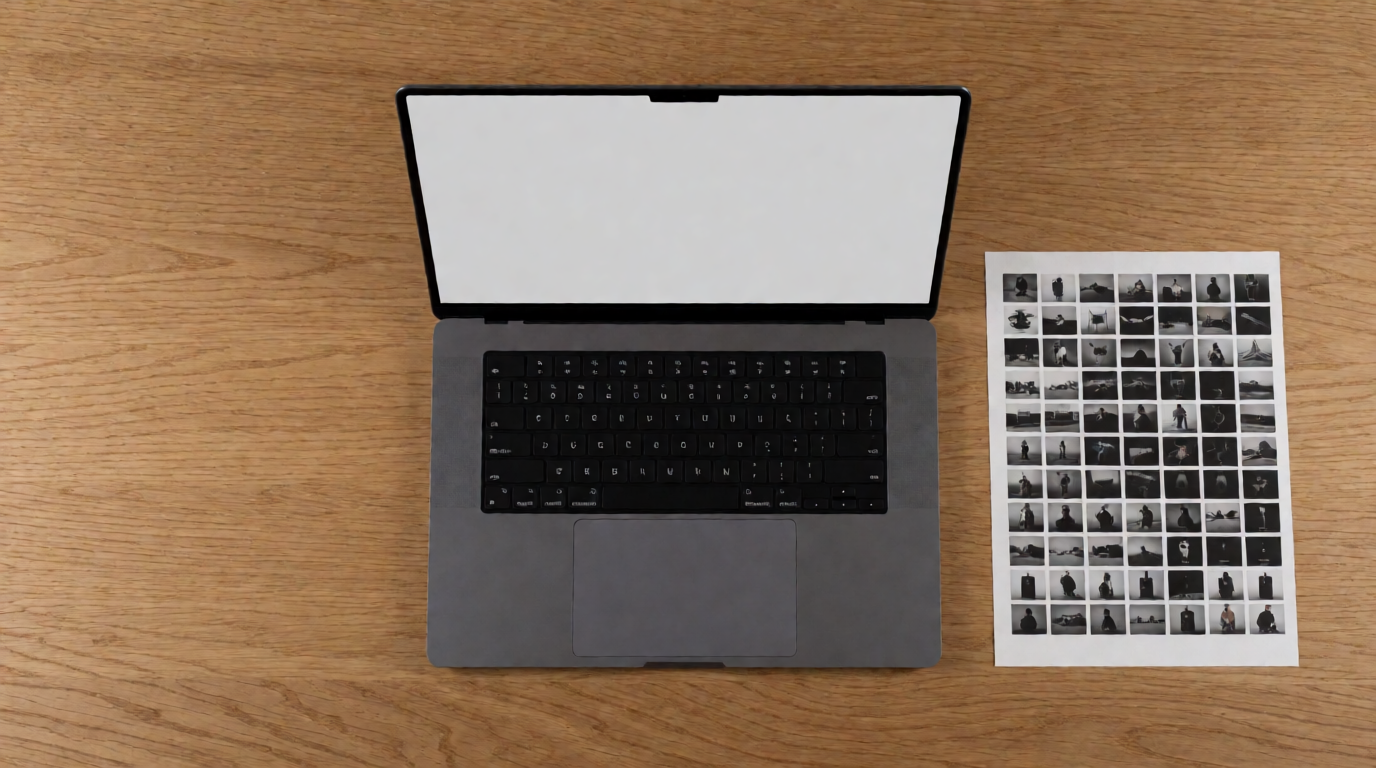
People searching for LetsEnhance usually want one of four answers: is it safe, what does it actually do, how do I get out of the subscription, and is it even better than the tool I already own, Photoshop. This post answers all four with sourced numbers, then walks through five alternatives: Krea, Topaz Photo AI, Upscayl, Adobe’s Generative Upscale, and Remini. Every price and quota links to the page it came from.
LetsEnhance at a glance
| Tool | What it is | Free tier | Max output | Commercial use on free |
|---|---|---|---|---|
| LetsEnhance | Web AI upscaler and enhancer | 10 credits on signup | 512 MP (paid) | Watermarked |
| Krea | Image generation plus an upscaler/Enhancer | 100 compute units/day | 2K (free), 22K (paid) | No, paid plans only |
| Topaz Photo AI | Desktop + cloud upscaler, denoise, sharpen | 30-day trial, no free tier | Unlimited (local) | Yes, once purchased |
| Upscayl | Free, open-source, local upscaler | Unlimited, no account | Limited by your GPU/CPU | Yes, AGPL-3.0 |
| Photoshop Generative Upscale | In-app AI upscale inside Photoshop | No free tier (trial only) | ~8K (Firefly: 6144×6144 px) | Yes, with a license |
| Remini | Mobile-first photo/video enhancer | Daily limited enhances, watermarked | 4096×4096 px (Image Enlarger) | Paid plans only |
Want an upscaler with a real free plan?
Krea's free plan gives 100 compute units a day, including basic upscaling to 2K. No credit card.
See Krea plansHow we checked
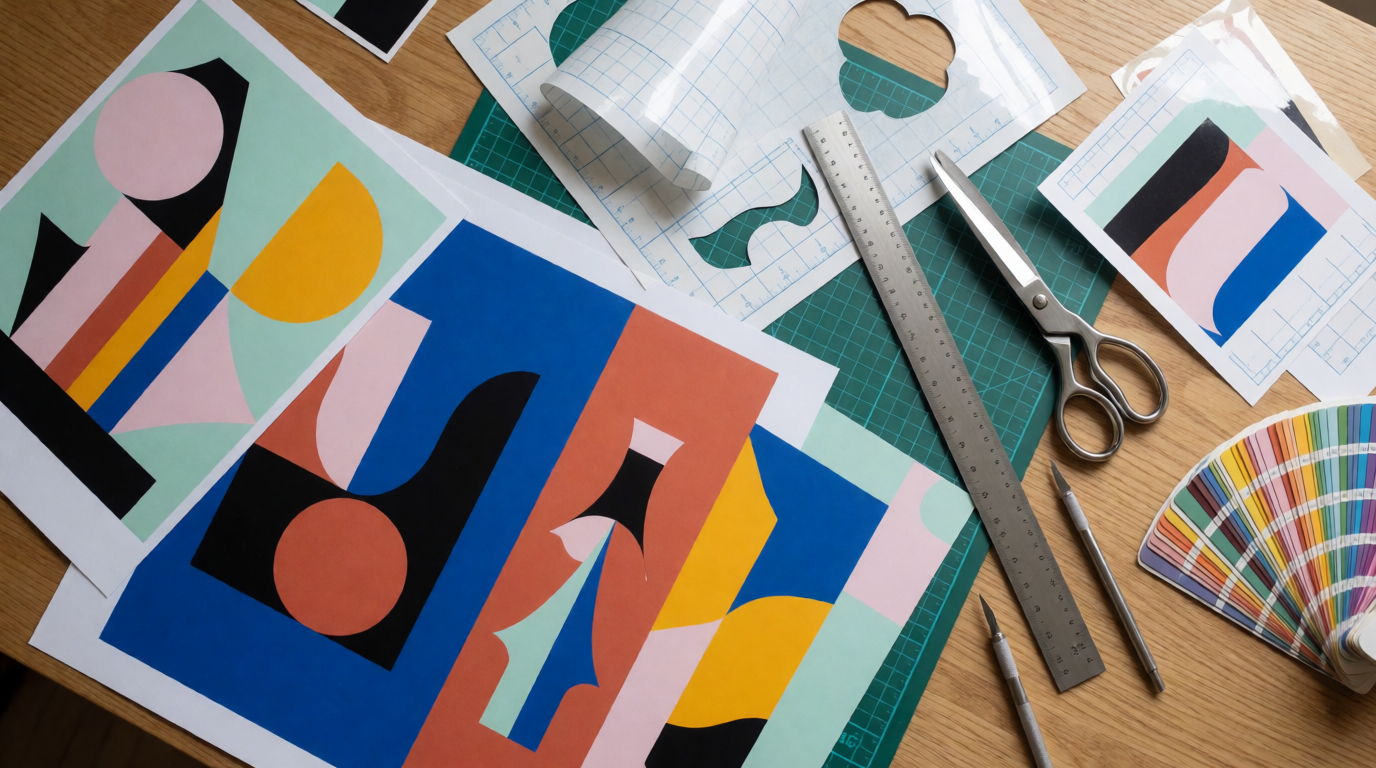
Every number below comes from a page we loaded in October 2026: LetsEnhance’s pricing page, its cancellation help article, its upscaler product page, its Trustpilot profile, its own Photoshop comparison post, the Wikipedia entry for the company, Topaz Photo AI’s product page, PhotoshopCafe’s Generative Upscale breakdown, Adobe’s plan comparison page, Upscayl’s GitHub repo, Remini’s App Store listing, and Krea’s pricing page. One gap: Remini publishes no dedicated web pricing page, so its prices come from the App Store listing, which can run higher than web checkout. Every photo in this post is a single, raw Krea 2 Turbo generation from the exact prompt printed beside it. None were made in LetsEnhance, Photoshop, Topaz, Upscayl, or Remini.
What is LetsEnhance used for?
LetsEnhance is a browser-based AI upscaler. You upload a photo, pick a model, and it enlarges the image while reconstructing texture instead of just stretching pixels. Its upscaler page states a maximum of 16x enlargement and a 512-megapixel ceiling on paid plans, with free accounts capped at 64 megapixels input and 8 megapixels output.
The same page and its blog point to five recurring use cases: print production (reaching 300 DPI for posters and canvas), enlarging AI-generated images from tools like Midjourney for commercial printing, e-commerce product photos that need to meet marketplace resolution rules (Amazon, Etsy, Shopify), real estate photography, and restoring old or damaged family photos. It is a single-purpose tool: it does not generate images from a text prompt, and it does not edit content beyond enhancement, denoise, and background cleanup.
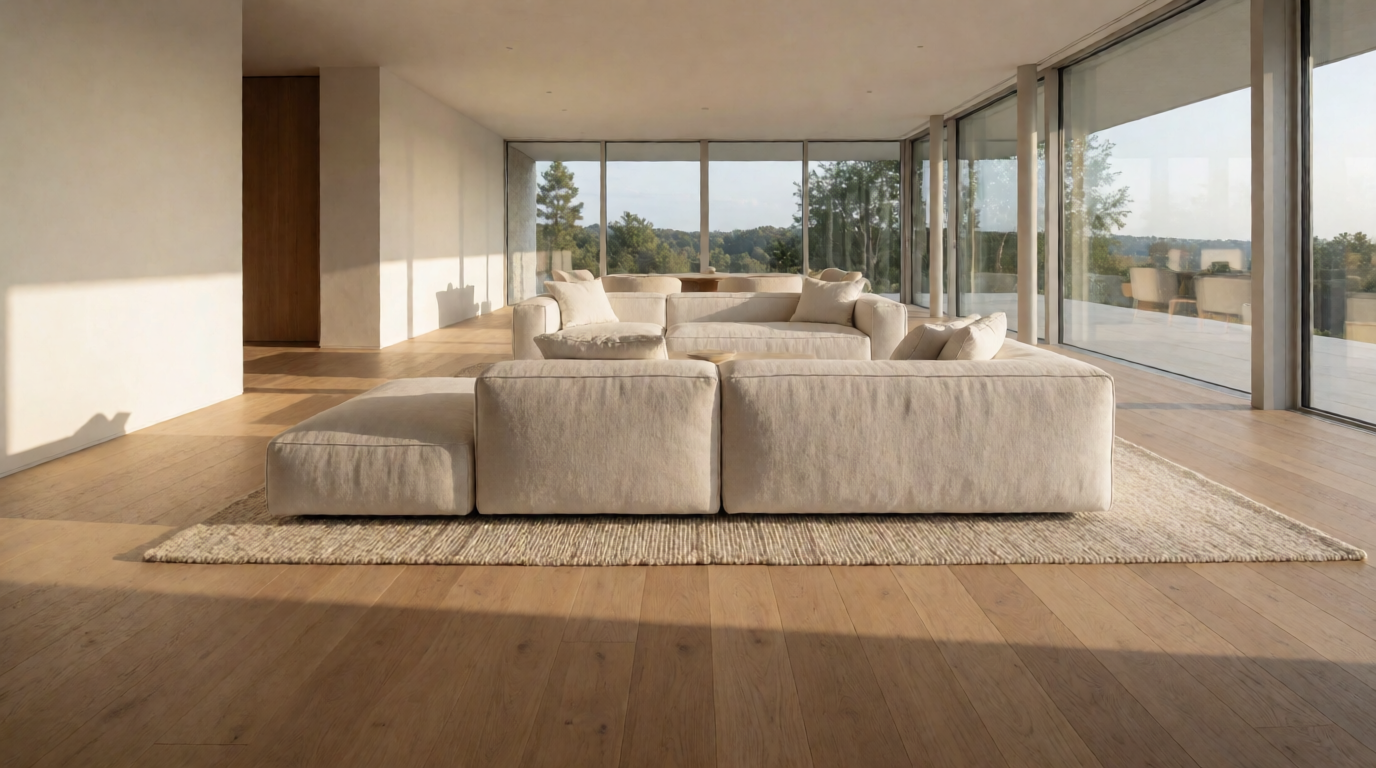
A raw Krea 2 Turbo generation, shown to illustrate the real estate use case, not a LetsEnhance output.
Is LetsEnhance safe to use?
Yes, on the evidence we found. LetsEnhance is run by a real, named company, not an anonymous app. Per its Wikipedia entry, it is a Ukrainian AI startup that launched its upscaling service around 2017 and raised $3 million in October 2021 from Chamaeleon, Hype Ventures, and other investors. Public company-data sites list co-founders Sofiia Shvets and Vlad Pranskevičius and an office presence in San Francisco.
On reputation, LetsEnhance holds a 4.1 out of 5 TrustScore on Trustpilot from 186 reviews, rated “Great,” with 81% five-star. Reviewers cite good upscale quality and responsive email support; the Trustpilot page also notes the company has not replied to its negative reviews, which is worth weighing alongside the score.
On account safety, the ordinary risks are the same as any paid web tool: use a real email, use a password you do not reuse, and read the cancellation terms before you subscribe. We found no data breach or security incident reported against LetsEnhance. The company is a registered app in the Dagster-era sense of “exists, takes payments, answers support tickets” — the trust questions that remain are about subscription terms, not platform safety.
LetsEnhance pricing and how to cancel
LetsEnhance’s pricing page lists a Free plan (10 credits on signup, images capped at 64 megapixels in and 8 megapixels out), then three subscriptions: Starter at $9/month billed annually ($12/month billed monthly) for 100 credits and output up to 256 megapixels; Pro at $24/month annually ($32/month monthly) for 300 credits and 350 megapixels; and Max at $34/month annually ($45/month monthly) for 500 credits and 512 megapixels. One credit processes one image. Unused subscription credits roll over up to 6x the monthly amount while you stay subscribed, but expire the moment you cancel or your billing period ends.
How do I cancel my LetsEnhance subscription? Per LetsEnhance’s own help article, the steps are:
- Go to the pricing page while logged in. This is the only place to manage your plan.
- Find your active plan, marked as current.
- Click Cancel subscription and confirm.
Your account stays active through the rest of the paid period, and you keep using any remaining credits until it ends. Pay-as-you-go credit packs, bought separately from a subscription, never expire and are not affected by cancellation. If you would rather keep the account without paying monthly, LetsEnhance also offers a pause option: up to 3 months, usable once every 6 months, during which your credits stay accessible.
Settings recipe (LetsEnhance):
- Upload the source image (JPEG or PNG, up to 64 MP on paid plans).
- Pick a model: General, Art & Illustrations, or the dedicated Real Estate and Product Photo presets.
- Set the output scale (2x to 16x) or type a target resolution directly.
- Toggle Face Enhance on for portraits; leave it off for text, screenshots, or flat graphics, where it can over-smooth detail.
- Review the credit cost shown before you confirm; one image equals one credit regardless of scale.
Variation tips: switch from the General model to the Art & Illustrations model for AI-generated or painted images; the edge reconstruction behaves differently on flat color than on photographic noise.
Where LetsEnhance stops: free output tops out at 8 megapixels with a visible watermark, there is no desktop app for offline batch work, and heavier agency-scale use pushes you to a separate, less transparent business-pricing conversation instead of a published tier.
Is LetsEnhance better than Photoshop?
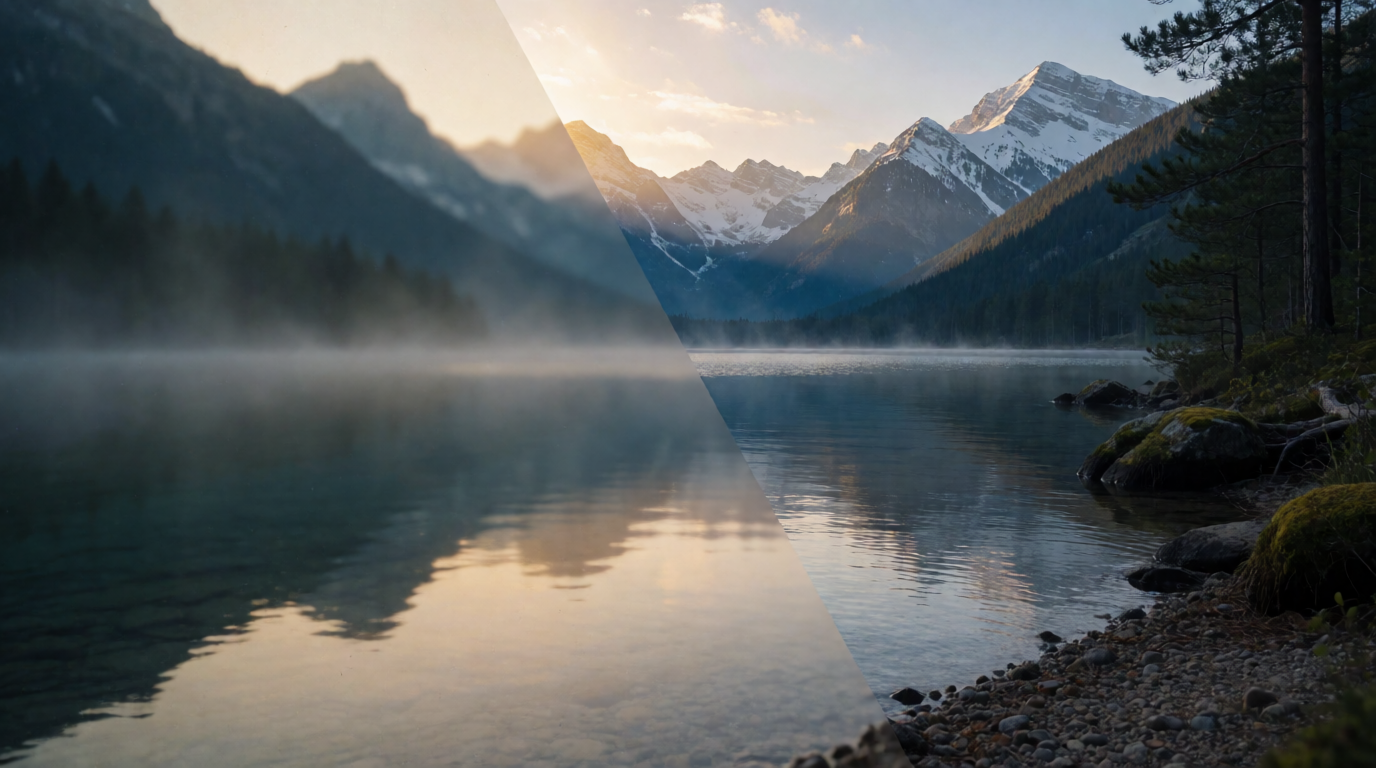
It depends on what “better” means to you. LetsEnhance’s own comparison post claims a 512-megapixel (roughly 30,000 pixels on the long side) ceiling against Photoshop’s roughly 8-megapixel output, and batch uploads of 20 images at once against Photoshop’s one-at-a-time Generative Upscale dialog. Treat that post as the vendor’s own framing, not a neutral test, but the resolution numbers check out against both products’ published specs.
Photoshop’s Generative Upscale, covered in detail by PhotoshopCafe, runs inside the full Photoshop app: select Image > Generative Upscale, choose 2x or 4x, and pick one of three models — Adobe Firefly (standard generative credits, up to 6144×6144 px), Topaz Gigapixel (premium credits, prioritizes photorealistic detail), or Topaz Bloom (premium credits, an adjustable creativity slider for stylized detail). The feature tops out around 8K. Photoshop itself is $22.99/month billed annually, per Adobe’s plan page; premium generative credits for the Topaz models are a separate add-on, from $9.99/month for 2,000 credits.
In practice: LetsEnhance wins on maximum resolution and batch size, and it is cheaper if upscaling is your only job. Photoshop wins if you already pay for it and want upscaling alongside layers, masks, and retouching in one app, and its Topaz-powered models are tuned by the same company behind our next alternative.

Raw Krea 2 Turbo output, shown to illustrate the Photoshop section. Generative Upscale is a Photoshop feature; this image was not made with it.
Krea — free upscaling to 2K, private by default
Krea bundles image generation with an Enhancer for upscaling. The pricing page gives the Free plan 100 compute units a day, no card required, with “basic upscaling to 2K resolution” and no public feed — your generations stay in your account. Paid plans (Basic $9/month for 5,000 units, Pro $35/month for 20,000 units, Max $70/month for 40,000 units, prices lower when billed yearly) unlock upscaling up to 22K and add the commercial license; the free plan does not include a commercial license.
A prompt Krea 2 Turbo handles well, useful for testing the upscaler on a product shot:
Prompt:
A photorealistic close-up product photo of a pair of brown leather boots on a concrete floor, soft overhead studio light, visible leather grain and stitching detail, shallow depth of field, editorial product photography, no text
Variation tips: swap “concrete floor” for “white seamless backdrop” for a plain catalog look; add a second prop like a folded sock for a styled e-commerce shot.
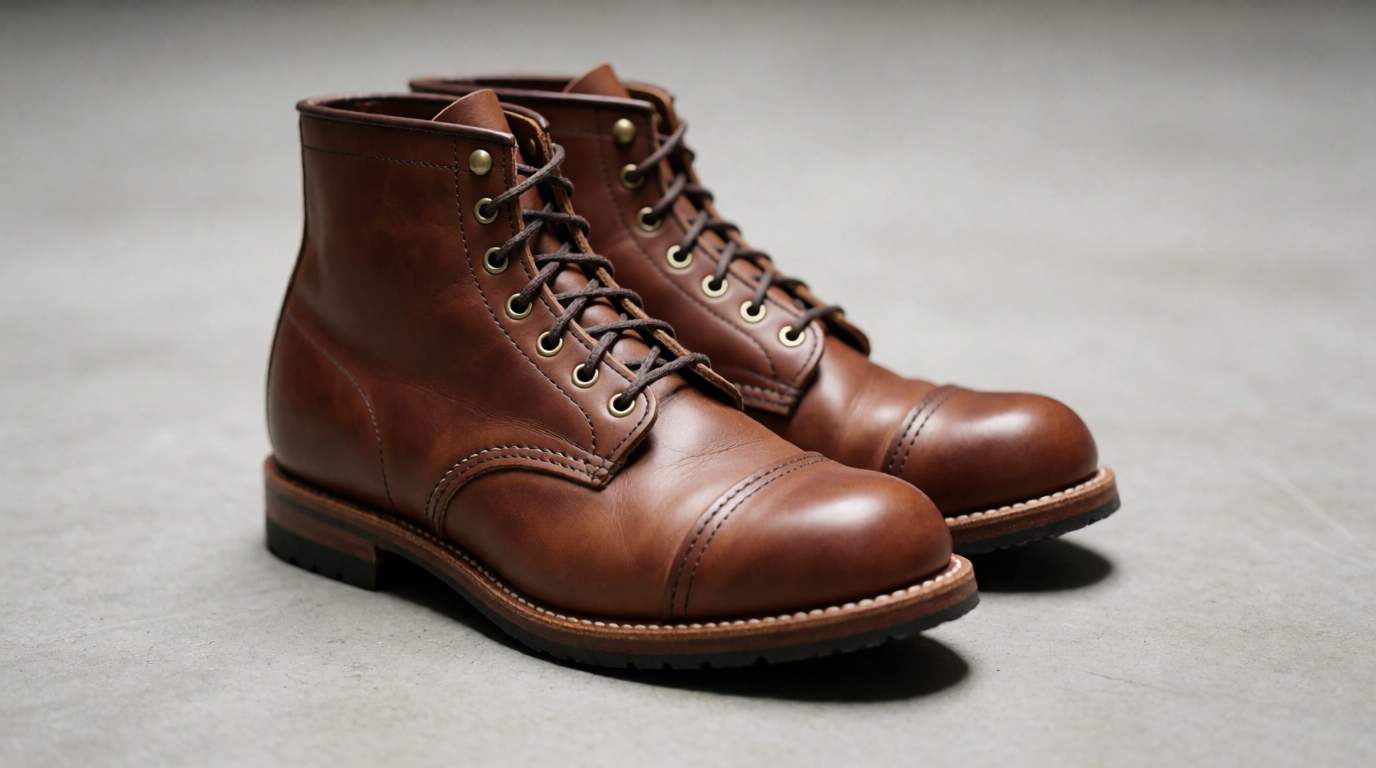
Single, raw Krea 2 Turbo output from the prompt above, 16:9, 1K.
Where Krea stops: the free plan’s upscaling ceiling is 2K, well below LetsEnhance’s 512 MP, and video, 3D, and the commercial license are paid. If upscaling alone at the highest possible resolution is the whole job, LetsEnhance’s paid tiers go further today.
Topaz Photo AI — desktop power, no free tier, subscription only
Topaz Photo AI combines upscaling, denoise, and sharpening in one desktop app with optional cloud rendering. As of October 2026 it is subscription-only: $39/month with no commitment, $199/year ($25/month paid monthly, annual commitment), or a Pro tier at $599/year. Topaz Labs stopped selling perpetual (one-time) licenses on October 3, 2025, so older “lifetime Topaz license” listings on resale sites are not current offers.
Settings recipe (Topaz Photo AI):
- Drop the image into the desktop app; it auto-detects noise, blur, and compression artifacts.
- Choose an upscale model (Standard, High Fidelity, or the newer Wonder models) and a target scale.
- Use the before/after slider at 100% zoom to check for over-smoothing before exporting.
- Export locally for unlimited free local rendering, or use cloud credits for faster processing on a slow machine.
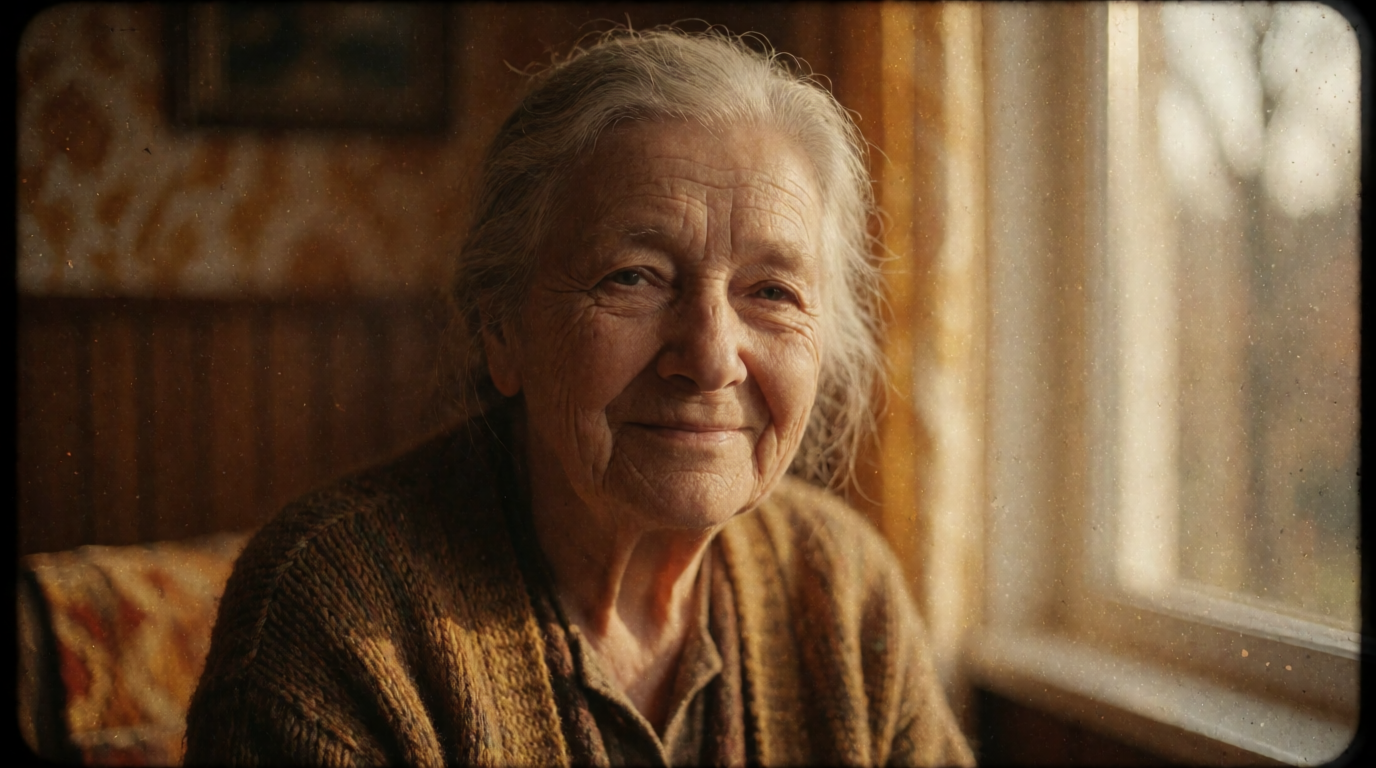
Raw Krea 2 Turbo output, shown to illustrate an old-photo restoration case. Topaz was not used to make this image.
Where Topaz stops: there is no free tier to test on, only a trial, and the $39-plus monthly price is higher than any single LetsEnhance subscription tier.
Upscayl — free, open-source, runs on your own machine
Upscayl is a free, open-source desktop upscaler for Windows, macOS, and Linux, built on Real-ESRGAN and other NCNN models, with 50,100+ stars on GitHub and an AGPL-3.0 license. It runs entirely offline: your images never leave your machine, there is no account, no credit system, and no watermark.
Settings recipe (Upscayl):
- Install the desktop app and pick an input folder for batch processing.
- Choose a model: UltraSharp for maximum detail, Remacri for a balanced result, or High Fidelity for illustrations.
- Set the scale factor (2x, 4x) and output format.
- Run the batch; speed depends entirely on your own GPU, since there is no cloud option in the free app.
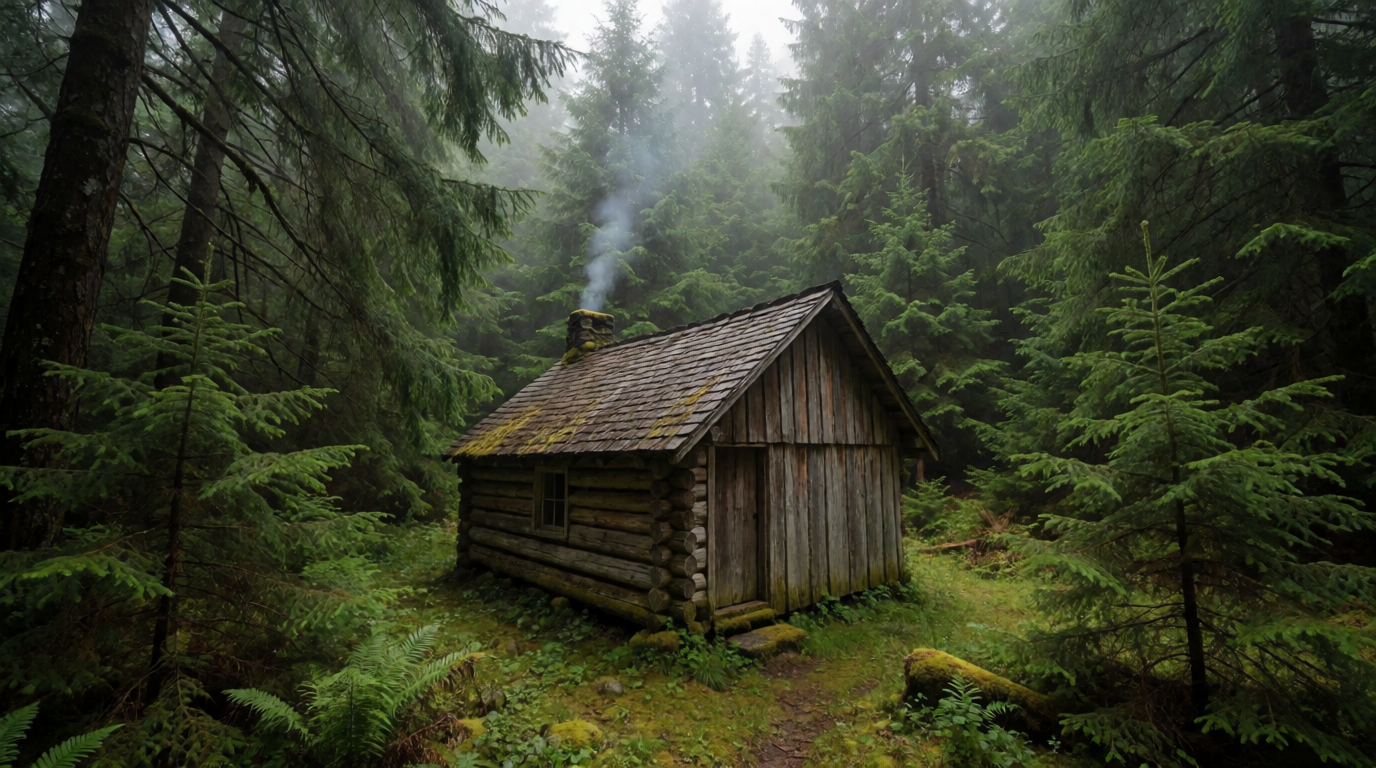
Raw Krea 2 Turbo output, shown to illustrate the Upscayl section. Upscayl was not used to make this image.
Where Upscayl stops: it only upscales — no denoise-and-sharpen pipeline as polished as Topaz’s, no face enhancement, and output quality is capped by your own hardware. A laptop with an integrated GPU will be far slower than LetsEnhance’s cloud processing.
Remini — mobile-first, strong on portraits, priced by the week
Remini, from developer Bending Spoons Apps ApS, is a mobile app built around portrait and selfie enhancement, with a free tier that enhances a limited number of photos per day and adds a watermark. Its Image Enlarger feature upscales up to 4096×4096 pixels (about 16.7 megapixels). The App Store listing shows subscription pricing by the week: Pro at $9.99/week, Lite tiers from $4.99 to $7.99/week, and a $9.99 one-month option; Remini does not publish a web pricing page, so these App Store prices are the only official source we found, and in-app prices often run higher than equivalent annual plans elsewhere.

Raw Krea 2 Turbo output, shown to illustrate the Remini section. Remini was not used to make this image.
Where Remini stops: it is tuned for faces and selfies, not product or real-estate photography, free output is watermarked, and weekly billing is easy to lose track of if you forget to cancel.
Full comparison table
| LetsEnhance | Krea | Topaz Photo AI | Upscayl | Remini | |
|---|---|---|---|---|---|
| Entry price | Free (10 credits) | Free (100 units/day) | $39/mo, no free tier | Free, open-source | Free, watermarked |
| Cheapest paid tier | $9/mo annually | $9/mo (Basic) | $25/mo (annual commit) | N/A | $9.99/mo |
| Max output | 512 MP (paid) | 2K free, 22K paid | Local: unlimited | GPU-limited | 4096×4096 px |
| Runs offline | No | No | Yes (local rendering) | Yes | No |
| Best at | General + real estate/product presets | Generation + upscaling in one place | Noise, blur, and detail recovery | Free batch upscaling | Portraits and selfies |
Which should you pick?
Pick by what you are actually enlarging:
- Print, real estate, or e-commerce photos, and you want the highest published resolution ceiling → LetsEnhance, $9-45/month depending on volume.
- You generate images and want upscaling in the same account, free to start → Krea, 100 compute units a day, 2K free.
- Old or damaged photos, noise, and blur, and you don’t mind a desktop subscription → Topaz Photo AI, from $25/month annually.
- Zero budget, you own a decent GPU, and privacy matters → Upscayl, free and offline.
- Portraits and selfies on your phone → Remini, weekly or monthly.
- You already pay for Creative Cloud → Photoshop’s Generative Upscale, included in the subscription, premium credits for the Topaz models.
For more on the wider field, see the best AI image upscalers in 2026, the best AI photo enhancers in 2026, our Adobe Firefly free-tier review, and, for the generation side of a product-photo pipeline, AI product photography tools and prompts. For the one-click path inside Krea itself, see how to quick-upscale images in Krea.
Frequently asked questions
Is LetsEnhance safe to use?
What is LetsEnhance used for?
How do I cancel my LetsEnhance subscription?
Is LetsEnhance better than Photoshop?
What is the best free alternative to LetsEnhance?
Does LetsEnhance add a watermark?
Generate and upscale in one account
Krea's free plan includes image generation plus basic upscaling to 2K. No credit card needed.
Try Krea free