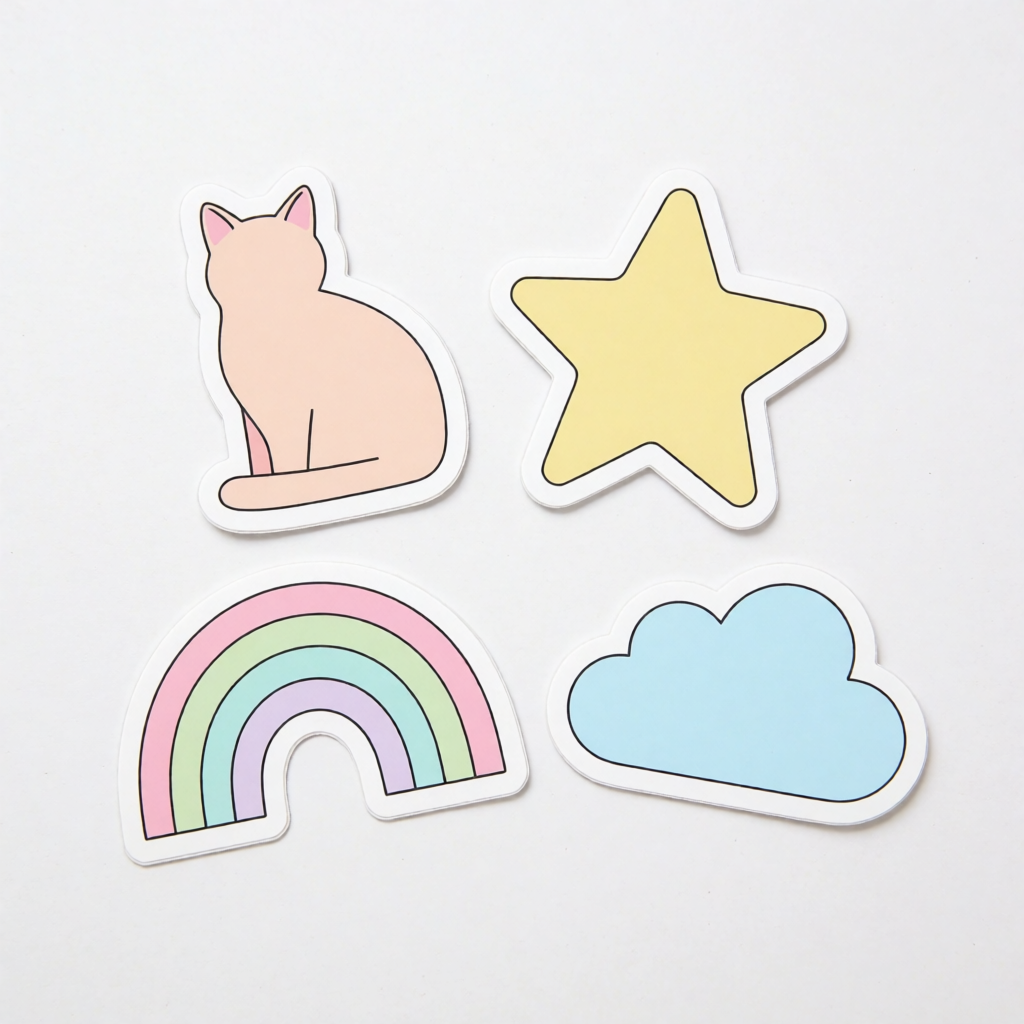
“How do you make a sticker?” splits into two different jobs, and the tool you need depends on which one you have. If you want a sticker fast — a shape, a slogan, a template with your text swapped in — a design app with a sticker library is the right tool. If you want a sticker of something nobody else has — your own character, your own mascot, your own joke — you need an image generator, then a way to turn that image into a printed, die-cut object you can hold.
This guide covers both jobs: two template-and-editor tools (Kittl and Canva), one dedicated print-and-ship service for turning a finished design into physical stickers, and Krea for the case where the design itself needs to be original. Every price and limit below comes from the vendor’s own pricing page, checked this week.
Sticker tools at a glance
| # | Tool | Best for | Free tier | Catch |
|---|---|---|---|---|
| 1 | Kittl | Templates + vector sticker editing | Personal use only, light usage limits | No commercial rights, low-res export |
| 2 | Canva | Sticker templates + quick AI art | Up to 20 Standard/Premium AI uses total | Small shared AI pool, not sticker-specific |
| 3 | Sticker Mule / StickerYou | Printing and shipping a finished design | No free tier — pay per sticker | Doesn’t design anything for you |
| 4 | Krea | An original, custom sticker character or icon | 100 compute units/day, no card required | No die-line export, no printing |
Design an original sticker character
Generate a bold, flat-color sticker subject from one prompt on Krea 2's free daily allowance.
Try Krea 2How we chose and tested
We picked the two general design tools people already reach for when they type “make a sticker” (Kittl and Canva), the print step almost every sticker eventually needs, and Krea, because a plain prompt on Krea 2 produces exactly the flat-color, bold-outline artwork that die-cut printing wants. Every price and quota below is read from the vendor’s current pricing page — Kittl’s pricing page, Canva’s pricing page, Sticker Mule’s die-cut sticker page, and StickerYou’s die-cut sticker page — as of September 2026. Every sticker image in this post is one raw, unedited output from the exact prompt printed beside it; nothing here is retouched or cherry-picked from a larger batch.
One note before the list: a separate, unrelated question shows up in the same search data — whether Sticker Mule the company is still operating. It is; this guide is about making sticker artwork, not about that company’s status, so we only cover Sticker Mule here as one option for printing.
1. Kittl — a vector editor built for stickers, labels, and merch
Kittl is a browser-based design editor aimed less at general marketing graphics and more at things people put on physical objects: t-shirts, packaging, labels, and stickers. Its sticker workflow starts from a curated template library — die-cut shapes, kiss-cut sheets, circular badge stickers — and layers in AI generation (“Kittl AI”) for filling in an element you can’t find pre-made.
The free plan is explicitly personal use only, with no commercial rights, and Kittl’s own FAQ describes it as offering “light usage limits” on AI tokens rather than a published daily number. Third-party reviews commonly cite a roughly 800px/72 DPI export cap on the free tier; Kittl’s pricing page does not itself state that figure, so treat it as a widely reported estimate rather than a vendor-confirmed one. Paid plans start at Pro, $15/month billed monthly or $12/month billed annually ($144/year), which adds a monthly AI token allowance, high-resolution and vector exports, and a commercial license covering up to 500,000 reproductions. Expert ($35/month, or $26/month annual) and Max ($65/month, or $48/month annual) raise the token pool further and add daily token top-ups on top of the monthly balance.
Recipe: search the template library for “sticker” or “die-cut,” pick a shape close to what you want, swap in your own text or logo, then use Kittl AI to generate one custom vector element (a mascot, an icon) to drop into the layout. Export at vector resolution once you’re on a paid plan — free-tier exports are not sized for print.
Tip: ask Kittl AI for “flat vector illustration, two-color print style, bold outline” — that phrasing keeps output silkscreen- and cut-line-ready instead of photographic.
Where it stops: the free plan cannot ship anything commercial, and the AI generation is a token-metered add-on inside a template editor, not a dedicated image model — it will not match a purpose-built generator for an original character design.
2. Canva — the fastest route from “sticker” template to a printed sheet
Canva is the tool most people already have open when the idea “make a sticker” occurs to them. Search “sticker” inside Canva and you get sticker-sheet templates, circular and die-cut-shaped layouts, and — via Magic Media — the option to generate custom artwork from a text prompt instead of picking a template.
Canva’s Free plan is genuinely free (no time limit) and includes up to 20 Standard or Premium AI uses in total, shared across every AI tool on the account — Magic Media generation, background removal, Magic Write, and more all draw from the same small pool. Canva Pro is $144/year for one person (Canva also offers monthly billing at a higher effective rate) and raises that shared AI allowance to roughly 10x the Free amount, per Canva’s own pricing page, plus unlocks the premium template and asset library.
Recipe: open a Sticker Sheet or Sticker template, or start a blank square design; use Magic Media with a prompt like a die-cut sticker subject (see the tip below) to generate custom art if no template fits; then use Canva’s background remover to strip the artwork to a transparent PNG before sending it to print — that removal draws from the same 20-use free pool.
Tip: Canva’s Magic Media does not know what “die-cut” means as a print term, so spell out the visual result instead: “bold black outline, flat colors, no background” rather than “sticker style.”
Where it stops: 20 total AI actions a month is thin if you’re iterating on a design, and Magic Media’s image quality is tuned to be safe and template-shaped rather than distinctive — it rarely produces the kind of character nobody else has.
3. Printing it: Sticker Mule and StickerYou turn a design into a physical sticker
Neither Kittl, Canva, nor Krea ships you a physical object — they all end at a file. Turning that file into a die-cut sticker you can hand out or stick on a laptop is a separate step, and it’s worth treating as one: a dedicated print-and-ship service will cut, laminate, and mail a design that any of the tools above can produce.
Sticker Mule prices custom die-cut stickers by quantity: 50 stickers for $60 ($1.20 each), scaling down to about $0.12 each at 10,000 units, with free worldwide shipping and a 4-day turnaround. You can order as few as 10 for a first test batch, and every order includes a free online proof with revisions before it prints. StickerYou runs a similar model with no minimum order — its die-cut line starts “as low as $0.10 per sticker” at volume, with a sample-size run of 50 stickers priced around $59, and its clear die-cut line starting near $0.04 per sticker at scale.
Recipe: export your finished design as a high-resolution PNG with a transparent background (or true vector, if the tool supports it), upload it to the sticker size and shape you want, review the online proof carefully — this is your last chance to catch cut-line issues — and approve.
Tip: leave a small margin of background color or a white border around your design before uploading; a die-cut blade needs a little room outside fine details to cut cleanly.
Where it stops: neither service designs anything. If your artwork isn’t finished — no clean edges, no flat background to remove — you’ll spend more time fixing files in the proofing stage than you would have spent finishing the design first.
4. Krea — for the sticker design nobody else has
Templates solve “I need a sticker.” They don’t solve “I need a sticker of my own character, in a style nobody else is using.” That’s the gap Krea 2 fills: describe a subject and Krea generates original, flat-color artwork with the bold outlines and clean background that die-cut printing wants, from a single prompt — no template library to search through first.
The Free plan gives 100 compute units a day on Krea 2, no credit card required, with basic upscaling to 2K resolution and limited LoRA training (up to 50 images) included. It does not include a commercial license, the full model library, video generation, 3D/lipsync models, or Krea Nodes — those sit on paid plans (verified against krea.ai/pricing’s check/x feature grid this week). If you plan to sell what you make, budget for a paid plan before you print and sell.
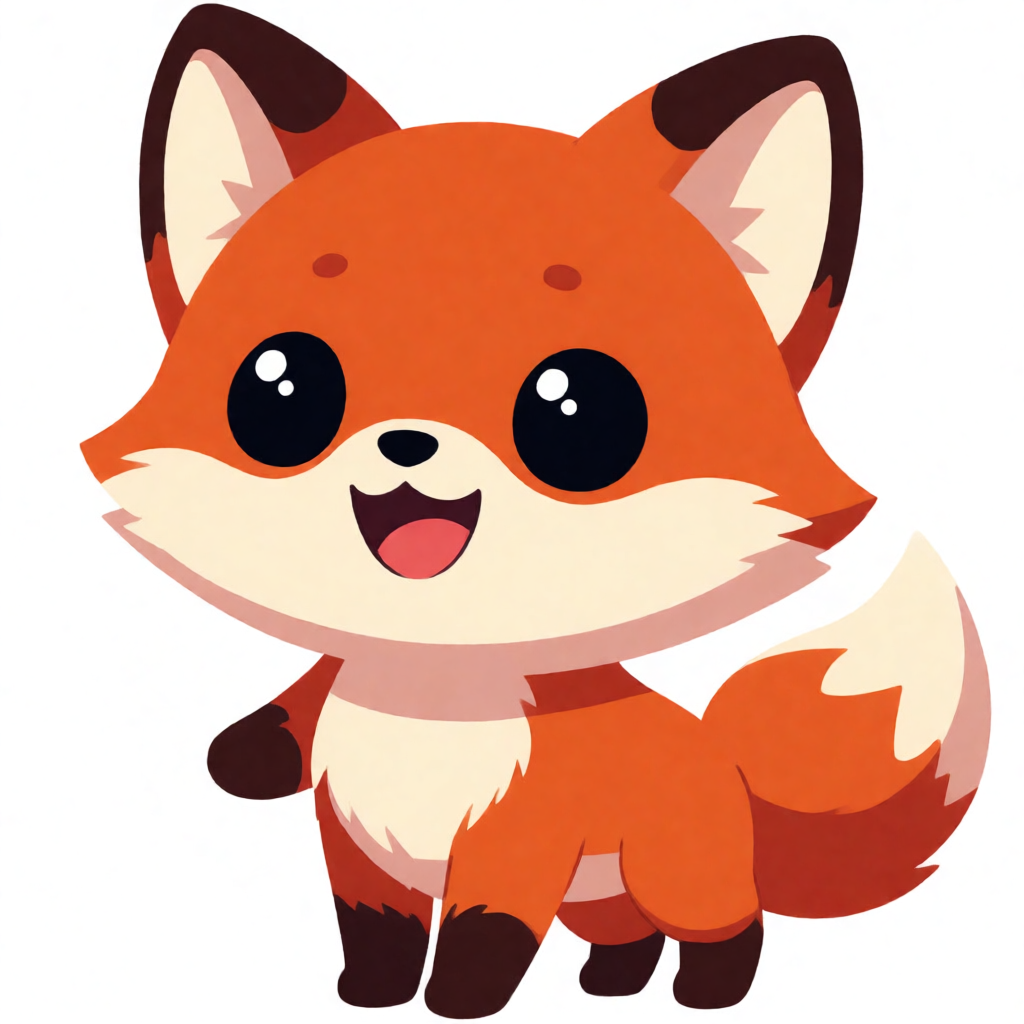
Here is a custom sticker subject as one raw Krea 2 output from the prompt below:
Prompt:
A cute cartoon fox character sticker illustration, bold thick black outline, flat vibrant orange and cream colors, big friendly eyes, holding a small paintbrush, thick white die-cut sticker border, vector sticker art style, plain white background.
Variation tips: name the exact two or three flat colors you want — mixed, gradient colors fight the die-cut look; keep “thick white die-cut sticker border” in every prompt so the model reserves that outer ring.
A second subject, same recipe, different character:
Prompt:
A steaming coffee cup character sticker with a happy smiling face, bold thick black line art, flat cream and brown colors, thick white die-cut sticker border, vector sticker illustration style, plain white background.
Variation tips: “line art” plus a named color pair reads as flat-print styling to the model; add a simple pose or prop (a wave, a wink, a small object) to give an otherwise generic mascot some personality.

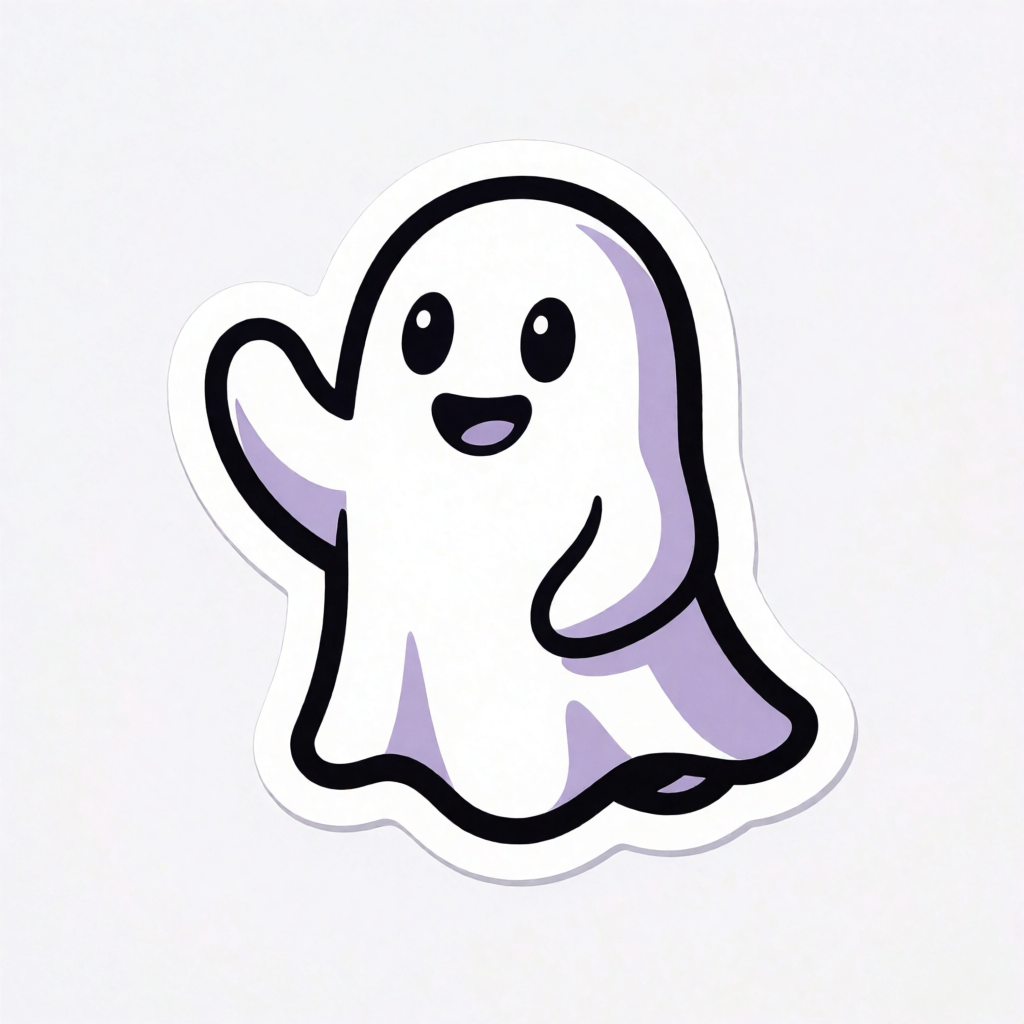
And a third, for a softer, gift-shop-style subject:
Prompt:
A friendly ghost mascot sticker waving hello, bold thick black outline, flat lavender purple and white colors, thick white die-cut sticker border, vector sticker illustration style, plain white background.
Where it stops, honestly: Krea generates the artwork; it does not generate a pre-cut die-line, and it has no print-and-ship step. Two things still stand between a Krea image and a sticker on your laptop:
- Background removal. Krea’s output has a plain background, not a true transparent cutout. Run it through Krea Edit’s background remover — see how to remove an image background in Krea — before you upload it anywhere for printing. If you want to compare cutout quality across tools first, see the best AI background removers in 2026.
- Printing. Krea has no die-cut print pipeline. Take the transparent PNG to a service like Sticker Mule or StickerYou — section 3 above — for the actual cut-and-ship step.
Try Krea 2 free to generate a subject, then follow the two steps above to finish it.
More sticker subjects, same recipe
Free tiers compared: the fine print
| Tool | Free AI allowance | Resets | Commercial use on free | Export for print |
|---|---|---|---|---|
| Kittl | Unpublished, “light usage limits” | Monthly | No | Low-resolution only |
| Canva | Up to 20 Standard/Premium AI uses (shared pool) | Monthly | Personal-use focus | PNG, background remover included in same pool |
| Krea | 100 compute units/day (Krea 2) | Daily | No — paid plans only | 2K upscaling on free; no transparent cutout built in |
| Sticker Mule / StickerYou | No free tier | — | N/A — pay-per-sticker | Prints and ships what you upload |
Every published number above is what the vendor states this week; token and credit systems change often, so check the current page before you commit a paid design run to it.
Which path should you take?
Pick based on where your idea already exists, not on brand familiarity:
- You want a sticker in the next five minutes and a template is close enough → Canva or Kittl’s template library; customize text and colors, skip AI entirely.
- You want your own character or a design nobody else has → Krea for the artwork, background removal, then a print service. This is the only path that starts from nothing and ends with something original.
- You already have a finished logo or artwork file → skip design tools entirely and go straight to Sticker Mule or StickerYou for printing.
- You need dozens of sticker variants for merch or packaging at scale → Kittl’s Pro plan or above, for the commercial license and vector export the free tier withholds.
If your sticker idea is really a small brand or product line rather than a one-off, the same “generate, then finish” pattern extends past stickers — see 10 best style prompts for AI image generation in 2026 for more ways to direct a consistent look across a whole set, and Krea’s image editing and enhancer tools for cleaning up or upscaling a design once you’ve generated it. If you eventually want the character to move — for a sticker pack teaser or a social clip — Krea’s video generation starts from the same still image.
Frequently asked questions
How do you make a sticker?
Can AI design a custom sticker?
How do I get my design printed as a die-cut sticker?
Is there a free AI sticker generator?
Do I need a design background to make my own stickers?
What file format do print services need for die-cut stickers?
Generate your own sticker character
One prompt, bold outline, flat colors — 100 compute units a day, no credit card.
Try Krea free